permissions
2090 Topics
What replaces the Copilot in SharePoint site exclusion list after 1 November 2026
Disclosure: I work on M365 Scouts, a vendor that makes read-only audit scripts for Microsoft 365. This post is about Microsoft's own controls and doesn't need our tools. If you excluded SharePoint sites from Copilot using the preview cmdlets (KnowledgeAgentScope, KnowledgeAgentSelectedSitesList, KnowledgeAgentSelectedSitesListOperation), those settings are only honoured until 1 November 2026. The cmdlets are retired. Microsoft says general availability of Copilot in SharePoint begins rolling out on 30 September 2026. What replaces them: Site AI settings. Set by the site owner (Settings > Site AI). They hide the Copilot button on that site for visitors. Restricted Content Discovery. Set by a SharePoint admin, for example Set-SPOSite -Identity <site-url> -RestrictContentOrgWideSearch $true. It limits discovery of the site in organization-wide search and Copilot responses, and removes the AI entry points on that site. It needs a Copilot licence and SharePoint Advanced Management, and it covers SharePoint sites only, not OneDrive. On sites over 500,000 items an update can take more than a week. Neither control changes permissions. People who already have access can still open the files, and Microsoft describes Restricted Content Discovery as a temporary control to use selectively. Restricted SharePoint Search is also retiring, and new enablement has been blocked since 31 July 2026. So the real work before 1 November is knowing which sites are overshared: Anyone links, Everyone except external users, broken inheritance, ownerless sites and missing sensitivity labels. Copilot in SharePoint also needs a Microsoft 365 Copilot licence for each user. Sources: Microsoft Learn pages on Copilot in SharePoint, Restricted Content Discovery and Restricted SharePoint Search. Please check them against your tenant, because the GA page is still changing.12Views0likes0CommentsOneDrive and SharePoint : New Hero Link has arrived
🚀 One Link. Simpler Sharing - Hero Link Microsoft is rolling out a new sharing experience across SharePoint, OneDrive, and Microsoft 365 called the "Hero Link" - (Not Hero Webpart 😀) Instead of creating multiple links for the same file, every file and folder will have a single primary sharing link that can be updated after it's been shared. ✅ One consistent sharing experience ✅ Update permissions without creating a new URL ✅ Change link access at any time ✅ Reduce sharing link sprawl Additional capabilities include: 🔹 People with edit access can reshare and add additional people. 🔹 Apply folder access changes to this item, allowing folder permissions to flow down to files. 🔹 Existing sharing links will continue to work and appear under Other Links, where you can continue using options such as expiration dates, view-only access, and edit permissions. Admins can also configure default link audiences at the site level to match different sharing requirements. The rollout begins in October 2026. 🎥 I've also recorded a step-by-step walkthrough of the new Hero Link experience so you can see exactly how it works in practice. https://youtu.be/HdXgfVy4fl4 389Views0likes0Comments
Provide a global setting to hide the User Information List in SharePoint Online Sites
Many organization uses SharePoint Online sites that include external guests, suppliers, partners, and other collaborators. Today, any user with appropriate site permissions can access and enumerate the site's User Information List, either through the SharePoint interface or directly through REST API calls. While this list is scoped to a specific site collection and is not a tenant-wide directory, it can still expose a significant amount of user profile information. On large collaboration sites, enterprise portals, or widely shared workspaces, users may be able to retrieve names, email addresses, job titles, departments, phone numbers, and other synchronized profile data for everyone known to that site. A current workaround is removing the Browse User Information permission from site permission levels. However: This can impact legitimate SharePoint functionality and user experiences. It must be managed on a site-by-site basis. Site Owners can re-enable the permission, unintentionally reintroducing the risk. It is difficult to govern consistently across large environments with thousands of sites. Requested Enhancement: Introduce a tenant-level setting that allows SharePoint Online administrators the ability to: Hide the User Information List from end users. Block direct access through SharePoint REST APIs. Enforce the setting regardless of site-level permission changes. Optionally scope the control to sites that allow external sharing. This would provide organizations with a more reliable way to reduce unnecessary exposure of user profile information while maintaining consistent governance across their SharePoint environment.103Views0likes0CommentsSharing with an external user who has changed their email
I have had an issue with trying to share a folder with somebody who changed their email from, for illustrative purposes only, mailto:email address removed for privacy reasons to mailto:email address removed for privacy reasons. because his company EW had merged with Elsewhere. I believe that the second email was an alias for the first as both his actual addresses will reach him. The issue was that when I went to share a folder with his new email it would default back to his original email every single time. Eventually our IT department deleted all trace of his original email from Sharepoint which then recognised and allowed me to share with his new email. My question is - how does Sharepoint know these two different emails are the same person? Is it randomly deciding there is enough similarity in the email addresses- which in my view would be very dangerous, or does it know that both domains are registered to the same organisation?289Views0likes1CommentStrengthening Security in SharePoint Document Libraries: 5 Essential Best Practices
SharePoint Online has become a critical platform for storing, managing, and collaborating on documents across Microsoft 365 environments. Its flexibility and ease of access make it invaluable to modern organisations. However, if document libraries are not properly managed, businesses can face risks such as unauthorised access, accidental sharing of sensitive data, and compliance challenges. Effective SharePoint security is not about restricting productivity. It is about creating a secure framework that allows teams to collaborate confidently while ensuring business information remains protected. This article was written by https://www.bridgeall.com/a leading https://www.bridgeall.com/microsoft-365-consultancy/sharepoint/offering https://www.bridgeall.com/microsoft-365-consultancy/sharepoint/sharepoint-document-management-systems-implementation/ Five Ways to Improve SharePoint Document Library Security Limit Access Using Role-Based Permissions One of the most effective ways to secure SharePoint is by restricting access to only those who genuinely need it. Many organisations grant broad permissions across sites, creating unnecessary exposure. Following a least-access approach ensures users receive only the permissions required for their responsibilities. Rather than assigning permissions to individual files and folders, consider using Microsoft 365 Groups or SharePoint Security Groups to manage access centrally. This not only improves governance but also makes ongoing administration significantly easier. Review and Restrict External Sharing External collaboration is often necessary, but it can also become a source of data leakage if not controlled appropriately. Review sharing settings at both the tenant and site level to ensure they align with your organisation's security requirements. Good practices include: Preventing anonymous sharing links for libraries containing confidential information. Allowing access only to verified external users where appropriate. Applying expiry dates to shared links so access is automatically revoked after a defined period. Regularly auditing active external sharing relationships. By tightening these controls, organisations can reduce the likelihood of sensitive information being exposed outside the business. Protect Content with Sensitivity Labels Protecting the library itself is important, but protecting the documents within it adds another layer of security. Microsoft Purview Sensitivity Labels enable organisations to categorise content according to its sensitivity and automatically apply protection measures. Depending on the classification, labels can: Encrypt files. Restrict downloading, printing, or copying. Display visual markings such as headers, footers, or watermarks. Maintain protection even when a document is shared or moved outside SharePoint. This approach helps ensure security travels with the information rather than relying solely on where it is stored. Strengthen User Authentication Document-level security should always be backed by strong identity protection measures. Multi-Factor Authentication (MFA) remains one of the most effective ways to prevent unauthorised access resulting from compromised credentials. Combining MFA with Microsoft Entra Conditional Access policies provides even stronger protection. For example, organisations can: Block access from unmanaged devices. Restrict downloads on non-compliant endpoints. Trigger additional verification requirements for sign-ins from unfamiliar locations. Apply risk-based access controls based on user behaviour. These safeguards help ensure only trusted users and devices can access critical information. Continuously Monitor and Review Access Security is not a one-off project. Permissions and risks evolve over time, making ongoing monitoring essential. Microsoft Purview auditing capabilities provide visibility into activities such as file sharing, downloads, edits, deletions, and permission changes. Regular access reviews help identify: Outdated permissions. Dormant guest accounts. Excessive access rights. Unnecessary group memberships. Routine governance reviews help maintain a secure SharePoint environment and reduce the risk of privilege creep. Building a Secure and Collaborative SharePoint Environment A well-secured SharePoint platform should balance protection with usability. Organisations that invest in strong governance, identity controls, information protection, and ongoing monitoring are better positioned to support collaboration without compromising sensitive business data. By implementing these best practices, businesses can significantly reduce security risks while ensuring employees continue to work efficiently within Microsoft 365. At Bridgeall we offer a range of https://www.bridgeall.com/microsoft-365-consultancy/sharepoint/sharepoint-document-management-systems-implementation/ that help you build and maintain a secure platform of SharePoint document librarires.366Views0likes0Comments
SharePoint security broken between Microsoft 365 group and SharePoint group
Hi, Users are giving Member privilege through Teams, which gave them Member privilege in the Member SharePoint group. All good for 99% of the company. PROBLEM : I have 4 users without access to the SharePoint by this method. Security is not broken between Microsoft 365 Group and SharePoint group and is working fine for everybody else. Strangely, I saw that these 4 users are members of more than 1500+ Microsoft 365 Group, since they have been in the business for a long time and touch many projects here). I heard the limit is 7000 but they still have problem. Using the "Check permission", I got "None" for these people, but "Edit - Given through the XYZ Member group" for every other people in the Microsoft 365 Group. Any advice ? Thanks ! Patriccote484Views1like4CommentsExternal Users Unable to Access Microsoft List Form
We have created a Microsoft List and are using the default Microsoft Lists Form for data entry / intake form. Internal users can access the form URL and submit items successfully. However, external users are unable to access the form link, even though they have been granted Contribute permissions to the SharePoint list. External users can: Access the list Create new items using the + New button Edit items based on their permissions However, they cannot access the dedicated Microsoft Lists Form URL and getting following error. This link is only available to internal users. This link is not available to you. Our requirement is to allow external users to: Open the Microsoft Lists Form URL View the form Submit new items without providing additional access beyond what is required for form submission, and without using Microsoft Forms. Is guest/external user access to the Microsoft Lists Form experience supported? If so, what configuration or permissions are required to enable external users to access and submit items through the form URL?Solved807Views0likes3Comments
Recycle Bin and Site Content Hidden for Site Members and Site Visitors
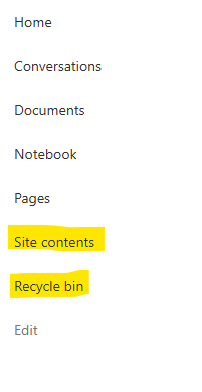
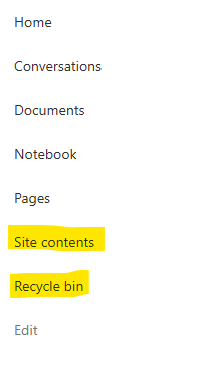
I posted this before but made a mistake with my write up, so I am reposting. I have a requirement that the Recycle bin and Site Contents should be be hidden from the Site Members and Site Visitors. Please how can I achieve this because the Server Infrastructure activation is not working for me. Any workarounds? Please help726Views0likes1CommentRecycle Bin and Site Content Hidden for Site Members and Site Visitors
I have a requirement that the Recycle bin and Site Contents should not be be hidden from the Site Members and Site Visitors. Please how can I achieve this because the Server Infrastructure activation is not working for me. Any workarounds? Please help588Views0likes2CommentsDynamic Mandatory Fields
In a SharePoint library, I have folders which are = a. Admin b. Events c. Furniture and Moves d. Janitorial and Maintenance e. Parking and Transportation f. Shipping and Receiving g. Supplies and Equipment h. Waste and Recycling I have Meta data across the library whose data type are all choices and are: a. Document Type = Contract, Financial, planning b. Building = Gym, Garage, Heating c. Asset Category = Office, Playground d. Fiscal Year = FY23, FY24, FY25, FY26, FY27 e. Vendor = Maple Leaf, Canadian Tire, Home Depot f. Status = Active, Pending, Not Active g. Retention Label = 3 years, 5 years h. Service Type = Admin, Events, Furniture and Moves, Janitorial and Maintenance, Parking and Transportation, Shipping and Receiving, Supplies and Equipment, Waste and Recycling Service Type and Retention Label are mandatory fields, with the Rule below for all the files in the various folders: IF Folder Name = Admin, then Service Type = Admin and Retention Label = 5 years; the mandatory fields should be Document Type, Status and Fiscal Year IF Folder Name = Events, then Service Type = Events and Retention Label = 3 years; the mandatory fields should be Document Type, Status and Fiscal Year, Building and Vendor IF Folder Name = Furniture and Moves, then Service Type = Furniture and Moves and Retention Label = 3 years; the mandatory fields should be Document Type, Status and Building IF Folder Name = Janitorial and Maintenance, then Service Type = Janitorial and Maintenance and Retention Label = 3 years; the mandatory fields should be Document Type, Status and Fiscal Year IF Folder Name = Parking and Transportation, then Service Type = Parking and Transportation and Retention Label = 3 years; the mandatory fields should be Document Type, Status and Fiscal Year IF Folder Name = Shipping and Receiving, then Service Type = Shipping and Receiving and Retention Label = 3 years; the mandatory fields should be Document Type, Status IF Folder Name = Supplies and Equipment, then Service Type = Supplies and Equipment and Retention Label = 3 years; the mandatory fields should be Document Type, Status and Fiscal Year IF Folder Name = Waste and Recycling, then Service Type = Waste and Recycling and Retention Label = 3 years; the mandatory fields should be Document Type, Status and Vendor I have used Column Default Value Settings for SharePoint to display Auto-Display the Service Type and Retention Label, but I cannot seem to perform the conditional mandatory fields using Validations setting for the other requirements. Please help627Views0likes1Comment