outlook for windows
39 Topics
From Public Folders to SharePoint: A Modern Approach to Shared Contact Management
For years, public folders have been the go-to solution for sharing contacts across teams and organizations - whether for maintaining client lists, managing shared employee directories, or keeping vendor information organized. But as the way we collaborate has evolved, so has the need for a more modern, integrated approach to shared contact management. SharePoint now provides a powerful, fully connected alternative that brings your shared contacts into the heart of your Microsoft 365 ecosystem. In this post, we'll walk you through why SharePoint is the natural next step for your shared contacts and give you a step-by-step guide to get started. Why SharePoint for Shared Contacts? Instead of managing shared contacts in public folders - which operated separately from the rest of your collaboration tools - SharePoint brings your shared contact lists, documents, project plans, and team resources together in one centralized, always-accessible hub. It’s the natural next step for organizations that have relied on public folders, and it comes with powerful capabilities that go well beyond what was possible before: Single source of truth - No more wondering which version of a shared contact list is current. SharePoint provides a single, authoritative repository that everyone on your team can access and trust. Rich collaboration - Multiple team members can view, edit, and manage shared contacts simultaneously with real-time updates, version history, and granular permissions. Powerful integration across Microsoft 365 - Shared contacts in SharePoint connect naturally with Teams, Power Automate, and other Microsoft 365 tools, enabling workflows that were never possible before. Imagine automatically notifying your team when a key client contact is updated, or syncing shared contacts into a Power App for your field sales team. Enterprise-grade security and compliance - SharePoint’s robust permissions model, audit logging, and compliance features ensure your shared contact data meets even the most stringent organizational requirements. Access from anywhere - Whether you’re on desktop, mobile, or the web, your shared contacts in SharePoint are always just a click away. For teams currently using public folders for shared contacts, the transition to SharePoint is straightforward and immediately rewarding. You’ll gain richer collaboration, tighter integration with the tools you already use every day, and a modern experience that scales with your organization. Your shared contacts move from an isolated repository into the heart of your Microsoft 365 collaboration ecosystem - connected, secure, and always up to date. Getting Started: How to Manage Shared Contacts in SharePoint Ready to move your shared contacts to SharePoint? Follow this step-by-step guide to set up, organize, and share your contact lists with your team. Step 1: Create a SharePoint Contacts List Navigate to the SharePoint site where you want to store your shared contacts (e.g., your team site or department site). Click New in the top-left corner and select List. Choose the Contacts template from the available templates. This gives you a pre-built structure with columns for name, email, phone, company, and more. Give your list a descriptive name (e.g., "Sales Team Contacts" or "Vendor Directory"). Click Create - your new contacts list is ready to use. Step 2: Add and Organize Your Contacts You have several ways to populate your contacts list: Add contacts manually: Click "+ New" in the list toolbar to add individual contacts one at a time. Fill in the contact details and click Save. Import from Excel or CSV: Have an existing contact list? Click "Import" from the list toolbar, select your Excel or CSV file, map the columns, and import all your contacts in one go. This is the fastest way to migrate contacts from public folders. Customize columns: Add custom columns to track information specific to your team's needs, like "Account Manager," "Contract Renewal Date," or "Region." Click "+ Add column" in the list header to get started. Step 3: Share with Your Team Once your contacts list is set up, sharing it is simple: Set permissions: Click the gear icon, then List settings, then Permissions to control who can view, edit, or manage the list. You can grant access to individuals, Microsoft 365 groups, or security groups. Share a direct link: Click "Share" at the top of the list to send a link to specific people or copy a shareable link for your team. Grant appropriate access levels: Choose between "Can view" (read-only), "Can edit" (add/modify contacts), or "Full control" (manage permissions and settings) depending on each person's role. Step 4 (optional): Pin to Microsoft Teams for Easy Access Make your shared contacts instantly accessible from where your team already works: Open Microsoft Teams and navigate to the channel where your team collaborates. Click the "+" (Add a tab) button at the top of the channel. Select "SharePoint" from the app list and choose your contacts list. Your shared contacts now appear as a tab in Teams. Everyone on the channel can view and manage contacts without leaving Teams. Step 5: Automate with Power Automate Take your shared contacts to the next level with automation: Change notifications: Create a flow that notifies your team via email or Teams whenever a contact is added, updated, or deleted. CRM sync: Build a flow to sync contacts between your SharePoint list and your CRM system (Dynamics 365, Salesforce, etc.) so your data stays consistent across platforms. Scheduled reports: Set up a recurring flow that emails a summary of new or changed contacts to stakeholders on a weekly or monthly basis. Pro Tips Create custom views: Use SharePoint's view options to create filtered views like "Active Clients," "Contacts by Region," or "Recently Updated" so team members can quickly find what they need. Enable versioning: Turn on version history in list settings to track every change made to your contacts. You can see who changed what and when, and restore previous versions if needed. Set up alerts: Subscribe to alerts on the list to get notified by email whenever changes are made, great for staying on top of updates without constantly checking. A Modern, Unified Contact Management Experience Beyond these major innovations, the new People in Outlook brings a complete refresh to how you manage your contacts every day: Modern multi-column table view - See all your contacts at a glance with a clean, customizable table layout. Sort, filter, and scan your contacts faster than ever. Quick actions at your fingertips - Email, call, or chat with any contact directly from the contact list. No need to open a contact card first. Multi-select and bulk operations - Need to categorize, email, or manage multiple contacts at once? Select them all and take action in a single step. Categories for flexible organization - Organize your contacts with color-coded categories that work across Outlook. Tag contacts as “Key Clients,” “Project Team,” “Vendors,” or anything that fits your workflow. Import and export - Easily bring contacts in from CSV files or export your contact data whenever you need it. Consistent experience everywhere - Whether you’re using Outlook on the desktop, Outlook on the web, or Teams, the People experience is the same - modern, fast, and reliable. Built for Performance and Reliability The new People in Outlook was built from the ground up with performance at its core. After extensive testing and feedback from thousands of users within Microsoft, we’ve delivered an experience that is not only feature-rich but also fast, stable, and reliable - even with large contact lists. Every interaction is designed to feel instant and responsive. Get Started Today The new People experience is available on the New Outlook for Desktop, and is rolling out now across for Outlook on the web for all Microsoft 365 users. To explore it: Open Outlook and click the People icon on the left navigation rail. Start searching for anyone - by name, title, location, or any keyword. Explore your contacts in the new table view and try out quick actions. We’re incredibly excited about what the new People in Outlook means for how you connect and collaborate. This is just the beginning - we have even more innovations in the pipeline that we can’t wait to share with you. We’d love to hear from you! Share your feedback directly within Outlook by selecting Help > Feedback, or join the conversation in the Microsoft Tech Community. ──────────────────────────────────────────────────────────────────────────────── The People in Outlook team is committed to building the best contact management experience in the world - and we’re just getting started.3KViews0likes3Comments15 productivity features in the new Outlook for Windows
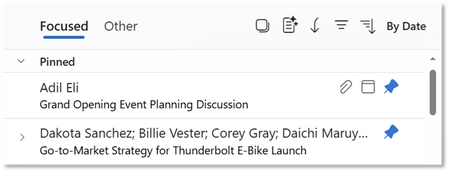
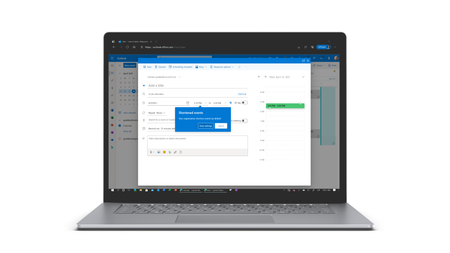
Hello, Outlook community. I’m Vicki Milton, a Principal Product Manager on the Outlook team. Over the last year, we’ve added important capabilities across areas such as offline support, shared mailboxes, and PST files. Alongside those milestones, we've continued to deliver smaller improvements that help people work more efficiently throughout the day. This article highlights 15 productivity features in the new Outlook for Windows that can help you stay organized, reduce routine effort, and keep important work moving. Mail features Email remains central to how many people manage communications, priorities, and follow-up. Outlook includes familiar tools for composing and organizing messages, along with newer capabilities that can help reduce friction and make inbox management more efficient. Pin a mail: Keep important messages easy to find. The Pin feature keeps a selected email at the top of your inbox so it remains visible as new messages arrive. This can be useful for items you need to reference often or do not want to lose track of, such as travel details, approvals, or active requests. By keeping priority messages in view, Pin can reduce time spent searching and help you stay focused on current work. Snooze a mail: Return messages when they are relevant again. Snooze lets you temporarily remove an email from your inbox and have it reappear at a time you choose. This can help keep your inbox focused on messages you can act on now while ensuring follow-up items come back when they are timely. It is particularly useful for requests that depend on additional information, scheduled tasks, or work you plan to handle during dedicated focus time. Add multiple categories at the same time: Organize messages with fewer steps. If you use categories to manage incoming mail, Outlook makes it possible to apply more than one category in a single action. This can help when you need to capture multiple types of context, such as project, priority, or follow-up status, without reopening menus repeatedly. It is especially useful when processing a large number of messages. Sweep: Reduce repetitive inbox cleanup. Sweep lets you create automatic actions for messages from a specific sender. For example, you can delete promotional mail after a set period, keep only the latest message in a thread, or move recurring updates to a folder. This can help reduce manual cleanup and keep your inbox more focused on items that need attention. Schedule Send: Write on your schedule and deliver at the right time. Schedule Send lets you prepare messages when it is convenient for you and send them later at a time that works better for the recipient. This can improve visibility, support more intentional communication, and reduce the need to rely on reminders or leave messages in Drafts. Simplified folder sharing: Share folders more simply. Sharing a mail folder has traditionally required extra permission steps, especially for nested folders. Now, when you share a folder, Outlook can automatically apply the visibility permissions needed for its parent folders. This can reduce setup effort, help avoid access issues for recipients, and make folder sharing easier to complete with confidence. Calendar and meeting features For many people, the workday is shaped by meetings, schedule changes, and the need to stay aligned on what comes next. Outlook includes calendar and meeting capabilities that can help simplify planning, reduce coordination overhead, and make follow-up easier. Follow a meeting: Stay informed without attending live. The Follow RSVP option lets you indicate that you will not attend a meeting but still want access to the recap. This can be helpful when schedules overlap or when a meeting is useful to monitor without joining in real time. It can help you stay connected to outcomes and shared materials while keeping your calendar more manageable. Save calendar views: Return to the calendar setup you need more quickly. Saved Views let you store specific calendar combinations and switch back to them without rebuilding the same view each time. This can save time for people who move frequently between personal, team, and project schedules. It also can make it easier to review the right set of calendars for different planning tasks. Improved meeting tracking: Work with meeting responses more efficiently. Outlook includes tools that make it easier for organizers to review and manage meeting responses. You can sort attendee lists, search for names in the Tracking view, and copy or download response details when needed. These capabilities can be especially useful for larger meetings where attendance information needs to be reviewed quickly. Meeting recap: Find follow-up materials in one place. After a Teams meeting, the calendar event in Outlook can surface a Meeting recap with links to the recording, transcript, and shared files. This can make it easier to review what was discussed, confirm details, or catch up afterward. By keeping these materials together, Meeting recap can reduce the time it takes to get oriented after a meeting. Filtered views: Reduce visual clutter in your calendar. Filters let you hide meetings you are not attending and limit the distraction of declined or informational events. This can make it easier to scan your schedule, identify conflicts, and focus on the meetings that need your attention. For people with full calendars, it can help make planning more straightforward. Change a recurring event: Update future meetings while preserving earlier ones. When plans change, Outlook lets you edit the current event and all following events in a recurring series. This can make it easier to adjust details such as time, location, or agenda going forward without changing the record of past meetings. It can simplify updates for organizers and reduce disruption for attendees. Personalization and settings Settings can play a practical role in day-to-day productivity. A few adjustments can make it easier to focus, move between accounts and calendars, and work in a way that fits your preferences. Here are several settings-related features that can help make Outlook feel more streamlined and manageable. Rename your email accounts: Make the right inbox easier to recognize. If you use multiple accounts in Outlook, you can assign each one a custom name. This can help you tell accounts apart more quickly, reduce the chance of sending from the wrong inbox, and make navigation simpler as you move between accounts during the day. Modern themes: Choose a look that supports comfort and clarity. Outlook includes theme and color options that let you tailor the experience to your preferences. Visual settings can influence readability and comfort, especially for people who spend much of the day in email and calendar. Options such as Dark Mode and color customization can help make the interface feel easier to use over time. Keyboard shortcuts: Keep familiar ways of working. In Outlook, you can choose the shortcut style you prefer in Settings. This can help you maintain existing habits, reduce adjustment time, and complete common tasks with fewer steps. For people moving from classic Outlook or Outlook on the web, shortcut flexibility can make the transition more consistent. These features reflect a broader effort to help people work more efficiently in the new Outlook for Windows. Whether you are managing a high volume of email, coordinating a full calendar, or tailoring the experience to match your workflow, these updates are designed to reduce effort and improve day-to-day productivity. For more information and step-by-step guidance, see the Microsoft Support articles and the Learning Path.7.8KViews2likes8CommentsThe New People Directory Search Experience in Outlook: Smarter, Faster, and More Connected Than Ever
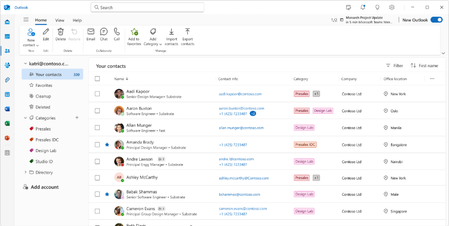
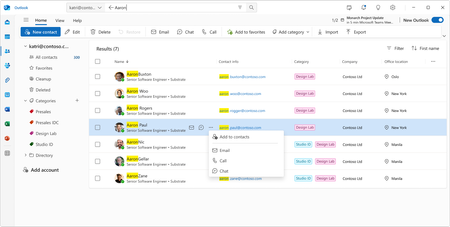
Managing contacts has always been central to how we work - but the way we work has changed dramatically. Today, we're excited to unveil a completely reimagined People experience in Outlook that makes finding, organizing, and connecting with your contacts faster and smarter than ever before. Whether you're reaching out to a colleague across the globe or managing your most important business relationships, the new People in Outlook is designed to get you there in seconds, not minutes. Instant People Directory Search: Find Anyone in Seconds We’ve heard you loud and clear: navigating complex organizational trees and deeply nested directory hierarchies to find a single contact takes too long. So we built something better. The new People in Outlook features a powerful, intelligent search experience that puts every contact at your fingertips - instantly. Simply start typing a name, location, job title, department, or even a personal note you’ve added, and People in Outlook surfaces the right person immediately. No more drilling through layers of org charts or scrolling through alphabetical lists. Just type, find, and connect. Here’s what makes it work: Lightning-fast keyword search - Search across names, email addresses, job titles, locations, departments, and even your own notes and tags. A few keystrokes is all it takes. Smart suggestions - As you type, People in Outlook intelligently surfaces the most relevant matches based on your communication patterns and organizational context. One search, every contact source - Whether the person is in your organization’s directory, your personal contacts, or a linked account, search brings them all together in one unified result set. Instant action - Once you find who you’re looking for, you can email, call, or start a Teams chat directly from the search results - no extra clicks required. This is contact discovery reimagined. What once required navigating through hierarchical trees and multiple clicks now happens in a single, fluid interaction. It’s the fastest way to find and connect with anyone in your world. A Modern, Unified Contact Management Experience Beyond these major innovations, the new People in Outlook brings a complete refresh to how you manage your contacts every day: Modern multi-column table view - See all your contacts at a glance with a clean, customizable table layout. Sort, filter, and scan your contacts faster than ever. Quick actions at your fingertips - Email, call, or chat with any contact directly from the contact list. No need to open a contact card first. Multi-select and bulk operations - Need to categorize, email, or manage multiple contacts at once? Select them all and take action in a single step. Categories for flexible organization - Organize your contacts with color-coded categories that work across Outlook. Tag contacts as “Key Clients,” “Project Team,” “Vendors,” or anything that fits your workflow. Import and export - Easily bring contacts in from CSV files or export your contact data whenever you need it. Consistent experience everywhere - Whether you’re using Outlook on the desktop, Outlook on the web, or Teams, the People experience is the same - modern, fast, and reliable. Built for Performance and Reliability The new People in Outlook was built from the ground up with performance at its core. After extensive testing and feedback from thousands of users within Microsoft, we’ve delivered an experience that is not only feature-rich but also fast, stable, and reliable - even with large contact lists. Every interaction is designed to feel instant and responsive. Get Started Today The new People experience is currently available on the New Outlook for Desktop, and is rolling out now for Outlook on the web for all Microsoft 365 users. To explore it: Open Outlook and click the People icon on the left navigation rail. Start searching for anyone - by name, title, location, or any keyword. Explore your contacts in the new table view and try out quick actions. We’re incredibly excited about what the new People in Outlook means for how you connect and collaborate. This is just the beginning - we have even more innovations in the pipeline that we can’t wait to share with you. We’d love to hear from you! Share your feedback directly within Outlook by selecting Help > Feedback, or join the conversation in the Microsoft Tech Community. ──────────────────────────────────────────────────────────────────────────────── The People in Outlook team is committed to building the best contact management experience in the world - and we’re just getting started.3.6KViews2likes2CommentsIt’s now easier to access iCloud Mail, Calendar, and Contacts in Outlook
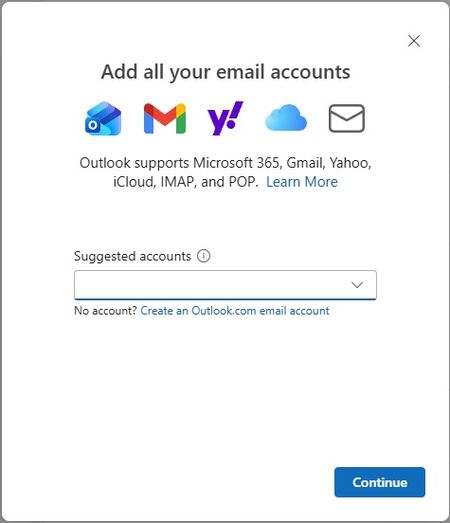
We’re excited to announce that the new Outlook for Windows, Outlook for Mac, and Outlook for iOS and Android now support easier iCloud Mail, Calendar, and Contacts access. You no longer need to create and enter app-specific passwords to access your iCloud data in Outlook apps. Now using the OAuth 2.0 authentication protocol, simply sign in with your Apple Account to access your iCloud Mail, Calendar, and Contacts in Outlook. If you already have iCloud set up in Outlook, in the coming months you will be asked to sign in, which will reauthenticate using the new OAuth 2.0 flow. Availability The ability to access iCloud Mail, Calendar, and Contacts using the new authentication flow is rolling out across the new Outlook for Windows, Outlook for Mac, and Outlook for iOS and Android. If you attempt to access iCloud data and are presented with the previous Basic Authentication flow (prompting for an app-specific password), ensure you’ve updated to the latest Outlook app version and restart Outlook. For classic Outlook for Windows users, we recommend trying the new Outlook for Windows, which provides both the new authentication flow and built-in support for iCloud Mail, Calendar, and Contacts without the need for an Outlook add-in. Feedback We would love to hear from you. To submit your feedback, select: Help > Feedback in the new Outlook for Windows and Outlook for Mac Settings > Help & Feedback > Send Feedback in Outlook for iOS and Android7.5KViews2likes17CommentsEmbracing the future: Transitioning to new Outlook for Windows
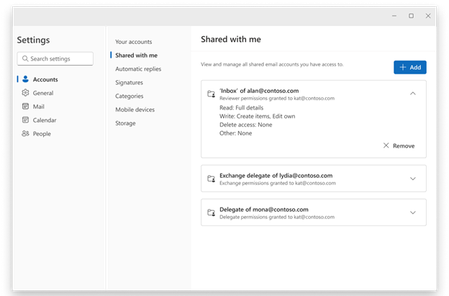
As technology moves forward, so do the ways we communicate. The world is rapidly changing with cloud computing, hybrid ways of working, and generative AI. To keep up with all these changes, Outlook is getting a makeover too. The updated Outlook for Windows is built to meet the needs of modern email and time management, with agility, consistency, and manageability. Since I last connected with you in November 2024, Outlook for Windows has evolved rapidly - delivering dozens more capabilities from classic Outlook, key improvements for Shared Mailbox, Offline and PST, and many new experiences to enhance productivity. This update shares examples and details on how Outlook for Windows is: Agile: Built to be responsive to your emerging needs Consistent: Streamlined across Windows and web Manageable for IT: Faster resolutions with less effort Agility: Built to be responsive to your emerging needs Every month you will see us deliver top requested capabilities from classic Outlook, new Copilot innovation, and improved stability and performance. Outlook for Windows is packed with capabilities designed to boost your productivity and make your day-to-day tasks easier. Innovation built in Outlook for Windows' new agile codebase has made it easier for stability, performance and security by design. We deliver features that were never implemented in classic Outlook. Now, you can enjoy top-requested features in Outlook like pinning important emails, tabbed search to find people, files and Teams messages more easily, iCal sync, scheduled mail, new themes and colored mailbox folders, and more. We've updated meeting experiences to support hybrid and global participation with capabilities such as support for up to 21 time zones and hybrid RSVP, sorting and search for tracking attendees, and the ability to follow meetings to be aware of what happened without needing to attend. These new time management features are ideal for our most dedicated users, including delegates. New shared mailbox capabilities We heard you! One of the top experiences we are improving is working with shared mailbox experiences. Outlook for Windows blends classic Outlook capabilities for shared mailboxes with new capabilities to address your long-standing needs. You can now add shared mailboxes as accounts alongside shared folders. With the new “Shared with me” page you can now view permissions on shared folders or mailboxes to identify and resolve access issues. You can control how the shared mailboxes and folders will be displayed in the Folder pane. The Folder pane also gives a clear visual distinction to shared mailboxes compared to dedicated email accounts, making them easy to access and use throughout your day. More functionality is coming soon, including Archives in shared mailboxes and more (available in Targeted Release and coming to Standard Release in July). Copilot agility For those aiming to maximize productivity with Copilot, we are adding Copilot features into Outlook every month. With Outlook for Windows' agile codebase, you will find the latest Copilot enhancements first, including the Chat side pane, Summarize, Drafts, Schedule from email, and more. Commercial users will value the new “Prioritize my Inbox” that helps users stay on top of their highest priority mail (rolling out gradually). Prioritize capabilities in Outlook for Windows and web Newsletters Communications through Outlook continue to evolve to meet user needs. The new Outlook Newsletters experience lets you quickly and easily create and send structured, professional, and richly formatted internal email newsletters within Outlook. This capability helps you keep your team informed and engaged. Each newsletter acts as a home for subsequent editions, making it easy to browse past issues and view aggregated analytics across the series. Readers can discover and subscribe to newsletters shared within your organization to stay informed on key topics and projects. While in Public Preview, admins can enable it for some or all users in an organization, and General Availability will follow in a few months. Newsletters are coming to Outlook for Windows and web first, and we plan to bring them to other Outlook clients. Copilot support for Newsletters is on the way, unlocking new ways to create clear and compelling communications with ease. Newsletters in Outlook for Windows and web Consistency: Streamlined across Windows and web The updated Outlook for Windows is all about delivering modern and comprehensive communications and time management experiences. We continue to balance delivering more of your favorite capabilities available in classic Outlook and innovation to meet your needs based on your feedback and requests. In-app feedback and upvoting are key to helping us prioritize what to work on next. For instance, Offline and PST support are top requests, and we have a stream of capabilities rolling out for these critical features, shown below. Offline capabilities Outlook for Windows already supports core offline capabilities to read and compose emails and boot while offline. Here’s a look at the latest Offline capabilities including Search (available now), attachments, event creation, updates, deletion, and RSVP (rolling out). Search email: Open an attachment: Create and delete an event: PST capabilities For users who store their content in PST mailboxes, we have many recent improvements to share. Now Outlook for Windows supports reply and forwarding emails in the PST, adding PST folders to Favorites, and dragging and dropping emails from the PST to the mailbox (or vice versa). The ability to export an entire mailbox or set of folders to a PST is now in Targeted Release. Importing from a PST, auto-export (aka auto-archive), people details in Profile cards, and support for read-only Calendar is coming later this year. Integrations across Windows and Microsoft 365 Outlook is deeply integrated with the Windows operating system to bring functionality that users expect of a rich, native app. This includes opening attachments in the native default app users choose, dragging and dropping attachments to the desktop, windowing, notifications, and more. Outlook for Windows is also seamlessly integrated with Microsoft Teams, without the need to install a separate add-in. More seamless switching across devices Outlook users are constantly on the move, switching between different devices and contexts throughout their day. When you add a new device, you do not need to reconfigure your settings. This focus on consistency is something our commercial customers have been asking for, and we're excited about delivering it. Plus, thanks to the common codebase, web users also enjoy most of the innovations and classic capabilities arriving in Outlook for Windows. Manageability: Faster resolutions with less effort For IT admins, Outlook for Windows deploys updates similarly to Outlook for web and Microsoft Teams, offering service-backed delivery that ensures predictable changes with Targeted Release and roadmap notifications. This means less time spent on build management. Plus, with changes delivered as a service, you should see a reduction in deployment costs. Both Outlook for Windows and web use Mailbox policies to manage the client experience. These policies help standardize settings, like attachment settings, for specific groups of users. This means users have a more consistent experience across platforms, as the policies are applied to a user's mailbox. IT admins can learn more about which policies from classic Outlook map to Outlook for Windows policies here and review the new security whitepaper here. Admins have a growing set of documentation in learn.microsoft.com and adoption.microsoft.com. We're making sure the transition to Outlook for Windows is as smooth as possible with migration aids such as the admin-controlled migration policy and you can now track new and classic Outlook usage in either the M365 or Exchange Admin Centers. M365 Admin Center with Outlook for Windows and classic Outlook usage reporting Transition to new Outlook for Windows The transition to Outlook for Windows is intended to be gradual, allowing you ample time to explore and become comfortable with its new capabilities. We recommend using the toggle in classic Outlook to try the updated Outlook for Windows experience. This will copy your settings, forward your protocols, and provide a welcoming experience. If you encounter a situation where the new Outlook experience lacks a critical function for your workflow, you can easily toggle back to classic Outlook. Don’t forget to provide feedback to let us know what’s missing. A great way to facilitate the transition is to run Outlook for Windows side-by-side with classic Outlook. However, we encourage you to spend as much time as possible working in the updated Outlook experience. This will help you fully experience its enhanced capabilities and discover new, efficient ways of communicating. Thousands of organizations have started migration with pilots and are working towards full-scale migration. Many organizations have already migrated, including some very large-scale organizations already surpassing 50% migration to Outlook for Windows. For more details on the timeline: New Outlook: Guide to product availability | Microsoft Learn What’s next? We continue to bring more classic capabilities and innovation every month. We encourage you to try the updated Outlook for Windows experience. If a needed capability is missing, let us know. To submit your feedback, go to the Help tab and select Feedback. You can track the progress we are making through four different resources: Resource Description Location Microsoft 365 Roadmap Features that we are rolling out http://aka.ms/newOutlookRoadmap Feature Comparison article Comparison of features across new and classic Outlook https://aka.ms/newOutlookFeatureComparison What’s new A user-focused monthly blog of top capabilities that have been added, also displayed in-app https://aka.ms/newOutlookWhatsNew Release notes Weekly changes including bug fixes, classic capabilities and innovation https://aka.ms/newOutlookReleaseNotes14KViews2likes38Comments