outlook classic
6 Topics
Office 2021 Classic not showing images in Signatures
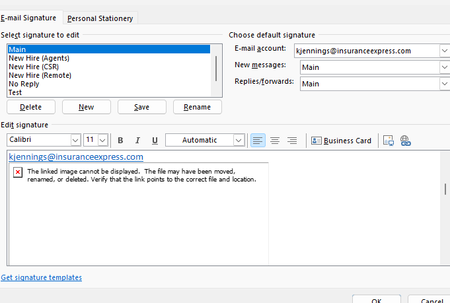
Hello I work in IT and trying to find a solution to this problem that our outlook are not showing the images in the signatures. Our Outlook 2021 Version is 2608, Build 16.0.20326.20072. This occurs even when creating a completely new signature and inserting a new local PNG/JPG using Insert Picture. The image initially appears correctly when inserted, but after saving/reopening the signature it becomes a red X with the message "The linked image cannot be displayed. The file may have been moved, renamed, or deleted." Existing signatures have the same problem. Recreating the signature does not resolve it. Here are some details we tried already. BlockHTTPimages is not configured in either the normal Office registry location or the Policies location. Uninstall Reinstalling Office didn't work We are under AD profiles, with new profiles and even rebuilding current profiles didn't solve it. Attempted a full reset of windows 10/11 didn't work. This appears to be an Outlook/Word signature-image regression rather than a corrupted signature or externally hosted image. Per Microsoft status that this should've been resolved back in June but the issue still persisted. https://support.microsoft.com/en-us/support/known-issues/images-are-not-displayed-in-emails-newsletters-or-signatures-in-classic-outlook?utm_source=chatgpt.com I did try using ChatGPT to help with the issue. I will share the thread link here if you wish to look into of all troubleshoots that was attempted. https://chatgpt.com/share/6aac0312-a08c-83ea-b1a8-2192b3677136 If anyone has any better knowledge of finding a solution as we have reported this issue to Microsoft via the help feature in outlook classic, but gotten no response since the last month since the issue started.339Views1like1Comment
Teams Meeting Add-in Not Appearing in Outlook
The computer was rebuilt from scratch and reinstalled with a clean operating system. After the installation, all required Microsoft applications (Outlook, Teams, etc.) were installed and the user successfully signed in. However, the Teams Meeting add-in is not appearing in Outlook as expected. Within the Outlook Calendar/Appointment window, only the Skype Meeting option is visible, while the Teams Meeting option is completely missing. Checks Performed: New Microsoft Teams is installed and functioning properly. Outlook and Teams are both signed in with the user account. Outlook COM Add-ins have been checked. Disabled Items have been checked. Teams Meeting Add-in for Microsoft Office has been verified. Outlook updates have been checked. Microsoft Teams has been reinstalled. Outlook profile has been verified. Exchange mailbox is active and functioning correctly. Despite all the above checks, the Teams Meeting option is still not displayed in the Outlook Calendar/Appointment window, and only the Skype Meeting integration is available. Expected Behavior: The Teams Meeting button should be available within the Outlook Calendar/Appointment window, allowing users to create Teams meetings and automatically generate Teams meeting invitations. Request: Please why the Teams Meeting Add-in is not being loaded into Outlook and provide assistance in restoring the Teams Meeting functionality within the Outlook Calendar/Appointment interface. Attachments: Screenshot showing the current issue (Teams Meeting button missing) Screenshot showing the expected behavior (Teams Meeting button visible)7KViews7likes15CommentsOutlook Meeting Updated, But the Forwarded Attendee Never Received It
Accepted a forwarded Outlook meeting invitation but never received the meeting update when the organizer made changes? This behavior surprises many Outlook users and is often misunderstood. Learn why it happens and how organizers can prevent attendees from missing future updates. https://traccreations4e.com/forwarded-outlook-meetings-dont-receive-meeting-updates/ #traccreations4e 6/23/2026202Views0likes0Comments
User can't see some emails after loading PST
Recently I helped a user migrate from an IMAP mail to Outlook. I downloaded the PST file from the old IMAP account and loaded the file into his new account, all in Classic Outlook as this user refuses to use the new Outlook. However, during the load of old mail he would stop receiving any new mail. To fix this I created a new profile and that did allow new mail to arrive, however, the mail from the backup didn’t show. I then loaded the backup into the new Outlook and it only loaded mail up to 2022. After this, we loaded the PST into Outlook Classic on a different device as to not disrupt workflow, but that also didn’t solve the issue. I loaded the PST file into a testing account, and it did load all the files, from 2020 to the date the file was created.327Views0likes2CommentsPerformance Issues with Outlook When Delegating Large Mailboxes (Exchange Online)
Hello! We're using Exchange Online, and most users access their mail through the Outlook (classic) desktop app. A common scenario in our organization is that users need temporary access to a coworker’s mailbox when that person is out on PTO. We typically grant this via mailbox delegation (Read and Manage + Send As), and the mailbox remains a standard UserMailbox, not converted to a shared mailbox. The issue: When the delegate accesses the mailbox, Outlook often becomes sluggish or unresponsive, presumably due to syncing the delegated mailbox — these are usually large (30–40 GB). We've noticed major performance degradation during this sync process. What I’ve Tried: Unchecked "Download Shared Folders" (Account Settings > Account Settings> Change > More Settings > Advanced) Adjusted Offline Cached Exchange Mode to sync fewer months Unfortunately, these haven't resolved the issue. My Questions: Is there a way to delegate access without triggering a full sync of the mailbox data to Outlook? (Users are not open to switching to OWA as they rely heavily on Outlook for their primary mailbox.) What’s the best practice for temporarily granting access to large mailboxes in Exchange Online without impacting Outlook performance? Any insights or workarounds would be greatly appreciated! Thanks in advance! -Adam1.6KViews0likes3Comments
OUTLOOK Reverts to Classic every 24 hrs AVD
Hey All, I am looking for some support with AVD Windows 11 multi session... I have a series of inconsistences with user experiences. The major one is that Outlook (after upgrading to the new Outlook) reverts back to the Outlook Classic every day for users. Where did it go? why did it roll back - Here is the other issue is most of the users have to re authenticate every 24 hours with the Office 365 Apps, so after logging into AVD the are greeted with a message that there is something wrong with there work account and have to re authenticate and require to re-login Every day!918Views0likes3Comments