openai
47 Topics
Update network rules for the API Management service tag
To improve Azure API Management resiliency and scalability, we’re expanding our infrastructure and adding control-plane IP addresses. These addresses are included in the ApiManagement service tag. If you use VNet internal or VNET external with the classic (v1) tiers, check your network security groups (NSGs), user-defined routes (UDRs), and firewalls. Replace hard-coded API Management IP addresses with the service tag wherever supported. Make this change by November 30, 2026, to avoid disruption to management access. If network rules block connectivity to the management endpoint after that date, you may be unable to manage your API Management configuration—such as APIs, operations, and policies—from the Azure portal or CLI. This change affects management-plane traffic only. Runtime traffic, including API calls to your services, is not impacted. Find the ApiManagement tag in Microsoft’s Azure service tags overview or the latest Azure IP Ranges and Service Tags JSON download. If your firewall doesn’t support service tags, use the published list and keep your IP rules synchronized with its latest version. Don’t rely on a fixed, point-in-time IP list. During the transition, the service tag includes both existing and new addresses. For reference: Use API Management in an internal virtual networkLogic Apps Aviators Newsletter - September 2026
In this issue: Ace Aviator of the Month News from our product group News from our community Ace Aviator of the Month September 2026's Ace Aviator: Parth Talaviya What's your role and title? What are your responsibilities? AI-Powered Azure/.NET Solution Architect I work as an Azure/.NET Solution Architect, combining technical leadership with building a Microsoft-focused boutique company. My work mainly revolves around application modernization and migration, cloud architecture, integrations, and team leadership. I also stay hands-on with development, architecture reviews, production troubleshooting, and mentoring developers. Can you give us some insights into your day-to-day activities and what a typical day in your role looks like? My day usually starts with thinking about how we can add more value to our clients' businesses. It includes reviewing project priorities, solving technical challenges, discussing architecture, supporting developers, and collaborating with stakeholders. I mainly work across .NET, Azure, APIs, integrations, DevOps, and AI automation, so every day brings something new to learn and solve. What motivates and inspires you to be an active member of the Aviators/Microsoft community? What really motivates me is how active and supportive the Microsoft community is. People are genuinely willing to help each other, share experiences, and solve problems together. Being able to use my own experience to help someone overcome a challenge genuinely makes my day, while learning from others keeps me motivated to continuously improve. Looking back, what advice do you wish you had been given earlier that you'd now share with those looking to get into STEM/technology? You don’t have to do everything alone. In technology, especially when you are stuck on a very specific problem, it can sometimes feel that way. Asking questions, learning from the community, and collaborating with others can make a huge difference. I would also say: embrace AI early, but use it wisely. Don’t use AI only to generate code. Use it to understand concepts, challenge your thinking, explore better approaches, review your work, and become a better problem-solver. What has helped you grow professionally? Continuous learning and solving real-world challenges have helped me grow the most. Working on legacy modernization, cloud architecture, large-scale data systems, automation, and AI has taught me to think beyond writing code and understand the broader business impact. Being part of a strong technical community has also helped significantly. Whenever you are stuck, there is often someone who has faced a similar challenge and is willing to share their experience. If you had a magic wand that could create a feature in Logic Apps, what would it be and why? I would create an AI-powered Copilot troubleshooting and self-healing assistant for Logic Apps. It could analyze failed workflows, understand the execution context, identify the likely root cause, suggest a fix, and provide safe recovery options. For complex integrations, this could save significant troubleshooting time and allow developers to focus more on building solutions rather than spending hours finding where something went wrong. News from our product group Use connectors with Managed Identity in the Logic Apps Standard extension Managed Identity is Azure's built-in way to authenticate to Microsoft Entra-protected resources without storing credentials, secrets, or connection strings. Deployed Logic Apps have supported it for some time, and this post explains connector support in the Logic Apps Standard extension. Introducing dependency telemetry in Application Insights for Azure API Management policies Running API platforms at scale requires both handling load and understanding where inefficiencies occur. This post introduces dependency telemetry in Application Insights for Azure API Management policies to help teams identify performance bottlenecks. Power Azure SRE Agent with the tools it needs Azure SRE Agent is an AI-powered service designed to reduce operational toil. Teams can use it to investigate incidents, identify probable causes, and automate health-related operational work using connected tools. Give your Copilot agents real tools, without hand-wiring MCP GitHub Copilot coding agents can work independently on branches, but some tasks require access to external systems. This post shows how to equip agents with real tools without manually wiring Model Context Protocol integrations. Zonal redundancy in API management Standard v2 APIs power modern mobile experiences, microservices, AI-driven applications, and business-critical integrations. This post explains zonal redundancy in Azure API Management Standard v2 for improving resilience as customers modernize their API platforms. BizTalk Server 2020 End-of-Sale Announcement Microsoft announces that BizTalk Server 2020 and Host Integration Server 2020 sales are expected to end on March 31, 2027. Existing licensed deployments can continue to be used, while mainstream support for BizTalk Server 2020 is scheduled through April 12, 2028. An optional paid extended-mainstream support offering is planned for eligible customers through April 10, 2030, with final terms to be published later. The post recommends beginning migration planning now, evaluating Azure Logic Apps Standard or Azure Logic Apps Hybrid, inventorying dependencies, and using the Logic Apps Migration Agent to assess and convert supported workloads. Logic App Storage Inspector Logic App Storage Inspector is a read-only Kudu site extension for examining storage used by an Azure Logic App Standard application. It supports searching workflow action and trigger history by workflow, date, or text, with results exportable as CSV or JSON. Users can browse and compare workflow-definition versions, review table and queue information, and monitor health indicators and refresh status. The extension isolates access to the current Logic App site, uses asynchronous paged operations for large storage accounts, and can be installed from Kudu Site Extensions. News from our community Azure Logic Apps Automation – A Practical Infrastructure Lab with Agentic Remediation Post by João Paulo Costa João Paulo Costa tests Azure Logic Apps Automation through an after-hours virtual-machine remediation lab. The workflow uses an agent to inspect VM metadata, tags, and runtime state, then apply guardrails before deciding whether to deallocate the resource, leave it unchanged, or request review. The article contrasts agentic decision-making with deterministic workflows, documents tool and connector choices, and examines preview limitations such as runtime-state retrieval and managed-identity support. It also emphasizes constrained permissions, explicit policies, verification after actions, and negative testing for production, exemptions, missing ownership, and disabled remediation. Agentic Integration: Non-Deterministic Experience, Solid Core Post by Massimo Crippa Massimo Crippa examines whether agentic capabilities make enterprise integration non-deterministic. He separates an agent’s variable decision-making from the predictable integration layer that executes selected capabilities. The article highlights durable messaging, reliable contracts, idempotency, transactional boundaries, retries, compensation, governance, and observability as continuing requirements. It presents tools as the boundary between reasoning and execution: agents determine what should happen, while integration platforms control how operations are performed safely. Azure Logic Apps is positioned as both a deterministic integration foundation and a platform that can expose governed capabilities to emerging agentic experiences. Build AI Agents in Azure Logic Apps (Conversational + Autonomous) Video by Rafsan Huseynov Rafsan Huseynov presents a video on building conversational and autonomous AI agents with Azure Logic Apps. The session describes Logic Apps as more than a background integration layer, covering orchestration, managed identities, agent loops, and the use of workflows as MCP tools. Demonstrations explore connections with Document Intelligence, Blob Storage, Microsoft Foundry, and Copilot Studio workflows, alongside conversational and autonomous agent patterns. The video also introduces a separate low-code automation experience with scoped permissions, while noting that the demonstrations use synthetic data and that the experience remains in preview. BizTalk to Logic Apps migration (three things, everyone gets wrong) Post by Brajesh Sinha Brajesh Sinha explains why simple counts of BizTalk orchestrations and maps produce unreliable Logic Apps migration estimates. One orchestration can fan out into several Azure resources, supposedly simple maps may hide substantial transformation complexity, and operational requirements are often omitted from statements of work. The article highlights the architecture, mapping, and production-readiness effort that teams frequently underestimate. It encourages migration planners to assess actual behavior and dependencies rather than relying on inventory totals, helping create more realistic timelines, scope, and delivery expectations. Hybrid Logic Apps on RKE2: a self-managed cluster with MetalLB Post by Sonny Gillissen Sonny Gillissen demonstrates how to run Azure Logic Apps Hybrid on a self-managed RKE2 Kubernetes cluster. Because RKE2 does not include a native load balancer, the walkthrough uses MetalLB to assign the ingress IP required by the deployment. It covers creating the cluster, configuring networking, connecting the environment to Azure Arc, and handling the platform-specific details needed for Logic Apps. The article provides a practical alternative for teams evaluating hybrid integration workloads outside managed Kubernetes services, extending earlier guidance for OpenShift environments. An Introduction to Logic Apps Standard SDK Video by Marcel Medina Marcel Medina shares a Coding Night ANZ recording introducing the Logic Apps Standard SDK. The session shows how the SDK brings a modern, code-first .NET development experience to Azure Logic Apps while retaining the platform’s connectors, triggers, monitoring, and managed runtime. It is aimed at developers who want familiar tooling and stronger source-driven workflow development without giving up managed integration capabilities. The post also thanks the community for its questions and participation and provides the complete session recording for anyone who missed the live event. Managed Identity in Logic Apps Standard: A Zero Trust Read Post by Steef-Jan Wiggers Steef-Jan Wiggers examines new Managed Identity support for connectors in the Logic Apps Standard local development experience. Developers can now use a consistent authentication model from development through production instead of swapping connection strings before deployment, removing a common source of unmanaged secrets. The article frames this improvement through Zero Trust while stressing that authentication alone does not replace disciplined RBAC. A working azd sample demonstrates the setup and highlights a critical application setting whose absence causes the otherwise correctly configured connection, access policy, and role assignment to fail.690Views0likes0CommentsAI Gateway tier of Azure API Management — August 2026 updates
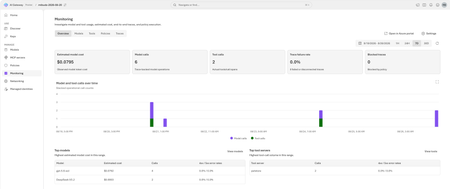
The August 2026 update for the AI Gateway tier (preview) of Azure API Management introduces new capabilities for observing AI workloads and governing model spend. Release highlights Richer OpenTelemetry observability: AI Gateway can now emit logs, distributed traces, token metrics, and estimated cost metrics through the OpenTelemetry Protocol. The built-in monitoring experience helps teams investigate model and MCP tool activity, policy execution, latency, errors, token consumption, and individual traces. Model cost monitoring and budget enforcement: Teams can review estimated model spend by API key and model, then use cost limit policies to set calendar-based budgets and block requests when configured limits are reached. The release also streamlines Microsoft Foundry model imports, refines provider onboarding, improves portal reliability and error guidance, expands Anthropic Messages compatibility, and adds an in-product What's new experience. For configuration guidance, important upgrade information, and the complete list of changes, read the full August 2026 release notes in the AI Gateway portal. Try the latest capabilities in the AI Gateway portal.852Views0likes0CommentsIntroducing APIOps CLI
APIOps CLI helps teams extract, version, review, preview, and publish Azure API Management configuration through source-controlled DevOps workflows. Today, we're excited to announce APIOps CLI, a new command-line experience designed to help organizations manage Azure API Management (APIM) using modern configuration-as-code and GitOps practices. As APIs become increasingly central to digital transformation, organizations need a reliable way to manage API definitions, policies, products, diagnostics, and gateway configuration across multiple environments. APIOps CLI provides a streamlined, developer-friendly approach to extract, version, review, and publish API Management configuration through familiar DevOps workflows. Why APIOps CLI? Traditional API management processes often rely on manual configuration changes, environment-specific customizations, and limited visibility into what changed and why. As API estates grow, these approaches become difficult to scale, audit, and govern. APIOps CLI addresses these challenges by enabling teams to manage API Management configuration as source-controlled artifacts. Every change can be reviewed through pull requests, tracked through Git history, and promoted consistently across development, test, and production environments. The result is improved governance, greater reliability, better collaboration between API developers and platform operators, and a simpler path toward enterprise-scale API operations. What APIOps CLI Enables APIOps CLI provides capabilities that help organizations adopt a true APIOps model: Extract API Management configuration into local artifact files Store and version configuration in Git repositories Review changes through standard pull request workflows Publish approved artifacts back into API Management environments Promote configuration consistently across environments Scaffold GitHub Actions and Azure DevOps pipelines Support automated CI/CD deployment patterns Enable auditable, repeatable API configuration management By treating API Management configuration as code, organizations gain the same operational excellence practices that software development teams have relied on for years. A Modern GitOps Workflow for APIs The APIOps CLI workflow follows a simple yet powerful pattern: Extract configuration from an existing API Management instance. Store the generated artifacts in source control. Review and approve changes through pull requests. Run automated validation and deployment pipelines. Publish approved configuration back to target API Management environments. This approach creates a clear separation between authoring, review, approval, and deployment while maintaining a complete audit trail of API platform changes. For organizations already practicing GitOps, APIOps CLI integrates naturally into existing development workflows and governance processes. Built for Real-World Enterprise Scenarios APIOps CLI is designed to support customers operating at enterprise scale. Common use cases include: Migrating away from manual API Management administration Standardizing deployments across multiple environments Establishing controlled promotion paths from development to production Implementing governance and compliance requirements Supporting platform engineering and API platform teams Managing large inventories of APIs, products, policies, and configurations Enabling self-service API development with centralized governance Whether you're operating a single API Management instance or managing a large multi-team API platform, APIOps CLI provides a foundation for consistent and repeatable operations. Integrated with Your Existing Toolchain APIOps CLI works alongside the tools teams already use: GitHub Azure DevOps Azure Pipelines GitHub Actions Azure CLI Existing Git repositories and branching strategies The tool can generate CI/CD scaffolding to accelerate adoption, helping teams move from manual operations to automated deployments with less effort. Open Source and Community Driven APIOps CLI is available as an open-source project under the Azure GitHub organization. The repository includes source code, architecture guidance, command documentation, CI/CD examples, walkthroughs, troubleshooting guidance, and reference material. By making the project open and community-driven, we are enabling customers, partners, and contributors to participate directly in the evolution of Azure API Management DevOps practices. Getting Started Getting started is straightforward: Install the APIOps CLI package. Authenticate with Azure. Extract an existing API Management instance into local artifacts. Commit those artifacts to a Git repository. Review and approve changes through pull requests. Publish approved changes back to Azure API Management. We recommend beginning with a non-production environment to establish your workflow, validate governance processes, and familiarize teams with the configuration-as-code model. Looking Ahead APIs have become a strategic asset for every organization. As API estates continue to expand, successful teams will increasingly adopt automation, governance, and GitOps practices to maintain speed without sacrificing control. APIOps CLI is an important step in that journey. It provides a modern foundation for managing Azure API Management configurations with the same rigor, automation, and reliability that organizations expect from modern software delivery practices. We invite you to explore APIOps CLI, try it in your environment, share feedback, and join us in shaping the future of API operations on Azure. Resources APIOps CLI GitHub repository: https://github.com/Azure/apiops-cli/tree/main Microsoft Learn: Manage API Management configuration with APIOps CLIGive your Copilot agents real tools, without hand-wiring MCP
You’re running agents in the GitHub Copilot app - maybe three at once, each on its own branch, each working a task while you steer. It’s a good way to work, right up until an agent needs to reach outside your repo. It needs to read a SharePoint library, file a Salesforce record, or check an Outlook calendar, and suddenly it’s blind. An agent is only as capable as the tools you hand it. The usual way to hand it one of those tools is to wire up a Model Context Protocol (MCP) server by hand: find the endpoint, paste it into config, add an auth header, keep the token alive, and hope you got the casing right. Then your teammate does the same thing on their machine, and the next person after that. The MCP Connectors canvas removes the hand-wiring. It’s a plugin for the GitHub Copilot app: it lists the hosted MCP servers already published in your Azure Connector Namespace, and you connect one to Copilot by selecting it - no URL, no header, no local proxy. Where the servers come from Connector Namespace is the managed Azure service on the other end. It provides a list of curated MCP Servers that you can use to quickly create and manage MCPs connections. It also does the work you’d rather not: it stores and rotates the credentials, applies retry and throttling policies, and scales the server. Your machine never holds a raw secret related to the end systems that MCP touches, and access is governed by access policies, allowing fine grained control on who can use the MCP servers. So, when you connect a server from the canvas, you’re not standing up infrastructure. The server already exists, already authenticated, already managed. You’re pointing Copilot at it. Prerequisites GitHub Copilot app with canvas extension support. An Azure subscription with permission to cerate and view the namespace and to create connections and hosted managed MCP server configurations. Connector Namespace is in preview, and availability varies by region. Install From the GitHub Copilot app, add the following prompt. Install connector-namespaces v1.2.0 for my user account, reload it, verify it is running, then open the MCP Connectors canvas. Open the Connector Namespace canvas in a new session Once you install if you need to open the Connector Namespace in a new session, just request it in a prompt: Open the MCP Connectors canvas. Connect an MCP server Open the MCP Connectors canvas. Select Sign in to Azure, then choose a subscription and Connector Namespace. Browse or search the MCP servers grouped under Microsoft and Partners. Select Connect and complete the connector’s separate authentication or consent flow. Confirm the server appears under My MCPs. Restart GitHub Copilot so a new session loads the added tools. ℹ️Note That last step matters more than it look. Copilot loads an agent’s tools when a session starts, so a server you add mid-session shows up in the next one, not the one you’re in. Manage connected servers My MCPs shows the servers connected to Copilot. Sandbox opens a connected server in the Connector Namespace playground, so you can try a tool call yourself before you let an agent lean on it. Disconnect removes the MCP registration from your MCP configuration. The MCP is still available in Connector namespace to be added again later. Also if you are sharing the connector namespace with other developers, this only remove the your local configuration. Connect adds configured MCP connectors that are not registered locally yet to your local MCP configuration. Delete from namespace… removes the MCP registration from your MCP configuration and deletes the MCP connection from your connector namespace. If you are sharing the connector namespace with other developers this will affect any developer using this MCP connector – be careful when using this. Switch namespace switches the active subscription or namespace - useful when you keep dev and production connections apart. How it works and security The extension registers each server directly in Copilot’s user-scoped MCP configuration. There’s no local MCP proxy sitting in the tool path between the agent and the server. The canvas itself runs on loopback. Your Azure tokens stay in process memory, the selected namespace coordinates may be cached locally, and gateway credentials are sent only to the server’s configured HTTPS endpoints. The connector’s own secrets never reach your machine. That’s the namespace’s job, which is also why an admin can rotate or revoke a connection in one place instead of chasing down every developer’s config. Where can I use my connected MCP servers You manage the servers from the canvas, but they don’t only work there. The canvas writes to Copilot’s user-scoped MCP configuration at ~/.copilot/mcp-config.json, and the GitHub Copilot app is built on GitHub Copilot CLI. Connect a server once and it’s available to both. Agent sessions in the app. Any session on your machine picks the server up, whatever repository or branch it’s working on, because the config is user-scoped rather than per-project. Copilot CLI. The same server shows up in the terminal. Run copilot mcp list to confirm it, or /mcp show SERVER-NAME in an interactive session to see the tools it exposes. Two things to know: Tools load when a session starts, so connect first and start the session second. A project-level .mcp.json or .github/mcp.json takes precedence over your user config when the names collide, which is what you want if a repository pins its own version of a server. VS Code is the exception. Copilot Chat there reads .vscode/mcp.json, a separate file the CLI doesn’t use, so a server you connect in the canvas won’t appear in VS Code until you configure it there too. Where this all sits today The GitHub Copilot app went generally available in June 2026, and canvases shipped with it, so neither is a preview feature. The MCP Connectors canvas is a published extension you install at personal scope. You get the version we ship and tested, not one an agent generates on the fly from a prompt. Two caveats. GitHub doesn't publish a compatibility guarantee for the canvas extension format, so an app update may need a matching update from us. Re-run the install commands above to pick it up if you see any issues. On the Azure side, Connector Namespace is still in preview. Check the documentation for more details on this service outside the GitHub Copilot App support. If you're on Copilot Business or Enterprise, check with your admin that the GitHub Copilot app policy is enabled. It's on by default, and it's separate from the Copilot CLI policy. Try it Install the plugin, point it at a namespace, and connect one server your agents keep reaching for: the SharePoint library, the CRM, whatever it is. Then watch an agent actually use it in the next session. Tell me where the canvas saved you a config headache and where it got in your way. That’s the feedback we act on before general availability.914Views2likes2CommentsProductize, observe, version, and automate MCP servers in Azure API Management
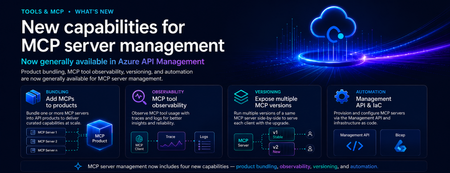
Introduction As organizations move from AI-assisted applications to agentic workflows, MCP servers are becoming a critical integration layer between agents, tools, APIs, data sources, and enterprise systems. Azure API Management already helps teams bring MCP servers under enterprise governance. But as MCP adoption scales, platform teams need more than basic exposure. They need a way to package MCP servers for the right consumers, understand tool usage in detail, manage changes safely, and automate configuration across environments. These are familiar API management challenges — and the same patterns that organizations already use for APIs can now be applied more deeply to MCP servers. We are excited to announce new generally available capabilities for MCP server management in Azure API Management: Add MCP servers to products to package and govern MCP capabilities for specific consumers MCP tool observability to trace tool usage, logs, errors, and payload context MCP server versioning to run multiple versions side by side and manage change safely Management API and Bicep support to automate MCP server configuration as part of CI/CD workflows Together, these capabilities extend MCP server management in Azure API Management and help make MCP servers first-class managed resources — productized, observable, versionable, and automatable. Why MCP server management matters MCP gives agents a standard way to connect with tools and external capabilities. That standardization is powerful, but it also introduces a new operational surface for enterprises. Without a management layer, teams can quickly run into questions such as: Which MCP servers are approved for use? Who can access each server? How do we expose MCP servers to different developer or agent audiences? How do we monitor tool calls, latency, errors, and cost? How do we run preview and production versions side by side? How do we automate MCP server configuration across environments? These are not just developer experience questions. They are enterprise governance questions. With Azure API Management, MCP servers can now be managed using the same core patterns organizations already use for APIs: products, subscriptions, policies, observability, versioning, and automation. What’s new 1. Add MCP servers to products Azure API Management products are a proven way to package APIs for consumption. With this release, you can now add one or more MCP servers to APIM products as well. This makes it easier to expose MCP capabilities to specific consumers, teams, applications, or agent experiences using familiar product-based governance. For example, a platform team can create a product for internal agents that includes approved MCP servers such as: Customer profile lookup Order status retrieval Knowledge base search Ticket creation Workflow automation tools By adding MCP servers to products, teams can use familiar controls such as subscriptions, quotas, approval workflows, and access management to govern how MCP capabilities are consumed. Why it matters: MCP servers are no longer isolated endpoints. They can be bundled, governed, and delivered as secure, consumable products. 2. MCP tool observability As agents use MCP servers to discover and invoke tools, teams need more than basic traffic visibility. They need end-to-end trace context for each agent-to-tool interaction. With MCP observability in Azure API Management, teams can inspect key MCP-specific details, including: Operation context: whether the request was a tools/list or tools/call operation Session context: the MCP session ID through gen_ai.conversation.id Client context: MCP client name and version Protocol context: MCP protocol name and version Server context: MCP server name and version Access context: authentication type and API type Tool context: tool name and tool type for tool invocation traces Error context: error type and error message when a call fails Payload context: tool invocation arguments and results when payload logging is enabled This is especially important for agentic workflows, where a single user request may trigger multiple tool calls across different systems. With APIM, MCP traffic can be traced, inspected, and monitored using the same operational practices teams already use across their API estate. Why it matters: MCP servers are not just accessible through APIM — they are observable. Platform teams can trace tool calls, inspect errors, and understand MCP usage with the same operational discipline they expect from managed APIs. 3. Expose multiple MCP versions Enterprise teams need safe ways to evolve MCP servers over time. With MCP server versioning in Azure API Management, you can expose multiple versions of the same MCP server side by side. This allows teams to run a stable GA version while introducing a preview or next version for early adopters. For example: v1 can serve the majority of production traffic. v2 can be exposed to a subset of consumers for testing. Teams can monitor adoption, errors, latency, and behavior. Once the new version is validated, v2 can be promoted with confidence. This pattern is especially useful when MCP tools evolve, schemas change, new capabilities are added, or teams want to validate agent behavior before rolling changes out broadly. Why it matters: MCP servers can now follow a safer lifecycle model: preview, validate, route, promote, and retire. 4. Management API and Infrastructure as Code MCP server management also needs to work at enterprise scale. With Management API and Infrastructure as Code support, teams can provision and configure MCP servers programmatically through Azure API Management APIs and automation pipelines. This allows platform teams to define MCP server resources as part of repeatable deployment workflows using tools such as Bicep, Terraform, ARM, REST APIs, and CI/CD pipelines. Teams can automate configuration for: MCP server endpoints Runtime and transport settings Authentication configuration Metadata and ownership Versioning Product association Policies Environment promotion This is critical for organizations that need consistent MCP governance across development, test, staging, and production environments. Why it matters: MCP server management can now be automated, reviewed, deployed, and governed like the rest of your API platform. How these capabilities work together Individually, each capability solves an important operational need. Together, they create a complete management model for MCP servers in Azure API Management. A platform team can: Register or expose MCP servers through Azure API Management. Package them into products for specific consumers. Apply access controls, subscriptions, quotas, and policies. Observe tool-level usage, latency, errors, traces, and cost. Run multiple versions side by side. Promote changes safely. Automate deployment through APIs and Infrastructure as Code. This brings the full API management playbook to MCP. Instead of treating MCP servers as unmanaged agent extensions, organizations can operate them as governed enterprise resources. Example scenario Imagine a company building internal copilots for customer support, sales, and operations. Each copilot needs access to different tools: Customer lookup Order history Case management Knowledge search Refund workflows Escalation workflows With MCP and Azure API Management, the platform team can expose these capabilities as MCP servers and organize them into products. The customer support copilot can subscribe to the support product. The sales copilot can subscribe to the sales product. Early adopters can be routed to a preview version of a tool. Operations teams can monitor usage, errors, latency, traces, and cost. Platform teams can automate the entire setup across environments. The result is a more governed and scalable way to bring MCP-based tools into enterprise agent workflows. Getting started To get started with MCP server management in Azure API Management: Create or identify an MCP server you want to expose through Azure API Management. Add the MCP server as a managed resource in APIM. Add the MCP server to an APIM product. Configure access, subscriptions, quotas, and approval workflows. Enable observability to monitor tool-level usage and traces. Use versioning to manage preview and production versions. Use the Management API or Infrastructure as Code to automate configuration. Conclusion MCP is quickly becoming an important standard for connecting agents to tools and enterprise capabilities. But for MCP to succeed in production, organizations need more than connectivity. They need governance, lifecycle management, observability, and automation. With these new MCP server management capabilities in Azure API Management, platform teams can manage MCP servers using the same trusted patterns they already use for APIs. MCP servers are now first-class APIM resources — productized, observable, versionable, and automatable. We are excited to see how customers use these capabilities to build the next generation of governed, enterprise-ready agentic applications.1.9KViews1like0CommentsNew AI gateway capabilities in Azure API Management
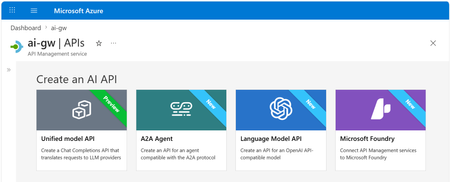
Multi-model, multi-protocol AI applications are quickly becoming the norm. Teams are mixing OpenAI, Anthropic, and Vertex AI models, exposing tools through MCP, and wiring agents together with A2A. As that surface grows, so does the work of keeping it secure, observable, and consistent. Our ongoing strategy for the AI gateway capabilities in Azure API Management centers on that problem: providing one place to manage models, MCP tools, and agents, no matter which provider or protocol is behind them. The updates below are the latest steps in that direction. Unified Model API (preview) The headline change in this release: the Unified Model API lets clients speak one API format — OpenAI Chat Completions — while API Management transforms requests to the backend provider, whether that's a model using OpenAI Chat Completions or Anthropic Messages API. By centralizing model access behind a single API layer, you can: Standardize on a single API format for clients, independently from the formats used by backend models. Unify observability, security, and governance with policies that apply across model providers. Configure failover across model providers. Decouple client-facing model names from backend model names using aliases. Learn more about the unified model API. Model aliases Model aliases give clients a stable, provider-neutral name to use when calling a model. By assigning an alias like gpt or claude-sonnet, you decouple the client-facing model name from the actual backend deployment. That makes a few common operations a lot easier: Upgrading a model. Update the alias target to point at a new version — no client code changes required. A/B tests. Shift traffic between backends behind the same alias using API Management's load balancing capabilities. Vendor swaps. Replace one provider with another without touching application code. Model discovery Developers can discover available models by calling the /models endpoint of the Unified Model API. API Management returns the list of model aliases, so apps and tools can adapt to what the platform team has published — without out-of-band documentation. Anthropic and Vertex AI models (GA) AI gateway policies and observability now work with Anthropic and Google Vertex AI models, alongside the providers we already support. You can: Apply runtime policies such as content safety, token limits, and semantic caching to Anthropic and Vertex AI traffic. Collect logs, traces, and metrics for these models in the same place as the rest of your AI traffic. If you're running a multi-provider setup, you no longer need a separate governance story for each vendor. Learn more about AI gateway capabilities in API Management. Anthropic API operations in Microsoft Foundry import When you import a Microsoft Foundry resource as an API in Azure API Management, the import now creates operations for Anthropic APIs alongside the existing model APIs. In a few clicks, you can stand up an API that mediates traffic to Foundry models using either the OpenAI or Anthropic API format — no manual operation definitions needed — and then apply the same policies, security, and observability you use for the rest of your AI traffic. Learn more about Microsoft Foundry import. Token metrics for additional token types (preview) Token tracking used to stop at prompt, completion, and total tokens. Modern models add cached, reasoning, and thinking tokens, which can make up a significant share of token consumption, cost, and latency. API Management now logs metrics for these additional token types into Application Insights, across API formats (OpenAI Chat Completions, OpenAI Responses, and Anthropic Messages API) and providers (Microsoft Foundry, OpenAI, Amazon Bedrock, Google Vertex AI, and others). With richer signals, your cost dashboards, budget alerts, and capacity planning can actually reflect how today's models behave. Learn more about token metrics. Content safety for MCP and A2A (GA) The llm-content-safety policy now covers MCP and A2A traffic in addition to LLM traffic. That includes MCP tool-call arguments, MCP response text, and A2A payloads. A couple of related improvements: llm-content-safety can now be configured directly as an outbound policy. Two new attributes — window-size and window-overlap-size — let you tune how messages exceeding the Azure Content Safety limit of 10,000 characters are chunked and forwarded for validation, balancing detection sensitivity with Azure Content Safety call volume. The result is one consistent safety policy across LLM, MCP, and A2A flows instead of stitching together custom filters per protocol. Learn more about the content safety policy. A2A APIs (GA) Support for Agent-to-Agent (A2A) APIs in API Management is now generally available. Agent APIs can now be governed with the same policies, identity, and observability you use for the rest of your APIs. What you can do with A2A APIs in API Management: Mediate JSON-RPC runtime operations to your agent backend with full policy support — including the content safety improvements above. Expose and manage agent cards, automatically transformed by API Management to represent the managed agent API. Log traces to Application Insights using OpenTelemetry GenAI semantic conventions for deep correlation between API and agent execution traces. What's new in GA, on top of the preview: Available in classic tiers, in addition to v2 tiers — bring A2A governance to existing API Management resources without migrating tiers. Richer diagnostic logging for A2A APIs, giving more actionable telemetry for monitoring and troubleshooting agent traffic. Learn more about A2A support in API Management. Related: Bring Your Own Model in Foundry Agent Service (GA) Last month, Bring Your Own Model (BYOM) in Foundry Agent Service went GA. BYOM lets enterprise teams route Foundry agent model calls through their own infrastructure — typically for compliance, governance, or to reuse an existing model gateway. This pairs naturally with the AI gateway capabilities in Azure API Management. Put API Management in front of your models, apply the policies and observability described above, and have Foundry agents call through it — getting consistent governance for both your direct AI traffic and your agent workloads. Get started Together, these updates make Azure API Management a more complete AI gateway: consistent governance, security, and observability across models from various providers, MCP tools, and agent interactions. Some of these features are still rolling out. They will first become available in v2 tiers of API Management and in the AI release channel for classic tiers, then continue rolling out to the rest of classic tier resources over the following weeks. Get started with the unified model API or explore the AI gateway capabilities in API Management.3.3KViews1like0CommentsMCP Test Console and Git Repository synch in Azure API Center
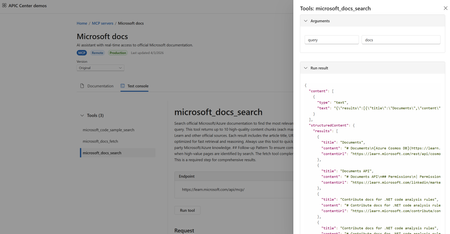
Why This Matters As organizations race to build AI-powered applications, the Model Context Protocol (MCP) has emerged as the standard way to connect AI agents with external tools and data sources. Managing these MCP servers at enterprise scale, however, has been a growing challenge — until now. AI agents are only as useful as the tools they can access. MCP servers expose those tools — from databases and internal APIs to third-party services — in a standardized way that any AI agent or model can consume. As your MCP ecosystem grows, so does the challenge of keeping track of what's available, what's working, and what your teams are actually using. Azure API Center already serves as a centralized registry for APIs across your organization. Now it extends that same governance model to MCP servers, complete with developer-friendly discovery, live testing, and automated synchronization from your source repositories. New Feature: MCP Test Console in the API Center Portal Developers can now test MCP server tools interactively without leaving the Azure portal. Once an MCP server is registered in your API Center inventory, the API Center portal — your organization's customizable developer portal — surfaces a dedicated test console on the server's Documentation tab. Developers simply select a tool, click Run tool, and immediately see the response. This means your teams can: Validate tools before connecting them to agents — no more building a test harness from scratch. Explore tool schemas interactively — the portal surfaces endpoint details and input/output schemas alongside the live console. Onboard faster — developers browsing your internal MCP registry can go from discovery to verified integration in minutes. The MCP server tiles in the portal provide a clear, browsable view of all registered servers. Each tile surfaces the server's endpoint URL, available tools, and installation instructions for Visual Studio Code — giving developers everything they need to get started in one place. Getting started: Set up your API Center portal, then navigate to any registered MCP server. On the Documentation tab, select a tool and click Run tool to open the test console. New Feature: Synch MCP Servers from a Git Repository Managing API assets shouldn't require manual registration every time something changes. With Git repository integration, Azure API Center can automatically sync assets — including MCP server definitions — directly from your source repository. How It Works When you connect a Git repository to your API Center: An environment is created in your API Center representing the repository as an asset source. API Center regularly synchronizes MCP servers from the repository into your inventory — no manual intervention required. Assets appear in your inventory on the Inventory > Assets page with a visual link indicator, making it easy to identify which assets are source-controlled. This is especially valuable for teams that maintain MCP server definitions, skill files, or OpenAPI specs in version control. As your repository evolves, your API Center inventory stays current automatically. Setting It Up Step 1: Secure your access credentials (for private repos) If your repository is private, store a personal access token (PAT) as a secret in Azure Key Vault. Your API Center instance uses a managed identity to retrieve this secret securely — you can configure the managed identity manually or let API Center handle it automatically during the integration setup. Step 2: Connect the repository In the Azure portal, go to your API Center and navigate to Platforms > Integrations > + New integration > From Git repository. You'll configure: Repository URL — including an optional branch and subfolder path (e.g., https://github.com/<org>/<repo>/tree/main/skills). Git provider — such as GitHub. Asset type configuration — API Center defaults to a skill asset type with the file pattern **/skill.md, but you can add additional asset types to match your repository structure. PAT reference — select the Key Vault secret containing your PAT, if applicable. Environment details — give the repository environment a friendly name, resource ID, type (e.g., Production), and lifecycle stage for synced assets. Step 3: Let the sync run Once created, the integration runs automatically. Your assets will appear in the Inventory > Assets view, linked to their source in the repository. Access Control for Private Repositories The integration uses Azure's managed identity framework to authenticate to Key Vault. Assign your API Center's managed identity the Key Vault Secrets User role on your Key Vault to grant the necessary read access. If you prefer, API Center can configure this automatically — just enable the Automatically configure managed identity and assign permissions option during integration setup. Bringing It Together: A Complete MCP Governance Story Together, these two features complete an end-to-end workflow for enterprise MCP governance: Register → Connect your Git repository and let API Center automatically synch your MCP servers and skills as they evolve. Discover → Developers and AI engineers browse the API Center portal to find the right MCP server for their agent, with full schema visibility and endpoint details. Test → The built-in test console lets developers validate tools interactively before committing to an integration. Govern → Use API Center's access management capabilities to control who can view and consume specific MCP servers across your organization. And if you're building MCP servers on Azure services, the registry integrates directly with Azure API Management, Azure Logic Apps, and Azure Functions — so your MCP ecosystem and your API ecosystem share a single source of truth. Get Started Register and discover MCP servers in Azure API Center Synchronize API assets from a Git repository Set up the API Center portal Explore MCP Center — Azure API Center's public MCP registryMore Control, Less Overhead: Custom Domain Upgrades in Azure API Management v2
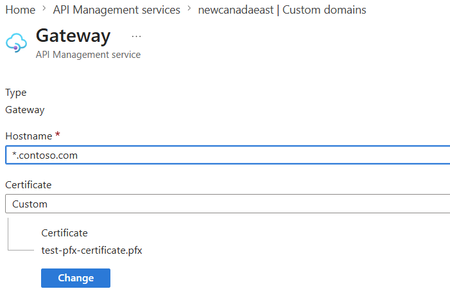
Multiple custom domains in Premium v2 Large organizations rarely expose APIs under a single domain. A global enterprise might need api.contoso.com for external partners, apis.hrportal.contoso.com for internal teams, and dev.europe.contoso.com for a regional developer portal — all at once. Until now, achieving this required spinning up separate API Management instances, adding cost and operational complexity. Azure API Management Premium v2 now supports multiple custom domains within a single instance — across gateway, developer portal, and management endpoints. This allows organizations to: Configure distinct hostnames for different endpoints and target audiences Align API experiences with business units, products, or regional brands Simplify domain-scoped networking and security policies Reduce the need for separate APIM instances created solely for domain separation For enterprises managing large, distributed API estates, this provides greater flexibility in how APIs and developer experiences are exposed — while maintaining centralized governance. Wildcard custom hostnames in Premium v2 and Standard v2 As API estates grow, managing individual certificates for every subdomain becomes a scaling problem fast. Each new surface — payments.api.contoso.com, inventory.api.contoso.com, orders.api.contoso.com — previously required its own hostname registration and certificate. Ten new API surfaces meant ten separate management tasks. Azure API Management Premium v2 and Standard v2 now support wildcard entries in custom hostnames. A single *.api.contoso.com entry paired with a single wildcard certificate covers all subdomains automatically — no per-subdomain configuration required. This helps teams: Simplify certificate and domain management at scale Accelerate onboarding of new API surfaces without repeated hostname setup Maintain consistent branded endpoints across dynamic subdomains Reduce operational overhead for rapidly growing API environments By extending this capability to both Premium v2 and Standard v2, Azure API Management makes flexible, scalable domain management accessible to more organizations without requiring higher-tier deployments. Both updates are generally available now. Learn more about Azure API Management v2 tiers and how they help organizations build scalable, enterprise-grade API platforms. Further reading: Configure a custom domain name for Azure API ManagementAzure API Center Introduces a Data Plane MCP Server for Enterprise-Wide API and AI Asset Discovery
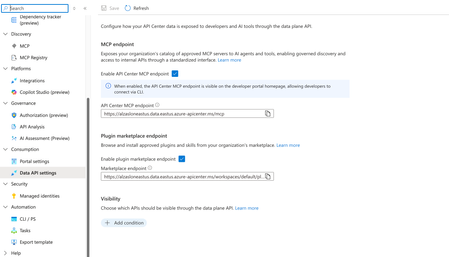
As organizations scale their adoption of MCP-based tooling and AI agents, one challenge keeps surfacing: developers spend too much time figuring out what APIs, tools, and AI assets exist — and then manually wiring up connections to each one. Today, we're excited to announce general availability of a new capability that changes that. What's new Azure API Center now provides a data plane MCP server — a unified enterprise discovery endpoint that gives agents and developer tools a single connection point to your organization's full catalog of registered MCP servers, tools, APIs, and AI assets. Instead of hunting across systems or hand-configuring integrations one by one, developers and agents can now connect once and immediately access everything that's been registered in your API Center. Why this matters The MCP ecosystem is growing fast. So is the number of enterprise APIs and AI assets that teams need to manage and consume. Without a central discovery mechanism, that growth creates friction — more manual configuration, more drift between what's available and what's actually reachable, and more integration complexity for every new agentic application. The Azure API Center data plane MCP server addresses this directly. With it, teams can: Give agents centralized access to enterprise APIs and AI assets without custom routing logic Eliminate manual configuration of connections to individual MCP servers Automatically surface newly registered MCP servers and tools without reconfiguration Simplify discovery and consumption across a rapidly growing enterprise catalog Built for how organizations actually operate Agentic applications don't just need APIs — they need to find the right APIs, trust that the catalog is current, and connect reliably at scale. By acting as a unified discovery endpoint, Azure API Center helps teams operationalize AI ecosystems with stronger discoverability, governance, and developer productivity, while meaningfully reducing integration complexity. This is especially valuable as enterprises move from experimenting with AI agents to deploying them in production workflows, where manual integration approaches don't scale. How to enable the data plane MCP server Turning on the MCP server takes just a few clicks in the Azure portal. Navigate to your API Center instance and open Data API settings under the Consumption section in the left-hand menu. From there, under MCP endpoint, toggle Enable API Center MCP endpoint to on. Once enabled, your MCP endpoint URL (in the form https://<your-instance>.data.<region>.azure-apicenter.ms/mcp) will appear and can be copied directly for use in agent configurations or developer tools. Note: When enabled, the MCP endpoint is also surfaced on the developer portal homepage, so developers can connect via CLI without needing to look up the URL separately. You can also enable the Plugin marketplace endpoint from the same settings page to let developers browse and install approved plugins and skills from your organization's marketplace. The Visibility section lets you control which APIs are exposed through the data plane — use Add condition to filter the catalog based on your governance requirements. Get started Learn more about Azure API Center and how organizations are building unified catalogs for APIs, MCP tools, agents, and AI assets.