office scripts
495 Topics
Office Scripts does not refresh Power BI Query live connections in Excel Online
Hello everyone, I've got the following problem and am nearly going insane because it's causing so much problems 🥲 Summary The Office Scripts method workbook.refreshAllDataConnections() no longer refreshes a live connection to a Power BI Semantic Model in Excel Online. Environment Excel Online Office Scripts Power Automate ("Recurrence" + "Run Office Script") Live connection to a Power BI Semantic Model (Analyze in Excel) Expected behavior Calling workbook.refreshAllDataConnections(); should trigger the same refresh as manually selecting Data → Refresh All in Excel Online. Actual behavior The script completes successfully without any error, but the workbook does not requery the Power BI Semantic Model. Additional observations The same workbook worked correctly for approximately two years. The issue started around mid-July 2026. Manual Data → Refresh All in Excel Online refreshes successfully. Refreshing in Excel Desktop also works correctly. The problem occurs both: when running the Office Script manually from the Automate tab in Excel Online when running the same Office Script from Power Automate ("Run Office Script") This suggests the issue is specific to the Office Scripts implementation of refreshAllDataConnections() rather than the workbook, authentication, or the Power BI connection itself. Steps to reproduce Create an Excel workbook with a live connection to a Power BI Semantic Model. Confirm that manual Data → Refresh All refreshes the data successfully. Create an Office Script containing only: function main(workbook: ExcelScript.Workbook) { // Refresh all data connections workbook.refreshAllDataConnections(); } Run the script. Result The script finishes successfully but no refresh is performed. Expected result The workbook should requery the Power BI Semantic Model exactly as when using the manual Refresh All button in Excel Online.546Views2likes2Comments
Shared office scripts - Needs premission everytime it's executed
I wrote some office scripts in some excel workbooks. Those scripts are executed by pressing a button created with what excel provides. Co-workers in my company are supposed to use these scripts frequently. Whenever they execute any script they are being asked if they trust the author, then they press allow and the scripts executes. As far as I can tell this message (of trust) is supposed to be asked just for the first time any script is executed or after anything changed with a script. However in my company they are being asked everything single time (even after nothing changed or repeating executions after another with any same script). We already tested some stuff in the Trust Center but no success yet. What can I do to just get the message once or after every update of the script? Note: This behavior even takes place with scripts that just print "Hello World" in the console.3.7KViews2likes2Comments
Office Excel Scripts needs interactive debugging capabilities
Office Excel Scripts needs interactive debugging capabilities, including breakpoints, watch variables, step-through execution, and inspection of worksheet state. These features would significantly improve development productivity and eliminate the need for workarounds such as temporary Return statements, logging to cells, or artificial delays. Debugging complex scripts involving row insertions, looping logic, and worksheet modifications is unnecessarily difficult without modern debugging tools. I love Scripts, but it needs to be debugged. We have debugging capabilities in VBA, but NOT Office Scripts. Please Help.245Views1like3Comments
Automate tab not appearing even though I meet the requirements in the Learn article
The account I'm using Microsoft Office with is part of a Microsoft 365 Family subscription, and according to https://learn.microsoft.com/en-us/office/dev/scripts/testing/platform-limits?tabs=home#platform-support, signing up to the Microsoft 365 Insider program and enabling connected experiences should be enough for me to start being able to use Office Scripts, but sadly the Automate tab still won't show up for me. I've enabled the option for it in the Customize Ribbons category of the Options menu, and have tried reinstalling Office and using both the Preview and Beta channels, to no avail. Has anyone else had issues with the Automate tab not showing up while using a Family Subscription? If so, did you manage to fix them? Thank you!236Views1like1CommentConverter, VBA to Office Script.
A converter VBA to Office Script is a challenging task, but with VBA and regular expressions, many common VBA constructs can be converted to Office Scripts. This converter is intended to create an approach in Office Script and then the user can extend it with his knowledge. Since VBA and Office Scripts have different syntax and APIs, this converter will convert simple elements such as loops, conditions, and cell operations. A more complex VBA to Office Scripts converter requires advanced logic to analyze and convert the different syntax and commands of the two languages. The attached file tries to convert the VBA code into Office Script in a simple way. A lot of things are not taken into account, but it can be a useful tool to get started. I hope it works for you too and if you discover any problems or errors, I would be happy to hear your feedback.2.4KViews1like3Comments
Issues with Power Automate Scripts in Excel
I'm using Power Automate to run scripts in Excel. In my flow, I created a new Excel file and populated it with data from two other Excel files. After that, I ran a script to add a table to copied data, followed by another script to perform operations on that data. However, I'm encountering some issues: 1. Occasionally, I receive a response with status code 423 and a message indicating that the file is locked for shared use by the user. 2. Other times, I get a response with status code of 200, suggesting the script executed successfully, but it doesn't find any data for operation, even though data is present, which was added in the previous step. Interestingly, when I ran the same script directly from the Excel interface, it produces the expected results. Can anyone help me understand why this is happening and how I can resolve these issues?3.3KViews1like4CommentsMove columns with excel office script
I have a table with a number of columns, and I want to use the column names to reorganize them. Specifically moving the "Property Class" column to position 0 in the table, and the "Property Description" column to position 1. Is anyone able to help with the office script code?3.1KViews1like6Comments
VBA to Office Script Help
Hello, I have a VBA written that performs my task as intended. However this xlsm file needs to be sharable and edited by multiple people over Teams. As you all know, VBAs wont work using the browser or teams version of excel. I have been unable to find away reliable way to get the excel document to open in the native desktop app for all users who wish to edit the document, so now I am here hoping that an office script can be written which completes the same task as the VBA thus making it unnecessary for the user to have to open the excel file in a desktop app. Alternatively, if there is an office script that could be created that would, upon opening of the teams/web browser excel open the document in the native app as well, that would solve the issue also. Please take a look and let me know if it is even possible, thank you: Option Explicit Private Sub Worksheet_Change(ByVal Target As Range) Dim sID As String, oTab As ListObject, rngVis As Range Const KEYWORD = "Discontinued" Const UID = "Unique ID" Const DEST_SHT = "Archived_CVL" With Target If .CountLarge = 1 Then If .Column = 9 And .Row > 3 Then If (Not .ListObject Is Nothing) And StrComp(KEYWORD, .Value, vbTextCompare) = 0 Then Set oTab = .ListObject sID = Me.Cells(.Row, 1).Value 'Debug.Print sID If oTab.AutoFilter.FilterMode Then oTab.AutoFilter.ShowAllData oTab.Range.AutoFilter Field:=1, Criteria1:=sID On Error Resume Next Set rngVis = oTab.DataBodyRange.SpecialCells(xlCellTypeVisible) On Error GoTo 0 If Not rngVis Is Nothing Then With Sheets(DEST_SHT) rngVis.Copy .Cells(.Rows.Count, 1).End(xlUp).Offset(1) End With Application.EnableEvents = False oTab.AutoFilter.ShowAllData rngVis.Delete Application.EnableEvents = True End If End If End If End If End With End Sub Thanks again5.3KViews1like5CommentsRun an OfficeScript via a Button
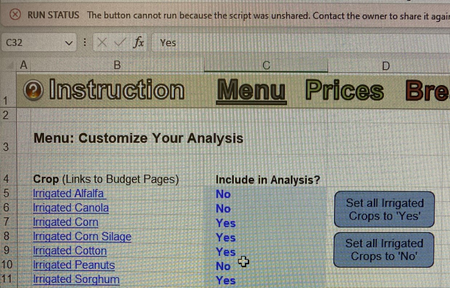
Is it possible to use Office Scripts in a way that ANY user of a workbook can run the script? I followed the instructions (https://support.microsoft.com/en-us/office/sharing-office-scripts-in-excel-226eddbc-3a44-4540-acfe-fccda3d1122b) to allow users of my workbook to run the scripts via a button. I'm experiencing two issues: After emailing the file to my client (at another organization), they receive the following error when attempting to click the button: "RUN STATUS: The button cannot run because the script was unshared. Contact the owner to share it again." - this is happening even though my settings for the script correctly show "Everyone with access to this workbook can run this script here." Users with a personal Microsoft 365 account cannot initiate the button action at all. As best I can tell, this is because Office Scripts are limited to the business or education subscriptions. How can I keep the automation in this workbook, but make it available to any of my customers that would use the document? This needs to be something I can email out to an individual, and that they can execute at the click of a button.4.1KViews1like3Comments"You cannot perform the requested operation.", code: "AccessDenied", method: "addTable", line: 9}
The following is my code in excel under the automate tab which when ran in a workbook with a sheet called "STU Chassis" regardless of the data contained gives this error {message: "You cannot perform the requested operation.", code: "AccessDenied", type: "Workbook", method: "addTable", line: 9} How can I fix this? function main(workbook: ExcelScript.Workbook) { try { //Sets the Active Worksheet to the chassis worksheet in the workbook let stuChassis = workbook.getWorksheet("STU Chassis"); //Get used range of previously mentioned worksheet let stuChassisUsed = stuChassis.getUsedRange() console.log(stuChassisUsed) // Add a new table let stuchassisNew = workbook.addTable(stuChassisUsed, true); stuchassisNew.setName("STUChassisTable") } catch (error) { console.log("There are already tables present in STU chassis"); console.log(error); } return; }3.1KViews1like6Comments