nonprofit
535 TopicsREGISTER: Nonprofit data solutions in Microsoft Fabric event - Dec 9
Important update: Microsoft is transitioning select nonprofit solutions from Microsoft-managed support to an open-source and partner-led foundation. Beginning February 1, 2027, Microsoft will no longer provide product engineering support for the affected solutions or guarantee future maintenance, updates, or compatibility. This post reflects information available at the time of publication and may not reflect these changes. Please refer to the latest solution-specific Microsoft documentation for transition guidance, available options, and recommended next steps. We’re thrilled to announce the launch of Nonprofit data solutions in Microsoft Fabric – a breakthrough in scalable data management and analytics designed specifically for nonprofits! Join us at one of the following Microsoft Elevate nonprofit partner sessions to discover how Microsoft Fabric can help your nonprofit customer: ✅ Accelerate impact with unified, AI-ready data ✅ Unlock insights for stronger fundraising and mission success ✅ Expand opportunities in the $48B+ data & analytics market Register | Session 1: Americas / EMEA regions Date: December 9, 2025 Time: 8:00 AM PST / 4:00 PM GMT Register | Session 2: ANZ / Asia regions Date: December 9, 2025 / December 10, 2025 Time: 4:00 PM PST / 11:00 AM AEDT Why it matters Fabric empowers nonprofits with secure, scalable infrastructure, advanced analytics, and AI-powered capabilities to unify data, automate processes, and drive strategic outcomes. Go-to-market resources We’re excited to provide the following suite of Go-To-Market resources designed to help nonprofit partners accelerate impact and deliver greater value to their nonprofit customers: Core Content Resources E-book | Harnessing Your Data to Drive Nonprofit Mission Success Framework | Microsoft Fabric Unified Analytics for Data-Driven Innovation One Pager | Unify Your Data Platform to Accelerate Nonprofit Impact Pitch Deck | Unify Your Data Platform Nonprofit Data Solutions in Microsoft Fabric Resources Campaign-in-a-Box Resources E-book Template | Fuel Your Nonprofit Acceleration: Unlock Opportunity from Your Data Email Template | Fuel Your Nonprofit Acceleration: Unlock Opportunity from Your Data One Pager Template | Unify Your Data Platform to Accelerate Nonprofit Impact By using these resources, partners can quickly position themselves as trusted advisors, accelerate solution adoption, and help nonprofits overcome data silos, automate processes, and unlock actionable insights. This means stronger donor engagement, smarter fundraising strategies, and measurable mission impact—all powered by Microsoft Fabric.NOW AVAILABLE: Nonprofit data solutions in Microsoft Fabric – Event Recording & Demo
Important update: Microsoft is transitioning select nonprofit solutions from Microsoft-managed support to an open-source and partner-led foundation. Beginning February 1, 2027, Microsoft will no longer provide product engineering support for the affected solutions or guarantee future maintenance, updates, or compatibility. This post reflects information available at the time of publication and may not reflect these changes. Please refer to the latest solution-specific Microsoft documentation for transition guidance, available options, and recommended next steps. Thank you to everyone who joined us on December 9 for our sessions on Nonprofit Data Solutions in Microsoft Fabric. We’re excited to announce that the event recording and presentation are now live—and you can watch them alongside the Microsoft Fabric Demo. 🚀 Watch demo overview on the Nonprofit data solutions in Microsoft Fabric solution. 🎥 Listen to recording and review presentation to learn more how Microsoft Fabric empowers nonprofits to: ✅ Accelerate impact with unified, AI-ready data ✅ Unlock insights for stronger fundraising and mission success ✅ Expand opportunities in the $48B+ data & analytics market 💡 Why It Matters Fabric provides secure, scalable infrastructure, advanced analytics, and AI-driven capabilities to unify data, automate processes, and deliver measurable mission impact. 📚 Go-to-Market Resources for Nonprofit Partners Use the following tools/resources, located on the Nonprofit Partner Readiness site under solution play readiness materials Cloud & AI Platform tab's Unify your data platform section to accelerate adoption and position yourself as a trusted advisor: Core Resources: E-book | Harnessing Your Data to Drive Nonprofit Mission Success E-book | Microsoft Fabric Unified Analytics for Data-Driven Innovation Demo | Nonprofit data solution in Microsoft Fabric One Pager | Unify Your Data Platform to Accelerate Nonprofit Impact Pitch Deck | Nonprofit Data Solutions in Microsoft Fabric Campaign-in-a-Box Resources: E-book Template | Fuel Your Nonprofit Acceleration Unlock Opportunity Email template | Fuel Your Nonprofit Acceleration: Unlock Opportunity from Your Data Guide | Microsoft nonprofit partner campaign setup One pager template | Unify Your Data Platform to Accelerate Nonprofit Impact Registration page template | Fuel Your Nonprofit Acceleration: Unlock Opportunity from Your Data Together, we can help nonprofits overcome data silos, automate processes, and unlock actionable insights—leading to stronger donor engagement, smarter fundraising strategies, and greater mission success.
Announcing the new Azure Landing Zone for Nonprofits
Important update: Microsoft is transitioning select nonprofit solutions from Microsoft-managed support to an open-source and partner-led foundation. Beginning February 1, 2027, Microsoft will no longer provide product engineering support for the affected solutions or guarantee future maintenance, updates, or compatibility. This post reflects information available at the time of publication and may not reflect these changes. Please refer to the latest solution-specific Microsoft documentation for transition guidance, available options, and recommended next steps. ------------------------------------------------------------------------------------------------------------------------- We are delighted to announce the release of the Azure Landing Zone for Nonprofits in Solution Center today. This release is a major milestone in our ongoing commitment to empowering nonprofit organizations with cutting-edge technology that drives positive social impact. The Azure Landing Zone for Nonprofits is designed as a customizable template to accelerate and simplify the deployment of secure, scalable, and compliant cloud environments. It provides essential architecture blueprints and best practices that help nonprofits deploy and manage their cloud infrastructure with confidence. For more detailed information about this solution, we encourage you to visit the official documentation: Azure Landing Zone for Nonprofits: Deploy Azure Landing Zone for Nonprofits - Microsoft Cloud for Nonprofit | Microsoft LearnANNOUNCEMENT: Microsoft for Nonprofits on GitHub
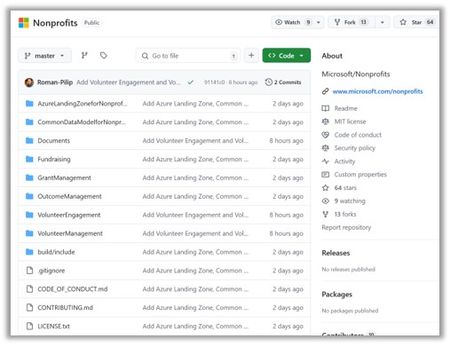
Important update: Microsoft is transitioning select nonprofit solutions from Microsoft-managed support to an open-source and partner-led foundation. Beginning February 1, 2027, Microsoft will no longer provide product engineering support for the affected solutions or guarantee future maintenance, updates, or compatibility. This post reflects information available at the time of publication and may not reflect these changes. Please refer to the latest solution-specific Microsoft documentation for transition guidance, available options, and recommended next steps. Tech for Social Impact (TSI) has refreshed its GitHub site to better align with our solution strategy. All TSI open-source solutions will now be centralized into one repository to provide a more seamless user experience and to support partners in providing customized, purpose-built solutions for nonprofit customers. Purpose TSI wants to ensure our solutions for the nonprofit and development communities remain current, relevant, and aligned with emerging technologies. Enhance solution security and compliance. Benefits for Partners GitHub allows partners to tailor solutions to meet customers’ specific needs. Partners can adapt the source code to fine-tune deployments, adding their own IP for repeatable and tailored solutions. Solutions Now Available The Common Data Model for Nonprofits, Volunteer Management, Volunteer Engagement, Azure Landing Zone for Nonprofits, and the template apps—Fundraising, Grant Management, and Outcome Management—are now available in GitHub as well as Solution Center. Archived Solutions The Nonprofit Accelerator, including sample apps and historical versions of the Common Data Model for Nonprofits, will remain accessible on GitHub until 12/31/25. Find updated content on GitHub and MS Learn.
Nonprofits Are Shaping What Comes Next
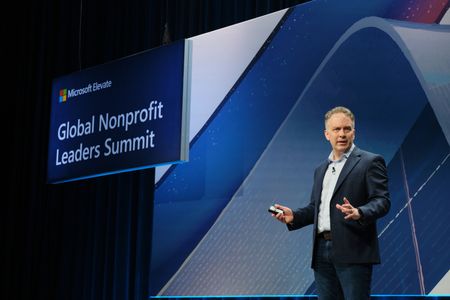
At the Global Nonprofit Leaders Summit, nonprofit leaders and technologists came together to learn from one another during a time of rapid change. As shared in the original Microsoft for Nonprofits post, the strongest takeaway wasn’t that anyone has all the answers—it was that progress now depends on trust, partnership, and continuous learning as AI reshapes how work gets done across missions and communities. Across sessions, leaders focused on practical learning: asking better questions, testing responsibly, and bringing teams along without losing sight of the people they serve. One theme stood out clearly—learning is no longer a one‑time transition, but an ongoing leadership capability. As AI accelerates timelines and expectations, leaders are intentionally creating space for curiosity, experimentation, and strategic thinking to adapt responsibly and lead with intention rather than urgency. Equally central were conversations about inclusion, trust, and data stewardship, especially for organizations handling sensitive or personal data. Governance, ethics, and security surfaced not as barriers to innovation, but as essential enablers—recognizing that meaningful impact only scales when communities trust the systems and institutions behind them. Partnerships also emerged as critical to durable impact. Leaders emphasized that collaboration across nonprofits, philanthropy, and technology partners is what turns pilots into repeatable, real‑world outcomes through shared learning and collective problem‑solving. These themes came to life through stories from organizations like Children International, Goodwill NYNJ, and Answer ALS, illustrating how technology—used thoughtfully—can strengthen operations, accelerate outcomes, and deepen mission impact. Looking ahead, one message was clear: nonprofits aren’t waiting for the future to arrive—they are actively shaping it. Through purposeful leadership, trusted partnerships, and responsible technology adoption, nonprofits are defining what comes next for their missions and the communities they serve. To learn more, please visit: Microsoft for Nonprofits LinkedIn181Views0likes1CommentCracking the Code to Secure Productivity: How to Work Smarter Without Compromising Security
For years, organizations were forced to choose between productivity and security. More protection often meant more friction, while greater flexibility increased risk. Today’s digital environment demands a different model—one where security and productivity reinforce each other rather than compete. This is the idea behind secure productivity: empowering employees to work the way they need to while data, identities, devices, and systems are protected seamlessly in the background. As work becomes more distributed and threats become more advanced, organizations can no longer afford a tradeoff between speed and safety—they need both. A modern secure productivity strategy relies on AI‑powered, intelligent security that adapts to real‑world behavior. By detecting anomalies, stopping threats early, and automating routine protection, AI reduces burden on IT teams while allowing employees to stay focused. Combined with a Zero Trust approach—where every access request is continuously verified—security becomes stronger without slowing people down. Secure productivity ultimately: Reduces organizational risk Improves employee experience and confidence Supports remote, hybrid, and AI‑enabled work Accelerates innovation while protecting what matters most As AI reshapes how work gets done, a strong, intelligent security foundation ensures organizations can move forward confidently instead of cautiously. 👉 For the complete explanation, deeper insights, and supporting context, refer to: https://aka.ms/CrackingtheCodetoSecureProductivity200Views1like1CommentHow Goodwill Opens More Doors for Job Seekers with Barriers to Employment Using AI
Goodwill NYNJ’s mission has always been clear: help people with disabilities and other barriers to employment find meaningful work. But with resumes arriving in every format imaginable—and staff manually reformatting each one—the process often slowed down opportunities for qualified candidates. That changed when Goodwill partnered with Microsoft at Hack4Good. Together with GoodTemps, Microsoft, Redapt, and student technologists, they built Resume Builder, an AI‑powered tool that quickly turns scattered resume information into a clean, professional format while keeping humans in full control of final approvals. The impact has been immediate. Goodwill has processed hundreds of resumes, saved nearly 200 staff hours, and helped job seekers get to interviews 25% faster—freeing staff to focus on coaching candidates and engaging employers rather than fixing formatting issues. Why it matters for nonprofits Goodwill’s experience shows how mission‑driven organizations can use AI responsibly to scale impact, reduce staff burden, and move faster without sacrificing the human connection at the heart of their work. When nonprofits co‑create technology with the communities they serve, innovation becomes not just efficient—but equitable. To learn more, visit: Microsoft for Nonprofits LinkedIn172Views0likes1CommentHow to Configure Temporary Access Pass (TAP) to Prevent Lockouts
As organizations move toward passwordless authentication and stronger identity protection, having a reliable fallback mechanism becomes essential. That’s where Temporary Access Pass (TAP) comes in. TAP provides a time-limited passcode that users can use to register passwordless methods—such as Passkeys (FIDO2), Microsoft Authenticator, or certificate-based authentication—without requiring their existing password or MFA methods. For nonprofits and mission-driven organizations, TAP helps reduce account lockouts, simplifies onboarding, and strengthens security. What Is Temporary Access Pass (TAP)? Temporary Access Pass is a secure, limited-duration authentication method that allows: Secure onboarding of new users Recovery when users lose access to authentication methods Registration of passwordless sign-in methods Key characteristics: Time-limited Single-use or multi-use Assigned to specific users or groups Automatically expires and cannot be reused ✅ Licensing requirement: Microsoft Entra ID P1 or higher (included in Microsoft 365 Business Premium). Why TAP Prevents Lockouts TAP addresses common access issues: Lost MFA device: Users can reconfigure authentication methods Forgotten password: Users can move directly to passwordless sign-in New user setup: No need to share passwords insecurely Recovery scenarios: Provides an alternate path when normal sign-in fails Step 1: Enable TAP in Microsoft Entra Admin Center Open the Microsoft Entra admin center Navigate to: Entra ID → Authentication methods → Policies Select Temporary Access Pass Set Enable → On Assign to selected users or groups Start with a pilot group before broader rollout. Step 2: Configure TAP Policy Settings Lifetime settings Default: 1 hour Maximum: up to 8 hours (or more, if required) (Although Microsoft allows longer durations, shorter lifetimes increase security.) Usage Type One-time (recommended): Admin recovery Sensitive or privileged access Multi-use: Bulk onboarding Temporary workforce Assignments Recommended groups: Administrators Helpdesk staff (trained) New user onboarding groups Avoid assigning to all users without proper controls. Step 3: Create a TAP for a User Go to Entra ID → Users Select the user Choose Authentication methods Click Add authentication method Select Temporary Access Pass Configure: Lifetime One-time or multi-use Start time Select Add Security note: Deliver the TAP securely—never via email or unsecured messaging. Step 4: Use TAP for Secure Registration or Recovery Users redeem TAP at: https://aka.ms/mysecurityinfo This portal allows users to do the following by simplifying adding a sign-in method: Register passkeys (FIDO2) Set up Microsoft Authenticator Configure Windows Hello Recover access if MFA is unavailable TAP enables users to sign in without needing their existing password or MFA methods, providing a secure, time-limited path for onboarding and account recovery. Best Practices for Nonprofits Using TAP 1. Restrict who can issue TAP Limit to: Global/Admin roles Security or helpdesk staff 2. Use Just-In-Time generation Create TAP only when needed Never store or reuse codes 3. Enforce expiration discipline Keep lifetimes short Avoid long-lived passes 4. Monitor all usage Review sign-in logs Monitor authentication method activity 5. Align with Conditional Access Use TAP during Report-only testing Ensure policies allow TAP as a valid authentication method Conclusion Temporary Access Pass is one of the most effective tools organizations can use to: Prevent account lockouts Simplify onboarding Accelerate passwordless adoption Strengthen identity security When combined with Conditional Access and emergency access accounts, TAP becomes a key part of a resilient identity strategy. To learn how to fully configure Temporary Access Pass (TAP), refer to the official Microsoft documentation: Configure a Temporary Access Pass in Microsoft Entra ID to register passwordless authentication methods - Microsoft Entra ID | Microsoft Learn987Views0likes1CommentBuilding Nonprofit Culture with Microsoft Viva Engage: Architecture and Step‑by‑Step Setup
Nonprofits often operate with hybrid teams, part‑time staff, and volunteers spread across multiple locations. Creating a unified culture in this environment is challenging — but Microsoft Viva Engage, part of the Microsoft Viva suite and built on Microsoft 365, provides a secure, social, and integrated platform for connection and knowledge sharing. This guide explains how nonprofits can use Viva Engage to strengthen culture, improve communication, and drive engagement across distributed teams. Viva Engage Architecture (Accurate Technical Overview) 1. Communities Persistent, topic‑ or role‑based spaces for collaboration. Common nonprofit examples: Volunteers Program teams Leadership groups Staff affinity or DEI groups Communities support: Announcements File sharing (via SharePoint) Events (including virtual events in Teams) Moderation and admin controls Learn more: Getting started with Viva Engage Communities in Microsoft Teams - Microsoft Support 2. Storylines Personal, profile‑based feeds where individuals share: Updates Reflections Wins and impact stories Storylines appear in Viva Engage, Outlook, and Teams, increasing visibility across the organization. Learn more: Storylines in Viva Engage | Microsoft Support 3. Campaigns Hashtag‑driven initiatives that bundle posts across communities and storylines. Ideal for: Fundraising drives Awareness campaigns Staff challenges Volunteer appreciation weeks Campaigns include: Goals Featured posts Leaderboards Analytics Learn more: Campaigns in Viva Engage | Microsoft Support 4. Knowledge Sharing Viva Engage includes structured knowledge tools: Answers — crowdsourced Q&A with upvoting and expert validation Topics — AI‑powered tagging and knowledge organization Expertise Discovery — identifies subject‑matter experts across the organization These features help nonprofits capture institutional knowledge and reduce information silos. Learn more: Answers in Viva: Introduction | Microsoft Support Learn more: Use topics in Viva Engage | Microsoft Support 5. Analytics Admins and leaders can access: Community engagement metrics Campaign performance Participation trends Influencer and contributor insights These insights help measure cultural health and communication effectiveness. Learn more: View and manage analytics in Viva Engage | Microsoft Learn How to Set Up Viva Engage for a Nonprofit (Technical How‑To) How to Create a Community (Step by Step): 1. Open Viva Engage In Microsoft Teams, select Viva Engage from the left app bar or Go to the web version: https://engage.cloud.microsoft/ (your tenant URL) 2. Select “Create a Community” In the left navigation pane, choose Communities Click Create a community 3. Name Your Community Choose a clear, descriptive name such as: Volunteer Hub Youth Programs Team Leadership Updates 4. Set Privacy Level You’ll choose between: Public — anyone in the organization can join Private — membership requires approval 5. Add Community Admins Admins can: Manage members Pin posts Post announcements Moderate content You can add multiple admins to share responsibility. Learn more: Getting started with Viva Engage Communities in Microsoft Teams - Microsoft Support Build a Campaign (Step by Step): A community campaign in Viva Engage helps drive engagement around a shared goal using a campaign hashtag. The steps below reflect exactly what Microsoft documents for creating a campaign inside a community. 1. Open Viva Engage Open Viva Engage in Microsoft Teams or the web app. 2. Go to Your Community Navigate to the community where you want to create the campaign. 3. Select “Create a Campaign” On the right side of the community page, find the Campaigns section. Select + Create a campaign. 4. Define the Campaign Hashtag Enter a unique campaign hashtag (e.g., #ImpactWeek). This hashtag becomes the campaign’s name and is used to group all related posts. 5. Add Campaign Details Fill in the required fields: Description — explain the purpose of the campaign Goals — outline what you want to achieve Cover image — upload a visual to represent the campaign Theme color — choose a color to brand the campaign Default publisher — choose the default post type (discussion, question, poll, praise) 6. Add Co‑Organizers (Optional) You can assign additional people to help manage the campaign. 7. Publish the Campaign Save your work. Review the campaign in draft mode. When ready, select Publish to make it visible to the community. 8. Invite Participation Encourage staff, volunteers, and leaders to: Post using the campaign hashtag Share stories, updates, or photos Engage with others’ posts All posts using the hashtag will automatically appear on the campaign page. Learn more: Campaigns in Viva Engage | Microsoft Support Enable Storylines (Step by Step): 1. Open the Microsoft 365 admin center Go to the Microsoft 365 admin center and sign in with an admin account. 2. Go to Viva Engage settings In the left navigation, go to Settings → Org settings. Find and select Viva Engage (or Yammer/Viva Engage depending on your tenant). 3. Enable Storylines In the Viva Engage settings, locate the Storylines option. Make sure Storylines is turned On for your organization. Save your changes. 4. Communicate to staff Let staff know Storylines are available in Viva Engage. Encourage them to share updates, impact stories, and reflections, and to follow colleagues’ storylines. Learn more: Storylines in Viva Engage | Microsoft Support Automate Notifications (Step by Step): You can use Power Automate to trigger actions when new Viva Engage (Yammer) messages are posted. The connector supports triggers such as “When there is a new message in a group” or “When a new message is posted”. Here is the correct step‑by‑step process: 1. Open Power Automate Go to Power Automate (flow.microsoft.com) and sign in with your Microsoft 365 account. 2. Create a new automated flow Select Create → Automated cloud flow. Search for the Yammer connector (used for Viva Engage). Choose a trigger such as: “When there is a new message in a group” or “When a new message is posted” (depending on your scenario and connector availability). This aligns with the triggers listed in the connector documentation. 3. Add an action to send a Teams notification Add a new step. Choose Microsoft Teams. Select an action such as: Post a message in a chat or channel Send a message to a user Configure the message to include details from the Viva Engage post (e.g., message text, author, link). 4. Add an action to log the post in SharePoint Add another step. Choose SharePoint. Select an action such as: Create item (to log each post in a list) Update item (if you maintain a running log) Map fields from the Viva Engage trigger (e.g., message ID, message text, sender, timestamp). 5. Save and test the flow Save the flow. Post a message in the selected Viva Engage community or group. Confirm that Teams receives the notification and SharePoint logs the entry. Learn more: Viva Engage - Connectors | Microsoft Learn Learn more: Explore the Power Automate home page - Power Automate | Microsoft Learn Conclusion For nonprofits working across hybrid teams, volunteers, and multiple locations, Viva Engage offers a simple way to build connection and culture. By setting up communities, launching campaigns, enabling Storylines, and automating key updates, organizations create a digital space where people stay informed, share impact, and feel part of the mission. With these tools in place, Viva Engage becomes a hub for communication, collaboration, and storytelling—helping your nonprofit stay aligned and engaged as it grows.454Views0likes2CommentsDriving Engagement in Nonprofits with Viva Engage
Nonprofits commonly operate within resource-constrained, distributed environments, relying on a mix of full-time staff, part-time employees, volunteers, and partner organizations across regions. This creates challenges around: Maintaining mission alignment Scaling knowledge sharing across programs Sustaining culture and engagement without centralized offices Microsoft Viva Engage, part of the Microsoft Viva suite, provides a cloud-based, enterprise social layer within Microsoft 365 that enables nonprofits to build community, share knowledge, and foster engagement across geographic and organizational boundaries. [learn.microsoft.com] Unlike traditional communication tools, Viva Engage leverages: Microsoft Entra ID (Azure AD) for secure identity and access management Microsoft 365 Groups + SharePoint for community structure and content storage Microsoft Graph for personalized content discovery and feed relevance This architecture allows nonprofits to operationalize culture as an ongoing system, rather than relying on one-way communication or manual coordination. Viva Engage Architecture (Nonprofit-Focused) 1. Communities (Mission-Aligned Collaboration Hubs) Communities act as structured collaboration environments for conversation, coordination, and knowledge sharing. They can be public or private depending on program sensitivity. Typical nonprofit segmentation: Volunteer networks (by region, campaign, or cohort) Program delivery teams (case management, outreach, education programs) Leadership and board communications Cross-functional initiatives (fundraising, advocacy, DEI) Technical capabilities: Integrated conversations, file sharing, and events Support for announcements, polls, Q&A, and recognition posts Backed by Microsoft 365 infrastructure for compliance and scalability Accessible via web, Teams, and mobile for field-based staff and volunteers 2. Storylines (Organization-Wide Visibility Layer) Storylines provide a personalized, organization-wide feed that enables individuals to share updates, experiences, and impact stories. Aggregate posts from followed users and trending organizational content Accessible across Teams, Outlook, and Viva Connections Extend visibility beyond individual communities through follower networks and discovery feeds 👉 Learn more: Storylines in Viva Engage Nonprofit value: Share impact stories from the field Highlight volunteer experiences Amplify mission-driven narratives across regions 3. Campaigns (Structured Engagement Programs) Campaigns enable nonprofits to run coordinated, measurable engagement initiatives using hashtags and centralized tracking. Aggregate participation through campaign hashtags Provide engagement analytics dashboards Support organization-wide or community-level campaigns 👉 Setup guide: Create campaigns in Viva Engage Example nonprofit campaigns: #GivingWeek → fundraising drives #VolunteerImpact → recognition campaigns #CommunityOutreach → awareness initiatives 4. Knowledge Sharing Layer (Answers, Topics, Q&A) Viva Engage supports crowdsourced knowledge exchange, which is critical for nonprofits with high staff and volunteer turnover. Q&A with Best Answer functionality to surface validated knowledge Answers in Viva for expert discovery and response routing Topic tagging to organize institutional knowledge 👉 To learn more visit: Answers in Viva: Ask a question - Microsoft Support and Answers in Viva: Introduction - Microsoft Support Nonprofit impact: Reduces dependency on tribal knowledge Accelerates onboarding of volunteers and new staff Preserves program expertise across regions 5. Analytics & Engagement Signals Viva Engage provides built-in insights to measure engagement and adoption: Community engagement metrics (posts, reactions, participation) Campaign performance tracking Leadership engagement visibility 👉 To learn more visit: View and manage analytics in Viva Engage | Microsoft Learn Nonprofit relevance: Track volunteer engagement trends Measure campaign participation (fundraising, awareness) Identify under-engaged programs or regions Integration Architecture Microsoft Teams Access Viva Engage directly within Microsoft Teams Embed Viva Engage communities or topics as tabs within Teams channels to enable in-context collaboration Allow team members to view, react to, and participate in Engage conversations without leaving Teams 👉 Integration details: Add a Viva Engage page to a Teams channel - Microsoft Support SharePoint (Nonprofit Intranet) Embed Engage conversations into intranet pages Turn static program pages into interactive discussion hubs 👉 Integration details: Use a Viva Engage web part in SharePoint - Microsoft Support and Include a Viva Engage feed in a SharePoint page | Microsoft Learn Power Platform (Automation) Use Power Automate with the Viva Engage connector to enable event-driven automation and cross-system integration: Trigger workflows when new messages are posted in a community or followed feed Retrieve and process messages, groups (communities), and conversation data for downstream systems Automatically post messages to Viva Engage communities from other systems or workflow 👉 Connector reference: Viva Engage connector Technical Implementation Guide Create a Community: Create a community in Viva Engage - Microsoft Support Create a Campaign: Set up official campaigns in Viva Engage | Microsoft Learn Conclusion Viva Engage enables nonprofits to move from fragmented communication to a structured, scalable engagement model. By combining communities, storylines, campaigns, and analytics—integrated across Teams, SharePoint, and Power Platform—organizations can strengthen culture, improve knowledge sharing, and expand mission impact across distributed teams.199Views0likes1Comment