Nonprofits face increasing pressure to improve efficiency, strengthen reporting, and communicate more frequently—often with limited staff and resources.
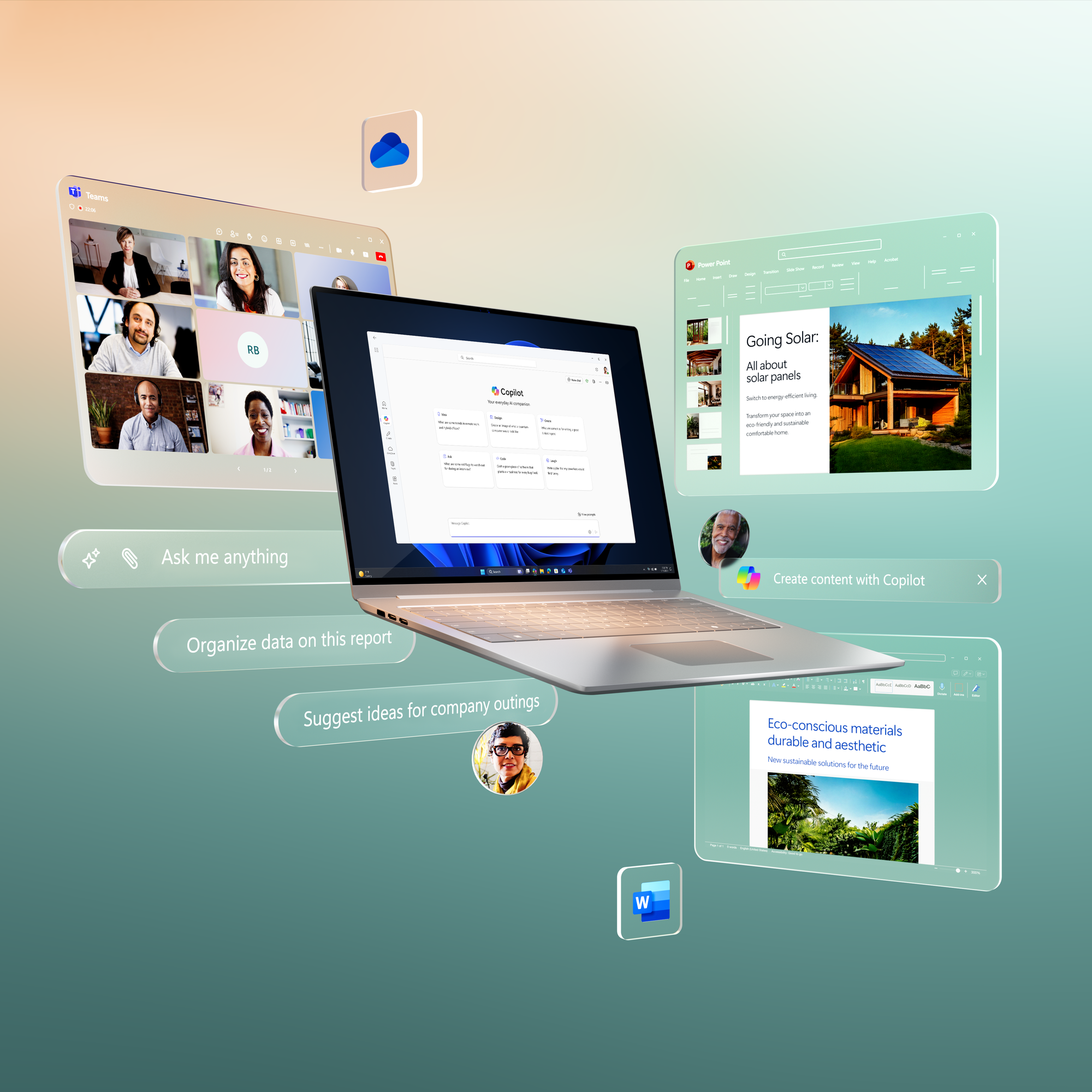
Microsoft Copilot for Microsoft 365 embeds AI directly into familiar tools like Word, Excel, Outlook, Teams, and PowerPoint, allowing nonprofits to automate knowledge work without adopting entirely new systems or hiring specialized AI teams.
How Copilot Works Under the Hood
Copilot is built on three core components:
1. Large Language Models (LLMs)
These AI models generate, summarize, and transform text and other content.
2. Microsoft Graph
Microsoft Graph connects Copilot to your organization’s data—including:
- Emails
- Files (SharePoint, OneDrive)
- Meetings and calendars
- Teams chats
This provides context-aware responses based on your organization’s existing content.
3. Microsoft 365 Apps
Copilot is embedded directly inside:
- Word
- Excel
- Outlook
- Teams
- PowerPoint
Together, these components allow Copilot to generate insights and content grounded in your organization’s data. [learn.microsoft.com]
📌 Important: Copilot does not create new data silos. It respects existing permissions, so users only see data they are already authorized to access.
👉 Learn more: Microsoft 365 Copilot overview
Requirements to Enable Copilot
To use Copilot in Microsoft 365, organizations generally need:
- A supported Microsoft 365 plan (e.g., Business Standard, Business Premium, E3, or E5)
- A Copilot add-on license
- Proper data stored in Microsoft 365 (e.g., OneDrive, SharePoint, Teams)
📌 Copilot’s effectiveness depends heavily on how well your data is organized and accessible.
Technical Use Cases for Nonprofits
1. Grant Writing & Reporting Automation
Copilot can:
- Summarize program outcomes from documents (Word, SharePoint)
- Generate draft grant narratives
- Rewrite content to align with funder tone
- Extract insights from structured data (Excel, reports)
⚠️ Clarification: In many standard Microsoft 365 Copilot scenarios, Copilot does not directly query Power BI datasets. Instead, it relies on data embedded in documents, emails, or exported reports. However, newer integrations (e.g., Microsoft Fabric and Copilot Power BI integration) allow Copilot to access and answer questions using Power BI reports and semantic models, depending on licensing, environment, and configuration.
Technical Advantage
Copilot uses Microsoft Graph to pull relevant context from your organization’s documents, reducing manual copy-paste work.
How to Use Copilot in Word for Grant Writing
- Open Word
- Select Copilot icon to open the Copilot pane
- Choose Draft with Copilot (or start typing a prompt)
- Enter a prompt such as: “Draft a 2-page grant narrative using the attached program summary and last year’s outcomes.”
- (Optional) Reference or attach relevant files from OneDrive or SharePoint
- Click Generate
- Review the draft
- Refine using Copilot commands such as:
- Rewrite (improve clarity)
- Expand (add detail)
- Adjust tone (formal, persuasive, etc.)
2. Outlook + Copilot for Donor Communications
Copilot can:
- Draft personalized donor emails
- Summarize long email threads
- Rewrite messages for tone and clarity
- Suggest follow-ups
Technical Note
Copilot can use:
- Previous email threads
- Attached documents
- Calendar context
to generate more relevant responses.
How to Use Copilot in Outlook
- Open a new email
- Click Copilot icon in the tool bar
- Select Draft with Copilot
- Enter a prompt such as: “Write a warm thank-you email to a donor who contributed $500 to our youth program.”
- Click Generate
- Review the drafted email
- Edit directly or use Copilot to:
- Rewrite
- Adjust tone (formal, friendly, etc.)
- Change length (shorter or longer)
- Select Keep it, then send when ready
3. Teams Meeting Summaries
Copilot in Teams can:
- Generate meeting summaries
- Identify decisions and key points
- Extract action items
- Suggest follow-ups
📌 Copilot works from meeting transcripts and chat logs.
How to Use Copilot in Teams
- Start or join a Teams meeting
- Enable Transcription (recommended for full Copilot functionality)
- After the meeting, open the meeting chat or calendar event
- Select the Recap tab
- Click Copilot
- Select or enter a prompt (e.g., "Recap the meeting")
- Review:
- key discussion points
- Decision
- Action items
4. PowerPoint Storytelling
Copilot can transform content into presentations:
- Word documents → slide decks
- Meeting summaries → presentations
- Reports → visual narratives
Technical Advantage
Copilot uses semantic understanding to:
- Structure slides
- Generate speaker notes
- Suggest layouts and visuals
How to Use Copilot in PowerPoint
- Open PowerPoint
- Select the Copilot icon to open the Copilot pane
- Provide a prompt or upload a document
- Copilot generates slides and notes
- Refine using design and layout suggestions
Security & Compliance
Copilot inherits Microsoft 365’s enterprise-grade security model, including:
- Role-based access control (RBAC)
- Data residency and compliance controls
- Existing permissions enforcement
- Zero Trust principles
📌 Important clarification:
- Microsoft states that customer data is not used to train foundation models.
- Data remains within your organization’s tenant boundary.
👉 Learn more: Data, Privacy, and Security for Microsoft 365 Copilot | Microsoft Learn
Important Implementation Considerations
1. Data Readiness
Copilot’s quality depends on your data:
- Organized SharePoint libraries
- Consistent file naming
- Structured documents
2. Access Control
Ensure proper permissions before rollout:
- Avoid overexposure of sensitive data
- Audit SharePoint and Teams access
3. Human Oversight
Copilot generates drafts—not final outputs.
- Always review grant narratives
- Validate donor messaging
- Confirm factual accuracy
Final Thought
Microsoft Copilot is not a replacement for nonprofit expertise—it is a force multiplier.
By embedding AI into everyday tools, nonprofits can:
- Reduce administrative workload
- Accelerate writing and reporting
- Improve internal communication
- Focus more time on mission-driven work
When implemented thoughtfully—with strong data practices, governance, and human oversight—Copilot can help organizations move faster, communicate more effectively, and make better-informed decisions.
Ultimately, the goal is not just efficiency, but greater impact—freeing teams to spend less time on repetitive tasks and more time advancing the mission they serve.


