networking
967 Topics
URGENT: Microsoft Edge incorrectly flags paytracc.com as typosquatting after multiple reports
Microsoft Edge Website Typo Protection incorrectly flags https://paytracc.com as a possible misspelling of paytrace.com. Paytracc.com is the legitimate official domain of PayTracc, an independent financial technology product. “PayTracc” is the intentional registered brand spelling and is not impersonating or affiliated with PayTrace. The warning has continued despite repeated reports through the “Report that this site URL is not a misspelling” option. Technical verification: • https://paytracc.com returns HTTP 200 OK. • http://paytracc.com returns HTTP 301 and redirects to HTTPS. • A valid TLS certificate and HSTS are enabled. • Chrome and other browsers do not display this warning. • The issue is reproducible only in Microsoft Edge Website Typo Protection. This false positive is discouraging customers from accessing the website. Anyways to resolve this please? Affected domain: https://paytracc.com Incorrect suggested domain: paytrace.com4Views0likes0CommentsMicrosoft Edge Enterprise — Intermittent Blue Coat Proxy Authentication Prompt
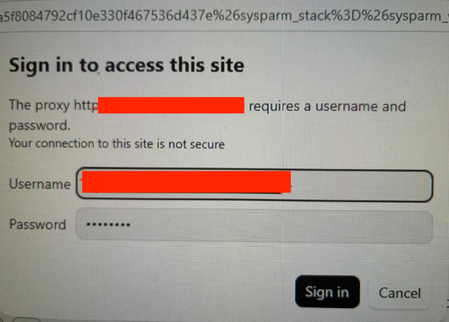
Product: Microsoft Edge for Business / Microsoft Edge Enterprise Component: Proxy authentication, HTTP networking and integrated authentication Operating system: Windows 11 Enterprise Proxy: Blue Coat / Broadcom forward proxy, port 8080 Proxy authentication configuration: Basic Auth/ IWARealm exact authentication method to be confirmed Affected browser: Microsoft Edge for Business Comparison browser: Mozilla Firefox, where the same behaviour has not been observed Impact: Intermittent interruption of browsing and loss of access to existing tabs until the user reauthenticates We are experiencing intermittent, unexpected proxy authentication prompts in Microsoft Edge for Business. The dialog states: Sign in to access this site. The proxy http://[bluecoat-host-url]:8080 requires a username and password. Your connection to this site is not secure. The prompt appears sporadically, sometimes while the browser is idle or while tabs displaying otherwise idle ServiceNow, deepl etc. pages cannot be accessed until user reauthenticates with autofill if proxy password is saved in order to be able to access those sites again. No explicit navigation or user interaction is necessarily taking place when the dialog appears. This behaviour was not observed previously and has become noticeable more recently especially since the migration of a lot of our workloads to the microsoft cloud. Firefox does not appear to exhibit the same symptom under comparable. We suspect that a background request, a new or reused proxy connection, proxy-session reauthentication, or an incomplete integrated-authentication exchange may be triggering the prompt. However, we have not yet identified the exact request or established whether the root cause is Edge, the proxy configuration, PAC routing, or the authentication infrastructure. usage conditions. Edge should silently authenticate to the configured enterprise proxy through the organisation's approved authentication mechanism, without unexpectedly displaying a credential prompt during normal browsing or background activity.54Views0likes1Comment
What is the best way to handle networking during a long-running cloud migration?
Hi everyone, I'd like to get some opinions from people who have worked on large-scale cloud migrations. Consider a migration where workloads are gradually moved from AWS to Azure over several weeks or months rather than being migrated in a single cutover. During the migration period, both environments need to remain operational. A simplified architecture could look like: AWS workloads | | Existing connectivity | AWS Network | | Inter-cloud connectivity | Azure Network | | Azure workloads The challenge is that applications may temporarily become distributed across both clouds. For example: • Application servers may still be running in AWS. • New application components may already be deployed in Azure. • Databases or shared services may remain in AWS temporarily. • DNS and routing may need to support both environments. • Migration tools may require connectivity to source and target environments. • Some workloads may be migrated much earlier than their dependent services. For a long-running migration like this, what architecture would you recommend? Some options I have been considering are: 1. Site-to-site VPN between AWS and Azure 2. Dedicated connectivity such as AWS Direct Connect + Azure ExpressRoute 3. A combination of dedicated connectivity and VPN for backup 4. A hub-and-spoke architecture in Azure with controlled connectivity back to AWS 5. Application-level connectivity rather than relying heavily on network-level connectivity Another question is how you would handle routing. Would you prefer to: • Keep AWS and Azure routing domains mostly independent? • Use a centralized hub for cross-cloud traffic? • Advertise routes dynamically using BGP? • Restrict cross-cloud communication to only the application dependencies that require it? For a migration lasting several months, what approach have you found to be the most reliable and easiest to operate? I'm particularly interested in lessons learned around: • Routing • DNS • Security • Latency • Failover • Monitoring • Avoiding unexpected cross-cloud traffic costs Would appreciate experiences from anyone who has handled a production AWS-to-Azure or Azure-to-AWS migration.
Announcing Windows Server vNext Preview Build 29667
Hello Windows Server Insiders! Today we are pleased to release a new build of the next Windows Server Long-Term Servicing Channel (LTSC) Preview that contains both the Desktop Experience and Server Core installation options for Datacenter and Standard editions and Azure Edition (for VM evaluation only). Branding remains Windows Server 2025 in this preview - when reporting issues please refer to Windows Server vNext preview. Build 29531 established a new Server preview baseline build. Please perform a clean install of Build 29531 (or later) using the installation media linked below. Please note: Upgrades from Windows Server vNext preview builds older than 29531 are not supported. We encourage all Windows Server vNext preview users to perform a clean install using 29531 or later to successfully upgrade to future Windows Server vNext preview builds. While upgrades from earlier Windows Server previews (Build 26525 and older) are not technically blocked by setup.exe, a number of known issues have been identified related to upgrades necessitating the establishment of a new baseline build for our Server vNext Preview Program. The new baseline build (29531) will not be Flighted due to upgrade issues. Flighting support resumed with preview build 29550 or later. What's New Trusted Launch for virtual machines (TVMs) on Windows Server—a security feature you can enable when creating Generation 2 VMs. This initial preview supports TVMs with Secure Boot, vTPM, and vTPM state protection (at rest), managed via PowerShell. ⚠ Not supported in this release: Moving TVMs to another server TVMs in failover clusters or Hyper-V Replica Boot integrity verification TVMs in Windows Admin Center (WAC) Instructions Install the latest ServerInsider preview build. Enable Hyper-V (restarts the server): Install-WindowsFeature -Name Hyper-V -IncludeManagementTools -Restart Set the registry keys: New-Item -Path "HKLM:\SOFTWARE\Microsoft\AszIgvmAgent" -Force New-ItemProperty -Path "HKLM:\SOFTWARE\Microsoft\AszIgvmAgent" -Name "TvmWinServer" -Value 1 -PropertyType DWord -Force Enable Trusted Launch: Enable-WindowsOptionalFeature -Online -FeatureName "IsolatedGuestVm" -NoRestart Verify IGVmAgent is running (should show Running): Get-Service -Name "IGVmAgent" If it isn't running, report the issue with the IGVmAgent and IGVmSystem Operational logs (Event Viewer → Applications and Services Logs → Microsoft → Windows). Create an external virtual switch (if needed): (Get-VMSwitch | Where-Object { $_.SwitchType -eq "External" }).Name Create the TVM. With an existing Gen 2 VHDX: New-VM -Name <VMName> -Generation 2 -GuestStateIsolationType TrustedLaunch -SwitchName <switch> -VHDPath <path to vhdx> -Path <config path> Or with a new VHD, then attach a Gen 2–compatible guest OS ISO: New-VM -Name <VMName> -SwitchName <switch> -NewVHDPath <new VHD path> -NewVHDSizeBytes 40GB -Generation 2 -GuestStateIsolationType TrustedLaunch -Path <config path> Add-VMDvdDrive -VMName <VMName> -Path <Guest OS ISO path> Ensure the DVD drive is first in the firmware boot order so the VM boots from it. Verify isolation type (should return TrustedLaunch): (Get-VM -Name <VMName>).GuestStateIsolationType Verify guest state protection: Stop the IGVmAgent service and restart the VM—without IGVmAgent running, a Trusted launch VM with guest state protection won't start. For more information, please review our blog post: Announcing Trusted Launch for Virtual Machines for Windows Server Insiders | Microsoft Community Hub NVMe-over-Fabrics (NVMe-oF) extends the NVMe protocol—originally designed for local PCIe-attached SSDs—across a network fabric. Instead of using legacy SCSI-based protocols such as iSCSI or Fibre Channel, NVMe-oF allows a host to communicate directly with remote NVMe controllers using the same NVMe command set used for local devices. In this Insider build, Windows Server supports: NVMe-oF over TCP (NVMe/TCP), allowing NVMe-oF to run over standard Ethernet networks without specialized hardware. NVMe-oF over RDMA (NVMe/RDMA), enabling low-latency, high-throughput NVMe access over RDMA-capable networks (for example, RoCE or iWARP) using supported RDMA NICs. For more information, please visit: Introducing the Windows NVMe-oF Initiator Preview in Windows Server Insiders Builds | Microsoft Community Hub ReFS Boot is enabled for Windows Server vNext preview builds. Known Limitations ReFS Boot systems create a minimum 2GB WinRE partition. When WinRE cannot be updated due to space constraints, the system may disable WinRE. Disabling WinRE does not remove the partition. If the WinRE partition is deleted and the boot volume is extended over it, this operation is unrecoverable without a clean install. For more information, please visit: Resilient File System (ReFS) overview | Microsoft Learn Feedback Hub app is available for Server Desktop users! The app should automatically update with the latest version, but if it does not, simply Check for updates in the app’s settings tab. Known Issues A race condition in the TLS hybrid key exchange implementation may cause the LSASS service to crash when hybrid groups are negotiated by a TLS server. To avoid this issue until the fix is released, please disable hybrid groups (X25519_MLKEM768, SecP256r1_MLKEM768, SecP384r1_MLKEM1024) using TLS cmdlets or Group Policy, as outlined here. Server Core Upgrades and AppCompat FOD: Enabling AppCompat FOD after reinstall may fail due to legacy 3rd-party license compatibility issues on Server Core devices. Server Core users may be unable to install the latest AppCompat FOD after upgrading to build 29574. This appears to be limited to Server Core installations with 3rd-party application licenses that fail compatibility checks after upgrade. This will be addressed in a future build. Upgrading from older builds of Windows Server vNext previews (26525 or older) are not supported. Please perform a clean install of build 29531 or later. Users may experience failures when attempting to upgrade from earlier previews (build 26525 and older). VMs may fail to upgrade or start after upgrade from older preview builds impacting live migration and failover cluster scenarios. Download Windows Server Insider Preview (microsoft.com) Flighting: The label for this flight may incorrectly reference Windows 11. However, when selected, the package installed is the Windows Server vNext update. Please ignore the label and proceed with installing your flight. This issue will be addressed in a future release. Available Downloads Downloads to certain countries may not be available. See Microsoft suspends new sales in Russia - Microsoft On the Issues. Windows Server Long-Term Servicing Channel Preview in ISO format in 18 languages, and in VHDX format in English only. Windows Server Datacenter Azure Edition Preview in ISO and VHDX format, English only. Microsoft Server Languages and Optional Features Preview Keys: Keys are valid for preview builds only Server Standard: MFY9F-XBN2F-TYFMP-CCV49-RMYVH Datacenter: 2KNJJ-33Y9H-2GXGX-KMQWH-G6H67 Azure Edition does not accept a key. Symbols: Available on the public symbol server – see Using the Microsoft Symbol Server. Expiration: This Windows Server Preview will expire October 15, 2027. How to Download Registered Insiders may navigate directly to the Windows Server Insider Preview download page. If you have not yet registered as an Insider, see GETTING STARTED WITH SERVER on the Windows Insiders for Business portal. We value your feedback! The most important part of the release cycle is to hear what's working and what needs to be improved, so your feedback is extremely valued. Please use the new Feedback Hub app for Windows Server if you are running a Desktop version of Server. If you are using a Core edition, or if you are unable to use the Feedback Hub app, you can use your registered Windows 10 or Windows 11 Insider device and use the Feedback Hub application. In the app, choose the Windows Server category and then the appropriate subcategory for your feedback. In the title of the Feedback, please indicate the build number you are providing feedback on as shown below to ensure that your issue is attributed to the right version: [Server #####] Title of my feedback See Give Feedback on Windows Server via Feedback Hub for specifics. The Windows Server Insiders space on the Microsoft Tech Communities supports preview builds of the next version of Windows Server. Use the forum to collaborate, share and learn from experts. For versions that have been released to general availability in market, try the Windows Server for IT Pro forum or contact Support for Business. Diagnostic and Usage Information Microsoft collects this information over the internet to help keep Windows secure and up to date, troubleshoot problems, and make product improvements. Microsoft server operating systems can be configured to turn diagnostic data off, send Required diagnostic data, or send Optional diagnostic data. During previews, Microsoft asks that you change the default setting to Optional to provide the best automatic feedback and help us improve the final product. Administrators can change the level of information collection through Settings. For details, see http://aka.ms/winserverdata. Also see the Microsoft Privacy Statement. Terms of Use This is pre-release software - it is provided for use "as-is" and is not supported in production environments. Users are responsible for installing any updates that may be made available from Windows Update. All pre-release software made available to you via the Windows Server Insider program is governed by the Insider Terms of Use.830Views2likes0CommentsCentral pki
Has anyone implemented a centralised PKI where the Root CA is stored in Azure Key Vault and workloads can automatically obtain the Root CA when they are deployed, as well as receive updated versions when the Root CA needs to be rotated or renewed? I’m looking to implement a centralised PKI for an Azure hub-and-spoke architecture, where workloads across the spokes can automatically obtain and trust the Root CA. The workloads could include VMs, AKS, containers, App Services and Azure Functions. I’m aware that Azure Machine Configuration can be used to deploy certificates to VMs, but this is specific to VMs. What is the recommended approach for distributing the Root CA to the other Azure workload types using a consistent and automated mechanism? Ideally, I’d like the solution to be fully automated, so that new workloads receive the current Root CA during deployment and existing workloads automatically receive updated versions whenever the Root CA is rotated or renewed. I will be deploying the root ca in a key vault via terraform a project for the root ca only to update whenever is needed and then each resources to be able to get the latest root ca. Has anyone implemented something similar, or could you provide guidance on the recommended architecture and distribution mechanism?186Views0likes1Comment
Hyper-v Ubuntu 26.04LTS Multiple DHCP entries
Good evening, am running windows server 2022 datacenter edition, which is running multiple hyper-v machines. I have been installing a new instance of ubuntu 26.04.1LTS but have noticed something weird. Maybe you could assist. Issue: When fresh install Ubuntu 26.04.1 into a VM using hyper-v, I notice 2 IP addresses appear in windows DHCP (192.168.40.20, 192.168.40.21). When I shut down the instance only one disappears (192.168.40.21). If I delete 192.168.40.20 and restart the VM instance both Ip addresses reappear in DHCP. Points to note: Image was downloaded direct off the website with no changes (have redownloaded to make sure image is not broken) Have tried using a different name for the server Have noticed the ubuntu instance only picks up one address (192.168.40.21) for the adaptor. Am unable to ping 192.168.40.20 or connect to that address via ssh. Would anyone have any idea, where the second IP address would be coming from in DHCP?158Views0likes1CommentAnnouncing Windows Server vNext Preview Build 29659
Hello Windows Server Insiders! Today we are pleased to release a new build of the next Windows Server Long-Term Servicing Channel (LTSC) Preview that contains both the Desktop Experience and Server Core installation options for Datacenter and Standard editions and Azure Edition (for VM evaluation only). Branding remains Windows Server 2025 in this preview - when reporting issues please refer to Windows Server vNext preview. Build 29531 established a new Server preview baseline build. Please perform a clean install of Build 29531 (or later) using the installation media linked below. Please note: Upgrades from Windows Server vNext preview builds older than 29531 are not supported. We encourage all Windows Server vNext preview users to perform a clean install using 29531 or later to successfully upgrade to future Windows Server vNext preview builds. While upgrades from earlier Windows Server previews (Build 26525 and older) are not technically blocked by setup.exe, a number of known issues have been identified related to upgrades necessitating the establishment of a new baseline build for our Server vNext Preview Program. The new baseline build (29531) will not be Flighted due to upgrade issues. Flighting support resumed with preview build 29550 or later. What's New Trusted Launch for virtual machines (TVMs) on Windows Server—a security feature you can enable when creating Generation 2 VMs. This initial preview supports TVMs with Secure Boot, vTPM, and vTPM state protection (at rest), managed via PowerShell. ⚠ Not supported in this release: Moving TVMs to another server TVMs in failover clusters or Hyper-V Replica Boot integrity verification TVMs in Windows Admin Center (WAC) Instructions 1. Install the latest ServerInsider preview build. 2. Enable Hyper-V (restarts the server): Install-WindowsFeature -Name Hyper-V -IncludeManagementTools -Restart 3. Set the registry keys: New-Item -Path "HKLM:\SOFTWARE\Microsoft\AszIgvmAgent" -Force New-ItemProperty -Path "HKLM:\SOFTWARE\Microsoft\AszIgvmAgent" -Name "TvmWinServer" -Value 1 -PropertyType DWord -Force 4. Enable Trusted Launch: Enable-WindowsOptionalFeature -Online -FeatureName "IsolatedGuestVm" -NoRestart 5. Verify IGVmAgent is running (should show Running): Get-Service -Name "IGVmAgent" If it isn't running, report the issue with the IGVmAgent and IGVmSystem Operational logs (Event Viewer → Applications and Services Logs → Microsoft → Windows). 6. Create an external virtual switch (if needed): (Get-VMSwitch | Where-Object { $_.SwitchType -eq "External" }).Name 7. Create the TVM. With an existing Gen 2 VHDX: New-VM -Name <VMName> -Generation 2 -GuestStateIsolationType TrustedLaunch -SwitchName <switch> -VHDPath <path to vhdx> -Path <config path> Or with a new VHD, then attach a Gen 2–compatible guest OS ISO: New-VM -Name <VMName> -SwitchName <switch> -NewVHDPath <new VHD path> -NewVHDSizeBytes 40GB -Generation 2 -GuestStateIsolationType TrustedLaunch -Path <config path> Add-VMDvdDrive -VMName <VMName> -Path <Guest OS ISO path> Ensure the DVD drive is first in the firmware boot order so the VM boots from it. 8. Verify isolation type (should return TrustedLaunch): (Get-VM -Name <VMName>).GuestStateIsolationType 9. Verify guest state protection: Stop the IGVmAgent service and restart the VM—without IGVmAgent running, a Trusted launch VM with guest state protection won't start. For more information, please review our blog post: Announcing Trusted Launch for Virtual Machines for Windows Server Insiders | Microsoft Community Hub Quick Machine Recovery available in Windows Server vNext Insider Previews. Quick machine recovery (QMR) is now available for Server vNext Insiders to test. This feature enables the recovery of Windows Server devices when they encounter boot critical errors that prevent them from booting. QMR can automatically search for cloud‑based remediations to recover from widespread boot failures significantly reducing the burden on IT administrators when multiple devices are impacted. This supports the goals of the Windows Resiliency Initiative by enabling applicable fixes to be delivered through trusted Windows Update to restore affected devices, helping reduce downtime and minimize manual recovery efforts across enterprise environments. This feature is currently enabled in the latest Server vNext Insider builds for customers to experience test mode. A Group Policy option to enable or disable the feature will be introduced in upcoming builds to provide additional administrative control. To simulate the quick machine recovery experience, use the following commands from an elevated command prompt: Enable test mode: reagentc.exe /SetRecoveryTestmode Configure Windows to boot to Windows Recovery Environment on the next boot: reagentc.exe /BootToRe Reboot your device.The system goes through autoremediation of a simulated crash safely and reboots back to Windows Server. For more information, please review Quick machine recovery (QMR) and Windows Resiliency Initiative. When providing feedback using Feedback hub, please select QMR from the Recovery and Uninstall category in the app. NVMe-over-Fabrics (NVMe-oF) extends the NVMe protocol—originally designed for local PCIe-attached SSDs—across a network fabric. Instead of using legacy SCSI-based protocols such as iSCSI or Fibre Channel, NVMe-oF allows a host to communicate directly with remote NVMe controllers using the same NVMe command set used for local devices. In this Insider build, Windows Server supports: NVMe-oF over TCP (NVMe/TCP), allowing NVMe-oF to run over standard Ethernet networks without specialized hardware. NVMe-oF over RDMA (NVMe/RDMA), enabling low-latency, high-throughput NVMe access over RDMA-capable networks (for example, RoCE or iWARP) using supported RDMA NICs. For more information, please visit: Introducing the Windows NVMe-oF Initiator Preview in Windows Server Insiders Builds | Microsoft Community Hub ReFS Boot is enabled for Windows Server vNext preview builds. Known Limitations ReFS Boot systems create a minimum 2GB WinRE partition. When WinRE cannot be updated due to space constraints, the system may disable WinRE. Disabling WinRE does not remove the partition. If the WinRE partition is deleted and the boot volume is extended over it, this operation is unrecoverable without a clean install. For more information, please visit: Resilient File System (ReFS) overview | Microsoft Learn Feedback Hub app is available for Server Desktop users! The app should automatically update with the latest version, but if it does not, simply Check for updates in the app’s settings tab. Known Issues A race condition in the TLS hybrid key exchange implementation may cause the LSASS service to crash when hybrid groups are negotiated by a TLS server. To avoid this issue until the fix is released, please disable hybrid groups (X25519_MLKEM768, SecP256r1_MLKEM768, SecP384r1_MLKEM1024) using TLS cmdlets or Group Policy, as outlined here. Server Core Upgrades and AppCompat FOD: Enabling AppCompat FOD after reinstall may fail due to legacy 3rd-party license compatibility issues on Server Core devices. Server Core users may be unable to install the latest AppCompat FOD after upgrading to build 29574. This appears to be limited to Server Core installations with 3rd-party application licenses that fail compatibility checks after upgrade. This will be addressed in a future build. Upgrading from older builds of Windows Server vNext previews (26525 or older) are not supported. Please perform a clean install of build 29531 or later. Users may experience failures when attempting to upgrade from earlier previews (build 26525 and older). VMs may fail to upgrade or start after upgrade from older preview builds impacting live migration and failover cluster scenarios. Download Windows Server Insider Preview (microsoft.com) Flighting: The label for this flight may incorrectly reference Windows 11. However, when selected, the package installed is the Windows Server vNext update. Please ignore the label and proceed with installing your flight. This issue will be addressed in a future release. Available Downloads Downloads to certain countries may not be available. See Microsoft suspends new sales in Russia - Microsoft On the Issues. Windows Server Long-Term Servicing Channel Preview in ISO format in 18 languages, and in VHDX format in English only. Windows Server Datacenter Azure Edition Preview in ISO and VHDX format, English only. Microsoft Server Languages and Optional Features Preview Keys: Keys are valid for preview builds only Server Standard: MFY9F-XBN2F-TYFMP-CCV49-RMYVH Datacenter: 2KNJJ-33Y9H-2GXGX-KMQWH-G6H67 Azure Edition does not accept a key. Symbols: Available on the public symbol server – see Using the Microsoft Symbol Server. Expiration: This Windows Server Preview will expire October 15, 2027. How to Download Registered Insiders may navigate directly to the Windows Server Insider Preview download page. If you have not yet registered as an Insider, see GETTING STARTED WITH SERVER on the Windows Insiders for Business portal. We value your feedback! The most important part of the release cycle is to hear what's working and what needs to be improved, so your feedback is extremely valued. Please use the new Feedback Hub app for Windows Server if you are running a Desktop version of Server. If you are using a Core edition, or if you are unable to use the Feedback Hub app, you can use your registered Windows 10 or Windows 11 Insider device and use the Feedback Hub application. In the app, choose the Windows Server category and then the appropriate subcategory for your feedback. In the title of the Feedback, please indicate the build number you are providing feedback on as shown below to ensure that your issue is attributed to the right version: [Server #####] Title of my feedback See Give Feedback on Windows Server via Feedback Hub for specifics. The Windows Server Insiders space on the Microsoft Tech Communities supports preview builds of the next version of Windows Server. Use the forum to collaborate, share and learn from experts. For versions that have been released to general availability in market, try the Windows Server for IT Pro forum or contact Support for Business. Diagnostic and Usage Information Microsoft collects this information over the internet to help keep Windows secure and up to date, troubleshoot problems, and make product improvements. Microsoft server operating systems can be configured to turn diagnostic data off, send Required diagnostic data, or send Optional diagnostic data. During previews, Microsoft asks that you change the default setting to Optional to provide the best automatic feedback and help us improve the final product. Administrators can change the level of information collection through Settings. For details, see http://aka.ms/winserverdata. Also see the Microsoft Privacy Statement. Terms of Use This is pre-release software - it is provided for use "as-is" and is not supported in production environments. Users are responsible for installing any updates that may be made available from Windows Update. All pre-release software made available to you via the Windows Server Insider program is governed by the Insider Terms of Use.839Views1like0Comments
Assign IP Address for Windows Server 2025 VM on Hyper-V
I have built my first Windows Server 2025 VM on HyperV and trying to assign an IP address. I want the VM's to be like an actual server so I Created an external vswitch. The HyperV server IP is 172.16.1.41 with a physical gateway of 172.16.1.5. I have tried to assign the new VM with 172.16.1.42/255.255.255.0 and the Gateway is 172.16.1.5 also. However, I cannot get a positive ping. Do I need another VSWITCH configured or what am I missing?566Views0likes6CommentsAzure Networking: Request for Granular Control of “Allow Azure Services and Resources”
I would like to get the Azure community’s thoughts on a networking/security improvement that I believe could help organizations implement a stronger least-privilege model. Several Azure resources provide an option similar to: “Allow Azure services and resources to access this resource.” This is useful when an Azure service needs to access another Azure resource, but the current option can be quite broad. Example: Power BI → Azure SQL For example, suppose Power BI Service needs to access an Azure SQL Server. The actual requirement might be: Power BI → Specific Azure SQL Server = Allow However, the available option may require enabling: “Allow Azure services and resources to access this server” This effectively creates a much broader trusted-service exception than the actual requirement. Ideally, I would like to see something like: Azure SQL Server │ ├── Power BI Service → Allow ├── Azure Data Factory → Deny ├── Azure Functions → Deny ├── Azure App Service → Deny └── Other Azure Services → Deny Proposed improvement Could Microsoft provide an additional option such as: “Allow selected Azure services and resources” where customers can explicitly select which Azure service/resource is allowed to bypass the network restriction? Depending on the Azure service, the selection could potentially be based on: Specific Azure service Specific Azure resource Resource ID Subscription Resource group Tenant Managed identity / Entra identity Specific service instance For example: Trusted Azure Services / Resources Power BI → Production Analytics → Allow All other Azure services → Deny Why I think this would be useful This would give customers a middle ground between: Disabling public access and implementing Private Endpoint/private connectivity, or Allowing all Azure services/resources through the broad trusted-service exception. A granular trusted-service model would allow: Only the Azure service/resource that actually requires access is trusted. This would better support least privilege, Zero Trust, security, and compliance requirements. Broader Azure applicability My suggestion is not specifically for Azure SQL. The Power BI → Azure SQL scenario is just an example. I think this could be a common Azure networking capability for all Azure resources that currently support a trusted Azure services / “Allow Azure services and resources” type of bypass. I would be interested to hear from the Azure community and Microsoft: Is there already a way to achieve this level of granularity? Are there architectural/security reasons why this cannot currently be implemented? Is Microsoft considering a more granular trusted-service model? Would a feature like “Allow selected Azure services/resources” be technically feasible? I would appreciate any feedback or guidance from the Azure networking/service teams.339Views0likes1Comment