monitoring
20 TopicsLog Insights in Minutes: A Simpler pgBadger Workflow
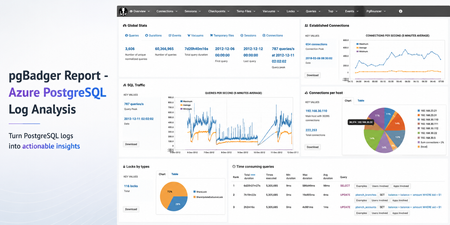
Sometimes the fastest way to understand a PostgreSQL workload is not another dashboard. It is a good log report. pgBadger is a PostgreSQL log analysis tool that turns raw PostgreSQL logs into an interactive HTML report. It helps summarize query activity, connection patterns, errors, temporary files, lock waits, autovacuum activity, and more. Earlier guidance for generating pgBadger reports from Azure Database for PostgreSQL Flexible Server focused on exporting logs through Diagnostic Settings, storing them in a storage account, and then using tools such as BlobFuse and jq to extract PostgreSQL log lines from JSON files. That workflow is still useful when customers centralize logs across multiple servers. However, if you are already using the Server logs feature in Azure Database for PostgreSQL Flexible Server, there is a much simpler path. In this post: You’ll learn how to generate a pgBadger HTML report from Azure Database for PostgreSQL Flexible Server by downloading native PostgreSQL .log files directly from the Azure portal. No storage account, BlobFuse mount, or JSON extraction required. Fast path Configure log_line_prefix . Enable Server logs for download. Download the PostgreSQL .log files. Run pgBadger with the matching prefix. Open pgbadger-report.html . Why use this workflow? With Server logs, you can download native PostgreSQL .log files directly from the Azure portal and run pgBadger locally. Older path Simpler path in this blog Diagnostic Settings → Storage account → BlobFuse → JSON extraction → pgBadger Server logs → Download .log files → pgBadger Area Older Diagnostic Settings workflow Server logs workflow Export path Diagnostic Settings to storage account Download .log files directly from the portal Format JSON payloads need extraction Native PostgreSQL .log files Extra tooling BlobFuse and jq JSON parsing None Best suited for Centralized or multi-server logging Quick per-server analysis Outcome Flexible, but more setup Faster path to pgBadger Recommended: Use the Server logs workflow when you want a fast, low-friction way to generate a pgBadger report from one Azure Database for PostgreSQL Flexible Server. When should you use this workflow? Use this workflow when... Use Diagnostic Settings when... You need a quick report for one Flexible Server. You centralize logs from many servers. You want to run pgBadger locally. You need long-term retention or workspace-level querying. You want to avoid JSON extraction. You already have automated log export pipelines. Before you start A machine where you can install or run pgBadger. A working Perl runtime. Git Bash on Windows, so the multi-line shell commands work as shown. Portal access to your Azure Database for PostgreSQL Flexible Server. Permission to update server parameters and enable Server logs. Important: pgBadger can only analyze what PostgreSQL logs capture. To populate query timing and slow-query sections in the report, enable log_min_duration_statement before collecting logs. Logs collected before that change will not include duration data. Workflow overview Task Type Rough effort Install or prepare pgBadger One-time setup per analysis machine 5–10 minutes Configure log_line_prefix One-time setup per server 2–3 minutes Enable Server logs One-time setup per server 2–3 minutes Download logs and run pgBadger Repeatable 2–5 minutes Install or prepare pgBadger on the machine where you will analyze logs. Configure log_line_prefix so pgBadger can parse each log line. Enable Server logs, so PostgreSQL logs are available for download. Download the logs and run pgBadger locally. 💡Pro tip: Start with a narrow log window first. Use one or two hourly log files, confirm the report looks right, and then expand the analysis window if needed. Step 1: Install pgBadger Before generating a report, you need pgBadger available on the machine where you plan to analyze the downloaded PostgreSQL log files. Run this on a Linux VM, WSL, or another Linux-based environment where you can install packages. Note: Azure Cloud Shell may work for quick testing, but package installation and build-tool availability can vary by session. For repeatable analysis, use a Linux VM, WSL, or another environment you control. Copy and run sudo apt-get update && sudo apt-get install -y git perl make gcc && \ git clone https://github.com/darold/pgbadger.git && \ cd pgbadger && \ perl Makefile.PL && \ make && \ sudo make install && \ pgbadger -V What good looks like: The install command completes successfully and pgbadger -V returns the installed pgBadger version. Step 2: Configure log_line_prefix This is a one-time server configuration step. The log_line_prefix parameter controls the beginning of each PostgreSQL log line. pgBadger uses this prefix to extract useful fields such as timestamp, user, database, and process ID. In the Azure portal, open your Flexible Server and go to Server parameters. Search for: Parameter log_line_prefix Set this value %m user=%u db=%d pid=%p: Then select Save. In Server parameters, confirm that the custom value is saved for log_line_prefix . Figure 1: Set log_line_prefix so pgBadger can correctly parse timestamp, user, database, and process ID from each log line. Prefix tokens Token Meaning %m Timestamp with milliseconds %u Username %d Database name %p Process ID After this change, log lines should look like this: Example log line 2026-06-22 19:00:00.070 UTC user=pgadmin db=highcpu pid=3805603: LOG: statement: SELECT 1 FROM pg_extension WHERE extname='pg_stat_statements' The matching pgBadger prefix for this log format is: Matching pgBadger prefix %m user=%u db=%d pid=%p: You will use this same value later in the pgBadger command. What good looks like: The server parameter is saved, and new PostgreSQL log lines begin with timestamp, user, database, and process ID fields that match the pgBadger prefix. Step 3: Enable Server logs for download This is also a one-time setup step. In the Azure portal, open your Flexible Server and go to Server logs. Enable: Portal setting Capture logs for download Set the retention period based on how long you want logs to remain available for download. For example, a 7-day retention period keeps logs available for download for 7 days. In Server logs, enable Capture logs for download and choose the retention window. Figure 2: Enable Capture logs for download and set a retention period long enough to cover the analysis window you want to inspect. What good looks like: After Server logs are enabled, hourly PostgreSQL log files appear in the Server logs blade and can be downloaded from the Azure portal. Once enabled, hourly log files appear in the Server logs blade. The files are named by date and hour, for example: Example log files postgresql_2026_06_22_19_00_00.log postgresql_2026_06_22_20_00_00.log Step 4: Download and organize the logs locally From the Server logs page, select the .log files for the time window you want to analyze and download them. For example, to analyze activity between 19:00 and 21:00 UTC, download: Example files to download postgresql_2026_06_22_19_00_00.log postgresql_2026_06_22_20_00_00.log On your local machine, create a folder for that analysis window. A simple convention is to use the Mon-DD format. Folder name Jun-22 Place the downloaded .log files inside that folder. Your local folder structure should look like this: Folder structure pgbadger-13.1/ pgbadger Jun-22/ postgresql_2026_06_22_19_00_00.log postgresql_2026_06_22_20_00_00.log Step 5: Generate the pgBadger report Open Git Bash from the folder where pgBadger is located. For example, if pgBadger is inside the pgbadger-13.1 folder, open Git Bash from that folder. # Action Command 1 Set the folder FOLDER=Jun-22 2 Confirm files ls -lh ./$FOLDER 3 Run pgBadger Use the full command below. Copy and run FOLDER=Jun-22 ls -lh ./$FOLDER perl -X ./pgbadger -f stderr \ --prefix '%m user=%u db=%d pid=%p:' \ ./$FOLDER/*.log \ -o ./$FOLDER/pgbadger-report.html Command breakdown Part of command Purpose perl -X ./pgbadger Runs pgBadger and suppresses non-critical Perl warnings. -f stderr Parses PostgreSQL stderr log files. --prefix '%m user=%u db=%d pid=%p:' Matches the log_line_prefix set on the server. ./$FOLDER/*.log Analyzes every .log file in the selected folder. -o ./$FOLDER/pgbadger-report.html Writes the HTML report into the same folder. When the command completes successfully, you should see output like this: Expected output Parsed 12134249 bytes of 12134249 (100.00%), queries: 26684, events: 83 LOG: Ok, generating html report... What good looks like: pgBadger finishes parsing the logs and creates pgbadger-report.html in the selected folder. Step 6: Open the report Open the generated report: Copy and run start ./$FOLDER/pgbadger-report.html The report opens in your default browser. The final report is created here: Generated report path Jun-22/pgbadger-report.html What the report can show The pgBadger report gives you a quick view into the workload shape for the selected log window. For example, in a sample run across two hourly log files, pgBadger summarized: Total number of queries. Number of unique normalized queries. Query traffic over time. Events such as errors and fatal messages. Session and connection patterns. Once the report opens, start with Global Stats to confirm the time range, total queries, normalized queries, and query peak. Figure 3: Start with Global Stats to validate the selected time range, total query count, normalized query count, and query peak. Query volume and normalized queries Many raw queries can often reduce to a smaller number of normalized query patterns. This helps identify whether the workload is spread across many different query shapes or dominated by a smaller set of repeated statements. Example: In this sample run, 26,684 queries reduced to 59 normalized query shapes. That suggests the workload is mostly a small set of repeated statements, which can help focus tuning effort. Traffic patterns The SQL Traffic section helps identify spikes, quiet periods, and workload changes over time. Figure 4: Use SQL Traffic to identify query spikes, quiet periods, and workload changes during the selected log window. Figure 5: Review the query breakdown to compare read vs. write volume and query-type distribution for the selected Server logs window. For example, if the report shows a steady baseline followed by a sharp spike, that spike can be correlated with application activity, batch jobs, synthetic tests, or operational events during the same time window. Query duration If query duration shows 0 ms or the slow query sections are empty, it usually means duration logging was not enabled when the logs were collected. In that case, pgBadger can still show query counts and events, but it cannot calculate the slowest queries, total execution time, average duration, or maximum duration. To unlock those timing sections, enable log_min_duration_statement , collect fresh logs, and rerun pgBadger. What pgBadger cannot infer from missing logs pgBadger reports are only as complete as the log data you provide. If PostgreSQL did not log duration, lock waits, temporary files, or autovacuum activity during the selected time window, pgBadger cannot reconstruct those details later. To analyze... Enable before collecting logs Slow queries log_min_duration_statement Lock waits log_lock_waits Temporary files log_temp_files Autovacuum activity log_autovacuum_min_duration Repeatable copy/paste block Reusable command block Change only FOLDER for each new analysis window. Copy and run FOLDER=Jun-22 ls -lh ./$FOLDER perl -X ./pgbadger -f stderr \ --prefix '%m user=%u db=%d pid=%p:' \ ./$FOLDER/*.log \ -o ./$FOLDER/pgbadger-report.html start ./$FOLDER/pgbadger-report.html For another date, change only this line: Update this value FOLDER=Jun-22 Examples: Example folder values FOLDER=Jun-23 FOLDER=Jul-01 FOLDER=Aug-15 Optional: Improve report quality pgBadger can only analyze the information captured in PostgreSQL logs. The default logs may be enough for query frequency, connection activity, and errors. For deeper performance troubleshooting, consider enabling additional logging parameters based on your scenario. Scenario Parameter Suggested value Notes Slow query analysis log_min_duration_statement 1000 Logs statements slower than 1 second. Short controlled test log_min_duration_statement 0 Logs every statement. Use carefully. Lock troubleshooting log_lock_waits on Helps identify lock waits. Temporary file analysis log_temp_files 0 Logs all temporary files. Autovacuum visibility log_autovacuum_min_duration 0 Useful during focused analysis. Useful parameters include: Recommended logging parameters log_lock_waits = on log_temp_files = 0 log_autovacuum_min_duration = 0 To capture query durations, configure: Duration logging log_min_duration_statement = 1000 This logs statements that run longer than 1000 milliseconds. For short test runs, you can temporarily use: Short test run only log_min_duration_statement = 0 Caution: Use log_min_duration_statement = 0 carefully on busy production servers. It logs every statement and can generate a large volume of logs. Duration matters: If duration logging is not enabled, pgBadger can still show query counts and events, but slowest-query, total duration, average duration, and maximum duration sections will be limited or empty. Common mistakes and quick fixes Symptom Likely cause Fix Report is empty Prefix mismatch Match --prefix with log_line_prefix . No duration data Duration logging was not enabled Set log_min_duration_statement before collecting logs. No files visible Server logs disabled or retention expired Enable capture and check retention. pgBadger command fails pgBadger is not in the current folder or path Run pgbadger -V to confirm installation. Common troubleshooting FAQs 1. Report is created but empty This usually means the pgBadger prefix did not match the actual log format. Check the first few lines: Copy and run head -5 ./$FOLDER/*.log Make sure the pgBadger --prefix matches the server’s log_line_prefix . 2. Report shows queries but no duration PostgreSQL logged statements but did not log durations. Enable one of the following, collect fresh logs, and rerun pgBadger: Parameter options log_min_duration_statement = 1000 # or temporarily for testing log_min_duration_statement = 0 3. No .log files are visible Confirm that Server logs are enabled: Portal setting Capture logs for download Also check the retention period. If the retention period has expired, older logs may no longer be available for download. 4. pgBadger command fails Confirm that pgBadger is available in the current folder or installed in your path. Copy and run pgbadger -V If you are running pgBadger from the local folder, use: Copy and run perl -X ./pgbadger Summary For customers already using Azure Database for PostgreSQL Flexible Server logs, the pgBadger workflow is straightforward: Install pgBadger. Configure log_line_prefix . Enable Server logs for download. Download the .log files. Place them in a local date-based folder. Run pgBadger with the matching prefix. Open pgbadger-report.html . Bottom line: Server logs give you the shortest path from Azure Database for PostgreSQL Flexible Server logs to a pgBadger report. Download the native .log files, run pgBadger with the matching prefix, and open the generated HTML report. References pgBadger - source and documentation GitHub pgBadger - project site Azure - Download server logs from the portal Flexible Server Azure - Logging concepts Flexible Server Azure - Configure server parameters via the portal PostgreSQL - log_line_prefix and logging parameters573Views2likes0CommentsJuly 2025 Recap: Azure Database for PostgreSQL
Hello Azure Community, July delivered a wave of exciting updates to Azure Database for PostgreSQL! From Fabric mirroring support for private networking to cascading read replicas, these new features are all about scaling smarter, performing faster, and building better. This blog covers what’s new, why it matters, and how to get started. Catch Up on POSETTE 2025 In case you missed POSETTE: An Event for Postgres 2025 or couldn't watch all of the sessions live, here's a playlist with the 11 talks all about Azure Database for PostgreSQL. And, if you'd like to dive even deeper, the Ultimate Guide will help you navigate the full catalog of 42 recorded talks published on YouTube. Feature Highlights Upsert and Script activity in ADF and Azure Synapse – Generally Available Power BI Entra authentication support – Generally Available New Regions: Malaysia West & Chile Central Latest Postgres minor versions: 17.5, 16.9, 15.13, 14.18 and 13.21 Cascading Read Replica – Public Preview Private Endpoint and VNet support for Fabric Mirroring - Public Preview Agentic Web with NLWeb and PostgreSQL PostgreSQL for VS Code extension enhancements Improved Maintenance Workflow for Stopped Instances Upsert and Script activity in ADF and Azure Synapse – Generally Available We’re excited to announce the general availability of Upsert method and Script activity in Azure Data Factory and Azure Synapse Analytics for Azure Database for PostgreSQL. These new capabilities bring greater flexibility and performance to your data pipelines: Upsert Method: Easily merge incoming data into existing PostgreSQL tables without writing complex logic reducing overhead and improving efficiency. Script Activity: Run custom SQL scripts as part of your workflows, enabling advanced transformations, procedural logic, and fine-grained control over data operations. Together, these features streamline ETL and ELT processes, making it easier to build scalable, declarative, and robust data integration solutions using PostgreSQL as either a source or sink. Visit our documentation guide for Upsert Method and script activity to know more. Power BI Entra authentication support – Generally Available You can now use Microsoft Entra ID authentication to connect to Azure Database for PostgreSQL from Power BI Desktop. This update simplifies access management, enhances security, and helps you support your organization’s broader Entra-based authentication strategy. To learn more, please refer to our documentation. New Regions: Malaysia West & Chile Central Azure Database for PostgreSQL has now launched in Malaysia West and Chile Central. This expanded regional presence brings lower latency, enhanced performance, and data residency support, making it easier to build fast, reliable, and compliant applications, right where your users are. This continues to be our mission to bring Azure Database for PostgreSQL closer to where you build and run your apps. For the full list of regions visit: Azure Database for PostgreSQL Regions. Latest Postgres minor versions: 17.5, 16.9, 15.13, 14.18 and 13.21 PostgreSQL latest minor versions 17.5, 16.9, 15.13, 14.18 and 13.21 are now supported by Azure Database for PostgreSQL flexible server. These minor version upgrades are automatically performed as part of the monthly planned maintenance in Azure Database for PostgreSQL. This upgrade automation ensures that your databases are always running on the most secure and optimized versions without requiring manual intervention. This release fixes two security vulnerabilities and over 40 bug fixes and improvements. To learn more, please refer PostgreSQL community announcement for more details about the release. Cascading Read Replica – Public Preview Azure Database for PostgreSQL supports cascading read replica in public preview capacity. This feature allows you to scale read-intensive workloads more effectively by creating replicas not only from the primary database but also from existing read replicas, enabling two-level replication chains. With cascading read replicas, you can: Improve performance for read-heavy applications. Distribute read traffic more efficiently. Support complex deployment topologies. Data replication is asynchronous, and each replica can serve as a source for additional replicas. This setup enhances scalability and flexibility for your PostgreSQL deployments. For more details read the cascading read replicas documentation. Private Endpoint and VNET Support for Fabric Mirroring - Public Preview Microsoft Fabric now supports mirroring for Azure Database for PostgreSQL flexible server instances deployed with Virtual Network (VNET) integration or Private Endpoints. This enhancement broadens the scope of Fabric’s real-time data replication capabilities, enabling secure and seamless analytics on transactional data, even within network-isolated environments. Previously, mirroring was only available for flexible server instances with public endpoint access. With this update, organizations can now replicate data from Azure Database for PostgreSQL hosted in secure, private networks, without compromising on data security, compliance, or performance. This is particularly valuable for enterprise customers who rely on VNETs and Private Endpoints for database connectivity from isolated networks. For more details visit fabric mirroring with private networking support blog. Agentic Web with NLWeb and PostgreSQL We’re excited to announce that NLWeb (Natural Language Web), Microsoft’s open project for natural language interfaces on websites now supports PostgreSQL. With this enhancement, developers can leverage PostgreSQL and NLWeb to transform any website into an AI-powered application or Model Context Protocol (MCP) server. This integration allows organizations to utilize a familiar, robust database as the foundation for conversational AI experiences, streamlining deployment and maximizing data security and scalability. For more details, read Agentic web with NLWeb and PostgreSQL blog. PostgreSQL for VS Code extension enhancements PostgreSQL for VS Code extension is rolling out new updates to improve your experience with this extension. We are introducing key connections, authentication, and usability improvements. Here’s what we improved: SSH connections - You can now set up SSH tunneling directly in the Advanced Connection options, making it easier to securely connect to private networks without leaving VS Code. Clearer authentication setup - A new “No Password” option eliminates guesswork when setting up connections that don’t require credentials. Entra ID fixes - Improved default username handling, token refresh, and clearer error feedback for failed connections. Array and character rendering - Unicode and PostgreSQL arrays now display more reliably and consistently. Azure Portal flow - Reuses existing connection profiles to avoid duplicates when launching from the portal. Don’t forget to update to the latest version in the Marketplace to take advantage of these enhancements and visit our GitHub to learn more about this month’s release. Improved Maintenance Workflow for Stopped Instances We’ve improved how scheduled maintenance is handled for stopped or disabled PostgreSQL servers. Maintenance is now applied only when the server is restarted - either manually or through the 7-day auto-restart rather than forcing a restart during the scheduled maintenance window. This change reduces unnecessary disruptions and gives you more control over when updates are applied. You may notice a slightly longer restart time (5–8 minutes) if maintenance is pending. For more information, refer Applying Maintenance on Stopped/Disabled Instances. Azure Postgres Learning Bytes 🎓 Set Up HA Health Status Monitoring Alerts This section will talk about setting up HA health status monitoring alerts using Azure Portal. These alerts can be used to effectively monitor the HA health states for your server. To monitor the health of your High Availability (HA) setup: Navigate to Azure portal and select your Azure Database for PostgreSQL flexible server instance. Create an Alert Rule Go to Monitoring > Alerts > Create Alert Rule Scope: Select your PostgreSQL Flexible Server Condition: Choose the signal from the drop down (CPU percentage, storage percentage etc.) Logic: Define when the alert should trigger Action Group: Specify where the alert should be sent (email, webhook, etc.) Add tags Click on “Review + Create” Verify the Alert Check the Alerts tab in Azure Monitor to confirm the alert has been triggered. For deeper insight into resource health: Go to Azure Portal > Search for Service Health > Select Resource Health. Choose Azure Database for PostgreSQL Flexible Server from the dropdown. Review the health status of your server. For more information, check out the HA Health status monitoring documentation guide. Conclusion That’s a wrap for our July 2025 feature updates! Thanks for being part of our journey to make Azure Database for PostgreSQL better with every release. We’re always working to improve, and your feedback helps us do that. 💬 Got ideas, questions, or suggestions? We’d love to hear from you: https://aka.ms/pgfeedback 📢 Want to stay on top of Azure Database for PostgreSQL updates? Follow us here for the latest announcements, feature releases, and best practices: Azure Database for PostgreSQL Blog Stay tuned for more updates in our next blog!738Views2likes0Comments