modernization
60 TopicsMore performance and flexibility for Azure SQL Managed Instance Business Critical
Higher transaction log throughput and flexible memory address two different resource dimensions, but they follow the same principle: giving customers more control over the resources they need for their workloads.312Views1like0CommentsICYMI: New Azure SQL Foundations video series with GitHub samples
Bob Ward and I recently released a series of videos, read more in the original blog post or go directly to the series on YouTube. The Azure SQL Database Foundations series are four videos that take you from your first Hyperscale database to AI features running against your own operational data. We also included how to assess and migrate (with AI and skills!) to Hyperscale in the first place, and the common optimizations you should consider. Every episode ships with a repo, so you can follow along in your own environment instead of watching someone else’s terminal.338Views0likes0CommentsPublic Preview: Zone-Redundant Next-Gen General Purpose for Azure SQL Managed Instance
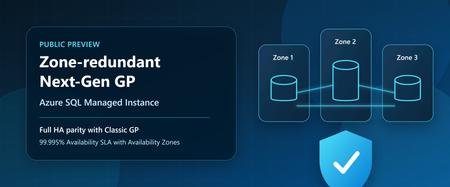
Customers no longer need to choose between the latest General Purpose architecture and zone-level resiliency. With the public preview of zone redundancy for Next-Generation General Purpose Azure SQL Managed Instance, organizations can now take advantage of all the benefits of Next-Generation General Purpose while meeting strict high availability and compliance requirements through Availability Zone protection. When Next-Generation General Purpose became generally available, it introduced a modernized General Purpose architecture delivering improved performance, greater scalability, enhanced flexibility, and better price-performance for Azure SQL Managed Instance workloads. Since then, customers have increasingly adopted the architecture to modernize SQL workloads, consolidate databases, and optimize total cost of ownership. Today, we're extending those benefits to customers who require zone-level resiliency. With zone redundancy now available in public preview, customers can realize all the advantages of Next-Generation General Purpose while meeting the same zone-level availability requirements previously available only with Classic General Purpose. This milestone brings full high-availability parity between Classic General Purpose and Next-Generation General Purpose, removing one of the last major reasons for customers to remain on the previous architecture. Closing the last major gap Zone redundancy has consistently been one of the most requested capabilities for Next-Generation General Purpose. Since its introduction, Next-Generation General Purpose has provided substantial improvements in scalability and flexibility, including support for up to 128 vCores, up to 32 TB of storage, up to 500 databases per instance, configurable IOPS, and flexible memory sizing. Customers can optimize resources for their workload requirements while continuing to benefit from the simplicity and compatibility of Azure SQL Managed Instance. With today's announcement, these capabilities can now be combined with zone-level resiliency, enabling customers to deploy highly available business-critical workloads on the latest General Purpose architecture without compromise. In addition, the flexible memory option for zone-redundant Next-Generation General Purpose instances is also available in public preview, providing even greater flexibility to balance performance requirements and infrastructure costs. Built-in high availability, now with Zone-level protection Azure SQL Managed Instance has always been designed for high availability. Next-Generation General Purpose delivers built-in high availability through its distributed architecture, leveraging Service Fabric together with fault domains and update domains to minimize the impact of hardware failures, software updates, and planned maintenance events. This architecture enables applications to remain available even during infrastructure events and maintenance operations. As a result, single-zone deployments provide a 99.99% availability SLA. For organizations with more demanding availability requirements, zone redundancy distributes service components across multiple Availability Zones within a region. This provides protection against zone-level failures and increases the availability SLA to 99.995%. While many workloads are well served by single-zone deployments, organizations in regulated industries and mission-critical environments often require zone-redundant architectures as part of compliance, operational resilience, or business continuity requirements. With today's preview, these customers can now adopt Next-Generation General Purpose without sacrificing those requirements. Regional availability Zone redundancy for Next-Generation General Purpose is available in public preview in all regions where the underlying ESAN infrastructure supports zone-redundant deployments. For the latest list of supported regions, check out the documentation page containing the regions where Elastic SAN is currently available and the supported redundancy options. Regions that do not yet support ESAN-based zone redundancy are not included in the preview at this time. Additional regions will become available as platform support expands. Upgrading existing deployments Whether you are already running Next-Generation General Purpose or remain on Classic General Purpose, adopting zone-redundant Next-Generation General Purpose is designed to be straightforward and transparent. Enable zone redundancy on existing Next-gen General Purpose instances Customers already running Next-Generation General Purpose can enable zone redundancy directly on existing instances and immediately benefit from enhanced resiliency and a higher availability SLA. Move from classic General Purpose zone-redundant to Next-generation General Purpose zone-redundant Customers currently running Classic General Purpose with zone redundancy can migrate to Next-Generation General Purpose while preserving zone-level resiliency and gaining access to the latest platform architecture, resource flexibility, and scalability improvements. This provides a natural modernization path for existing deployments and allows customers to standardize on the future architecture of the General Purpose tier. Online operation with a short failover Enabling zone redundancy or migrating between architectures is performed as an online management operation. During most of the operation, Azure SQL Managed Instance provisions and synchronizes the new infrastructure while the existing deployment continues serving application traffic. Near the end of the operation, a brief failover occurs as client connections are switched from the existing infrastructure to the newly provisioned environment. For more information about management operations, expected behavior, and application connectivity considerations, see management operations overview article. Protecting workloads beyond a single region For customers running in regions where zone redundancy is not currently available, or for customers seeking protection from broader regional outages, Failover Groups remain the recommended solution. Failover Groups enable disaster recovery across Azure regions by maintaining a secondary managed instance and providing automatic or manual failover capabilities when needed. This approach helps organizations meet business continuity objectives even when Availability Zone protection is unavailable or when protection from regional outages is required. Optimize disaster recovery costs with License Free failover rights Customers implementing disaster recovery through Failover Groups can further optimize costs through Azure SQL License Free failover rights. When the secondary managed instance is maintained exclusively for standby disaster recovery purposes and is not used for read-only workloads, SQL Server licensing costs do not apply to the secondary environment. Customers pay only for the compute resources required to maintain disaster recovery readiness, helping reduce overall total cost of ownership. Planning costs The Azure SQL Managed Instance pricing page and Azure Pricing Calculator have been updated to include the latest zone-redundant Next-Generation General Purpose offerings. These tools can help customers evaluate deployment options, compare availability architectures, and estimate costs associated with zone redundancy and disaster recovery configurations. Get started Zone redundancy for Next-Generation General Purpose marks the completion of an important milestone in the evolution of Azure SQL Managed Instance. Customers can now combine the performance, scalability, flexibility, and operational advantages of Next-Generation General Purpose with zone-level resiliency and a 99.995% availability SLA. Whether deploying new workloads, enabling zone redundancy on existing Next-Generation General Purpose instances, or modernizing Classic General Purpose deployments, organizations now have a clear path to adopting the latest General Purpose architecture without compromise. Learn more What is Azure SQL Managed Instance Availability through local and zone redundancy - Azure SQL Managed Instance Flexible memory - Azure SQL Managed Instance Next-gen General Purpose – official documentation Try Azure SQL Managed Instance for free Accelerate SQL Server Migration to Azure with Azure Arc Analyzing the Economic Benefits of Microsoft Azure SQL Managed Instance How 3 customers are driving change with migration to Azure SQL747Views1like0CommentsSQLCon is Back: 5 Reasons to Attend the European Microsoft Fabric + SQL Community Conference
5 Reasons to Attend the European Microsoft Fabric + SQL Community Conference This year the SQL community joins Fabric in Europe for the first time at the Microsoft Fabric + SQL Community Conference happening September 28th - October 1st in Barcelona, Spain. Hear the latest announcements and roadmap directly from Microsoft leaders. With a full week of deep technical sessions and workshops covering the topics you care about most across and see how we’re helping solve your most pressing data challenges, from strengthening data sovereignty to powering agentic AI and unlocking trusted, actionable intelligence. And while there’s no shortage of topics, here are a couple of things we’re the most excited about heading to Barcelona: Unify your data (conference) experience With one registration, this event doubles your opportunity to sharpen your skillset with 130+ expert led sessions, workshops, and keynotes coming together in one high- impact week. Mix and match sessions to best meet your learning goals while you move seamlessly across tracks, visit the shared expo, and connect with peers in the community hub, all under one roof. The ultimate SQL experience, like only Microsoft can deliver With more than 25 dedicated SQL sessions, whether you’re a DBA or, a developer building AI apps, you can create your custom agenda with the topics you care about most. Pre-day programming is for the builders; bring your laptop and start your week with any of our full- day SQL workshops for the demos, practical guidance, and repeatable patterns you can start using immediately. Tuesday kicks off the official event with our opening keynote, three corenotes, and general sessions focused on SQL Server 2025, Azure SQL, and SQL in Fabric. Learn the latest in performance, tuning and tools like SSMS and VS Code delivered directly from SQL experts, MVPs, and community leaders. Ready to start building your agenda? Try our new session planner to curate your schedule based on your interests. The backdrop: Barcelona This year’s conference takes place in the historic, vibrant city of Barcelona, set along the Mediterranean Sea, the ideal setting for the first European SQLCon. When you’re ready for a break, you’re only a 15-minute ride away from the city center, perfect for exploring Gaudí’s iconic architecture or enjoying some local bites. Don’t miss the wrap- up celebration taking place in Barcelona’s exclusive Sutton Club. Community Connection SQLCon is more than just sessions; we’re bringing together more than 4,000 of the most dedicated Microsoft community members together for a week of endless connection opportunities. The Community Hub will bring some of our most popular experiences to life, from in-person meetups and user group connections to hands-on learning and certification opportunities all designed to help you grow your skills and expand your network. Launching Soon: SQLCon TV Enjoyed catching all the behind-the-scenes action on FabCon TV? In Barcelona we’ll bring SQLCon TV to the stage, with the content, demos, and interviews every SQL fan will want to see. Save your spot today. The earlier you register, the more opportunities you have to take advantage of early pricing specials. See you in Barcelona!379Views0likes2CommentsCDK Global modernizes automotive CRM on Azure SQL Managed Instance
For automotive retailers, most customer relationships don't begin and end with a vehicle purchase. A customer might browse inventory online, visit a dealership weeks later, return for service months after that, and eventually purchase another vehicle years down the road. Every interaction creates information that helps dealerships better understand their customers and build stronger relationships over time. Helping dealerships manage those relationships is at the core of the CDK CRM platform. CDK is a leading provider of cloud-based software to dealerships and OEMs across automotive and related industries in the US and Canada, helping facilitate more than $540 billion in annual automotive commerce. It gives dealership teams visibility into customer interactions with their products and services and creates continuity across the conversations that shape the buying journey. As customer expectations evolve, CDK continues to look for new ways to help dealerships work more efficiently, make better use of information, and adapt quickly to market changes. Supporting that next phase of innovation required a technology foundation that could grow alongside the business. Working with Microsoft, CDK evolved its CRM platform on Microsoft Azure and Azure SQL Managed Instance. The project included a large migration to Azure SQL Managed Instance and marked an important step in the future of the CRM experience. Transforming a business-critical system at scale The size of the project reflected how central the CRM platform is to CDK’s business. The environment supports a broad set of applications for dealership operations and relies on a robust data foundation to keep information flowing. Microsoft and CDK worked together to implement a cloud architecture built on Azure App Service and Azure SQL Managed Instance. Additional Azure services support application delivery, networking, and data movement across the architecture. The teams developed a Terraform-based infrastructure-as-code framework that standardizes how environments are deployed and managed. That foundation brings greater consistency to the development process. Engineering teams can work within environments that are configured in a predictable way, reducing the likelihood of unexpected differences between testing and production. The project also provided an opportunity to strengthen security and governance practices. CDK updated applications to use managed identities, reducing reliance on static credentials, and implemented Microsoft Entra ID authentication and private connectivity patterns that help secure access to critical resources. While dealership users may not see these changes directly, they help deliver the stability and security that customers expect from the platform. Preserving continuity while moving to the cloud As CDK evaluated its cloud strategy, the database layer became one of the most important decisions in the project. The CRM platform supports business-critical dealership operations throughout the day. Customer interactions, sales activity, and service records all depend on information moving quickly and reliably between systems. Any technology transformation would need to preserve that experience while creating a path to future growth. Azure SQL Managed Instance stood out because it offered a familiar SQL Server environment while reducing much of the operational overhead associated with managing database infrastructure. It also aligned well with CDK’s long-term goals around resiliency, scalability, and continuous innovation. Equally important, Azure SQL Managed Instance provided a migration path that worked with the realities of the CRM environment. “One of the reasons Azure SQL Managed Instance appealed to us was that it allowed us to innovate without redesigning the CRM platform from the ground up,” says Stan Leong, Vice President of Modern Retailing Engineering at CDK. “We could preserve compatibility with the applications our dealerships depend on while taking advantage of a fully managed cloud service.” Unlike some projects that can move applications gradually, the CDK CRM platform required a coordinated transition. The databases that support the platform are highly interconnected, which meant the company needed an approach that would allow the environment to move together while minimizing disruption for customers. To prepare for that transition, CDK and Microsoft used Azure SQL Managed Instance link to establish near real-time replication between environments. This allowed teams to begin validating the migration long before the production cutover. Engineers could confirm that data was flowing correctly, identify potential issues, and gain confidence in the process before dealerships were ever affected. The approach also gave CDK an added layer of flexibility during the transition period. Rather than making a one-way move, the company could maintain a rollback option while teams validated production operations in Azure. Because Azure SQL Managed Instance link kept environments synchronized, CDK retained the ability to fail back to its on-premises environment if needed while preserving continuity for dealership operations. After failing over to Azure, the company continued running with synchronized environments for more than four weeks, allowing teams to validate production workloads before completing the final cutover. Executing a migration measured in terabytes That preparation became especially important because the migration would take place during a single maintenance window. By establishing synchronization ahead of time, CDK was able to keep data aligned between environments before the failover to Azure. When migration time arrived, production data was already synchronized in Azure, allowing the maintenance event to focus on transitioning operations rather than moving large volumes of data for the first time. Planning and architecture work that led to the migration spanned several months. The final migration preparation and validation effort was completed in just six weeks, with engineers working together to test migration scenarios, optimize replication performance, and validate data consistency ahead of production. CDK migrated more than 1,000 databases and hundreds of terabytes of data to Azure SQL Managed Instance. The environment now processes billions of database queries every day. The failover to Azure was completed during a single weekend with minimal failover time and no data loss. In many cases, database failovers completed in seconds, with most finishing within minutes. Microsoft engineering, product, support, and field teams remained engaged throughout the event, working alongside CDK to monitor the transition and address issues in real time. “This was one of the most significant technology initiatives we’ve undertaken for our CRM platform,” says Leong. “Working closely with Microsoft, we migrated more than 1,000 databases to Azure SQL Managed Instance while supporting dealerships throughout the process. The collaboration between our teams helped us execute the transition with minimal disruption to customers.” Strengthening reliability for dealership operations Delivering more than a new cloud environment, the migration also gave CDK an opportunity to evolve the CRM platform operations. As part of this effort, CDK implemented resilience architecture built on Azure. The design incorporates Azure Front Door, geo-redundant storage, and Azure SQL Managed Instance failover capabilities, allowing the company to maintain continuity when unexpected disruptions occur. These improvements rarely attract attention when everything is working as expected, but they help the platform remain available when it matters most. Since the migration, CDK has heard positive feedback from dealerships that report faster and more responsive application experiences. Preparing dealerships for what’s next With the CRM platform now running on Azure, CDK is focused on the next phase of its CRM strategy. Beyond supporting today’s dealership operations, the cloud-based foundation gives the company greater flexibility to introduce new functionality and continue advancing the platform over time. AI capabilities are already helping dealership employees surface relevant information at the right moment while reducing the effort required to complete routine tasks. And AI is accelerating software development and deployment, enabling engineering teams to deliver new capabilities more efficiently. CDK is also investing in new reporting experiences designed to make insights easier to access. Dealerships generate enormous amounts of data, but its value depends on how quickly users can find relevant information and act on it. The CRM migration has become an important reference point for future platform initiatives across the organization. By successfully moving a business-critical platform at this scale, CDK established a blueprint for future cloud initiatives. “The migration was an important milestone, but it’s really the starting point,” says Leong. “With Azure and Azure SQL Managed Instance, our teams can focus more energy on delivering new capabilities for dealerships while using AI to power experiences that help customers operate more efficiently.”681Views2likes0CommentsGenerally Available: SQL Migration to SQL Server on Azure Virtual Machines in Azure Architecture
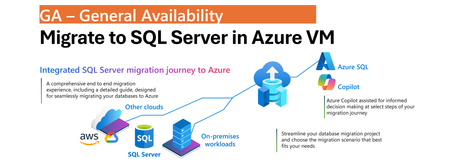
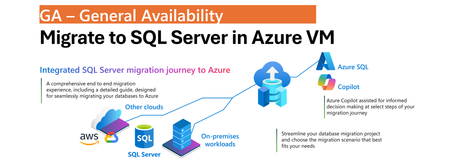
One Migration Experience, More Flexibility Modernizing SQL Server estates is rarely a single-step journey. Organizations often operate across on-premises, hybrid, and cloud environments while balancing application dependencies, operational requirements, and modernization goals. SQL Server migration enabled by Azure Arc simplifies this process by bringing migration activities into a single experience in the Azure portal. With the July 2026 release, we are announcing General Availability of SQL Server on Azure Virtual Machines as a migration target in Azure Arc, allowing customers to have a greater flexibility to choose Azure destination that best aligns with to your needs without introducing additional tools or migration processes. Whether migrating to the fully managed Azure SQL Managed Instance service or to SQL Server running on Azure VMs, the experience remains consistent and familiar. Unified Migration Workflow A key benefit of SQL Server migration enabled by Azure Arc is that the entire migration lifecycle is managed from a single tool in Azure portal. After a SQL Server instance is enabled by Azure Arc, customers can: Assess migration readiness Select a migration target Configure migration settings Monitor migration progress Validate results Perform final cutover All of these activities are performed directly from the Azure portal using a guided workflow designed to simplify migration planning and execution. The prerequisite remains unchanged: source SQL Server instances must be enabled by Azure Arc before migration can begin. The result is a flexible, scalable, and consistent migration experience that supports hybrid realities, reduces operational overhead, and helps customers modernize SQL Server estates at their own pace. Consistent Experience Across Azure SQL Targets Migration to SQL Server on Azure Virtual Machines follows the same operational model already available for Azure SQL Managed Instance migration scenarios. Customers use the same migration dashboard, monitoring experience, and guided workflow regardless of the destination. This consistency reduces learning curves, simplifies operational processes, and enables teams to select the most appropriate Azure SQL platform without changing migration methodology. Online Migration Using Backup and Log Shipping Migration to SQL Server on Azure Virtual Machines uses backup and restore with log shipping to support online migration scenarios while minimizing downtime. The process begins with a full database backup that is restored to the target SQL Server instance running on an Azure Virtual Machine. Transaction log backups that are uploaded continuously by your workflows to Azure Blob Storage are continuously applied to the target database, keeping it closely synchronized with the source environment. Azure Blob Storage serves as the intermediary staging location between source and target systems. To support efficient data movement and restore operations, both the Azure Blob Storage account and the target SQL Server on Azure Virtual Machines must reside in the same Azure region. Within the Azure Arc migration experience, customers select the Azure Blob Storage container that stores the backup files. Azure Arc automatically restores the full backup and continuously applies transaction log backups as they become available. Customers are responsible for configuring and maintaining the continuous upload of transaction log backups to Azure Blob Storage. Customer-Controlled Cutover When the customer is ready to complete migration, upon customer initiated cutover, Azure Arc performs the final synchronization by applying the last uploaded backup and bringing the target database online. This approach gives organizations full control over the migration timeline and cutover window, allowing downtime to be planned according to business requirements while reducing operational complexity. Learn More To learn more about SQL Server migration enabled by Azure Arc, see: Migration Overview For information about migrating to SQL Server in Azure VM, see: Migrate to SQL Server in Azure VM1.1KViews0likes1CommentGenerally Available: SQL Migration to SQL Server on Azure Virtual Machines in Azure Architecture
One Migration Experience, More Flexibility Modernizing SQL Server estates is rarely a single-step journey. Organizations often operate across on-premises, hybrid, and cloud environments while balancing application dependencies, operational requirements, and modernization goals. SQL Server migration enabled by Azure Arc simplifies this process by bringing migration activities into a single experience in the Azure portal. With the July 2026 release, we are announcing General Availability of SQL Server on Azure Virtual Machines as a migration target in Azure Arc, allowing customers to have a greater flexibility to choose Azure destination that best aligns with to your needs without introducing additional tools or migration processes. Whether migrating to the fully managed Azure SQL Managed Instance service or to SQL Server running on Azure VMs, the experience remains consistent and familiar. Unified Migration Workflow A key benefit of SQL Server migration enabled by Azure Arc is that the entire migration lifecycle is managed from a single tool in Azure portal. After a SQL Server instance is enabled by Azure Arc, customers can: Assess migration readiness Select a migration target Configure migration settings Monitor migration progress Validate results Perform final cutover All of these activities are performed directly from the Azure portal using a guided workflow designed to simplify migration planning and execution. The prerequisite remains unchanged: source SQL Server instances must be enabled by Azure Arc before migration can begin. The result is a flexible, scalable, and consistent migration experience that supports hybrid realities, reduces operational overhead, and helps customers modernize SQL Server estates at their own pace. Consistent Experience Across Azure SQL Targets Migration to SQL Server on Azure Virtual Machines follows the same operational model already available for Azure SQL Managed Instance migration scenarios. Customers use the same migration dashboard, monitoring experience, and guided workflow regardless of the destination. This consistency reduces learning curves, simplifies operational processes, and enables teams to select the most appropriate Azure SQL platform without changing migration methodology. Online Migration Using Backup and Log Shipping Migration to SQL Server on Azure Virtual Machines uses backup and restore with log shipping to support online migration scenarios while minimizing downtime. The process begins with a full database backup that is restored to the target SQL Server instance running on an Azure Virtual Machine. Transaction log backups that are uploaded continuously by your workflows to Azure Blob Storage are continuously applied to the target database, keeping it closely synchronized with the source environment. Azure Blob Storage serves as the intermediary staging location between source and target systems. To support efficient data movement and restore operations, both the Azure Blob Storage account and the target SQL Server on Azure Virtual Machines must reside in the same Azure region. Within the Azure Arc migration experience, customers select the Azure Blob Storage container that stores the backup files. Azure Arc automatically restores the full backup and continuously applies transaction log backups as they become available. Customers are responsible for configuring and maintaining the continuous upload of transaction log backups to Azure Blob Storage. Customer-Controlled Cutover When the customer is ready to complete migration, upon customer initiated cutover, Azure Arc performs the final synchronization by applying the last uploaded backup and bringing the target database online. This approach gives organizations full control over the migration timeline and cutover window, allowing downtime to be planned according to business requirements while reducing operational complexity. Learn More To learn more about SQL Server migration enabled by Azure Arc, see: Migration Overview For information about migrating to SQL Server in Azure VM, see: Migrate to SQL Server in Azure VM358Views0likes0Comments3 Reasons Enterprise SQL Server Migrations Slow Down - and How to Avoid Them
Summary Many of Enterprises around the globe have relied on SQL Server for over 3 decades to run their mission critical business applications. Their SQL Server estates face pressure from downtime risk, cost volatility, end of support timelines and modernization demands. As these customers get ready to modernize their data to use the latest capabilities of A.I and cloud native application trends, they want to migrate and modernize their SQL Servers to use Azure SQL with a modernization strategy built on confidence of customer success. Enterprise migrations rarely fail because of migration tools. They slow down because organizations struggle to answer three questions: How much downtime can we tolerate? What will it cost after migration? Are we choosing the right target platform? The organizations that answer these questions early move faster and with less risk. For the DB Administrators, Data architects, application architect and cloud-cost decision makers there are important technical considerations before, during and after data modernization to avoid long term costs and operational concerns. The Microsoft SQL Team has helped many customers modernize their SQL. We discuss important guidelines that can help resolve the 3 major concerns that block or slow SQL Server migration and modernization in Enterprises. This is covered in the episode of DataExposed for which this companion blog goes into the details. What are important triggers that cause customers and partners to consider SQL modernization? There are many business triggers that force Enterprises to migrate their data to public cloud. As SQL Server 2012 to SQL Server 2016 are already in the end of support stage of their lifecycle, customers need to upgrade SQL Server in place or migrate to AzureSQL. Due to cyber security threats, customers are feeling more vulnerable to attackers. Moving their data into a secure environment is essential for protecting not just their data but their business. Customers are reporting the need to free up IT dollars to invest into other parts of the business that may need it more. These may be anything from datacenter contract expirations, need for Hardware refreshes to software license renewals. As the business grows or becomes cyclical, there is surge in demand. Capacity constraints become a barrier for such expansions. These are triggers that cause them to rethink their data modernization strategy. Data modernization and moving the data to a elastic, scalable, secure and resilient data platform such as Azure SQL, becomes essential. The Three Migration Blockers However, data modernization and migration is not without any risk. Based on our customers experience, here are three key reasons that we have commonly encountered that halt or slow down SQL modernization. 1. Downtime Risk Business stakeholders often require strict service level commitments before authorizing production cutovers. Even when migrations are technically feasible, organizations may delay projects if they believe downtime windows could impact revenue, customer experience, or regulatory obligations. Most customers are still offered offline migration paths which can take hours to days, even though zero-downtime migrations are possible which take seconds to minutes. 2. Cost uncertainty Many modernization projects are approved based on expected cost savings. However, if infrastructure sizing, licensing assumptions, storage consumption, or disaster recovery requirements are not evaluated properly, the actual operational cost can exceed initial expectations. Cost uncertainty often slows executive approval processes and extends migration timelines. 3. Compatibility and Feature Fit When migrating SQL Server, Azure SQL has several deployment offerings from IaaS to PaaS. These include SQL Server on Azure VM, Azure SQL Managed Instance, Azure SQL DB Hyperscale and Azure SQL in Microsoft Fabric. Many customers maybe using SQL Server features like Cross-database queries, CLR, SSIS, SQL Agent, and linked servers. They make a safe decision to lift and shift migrate to SQL Server on Azure VMs IaaS instead of modernizing to a PaaS service like Azure SQL Managed Instance. However, in the process, they lose the opportunity to use the PaaS capabilities, manageability and AI/Fabric capabilities in Azure by making this choice. Enterprise Architects, Application Architects, Database developers and DB Administrators have to make the right choice taking both development as well as operational costs and compatibility when they make their SQL modernization decisions. Here are best practices some of the biggest and successful SQL migrations have used to make the migration and modernization journey with confidence. While we cannot disclose specific customer names, these guidelines are based on helping many large to small Enterprise customers. Azure SQL Managed Instance as the Resiliency Anchor Azure SQL Managed Instance is often the platform that helps organizations overcome all three concerns simultaneously because it combines near-full SQL Server compatibility with platform-as-a-service benefits. Azure SQL Managed Instance (Azure SQL MI) Next-gen General Purpose is now generally available, bringing a built-in performance and scale upgrade for General Purpose workloads, including up to 500 databases per instance, up to 32 TB storage, lower latency, and higher IOPS. The release also adds more flexible cost-performance tuning with independent vCore, IOPS, and memory scaling, plus faster management operations to adapt to changing workload demand. For enterprise SQL Server modernization, this positions Azure SQL MI as a stronger path for high-compatibility migrations that need better price-performance without moving to a full replatform. Let us dive deeper into how this helps address the downtime risk concerns by enables three levels of resiliency and high availability features. Local Redundancy Azure SQL Managed Instance provides first layer of Local Redundancy — built into every Azure SQL MI instance at no extra cost. Azure SQL Managed Instance uses local redundancy by default to keep workloads available during node, VM, rack, maintenance, and other local failures within a single datacenter, with Service Fabric orchestrating failover. In General Purpose (including Next-gen GP), this is implemented as stateless compute plus remote stateful storage; during failover, the engine process moves to another compute node and reattaches data, which can cause temporary performance impact due to cold cache. In Business Critical, local redundancy uses multiple synchronized replicas with local SSD storage (Always On-like architecture), enabling fast failover and read scale-out on secondaries.Next-gen General Purpose is an architectural upgrade to the existing General Purpose service tier that uses an upgraded remote storage layer that stores instance data and log files on Elastic SAN instead of page blobs and maintains it locally. Local redundancy protects against local infrastructure issues. This gives you a 99.99% SLA but not full datacenter/zone disasters, so zone redundancy (where supported) or disaster recovery (DR) options like failover groups/geo-restore are needed for broader resilience. Zone Redundancy The second layer is Zone Redundancy, which is accomplished placing data replicas across availability zones. Your Azure SQL MI resources are distributed across multiple availability zones within a region. This protects against the failure of an entire datacenter because each Azure availability zone is a separate physical location with independent power, cooling and networking. It relies on synchronous replication using zone-redundant storage for General Purpose. For Business critical, it uses Always On Availability group replicas across zones for Business Critical. Always On availability group technology replicates data changes from the primary instance to standby replicas in other availability zones. In the event of an outage, there's an automatic failover that seamlessly transitions one of the standby replicas to be prima. These replicas are always in sync — which means zero data loss. Failover typically happens in under 30 seconds, and your SLA jumps to 99.995%. Failover Groups The third layer is Failover Groups. This is your cross-region disaster recovery solution. It asynchronously replicates all user databases to a secondary Azure SQL MI instance in a different Azure region. Because it is asynchronous replication, there is potential for momentary data loss in the case of a datacenter outage. But it still protects the data against the worst case failure — a full regional outage. If the replica is a standby replica, there is no license required and it is used only for disaster recovery. Using these options, business stakeholders can get their assurance that they have Enterprise grade availability and resiliency platform of AzureSQL for running their mission critical workloads. You can read more about these HA and Resiliency options in Microsoft Learn. Cost Governance for Enterprise Buyers The total cost of data modernization and migration is not a one-time estimate but an ongoing one. In this case, Azure SQL MI provides Enterprise DB Administrators many levers through pricing model choice, right-sizing, elasticity, serverless options and dev/test free tiers. Let us explore how these can be combined for smart cost estimations. Lets also look at the best offering for the cost-conscious Enterprises - Azure SQL DB Hyperscale. With Azure SQL DB Hyperscale, you get the SQL Server engine, T-SQL compatibility, High Availability, Disaster recovery, security, backups, and management all bundled into the service price. No separate cost for SQL Server license. Hyperscale separates compute and storage that can scale independently and does not force you to overprovision. You have to only pay what you use which is ideal for seasonal workloads, Dev/Test, SaaS applications, predictable daytime trends, and up to 60% savings when you use Elastic pools. Azure Hybrid benefit (AHB)- Azure Hybrid Benefit lets you bring your existing SQL Server investments to Azure and reduce compute costs, accelerating your ROI from cloud migration while preserving all the benefits of Azure SQL Azure SQL DB Free offer – is the strongest product offering. Enterprises can use all features of Azure SQL at no cost for up to 10 Azure SQL DB free-tier. 100,000 vCore-seconds of serverless compute per month, 32GB data storage, 32 GB backup storage, serverless auto-scaling and auto-pause if you hit the limit per month. Run your POCs at no cost and evaluate before you move to Azure SQLDB, especially SMB& some enterprise Azure SQL Managed Instance also offers 1 free Azure SQL MI instance per Azure subscription giving you 720vCore hours per month, 64GB storage, up to 500 databases, automated backups and 12 months free. And if data migration is not possible due to data compliance or data proximity purposes, Azure Arc Pay-As-You-Go (PAYG) gives you cloud-style SQL licensing for servers running anywhere—on-premises, at the edge, or in other clouds. Instead of making large up-front licensing investments, you only pay for SQL Server while it's running, while still gaining access to Azure Arc management, security, monitoring, and modernization capabilities. For seasonal, variable, or growth-oriented workloads, PAYG can improve cash flow and reduce licensing complexity. Reserved instances allow Enterprise customers to commit to using Azure SQL resource for a period of one or three years to receive a significant discount. This option combined with AHB can save you even more up to 80%. We have a comprehensive licensing guide for on-premises SQL Server for your reference. Azure SQL enables a variety of cloud cost-models for a wide range of enterprise workload needs to help Enterprise cloud cost decision makers and DB Administrators make the right choice for their workloads. Target selection guidance While Azure SQL has multiple deployment options to migrate your on-premises work loads, it is critical to make the right choice long term. Customers can install SQL Server on-premises, they can use Azure SQL deployment options, and also run SQL Server in other clouds like Amazon Web Services and Google Cloud. If there is an Enterprise workload that is not ready to modernize, you have the ability to lift and shift into SQL Server in Azure VM. It is a low cost migration option, because the application does not need any modification and it gives DB Administrators full control over the SQL server and underlying Windows or Linux OS. This can be a first step to modernization for some customers who are risk-averse. For those Enterprise customers who are willing to modernize their workloads and SQL Server instances, Azure SQL DB Hyperscale is the best option. Azure SQL Database Hyperscale helps organizations modernize their most demanding database workloads with virtually unlimited growth, high performance, and cloud-scale economics. Customers can scale storage and compute independently, support large multi-terabyte databases, accelerate application performance with read-scale replicas, and eliminate the operational complexity of managing infrastructure, backups, patching, and high availability. They can build cloud-native applications or cloud-enable existing applications. However, if Enterprise customers want good compatibility with their on-premises SQL Server but continue down the modernization path - their best option is Azure SQL Managed Instance. They can modernize the instance and not impact the application as there is no application change required. Applications will continue to work and the DB Administrators do not need to worry about managing infrastructure and all the overhead that comes with managing, self-managing your SQL Server virtual machines. For SQL Server customers, PostgreSQL may look like an attractive low cost option. However, it requires re-platforming that could add significant hidden cost due to retraining all their DBAs and their developers to do performance optimization, performance best practices and operational maintenance. Lastly, our same SQL engine is also available to customers as a SaaS-ified version, Fabric SQL database as well. All these options use the exact same SQL engine which makes it easier for Database developers and DB Administrators continue to use the same expertise, tools and process. Making the right choice of Azure SQL deployment is not just on the fastest way to modernize but the right long term approach. Conclusion and Next steps Enterprise SQL Server migrations rarely stall because of migration technology. More often, they are delayed by concerns around downtime, cost predictability, and platform selection. Organizations that address these questions early can accelerate modernization while reducing operational risk. Azure SQL provides multiple modernization paths—from SQL Server on Azure Virtual Machines to Azure SQL Managed Instance and Azure SQL Database—allowing organizations to balance compatibility, operational simplicity, resiliency, and cost efficiency based on their business requirements. As modernization initiatives accelerate, the most successful projects are those that treat migration not as a one-time infrastructure event, but as a long-term platform strategy. Whether its the newest and the fastest way for us to migrate customers, we have all the comprehensive Copilot enabled AI-assisted migration tooling, technical training and support you need. Look for more blogs, whitepapers, guides and training based on best practices used real-world data modernization projects.454Views0likes0CommentsBuilding an Azure architecture that’s ready for every signature
At Exclaimer, we help organizations manage email signatures at scale, so every message can carry a consistent, compliant, on-brand signature without IT teams manually updating thousands of mailboxes. This is more difficult than it may seem, especially when you're doing it for more than 80,000 customers, around 9.6 million seats, and more than 21 billion emails a year. Every signature must show up in the right place, with the right details, for the right sender, recipient, device, and business rule. Behind that are constantly changing employee records, customer-specific policies, email chains, recipient lists, regional disclaimers, and brand requirements. Because our platform sits directly in the email flow, availability is critical. And because many of our customers operate in regulated industries, they also need confidence that data stays in-region and configured signatures are applied consistently. To support that level of scale and reliability, we’ve spent the last several years evolving our architecture on Microsoft Azure. Today, Azure Kubernetes Service (AKS), Azure SQL Database, Azure Database for PostgreSQL, Azure Cosmos DB, Azure Data Explorer, and Azure Databricks help us run a global platform that’s more responsive, more resilient, and more cost-efficient. Reading the signs that our architecture needed to change In the beginning, our cloud product ran more like a multi-server, on-premises product hosted on Azure Virtual Machines (VMs). The platform was split into a smaller number of core services, and the team relied heavily on VM-based infrastructure to keep those services running. As Exclaimer grew, our architecture had to keep pace with higher volumes, more regions, and more complex customer requirements. Regional demand shifted throughout the day, but scaling infrastructure up and down still relied on scripts, pre-baked VMs, and operational coordination. That created more risk during maintenance and failover. We run parallel data centers in regional pairs so we can move traffic away from one site when needed. But when traffic moves, the receiving environment has to be ready to handle the full load. In the VM world, that meant someone or something had to remember to scale up standby resources at the right moment. At the same time, our product was becoming more service-oriented. We were moving away from a smaller set of larger services toward well over 100 microservices. Every new service created more conversations about VM sizing, images, patching, and operational overhead. It was time for a model that could scale faster, run more efficiently, and reduce the amount of infrastructure work required to ship and operate the product. Signing on to AKS for faster, more efficient scaling By moving many workloads to Linux containers on AKS, we gained a smaller footprint, faster startup times, and a more consistent way to package and deploy services. AKS also gave us a managed Kubernetes foundation for running those containers at global scale, with autoscaling capabilities that better matched our traffic patterns. With Horizontal Pod Autoscaler, services can react to load in seconds rather than minutes. With Cluster Autoscaler, we can add or remove node capacity based on what the platform actually needs. That means we can pack workloads onto nodes more efficiently, scale down during quiet periods, and scale up quickly when demand returns. The operational difference is just as important. During an incident, maintenance event, or regional failover, our teams have fewer manual steps to think about. If traffic shifts, the platform can scale with it. That takes away one more thing for engineers to worry about when they should be focused on keeping the customer experience steady. The move to containers and a more streamlined CI/CD workflow also improved our deployment cadence by making it easier to build, test, and deploy changes across the platform. In 2021, we deployed 285 changes, features, and fixes to production over the course of the entire year. Today, we deploy that many every few days. Cost has improved, too. Since 2024, when the bulk of our migration to containerized services took place, we’ve reduced our average cost per user by about 39 percent, even as the product has grown more complex and we’ve added more capabilities for customers. We achieved that through a combination of containerized architecture, AKS autoscaling, and expanded reservations across compute and storage technologies. Choosing the right database for the right kind of data We started with a strong Microsoft SQL Server foundation, and Azure SQL Database remains core to our platform today. It stores critical customer configuration data and continues to give us the reliability, replication, resizing flexibility, and regional scale we need. But not every workload belongs in the same database. Customer configuration, relational service data, key-value storage, usage events, and business intelligence (BI) all have different access patterns. That principle led us to Azure Database for PostgreSQL flexible server for one of our most important migrations. We had used Azure Table storage for a core service that needed to retrieve customer data quickly. It was cost-effective and stable for a long time, but as the product evolved, the data became more relational, and we found ourselves adding complexity in application code that a relational database could handle more naturally. Azure Database for PostgreSQL gave us that relational model with low management overhead, fast read replicas, reserved instances for predictable workloads, and a path to future scale. After the migration, average request time for a critical service dropped from 18.6 milliseconds to 1.79 milliseconds. That’s a 90 percent improvement across a service that handles around 9 billion requests each month. Azure Cosmos DB plays a different role, supporting key-value and document storage where we need scale, availability, low latency, encryption at rest, and straightforward dev/test support. Optimized for unstructured data and high-performance reads and writes, it gives us a highly scalable foundation for workloads that don't fit a traditional relational model. We use it to store customer assets for signatures and video branding, high-volume metadata for internal message-processing operations, audit events that help customers track account changes, and tokens used to collect data from third-party systems on behalf of customers. It also gives us a clean way to keep data and services aligned. Azure Data Explorer solved another scaling challenge: usage and billing data. We need to be able to audit the number of messages we process for our customers so we can bill accurately, and at more than 20 billion emails a year, our previous SQL-based usage pipeline became difficult to manage. With Azure Data Explorer, we can ingest massive volumes of event data at low storage cost, connect to Azure Event Hubs, and avoid maintaining custom plumbing. That move reduced the cost of the system by around 70 percent. Azure Databricks rounds out the picture as our BI and data platform, giving our teams a shared foundation for transformations, analysis, and reporting across product and business data. Keeping every region ready for business Our customers are everywhere, so our platform has to be, too. Exclaimer runs in seven distinct geographic locations: Australia, Canada, Europe, Germany, the United Arab Emirates, the United Kingdom, and the United States. That global footprint helps us meet customer expectations around availability and data residency. Many organizations want their data to stay in-region, and Azure gives us the coverage we need to support that. Availability is especially important because our platform is part of a live communication flow. When someone sends an email, they expect it to keep moving. Our Azure architecture helps us support that expectation across the stack. AKS lets compute scale with regional demand. Azure SQL and Azure Database for PostgreSQL support critical relational workloads. Azure Cosmos DB gives us scalable, low-latency storage for document and key-value patterns. Azure Data Explorer handles very high-volume usage ingestion without the complexity of our former custom pipeline. Across the board, these managed Azure services reduce the amount of operational work our engineers have to carry. We can spend less time maintaining the basics and more time tuning performance, improving stability, and building the capabilities our customers need next. Building for the future on a stronger foundation The biggest sign that our architecture is working may be how little we have to reinvent when we build something new. As we develop upcoming product capabilities, we already have many of the foundational pieces in place: AKS for compute, Azure Cosmos DB for state, and Azure Service Bus for messaging. We also have Azure SQL for core data, Azure Database for PostgreSQL where relational service data needs room to scale, Azure Data Explorer for high-volume event analysis, and Azure Databricks for BI tooling. Together, these services make our platform faster, more efficient, and more resilient. Email signatures may look simple on the surface. Behind every one, there’s a set of decisions about performance, scale, data, availability, and trust. With Azure, we’ve built an architecture that helps us keep every signature moving, wherever our customers do business. About the authors Phil Vetter started in engineering at Exclaimer as a developer at the start of 2013, and now sits at the helm as VP of Engineering. Lee Jones started at Exclaimer in 2013 in the IT department, and now serves as Director of Platform Engineering, managing the infrastructure and resilience of Exclaimer Cloud.626Views1like0Comments