modernization
60 TopicsSQLCon is Back: 5 Reasons to Attend the European Microsoft Fabric + SQL Community Conference
5 Reasons to Attend the European Microsoft Fabric + SQL Community Conference This year the SQL community joins Fabric in Europe for the first time at the Microsoft Fabric + SQL Community Conference happening September 28th - October 1st in Barcelona, Spain. Hear the latest announcements and roadmap directly from Microsoft leaders. With a full week of deep technical sessions and workshops covering the topics you care about most across and see how we’re helping solve your most pressing data challenges, from strengthening data sovereignty to powering agentic AI and unlocking trusted, actionable intelligence. And while there’s no shortage of topics, here are a couple of things we’re the most excited about heading to Barcelona: Unify your data (conference) experience With one registration, this event doubles your opportunity to sharpen your skillset with 130+ expert led sessions, workshops, and keynotes coming together in one high- impact week. Mix and match sessions to best meet your learning goals while you move seamlessly across tracks, visit the shared expo, and connect with peers in the community hub, all under one roof. The ultimate SQL experience, like only Microsoft can deliver With more than 25 dedicated SQL sessions, whether you’re a DBA or, a developer building AI apps, you can create your custom agenda with the topics you care about most. Pre-day programming is for the builders; bring your laptop and start your week with any of our full- day SQL workshops for the demos, practical guidance, and repeatable patterns you can start using immediately. Tuesday kicks off the official event with our opening keynote, three corenotes, and general sessions focused on SQL Server 2025, Azure SQL, and SQL in Fabric. Learn the latest in performance, tuning and tools like SSMS and VS Code delivered directly from SQL experts, MVPs, and community leaders. Ready to start building your agenda? Try our new session planner to curate your schedule based on your interests. The backdrop: Barcelona This year’s conference takes place in the historic, vibrant city of Barcelona, set along the Mediterranean Sea, the ideal setting for the first European SQLCon. When you’re ready for a break, you’re only a 15-minute ride away from the city center, perfect for exploring Gaudí’s iconic architecture or enjoying some local bites. Don’t miss the wrap- up celebration taking place in Barcelona’s exclusive Sutton Club. Community Connection SQLCon is more than just sessions; we’re bringing together more than 4,000 of the most dedicated Microsoft community members together for a week of endless connection opportunities. The Community Hub will bring some of our most popular experiences to life, from in-person meetups and user group connections to hands-on learning and certification opportunities all designed to help you grow your skills and expand your network. Launching Soon: SQLCon TV Enjoyed catching all the behind-the-scenes action on FabCon TV? In Barcelona we’ll bring SQLCon TV to the stage, with the content, demos, and interviews every SQL fan will want to see. Save your spot today. The earlier you register, the more opportunities you have to take advantage of early pricing specials. See you in Barcelona!375Views0likes2CommentsUnlocking More Power with Flexible Memory in Azure SQL Managed Instance
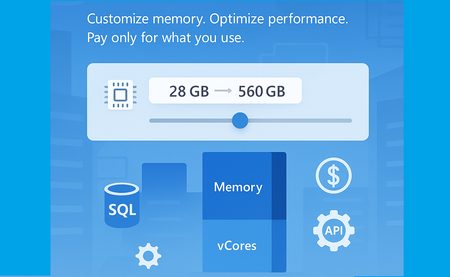
Service updates Sep 28th 2026. Business Critical: locally redundant and zone-redundant instances. Flexible memory is generally available (GA) for the Business Critical service tier. Aug 17th 2026. Next-gen General Purpose: zone-redundant instances. Flexible memory for the Next-gen General purpose tier is in public preview. May 6th 2026. Next-gen General Purpose: locally redundant instances. Flexible memory for the Next-gen General purpose tier is generally available (GA) As data workloads grow in complexity and scale, so does the need for more adaptable and performant database infrastructure. That’s why we’re excited to introduce a new capability in Azure SQL Managed Instance: Flexible Memory, now generally available. What Is Flexible Memory? Flexible Memory allows you to customize the memory-to-vCore ratio in your SQL Managed Instance, enabling finer control over both performance and cost based on your workload requirements. This capability is part of the next-generation General Purpose and Business Critical tiers. It introduces a memory slider, which enables you to scale memory independently within supported limits - without changing the number of vCores. The memory slider is currently available only on premium-series hardware. Why It Matters Traditionally, memory allocation in SQL Managed Instance was fixed per vCore. With Flexible Memory, you can now: Increase memory beyond the default allocation Optimize for memory-intensive workloads without overprovisioning compute Pay only for what you use - additional memory is billed per GB/hour This flexibility is especially valuable for scenarios like analytics, caching, or workloads with large buffer pool requirements. How It Works Memory scales based on the number of vCores and the selected hardware tier: Hardware Tier Memory per vCore (GB) Standard-series 5.1 Premium series 7–12 Premium series (memory-optimized) Up to 13.6 You can select from predefined memory ratios (e.g., 7, 8, 10, 12 GB per vCore) depending on your configuration. For example, a 10 vCore instance can be configured with 70 GB to 120 GB of memory. One of the most powerful aspects of the Flexible Memory feature is the ability to select from a range of memory-to-vCore ratios. These “click stops” allow you to tailor memory allocation precisely to your workload’s needs - whether you’re optimizing for performance, cost, or both. The table below outlines the available configurations for Premium Series hardware, showing how memory scales across 16 vCore sizes: vCores Available Ratios Total Memory Options (GB) 4 7, 8, 10, 12 28, 32, 40, 48 6 7, 8, 10, 12 42, 48, 60, 72 8 7, 8, 10, 12 56, 64, 80, 96 10 7, 8, 10, 12 70, 80, 100, 120 12 7, 8, 10, 12 84, 96, 120, 144 16 7, 8, 10, 12 112, 128, 160, 192 20 7, 8, 10, 12 140, 160, 200, 240 24 7, 8, 10, 12 168, 192, 240, 288 32 7, 8, 10, 12 224, 256, 320, 384 40 7, 8, 10, 12 280, 320, 400, 480 48 7, 8, 10 336, 384, 480 56 7, 8 392, 448 64 7 448 80 7 560 96 5.83 560 128 4.38 560 Pricing model Flexible Memory introduces a usage-based pricing model that ensures you only pay for the memory you actually consume beyond the default allocation. This model is designed to give you the flexibility to scale memory without overcommitting on compute resources - and without paying for unused capacity. How it works: Default memory is calculated based on the minimum memory-to-vCore ratio Billable memory is the difference between your configured memory and the default allocation. Billing is per GB/hour, so you’re charged only for the additional memory used over time. Let’s take an example of SQL Managed Instance running on premium series hardware with 4 vCores and 40GB of memory. Configuration Value vCores 4 Configured Memory 40 GB Default Memory (4 × 7 GB) 28 GB Billable Memory 12 GB Billing Unit Per GB/hour Charged For 12 GB of additional memory Management Experience Changing memory behaves just like changing vCores: Seamless updates via Azure Portal, PowerShell, SDK or API Failover group guidance remains the same Upgrade secondary first Configurations between primary and secondary should match Adjusting the memory is fully online operation, with a short failover at the very end of it. The operation will go through the process of allocating the new compute with specified configuration, which takes approximately 60 minutes, with new faster management operations. API Support Flexible Memory is fully supported via API (the minimal API version that can be used is 2024-08-01) and Azure Portal. Here’s a sample API snippet to configure memory: { "properties": { "memorySizeInGB": 96 } } Portal support Summary The new Flexible Memory capability in Azure SQL Managed Instance empowers you to scale memory independently of compute, offering greater control over performance and cost. With customizable memory-to-vCore ratios, a transparent pricing model, and seamless integration into existing management workflows, this feature is ideal for memory-intensive workloads and dynamic scaling scenarios. Whether you're optimizing for analytics, caching, or simply want more headroom without overprovisioning vCores, Flexible Memory gives you the tools to do it - efficiently and affordably. Next Steps Review the Documentation: Explore detailed configuration options, supported tiers, and API usage. Additional memory Management operations overview Management operations duration Test Your Workloads: Use the memory slider in the Azure Portal, PowerShell, SDK or API to experiment with different configurations. Learn more What is Azure SQL Managed Instance Try Azure SQL Managed Instance for free Next-gen General Purpose – official documentation Analyzing the Economic Benefits of Microsoft Azure SQL Managed Instance How 3 customers are driving change with migration to Azure SQL Accelerate SQL Server Migration to Azure with Azure Arc1.9KViews3likes0CommentsMore performance and flexibility for Azure SQL Managed Instance Business Critical
Higher transaction log throughput and flexible memory address two different resource dimensions, but they follow the same principle: giving customers more control over the resources they need for their workloads.310Views1like0CommentsICYMI: New Azure SQL Foundations video series with GitHub samples
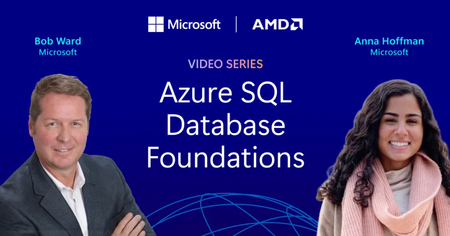
Bob Ward and I recently released a series of videos, read more in the original blog post or go directly to the series on YouTube. The Azure SQL Database Foundations series are four videos that take you from your first Hyperscale database to AI features running against your own operational data. We also included how to assess and migrate (with AI and skills!) to Hyperscale in the first place, and the common optimizations you should consider. Every episode ships with a repo, so you can follow along in your own environment instead of watching someone else’s terminal.337Views0likes0CommentsPublic Preview: Zone-Redundant Next-Gen General Purpose for Azure SQL Managed Instance
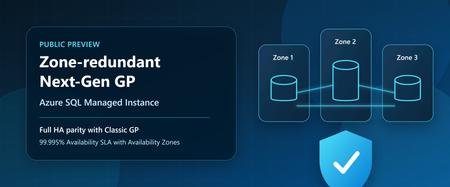
Customers no longer need to choose between the latest General Purpose architecture and zone-level resiliency. With the public preview of zone redundancy for Next-Generation General Purpose Azure SQL Managed Instance, organizations can now take advantage of all the benefits of Next-Generation General Purpose while meeting strict high availability and compliance requirements through Availability Zone protection. When Next-Generation General Purpose became generally available, it introduced a modernized General Purpose architecture delivering improved performance, greater scalability, enhanced flexibility, and better price-performance for Azure SQL Managed Instance workloads. Since then, customers have increasingly adopted the architecture to modernize SQL workloads, consolidate databases, and optimize total cost of ownership. Today, we're extending those benefits to customers who require zone-level resiliency. With zone redundancy now available in public preview, customers can realize all the advantages of Next-Generation General Purpose while meeting the same zone-level availability requirements previously available only with Classic General Purpose. This milestone brings full high-availability parity between Classic General Purpose and Next-Generation General Purpose, removing one of the last major reasons for customers to remain on the previous architecture. Closing the last major gap Zone redundancy has consistently been one of the most requested capabilities for Next-Generation General Purpose. Since its introduction, Next-Generation General Purpose has provided substantial improvements in scalability and flexibility, including support for up to 128 vCores, up to 32 TB of storage, up to 500 databases per instance, configurable IOPS, and flexible memory sizing. Customers can optimize resources for their workload requirements while continuing to benefit from the simplicity and compatibility of Azure SQL Managed Instance. With today's announcement, these capabilities can now be combined with zone-level resiliency, enabling customers to deploy highly available business-critical workloads on the latest General Purpose architecture without compromise. In addition, the flexible memory option for zone-redundant Next-Generation General Purpose instances is also available in public preview, providing even greater flexibility to balance performance requirements and infrastructure costs. Built-in high availability, now with Zone-level protection Azure SQL Managed Instance has always been designed for high availability. Next-Generation General Purpose delivers built-in high availability through its distributed architecture, leveraging Service Fabric together with fault domains and update domains to minimize the impact of hardware failures, software updates, and planned maintenance events. This architecture enables applications to remain available even during infrastructure events and maintenance operations. As a result, single-zone deployments provide a 99.99% availability SLA. For organizations with more demanding availability requirements, zone redundancy distributes service components across multiple Availability Zones within a region. This provides protection against zone-level failures and increases the availability SLA to 99.995%. While many workloads are well served by single-zone deployments, organizations in regulated industries and mission-critical environments often require zone-redundant architectures as part of compliance, operational resilience, or business continuity requirements. With today's preview, these customers can now adopt Next-Generation General Purpose without sacrificing those requirements. Regional availability Zone redundancy for Next-Generation General Purpose is available in public preview in all regions where the underlying ESAN infrastructure supports zone-redundant deployments. For the latest list of supported regions, check out the documentation page containing the regions where Elastic SAN is currently available and the supported redundancy options. Regions that do not yet support ESAN-based zone redundancy are not included in the preview at this time. Additional regions will become available as platform support expands. Upgrading existing deployments Whether you are already running Next-Generation General Purpose or remain on Classic General Purpose, adopting zone-redundant Next-Generation General Purpose is designed to be straightforward and transparent. Enable zone redundancy on existing Next-gen General Purpose instances Customers already running Next-Generation General Purpose can enable zone redundancy directly on existing instances and immediately benefit from enhanced resiliency and a higher availability SLA. Move from classic General Purpose zone-redundant to Next-generation General Purpose zone-redundant Customers currently running Classic General Purpose with zone redundancy can migrate to Next-Generation General Purpose while preserving zone-level resiliency and gaining access to the latest platform architecture, resource flexibility, and scalability improvements. This provides a natural modernization path for existing deployments and allows customers to standardize on the future architecture of the General Purpose tier. Online operation with a short failover Enabling zone redundancy or migrating between architectures is performed as an online management operation. During most of the operation, Azure SQL Managed Instance provisions and synchronizes the new infrastructure while the existing deployment continues serving application traffic. Near the end of the operation, a brief failover occurs as client connections are switched from the existing infrastructure to the newly provisioned environment. For more information about management operations, expected behavior, and application connectivity considerations, see management operations overview article. Protecting workloads beyond a single region For customers running in regions where zone redundancy is not currently available, or for customers seeking protection from broader regional outages, Failover Groups remain the recommended solution. Failover Groups enable disaster recovery across Azure regions by maintaining a secondary managed instance and providing automatic or manual failover capabilities when needed. This approach helps organizations meet business continuity objectives even when Availability Zone protection is unavailable or when protection from regional outages is required. Optimize disaster recovery costs with License Free failover rights Customers implementing disaster recovery through Failover Groups can further optimize costs through Azure SQL License Free failover rights. When the secondary managed instance is maintained exclusively for standby disaster recovery purposes and is not used for read-only workloads, SQL Server licensing costs do not apply to the secondary environment. Customers pay only for the compute resources required to maintain disaster recovery readiness, helping reduce overall total cost of ownership. Planning costs The Azure SQL Managed Instance pricing page and Azure Pricing Calculator have been updated to include the latest zone-redundant Next-Generation General Purpose offerings. These tools can help customers evaluate deployment options, compare availability architectures, and estimate costs associated with zone redundancy and disaster recovery configurations. Get started Zone redundancy for Next-Generation General Purpose marks the completion of an important milestone in the evolution of Azure SQL Managed Instance. Customers can now combine the performance, scalability, flexibility, and operational advantages of Next-Generation General Purpose with zone-level resiliency and a 99.995% availability SLA. Whether deploying new workloads, enabling zone redundancy on existing Next-Generation General Purpose instances, or modernizing Classic General Purpose deployments, organizations now have a clear path to adopting the latest General Purpose architecture without compromise. Learn more What is Azure SQL Managed Instance Availability through local and zone redundancy - Azure SQL Managed Instance Flexible memory - Azure SQL Managed Instance Next-gen General Purpose – official documentation Try Azure SQL Managed Instance for free Accelerate SQL Server Migration to Azure with Azure Arc Analyzing the Economic Benefits of Microsoft Azure SQL Managed Instance How 3 customers are driving change with migration to Azure SQL744Views1like0CommentsGenerally Available: Azure SQL Managed Instance Next-gen General Purpose
Overview Next-gen General Purpose is the evolution of General Purpose service tier that brings significantly improved performance and scalability to power up your existing Azure SQL Managed Instance fleet and helps you bring more mission-critical SQL workloads to Azure. We are happy to announce that Next-gen General Purpose is now Generally Available (GA) delivering even more scalability, flexibility, and value for organizations looking to modernize their data platform in a cost-effective way. The new #SQLMINextGen General Purpose tier delivers a built-in performance upgrade available to all customers at no extra cost. If you are an existing SQL MI General Purpose user, you get faster I/O, higher database density, and expanded storage - automatically. Summary Table: Key Improvements Capability Current GP Next-gen GP Improvement Average I/O Latency 5-10 ms 3-4 ms 2x lower Max Data IOPS 30-50k 80k 60% better Max Storage 16 TB 32 TB 2x better Max Databases/Instance 100 500 5x better Max vCores 80 128 40% better But that’s just the beginning. The new configuration sliders for additional IOPS and memory provide enhanced flexibility to tailor performance according to your requirements. Whether you require more resources for your application or seek to optimize resource utilization, you can adjust your instance settings to maximize efficiency and output. This release isn’t just about speed - It’s about giving you improved performance where it matters, and mechanisms to go further when you need them. Customer story - A recent customer case highlights how Hexure reduced processing time by up to 97.2% using Azure SQL Managed Instance on Next-gen General Purpose. What’s new in Next-gen General Purpose (Nov 2025)? 1. Improved baseline performance with the latest storage tech Azure SQL Managed Instance is built on Intel® Xeon® processors, ensuring a strong foundation for enterprise workloads. With the next-generation General Purpose tier, we’ve paired Intel’s proven compute power with advanced storage technology to deliver faster performance, greater scalability, and enhanced flexibility - helping you run more efficiently and adapt to growing business needs. The SQL Managed Instance General Purpose tier is designed with full separation of compute and storage layers. The Classic GP version uses premium page blobs for the storage layer, while the Next-generation GP tier has transitioned to Azure’s latest storage solution, Elastic SAN. Azure Elastic SAN is a cloud-native storage service that offers high performance and excellent scalability, making it a perfect fit for the storage layer of a data-intensive PaaS service like Azure SQL Managed Instance. Simplified Performance Management With ESAN as the storage layer, the performance quotas for the Next-gen General Purpose tier are no longer enforced for each database file. The entire performance quota for the instance is shared across all the database files, making performance management much easier (one fewer thing to worry about). This adjustment brings the General Purpose tier into alignment with the Business Critical service tier experience. 2. Resource flexibility and cost optimization The GA of Next-gen General Purpose comes together with the GA of a transformative memory slider, enabling up to 49 memory configurations per instance. This lets you right-size workloads for both performance and cost. Memory is billed only for the additional amount beyond the default allocation. Users can independently configure vCores, memory, and IOPS for optimal efficiency. To learn more about the new option for configuring additional memory, check the article: Unlocking More Power with Flexible Memory in Azure SQL Managed Instance. 3. Enhanced resource elasticity through decoupled compute and storage scaling operations With Next-gen GP, both storage and IOPS can be resized independently of the compute infrastructure, and these changes now typically finish within five minutes - a process known as an in-place upgrade. There are three distinct types of storage upgrade experiences depending on the kind of storage upgrade performed and whether failover occurs. In-place update: same storage (no data copy), same compute (no failover) Storage re-attach: Same storage (no data copy), changed compute (with failover) Data copy: Changed storage (data copy), changed compute (with failover) The following matrix describes user experience with management operations: Operation Data copying Failover Storage upgrade type IOPS scaling No No In-place Storage scaling* No* No In-place vCores scaling No Yes** Re-attach Memory scaling No Yes** Re-attach Maintenance Window change No Yes** Re-attach Hardware change No Yes** Re-attach Update policy change Yes Yes Data copy * If scale down is >5.5TB, seeding ** In case of update operations that do not require seeding and are not completed in place (examples are scaling vCores, scaling memory, changing hardware or maintenance window), failover duration of databases on the Next-gen General Purpose service tier scales with the number of databases, up to 10 minutes. While the instance becomes available after 2 minutes, some databases might be available after a delay. Failover duration is measured from the moment when the first database goes offline, until the moment when the last database comes online. Furthermore, resizing vCores and memory is now 50% faster following the introduction of the Faster scaling operations release. No matter if you have end-of-month peak periods, or there are ups and downs of usage during the weekdays and the weekend, with fast and reliable management operations, you can run multiple configurations over your instance and respond to peak usage periods in a cost-effective way. 4. Reserved instance (RI) pricing With Azure Reservations, you can commit to using Azure SQL resources for either one or three years, which lets you benefit from substantial discounts on compute costs. When purchasing a reservation, you'll need to choose the Azure region, deployment type, performance tier, and reservation term. Reservations are only available for products that have reached general availability (GA), and with this update, next-generation GP instances now qualify as well. What's even better is that classic and next-gen GP share the same SKU, just with different remote storage types. This means any reservations you've purchased automatically apply to Next-gen GP, whether you're upgrading an existing classic GP instance or creating a new one. What’s Next? The product group has received considerable positive feedback and welcomes continued input. The initial release will not include zonal redundancy; however, efforts are underway to address this limitation. Next-generation General Purpose (GP) represents the future of the service tier, and all existing classic GP instances will be upgraded accordingly. Once upgrade plans are finalized, we will provide timely communication regarding the announcement. Service update August 2026: Zone-redundancy for Next-gen General Purpose is now in preview. Conclusion Now in GA, Next-gen General Purpose sets a new standard for cloud database performance and flexibility. Whether you’re modernizing legacy applications, consolidating workloads, or building for the future, these enhancements put more power, scalability, and control in your hands - without breaking the bank. If you haven’t already, try out the Next-gen General Purpose capabilities for free with Azure SQL Managed Instance free offer. For users operating SQL Managed Instance on the General Purpose tier, it is recommended to consider upgrading existing instances to leverage the advantages of next-gen upgrade – for free. Welcome to #SQLMINextGen. Boosted by default. Tuned by you. Learn more What is Azure SQL Managed Instance Try Azure SQL Managed Instance for free Next-gen General Purpose – official documentation Analyzing the Economic Benefits of Microsoft Azure SQL Managed Instance How 3 customers are driving change with migration to Azure SQL Accelerate SQL Server Migration to Azure with Azure Arc6.6KViews5likes4CommentsAzure Data Studio Retirement
We’re announcing the upcoming retirement of Azure Data Studio (ADS) on February 6, 2025, as we focus on delivering a modern, streamlined SQL development experience. ADS will remain supported until February 28, 2026, giving developers ample time to transition. This decision aligns with our commitment to simplifying SQL development by consolidating efforts on Visual Studio Code (VS Code) with the MSSQL extension, a powerful and versatile tool designed for modern developers. Why Retire Azure Data Studio? Azure Data Studio has been an essential tool for SQL developers, but evolving developer needs and the rise of more versatile platforms like VS Code have made it the right time to transition. Here’s why: Focus on innovation VS Code, widely adopted across the developer community, provides a robust platform for delivering advanced features like cutting-edge schema management and improved query execution. Streamlined tools Consolidating SQL development on VS Code eliminates duplication, reduces engineering maintenance overhead, and accelerates feature delivery, ensuring developers have access to the latest innovations. Why Transition to Visual Studio Code? VS Code is the #1 developer tool, trusted by millions worldwide. It is a modern, versatile platform that meets the evolving demands of SQL and application developers. By transitioning, you gain access to cutting-edge tools, seamless workflows, and an expansive ecosystem designed to enhance productivity and innovation. We’re committed to meeting developers where they are, providing a modern SQL development experience within VS Code. Here’s how: Modern development environment VS Code is a lightweight, extensible, and community-supported code editor trusted by millions of developers. It provides: Regular updates. An active extension marketplace. A seamless cross-platform experience for Windows, macOS, and Linux. Comprehensive SQL features With the MSSQL extension in VS Code, you can: Execute queries faster with filtering, sorting, and export options for JSON, Excel, and CSV. Manage schemas visually with Table Designer, Object Explorer, and support for keys, indexes, and constraints. Connect to SQL Server, Azure SQL (all offerings), and SQL database in Fabric using an improved Connection Dialog. Streamline development with scripting, object modifications, and a unified SQL experience. Optimize performance with an enhanced Query Results Pane and execution plans. Integrate with DevOps and CI/CD pipelines using SQL Database Projects. Stay tuned for upcoming features—we’re continuously building new experiences based on feedback from the community. Make sure to follow the MSSQL repository on GitHub to stay updated and contribute to the project! Streamlined workflow VS Code supports cloud-native development, real-time collaboration, and thousands of extensions to enhance your workflows. Transitioning to Visual Studio Code: What You Need to Know We understand that transitioning tools can raise concerns, but moving from Azure Data Studio (ADS) to Visual Studio Code (VS Code) with the MSSQL extension is designed to be straightforward and hassle-free. Here’s why you can feel confident about this transition: No Loss of Functionality If you use ADS to connect to Azure SQL databases, SQL Server, or SQL database in Fabric, you’ll find that the MSSQL extension supports these scenarios seamlessly. Your database projects, queries, and scripts created in ADS are fully compatible with VS Code and can be opened without additional migration steps. Familiar features, enhanced experience VS Code provides advanced tools like improved query execution, modern schema management, and CI/CD integration. Additionally, alternative tools and extensions are available to replace ADS capabilities like SQL Server Agent and Schema Compare. Cross-Platform and extensible Like ADS, VS Code runs on Windows, macOS, and Linux, ensuring a consistent experience across operating systems. Its extensibility allows you to adapt it to your workflow with thousands of extensions. If you have further questions or need detailed guidance, visit the ADS Retirement page. The page includes step-by-step instructions, recommended alternatives, and additional resources. Continued Support With the Azure Data Studio retirement, we’re committed to supporting you during this transition: Documentation: Find detailed guides, tutorials, and FAQs on the ADS Retirement page. Community Support: Engage with the active Visual Studio Code community for tips and solutions. You can also explore forums like Stack Overflow. GitHub Issues: If you encounter any issues, submit a request or report bugs on the MSSQL extension’s GitHub repository. Microsoft Support: For critical issues, reach out to Microsoft Support directly through your account. Transitioning to VS Code opens the door to a more modern and versatile SQL development experience. We encourage you to explore the new possibilities and start your journey today! Conclusion Azure Data Studio has served the SQL community well,but the Azure Data Studio retirement marks an opportunity to embrace the modern capabilities of Visual Studio Code. Transitioning now ensures you’re equipped with cutting-edge tools and a future-ready platform to enhance your SQL development experience. For a detailed guide on ADS retirement , visit aka.ms/ads-retirement. To get started with the MSSQL extension, check out the official documentation. We’re excited to see what you build with VS Code!36KViews4likes31Comments