mobile device management (mdm)
2360 Topics
New MD-102 : Weird departure from course traditional design
The first slide deck is tremendously long. It takes me 5 hours of lecture to get students into the first lab. The slide decks are very repetitive and could often be replaced with Instructor Demonstration slides. The topics are far-ranging: it mixes identity administration, Intune RBAC, Android enrollment, LAPS, Windows enrollment, and Autopilot before students have a stable mental model of the fundamentals of: Device enrollment > Policy/app creation > Targeting assignment. The first lab is disjointed, with many configurations, such as Creating Administrative units, Assigning Scope tags, and Custom Intune Roles, not implemented until later in the week in Exercise 5. The delegation model, administrative-unit work, and Android restrictions obscure the basics students should understand first. The course design seems to be a big departure from most, if not all, Microsoft courses I have ever taught. No Entra Connect Lab and no real Autopilot lab are a disappointment to some students as well75Views0likes1CommentPreparing for end of support for CNAME auto-discovery in Windows MDM-only enrollment
Today, some organizations use an EnterpriseEnrollment DNS CNAME record to automatically direct devices to the Microsoft enrollment service during Windows MDM-only enrollment. Starting January 15, 2027, as part of our ongoing efforts to simplify and modernize enrollment experiences, Microsoft Intune will end support for CNAME-based auto-discovery in Windows MDM-only enrollment scenarios. This change reduces dependency on DNS-based discovery while providing a more consistent enrollment experience moving forward. After this change, users may need to enter the Microsoft enrollment server URL if it’s not already provided by the enrollment experience: https://enrollment.manage.microsoft.com/enrollmentserver/discovery.svc Who this change affects Your organization may be affected if: You use Windows MDM-only enrollment. You have configured an EnterpriseEnrollment DNS CNAME record. Your enrollment process depends on DNS record to automatically discover the enrollment service. You likely aren't affected if you exclusively use: Microsoft Entra join enrollment Microsoft Entra hybrid join enrollment Other enrollment methods that don't rely on EnterpriseEnrollment CNAME discovery How the user experience will change Today, in affected environments, a user can begin Windows MDM-only enrollment, and the enrollment service is automatically discovered using the organization’s EnterpriseEnrollment DNS CNAME record. The user doesn’t need to provide the enrollment server information. After this change, CNAME-based auto-discovery will no longer be used for these Windows MDM-only enrollment scenarios. If the enrollment service URL isn't already provided by the enrollment experience, the user will need to enter it when prompted. Enrollment can then continue using the Microsoft enrollment service URL. For example: Identifying affected environments Review your organization's DNS configuration and Windows MDM-only enrollment documentation.In particular, look for an EnterpriseEnrollment DNS record similar to: EnterpriseEnrollment.contoso.com If your organization configured the EnterpriseEnrollment record to support Windows MDM-only enrollment discovery, you should prepare for this change. You should also review and update documentation that assumes enrollment service discovery happens automatically through DNS, including: Internal enrollment guides Help desk procedures Device deployment instructions Provisioning documentation User onboarding materials Actions to take if you’re affected To prepare for this change we recommend the following actions: 1. Identify impacted enrollment workflows Review all Windows MDM-only enrollment scenarios used within your organization and determine whether they depend on EnterpriseEnrollment DNS discovery. 2. Update enrollment documentation Update user guides, knowledge base articles, onboarding materials, and other instructions to reflect the new enrollment process. 3. Prepare support teams Ensure help desk and deployment teams understand the change and know when the enrollment service URL may need to be provided. 4. Test enrollment scenarios Validate affected enrollment workflows before the change takes effect. Identify any required updates and determine where users may be prompted to enter the enrollment service URL. 5. Communicate with impacted users If users will need to enter the enrollment service URL, provide updated instructions before the change takes effect. Frequently asked questions Does this affect existing enrolled devices? No. Existing enrolled devices remain enrolled and aren’t affected by this change. Is Windows MDM-only enrollment being retired? No. Windows MDM-only enrollment remains supported. Only CNAME-based auto-discovery will become unsupported. Do I need to remove my EnterpriseEnrollment DNS record? Review your environment and DNS configuration requirements. This change only affects use of the record for Windows MDM-only enrollment auto-discovery. Will every user need to enter the enrollment service URL? Not necessarily. Some enrollment experiences may already provide enrollment server information. Manual entry is only required when the enrollment experience doesn’t provide it automatically. Should we begin testing now? Yes. We strongly recommend validating enrollment scenarios as early as possible and updating relevant documentation before this change takes effect. Next steps Review your Windows MDM-only enrollment processes and identify any dependencies on EnterpriseEnrollment DNS CNAME records. Update enrollment guidance, deployment instructions, onboarding materials, and help desk procedures that assume the enrollment service will be discovered automatically through DNS. Stay tuned to this blog for updates. If you have any questions, leave a comment below.3.8KViews0likes2CommentsIntune On-Demand Proactive Remediation API Reliability for Large-Scale Usage
Hi Team, We are testing the Intune On-Demand Proactive Remediation API: POST /deviceManagement/managedDevices/{managedDeviceId}/initiateOnDemandProactiveRemediation In our environment, the remediation package works correctly, and the API generally triggers the remediation as expected. However, during repeated testing, we noticed that a small percentage of requests do not seem to reach the endpoint. For example: 20 remediation requests sent 18-19 execute successfully 1-2 never trigger on the target device Devices are online and managed by Intune Added a 30-second delay between requests, but the behavior still occurs intermittently Before adopting this in production for a large client base, we'd like to understand: Has anyone observed similar behavior? Is this API reliable for triggering remediation across multiple devices in parallel? Are there any known limitations, queueing mechanisms, throttling considerations, or best practices? Is there a recommended way to verify that a remediation request was actually delivered to the device? Since this API is still in the beta/preview stage, is there any information on its roadmap or GA timeline? Note: For additional context, detailed test results, observations, and environment information, a PDF containing the complete analysis has been attached. Any guidance or real-world experience would be greatly appreciated. Thank you. https://learn-attachment.microsoft.com/api/attachments/1ad5bea4-9038-4b25-9a2a-a9e66a870f6a?platform=QnA https://learn.microsoft.com/en-us/graph/api/intune-devices-manageddevice-initiateondemandproactiveremediation?view=graph-rest-beta680Views0likes4CommentsEntra Shared Mode - Force App Stop
Hi All I hope you are well. Anyway, I was asked this yesterday and think I already might know the answer, but here goes. We had an instance of Microsoft Excel stuck in "getting things ready" on an Android Entra Shared Mode Device. Technical Support wondered if there was a way to Force Stop Excel or clear the app data. We had a look in Exit Kiosk Mode, Android Settings, and the Force Stop of Excel said "Action not allowed" and the clear the app data said "Unable to delete data for app" So, my question(s) would be, is going into Exit Kiosk Mode and even trying to force stop / clear data on apps even a valid option, or is this by design? Would adding Excel to this setting help? Any help or confirmation would be greatly appreciated. Stuart752Views0likes4Comments
enrolling in Intune MacBook Pro with an M5 Pro
Hi everyone We have tested the Wi-Fi and ethernet profile without success with Apple businesses manager. The Wi-Fi and the ethernet connection itself works, but the enrollment process into Intune does not complete successfully. At this stage, we cannot sign in, and neither the Wi-Fi nor the Ethernet connection appears to be working. The device is a 14-inch MacBook Pro with an M5 Pro chip, running macOS 26.5.1 the device connects to the server, the settings begin to apply, but the process suddenly stops, and we are then unable to log in. These are steps followed : Synchronize the device from Apple Business Manager to Intune. Assign the enrollment profile to the device. Perform a device wipe/reset. Start Automated Device Enrollment (ADE). Complete the device setup and user sign-in. The device successfully enrolls into Intune. Intune begins deploying configuration profiles, compliance policies, security policies, and applications. During the policy application process, Wi-Fi connectivity stops responding. The device loses network connectivity and cannot continue synchronizing policies. We are unable to sign in because the enrolment process has not been finalized. As a result, we have to wipe the Mac and start the process again each time. We have disabled some policies, but we are still experiencing the same issue. Have anyone experienced any issues like that ? Regards,543Views1like3Comments
Android Enterprise System update expected behavior
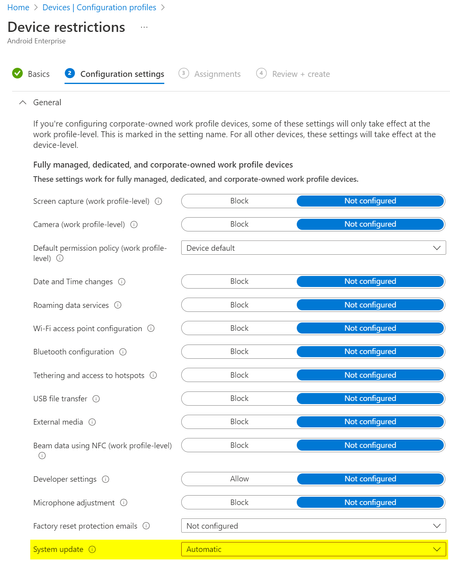
What would be the expected behaviour when we set the System update to Automatic in the Android Enterprise Device restriction profile? We have several devices rebooting "randomly" and without notification and when we check the dumpstate logs, these reboots were triggered by an update: Canonical boot reason: reboot,enterprise,mainline_updbug. According to the Android documentation this could be correct: https://source.android.com/devices/tech/admin/ota-updates Since we don't see the same behaviour on all devices, while they share the same Update policy, I'm not sure what to expect from this setting?4.5KViews0likes4Comments
Fully Managed Android Devices Constantly Restarting
Hi all, We have had users with our Fully Managed Android devices regularly rebooting without warning, sometimes multiple times a day. These devices are already fully updated when these restarts are happening. It's been hard to catch it as it's random and sometimes when it does, it will reboot multiple times. When the device turns back on, the phone says it is 'Optimising apps'. We also have the 'Auto Optimisation' function disabled in device care within settings. I know that's not much info to give but does anyone have any idea why this is happening or how to resolve it? As you can imagine it's causing a lot of issues within our business. This is occurring on both Samsung A32 devices and Samsung Tab Active 3 devices, both Fully Managed with the device firmware update setting in our configuration profile set to default.6.5KViews1like5CommentsMapping legacy server shares in Intune on Windows 10 MDM
In a Windows 10 full MDM (AzureAD+Intune) scenario, you’ll move your email, app and file workloads to Office 365 (or alternatives). In your pilot or hybrid phase, you may still need access to certain file shares on your servers, so here’s a simple PowerShell script you can deploy using Intune Device Configuration that maps your desired share. Deploy multiple times for multiple shares (or groups of users). It will create a shortcut in a location you define, so the mapping is always user-driven, it will automatically suggest your user’s AzureAD login as username. You can of course customize the script to your liking if you did not change your local AD upn yet. https://www.lieben.nu/liebensraum/2018/06/mapping-legacy-server-shares-in-your-windows-10-mdm-intune-pilot/ Solved49KViews3likes10Comments