microsoft teams
17387 Topics
New Teams: No notification badges in system tray
SOLVED BY THE FOLLOWING: NEW TEAMS IS NOT READY FOR PRIME TIME. When I activate New Teams, I give up having a notification badge in my system tray. I do get notification badges in the taskbar when Teams is minimized there, but not when it's closed and in the system tray. Notifications are turned on in Teams, but interestingly, the System > Notifications & actions setting has a toggle only for "Microsoft Teams Classic." Is that what's missing? I'm still getting the option to switch between new and old Teams. Not sure if that's a Microsoft thing or an organization thing. Will that right itself once New Teams is the only option?Solved74KViews8likes28CommentsThe new Planner in Microsoft Teams is now available to customers in GCC High
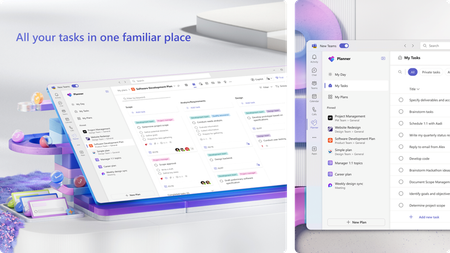
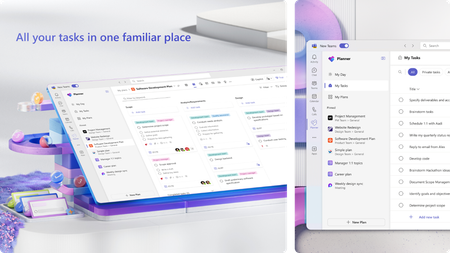
We’re excited to announce that the new Planner app in Microsoft Teams (web and desktop) is now available to customers in the Government Community Cloud (GCC) High environment! There’s no migration required—your existing tasks, basic plans, and premium plans are already in the new Planner. In August, we introduced the modern Planner experience on the web for GCC High. Now, that same experience comes to Microsoft Teams—the hub for teamwork in Microsoft 365—so your teams can plan, track, and collaborate on work right alongside their chats, meetings, and files. Add the Planner app in Teams and start managing all your work in one place You can learn more about the new Planner in our previous announcement. Your feedback helps us prioritize what to build! Share it with us via the Planner Feedback Portal. Getting started Open Planner in Teams. You can also find the Planner app in the Apps browser. Start by selecting the View more apps “…” menu in the navigation bar. Then, select the Planner icon. Once you’ve added Planner, you can pin the app (select Pin) to the left side of Teams for easy access. Differences for customers in GCC High It’s important to note that a few features are not available to customers in GCC High. These include: Copilot in Planner. Tasks assigned to you in premium plans will not appear in the My Tasks view. The ability to convert a basic plan to a premium plan. Task history in premium plans. Project Manager agent. Frequently asked questions Does the rollout include the Planner app in Teams mobile? No. The rollout to GCC High delivers the new Planner App in the Teams web and Desktop clients. Is there anything I need to migrate? No. Existing personal tasks, basic plans, and premium plans appear in the new Planner automatically. Will I see the same features as the Microsoft commercial cloud? Core planning features are consistent, but certain capabilities are not yet available in GCC High. We’ll share updates as these become available. Share your feedback We encourage you to share any feature requests by adding your ideas to the Planner Feedback Portal. Your feedback helps inform our feature updates, and we look forward to hearing from you as you try Planner’s new and existing capabilities! Resources Learn more about Planner at the Planner adoption page. Sign up to receive future communication about Planner. Check out the Microsoft 365 roadmap for feature descriptions and estimated release dates for Planner. Watch Planner demos for inspiration on how to get the most out of Planner in Teams. Visit the Planner help page to learn more about the new Planner.3KViews1like8Comments
Auto-saving transcription files in a folder?
I'm currently working in a project which requires the usage of meeting transcription files (not recordings!), and I couldn't find a foulder at OneDrive, or Sharepoint that contains the transcription files (.vtt), I know I can manually download it at the meeting recap but manually downloading it would make my project kinda pointless, is there any way that I can configure it to automatically save the transcription file at a folder like it happens with recordings? Thank you!2Views0likes0CommentsWhat’s New in Microsoft Teams | February 2026
Welcome to the February edition of What’s new in Microsoft Teams. This month’s updates are all about helping you stay in flow: getting the most useful information to you faster, and reducing a few everyday frictions. Take custom meeting recap templates: now you can choose from a few different preset formats, or prompt Copilot to shape your AI-generated notes to match your work style. Recaps also now feature visual references, so you can see the images that were shared and get the full context of the conversation. It’s easier than ever to know the status of external participants in your chats as well. New automatically assigned Trust Indicator badges will label external users as familiar, unfamiliar, guest, verified, or unverified. Dive in to see what else is rolling out and what you can try next. Feature categories: (All features listed are generally available unless otherwise noted) Chat and collaboration Teams Meetings Teams Phone Workplace: Teams Rooms Fundamentals and Security Certified for Teams Devices Chat and Collaboration Select multiple messages to forward You can now forward multiple messages at once in Microsoft Teams. Choose up to five messages from a chat or channel, and send them together in a single message, preserving both context and order. Whether you're sharing key decisions, project updates, or helpful resources, this streamlined experience makes it easier to keep everyone in the loop. Grid view for files in Teams search results Teams now has a preview‑based grid view for search results. This visual layout helps you differentiate files with similar names and more quickly identify the correct item, reducing the need to open files and interrupt the search flow. Simply go to the Files tab and toggle from the “list” to “grid view" icon. Trust Indicators in Teams show familiarity with external collaborators Trust Indicators are visual badges next to external users in Teams that help you quickly assess who you’re working with. Group chats and meeting chats that include external users are also marked as “external” to drive clarity and security. These labels include external-familiar, external-unfamiliar, guest, email verified, and unverified, and are automatically assigned based on the user's relationship with your organization. For instance, if a user is from a trusted domain, their label will be marked as “external familiar,” while those outside of known or trusted organizations are labeled “external unfamiliar.” This process helps provide context and enhances security by clearly indicating the nature of external relationships. Learn more about Trust Indicators. Meetings Copilot experience in Teams meetings The Copilot experience in Teams is being unified across chats, channels, and meetings for users with a Microsoft 365 Copilot license, matching the experience in the Microsoft 365 Copilot app. Beyond the updated interface, Copilot in Teams can analyze chat history, meeting transcripts, and calendar content to generate smart recaps, rewrite messages, and surface relevant insights. Whether reviewing a thread or following up after a call, Copilot delivers context-aware summaries and suggestions based on your activity and goals. This experience is now generally available for meetings. Customizable meeting recap templates Staying aligned after a meeting shouldn’t mean settling for a one-size-fits-all recap. With our new customizable recap templates, you can shape your AI-generated notes to match exactly how your team works. For teams who prefer their own style, you can design custom templates using a simple free-text prompt: just describe the structure you want—even paste in a format you’ve used before—and your AI notes will instantly adapt. You can also save your custom templates for future reuse, giving every meeting the same level of clarity, consistency, and efficiency. Or you can choose from two ready-made templates: a Speaker Summary that organizes insights by participant, or an Executive Summary that highlights key takeaways at a glance. Available now across all languages that support AI summaries. Learn more here. Meeting recap summaries now include visual references AI summaries in meeting recap now include the visuals that shaped the conversation. When a screen is shared during a recorded meeting, key on-screen moments are captured and placed directly alongside the relevant sections of the meeting summary, so you can see the screen as it appeared in the discussion. The notes themselves remain focused on the conversation, but now they’re paired with the visual context that brought those ideas to life. The result is a more intuitive, scannable recap that helps teams quickly reconnect decisions to what was presented, without scrubbing through the recording. Resizable right & top gallery Introducing resizable right and top gallery, a new capability that improves layout flexibility, video size, and visibility. This update will put you in control of the size of the right gallery when someone is sharing, spotlighted, or pinned to the stage during a meeting—so you can prioritize what matters most throughout your meetings. You will be able to shape the meeting layout to increase content and video size, show more participants, swap content and video positioning, or find the balance that works best for you. Custom banner for recording and transcription Custom in-meeting notifications for recording and transcription in Microsoft Teams allow IT administrators to tailor the message displayed to meeting participants when recording or transcription is enabled, across all Teams supported languages. These in-meeting notifications either inform participants implicitly or request explicit consent, depending on the organization’s meeting policy configuration. Learn more. Network Strength Indicator in Teams We’re introducing Network Strength Indicator to give every participant clearer insight into their own meeting experience. When connectivity drops, a notification in your self-view lets you know your network may be the cause, eliminating guesswork and reducing confusion. If network strength is weak, users receive suggestions, like: turn off all video, to help stabilize the connection and keep the conversation on track. In addition, if another attendee is having network issues, you will see a weak connection notification by their name. These simple additions are designed to make meetings more transparent, resilient, and focused on what matters most. Teams Phone Queues app shared history of calls and voicemails Coordinating customer call follow‑ups is easier when service teams have visibility into calls that happen outside shifts or while representatives are unavailable. Now generally available, the Queues app shared history enables teams to access a unified view of all missed, incoming, outgoing calls, and voicemails within a call queue. By consolidating call activity into a shared history, it improves transparency and fosters better collaboration among team members handling customer interactions. This feature reduces duplication of effort and ensures that no customer call is overlooked. Admins can configure access to shared history for all queue members or restrict it to authorized users. Queues app historical reporting supports 45 days of data Track calling performance trends over time with extended historical reports in the Queues app. Supervisors and approved viewers can now access up to 45 days of call history reporting data, up from the previous 30‑day limit, to better analyze call volumes and service patterns over time. For example, this extended history helps supervisors make more informed staffing decisions that reduce customer wait times and improve service. By default, reports show 7 days of data, with the option to expand the date range to review up to a month-and-a-half of historical activity. Operator Connect Co-Branding in Teams Phone We’re introducing operator co‑branding in Microsoft Teams Phone so customers can see who provides their Operator Connect PSTN connectivity service right where calls happen. When a user makes or receives a 1:1 PSTN call on a number through an Operator Connect partner calling plan, the partner’s logo and name appear on the dial pad and in‑call screens across Teams desktop, web, and mobile experiences—clearly indicating that the call is serviced by your organization's chosen operator. This gives added visibility to IT and end users for who their network carrier is while giving operators the opportunity to represent their brands inside the Teams calling experience. Operator co‑branding is a capability administered by Operator Connect partners. Customers with questions or concerns about how an operator’s brand is displayed should work directly with their Operator Connect partner about the experience. Microsoft Graph APIs for Teams Administration and Phone enablement Microsoft Graph APIs for Teams User Configuration, Phone Number Management and Policy Assignment are now generally available. Collectively, these APIs provide a programmatic solution for managing Teams users, policies, and phone numbers. Organizations can use these tools to automate Teams administration and phone enablement at scale. For example, organizations can streamline routine tasks like assigning voice policies to new hires and configuring call settings for frontline teams. These capabilities enable IT admins to integrate Teams administration into existing enterprise workflows, thereby streamlining onboarding processes and ensuring predictable, compliant configurations across extensive and distributed setups. Workplace: Teams Rooms For recent Teams Rooms feature releases, please see the January 2026/ISE Blog Fundamentals and Security Automatic synchronization with device time zone, no client restart required Microsoft Teams is enhancing its user experience by introducing a feature that automatically applies a new time zone without the need to restart the client. This improvement ensures that the time zone in Teams always matches the OS time zone, providing a seamless and accurate time display when traveling across time zones. Users can view the currently used time zone in Teams General Settings. Admins can easily discover and enable Apps that meet their organization’s trust standard This update adds a new Teams Admin Center capability that lets IT admins evaluate app trust using standardized compliance and security criteria. It surfaces trust signals and required documentation in one place, giving admins a faster, more consistent process to determine whether apps meet organizational requirements. New VDI solution for Teams optimization in Amazon WorkSpaces The New VDI solution for Teams introduces multimedia offloading and an optimization solution for Microsoft Teams when running in Amazon WorkSpaces (Personal and Pooled). Users of the WorkSpaces Client for Windows can enjoy a high-definition experience in virtual desktops, where audio/video/screensharing are offloaded to the user's device and processed by the SlimCore media engine. This entry applies to WorkSpaces only. AppStream, a separate application streaming service, is not supported. For more information, see the VDI solution for Teams optimization in Amazon WorkSpaces blog. Certified for Teams Devices Lenovo ThinkSmart Tiny Kit Lenovo’s ThinkSmart Tiny Kit delivers a compact, powerful, and ready‑to‑deploy Microsoft Teams Rooms solution designed to elevate any meeting space with seamless, professional collaboration. It combines enterprise‑grade performance, intuitive controls, and a clutter‑free footprint to transform conference rooms into efficient, modern communication hubs. Learn more. Lenovo ThinkSmart One Pro with ThinkSmart or IP Controller Smart sound. Sharp vision. Designed for conversations that matter. ThinkSmart One Pro is an all-in-one video conferencing bar that brings built-in compute, smart camera tech, and AI-powered audio to small meeting rooms. With autoframing, noise suppression, and eight beamforming microphones, it delivers sharp video and clear, room-filling sound, making it easy for conversations to stay focused and natural. Its sleek, wall-mountable design makes setup simple, while ThinkSmart Manager gives IT teams full remote visibility and control. ThinkSmart One Pro is easy to deploy, manage, and scale across rooms for consistent, high-quality collaboration. Lenovo ThinkSmart One Pro with ThinkSmart Controller Lenovo ThinkSmart One Pro with IP Controller Lenovo Wired VoIP Headset 5000 Experience clarity with the Lenovo Wired VoIP Headset 5000—made for modern professionals who demand reliable performance. Certified by Microsoft Teams and engineered for intuitive plug-and-play via USB-C or USB-A, this sleek, lightweight headset adapts instantly to any setup. Whether you’re commuting or anchored at your desk, AI-powered audio by LADM allows you to be heard clearly. Learn more. Biamp Vidi 280 With intelligent auto-framing, the Biamp Vidi 280 is designed for medium to large conference rooms. It dynamically switches between its wide and ultra-wide angle lens with 16x digital zoom to keep all participants in the conversation. Installation is fast, mounting options are flexible, and deployment is effortless—whether for a single medium-sized room or hundreds of large meeting spaces. Learn more. Biamp Vidi Content Cam 250 The Vidi Content Cam 250 is designed to simplify content sharing in Teams meetings. Remote participants get an unobstructed view of the whiteboard, so they can follow every note, sketch, and diagram as if they were in the room. Designed as a complete solution in one box, it includes flexible mounting options for walls or ceilings, adapts to any room layout, and supports the maximum Teams whiteboard capacity. Setup is quick, reliable, and built for the realities of modern collaboration. Learn more. Biamp All-in-One Video Bar Parlé VBC 2800 and Parlé VBC 2800 Teams Rooms system The Parlé VBC 2800 is an all-in-one conferencing bar designed to deliver exceptional audio and video performance in medium-to-large meeting rooms. Combining Beamtracking microphones, dual 4K ePTZ cameras, AI-driven noise reduction, and automated room tuning, it brings professional-grade clarity and remote meeting equity to every space. The Parlé™ VBC 2800 Video Conferencing Bar combines the latest in Biamp Audio Intelligence with advanced 4K Video Intelligence to deliver exceptional Microsoft Teams experiences in small to medium-sized meeting rooms. Paired with the Biamp UCC + Controller, its modular design offers flexible mounting options — on the wall or a credenza — with minimal cabling to keep your space clean and professional. It also features Biamp Launch™, an automated tuning system that adapts audio performance to each unique conferencing environment. Biamp All-in-One Video Bar Parlé VBC 2800 Biamp All-in-One Video Bar Parlé VBC 2800 Teams Rooms System10KViews2likes1Comment
Teams auto selecting "Missed Calls"
I have the calls tab selected. On that tab I have "All" selected. I then click the Activity tab. Teams is selecting "Missed" on that tab. Why is it selecting "Missed"? The issue is when I click back to the calls tab Teams then selects the "Missed" on the calls area. Now if I click on "All" on the Activity tab and then click back to the Calls tab everything is fine. Seems like it is auto selecting stuff for me I didn't ask it to do.12Views0likes0CommentsLicensing updates extend access to advanced capabilities in Microsoft Teams and Microsoft Places
UPDATE: These changes will go into effect on April 1, 2026 for customers with users on any license that includes access to the calendar in Outlook and Teams (including Microsoft 365 E3, E5, Business Basic, Business Standard, and Business Premium; Outlook 365 E1, E3, and E5; Exchange Online; various Teams licenses; additional Microsoft 365 and Office 365 licenses). Access to the Places management portal remains available for all Places customers. At Microsoft, we empower organizations to achieve more through intelligent communication, inclusive collaboration, and connected workplace experiences. Our customers are looking for scaled, widespread access to powerful tools that enable workforces to interact and communicate with more intelligence and precision. To facilitate that, we’re announcing Teams licensing updates that make it easier for customers to unlock their full communication and collaboration potential. These licensing changes simplify access to capabilities spanning across Microsoft Places and Teams town halls and webinars, so you can deliver experiences that enhance virtual and in-person collaboration. Read on to learn about the changes ahead and new ways to empower your organization. Access enhanced workplace coordination capabilities Places enables an AI-powered workplace experience by connecting employees to colleagues, spaces, and services in the office. We are expanding access to end-user functionality in Places by making it available in all licenses that include access to the calendar in Outlook and Teams (including Microsoft 365 E3, E5, Business Basic, Business Standard, and Business Premium; Outlook 365 E1, E3, and E5; Exchange Online; various Teams licenses; additional Microsoft 365 and Office 365 licenses). Functionality included in this change: Places Finder: Make more informed decisions about bookings with enriched context like images, floorplans, custom attributes, and available technology in the spaces around you. This change enables organizations to upgrade at scale from Room Finder to the full Places Finder experience by onboarding spaces to the Places Directory. Places Explorer: Enable map-based space reservations and explore details about all workplaces, including the people, spaces, and experiences in each location. Access to Places Explorer is through the Places app inside Microsoft Outlook and Teams. These changes will go into effect on April 1, 2026 for customers with users on any license that includes access to the calendar in Outlook and Teams (including Microsoft 365 E3, E5, Business Basic, Business Standard, and Business Premium; Outlook 365 E1, E3, and E5; Exchange Online; various Teams licenses; additional Microsoft 365 and Office 365 licenses). Manage shared spaces more efficiently Across our AI-powered workplace solutions, we’re continually looking for ways to streamline how organizations manage their inventory of shared desks, spaces, and assets. The newly renamed Teams Shared Space license (formerly Teams Shared Devices license) will be the way that organizations manage this inventory of assets, adding the ability to manage up to four desks with a single license (in addition to the previous ability to manage either a common area phone, a Teams panel, shared space like a room, or a hotdesking device included in the Teams Shared Device license). IT admins will be able to assign licenses to bookable shared spaces individually and control which workspaces are available for employees to use with this new functionality. This license will provide space management capabilities, including: Desk booking: Employees can reserve desks in advance before arriving at a location. Space management: Admins can manage advance reservation policies for desks and set auto-release policies for rooms with a shared spaces license. Space Analytics: Inventory and utilization reports are available for licensed shared spaces (desks). This license will be available on April 1, 2026. For customers with legacy Teams Shared Device licenses, admins will not be required to take any action to transition to this license (but will have to assign additional spaces like desks with an additional no-cost license to take advantage of the new increased allotment of four spaces per license). Communicate and connect at scale Managing communication to thousands or tens of thousands of attendees can be a daunting process for anyone. Built directly on the Teams platform, Teams town hall and webinar enable events at scale with improved capabilities, reliability, and capacity. To empower more organizations to plan and execute high-quality events, we are bringing all town hall and webinar features that were previously only available with a Teams Premium license to Teams Enterprise, including: Streaming chat: Chat for town hall events reduces any message sending lag, enabling smoother communication between attendees and organizers. Reactions interactivity: Enjoy the same reactions from Teams meetings in town hall and webinar, allowing the audience to express themselves and react to presented content. Real-time event insights: Hosts of town hall and webinar instances can get feedback on the performance and reliability of their broadcasts, helping to ensure a smoother experience for attendees. Meeting theme and email customization: Use organizational branding to customize the event-related artifacts that are delivered to attendees. Enterprise Content Delivery Network (eCDN): eCDN helps to manage the bandwidth load of streaming events to large audiences, providing stability and reliability. Immersive events in Teams: Host immersive experiences in custom 3D environments where attendees join as avatars to interact and collaborate. All users with a Teams Enterprise license will soon be able to host events for up to 3,000 attendees with all Teams town hall and webinar features. We will also enable a higher-capacity, view-only streaming experience for town halls up to 10,000 users. To fully enable events at scale, customers will be able to purchase attendee pack licenses that increase the cap on the total number of attendees up to 100,000 with the same suite of robust features. Attendee pack licenses will come in a range of sizes to provide added flexibility, and will be available to assign through the Teams Admin Center (TAC) after transacting. Summary of licensing changes These changes reflect our commitment to helping organizations confidently embrace the future of work with greater impact across their communication and collaboration. The full slate of changes will go into effect on April 1, 2026: End-user workplace coordination features from Microsoft Places available for licenses that include access to the calendar in Outlook and Teams (including Microsoft 365 E3, E5, Business Basic, Business Standard, and Business Premium; Outlook 365 E1, E3, and E5; Exchange Online; various Teams licenses; additional Microsoft 365 and Office 365 licenses) Introduction of the renamed Teams Shared Space license with additional capabilities for space management and analytics for admins Advanced Teams town hall and webinar features available for all Teams Enterprise users for instances up to 3,000 attendees (10,000 attendee view-only experience) Introduction of attendee pack add-on licenses for town hall events starting from 5,000 up to 100,000 attendees Independent of these changes, we are committed to continuing to provide a robust set of experiences for organizations that have invested in Teams Premium. Teams Premium will still be the only way for customers to experience advanced communication features in Teams meetings, meeting protection, Advanced Collaboration Tools for admins, Intelligent recap, Queues app for Teams Phone, and enhanced capabilities for Bookings and virtual appointments. For a full list of current Teams Premium features, please click here. More information about these new licensing changes, including impacts for existing Teams Premium customers using these products and features, are available below. Read more about these changes in our licensing update FAQ attached below Explore more Teams experiences: Microsoft Teams Learn more about Microsoft Places: Microsoft Places Learn more about Teams town hall and webinar22KViews12likes6Comments
Allow only specific external domains
When External Access is set to “Allow only specific external domains” Scenario 1 If Microsoft Teams External Access is set to “Allow only specific external domains”, and a user from a domain not on the allowed list joins a meeting while signed into their work Teams account, Will they still appear with their actual name and organization, rather than as Anonymous? Is this correct? Scenario 2 If a user from a non-allowed domain joins the meeting link through a browser and selects “Join as guest”, Will they appear under the name they manually enter, instead of showing as Anonymous? Is this correct? Scenario 3 If a user joins without authenticating and meeting policy allows anonymous access, Will they appear as Anonymous only in that situation, and not because of the External Access restriction? Is this correct?54Views0likes3Comments
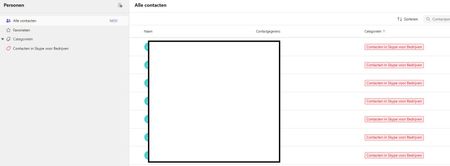
Teams duplicates contacts until it maxed out at 15000
Hi, I have a weird issue with some users, Teams seems to be duplicating old Skype for Business contacts until it maxes out at 15000 contacts. I have been digging into it a bit and found out the location of the folder through Exchange powershell but I can't clear or delete it. Skype for Business is phased out and disabled in my tenant for a long time now so I couldn't do much there, I can't login to it through powershell. We've had Teams since like 2017 so I suspect this is a niche legacy issue popping up recently somehow. Manual deleting is possible through the browser environment but that is such a hassle because it keeps glitching if you delete per 100 and skipping pages and stuff, need to refresh constantly. Just a pain, it would take days. And no guarentee its not coming back either. See screenshots. Does anyone know why this is happening and how to fix this? Thanks for reading, cheers!27Views0likes1Comment
When I install my app to a second channel in Teams, the this.onMessage will nto trigger
I have a bot which when installed to a channel will read messages using this.onMessage, if I add another channel to the same team it will also read the messages without installing the bot on that channel. However if a user installs the bot again, to the second channel which some users do, the second channel will not trigger the onMessage listener except when using the @botname command. I cant log errors anything because it just wont trigger. I feel like the context gets screwed up, all the other listeners fire on other channel Any help please?22Views0likes1Comment