microsoft entra id
31 Topics
SURVEY: July 2023 Windows Server and Microsoft Entra ID (Azure Active Directory) survey
Feedback window has been extended for this survey! July 2023 Windows Server and Microsoft Entra ID (Azure Active Directory) survey This survey is intended to help the Windows Server engineering team learn more about your organization’s needs regarding Windows Server and Microsoft Entra ID (formerly Azure Active Directory). All responses are anonymous and all questions are optional. This data will be used for research purposes only. Thank you for your time. Survey Link2.4KViews4likes0CommentsMigrating frontline mobile devices: Identity considerations for assigned and shared devices
By: Carol Burns - Principal Product Manager | Microsoft Intune and Sucheta Gawade, Microsoft MVP (Azure & Security / Intune) Practitioner perspective from Sucheta Gawade, Microsoft MVP (Azure & Security / Intune), with deep experience in secure frontline mobility, including regulated healthcare environments. In previous articles in this series, we focused on understanding the reality of your frontline device estate and preparing for real-world testing through stakeholder alignment. One of the most critical areas to get right during the testing phase is identity and security, particularly given the often fast-paced, shift-based nature of frontline work, where organizations must account for the distinct requirements and challenges of devices assigned to a single individual versus devices shared across multiple users or shifts. Identity decisions directly affect security posture, sign‑in experience, operational support overhead, and worker productivity. Getting them wrong is one of the most common reasons pilots stall or fail. This article explores how to think about identity on frontline devices by distinguishing between assigned and shared usage models, clarifying when individual sign-in is required, and highlighting patterns to avoid such as shared accounts and passwords. Start by distinguishing device usage models Frontline mobile devices generally fall into one of two broad categories. Assigned devices Assigned devices are issued to a specific individual, often for the duration of their role. These devices: Typically require persistent access to user‑specific data Align with user‑based identity, Microsoft Entra ID Conditional Access, and audit controls. Enable greater accountability and traceability by associating activity with an individual user rather than a shared credential. Common examples include: A doctor using an individually assigned clinical tablet, where uninterrupted access to patient data and clinical systems is essential and actions must always be attributable to a named identity A field engineer assigned a single device that retains configuration, credentials, and offline content across jobs and locations An inspector or supervisor using an assigned device for approvals, reporting, and decision‑making that requires traceability Shared devices Shared devices are used by multiple people across shifts or tasks. These scenarios introduce additional identity complexity and generally fall into two distinct models. Shared devices without user sign-in (task or kiosk-based) Some frontline devices exist to perform a narrow, often repetitive task and don’t require sign in with a user account. Typical examples include: Retail price-check devices used on the shop floor to scan an item and display its current price or stock availability, with no need for access to personal or user-specific information Environmental monitoring devices used to read and record temperature or humidity in a storage area, ward, or vehicle, where the task is simple, repetitive, and not tied to an individual user identity Warehouse or facility scanning devices used for a narrow operational task such as scanning an asset, bin, or location code to confirm status, location, or completion of a step in a process In these cases: Devices are locked down to a specific task No user-specific data is stored, and access is limited to the minimum required for the task “When a device is truly task-only, removing sign-in friction is a huge win, but only if we’re aware what data the device can access. When things like patient context or personalized tasks enter the picture, identity becomes required” - Sucheta Gawade, Microsoft MVP Shared devices with individual user sign-in Organizations are increasingly digitizing and modernizing frontline workflows end-to-end. Paper processes and simple apps give way to connected systems, manual handovers are replaced with digital task lists, and workers begin to rely on mobile devices as their primary interface from completing tasks. As roles evolve, workers are expected to: Receive tasks, schedules, and updates digitally Communicate with supervisors and peers using collaboration tools such as Microsoft Teams Capture information at the point of work rather than transcribing later Interact with workflows that are increasingly automated or assisted by AI, such as guided steps, data validation, or suggested actions This shift delivers clear productivity and quality benefits, but it also means access must now be tied to individual identity to protect sensitive data, support auditability, and prevent information from being carried over between users. Common scenarios include: Retail store associates rotating across shifts, moving from paper schedules and verbal handovers to digital task lists, real-time communications, and collaboration tools such as Microsoft Teams Nurses sharing mobile devices in a hospital ward, where paper notes and whiteboards are replaced with secure access to patient-linked applications, care coordination tools, and role-based alerts Logistics workers signing in to shared devices to complete role-based tasks, capture data at the point of work, and interact with AI-assisted workflows. Don’t use shared credentials, always prefer individual sign-in Shared credentials may seem like a shortcut in frontline environments, but they undermine accountability and make policy enforcement and incident response significantly harder. “Shared credentials feel ‘efficient’ until your first incident. You lose auditability, Conditional Access becomes meaningless, and investigations turn into guesswork. Individual identity is the only scalable model.” -Sucheta Gawade, Microsoft MVP If access involves corporate systems or sensitive data, each worker should use their individual credentials to sign in, even on a shared device. Identity decision checklist for frontline devices Use the checklist to validate identity choices and confirm that the overall security posture matches the way the device is used. Decision area Indicators Use individual sign-in Users access personal or role-specific data. Auditability or compliance is required. Conditional Access or multifactor authentication (MFA) must be enforced. Applications rely on user identity. Use kiosk-style or device-only identity Devices perform a single task. No user-specific or sensitive organizational data is accessed. Workflows are entirely device-centric. Speed and simplicity outweigh personalization. Avoid entirely Shared usernames or passwords. Reused local accounts across shifts. MFA exclusions that weaken security without compensating controls. Choosing the right sign‑in experience The challenge in frontline environments is balancing: Security requirements Speed of access Ease of use across shifts “Frontline setups may fail because the sign-in flow doesn’t match reality. If authentication takes 60 seconds and the worker has to do it 30 times a shift, they’ll find a workaround.” -Sucheta Gawade, Microsoft MVP Typing complex usernames and passwords repeatedly during a shift is often impractical on mobile devices. QR code authentication is one effective option for shared frontline devices, but it’s not the only supported approach. For other supported methods, see Microsoft Entra authentication methods overview. QR code authentication Microsoft Entra QR code authentication is designed for frontline workers to sign-in efficiently on shared Android and iOS/iPadOS devices without repeatedly entering usernames and passwords. Note: For individually assigned devices, phishing-resistant, passwordless authentication methods are the recommended approach, such as Passkeys. QR code authentication enables workers to sign in using a unique QR code and a personal numeric PIN. This approach: Eliminates typed usernames and passwords Preserves individual identity Works well for shared devices with frequent user turnover Integration with Microsoft Intune, Managed Home Screen and Conditional Access QR code authentication should always be: Scoped to specific users and devices Combined with Conditional Access policies Evaluated during real‑world testing to ensure the right balance of usability and security Security posture and Conditional Access for frontline devices Individual identity is a critical foundation for stronger security posture, but it’s not enough on its own. Frontline device security also depends on management, data and app protection, session handling, and access policies that reflect the actual usage model. Conditional Access is an important part of securing frontline environments, but its effectiveness depends on aligning policies to the actual device and identity model in use. To ensure that the QR code authentication method can only be used by the frontline workers it’s intended for, create a custom authentication methods policy, which you can use in a dedicated Conditional Access policy. That Conditional Access policy should then be scoped to the group of users (frontline workers) who should log on using the QR code authentication method, and have the Require authentication strength control configured, which targets the custom authentication strength for "QR Code" which was previously created. During real‑world testing: Validate that design and controls support the intended usage model Ensure policies don’t block legitimate workflows Confirm sessions, access, and user targeting behave as expected These decisions should also be validated in practice: can users sign in and out reliably across shifts, is personal data cleared between sessions, and does the chosen experience match the pace of frontline work? Summary This article walks through how identity choices shape security, usability, and day-to-day success for frontline mobile devices. It explains the difference between assigned and shared devices, when individual sign-in is needed, and why shared credentials can create risk. It also highlights QR code authentication and Conditional Access as practical ways to keep each worker’s identity protected while making sign-in simple enough for fast-paced frontline workflows. What’s next in the series In the next article, we’ll focus on Microsoft Intune enrollment models, exploring how different enrollment approaches support—or constrain—the identity and usage patterns discussed here, including their role in protecting session identity, enforcing the intended sign-in model, and preventing one user’s access or data from carrying over to the next. As always, we welcome your feedback and experience. If you’ve navigated identity decisions for shared or frontline devices, share your advice and lessons learned in the comments, or reach out to us on X @IntuneSuppTeam. For more guidance across frontline scenarios, explore our broader From the Frontlines series on frontline worker management with Microsoft Intune. Join our community! Discuss real-world scenarios, get expert guidance, connect with peers, and influence the future of Microsoft Security products. Learn more at aka.ms/JoinIntuneCommunity.1.3KViews2likes1CommentAuthenticating AWS Workloads to Azure Functions using Workload Identity Federation
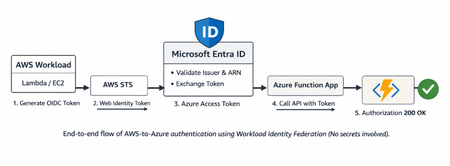
Step-by-step guide to configuring Workload Identity Federation between AWS and Azure, enabling service-to-service authentication where AWS workloads can securely call Azure Functions using token-based access instead of stored credentials.New Platform SSO with registration during Automated Device Enrollment on macOS
By Iris Yuning Ye, Product Manager – Microsoft Intune & Justin Ploegert, Principal Product Manager – Microsoft Entra A new setting ‘Enable Registration During Setup’ for Platform single sign-on (PSSO) during Automated Device Enrollment (ADE) is now generally available for macOS devices in Microsoft Intune. With this new setting and a compatible version of the Intune Company Portal (5.2604.0 and newer), this feature enables users sign in with their Microsoft Entra account during Setup Assistant, complete device registration before reaching the desktop, and get immediate access to work resources and ready to be productive sooner. Why this matters Previously, Platform SSO registration occurred only after users completed Setup Assistant and reached the desktop. They then had to notice and act on a separate notification to finish Platform SSO registration. When Platform SSO registration isn't completed, it can cause issues with app authentication or lead to noncompliance, delaying users from getting started on the device: Missed notifications - Users dismiss or ignore the post-enrollment PSSO prompt, leaving devices in an incomplete device registration state. Broken app authentication - Apps like Microsoft Outlook could fail to authenticate because SSO isn’t fully configured. Compliance gaps - Devices are flagged as noncompliant in the Intune Company Portal because Platform SSO registration isn’t completed. Helpdesk burden - IT teams field repeated tickets for issues that should have been handled automatically during provisioning. Migration blocker - Incomplete Platform SSO setup slows down migrating macOS devices to Intune. Platform SSO during ADE with EnableRegistrationDuringSetup key eliminates these issues. Device registration, identity bootstrap, and credential setup all happen inline during Setup Assistant before the user ever reaches the desktop. What the feature enables Capability Details Microsoft Entra device registration during ADE The device registers with Microsoft Entra ID before the user reaches the desktop. A hardware-bound Workplace Join certificate is issued and stored securely on the device. Early device identity Device identity is established early in the provisioning process, enabling immediate access to apps and resources protected by Conditional Access. Platform SSO credentials during initial setup When configured with Secure Enclave, Platform SSO credentials are stored in the device’s Secure Enclave, providing hardware-bound, phishing-resistant protection aligned with Zero Trust principles. Minimized setup delays Users arrive at the desktop already signed in and ready to work, with fewer authentication prompts, less policy wait time, and fewer setup-related app access issues. How it works This feature requires three policies that work together. All three must be configured correctly before enrollment starts and assigned to the same static user groups: A Platform SSO settings catalog policy with “Enable Registration During Setup” configured to Enabled. Intune Company Portal (version 5.2604 or newer) deployed as a line-of-business (LOB) app, which provides the Microsoft Enterprise SSO extension. An ADE enrollment profile configured with Setup Assistant with modern authentication and Await final configuration = Yes. When a device enrolls with these three policies in place, here's what happens: The device powers on and begins the ADE enrollment flow. Intune delivers the Platform SSO settings catalog policy with Enable Registration During Setup enabled. Intune Company Portal is installed automatically as a LOB app, providing the Microsoft Enterprise SSO plug-in. During Setup Assistant, the user signs in with their Microsoft Entra credentials. This first sign-in starts the regular enrollment process. A second sign-in authenticates the identity in Intune Company Portal and fetches the SSO extension. The device registers with Microsoft Entra ID, and a Microsoft Entra device registration certificate is issued. The user arrives at the desktop fully authenticated, with SSO active and Conditional Access satisfied. Note: During enrollment, users are prompted to enter their Microsoft Entra credentials at least twice. We're working on improvements to reduce the number of sign-ins in a future update. Prerequisites Requirement Details macOS version macOS 26 or later. Enrollment method Automated Device Enrollment (ADE) through Apple Business Manager. Intune Company Portal Version 5.2604.0 or later, deployed as a line-of-business (LOB) app. Download it from Microsoft Download Center . Intune role for configuration An administrator account with, at minimum, the built-in Policy and Profile Manager role. Group type Assigned (static) user groups only. Dynamic groups and device groups are not supported. Important: Review the full Platform SSO prerequisites in the Platform SSO configuration guide before you begin. High level step-by-step configuration Step 1: Create or update the Platform SSO settings catalog policy In the Microsoft Intune admin center, go to Devices > Manage devices > Configuration. If this is your first time configuring Platform SSO, follow the full Platform SSO configuration guide. Add and configure the following setting: Setting Value Description Authentication > Extensible Single Sign On > Platform SSO > Enable Registration During Setup Enabled Enables the Platform SSO registration process during Setup Assistant. If using the Password authentication method, it’s recommended to add for password sync function: Setting Value Description Authentication > Extensible Single Sign On > Platform SSO > Enable Create First User During Setup Enabled Enables the password synchronization experience during Setup Assistant. This configuration is recommended when using the Password authentication method. Tip: Microsoft recommends using Secure Enclave as the authentication method for the strongest hardware-backed security. Assign the policy to your static user groups. Filter is also supported with correct static group setting. Step 2: Install Intune Company Portal as a LOB app Download the Company Portal for macOS PKG from the Microsoft Download Center. In the Intune admin center, go to Apps > All Apps > Create. Add Intune Company Portal as a macOS LOB app. Make it a required app and assign it to the same groups as the Platform SSO policy from Step 1. Important: Company Portal 5.2604.0 and newer is required. If you install an older version, Platform SSO fails. When Intune detects Company Portal as a deployed policy, it sends it with priority during enrollment. And clean up the App bundle ID that are not related to Company Portal, make sure only com.microsoft.CompanyPortalMac as the relevant App bundle ID is kept. Step 3: Set up the enrollment profile In the Intune admin center, go to Devices > Device onboarding > Enrollment > Apple tab. Create or edit an Automated Device Enrollment profile with these Management settings: Setting Value User affinity Enroll with User Affinity Authentication Setup Assistant with modern authentication Await final configuration Yes Locked enrollment Yes Assign the profile to the devices afflicated with the users targeted as Steps 1 and 2. Critical: You must assign all three policies to the devices afflicated with the users targeted. If any policy is assigned to a different group, or if any step is misconfigured, enrollment will fail. In that case, wipe the device and re-enroll with all steps correctly configured. Key things to remember ✅ Three policies, one group: Settings catalog, Company Portal LOB app, and ADE enrollment profile, all assigned to the same static groups or devices/users affliated with the groups. ✅ Static groups only: This feature does not work with device groups or dynamic groups. ✅ One SSO policy per device: If you already have a Platform SSO policy assigned to enrolled devices, make sure device is wiped appropriately before kicking of enrollment with new PSSO flow. ✅ Latest Intune Company Portal: Version 5.2604.0 or newer is required. ✅ macOS 26 required: This feature is supported on macOS 26 and newer. ✅ Secure Enclave recommended: For the strongest hardware-backed credential protection. For more details, refer to Configure Platform Single Sign-On (PSSO) during Automated Device Enrollment for macOS devices. Looking ahead: Reducing Platform SSO sign-in prompts Signing in multiple times during enrollment isn't the ideal experience, and we're actively working to streamline it with a new enrollment setting that enables users to complete both Intune enrollment and Platform SSO device registration with a single sign-in. This will further simplify the onboarding experience, reduce friction for users, and bring macOS enrollment closer to a truly seamless, zero-touch provisioning flow. Stay tuned to What’s new in Intune for the release. Related resources SSO in ADE profile (new article): Add Platform SSO policy to ADE Profile on macOS devices SSO scenarios: Platform SSO scenarios for macOS devices Platform SSO configuration guide for macOS devices using Microsoft Intune Common Platform SSO scenarios for macOS devices Install Company Portal for macOS as a macOS LOB app Set up automated device enrollment (ADE) Troubleshoot the Microsoft Enterprise SSO Extension plugin on Apple devices macOS Platform single sign-on known issues and troubleshooting As always, we'd love your feedback. If you've piloted Platform SSO during Setup Assistant, share your tips and lessons learned in the comments below or reach out to us on X @IntuneSuppTeam. Post Updates: 6/8/26: Refreshed guidance recommending this configuration for the Password authentication method and clearer targeting language around devices and users affiliated with the groups targeted.20KViews2likes32Comments