microsoft copilot
22 TopicsMicrosoft Purview protections for Copilot
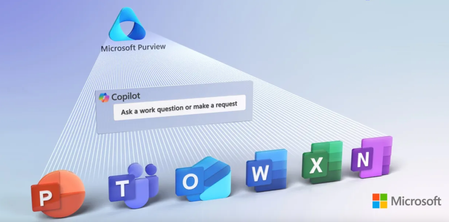
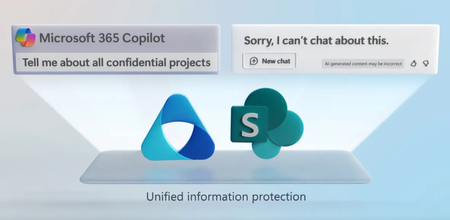
Use Microsoft Purview and Microsoft 365 Copilot together to build a secure, enterprise-ready foundation for generative AI. Apply existing data protection and compliance controls, gain visibility into AI usage, and reduce risk from oversharing or insider threats. Classify, restrict, and monitor sensitive data used in Copilot interactions. Investigate risky behavior, enforce dynamic policies, and block inappropriate use — all from within your Microsoft 365 environment. Erica Toelle, Microsoft Purview Senior Product Manager, shares how to implement these controls and proactively manage data risks in Copilot deployments. Control what content can be referenced in generated responses. Check out Microsoft 365 Copilot security and privacy basics. Uncover risky or sensitive interactions. Use DSPM for AI to get a unified view of Copilot usage and security posture across your org. Block access to sensitive resources. See how to configure Conditional Access using Microsoft Entra. Watch our video here. QUICK LINKS: 00:00 — Microsoft Purview controls for Microsoft 365 Copilot 00:32 — Copilot security and privacy basics 01:47 — Built-in activity logging 02:24 — Discover and Prevent Data Loss with DSPM for AI 04:18 — Protect sensitive data in AI interactions 05:08 — Insider Risk Management 05:12 — Monitor and act on inappropriate AI use 07:14 — Wrap up Link References Check out https://aka.ms/M365CopilotwithPurview Watch our show on oversharing at https://aka.ms/OversharingMechanics Unfamiliar with Microsoft Mechanics? As Microsoft’s official video series for IT, you can watch and share valuable content and demos of current and upcoming tech from the people who build it at Microsoft. Subscribe to our YouTube: https://www.youtube.com/c/MicrosoftMechanicsSeries Talk with other IT Pros, join us on the Microsoft Tech Community: https://techcommunity.microsoft.com/t5/microsoft-mechanics-blog/bg-p/MicrosoftMechanicsBlog Watch or listen from anywhere, subscribe to our podcast: https://microsoftmechanics.libsyn.com/podcast Keep getting this insider knowledge, join us on social: Follow us on Twitter: https://twitter.com/MSFTMechanics Share knowledge on LinkedIn: https://www.linkedin.com/company/microsoft-mechanics/ Enjoy us on Instagram: https://www.instagram.com/msftmechanics/ Loosen up with us on TikTok: https://www.tiktok.com/@msftmechanics Video Transcript: -Not all generative AI is created equal. In fact, if data security or privacy-related concerns are holding your organization back, today I’ll show you how the combination of Microsoft 365 Copilot and the data security controls in Microsoft Purview provide an enterprise-ready platform for GenAI in your organization. This way, GenAI is seamlessly integrated into your workflow across familiar apps and experiences, all backed by unmatched data security and visibility to minimize data risk and prevent data loss. First, let’s level set on a few Copilot security and privacy basics. Whether you’re using the free Copilot Chat that’s included with Microsoft 365 or have a Microsoft 365 Copilot license, they both honor your existing access permissions to work information in SharePoint and OneDrive, your Teams meetings and your email, meaning generated AI responses can only be based on information that you have access to. -Importantly, after you submit a prompt, Copilot will retrieve relevant index data to generate a response. The data only stays within your Microsoft 365 service trust boundary and doesn’t move out of it. Even when the data is presented to the large language models to generate a response, information is kept separate to the model, and is not used to train it. This is in contrast to consumer apps, especially the free ones, which are often designed to collect training data. As users upload files into them or paste content into their prompts, including sensitive data, the data is now duplicated and stored in a location outside of your Microsoft 365 service trust boundary, removing any file access controls or classifications you’ve applied in the process, placing your data at greater risk. -And beyond being stored there for indexing or reasoning, it can be used to retrain the underlying model. Next, adding to the foundational protections of Microsoft 365 Copilot, Microsoft Purview has activity logging built in and helps you to discover and protect sensitive data where you get visibility into current and potential risks, such as the use of unprotected sensitive data in Copilot interactions, classify and secure data where information protection helps you to automatically classify, and apply sensitivity labels to data, ensuring it remains protected even when it’s used with Copilot, and detect and mitigate insider risks where you can be alerted to employee activities with Copilot that pose a risk to your data, and much more. -Over the next few minutes, I’ll focus on Purview capabilities to get ahead of and prevent data loss and insider risks. We’ll start in Data Security Posture Management or DSPM for AI for short. DSPM for AI is the one place to get a rich and prioritized bird’s eye view on how Copilot is being used inside your organization and discover corresponding risks, along with recommendations to improve your data security posture that you can implement right from the solution. Importantly, this is where you’ll find detailed dashboards for Microsoft 365 Copilot usage, including agents. -Then in Activity Explorer, we make it easy to see recent activities with AI interactions that include sensitive information types, like credit cards, ID numbers or bank accounts. And you can drill into each activity to see details, as well as the prompt and response text generated. One tip here, if you are seeing a lot of sensitive information exposed, it points to an information oversharing issue where people have access to more information than necessary to do their job. If you find yourself in this situation, I recommend you also check out our recent show on the topic at aka.ms/OversharingMechanics where I dive into the specific things you should do to assess your Microsoft 365 environment for potential oversharing risks to ensure the right people can access the right information when using Copilot. -Ultimately, DSPM for AI gives you the visibility you need to establish a data security baseline for Copilot usage in your organization, and helps you put in place preventative measures right away. In fact, without leaving DSPM for AI on the recommendations page, you’ll find the policies we advise everyone to use to improve data security, such as this one for detecting potentially risky interactions using insider risk management and other recommendations, like this one to detect potentially unethical behavior using communication compliance policies and more. From there, you can dive in to Microsoft Purview’s best-in-class solutions for more granular insights, and to configure specific policies and protections. -I’ll start with information protection. You can manage data security controls with Microsoft 365 Copilot in scope with the information protection policies, and the sensitivity labels that you have in use today. In fact, by default, any Copilot response using content with sensitivity labels will automatically inherit the highest priority label for the referenced content. And using data loss prevention policies, you can prevent Copilot from processing any content that has a specific sensitivity label applied. This way, even if users have access to those files, Copilot will effectively ignore this content as it retrieves relevant information from Microsoft Graph used to generate responses. Insider risk management helps you to catch data risk based on trending activities of people on your network using established user risk indicators and thresholds, and then uses policies to prevent accidental or intentional data misuse as they interact with Copilot where you can easily create policies based on quick policy templates, like this one looking for high-risk data leak patterns from insiders. -By default, this quick policy will scope all users in groups with a defined triggering event of data exfiltration, along with activity indicators, including external sharing, bulk downloads, label downgrades, and label removal in addition to other activities that indicate a high risk of data theft. And it doesn’t stop there. As individuals perform more risky activities, those can add up to elevate that user’s risk level. Here, instead of manually adjusting data security policies, using Adaptive Protection controls, you can also limit Copilot use depending on a user’s dynamic risk level, for example, when a user exceeds your defined risk condition thresholds to reach an elevated risk level, as you can see here. -Using Conditional Access policies in Microsoft Entra, in this case based on authentication context, as well as the condition for insider risk that you set in Microsoft Purview, you can choose to block their permission when attempting to access sites with a specific sensitivity label. That way, even if a user is granted access to a SharePoint site resource by an owner, their access will be blocked by the Conditional Access policy you set. Again, this is important because Copilot honors the user’s existing permissions to work with information. This way, Copilot will not return information that they do not have access to. -Next, Communication Compliance is a related insider risk solution that can act on potentially inappropriate Copilot interactions. In fact, there are specific policy options for Microsoft 365 Copilot interactions in communication compliance where you can flag jailbreak or prompt injection attempts using Prompt Shields classifiers. Communication compliance can be set to alert reviewers of that activity so they can easily discover policy matches and take corresponding actions. For example, if a person tries to use Copilot in an inappropriate way, like trying to get it to work around its instructions to generate content that Copilot shouldn’t, it will report on that activity, and you’ll also be able to see the response informing the user that their activity was blocked. -Once you have the controls you want in place, it’s a good idea to keep going back to DSPM for AI so you can see where Copilot usage is matching your data security policies. Sensitive interactions per AI app shows you interactions based on sensitive information types. Top unethical AI interactions surfaces insights based on the communication compliance controls you’ve defined. Top sensitivity labels referenced in Microsoft 365 Copilot reports on the labels you’ve created, and applied to reference content. And you can see Copilot interactions mapped to insider risk severity levels. Then digging into these reports shows you a filtered view of activities in Activity Explorer with time-based trends and details for each. Additionally, because all Copilot interactions are logged, like other Microsoft 365 activities in email, Microsoft Teams, SharePoint and OneDrive, you can now use the new data security investigation solution. This uses AI to quickly reason over thousands of items, including Copilot Chat interactions to help you investigate the potential cause of risks for known data leaks in similar incidents. -So that’s how Microsoft 365 Copilot, along with Microsoft Purview, provides comprehensive controls to help protect your data, minimize risk, and quickly identify Copilot interactions that could lead to compromise so you can take corrective actions. No other AI solution has this level of protection and control. To learn more, check out aka.ms/M365CopilotwithPurview. Keep watching Microsoft Mechanics for the latest updates and thanks for watching.4.6KViews0likes0CommentsMicrosoft 365 Copilot Wave 2 Spring updates
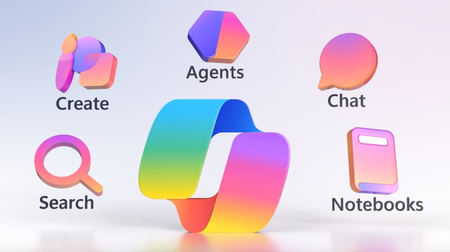
Streamline your day with new, user-focused updates to Microsoft 365 Copilot. Jump into work faster with a redesigned layout that puts Chat, Search, and your agents front and center. New Copilot Search lets you yse natural language to find files, emails, and conversations — even if you don’t remember exact keywords — and get instant summaries and previews without switching apps. Create high-impact visuals, documents, and videos in seconds with the new Copilot Create experience, complete with support for brand templates. Tap into powerful agents like Researcher and Analyst to handle deep tasks or build your own with ease. And if you manage Copilot across your organization, you now have better tools to deploy, monitor, and secure AI use — all from a single view. Describe what you want. Don’t know the keywords to find your content in Microsoft 365? You don’t need to. See how the new Copilot Search works. On-demand expertise. Use agents like Researcher or Analyst to do the thinking for you. Start here. View AI agent activities in Microsoft Purview. Find data security policy matches and see if agents are being used with sensitive information or by risky users. Watch here. Watch our video here. QUICK LINKS: 00:00 — Microsoft 365 Copilot new capabilities 00:36 — Microsoft 365 Copilot app 01:49 — Copilot Search 03:09 — Specialized agents 04:06 — Create experience 06:07 — Copilot Notebooks 07:40 — Updates for IT admins 08:16 — Data security with AI apps & agents in Purview 08:51 — Reports 09:20 — Wrap up Link References Check out https://aka.ms/CopilotWave2Spring Unfamiliar with Microsoft Mechanics? As Microsoft’s official video series for IT, you can watch and share valuable content and demos of current and upcoming tech from the people who build it at Microsoft. Subscribe to our YouTube: https://www.youtube.com/c/MicrosoftMechanicsSeries Talk with other IT Pros, join us on the Microsoft Tech Community: https://techcommunity.microsoft.com/t5/microsoft-mechanics-blog/bg-p/MicrosoftMechanicsBlog Watch or listen from anywhere, subscribe to our podcast: https://microsoftmechanics.libsyn.com/podcast Keep getting this insider knowledge, join us on social: Follow us on Twitter: https://twitter.com/MSFTMechanics Share knowledge on LinkedIn: https://www.linkedin.com/company/microsoft-mechanics/ Enjoy us on Instagram: https://www.instagram.com/msftmechanics/ Loosen up with us on TikTok: https://www.tiktok.com/@msftmechanics Video Transcript: -So, Microsoft 365 Copilot keeps getting better, and today I’ll show you how the Copilot experience is evolving to make everything easier with new AI-powered capabilities to help you get even more done, and if you’re an IT, I’ll show you new options for agent management, including updates in the Microsoft 365 Admin Center, new data security views and controls, and Microsoft Purview’s Data Security Posture Management for AI, as well as improved reporting and visibility into Copilot analytics from Viva Insights. So let’s start with updates to the Microsoft 365 Copilot app experience, which has evolved to make every interaction easier and more intuitive. Chat is the core of the experience and where you’ll find the app by default and there’s a new navigation moving what’s important to the left side of your screen where you’ll find links to Search, Chat, your Agents, new Notebooks, and Create experiences that I’ll show you in a moment. -Now moving to the center of the app, you’ll notice that there’s a more streamlined view with the prompt box taking center stage. Under that, you’ll find personalized suggestions for what to do next, including upcoming meetings. And as the author prompts, you can quickly pull up an agent right from here to bring in content sources you want like your files, interactions with people, your meetings, emails and more to generate what you want. And even without referencing your work directly, Copilot is connected to it and can find the matching information that you have access to. That’s because behind the scenes, Microsoft 365 Copilot uses advanced AI native vector-based search to find the most relevant content. And now outside of Copilot Chat, you can use this directly from the new Copilot Search experience. It brings together AI search and your work information across Microsoft Graph. -From here, you can easily get to your recommendations and quick access to what you’ve been working on. Then moving to the search bar, you’ll see that search now goes way beyond keyword search that you’re used to compared to Copilot Chat. This is optimized to find specific content items. Now, where you can ask in simple terms, for example, based on what you remember, to quickly find your files, your emails, chats, and meetings for Microsoft 365, and even information and other graph connected line of business systems like you’re seeing here with Jira. Now it knows like-concepts, synonyms, and contextual information around a topic, so you don’t need to know keywords or be precise with search terms. In fact, many of these results don’t contain words from the search, but they’re highly relevant. And based on the top items and the results, Copilot can summarize what search finds in line to save you time. And without having to open its sighted items in separate apps, Copilot will also help summarize and preview those files right from the Copilot app. -Next, we’ve made it easier to access specialized agents, which give you on-demand help to complete tasks that would normally require an expert. Now these include both Analyst to find insights in your data as well as Researcher for written reports, both first-of-their-kind reasoning agents for work. In fact, we dedicated an entire show on reasoning agents that you can check out at aka.ms/reasoningmechanics. And here in the navigation you’ll also find your pinned and recently used agents on top. And clicking into all agents takes you to the new agent store where you can find more agents that are built by Microsoft, also the broader ecosystem, and your company’s own custom agents. And of course, you can also create your own agents right from here by describing what you want your agent to do or configuring it directly with your instructions and knowledge sources. -Then beyond agents and AI-generated content from Copilot Chat, the new create experience lets everyone tap into powerful and personalized design skills where you can create images like the samples you’re seeing on the screen here, powered by the GPT 4o Model for image generation. And you can design a poster or flyer like these ones and they’re also great for cover pages to your reports. And speaking of that, from Create, you can write a stylized draft document using templates and right from here, you can also upload and edit your own images to make them stand out and select parts of images to remove distractions like this tree. Importantly, what sets the Create experience really apart is that you can use brand templates and even bring in your company’s brand kit, and these include your approved company logos, fonts, and colors. In fact, let me show you how this works by creating a new image. -So I’ll start by describing what I’m looking for. I’ll choose a picture of this new shoe from my local device to work from, and now I’ll choose my style that matches what I want to create. Here’s where my company brand comes in. I can choose the brand kit I want with the right color palette and icon. Now this will take a moment to generate and now I have an image that fits my brand and I can add to this same image. I’d like to see a little ground cover in the image. I’d like to ask for some moss and some rocks. Then I’ll give it a second to render a new image and it gets even better with new direct editing options like background removal, object transform, and enhancements. I’m going to choose the erase option, then select this rock and this plant on the right and hit erase. That’s better. Now, I just need to add a text element and I’ll paste in the shoe name and now it’s ready to go and I can download the image right from here. -And for your bigger projects and tasks, Copilot Notebooks is then another new capability. These help you bring together all of your relevant content for your task at hand, including Copilot Chats. And I’ll open this one for Copilot Craft and you’ll see that I can chat with Copilot about everything in here, and it’s filled with reference content and related chat history to keep interactions in scope to what’s here and even create an audio overview of this notebook. Now the last major update that I’ll show from the Microsoft 365 Copilot app experience is with personalization and memory. Where from Copilot settings, you can specify custom instructions and enable Copilot memory. -First, custom instructions let you add details about your interests, your preferences, the tone of what you expect from Copilot responses. Think of this information as something that will get appended to your initial prompts in future Copilot sessions to improve its output. Then, moving back to personalization settings, Copilot memory works in the same way to recall a handful of notable memorable items from previous conversations in real time. Again, this information sits outside of the large language model and is retrieved for future chat sessions. And you have full visibility and control over what is maintained in Copilot memory and can delete what you don’t want to personalize its responses. -Next, I’ll move on to updates for IT admins. We’re adding more controls to the Copilot Control System so that you have the tools that you need to manage, govern, and measure Copilot and now also agents across your organization. You can now manage the agents and agent deployment right from Microsoft 365’s admin center. Here you’ll see a list of agents in use and the ones you’ve blocked. Also, apps where the agents are supported and usage details. You can also deploy agents from here as well, scoping the right users and groups. -Next, we’re also adding more insights and controls for data security with AI apps and agents and Microsoft Purview. The new AI apps and agents page in Data Security Posture Management for AI gives you a single dashboard to view and create policies for your AI apps and agents, where you’ll find coverage for data protection and compliance policies that you already have in place, and clicking into any of these items, lets you discover more insights, including potentially risky interactions, inappropriate use, as well as sensitive information being shared. -And finally, for reports that you can share beyond your administrator and data security teams, using Copilot Analytics and Viva Insights, you can measure the usage and business impact of your agents. And direct from Viva Insights, the new Copilot Studio agents report can be shared with your team, and it provides a comprehensive view of agent use, session outcomes, and you can see how assisted actions are contributing to overall ROI. -So Microsoft 365 Copilot continues to evolve to help you get more done, along with enterprise grade IT controls to help keep your data protected. Now, to find out more, check out aka.ms/CopilotWave2Spring and keep checking back to Microsoft Mechanics for the latest updates. Thanks so much for watching.4.5KViews1like0CommentsFrontline updates in Microsoft Teams, Windows 365, Copilot & Dynamics 365 Field Service
New capabilities for your frontline workers, including Windows 365 Frontline experience, Copilot in Dynamics 365 Field Service for more streamlined service delivery, and Microsoft Teams as the single collaboration hub to get work done, wherever you are. 4.4KViews0likes0Comments
One-click AI agents in SharePoint and Teams — focused on files you select (Microsoft 365 Copilot)
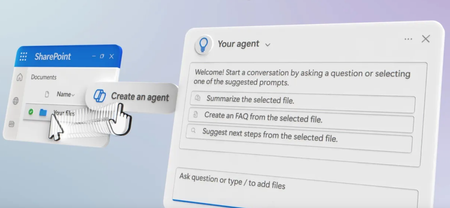
Streamline your workflow and enhance team collaboration with one-click AI agents in Microsoft 365 Copilot. Automate responses, generate detailed documents, and maintain up-to-date content without moving files outside Microsoft 365. Agents utilize your existing content to provide accurate and efficient outputs, saving you time and ensuring consistency. Integrate them into Microsoft Teams to facilitate real-time information sharing and collaboration. CJ Tan, Microsoft SharePoint and OneDrive GPM, shares the steps to get started building custom AI agents. Create AI agents in one click to handle projects and tasks. Ensure important questions are answered — even while you’re away. See it here. Save time with agents in SharePoint. Scoped to only select SharePoint files for your specific business needs. See how you can create AI agents in one click. Use and share agents in SharePoint in Teams chats. @mention your agent, get instant responses and precise information for team discussions. See it here. Watch our video here. QUICK LINKS: 00:00 — Create specialist agents in one click 00:42 — How to create an agent 02:12 — Data security & version control 02:39 — Customize your agent 04:14 — Access and permissions 05:39 — Test it out 06:23 — Use agents in Teams 07:50 — Agent files 08:25 — Wrap up Link References For more ideas and details for building your own agents, check out https://aka.ms/SharePointAgentsAdoption Unfamiliar with Microsoft Mechanics? As Microsoft’s official video series for IT, you can watch and share valuable content and demos of current and upcoming tech from the people who build it at Microsoft. Subscribe to our YouTube:https://www.youtube.com/c/MicrosoftMechanicsSeries Talk with other IT Pros, join us on the Microsoft Tech Community:https://techcommunity.microsoft.com/t5/microsoft-mechanics-blog/bg-p/MicrosoftMechanicsBlog Watch or listen from anywhere, subscribe to our podcast:https://microsoftmechanics.libsyn.com/podcast Keep getting this insider knowledge, join us on social: Follow us on Twitter:https://twitter.com/MSFTMechanics Share knowledge on LinkedIn:https://www.linkedin.com/company/microsoft-mechanics/ Enjoy us on Instagram:https://www.instagram.com/msftmechanics/ Loosen up with us on TikTok:https://www.tiktok.com/@msftmechanics Video Transcript: -Did you know that if you have Microsoft 365 Copilot, you can create specialist agents in just one click to help you and your team with your specified topics and tasks? For example, imagine if you are working in a different time zone to the rest of your team, so you often wake up to a bunch of their unanswered messages at the start of your day. Now, while you are asleep or away, your agent, grounded in the knowledge you give it, can answer specific questions from your team on your behalf, freeing you up. In fact, all you need to build your agent is your content in SharePoint and an idea for where an agent can help you in the course of your day. Let me show you how easy it is to create one. My team writes product specifications for Contoso Energy’s solar panel arrays. In SharePoint, all I have to do is select the folders or individual files that I want this agent to focus on. -Here, I have files that have already been uploaded. You can also upload new files, where SharePoint will index those files for you in a few moments. I’ll select all of these product specifications. On top of the screen, you can see the create an agent control. I’ll click that. And with just one click, the agent is ready and grounded with all my selected files. And I can try it right from here. So, I’ll prompt it with compare each solar panel array with details on the home range in square feet for the two types of materials offered. Add the average home square footage per array size and price ranges for each. And it gives me all the details across the files that I added as grounding information. So it’s generated a response by panel array type and home square footage. And I can let my agent reason over that information, too. For example, if I’m new to the team and am looking for a product recommendation based on the size of a house. I’ll use my customer has a 2900 square foot home and wants the most efficient solar panel type and the right size solar panel array. What do you recommend? And here, it recommends a specific panel array based on the home size and tells me what panel type is most efficient with more detail. So, let’s rewind what we saw because I want to point out a few things. -First, unlike other options you may have tried, you don’t have to move your files outside of Microsoft 365. You don’t need to worry about version control. Your files are always up-to-date as you and your team continue to edit them. And your agent is always working with the latest information. And all of your data security protections, such as file labels and encryption, remain in place to help prevent data loss. Now, let me walk through another example of this, and this time I’ll customize the agent to show you the options. Let’s say that you spend a lot of time building written project plans. Each has a similar structure and tone, but details will change based on each project-related tasks and other aspects. Wouldn’t it be great to use your existing files as baseline templates, and then just point to a small set of details to author new project plans? Let me show you how that would work. So I’m looking at another SharePoint site for project planning. There are two folders here. This one contains all the recent completed project plans, like you saw before. -Now, I’ll show you what’s in the other folder. It contains project intake forms. I’ll also open up one of these intake forms. And you’ll see that it just lists key details and differentiators for one specific project. So, this time I’m just going to select the Completed Installation Project Plans folder as the baseline knowledge for my agent. Then I just need to click Create an agent. And if I wanted to, I could start using it right away by hitting Try it. But in this case, I want to add a few more details to make it easy for anyone on my team to start using it, so I’m going to choose Edit. Here, I can choose to rename. I’ll do that. There’s an option to brand it with a different icon image, but I’ll skip that for now, and give it a more detailed description here. In the Sources tab, I can see that my SharePoint folder is already selected, and I can choose to add another SharePoint site or more libraries, folders, or files. I can select here up to 20 sources. Importantly, agents do not grant access to your selected content. Which means that for anyone using the agent, they will only get responses based on the files and locations that they already have access to. In my case, I’m going to keep what’s on the Sources tab. -Now, I’ll move to the Behavior tab. Here, I can add a message to help others understand how best to use this agent. And below that, I can add starter prompts. These are recommendations that you can make for anyone to quickly get value from what your agent can do. I’m going to add one here for creating a new project plan based on the defined knowledge from our folder of completed project plans. It also has an instruction to reference a specific project intake form using the paperclip or forward slash. I can add two more starter prompts, but in this case, I’ll remove the other two by deleting the text. That way my agent is focused on this one task. Below that are the instructions for the agent. Here, it’s best to be very specific about your expectations for what it should do. I’m going to paste in a command to output content very close to our completed project plans. I can test it from here, but I’ll hit Save instead, so I can use it full screen from our SharePoint site. So now the agent is ready and discoverable for anyone with access and permissions to this SharePoint site. -Let’s try it out. This agent file is my new agent, and I’ll open it. And I’m going to use the starter prompt that I configured earlier. I’ll use this paperclip button to attach the project intake form that I just opened with the new details and submit my prompt. And you’ll see the output as it’s getting generated is following the structure of the completed project document and adding the details from the project intake form that I referenced in my prompt. Now I have a completed project plan like I wanted. Again, I didn’t need to move files from their original location, and everything remained within my compliance boundary in Microsoft 365. -From here, I can copy the output and put it into Word or an email and make any additional edits. And something else I want to show you is how you will be able to use this agent in the context of Microsoft Teams. I’m going to use Share and Copy link to add this to my clipboard. Now, I’ll move over to Microsoft Teams in a group chat. Note that this also works in meeting chats. So I’ll paste in the link and send it to the group. There it is. I’ll confirm that I want to add it to this chat. And from there, I can just @mention my agent to work with it like a team member in this chat. -This time, instead of asking it to generate a project plan, I’ll prompt it for details about the completed project plans in the knowledge source folder. I’ll prompt the agent with which project plans have been created for locations in Sunnyvale? And I can see that four of them are completed for that location. Now, I’ll prompt it, how many weeks does it take to run the full project for an A400 solar panel array? And it gives me a detailed breakdown of the project phases. Others in this chat can ask follow-up questions, like you’re seeing now, whether smaller homes take less time. And there is another detailed response. So, we can use this information for future projects and customer inquiries. Of course, that is just one example, and you can use the same approach to help develop other types of documents and collaborate with your team. And by the way, your context documents don’t need to be as structured or complete. They can even reference notes or meeting transcripts for similar outputs. -Now, let’s dig into the .agent files that you might have noticed earlier in our SharePoint document library. You can use these files and click on them to open your agents. And the files themselves contain everything that you configured in your agent. Here’s the agent file I built before and this is the schema. And you’ll see the starter prompts here, the agent name, the description that was added, and the instructions, and below that are the selected grounding data sources. Additionally, these files use the same labeling and policy protections as other files stored in SharePoint and OneDrive, too. -So, that was an overview of the approaches you can use for building agents. As you saw, all you need to bring to this experience is your content and an idea for where your agent can help you in the course of your day. Beyond building your own agents, each SharePoint site will include a built-in agent focused on the content on the site, so you can get started right away. For more ideas and details for building your own agents, check out aka.ms/SharePointAgentsAdoption to see what’s possible. And be sure to subscribe to Microsoft Mechanics, and thanks for watching.3.7KViews3likes0CommentsCopilot now included with Word, Excel, PowerPoint, Outlook & OneNote | Microsoft 365 & Office 365
Summarize long email threads, generate bullet-point executive summaries, create charts, and update presentations — all without leaving your familiar apps. Copilot understands your context, remembers your preferences, and helps you reuse content seamlessly across Microsoft 365. IT admins stay in control while you boost productivity. Enterprise-grade protections, Microsoft Purview, and the Copilot Control System ensure your data stays secure. Jeremy Chapman, Microsoft 365 Director, shares how with premium features like intelligent data retrieval, meeting facilitation, and specialized agents, you can automate routine tasks, generate insights, and stay in the flow without leaving your apps. Create executive summaries instantly. Copilot Chat understands your Word document context and writes for you. Check it out. Turn raw data into clear visuals. Copilot Chat knows the columns, calculations, & design you need in Excel. See it in action. Build presentations fast. Bring summaries, charts, and visuals from other apps directly into PowerPoint slides with Microsoft 365 Copilot Chat. Watch here. QUICK LINKS: 00:00 — Microsoft 365 Copilot Chat within Microsoft 365 apps 00:45 — Copilot Chat in Outlook 01:29 — Copilot Chat in Word 02:15 — Copilot Chat in Excel 02:59 — Copilot Chat in Power Point 04:58 — Security and Admin Experience 05:38 — Premium experience 06:44 — Wrap up Unfamiliar with Microsoft Mechanics? As Microsoft’s official video series for IT, you can watch and share valuable content and demos of current and upcoming tech from the people who build it at Microsoft. Subscribe to our YouTube: https://www.youtube.com/c/MicrosoftMechanicsSeries Talk with other IT Pros, join us on the Microsoft Tech Community: https://techcommunity.microsoft.com/t5/microsoft-mechanics-blog/bg-p/MicrosoftMechanicsBlog Watch or listen from anywhere, subscribe to our podcast: https://microsoftmechanics.libsyn.com/podcast Keep getting this insider knowledge, join us on social: Follow us on Twitter: https://twitter.com/MSFTMechanics Share knowledge on LinkedIn: https://www.linkedin.com/company/microsoft-mechanics/ Enjoy us on Instagram: https://www.instagram.com/msftmechanics/ Loosen up with us on TikTok: https://www.tiktok.com/@msftmechanics Video Transcript: -If you’re currently using Microsoft 365 or Office 365 at work or at school, now for the first time, you’ll be able to experience Copilot right within the context of your work inside of Word, Excel, PowerPoint, Outlook, and OneNote, all at no extra cost, and you don’t need a Copilot add-on license. Importantly, you can use it with OpenAI’s GPT-5 model, the same AI that powers ChatGPT, without copying, pasting, or uploading your files outside of your protected work apps. And today I’ll walk you through how you can leverage these in-app experiences along with the controls available for IT. -Everything I’ll show you today, by the way, works in both the desktop and web apps. I’m going to start with Copilot in Outlook. As you can see, I have a full inbox after being away for a few days. And now, instead of working through this long email thread to figure out what it’s all about and what I need to take action on, I can just ask Copilot, “Please draft a recap of this email thread for me to share it with my launch team.” And Copilot analyzes the open thread and it generates a reply with a clear summary of major updates since I’ve been away. And it looks like the heart rate detection feature has been enhanced and is launching ahead of schedule. As a result, the leadership meeting has been moved up. And I can see that my action item is to update our slides to reflect the new feature and the revised positioning ahead of my presentation. I’m going to start in Word to begin generating the updates that I’ll need for my presentation. -So here, I’ve got a technical specifications document open for ZavaCore Fiber, I need to add to it for our meeting. Instead of switching apps or uploading files, I just open up Copilot Chat on the right side pane and it understands the context of my open document. I can let Copilot know that I prefer generated content to be concise, and Copilot will take this into account as it generates content. Now I can ask Copilot, “Write an executive summary in a bulleted list,” and Copilot authors the summary. I just need to click on this copy icon to copy it, then I can paste it under the Executive Summary heading in my document, and now my technical spec is complete. -So that was Word, now let’s move on to Excel to create a data visualization that I’ll incorporate also into my presentation. So here I’ve got a spreadsheet that’s full of satisfaction and performance metrics for our new product. On Copilot Chat, I can ask, “Generate a bar chart showing the overall satisfaction scores across regions. Use different colors for each bar.” And I didn’t need to tell Copilot which columns to use or which ones to calculate the insights from in the spreadsheet, it knows what to do. And there’s my bar chart with satisfaction scores across North, South, East, West, and Central regions. It’s exactly what I asked for, without having to leave Excel. So now that I have what I need to update my presentation, I’m going to move over to Copilot Chat in PowerPoint. -This is my deck for ZavaCore Smart Fiber, and I want to make a few updates to it based on the email thread from before and what we just did in Word and Excel. And I want to go back to those Copilot chats, so this time in the Copilot pane, I’ll open up the ellipse menu. And from here, I can view all my recent Copilot chats. Well, I’m going to choose the one from a moment ago, “Please remember that I prefer generated content in Copilot Chat to be concise.” And down within that chat session, you can see I have my bullet list of executive summary. And now I’m going to copy that and put that in the New Features Overview. And I’ll keep going, I’ll return back to the previous chat, this time the one from Excel with a bar chart that was based on our open Excel file because I want to add that to my PowerPoint as well. Well, I’ll grab that chart and I’ll place it on the left side of the slide, and now it’s looking how I want it to. I’m going to move on to slide 5 because I want to generate a new image for the slide, so I’ll go back into Copilot and I’ll select New Chat. Now I’ll ask Copilot to, “Create a high-tech image of an ECG sensor.” And that takes a moment or so to generate, but there’s my new image. Once it’s finished, I can add that to my slide. -Now I want to make sure that my presentation includes answers to the questions that we think that our audience will have. We’ve prepared a few documents with that information recently. So from Copilot Chat, I’ll just start writing, “Suggest some Q&As for this presentation,” and I’ll reference the documents I want. To do that, I just need to type the forward slash, and that then shows me all my recent documents. I’m going to choose our Spec doc, and then I’ll send my prompt, and Copilot then generates a nice list of questions and answers, and I’m ready for my presentation. -And if you’re in IT and want to ensure that your company data stays protected with the policies and controls that you’ve already put in place, the good news is, is that Copilot Chat has enterprise-grade protections like the add-on Microsoft 365 Copilot license. You can manage everything that you just saw in the apps using the Copilot Control System, including enforceable data loss prevention and information protection policies from Microsoft Purview. And Copilot Chat is pinned by default, so it becomes discoverable throughout the different app experiences. And you can also view Copilot usage in the Microsoft 365 admin center, as well as deeper insights in the Copilot Dashboard. Being able to use Copilot directly from your apps as you work not only saves you time but also keeps you in your flow. And with the premium experience available with the Microsoft 365 Copilot license, your productivity gets even better, and you can use Copilot inside a broader set of Microsoft 365 apps. -So a few of the standout capabilities include intelligent work data retrieval, where it pulls from the files in your OneDrive, your shared documents, emails, meetings, conversations, and more automatically without you needing to reference them. In other words, it works with all the work data that you have permissions to access in the Microsoft Graph and reasons over it to generate responses. And second is meeting facilitation. So if you’re using Microsoft Teams, Microsoft 365 Copilot works during meetings to facilitate discussions or catch you up on what you might have missed, take detailed notes with action items, and more. And third is specialized agents, where you can create and use agents with your data in Microsoft 365 and get access to pre-built agents from Microsoft with advanced reasoning. -The new included experiences that I showed today are a great way for everyone to start using Copilot Chat directly in Microsoft 365 apps. Try it today by clicking the Copilot button in the app ribbon to get started. Subscribe to Microsoft Mechanics for the latest AI tech, and thanks so much for watching.3.2KViews0likes0CommentsOversharing Control at Enterprise Scale | Updates for Microsoft 365 Copilot in Microsoft Purview
Minimize risks that come with oversharing and potential data loss. Use Microsoft Purview and its new Data Security Posture Management (DSPM) for AI insights, along with new Data Loss Prevention policies for Microsoft 365 Copilot, and SharePoint Advanced Management, which is now included with Microsoft 365 Copilot. Automate site access reviews at scale and add controls to restrict access to sites if they contain highly sensitive information. Erica Toelle, Microsoft Purview Senior PM, shows how to control data visibility, automate site access reviews, and fine-tune permissions with Pilot, Deploy, Optimize phases. Protect your data from unwanted exposure. Find and secure high-risk SharePoint sites with Microsoft Purview’s oversharing report. Start here. Secure Microsoft 365 Copilot adoption at scale. Check out the Pilot-Deploy-Optimize approach, to align AI use with your organization’s data governance. Watch here. Boost security, compliance, and governance. Scoped DLP policies enable Microsoft 365 Copilot to respect data labels. Take a look. Watch our video here. QUICK LINKS: 00:00 — Minimize risk of oversharing 01:24 — Oversharing scenarios 04:03 — How oversharing can occur 05:38 — Restrict discovery & limit access 06:36 — Scope sites 07:15 — Pilot phase 08:16 — Deploy phase 09:17 — Site access reviews 10:00 — Optimize phase 10:54 — Wrap up Link References Check out https://aka.ms/DeployM365Copilot Watch our show on the basics of oversharing at https://aka.ms/SMBoversharing Unfamiliar with Microsoft Mechanics? As Microsoft’s official video series for IT, you can watch and share valuable content and demos of current and upcoming tech from the people who build it at Microsoft. Subscribe to our YouTube:https://www.youtube.com/c/MicrosoftMechanicsSeries Talk with other IT Pros, join us on the Microsoft Tech Community:https://techcommunity.microsoft.com/t5/microsoft-mechanics-blog/bg-p/MicrosoftMechanicsBlog Watch or listen from anywhere, subscribe to our podcast:https://microsoftmechanics.libsyn.com/podcast Keep getting this insider knowledge, join us on social: Follow us on Twitter:https://twitter.com/MSFTMechanics Share knowledge on LinkedIn:https://www.linkedin.com/company/microsoft-mechanics/ Enjoy us on Instagram:https://www.instagram.com/msftmechanics/ Loosen up with us on TikTok:https://www.tiktok.com/@msftmechanics Video Transcript: -Are you looking to deploy Microsoft 365 Copilot at scale, but concerned that your information is overshared? Ultimately, you want to ensure that your users and teams can only get to the data required to do their jobs and nothing more. For example, while using Microsoft 365 Copilot and interacting with work data, you don’t want information surfaced that users should not have permissions to view. So, where do you even start to solve for this? You might have hundreds or thousands of SharePoint sites to assess and right-size information access. Additionally, knowing where your sensitive or high value information resides and making sure that the policies you set to protect information continuously and avoid returning to an oversharing state, can come with challenges. -The good news is there are a number of updated tools and resources available to help you get a handle on all this. In the next few minutes, I’ll unpack the approach you can take to help you minimize the risks that come with oversharing and potential data loss using Microsoft Purview and its new Data Security Posture Management for AI insights, along with new Data Loss Prevention policies for Microsoft 365 Copilot and more. And SharePoint Advance Management, which is now included with Microsoft 365 Copilot. This helps you automate site access reviews at scale and adds controls to restrict access to sites even if they contain highly sensitive information. First, let’s look at how information oversharing can inadvertently occur just as it would with everyday search when using Microsoft 365 Copilot. -I’ll explain how it works. When you submit a prompt before presenting that to a large language model, the prompt is interpreted by Copilot and using a process called Retrieval Augmented Generation it then finds and retrieves grounding information that you are allowed to access in places like SharePoint, OneDrive, Microsoft Teams, your email and calendar, and optionally the internet, as well as other connected data sources. The retrieved information is appended to your prompt as additional context. Then that larger prompt is presented to the large language model. With that added grounding information, the response is generated then formatted for the app that you’re using. For this to work well, that information retrieval step relies on accurate search. And what’s important here is as you use Copilot it can only retrieve information that you explicitly have access to and nothing else. This is how search works in Microsoft 365 and SharePoint. The controls you put in place to achieve just enough access will reduce data security risk, whether you intend to use Microsoft 365 Copilot or not. -So, let me show you a few examples you may have experienced where content is overshared. I’ll start in Business Chat. I’m logged in is Adele Vance from the sales team. Her customers are pressuring her for information about new products that haven’t been internally or externally announced. She submits a prompt for 2025 product plans and the response returns a few clearly sensitive documents that she shouldn’t have access to, and the links in the response and in the citations take Adele right to those files. -Now, I’m going to switch perspectives to someone on the product planning team building the confidential plan stored in a private SharePoint site. I’m working on the 2025 product plan on a small team. This is the same doc that Adele just found in Business Chat, and if you look at the top of the document right now, there was one other person who I expect in the document. Then suddenly a few more people appear to have the document open and I don’t know who these people are and they shouldn’t be here. So, this file is definitely overshared. -Now, I’m going to switch back to Adele’s perspective as beyond the product planning doc. The response also describes a new project with the code name Thunderbolt. So, I’ll choose the Copilot recommended prompt to provide more details about Project Thunderbolt, and we can see a couple of recent documents with information that I as Adele should not have access to as a member of the sales team. In fact, if I open the file, I can get right to the detailed specifications and pricing information. -Now, let’s dig into the potential reasons why this is happening, and then I’ll cover how you discover and correct these conditions at enterprise scale. First, privacy settings for SharePoint sites can be set to public or private. These settings are most commonly configured as sites are created. Often sites are set to public, which means anyone in your organization can find content contained within those sites, and by extension, so can Microsoft 365 Copilot. -Next, is setting the default sharing option to everyone in an organization. One common misperception here is just by creating the link, you’re enabling access to that file, folder, or site automatically. That’s not how these links work though. Once a sharing link is redeemed or clicked on by the recipient, that person will have access to and be able to search for the shared content. There are, however, sharing approaches, which auto-redeem sharing links, such as pasting the link into an email and sending that to lots of people. In that case, those recipients have access to the content and will be able to search for it immediately. -Related to this is granting permissions to the everyone except external users group, as you define membership for your SharePoint sites. This group gives everyone in your organization access and the ability to search for that information too. And you’ll also want to look into permissions granted to other large and inclusive groups, which are often maintained using dynamic group membership. And if you’re using Data Loss Prevention, information protection, or other classification controls from Microsoft Purview, labeled content can also trigger sharing restrictions. -So, let’s move on to addressing these common issues and the controls you will use in Microsoft 365, Microsoft Purview, and SharePoint Advance Management. At a high level, there are two primary ways to implement protections. The first approach is to restrict content discovery so that information doesn’t appear in search. Restricting discovery still allows users to access content they’ve previously accessed as well as the content shared with them. The downsides are that content people should not have access to is still accessible, and importantly, Copilot cannot work with restricted content even if it’s core to a person’s job. So, we recommend restricting content discovery as a short-term solution. -The second approach is to limit information access by tightening permissions on sites, folders, and individual files. This option has stronger protections against data loss and users can still request access, if they need it to do their jobs. Meaning only people who need access have access. We recommend limiting access as an ongoing best practice. Then to scope the sites that you want to allow and protect, we provide a few options to help you know where to start. First, you can use the SharePoint Active sites list where you can sort by activity to discover which SharePoint sites should be universally accessible for all employees in your organization. Then as part of the new Data Security Posture Management for AI reporting in Microsoft Purview, the oversharing report lets you easily find the sites with higher risk containing the most sensitive information that you want to protect. The sites you define to allow access and limit access will be used in later steps. Now, let’s move on to the steps for repairing your data from Microsoft 365 Copilot. We’ve mapped best practices and tools for Copilot adoption across Pilot, Deploy, and Optimize phases. -First, in the Pilot phase, we recommend organization-wide controls to easily restrict discovery when using Copilot. This means taking your list of universally accessible sites previously mentioned, then using a capability called Restricted SharePoint search, where you can create and allow list of up to 100 sites, then allow just those sites to be used with search in Copilot. Then in parallel in Microsoft Purview, we’ll configure ways to get visibility into Copilot usage patterns where you can enable audit mode using Data Loss Prevention policies to detect sharing of labeled or unlabeled sensitive content. And likewise, you’ll enable analysis of Copilot interactions as a part of communication compliance. Again, these approaches do not impact information access only discoverability via Copilot and search. -Now, let’s move on to the broader Deploy phase where you will enable Copilot for more users. Here you’ll use the list of identified sites from Microsoft Purview’s oversharing report to identify sites with the most sensitive information. Controls in Microsoft Purview provide proactive information protection with sensitivity labels for your files, emails, meetings, groups, and sites. For each item, you can use more targeted controls to right-size site access by assigning permissions to specific users and groups. And when applied, these controls on the backend will move public sites to private and control access to defined site members based on the permissions you set. Next, you can enable new Data Loss Prevention from Microsoft 365 Copilot policies to exclude specific labels from Copilot prompts and responses. And you can change your DLP policies from the audit mode that you set during the Pilot phase to start blocking unnecessary sharing of labeled content where you’ll now turn on the policies in order to enforce them. -Then, two options from SharePoint Advance Management are to use restricted access control to limit access to individual sites. That way only members in defined security groups will have access, and to limit site access by operationalizing site owner access reviews. Then as an additional fine-tuning option, you can target restricted content discovery on individual sites, like you see here with our leadership site to prevent Copilot from using their content as you continue to work through access management controls. And as part of the Deploy phase, you’ll disable restricted SharePoint search once you have the right controls in place. Together, these options will impact both access permissions, as well as discovery via Copilot and search. -Next, the final Optimize phase is about setting your organization up for the long term. This includes permissioning, information classifications, and data lifecycle management. Here you’ll continually monitor your data security risks using oversharing reports. Then implement auto-labeling and classification strategies using Microsoft Purview, and ensure that as new sites are created, site owners and automated provisioning respect access management principles. These processes help ensure that your organization doesn’t drift back into an oversharing state to keep your data protected and ongoing permissions in check. Now, if we switch back to our initial user examples in Business Chat with our controls in place, if we try the same prompts as before, you’ll see that Adele can no longer access sensitive information, even if she knows exactly what to look for in her prompts. The data is now protected and access has been right-sized for everyone in the organization. -So, those are the steps and tools to prepare your information from Microsoft 365 Copilot at enterprise scale, and help ensure that your data is protected and that everyone has just enough access to do their jobs. To learn more, check out aka.ms/DeployM365Copilot. Also, watch our recent show on the basics of oversharing at aka.ms/SMBoversharing for more tips to rightsize permissions for SharePoint site owners. Keep watching Microsoft Mechanics for the latest updates and thanks for watching.2.7KViews0likes1Comment