microsoft copilot
85 TopicsOctober 2026 Microsoft 365 Champion community call | AM
Join our next community call on October 27, 2026, to dive into Copilot in PowerPoint: Brand kits and Skills. Host: Tiffany Lee Guest: Tiffany Neiman, Rolly Seth, Eleanor Huynh Moderator: Jessie Hwang 📢 NOTE: our community call formats are Teams webinars so you must register at https://aka.ms/M365ChampionCallAM to receive the link to join. The join link will be sent to you in email with your webinar registration confirmation. 🗨️ Each call includes an open Q&A discussion section at the end, where you'll have a chance to ask your questions about Microsoft 365. 👋 Was this forwarded to you? Join the Microsoft 365 Champion program today! Champions combine technical acumen with people skills to drive meaningful change. Our community calls are open to everyone, but only Champion program members have access to the presentation resources (access link is in the initial welcome email and in the monthly newsletters). Join now: https://aka.ms/M365Champions. 🎥 The recording will be available on demand on the Driving Adoption community and our YouTube Community Learning channel later in the week. Note: If you are unable to watch the recording on YouTube, try watching it here.791Views0likes0CommentsOctober 2026 Microsoft 365 Champion community call | PM
Join our next community call on October 27, 2026, to dive into Copilot in PowerPoint: Brand kits and Skills. Host: Tiffany Lee Guest: Tiffany Neiman, Rolly Seth, Eleanor Huynh Moderator: Jessie Hwang 📢 NOTE: our community call formats are Teams webinars so you must register at https://aka.ms/M365ChampionCallPM to receive the link to join. The join link will be sent to you in email with your webinar registration confirmation. 🗨️ Each call includes an open Q&A discussion section at the end, where you'll have a chance to ask your questions about Microsoft 365. 👋 Was this forwarded to you? Join the Microsoft 365 Champion program today! Champions combine technical acumen with people skills to drive meaningful change. Our community calls are open to everyone, but only Champion program members have access to the presentation resources (access link is in the initial welcome email and in the monthly newsletters). Join now: https://aka.ms/M365Champions. 🎥 The recording will be available on demand on the Driving Adoption community and our YouTube Community Learning channel later in the week.383Views2likes0CommentsAdoption idea: start Copilot Notebooks with one notebook per customer account (sales team example)
I'm a PM on Copilot Notebooks at Microsoft. One pattern we've seen work with sales teams is to start narrow: one notebook per customer account, with the account's CRM notes, decks and emails added as references, shared with the account team. Meeting prep, the team's input and meeting follow-ups (via Capture in OneNote) then all live in one place. Why it works well as a first notebook: It has a clear, ongoing purpose, so people come back to it every week. The content already exists (CRM notes, decks, emails), so nobody starts from a blank page. The whole account team benefits, so sharing it feels natural. Here's a two-minute story of what that looks like: https://youtu.be/Al2VddNfC-o (The story and companies are fictional, inspired by real workflows; some features may be in preview; illustrations and narration were made with AI tools.) Question for champions: when you roll out Copilot Notebooks, what do you recommend as someone's first notebook: per project, per customer or per team? Getting started with Copilot Notebooks: https://support.microsoft.com/en-us/microsoft-365-copilot/get-started-with-microsoft-365-copilot-notebooks150Views1like0CommentsCreate agents fast with Agent Builder in Copilot
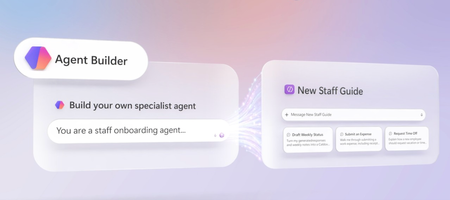
Describe what you want in one prompt, and Copilot Agent Builder generates the name, instructions, skills, and knowledge setup for you — grounded only in the SharePoint sites, files, and Copilot Connectors you choose. Teach your agent a Skill to handle recurring work, like drafting weekly status emails from your own template, then test it in Preview before you publish. Share it with people or groups and set exact permissions, track real usage in the new Monitor tab, and push your best agents into your org’s Agent Store catalog. Ned Friend, Group Product Manager for Copilot Agent Builder shares how to turn an agent into a tool your whole team can run, measure, and trust. One prompt. A fully configured agent. Agent Builder in Copilot auto-generates the name, instructions, skills, and knowledge grounding from your description. See how it works. No code. Just a prompt and a template. Agent Builder in Copilot turns that into a Skill your agent runs to generate standardized outputs, like status emails or reports, on demand. Check it out. Pin your agent to trusted sources only. Add SharePoint files, Outlook mail, Teams meetings, or connect business systems, so that it only uses information you give it, nothing else. See how it works. 👥 Who it’s for: Team leads and managers who want trusted, repeatable answers for their team, plus IT admins and Microsoft 365 power users building specialist Copilot agents without code. ⏱️ Chapters: 0:00 Build specialist agents inside Copilot 0:34 Ground agents in trusted org knowledge 1:31 Create a new hire onboarding agent 2:15 Natural-language agent creation 2:41 Ground answers in SharePoint knowledge 4:13 Skills for repeatable tasks 4:53 Precise knowledge grounding 6:37 Preview and test before publishing 7:03 Share your agent with set permissions 7:39 See the new hire’s agent view 8:22 Usage monitoring 8:41 Publish agents to your org catalog Copilot Agent Builder lets you create a specialist agent by describing what you want it to do in plain language. Agent Builder interprets that prompt and automatically generates the agent’s name, description, instructions, skills, knowledge sources, and suggested prompts, which you can review and edit directly. Ground every answer in the exact knowledge you choose: SharePoint and OneDrive files, Outlook email and calendar, Microsoft Teams chats and meetings, or external business systems connected through Copilot Connectors. Turn on web search only when you want the agent to research beyond your organization, like competitor or customer research. Add Skills to teach the agent repeatable, multi-step work — in this video, a weekly status update email built from a real template, matching its tone, sections, and formatting automatically. Preview and test the agent before publishing, then share it with people or groups and set whether they can use it or edit it. Once your agent is live, the Monitor tab tracks total sessions, daily active users, average messages per session, average duration, and which knowledge sources get used most. For agents with strong adoption, publish them to the Built by your org section of the Agent Store for wider use across your organization. Try Copilot Agent Builder for yourself — it’s included with Copilot. Subscribe to Microsoft Mechanics for more videos like this. Unfamiliar with Microsoft Mechanics? Microsoft’s Official Video Series for IT — Subscribe https://www.youtube.com/c/MicrosoftMechanicsSeries — Microsoft Tech Community: https://techcommunity.microsoft.com/t5/microsoft-mechanics-blog/bg-p/MicrosoftMechanicsBlog — Podcast: https://microsoftmechanics.libsyn.com/podcast Join us on social: — https://twitter.com/MSFTMechanics — https://www.linkedin.com/company/microsoft-mechanics/ — https://www.instagram.com/msftmechanics/ — https://www.tiktok.com/@msftmechanics Video Transcript: -You’re probably used to working with Copilot across Microsoft 365 for everyday tasks, but did you know that you can create your own specialist agents in minutes to provide informed, authoritative answers and produce consistent, standardized content for specific business scenarios? Think about the work you do every day. Maybe it’s reviewing content for compliance, creating customer or internal-focused communications, or answering work-related policy questions. While Copilot can help with these tasks using broadly available information, Agent Builder, on the other hand, which is included in Copilot, lets you build and use agents with a specific purpose, grounded in trusted organizational knowledge. Think of it as the difference between hiring a general contractor to remodel your home and bringing in a licensed electrician to design an electrical plan to rewire the house. -Both skill sets are valuable, but the specialist brings focused expertise, follows established standards, and is trusted for a specific type of work. Similarly, a specialist agent can be created to serve a specific purpose and configured to provide custom expert answers by only using the information sources you choose to ground them with. Specialist agents can generate standardized deliverables based on specific skills that follow your organizational guidelines, and creating one is as simple as describing what you want it to do and letting Agent Builder build it for you. -So let’s make this real. As a manager, instead of repeatedly walking new hires through team processes, resources, and responsibilities, I can create a new hire onboarding agent that provides trusted answers and consistent deliverables. It helps new employees get productive faster and deliver work aligned with our organization’s guidelines from day one. Here I’m in Copilot. I have a growing team with lots of new members, and agents are the best way to make team knowledge accessible. Before you build anything, it’s a good idea to check out the Agent Store for the agents you can already choose from, including ones shared with you by people on your team. And if nothing fits the bill, you can easily create your own custom agents from scratch. -So let’s start building. I’ll scroll back up and select create agent, and I’m taken to the Agent Builder experience, where I just need to describe what I want our agent to do. I’ll type, “You are a new staff onboarding agent to help answer questions about business processes, how to perform common tasks, and provide answers to product or service questions. Answer using information in these locations and files.” I want to give the agent access to the specific knowledge to inform its responses. I can either hit the plus sign or use a forward slash to reference content for this agent to use as it answers questions. So I’ll use the forward slash and use this SharePoint site where we already store official documents and files. -Now I’ll use the plus sign to add more content, such as files, meetings, chats, and more. This time I’ll choose a specific process document. Now the site and file will be the only information used for the agent’s responses. And when I hit send, this will take a moment to run, but what’s impressive is Agent Builder interprets my intent and it automatically generates an agent name, description, and detailed instructions for how the agent should behave. It also added skills, knowledge, and suggested prompts that I’ll cover in a minute. I can review everything and make edits directly here if I want to. -So right now, the agent can answer questions in chat with defined and approved expert knowledge. I want to go further. I want our agent to be able to author standardized weekly status emails. Skills are perfect for that, or any time that I want an agent to complete a repeatable task consistently following defined steps. I just need to describe the skill using natural language. Under its instructions, you can see skills. Based on our initial prompt, it’s generated a new staff onboarding skill automatically. I can also create or add my own skills to extend what the agent can do. -Here, I’ll write another prompt to create a weekly status update email skill based on generated responses and use this email as a template. And again, I’ll add a forward slash with the name of the file. This will teach the agent how to author the update using the right tone, altitude, sections, and formatting. And behind the scenes, it’s doing all the coding and configurations for me. And when it’s done, it will appear under the Skills section here. -As another option, if you’re already using skills from other places, you can also upload those files here. So my initial prompt updated the knowledge and now I’ll configure that further to make my agent even more of a specialist. Knowledge is the heart of an agent. Here you can see the sources that I specified in my prompt earlier. The quality of the agent depends on the quality of the knowledge you provide. If I wanted to, I could add additional sources, such as cloud files from SharePoint or OneDrive, the user’s Outlook email and calendar, as well as Microsoft Teams chats, channels, and recorded meetings. -I also have the option to connect to specific business systems using Copilot connectors. These could be enterprise intranet sites, SaaS apps like ticketing systems that we’re connected to, and more. This way, the agent will be able to find relevant information exactly where it’s stored. Optionally, I can select web search for when it makes sense for the agent to look up information on the internet, for example, things like competitor and customer research. In this case, I won’t do that because I only want the agent to use internal knowledge. -Additionally, I could manually add attachments from my local device if they are not already in the cloud. So I did all of that manually, but I could also ask the chat experience on the left to do more or click suggest improvements to trigger that, and the same applies to instructions. This last section contains suggested prompts that were generated automatically based on my initial prompt. These help new users learn how to use the agent and give existing users a shortcut to repeat the most common prompts for the agent. These are also editable. I want my users to build on these first three suggestions as well as use their own questions, so I’ll delete the rest. -At this point, in just a few minutes, I’ve defined and scoped my agent experience using the knowledge available to my team, and I can test it out before finalizing or sharing it. Clicking into the preview tab shows me what the agent will look like once it’s published. I’ll test it using a prompt. “What do I need to do to schedule my upcoming vacation time?” And it responds with the standard process. This preview shows how it will appear for people using the agent. If you don’t like how it responds or how it looks, like the icon, description, or the suggested prompts, you can just go back to the configure tab and make changes. -Now that our agent is tested and ready, I can create it and share it with my team. To do that, I just need to hit create. And in the background, that is going to register it as a private agent for my own personal use when I’m using Copilot Chat. Then, to share this agent with others in my organization, I can select share, and it’s just like sharing a file. I just need to add people or group names and I can control whether the people I share with can simply use the agent or also make edits to the agent. -From there, I just need to confirm and our agent is shared over email and in the Agent Store. With the agent shared, let me show you what a new hire would see. Here I’m signed in as that new hire, Katri, where I got an email with a link to the agent we just shared, so I’ll open it. I can see the suggested prompts that we added previously. In this case, I’ll ask it, “Summarize my previous week using my meetings and emails to help build a status report.” It reasons over the knowledge sources and reference email we added earlier and generates a standardized response with accomplishments, meetings attended, risks, and issues under review, as well as next steps and more. Once my agent has been in production for a while, I can see how much people are using it to know that it’s working as expected. -The new monitor tab in Agent Builder gives you visibility into how your agents are being used, including total sessions, daily active users, average messages per session, and average duration. And you can see how people are engaging over time and the knowledge sources used in conversations. For agents that get significant usage, you might want to publish it into the built by your org section of the Agent Store. That’s as easy as opening the agent menu and clicking submit to your org catalog. Here you can specify additional information like the terms of use and customize your developer name to be something more official. With that, it will go to my admin to approve and then get discovered and used by my organization for even more impact. -With Agent Builder in Copilot, it’s easy to create your own specialist agents in minutes that provide informed, authoritative answers and produce consistent, standardized content for specific business scenarios. It’s included with Copilot, so try it for yourself today, and subscribe to Microsoft Mechanics if you haven’t already. Thank you for watching.721Views0likes0CommentsMicrosoft 365 Solutions for Faith-based Organizations
The loss of Charlie Kirk last week is a deeply tragic moment for faith-based communities who have been inspired by his leadership and vision. In times of grief, organizations often seek meaningful ways to honor such legacies and continue uplifting their missions. The Microsoft 365 platform offers a powerful foundation for faith-based organizations to build applications that support connection, outreach, and growth—for example, church management systems, volunteer coordination tools, secure prayer request platforms, community engagement apps, event scheduling, and digital resource libraries. With Microsoft 365 Copilot and related AI-driven solutions, Christian organizations can streamline communications, create safer virtual spaces, and foster collaboration, helping communities come together, heal, and move forward with renewed purpose and unity. The key question though is how to do all this in a cost-conscious manner? Many of the faith-based charitable organizations that I provide volunteer assistance for are cash-strapped as it is, and with Microsoft starting to pull back its support for 501c(3) organizations, how are others approaching this dilemma? Is there a AI community dedicated towards non-profit organizations?652Views2likes2CommentsMicrosoft Teams Meeting Controls: July 2026 M365 Champions Community call
Hello Champions! Here’s a recap and top Q+A from our July M365 Champions monthly call of 2026. We kicked off the call annoucing a new Champion Stories program to showcase real-world Microsoft 365 Copilot adoption success stories from the Champions community. Organizations that have successfully introduced or scaled Copilot are invited to share their journey, lessons learned, and best practices. Selected stories will be professionally filmed and published to help other Champions learn from peer experiences. Submit your story at aka.ms/ChampionStory. This month's main topic featured the redesigned Microsoft Teams meeting controls with Michelle Maislen, Principal Product Manager and Ryan Miller, UX Researcher from the Microsoft Teams product group. She explained that the redesign was driven by customer feedback around cluttered meeting controls, accidental clicks, and difficulty finding key features. The new experience introduces a cleaner, more organized toolbar with mic, camera, and share controls prioritized, separates the Share and Leave buttons to prevent accidental exits, moves advanced features into a structured “More” menu, and allows users to customize their meeting controls through drag-and-drop pinning. She acknowledged that changes such as moving Raise Hand under Reactions may be polarizing, but emphasized that users can personalize the toolbar to fit their workflow. Michelle also detailed the phased rollout plan, with users receiving opportunities to opt in before automatic migration, and shared that the redesign will extend across meetings, webinars, and town halls. Throughout the discussion and Q&A, she reinforced that the goal is to create a simpler, more intuitive, and highly customizable Teams meeting experience while preserving access to all existing meeting functionality. Click here to learn more about the Teams Meeting Controls redesign. Q+A from this month's session: 1. When will the new Teams Meeting Controls reach General Availability (GA)? Answer: Microsoft expects the redesigned meeting controls to roll out worldwide in September 2026, following preview validation and user feedback. 2. How does the 20-day rollout experience work? Answer: Users will receive several opportunities to opt in to the new experience. After approximately 20 days, they will be automatically migrated. 3. Can users switch back to the old meeting controls? Answer: Yes. A temporary toggle allows users to switch back to the old experience, although Microsoft plans to remove this option in the future. 4. Why was Raise Hand moved under Reactions? Answer: Research showed users frequently clicked the wrong button when Raise Hand and Reactions were adjacent. Moving Raise Hand under Reactions reduces accidental clicks. 5. Can users move Raise Hand back to the main toolbar? Answer: Yes. Users can drag and pin Raise Hand to the main toolbar if they prefer it there. 6. Can users customize the meeting toolbar? Answer: Yes. Most controls can be pinned, unpinned, and rearranged using drag-and-drop customization. 7. Which controls cannot be moved? Answer: Microphone, Camera, Share, and Leave remain fixed to ensure a consistent core meeting experience. 8. Will toolbar customizations persist between meetings? Answer: Yes. Customizations persist across meetings on the same device. 9. Will toolbar settings sync across multiple devices? Answer: Not initially. Microsoft indicated multi-device synchronization is planned for a future update. 10. Can users pin specific reactions (such as Thumbs Up) to the toolbar? Answer: Not in the initial release. The team acknowledged the request and is considering expanded reaction customization. 11. Will Microsoft add more meeting reactions? Answer: Yes. The Teams team confirmed they're exploring expanded reaction sets and potentially custom organizational reactions. 12. Does the redesign apply to Webinars and Town Halls? Answer: Yes. The redesigned controls will be available across Teams meetings, webinars, and town halls. 13. Is the redesign available in both Teams Desktop and Teams Web? Answer: Yes. The redesigned controls are supported in the Desktop and Web clients. 14. Will Virtual Desktop Infrastructure (VDI) environments be supported? Answer: Yes. Microsoft confirmed support for VDI deployments. 15. Why redesign the meeting controls at all? Answer: The redesign addresses common pain points including: Toolbar clutter Difficulty locating controls Accidental clicks Confusion between Reactions and Raise Hand Accidentally clicking Leave instead of Share 16. Where did features like Notes, Rooms, Apps, Facilitator, and Captions go? Answer: These capabilities were not removed. They have been reorganized under the new More menu to create a cleaner primary toolbar. 17. What adoption and readiness resources are available? Answer: Microsoft published: An IT Pro Change Management Guide An End User Visual Guide Adoption content on adoption.microsoft.com These resources are designed to help organizations prepare users for the transition. 18. Is Microsoft addressing AI-related meeting security concerns? Answer: Yes. The Teams team is actively working on better visibility and notifications for: AI note-taking bots External recording tools Third-party meeting assistants 19. Can meeting actions and decisions automatically flow into other Agents or workflows? Answer: The question was raised by attendees, and Microsoft acknowledged the scenario as valuable feedback. No roadmap or confirmed functionality was announced. 20. Will Education (EDU), GCC, and other government environments receive the redesign? Answer: GCC is expected to receive the update roughly in line with worldwide rollout. GCCH and DoD environments are expected to follow later. EDU deployment details were still being validated during the session. Join us on September 22nd for our next community call. Haven't joined the program yet? It's free! Join here: https://aka.ms/M365Champion. Bring your questions to our discussion forum: https://aka.ms/DriveAdoption. 1.1KViews0likes1Comment
June 2026 | Microsoft 365 Champion community call | 5:05 PM PT
Join our next community call on June 23, 2026, to explore Microsoft 365 Copilot Cowork and learn how it can really help you get stuff done. Host: Josh Leporati Guest: Jessie Hwang, Brea Davenport, Shinhe Cho Moderator: Jessie Hwang 📢 NOTE: our community call formats are Teams webinars so you must register at https://aka.ms/M365ChampionCallPM to receive the link to join. The join link will be sent to you in email with your webinar registration confirmation. 🗨️ Each call includes an open Q&A discussion section at the end, where you'll have a chance to ask your questions about Microsoft 365. 👋 Was this forwarded to you? Join the Microsoft 365 Champion program today! Champions combine technical acumen with people skills to drive meaningful change. Our community calls are open to everyone, but only Champion program members have access to the presentation resources (access link is in the initial welcome email and in the monthly newsletters). Join now: https://aka.ms/M365Champions. 🎥 The recording will be available on demand on the Driving Adoption community and our YouTube Community Learning channel later in the week. Note: If you are unable to watch the recording on YouTube, try watching it here.737Views0likes5CommentsJune 2026 | Microsoft 365 Champion community call | 8:05 AM PT
Join our next community call on June 23, 2026, to explore Microsoft 365 Copilot Cowork and learn how it can really help you get stuff done. Host: Josh Leporati Guest: Jessie Hwang, Brea Davenport, Shinhe Cho Moderator: Jessie Hwang 📢 NOTE: our community call formats are Teams webinars so you must register at https://aka.ms/M365ChampionCallAM to receive the link to join. The join link will be sent to you in email with your webinar registration confirmation. 🗨️ Each call includes an open Q&A discussion section at the end, where you'll have a chance to ask your questions about Microsoft 365. 👋 Was this forwarded to you? Join the Microsoft 365 Champion program today! Champions combine technical acumen with people skills to drive meaningful change. Our community calls are open to everyone, but only Champion program members have access to the presentation resources (access link is in the initial welcome email and in the monthly newsletters). Join now: https://aka.ms/M365Champions. 🎥 The recording will be available on demand on the Driving Adoption community and our YouTube Community Learning channel later in the week. Note: If you are unable to watch the recording on YouTube, try watching it here.1KViews1like0CommentsOversharing Control at Enterprise Scale | Updates for Microsoft 365 Copilot in Microsoft Purview
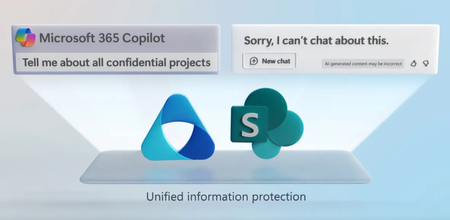
Minimize risks that come with oversharing and potential data loss. Use Microsoft Purview and its new Data Security Posture Management (DSPM) for AI insights, along with new Data Loss Prevention policies for Microsoft 365 Copilot, and SharePoint Advanced Management, which is now included with Microsoft 365 Copilot. Automate site access reviews at scale and add controls to restrict access to sites if they contain highly sensitive information. Erica Toelle, Microsoft Purview Senior PM, shows how to control data visibility, automate site access reviews, and fine-tune permissions with Pilot, Deploy, Optimize phases. Protect your data from unwanted exposure. Find and secure high-risk SharePoint sites with Microsoft Purview’s oversharing report. Start here. Secure Microsoft 365 Copilot adoption at scale. Check out the Pilot-Deploy-Optimize approach, to align AI use with your organization’s data governance. Watch here. Boost security, compliance, and governance. Scoped DLP policies enable Microsoft 365 Copilot to respect data labels. Take a look. Watch our video here. QUICK LINKS: 00:00 — Minimize risk of oversharing 01:24 — Oversharing scenarios 04:03 — How oversharing can occur 05:38 — Restrict discovery & limit access 06:36 — Scope sites 07:15 — Pilot phase 08:16 — Deploy phase 09:17 — Site access reviews 10:00 — Optimize phase 10:54 — Wrap up Link References Check out https://aka.ms/DeployM365Copilot Watch our show on the basics of oversharing at https://aka.ms/SMBoversharing Unfamiliar with Microsoft Mechanics? As Microsoft’s official video series for IT, you can watch and share valuable content and demos of current and upcoming tech from the people who build it at Microsoft. Subscribe to our YouTube:https://www.youtube.com/c/MicrosoftMechanicsSeries Talk with other IT Pros, join us on the Microsoft Tech Community:https://techcommunity.microsoft.com/t5/microsoft-mechanics-blog/bg-p/MicrosoftMechanicsBlog Watch or listen from anywhere, subscribe to our podcast:https://microsoftmechanics.libsyn.com/podcast Keep getting this insider knowledge, join us on social: Follow us on Twitter:https://twitter.com/MSFTMechanics Share knowledge on LinkedIn:https://www.linkedin.com/company/microsoft-mechanics/ Enjoy us on Instagram:https://www.instagram.com/msftmechanics/ Loosen up with us on TikTok:https://www.tiktok.com/@msftmechanics Video Transcript: -Are you looking to deploy Microsoft 365 Copilot at scale, but concerned that your information is overshared? Ultimately, you want to ensure that your users and teams can only get to the data required to do their jobs and nothing more. For example, while using Microsoft 365 Copilot and interacting with work data, you don’t want information surfaced that users should not have permissions to view. So, where do you even start to solve for this? You might have hundreds or thousands of SharePoint sites to assess and right-size information access. Additionally, knowing where your sensitive or high value information resides and making sure that the policies you set to protect information continuously and avoid returning to an oversharing state, can come with challenges. -The good news is there are a number of updated tools and resources available to help you get a handle on all this. In the next few minutes, I’ll unpack the approach you can take to help you minimize the risks that come with oversharing and potential data loss using Microsoft Purview and its new Data Security Posture Management for AI insights, along with new Data Loss Prevention policies for Microsoft 365 Copilot and more. And SharePoint Advance Management, which is now included with Microsoft 365 Copilot. This helps you automate site access reviews at scale and adds controls to restrict access to sites even if they contain highly sensitive information. First, let’s look at how information oversharing can inadvertently occur just as it would with everyday search when using Microsoft 365 Copilot. -I’ll explain how it works. When you submit a prompt before presenting that to a large language model, the prompt is interpreted by Copilot and using a process called Retrieval Augmented Generation it then finds and retrieves grounding information that you are allowed to access in places like SharePoint, OneDrive, Microsoft Teams, your email and calendar, and optionally the internet, as well as other connected data sources. The retrieved information is appended to your prompt as additional context. Then that larger prompt is presented to the large language model. With that added grounding information, the response is generated then formatted for the app that you’re using. For this to work well, that information retrieval step relies on accurate search. And what’s important here is as you use Copilot it can only retrieve information that you explicitly have access to and nothing else. This is how search works in Microsoft 365 and SharePoint. The controls you put in place to achieve just enough access will reduce data security risk, whether you intend to use Microsoft 365 Copilot or not. -So, let me show you a few examples you may have experienced where content is overshared. I’ll start in Business Chat. I’m logged in is Adele Vance from the sales team. Her customers are pressuring her for information about new products that haven’t been internally or externally announced. She submits a prompt for 2025 product plans and the response returns a few clearly sensitive documents that she shouldn’t have access to, and the links in the response and in the citations take Adele right to those files. -Now, I’m going to switch perspectives to someone on the product planning team building the confidential plan stored in a private SharePoint site. I’m working on the 2025 product plan on a small team. This is the same doc that Adele just found in Business Chat, and if you look at the top of the document right now, there was one other person who I expect in the document. Then suddenly a few more people appear to have the document open and I don’t know who these people are and they shouldn’t be here. So, this file is definitely overshared. -Now, I’m going to switch back to Adele’s perspective as beyond the product planning doc. The response also describes a new project with the code name Thunderbolt. So, I’ll choose the Copilot recommended prompt to provide more details about Project Thunderbolt, and we can see a couple of recent documents with information that I as Adele should not have access to as a member of the sales team. In fact, if I open the file, I can get right to the detailed specifications and pricing information. -Now, let’s dig into the potential reasons why this is happening, and then I’ll cover how you discover and correct these conditions at enterprise scale. First, privacy settings for SharePoint sites can be set to public or private. These settings are most commonly configured as sites are created. Often sites are set to public, which means anyone in your organization can find content contained within those sites, and by extension, so can Microsoft 365 Copilot. -Next, is setting the default sharing option to everyone in an organization. One common misperception here is just by creating the link, you’re enabling access to that file, folder, or site automatically. That’s not how these links work though. Once a sharing link is redeemed or clicked on by the recipient, that person will have access to and be able to search for the shared content. There are, however, sharing approaches, which auto-redeem sharing links, such as pasting the link into an email and sending that to lots of people. In that case, those recipients have access to the content and will be able to search for it immediately. -Related to this is granting permissions to the everyone except external users group, as you define membership for your SharePoint sites. This group gives everyone in your organization access and the ability to search for that information too. And you’ll also want to look into permissions granted to other large and inclusive groups, which are often maintained using dynamic group membership. And if you’re using Data Loss Prevention, information protection, or other classification controls from Microsoft Purview, labeled content can also trigger sharing restrictions. -So, let’s move on to addressing these common issues and the controls you will use in Microsoft 365, Microsoft Purview, and SharePoint Advance Management. At a high level, there are two primary ways to implement protections. The first approach is to restrict content discovery so that information doesn’t appear in search. Restricting discovery still allows users to access content they’ve previously accessed as well as the content shared with them. The downsides are that content people should not have access to is still accessible, and importantly, Copilot cannot work with restricted content even if it’s core to a person’s job. So, we recommend restricting content discovery as a short-term solution. -The second approach is to limit information access by tightening permissions on sites, folders, and individual files. This option has stronger protections against data loss and users can still request access, if they need it to do their jobs. Meaning only people who need access have access. We recommend limiting access as an ongoing best practice. Then to scope the sites that you want to allow and protect, we provide a few options to help you know where to start. First, you can use the SharePoint Active sites list where you can sort by activity to discover which SharePoint sites should be universally accessible for all employees in your organization. Then as part of the new Data Security Posture Management for AI reporting in Microsoft Purview, the oversharing report lets you easily find the sites with higher risk containing the most sensitive information that you want to protect. The sites you define to allow access and limit access will be used in later steps. Now, let’s move on to the steps for repairing your data from Microsoft 365 Copilot. We’ve mapped best practices and tools for Copilot adoption across Pilot, Deploy, and Optimize phases. -First, in the Pilot phase, we recommend organization-wide controls to easily restrict discovery when using Copilot. This means taking your list of universally accessible sites previously mentioned, then using a capability called Restricted SharePoint search, where you can create and allow list of up to 100 sites, then allow just those sites to be used with search in Copilot. Then in parallel in Microsoft Purview, we’ll configure ways to get visibility into Copilot usage patterns where you can enable audit mode using Data Loss Prevention policies to detect sharing of labeled or unlabeled sensitive content. And likewise, you’ll enable analysis of Copilot interactions as a part of communication compliance. Again, these approaches do not impact information access only discoverability via Copilot and search. -Now, let’s move on to the broader Deploy phase where you will enable Copilot for more users. Here you’ll use the list of identified sites from Microsoft Purview’s oversharing report to identify sites with the most sensitive information. Controls in Microsoft Purview provide proactive information protection with sensitivity labels for your files, emails, meetings, groups, and sites. For each item, you can use more targeted controls to right-size site access by assigning permissions to specific users and groups. And when applied, these controls on the backend will move public sites to private and control access to defined site members based on the permissions you set. Next, you can enable new Data Loss Prevention from Microsoft 365 Copilot policies to exclude specific labels from Copilot prompts and responses. And you can change your DLP policies from the audit mode that you set during the Pilot phase to start blocking unnecessary sharing of labeled content where you’ll now turn on the policies in order to enforce them. -Then, two options from SharePoint Advance Management are to use restricted access control to limit access to individual sites. That way only members in defined security groups will have access, and to limit site access by operationalizing site owner access reviews. Then as an additional fine-tuning option, you can target restricted content discovery on individual sites, like you see here with our leadership site to prevent Copilot from using their content as you continue to work through access management controls. And as part of the Deploy phase, you’ll disable restricted SharePoint search once you have the right controls in place. Together, these options will impact both access permissions, as well as discovery via Copilot and search. -Next, the final Optimize phase is about setting your organization up for the long term. This includes permissioning, information classifications, and data lifecycle management. Here you’ll continually monitor your data security risks using oversharing reports. Then implement auto-labeling and classification strategies using Microsoft Purview, and ensure that as new sites are created, site owners and automated provisioning respect access management principles. These processes help ensure that your organization doesn’t drift back into an oversharing state to keep your data protected and ongoing permissions in check. Now, if we switch back to our initial user examples in Business Chat with our controls in place, if we try the same prompts as before, you’ll see that Adele can no longer access sensitive information, even if she knows exactly what to look for in her prompts. The data is now protected and access has been right-sized for everyone in the organization. -So, those are the steps and tools to prepare your information from Microsoft 365 Copilot at enterprise scale, and help ensure that your data is protected and that everyone has just enough access to do their jobs. To learn more, check out aka.ms/DeployM365Copilot. Also, watch our recent show on the basics of oversharing at aka.ms/SMBoversharing for more tips to rightsize permissions for SharePoint site owners. Keep watching Microsoft Mechanics for the latest updates and thanks for watching.2.8KViews0likes1Comment