microsoft copilot
498 TopicsNew Microsoft Copilot Harness | More power, token efficiency & control for agents in Foundry
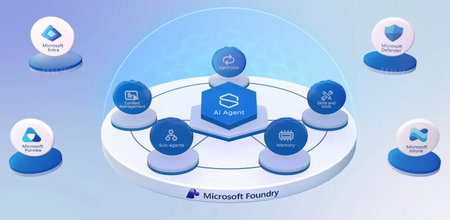
Start with a fully managed prompt agent and move it onto the Microsoft Copilot harness so it plans, loops, calls subagents, and delivers finished reports. You can also bring your own harness, such as the Claude Agent SDK, and run it as a hosted agent with isolated VM sandboxes, autoscaling, and zero idle cost. Give every agent its own Entra Agent ID, restrict its egress to approved endpoints, and trace every action it takes. Curate tools once in a governed, MCP-compatible toolbox, cut token use with tool search, and tune agents against your own benchmark with Agent Optimizer. Jeff Hollan, Microsoft Foundry VP, shares how to balance agent autonomy with enterprise control from first build through production. Same agent. New harness. The Microsoft Copilot harness turns a one-pass prompt agent in Foundry into a planner that loops, fetches data, and ships an executive report. Check it out. Your code. Your loop. Enterprise controls. Hosted agents in Microsoft Foundry run any harness with the same Entra Agent ID, telemetry, and guardrails, plus your own VNet and container registry. Check it out. Every tool — only the ones you need. Tool search in Microsoft Foundry pulls just the right tools for each request from a single governed toolbox, keeping your agent’s context lean. Watch here. 👥 Who it’s for: Developers and AI engineers building production agents, solution architects designing agent platforms, and IT and security teams responsible for governing agent identity, access, and network egress. ⏱️ Chapters: 00:00 Why the harness decides agent trust 00:59 What an agent harness does 01:22 Five components built into every harness 02:15 Microsoft Copilot harness meets Foundry controls 03:28 Where a prompt agent falls short 04:57 Same agent on the Microsoft Copilot harness 06:10 Guardrails block unauthorized agent actions 07:29 Entra Agent ID and egress rules 08:05 Bring your own harness as a hosted agent 09:06 Private networking, regions, and your own registry 10:13 Curate tools once with Foundry toolboxes 11:13 Tool search keeps agent context lean 11:54 Benchmark agents against your real tasks 12:54 Auto-tune agents with Agent Optimizer 13:53 Start building in Microsoft Foundry What is an agent harness? The harness is the environment you wrap around your model and agents. It runs the agent loop, manages context as it grows, provides skills and tools such as MCP servers, delegates work to subagents in parallel, and maintains memory across turns and sessions. The Microsoft Copilot harness is model-agnostic, optimized for enterprise task completion, and runs behind Microsoft services like GitHub and Microsoft 365. Inside Microsoft Foundry, it respects your existing permissions and data protection controls and runs each agent instance in its own isolated sandbox. Hosted agents in Microsoft Foundry Agent Service also support Hermes, OpenClaw, and fully custom harnesses, along with your own virtual network, container images from your own registry, and expanded regions so agents run where your data is. 🔗 Related links: ► Head to Microsoft Foundry to build your first project at https://ai.azure.com ►For hosted agent templates and the SDKs to start coding, check out https://github.com/foundry-samples Unfamiliar with Microsoft Mechanics? Microsoft’s Official Video Series for IT — Subscribe https://www.youtube.com/c/MicrosoftMechanicsSeries — Microsoft Tech Community: https://techcommunity.microsoft.com/t5/microsoft-mechanics-blog/bg-p/MicrosoftMechanicsBlog — Podcast: https://microsoftmechanics.libsyn.com/podcast Join us on social: — https://twitter.com/MSFTMechanics — https://www.linkedin.com/company/microsoft-mechanics/ — https://www.instagram.com/msftmechanics/ — https://www.tiktok.com/@msftmechanics Video Transcript: -Conditional Access is Microsoft’s Zero Trust policy engine. What it protects has expanded, and now we’re evolving the management experience to match. Today, it continuously assesses real-time signals across users, AI agents, applications, endpoints, networks, and resources to enforce Zero Trust. Based on an identity and its context, it makes adaptive access decisions, determining whether to require additional controls in order to allow or restrict access, or block the request to specified resources altogether. And to help you manage those access controls more effectively at scale, we are introducing Conditional Access policy plans. I’ll show you what these are, how they expand what you can do, and how they work with your existing Conditional Access policies. -So, what are policy plans, and how do they help? Well, until now, you’ve probably been managing who gets access to what across your organization as one flat list of policies. What started off as a small list of controls, including multifactor authentication, device compliance requirements, along with the scoping and exclusions within policies to make everything work, has now expanded to fine-grained, risk-based policies, identity-driven network controls through Global Secure Access, dedicated conditions for agent identities, and much more. -Over time, it’s become harder to understand how policies relate to one another, who owns them, and how changes might affect access decisions. There’s no grouping and no structure in that list, so the only way to keep track of what covers what might be creative naming prefixes or other solutions. This is where Conditional Access policy plans come in. It’s a new policy framework for Conditional Access, where you organize access controls around an objective, instead of managing them one policy at a time. A policy plan objective might be based on a specific persona, like employees, external guests, or administrators, or a security goal, like securing agent activity or requiring compliant devices. -At the plan level, you can define the common attributes for that objective once. This includes identities, resources including applications, user actions, and authentication context, as well as shared conditions like risk levels, devices, network locations, and client app types. Each plan then holds one or more rules, and every rule inherits those shared attributes automatically. A rule adds the specifics needed to meet the objective, its own conditions, and its own grant or session controls. So, a variation of your objective becomes a rule, instead of another standalone policy to manage. It’s a new framework where each policy plan has its own name, description, owner, and tags. -So, it’s clear what each plan is for, who owns it, and what will change if you edit it later. That’s what keeps policy sprawl down as you scale. Importantly, your existing Conditional Access policies will continue to work, and won’t be affected as you roll out policy plans. Let me show you this in action, starting with a new policy plan, in this case, with the objective of securing access for people working from our company headquarters. In the Microsoft Entra admin center, under Conditional Access, there’s a new “Policy plans” view sitting alongside the list of policies you have today. I’ll create a new plan to manage headquarters users. -First, I’ll give it a name, type in a description that will be useful for anyone to know what this plan is about, then I’ll add a tag, “HQ,” for easier filtering, and you can see that my name is auto-filled as the owner of this plan. Below that is where, based on the policy plan security objective, you can select the appropriate shared identities, resources, or conditions. Because this plan’s objective is to specify requirements for people in the headquarters location, I’ll only need to use shared identities here. I’ll go into users and groups for my inclusions, and by filtering to HQ, I’ll see the matching groups. I’ll select the “HQ All Users” group. I also want to add an exclusion here to avoid unexpected lockouts. -So, following the same steps, I’ll pick a group to exclude and choose “Break Glass HQ.” That means these groups will be inherited as assignments by any rule within this policy plan. When you create a new plan, the process guides you through creation of its first rule. If you’ve ever written a Conditional Access policy, this will look familiar. I’ll create a rule to require phishing-resistant authentication for headquarters users. I just need to give my rule a name and optionally add a description that can be referred to later. -For the rule’s state, I’ll leave this as report-only for now, but I could toggle it to on from here. Notice that I don’t need to define the assignments and conditions again for the included and excluded groups. However, I do need to assign resources. So, I’ll do that here, in this case, by selecting “All resources,” and then confirm. Now, for under these conditions, I’ll leave “All client app types,” and I can go straight into Grant and session controls in this case. I’ll choose to grant, but require authentication strength, and choose “Phishing-resistant MFA,” and confirm that control. That way, all headquarters users are required to meet this authentication strength for all resources they are trying to access. -Now, I just need to review and create my policy plan and initial rule. And from there, I can add more rules to this plan. So, I’ll create a rule to require compliant devices from our HQ users. Previously, each rule would have meant creating a separate policy and reconfiguring the same shared identities and exclusions. Again, this would apply to shared resources and conditions based on your plan and its security objective. -Now, I just need to enter a name. I’ll call this “Require Compliant Device,” and then in the description, I’ll write what this rule does. Again, under Accessing these resources, I want to assign all resources to this rule. So, I’ll change the resource assignment like last time, from “None” to “All resources,” and confirm. From under these conditions, I’ll leave all client apps. For this rule, I’ll add a control to grant again, and in this case, require device to be marked as compliant. I can do the same to add risk-based rules or others to my plan. -Now, I just need to save it, and that’s it. So, instead of managing multiple policies with the same scope, shared assignments are defined once, and individual access requirements are implemented as rules. From here, I can keep going to create other plans for specific objectives, and I’ve already created a few. And you can see we have some for different identities, specific resources like important ERP apps, or conditions like the policy plans listed based on risk. I just showed you how to create a plan based on a user group in our specific HQ location. -So, now let’s look at one based on a security objective, securing agent access, where it’s now a lot simpler to apply Conditional Access to agentic activity. You can see that this plan is using shared conditions for all client app types, and where agent risk is determined to be high. And below that, there are individual rules defined to block high-risk agent users and block high-risk autonomous agents. This will help ensure that access protections cover agents acting with their own agent-specific permissions. Without a policy plan, each of these scenarios would require its own standalone policy, repeating many of the same conditions. I’ll open this rule for the high-risk autonomous agents, and you’ll see that it includes the inherited conditions of the plan, and adds an assignment for all agent identities. And under controls, it’s set to block when those conditions are met. -So, now, instead of spreading agent access controls across multiple policies, they’re organized in a single plan, making them easier to understand, manage, and update as requirements evolve. The good news is that you don’t need to build these policy plans from scratch. In fact, the agent policy plan I just showed you was created by using a template. -Next, let’s move on to your existing Conditional Access policies, and I’ll show you how to quickly migrate what you already have in place into policy plans. The first plan we created for users at the company headquarters runs in parallel with existing policies for our various branch offices. Each have dedicated Global Secure Access security profiles. -As you can see, this environment has dozens of Conditional Access policies already running, and I filtered my list down to branch office policies, because the only thing connecting these policies together was the naming prefix. I’ll use the “Migrate to Conditional Access Policy plans” option and get started. That will keep my filtered list of policies and allow me to select the ones I want to migrate. In this case, I’ll use the top “Select all” control to save a few clicks, then choose “Merge 5 policies into a plan.” And now I can see a preview of my plan before I create it. I’ll give this policy plan a name, “Branch Office Access.” -Under the covers, the process looks for anything that my selected policies have in common, and defines those as shared conditions, as you can see with the two resources here. Below that, each of my previous policies are translated into rules, where you can see identities, resources, locations, grant, and session configurations for each. Then, to confirm, I just need to click “Create policy plan.” And just like that, my five policies have been migrated into one plan, with a set of shared conditions and unique rules. My original policies are still there and untouched. Each are also still enforced based on their policy state. -Once you’re ready, you’re in control of managing the cutover to the new plan by enforcing it. From there, you turn off or delete the previous policies. And as you add new branch locations, those just become new rules in your plan. So, that’s how we’re evolving the framework for managing Conditional Access, moving from individual policies to security objectives that can be defined once and enforced consistently across your environment. -Check out aka.ms/conditionalaccesspolicyplans to learn more. Keep watching Microsoft Mechanics for the latest tech updates, and thanks for watching.9Views0likes0Comments
Severe Ongoing Copilot Sync Defect: Active Chat Truncation (NOT a "Migration" Issue)
I am documenting a severe, reproducible data persistence and synchronization defect currently affecting the backend of the new Copilot web interface. Before anyone replies with the standard, copy-pasted script: No, this is NOT the "migration to the new Copilot experience" issue. We were migrated months ago and this has nothing to do with syncing historical conversations. This data loss is happening on brand-new conversations generated long after the migration completed. The Core Defect: Recent prompts and responses in active, long-running Copilot chats are actively disappearing from the UI. The backend is failing to synchronize the live session state with the stored conversation record. Here is the exact, reproducible behavior: I am in the middle of a highly technical, long-running workflow. My most recent prompt and Copilot's response vanish upon refreshing or returning to the chat. The missing responses do exist in the backend indexing. If I use the chat search function for a specific string from the missing exchange (e.g., "Phase G"), the search results find it. Clicking that search result restores the conversation window to the correct, fully intact state, including the most recent missing exchanges. If I refresh that exact same page, the recent exchanges instantly vanish again. I have already verified through exported CSV activity logs, InPrivate/Incognito browsing, and network console monitoring that this is a server-side versioning/indexing failure, not a local cache issue. Workflow Impact: This bug renders Copilot unusable for serious technical or development workflows. Because the UI and the backend cannot agree on the current state of the chat, I am forced to pause my work. If I simply re-prompt the missing question, I risk injecting duplicate context into the backend and mangling the context window. I have zero confidence in what version of the conversation the LLM is actually "seeing" when it generates a response. Support Agent Misconduct: When I attempted to escalate this via Live Chat, the Tier 1 support agent utilized the classic "hang up on the reboot" tactic—instructing me to restart Microsoft Edge to clear my cache, and then immediately closing the ticket as "customer disconnected" the moment I complied, dodging the escalation entirely. I am completely sick and tired of seeing this issue repeatedly dismissed on these forums as a "temporary migration gap." It is a fundamental persistence failure in the current architecture. The fact the bug reproduces in the dedicated Windows Copilot app as well as the Copilot web interface in Microsoft Edge proves this is a backend service failure, not a browser cache issue. The standalone app and the Edge browser do not share the same local session cache, meaning the truncation is actively being served from Microsoft's servers to completely separate client environments. Can this please be escalated to an actual engineer on the Copilot data persistence team who can look at the server-side telemetry for chat versioning? System & Environment Details: OS: Windows Browser/Client: Microsoft Edge (latest version) and the dedicated Windows Copilot App Account Type: Personal Microsoft Account with Microsoft 365 Premium Isolation Tests Performed: Issue reproduces identically in standard Edge, Edge InPrivate, after completely clearing browser cache/files, and within the standalone Copilot desktop application.5Views0likes0Comments
Copilot unusable since the latest UI updates were forced on users
Is anyone else having massive issues with Copilot since the latest UI rollout was forced on them with no option to switch back? Problems I have been experiencing: Loss of chat history - initially, this appears to have been a sync/re-index issue as a result of the roll out but, whilst most of my chats & projects are now accessible, some (a few) have lost all the history & context that had been built up The UI does not focus on the latest messages output when a chat message is sent - it randomly scrolls to a part of the conversation and school to end is needed (TBH, this is the least disruptive issue - but still a massive pain, poor UI and a drain on productivity) Copilot cannot see files within a one drive folder - it can see the folder but, cannot access any of the files contained within the folder resource. Adding the files individually does work but, that causes admin overhead and risk of files not being referenced when new files are added There appears to be undocumented (& more importantly, unprompted) limits to conversations lengths in chats - have some chats that have been running for many days which then stop processing any further messages with a message: Sorry, I wasn't able to respond to that. Is there something else I can help with? No warning that chat length is nearing any limits No documentation on what the limit is Once hit, the chat becomes useless since the context cannot be referenced in a new chat No way to ask for a summary of the chat to maintain context into a new thread - the chat is useless save for scrolling back and cut/pasting relevant context into a new thread Conversations randomly truncating - often a conversation that has a significant history does not show the full conversation These problems have degraded a product that was solid and, causing massive overhead in workload to 'work around', they limit the value of the product to me as a user and make me question whether to take the leap and switch to another (much better) AI tool set. Has this actually been tested by Microsoft before forcing on CUSTOMERS or, are your users being treated as unpaid QA resources...1.5KViews7likes39CommentsIntroducing the Power Platform Admin Plugin in Cowork: Agentic Governance with Natural Language
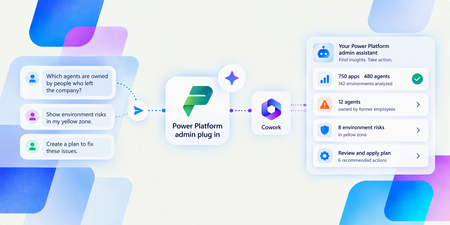
Explore agentic Power Platform governance with the Power Platform admin plugin in Copilot Cowork. Ask questions about your tenant and turn governance insights into customized reports, dashboards, and apps.1.7KViews1like2CommentsCopilot Studio agents problems connecting to Sharepoint knowledge source
Hello, Since last week users in my tenant are experimenting issues regarding the connection between copilot studio agents and Sharepoint. The agents are not able to extract information from Sharepoint sites, printing there is not information in the Sharepoint site regarding the user's question when that information is in Sharepoint. These agents used to work well till last week. Does have been any update in Microsoft 365 services that can be affecting these agents ability to retrieve information from Sharepoint?3.5KViews3likes25Comments
Should Microsoft consider an ambient Copilot device?
I've been thinking about this because I'm a heavy user of both Microsoft 365 Copilot and Amazon Echo devices. Over the past few years I've become increasingly dissatisfied with Amazon. Services that were included with Prime have changed or moved behind additional charges. I think the Alexa experience has gotten worse with Alexa+, Amazon's shopping experience increasingly feels like it's trying to manipulate me rather than simply help me buy what I want, and integrations with third-party products such as Sonos can be frustrating. More importantly, my trust in Amazon has declined to the point that I'm increasingly uncomfortable sharing additional personal information with it. That's significant because I'm actually a big Amazon customer and buy a lot through Prime. I'm not looking for reasons to leave Amazon, but I'm reaching the point where I'm looking for alternatives. That made me wonder whether Microsoft is missing an opportunity. I don't think Microsoft should simply build an Echo competitor. I'd like to see something more ambitious that I'd call Copilot Ambient. Imagine being able to say "Copilot" in your home, home office, workplace, conference room, or eventually your car and securely interact with your Copilot and the agents you've authorized. Microsoft could make a relatively inexpensive reference speaker/device, but I'd rather see this become an open platform that companies like Sonos, Samsung, LG, Lenovo, Dell, HP and others could incorporate into their products. Microsoft already has many of the pieces: Copilot, Microsoft 365, Teams, Outlook, Entra ID, Power Automate and an emerging agent ecosystem. It also has extensive experience with identity, permissions and enterprise security. I'd especially want the platform built around trust: no advertising disguised as answers, no paid placement disguised as recommendations, clear control over personal data and memory, explicit authorization for consequential actions, a record of what agents have done, and strong interoperability with third-party products. As AI moves from answering questions to actually doing things for us, I think that trust becomes increasingly important. Amazon built Alexa around Amazon. Apple built Siri around Apple devices. Google built its assistant around Google services. I'd like to see Microsoft build ambient Copilot around the user. Does anyone else see a use for something like this, particularly in both the home and workplace?44Views1like1Comment
Copilot Notebooks shows "Se produjo un error" when processing PDF files (Case 7110857252)
Hola. Utilizo Microsoft 365 Personal y Copilot desde Microsoft Edge. Creé un cuaderno en Copilot Notebooks para estudiar material de un curso y agregué varios archivos PDF como referencias. Los archivos se cargan correctamente y aparecen en la sección de referencias del cuaderno. Sin embargo, cuando intento utilizar las funciones "Resumir mi bloc de notas" o "Sugerir preguntas para este bloc de notas", Copilot muestra el mensaje "Se produjo un error". El problema ocurre con distintos archivos PDF y persiste desde hace varios días. He contactado con el soporte de Microsoft (caso 7110857252) y me indicaron que existen reportes similares de otros usuarios relacionados con el procesamiento de archivos PDF y contenido en Copilot Notebooks. ¿Alguien más está experimentando este problema o conoce alguna solución temporal? Gracias.78Views0likes2Comments