microsoft 365 migration
29 Topics
Planning a Google Workspace to Microsoft 365 Migration? What Should You Consider?
Hi everyone, Has anyone recently migrated from Google Workspace to Microsoft 365? I’m interested in knowing what challenges you faced during the migration, especially around mailbox data, calendars, contacts, user mapping, or the final cutover process. For those planning the migration, what are the key things you recommend preparing before getting started? Would like to hear your experiences and suggestions.551Views0likes5CommentsNeed to Restore PST Files to Office 365 Mailboxes - What's the Best Approach
Hey everyone, I have a task coming up where I need to restore several PST files back into Office 365 mailboxes. Haven't done this before at this scale and honestly not sure where to begin. I've looked at Microsoft's native import service through Purview but I have a few concerns: Some of the PST files are quite large — not sure how well it handles that I need to restore only specific folders for some users, not the entire PST I'm worried about data consistency after the restore Would prefer something that doesn't require too many admin roles or complex setup For those who have done PST to Office 365 restores — what approach worked best for you? Any tools, tips, or things to watch out for that you wish you knew before starting?648Views0likes5Comments
How much of your Microsoft 365 environment can you actually see at once?
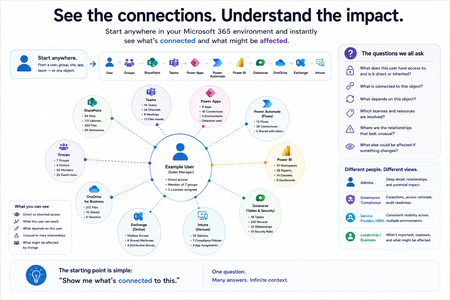
Not how many users you have. Not how many sites, teams, apps or flows you have. How much of it can you actually see connected together? I've been working across Microsoft 365 environments for a while, and I kept running into the same thing. There is no shortage of information. If anything, there is probably too much of it. Users, groups, permissions, SharePoint, Teams, Power Apps, Power Automate, Power BI, Dataverse, OneDrive, Exchange, Intune, licensing, configuration... It's all there. But when you're actually trying to understand how everything fits together, it can be a different story. You open one blade. Find something. Open another. Cross-check it. Go back. Open something else. Before long, you're jumping between different parts of the tenant trying to build the bigger picture in your head. And if you're working with larger environments, that gets difficult pretty quickly. The information isn't necessarily missing. The relationships between the information are what can be difficult to see. That got me thinking about a slightly different question: Instead of "where do I find this information?" "Show me what's connected to this." That's where VisibleState started. Start anywhere. Follow the connections. Imagine starting with a single user. Instead of seeing that user simply as a record with a list of properties, imagine being able to explore the relationships around them: User → Groups → SharePoint → Teams → Power Apps → Power Automate → Power BI → Dataverse → OneDrive → Exchange → Intune Then the questions become different: What does this user have access to? Is that access direct or coming through a group? What resources are connected to them? What depends on something they're associated with? Which licenses are involved? Are there relationships that look unusual? If something changes, what else might be affected? Those questions aren't necessarily about finding another piece of information. They're about putting information that already exists into context. A report can tell you that something exists. A connected view helps you understand what it is connected to. Illustrative example below — not a real customer environment. I'm not suggesting Microsoft 365 doesn't already give us this information Quite the opposite. Microsoft 365 already gives administrators an incredible amount of information and tooling. The thing I've been thinking about is what happens when you want to look across those boundaries. Sometimes I don't want another export. I don't want another list. I don't necessarily want another dashboard. I want to start with something I'm looking at and ask: "What's connected to this?" And then keep following the trail. That's the idea I'm exploring with VisibleState. The interesting part is what happens when you change the viewpoint The same relationships can be useful for completely different reasons. For example: Administrators may want to understand access, permissions and dependencies. Security and governance teams may want to find unusual relationships or exceptions. Compliance teams may need to understand who can access something and why. People managing multiple environments may want a consistent way to understand what's there without rebuilding the picture manually every time. Leadership may not need to see the graph at all. They may simply want to know what's important, what's exposed and what could be affected. It's still the same underlying environment. You're just looking at it from a different angle. And that's where I think things get interesting. Where I'm at with it VisibleState started as something I was building to make my own work easier. I was spending a lot of time investigating environments, tracing access and putting information together for reports. The individual tasks weren't necessarily difficult. It was the jumping between different places and reconstructing the bigger picture that took the time. So I started building something that would let me approach the environment through the relationships instead. It's grown quite a bit from where it started, and I'm continuing to build it. I'm not posting this as a product launch, and I'm not looking for people to sign up. I'm genuinely interested in whether the problem I'm seeing is familiar to other people working with Microsoft 365. So I'm curious... If you could start with any object in your Microsoft 365 environment and immediately see what it's connected to, where would you start? Would it be: Users and access Groups and permissions SharePoint and Teams Power Apps, Power Automate, Power BI and Dataverse Licensing and resources Governance and unusual relationships Something completely different Maybe you've already got a good way of doing this. Maybe you still find yourself jumping between different services and piecing things together manually. Or maybe I'm looking at the problem from the wrong direction. What's the one relationship in your Microsoft 365 environment that you wish you could see instantly?225Views0likes0Comments
UltraTax CS Cloud Hosting for Secure and Flexible Tax Operations
Accounting firms are increasingly adopting UltraTax CS Cloud Hosting to improve operational flexibility, simplify collaboration, and securely manage tax preparation workflows. As remote work continues to grow across the accounting industry, cloud-hosted tax environments provide firms with reliable access to applications and client data from virtually any location. One major benefit of UltraTax CS Cloud Hosting is enhanced accessibility. Tax professionals can securely log in to their accounting environment using laptops, tablets, or desktop systems without being restricted to a physical office. This flexibility allows accounting teams to continue working efficiently during busy tax seasons while supporting hybrid and remote work models. Another advantage of hosted UltraTax CS cloud solutions is improved data protection. Cloud environments typically include encrypted access, automated backups, multi-factor authentication, and disaster recovery systems to help protect confidential financial records and client information. Centralized hosting also minimizes the risk of data loss caused by local hardware failures or unexpected disruptions. Performance and collaboration also improve in cloud-hosted tax environments. Multiple users can work on tax files simultaneously, share information securely, and maintain better workflow coordination across departments or office locations. Centralized management additionally reduces the burden of maintaining local servers and handling frequent software updates. Scalability is another important factor for growing accounting firms. Businesses can easily expand storage capacity, add users, and support larger workloads without making major infrastructure investments. Apps4Rent offers reliable hosting solutions designed to support secure tax-preparation environments, remote access, and efficient accounting operations for firms using UltraTax CS. Overall, UltraTax CS hosting services help accounting firms improve productivity, strengthen data security, simplify collaboration, and support more efficient tax preparation operations in modern digital work environments.258Views2likes2CommentsPlanning to Migrate OST Files to Microsoft 365 - Need Some Guidance Before I Start
Hey folks, I have a task coming up where I need to migrate OST files into Office 365 mailboxes. A few of the OST files I'm dealing with are orphaned or corrupted which is making me a bit nervous about the whole process. A couple of things I'm unsure about: How to handle OST files that are no longer linked to an active profile Whether corrupted OST files can still be migrated to Office 365 without major data loss Best way to verify data integrity after migration Haven't started yet and want to make sure I'm going in the right direction before I begin. Has anyone migrated corrupted or orphaned OST files to Office 365? What approach worked best for you?284Views1like2CommentsMoving Office 365 Mailboxes to IMAP Servers - What’s the Best Approach
I’ve recently been looking into scenarios where organizations need to move mailboxes from Microsoft 365 to IMAP based email servers, and I noticed this is still a common requirement in many migrations. In most cases, the challenge is not just moving emails, but making sure everything like folder structure, old emails, and user data stays intact without creating too much disruption for users. From what I’ve seen, doing this manually can get very complex, especially when there are multiple mailboxes or large data volumes involved. That’s where migration tools usually come into the picture. Most tools simplify things by handling: 1. Secure connection to Microsoft 365 accounts 2. Bulk mailbox migration 3. Preserving folder hierarchy 4. Reducing downtime during the move 5. Avoiding duplicate data issues One thing I’ve noticed is that running a small pilot migration first always helps. It gives a clear idea of how the actual migration will behave before moving all users. Has anyone here worked on Office 365 to IMAP migration at scale? Would be good to know what approaches or tools worked best in your case and what challenges you faced during the process.520Views0likes2CommentsOffice 365 Mailbox Export to PST - Third Party Tools: What’s Your Experience?
Exporting Office 365 mailboxes to PST is still a common requirement in many Microsoft 365 environments, especially for backup, compliance, and migration scenarios. While Microsoft offers native options like Purview eDiscovery and Outlook export, many administrators also consider third-party tools when dealing with large mailboxes or bulk export requirements. In real-world scenarios, factors like speed, ease of use, permission handling, and consistency of exported data often influence the choice of tool. Some teams prefer native methods for compliance control, while others explore third-party solutions to simplify large-scale or repeated export tasks. For those working with Microsoft 365, what has your experience been with third-party PST export tools? Have they helped in your environment, or do you still rely mainly on Microsoft’s native options?531Views1like3CommentsSeamless Microsoft 365 Migration with Apps4Rent
Migrating to Microsoft 365 can be challenging without proper planning. From mailbox mapping to DNS updates, every step needs precision to avoid data loss or downtime. Partnering with experts like Apps4Rent can make the transition smooth and secure. Their specialists handle email, contacts, and calendar migrations with minimal disruption while ensuring compliance and data integrity. Whether moving from on-premises Exchange, Google Workspace, or another provider, Apps4Rent offers end-to-end migration support, and proven experience as a Microsoft Cloud Solution Provider. Businesses of all sizes can benefit from their structured approach, faster cutovers, and post-migration support. For anyone planning a shift to Microsoft 365, Apps4Rent is a trusted partner worth considering.237Views0likes3Commentsneed exchange se for hybrid environment
We have a hybrid Office 365 environment with an Exchange Server 2016 that no longer performs any role. It does not host any mailboxes and is not used as an SMTP relay. We would like to keep an Exchange installation solely for administrative purposes through the GUI. Questions: 1. Can we keep Exchange Server 2016 installed? 2. If we need to install Exchange Server Subscription Edition (SE), do we need licenses for this installation, considering that all our Office 365 licenses are Business licenses? Thank you.160Views0likes1Comment