microsoft 365 backup
21 Topics
Microsoft 365 Archive, Enhanced Version Controls, and Microsoft 365 Backup For Scaled Storage Mgmt.
Microsoft 365 Archive (now generally available) and newly enhanced version controls (now in public preview) give customers a way to store or trim away inactive data as part of a proper data lifecycle management journey, keeping their data secure and relevant in the age of AI in a cost-effective manner. Microsoft 365 Backup (now in public preview) provides unparalleled performant recovery for their critical active data to maintain business continuity at otherwise unachievable speeds.8.7KViews5likes5CommentsHow Microsoft 365 Backup works and how to set it up
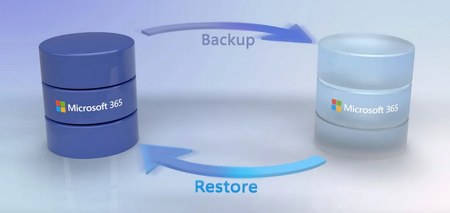
Protect your Microsoft 365 data and stay in control with Microsoft 365 Backup — whether managing email, documents, or sites across Exchange, OneDrive, and SharePoint. Define exactly what you want to back up and restore precisely what you need to with speeds reaching 2TB per hour at scale. With flexible policies, dynamic rules, and recovery points up to 365 days back, you can stay resilient and ready. In this introduction, I'll show you how to minimize disruption and keep your organization moving forward even in the event of a disaster with Microsoft 365 Backup. Fine-tune what gets backed up. Back up by user, site, group, or file type — to meet your exact needs. Get started with Microsoft 365 Backup. Restore data in-place or to a new location. Compare versions before committing. Take a look at Microsoft 365 Backup. Restore content from months ago. Use fast weekly snapshots — even when the issue went unnoticed for weeks. Start here with Microsoft 365 Backup. QUICK LINKS: 00:00 — Automate recovery process 00:37 — How to use Microsoft 365 Backup 01:49 — Compare with migration-based solutions 02:30 — How to set it up 03:33 — Exchange policy for email backup 05:00 — View and manage backups 05:24 — Recover from a restore point 07:45 — Restore from OneDrive & SharePoint 08:33 — Bulk restore 09:41 — Wrap up Link References Check out https://aka.ms/M365Backup Additional backup and restore considerations at https://aka.ms/M365BackupNotes Unfamiliar with Microsoft Mechanics? As Microsoft’s official video series for IT, you can watch and share valuable content and demos of current and upcoming tech from the people who build it at Microsoft. Subscribe to our YouTube: https://www.youtube.com/c/MicrosoftMechanicsSeries Talk with other IT Pros, join us on the Microsoft Tech Community: https://techcommunity.microsoft.com/t5/microsoft-mechanics-blog/bg-p/MicrosoftMechanicsBlog Watch or listen from anywhere, subscribe to our podcast: https://microsoftmechanics.libsyn.com/podcast Keep getting this insider knowledge, join us on social: Follow us on Twitter: https://twitter.com/MSFTMechanics Share knowledge on LinkedIn: https://www.linkedin.com/company/microsoft-mechanics/ Enjoy us on Instagram: https://www.instagram.com/msftmechanics/ Loosen up with us on TikTok: https://www.tiktok.com/@msftmechanics Video Transcript: -If something bad happens, like someone accidentally does a bulk file deletion or files are corrupted by a malicious user or ransomware, the first question is, can we recover from our backup? And the second question is, how long until we’re back online? Now to help you automate a targeted recovery process, Microsoft 365 Backup has a self-service solution that helps you scope the data that you want to recover. Your data remains inside your Microsoft 365 trust boundary, providing bulk restore recovery speeds of up to 2 terabytes per hour at scale. -Now, you might be wondering, do I even need to back up Microsoft 365 data? Let’s look at where it makes sense. So, first, if there’s a natural disaster, Microsoft 365 already natively offers high availability and disaster recovery with built-in service resiliency. That said, if you experience a data breach or maybe unexpected data corruption from a processor person on your end, or because of ransomware, your Microsoft support options depend on the workload in Microsoft 365. For example, for SharePoint, if you do nothing additional at all, when you contact Microsoft Support, if the event happened up to 14 days prior, Microsoft will recover OneDrive and SharePoint to a previous state within that timeframe. That said, if you want to get more specific on what gets restored or want to go back further than 14 days to recover your data, this is where the Microsoft 365 Backup service comes in. It’s self-service by design for SharePoint Exchange and OneDrive, giving more targeted control to scope exactly what you need to restore for up to 365 days. We’ll be adding more Microsoft 365 Backup coverage to other Microsoft 365 workloads over time. -Let’s compare this with migration solutions that you may be familiar with. These solutions work by moving your data and transforming it to store it into their service. Then, for recovery, the backup has to be restored back to its original form, then migrated back to your Microsoft 365 tenant, adding significant recovery time. Instead, Microsoft 365 Backup takes incremental snapshots of your data. The data stays in your Microsoft 365 service boundary in its native encrypted form. So, when you need to recover your data, the recovery process is accelerated. Microsoft 365 Backup is a consumption-based service with billing based on the amount of data protected. -Next, let’s walk through the setup steps and controls to manage backups and restore them. Starting with setting up a billing plan, where in advance, you’ll need to have an Azure subscription as well as a defined resource group. So, from the Microsoft 365 admin center under Setup, you’ll activate pay-as-you-go services and select Get started. Here, I’ll choose my Azure subscription and the resource group, and the region. Note that this region here is only used for billing. Your data will remain in the location that it’s currently in. Now, still on this page from the Settings tab, in the Storage location, you’ll choose Backup. Then, turn it on and save to confirm. -Now, with the service running, the rest of the steps will be performed from the Microsoft 365 Backup page in the admin center. So, here, I can configure backup policies to initiate automated backup processes. I have navigated within settings to Microsoft 365 Backup. From there, each workload, SharePoint, Exchange, and OneDrive, can have its own individual policies. So, I’m going to walk through an Exchange policy for email backup, but all three follow similar steps. After hitting Set up policy, the overview page displays policy attributes like the backup frequency. In this case, it’s every 10 minutes. The backup retention up to one year. -Now, the backup frequency does not impact your costs. Here, I can choose the selection method. The options are to upload a CSV file with mailboxes. Now, for SharePoint policies, this would be sites, and for OneDrive, we’d target user accounts. You can also use a dynamic rule, which allows the mailboxes in scope to dynamically update as group membership changes. Or you can define specific filters where you can select up to three distribution lists or security groups, or both. Now, these are the same filters for OneDrive policies. And for SharePoint, you can use filters for site names, URL contains values, or site last modified dates. The final option is then to select mailboxes individually, where you can manually select the mailboxes that you want to back up. In my case, I’ll choose the dynamic rule and use distribution lists, and I’ll select Project Falcon and Northwind Traders. -Now, I just need to review, and from there, I can create the policy. The policy will typically be active within an hour of creation, depending on the size of your group, and you can edit policy attributes at any time. So, now with the policy created, let’s move on to the process of viewing and managing backups. I’m back on the Microsoft 365 Backup page, and now I have active policy set up for each workload. And as mentioned, I can make required edits and changes to these policies from here. For example, you can pause backups or add, or remove sites from the SharePoint policy. -So, at this point, all of our services are running automated backups. Now, let’s assume that something happened to our Exchange mailboxes that were backed up and we want to recover from our restore point. Now, to simulate that, I’m logged in as Adele. I’m deleting email from the last month and even removing those from the Deleted items folder. One thing to note is that a restore from Exchange will only impact items that were modified, hard-deleted, or purged during the recovery window. So, let’s recover those deleted emails. So, I can start that for Exchange by hitting Restore mailboxes. -Now, for the choose selection method option, there is an option to upload a CSV list of mailboxes or select them individually. I’ll choose that one. And then, I’ll search for Adele and there she is. Now, I’ll add her mailbox and hit Next. Then, in content scope, I can select all emails including notes, contacts, calendars, and tasks, or I can choose a specific timeframe as well as apply filters, as you can see here. I’m going to keep the default of all items. Then, I can choose a time before the event happened to restore too. From there, I’ll be presented with available restore points. Email restore points are created every 10 minutes from when the policy’s active for up to 365 days. And I’ll choose this one for April 4th at 8:40 AM. -Then, for the destination of restored items, I have two primary options. I can replace mailbox items with backups, or the current version of the items will be overwritten by the items recovered from the restore point. Or I can create new mailbox items from backups within the user’s mailbox, which will be named Recovered Items, with the year, month, day, and time. I’ll keep replace mailbox items. Note that only effective items as mentioned will be overwritten. Any items received after the restore point or unmodified items will not be reverted and will also not get copied over if you decide to create a new folder. Once I confirm and commit to the file restore, from there, I can track progress from the Restoration tasks tab in the Microsoft 365 Backup page and see how things are going. So, I’m going to fast forward a little in time. And just to prove it, I’m back in Adele’s mailbox, and you can see that all of the emails that I deleted before have returned. That’s Exchange. -And there are also a few differences when restoring from OneDrive and SharePoint worth pointing out. Now, I’ll start with SharePoint. Here, I can upload a CSV file of site addresses or select them individually. I’ll do that. Now, I can select exactly which sites I want. There we go. Then, in Search for backups, you’ll see that things are a little different compared to Exchange. And again, I need to choose a date closest to the restore event, as well as a time of day. And for the previous two weeks, there are standard restore points captured every 10 minutes. And for a small-scale restore where you want to prioritize speed over the exact restore time, the prioritized backup options shown here will be faster and is recommended. These faster restore points are taken roughly every 24 hours. -One other thing to note here, if you’re doing a bulk restore, for example, to thousands of sites, then the fast restore points are not relevant. If you want to restore beyond two weeks, because these are weekly snapshots, if I choose the most recent date, where I know that my content is safe, the tool will automatically select the closest restore point captured prior to my selected time. And these weekly restore points are also fast restore points too. The other options are similar to what I showed in Exchange, where you can use in-place Restore or also create new sites. Note that content restored to a new location will apply and address suffix of R, followed by the restore number in a numeric sequence for each restore, starting with R0, as you can see with this site’s URL. In this case, you can copy restored items manually from the restored location to the prior location as needed, and in-place restore will mean users recent edits made to sites, files, and metadata since the time of the restore point will be lost. You can find additional backup and restore considerations at aka.ms/M365BackupNotes. -As you saw today, Microsoft 365 Backup doesn’t just let you self-manage your backups, it helps you recover faster. To find out more, checkout aka.ms/M365Backup. And keep watching Mechanics for the latest tech updates, subscribe to our channel, and thanks for watching.5.1KViews0likes1CommentIgnite’26 Spotlight: Announcing Microsoft Baseline security mode 2026 General Availability
Security is Microsoft’s top priority At Microsoft, security is our top priority. Through the Secure Future Initiative (SFI), we're turning lessons learned into stronger security across everything we build and deliver. Customers consistently ask three questions: What is Microsoft’s secure-by-default benchmark for Microsoft 365, Windows, and Azure? How does SFI translate into better security for customers? Is my tenant’s security posture hardened per Microsoft’s recommendations? Microsoft Baseline security mode (BSM) is designed to help answer these questions. It brings Microsoft's recommended security controls, directly to customers out of the box available to the administrators directly in the Microsoft 365 admin center. First introduced at Ignite 2025, BSM takes another major step forward today. Today at Microsoft Ignite 2026, we're announcing that Microsoft Baseline security mode (BSM) 2026 is now generally available, with a phased rollout across all supported Microsoft 365 cloud environments worldwide. Microsoft Baseline Security Mode marks a significant step forward in making security the default, helping organizations move from fragmented security configurations to a more consistent, integrated approach. It is built on Microsoft’s experience operating secure cloud services, responding to incidents, and applying lessons from the Secure Future Initiative (SFI). BSM combines ease of use with advanced capabilities to help harden your Microsoft cloud services’ security posture, every day, week, and year, with minimal effort. BSM is a Continuous Journey Microsoft Baseline security mode is not a one-time feature; it is an evolving standard. We continue to regularly strengthen the baseline with additional configurations across Microsoft cloud services. BSM 2025 marked the first milestone, starting with Microsoft 365 and Entra. BSM 2026 expands coverage to Purview, Intune, and Dynamics 365, with Azure and Windows in private preview. Future releases are expected to expand the baseline across Microsoft cloud services. Here’s what’s new in BSM 2026 compared with BSM 2025: Expanded with more workloads: BSM 2026 extends protection beyond the original five BSM 2025 workloads (Office, SharePoint, Teams, Exchange, and Entra) to include: o Microsoft Intune o Microsoft Purview o Dynamics 365 o Azure (in Private Preview), and o Windows (in Private Preview). New Applications category: In addition to the three categories that BSM already has, BSM 2026 now covers what applications can do, how they access data, and which permissions they hold. With Applications added, Baseline security mode 2026 spans four categories: o Applications o Authentication o Devices & Endpoints o Files Expanded coverage within the existing categories: New recommendations include stronger macro security and blocking native COM add-ins in Office, requiring multifactor authentication (MFA) for guest users, requiring dual admin consent for critical Intune operations, disabling classic SharePoint page creation and more. Enable Baseline security mode in the Microsoft 365 admin center As Global Administrator, you can navigate to: Microsoft 365 admin center → Org Settings → Security & Privacy → Baseline security mode to get started with BSM. BSM 2026 introduces 24 new settings. Administrators can apply each setting or run them in simulation mode to evaluate potential impact within their tenant. BSM provides flexibility and control, enabling administrators to manage each setting independently. This phased approach is designed to help administrators transition to secure-by-default configurations. Let’s deep dive into some of the BSM 2026 settings. Microsoft Baseline security mode 2026 settings Applications The Applications category in BSM 2026 addresses what apps can do, how they access data, and the permissions they hold. In BSM 2026 we are making generally available 16 applications settings. Highlights are below. For the full list see the Microsoft baseline security mode – Learn article New apps require assignment of the tenants allowed to access them (Entra) Allowing applications to span multiple tenants is a security risk. With this Entra setting, admins are empowered to control the tenants that a given app is allowed to be instantiated. Block COM add-ins that aren't on the admin allow list (Office) In the same fashion as Apps, admins can control the list of COM add-ins that are allowed in their organization. Require external users to wait in the lobby before joining meetings (Teams) Security risk increases when external users are brought into the workforce as the policy drift might happen for them. Much like there are controls for secure collaboration, for secure Teams meetings admins can now require externals users to wait in the lobby before joining meetings. Disable guest users from having eDiscovery roles (Purview) Purview eDiscovery roles are highly privileged, allowing users to search a broad range of Microsoft 365 content and export the results. Assigning these roles to external guests poses a significant risk unless those guests have been vetted and explicitly authorized for this access. This BSM 2026 setting blocks external guests from holding eDiscovery roles by default. Block creation and editing of classic pages in SharePoint sites (SharePoint) This setting prevents users from creating new classic SharePoint pages or editing existing ones, including publishing, wiki, and web part pages. Existing published pages remain viewable the setting does not delete them. It helps reduce risks from harmful script injection and unsupported legacy customizations while encouraging adoption of modern SharePoint experiences. Report applications without Exchange App RBAC permissions (Exchange) This setting identifies applications accessing Exchange without Exchange App RBAC (role-based access control) permissions, giving administrators visibility into apps that may have overly broad access. These insights help administrators prioritize permission reviews and identify opportunities to limit app access to the mailboxes they need. Require scoped access to files and sites for High Privileged Applications (HPA) (SharePoint) This setting requires highly privileged applications to use a defined, limited scope when accessing OneDrive and SharePoint files and sites, rather than relying on unrestricted, organization-wide access. It helps reduce the risk of unauthorized access and data leakage from broadly permissioned apps. Authentication The Authentication category in BSM strengthens how users and apps sign in, helping reduce credential theft, account takeover, and access through outdated authentication methods. In BSM 2026 we are making generally available 4 authentication settings: Don't allow Microsoft 365 trial tenants to federate with your organization (Teams) Block external apps from using pre-authenticated tokens to access OneDrive and SharePoint content (SharePoint) Enable Continuous Access Evaluation (CAE) (Dynamics 365) Require MFA (multi-factor-authentication) for guests and external users (Entra) BSM 2025 we brought in MFA for admin accounts and upleveling that baseline for external users. This setting is designed to significantly reduce the risk from external access across Microsoft 365 services, including Exchange, SharePoint, OneDrive, Teams, and Microsoft 365 apps. To strengthen your security posture, we strongly recommend requiring MFA for external users. Devices & Endpoints Stronger device security starts with hardening through a device management soluion like Intune. The Devices & Endpoints category introduces four critical Intune security settings to strengthen device protection: Alert users when a new device is enrolled (Intune) Require a device compliance policy (Intune) Restrict the number of devices a user can enroll (Intune) Require a second admin to approve sensitive actions (Intune) The key safeguard: Two admins, one critical action. Sensitive Intune changes require a second administrator's approval, helping prevent unauthorized or accidental changes. Azure – now part of Microsoft Baseline security mode (Private Preview) Microsoft Baseline security mode expands to include seven settings across Azure Storage and Azure Key Vault, now available in Private Preview. The Azure Storage settings require secure transfer, prevent anonymous public access, enforce a minimum TLS version, and prevent Shared Key authorization; the Azure Key Vault settings restrict public network access and require purge protection and soft delete. Together, these settings provide an Azure Policy-based foundation that gives administrators visibility into security posture and workload impact before enrolling ready scopes for enforcement. Learn more about Azure settings -part of Microsoft Baseline security mode. Enroll in the preview https://aka.ms/M365BaselineSecurityModeEnroll Windows – now part of Microsoft Baseline security mode (Private Preview) Microsoft Baseline security mode expands to include three Windows settings, enable virtualization-based security (VBS), enable secure boot, and enable the security processor, now available in Private Preview. The VBS setting isolates security-sensitive operations from the main operating system; the secure boot setting helps prevent malicious software from loading at startup; and the security processor setting uses dedicated hardware to help protect sensitive data, including credentials and keys. Together, these settings provide a foundation that gives administrators visibility into Windows security posture and helps strengthen device protections. Learn more about Windows baseline protection – part of Microsoft Baseline security mode. Enroll in the preview https://aka.ms/M365BaselineSecurityModeEnroll BSM enhancements to support your security journey (Private Preview) In response to your feedback, BSM introduces four new features in private preview to help administrators review security posture, share progress, and put configurations in context. Preview features are available to a limited set of customers and may change before general availability. Action oriented dashboard. Review your BSM security posture through a dashboard focused on the settings that need attention. Downloadable security and compliance reports. Download reports to support security reviews and compliance discussions, and share a view of your BSM posture with stakeholders. Regulatory framework mapping. View BSM settings in the context of regulatory frameworks to support compliance and audit conversations. BSM does not guarantee compliance with any law or regulatory framework. Customers remain responsible for their own compliance obligations. Geo locations (for Multi-Geo tenants). Bring geographic context into your review of BSM posture across Multi-Geo environments. Enroll in the preview https://aka.ms/M365BaselineSecurityModeEnroll Figure 7. Baseline security mode dashboard showing posture summaries, category progress, and regulatory framework coverage. On the roadmap: BSM 2025 as the default for all new Microsoft 365 tenants As part of strengthening our customers’ secure-by-default posture, BSM 2025 will become the default configuration for all new Microsoft 365 tenants. Following its announcement at Ignite 2025, we strongly encourage existing Microsoft 365 and Entra customers to opt in to all BSM 2025 settings. On-Premises Baseline security mode As outlined in early November 2026 here, we are making new investments to reduce On-Premises security risks. Within the Secure pillar of the on-premises security initiative, we’re hardening the products themselves through On-Premises Baseline Security Mode, starting with supported Exchange Server, SharePoint Server, and Skype for Business Server workloads. On-Premises Baseline Security Mode is designed to make the default security posture stronger, reducing the number of recommended security settings administrators must configure and maintain manually. For supported on-premises server workloads, it starts with a validated and tested secure-by-default configuration from initial deployment, while preserving administrator control. To learn more, check out: New Investments to Reduce On-Premises Security Risk | Microsoft Community Hub Get started To get started with Microsoft Baseline security mode 2026, as it rolls out, sign in with your global admin account to Microsoft 365 admin portal and open Baseline security mode settings. If you are new to Microsoft 365, learn how to try or buy a Microsoft 365 subscription. With built-in dashboards and telemetry, BSM provides visibility into security configurations and a predictable, secure-by-default foundation to help organizations of all sizes reduce legacy risks, strengthen protection, and support compliance and audit readiness References: Microsoft baseline security mode – Learn article Microsoft Secure Future Initiative Azure Baseline security mode – Learn more Windows baseline protection – Ignite announcement Microsoft Corporate adopts BSM - https://aka.ms/msd-baselinesecuritymode Need help. Engage with FastTrack – https://aka.ms/BSMFastTrack Join us at Ignite in our sessions: LTG1168: The foundation of Trusted AI: SharePoint security and resiliency, Thurs 11/19, 9:00-9:15 AM, Moscone South | The Hub, Lightning Talk 2 BRK211 - Secure and Govern Microsoft Copilot and Cowork, Thurs 11/19, 11:30 AM - 12:15 PM, Marriott Marquis | Lower B2, Yerba Buena Salon 9 Thank you!3.2KViews1like1CommentMicrosoft 365 Backup: Protect your business with data recovery
In today's digital age, ensuring the safety and availability of your data is paramount. Microsoft 365 offers robust solutions for data backup and recovery, designed to help restore your data and get your business back on track in the face of various challenges like ransomware events or accidental deletions. Microsoft 365 Backup services go beyond standard protection to make sure that your data remains compliant, protected, and recoverable when you need it most. Backup is not about just backing up data anymore, it’s about fast recovery in a secure environment. If you don’t have a fast restore solution, then your data is still at risk. Why backup your Microsoft 365 data? As your organization creates and stores more data, it’s important that you protect your operations from bad actors and state-sponsored ransomware attacks, which are on the rise. Microsoft 365 has a shared responsibility model, where Microsoft provides the availability and durability of the service, while customers are responsible for their data management and protection. Microsoft offers ways to help you maintain business continuity in both service failure and customer-side breaches. Service failure: Microsoft 365 natively offers high availability and disaster recovery. This is covered in the standard Microsoft 365 data resiliency documentation. While no service has guaranteed 100% uptime, the key considerations are data durability and speed of recovery; both of which Microsoft 365 handles natively and robustly. Customer-side data breaches, such as ransomware attacks or mistaken modification/deletion, require a fast and scalable restore solution that provides a recovery path to keep your business running. We highly recommend procuring either the native Microsoft 365 Backup solution or a recognized ISV application built on Microsoft 365 Backup Storage. These solutions are best equipped to recover your tenant’s data quickly at scale, offering protection and peace of mind while ensuring your data remains compliant. How Microsoft 365 Backup goes beyond standard backup Microsoft 365 Backup offers distinct advantages over standard high availability and disaster recovery provided by the base service and over traditional export-only solutions. Namely, it provides heightened security and privacy, and most importantly it provides a fast recovery path for an extended period of time. The enhanced security and privacy come from the fact that your data is kept in its natively encrypted format within the Microsoft 365 trust boundary. Simplify compliance, enhance security, and support data residency Automatic geo residency adherence Strictly limited data access and scope Fully auditable actions Immutable backup storage This retains the security, compliance, and privacy promises inherent in our services. It also puts control over these restores into your hands, rather than managing the restore through support agents. This can provide crucial time savings when every minute counts. Admins can restore individual files, emails, calendar items, and site metadata either in-place or to new locations, minimizing disruption. Microsoft 365 automatically backs up data and offers restore points for the past 14 days. With the addition of Microsoft 365 Backup, you can restore data from Exchange, SharePoint, and OneDrive to effectively any point within the past year— safeguarding business data so that you can recover it back to a healthy state. While Microsoft 365 includes 14 days of standard point-in-time backup, Microsoft 365 Backup has a 1-year retention period with recovery point objectives of every 10 minutes for Exchange, and every 10 minutes for 14 days, then weekly for OneDrive and SharePoint. See the table below for more details. Standard Microsoft 365 Cloud Storage (E/M SKUs) Microsoft 365 Backup Data types covered OneDrive, SharePoint, Exchange OneDrive, SharePoint, Exchange Retention period 14 days 1 year Backup frequency Based on file versions for self-service tooling; ~10 minutes using support call route Every 10 minutes for 52 weeks for Exchange Every 10 minutes for 14 days, then weekly for OneDrive and SharePoint & daily for files Restore speed Manual low-scale native restore; Support-call based 14-day restore (best effort) Up to and beyond 3 TB/hour at scale (Microsoft research, 2025) Admin experience Admin center, OneDrive/SharePoint UI, Exchange, PowerShell Integrated into Microsoft 365 Admin Center Use cases Day-to-day collaboration, file sharing, email Designed for low volume Ransomware recovery, accidental deletion, mass rapid restore With Microsoft 365 Backup or an ISV solution built on our platform, you can restore your OneDrive, SharePoint, and Exchange Online data at bulk recovery speeds of up to and beyond 3TB per hour for large scale bulk restores for an average-size tenant (Microsoft research, 2025). Ransomware is a growing concern Ransomware attacks are becoming increasingly common, posing significant threats to organizations of all sizes. These attacks involve malicious software that encrypts a victim's data, rendering it inaccessible until a ransom is paid. “The frequency of ransomware incidents has been on the rise, with many organizations experiencing multiple attacks within a year. Verizon Business found that the presence of Ransomware, with or without encryption, in their dataset, in 44% of all the breaches they reviewed in 2025, up from 32% in 2024 – a 37% year-over-year increase” (Verizon Business, 2025 Data Breach Investigations Report: Executive Summary, 2025). Safeguard your business with Microsoft 365 Backup When you invest in a backup solution, you're essentially buying the ability to recover from a disastrous event, like a ransomware attack. It's important to restore business operations and critical data as quickly as possible to maintain business continuity and restore to the state (point in time) that your business requires. In addition, the complexity for IT admins in managing large-scale data across their ecosystem necessitates a solution designed for recovery at scale. Microsoft 365 Backup provides that even in the event of an attack, your data can be restored quickly – all without the additional risk and complexity of granting multiple applications read and write access over your data. Get started today Don’t wait for disaster to strike. Start backing up smarter, restoring faster, and sleeping easier. Check out our step-by-step guide for setting up Microsoft 365 Backup and our full Microsoft 365 Backup Best Practices Whitepaper for more information.1.8KViews4likes0CommentsNOW ON DEMAND| OneDrive Office Hours | January 2025
Are you ready to connect with OneDrive product makers this month? We’re gearing up for the next call. Are you ready to connect with OneDrive product makers this month? We’re gearing up for the next call. Join the OneDrive product team live each month on our monthly OneDrive Customer Office Hours to hear what's top of mind, get insights into roadmap updates, and dig into a special topic. Each call includes live Q&A where you'll have a chance to ask the OneDrive product team any question about OneDrive - The home of your files. 😎 Use these links to Register and join live: aka.ms/OneDriveOfficeHours. Save the calendar invite so you never miss a call-https://aka.ms/OfficeHoursCalendar Each call is recorded and made available on demand shortly after. Our next call is Wednesday, January 15th, 2025, 8:00am - 9:00am PDT. This month's special topic: “Microsoft 365 Backup" with Brad Gussin, Principal Product Manager on the Microsoft team. Watch now OnDemand! Our goal is to simplify the way you create and access the files you need, get the information you are looking for, and manage your tasks efficiently. We can't wait to share, listen, and engage - monthly! Anyone can join this one-hour webinar to ask us questions, share feedback, and learn more about the features we’re releasing soon and our roadmap. Note: Our monthly public calls are not an official support tool. To open support tickets, go to see Get support for Microsoft 365; distinct support for educators and education customers is available, too. Stay up to date on Microsoft OneDrive adoption on adoption.microsoft.com. Join our community to catch all news and insights from the OneDrive community blog. And follow us on Twitter: @OneDrive. Thank you for your interest in making your voice heard and taking your knowledge and depth of OneDrive to the next level. You can ask questions and provide feedback in the event Comments below and we will do our best to address what we can during the call. 😎 Register and join live: aka.ms/OneDriveOfficeHours. See you there, Rob Nunez (Product Marketing Manager – Microsoft)1.6KViews0likes2Comments
Need to Restore PST Files to Office 365 Mailboxes - What's the Best Approach
Hey everyone, I have a task coming up where I need to restore several PST files back into Office 365 mailboxes. Haven't done this before at this scale and honestly not sure where to begin. I've looked at Microsoft's native import service through Purview but I have a few concerns: Some of the PST files are quite large — not sure how well it handles that I need to restore only specific folders for some users, not the entire PST I'm worried about data consistency after the restore Would prefer something that doesn't require too many admin roles or complex setup For those who have done PST to Office 365 restores — what approach worked best for you? Any tools, tips, or things to watch out for that you wish you knew before starting?800Views0likes5Comments
Disable incessant nagware popups
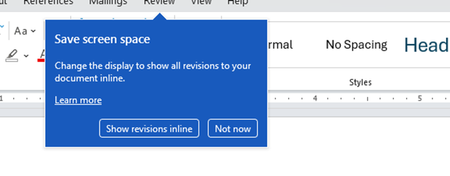
I don't know about everyone else, but I am sick and tired of the nagware pop ups in Word, Excel, PowerPoint, Outlook, etc. Every single product harasses me with pop ups trying to tell me "hey, did you know this feature was here?", "you can do this if you click that", "let me hold your hand through using products you've used for decades even though you don't want daddy Microslop to do that". This is a prime example. I keep getting the same ones again and again and again and everything I've read indicates they should only appear once. But they don't. They keep coming back like a psychotic stalker ex who wants alimony even though you were never married. How do I get this nagware to stop?!700Views1like2Comments