microsoft 365 backup
20 TopicsIgnite’26 Spotlight: Announcing Microsoft Baseline security mode 2026 General Availability
Security is Microsoft’s top priority At Microsoft, security is our top priority. Through the Secure Future Initiative (SFI), we're turning lessons learned into stronger security across everything we build and deliver. Customers consistently ask three questions: What is Microsoft’s secure-by-default benchmark for Microsoft 365, Windows, and Azure? How does SFI translate into better security for customers? Is my tenant’s security posture hardened per Microsoft’s recommendations? Microsoft Baseline security mode (BSM) is designed to help answer these questions. It brings Microsoft's recommended security controls, directly to customers out of the box available to the administrators directly in the Microsoft 365 admin center. First introduced at Ignite 2025, BSM takes another major step forward today. Today at Microsoft Ignite 2026, we're announcing that Microsoft Baseline security mode (BSM) 2026 is now generally available, with a phased rollout across all supported Microsoft 365 cloud environments worldwide. Microsoft Baseline Security Mode marks a significant step forward in making security the default, helping organizations move from fragmented security configurations to a more consistent, integrated approach. It is built on Microsoft’s experience operating secure cloud services, responding to incidents, and applying lessons from the Secure Future Initiative (SFI). BSM combines ease of use with advanced capabilities to help harden your Microsoft cloud services’ security posture, every day, week, and year, with minimal effort. BSM is a Continuous Journey Microsoft Baseline security mode is not a one-time feature; it is an evolving standard. We continue to regularly strengthen the baseline with additional configurations across Microsoft cloud services. BSM 2025 marked the first milestone, starting with Microsoft 365 and Entra. BSM 2026 expands coverage to Purview, Intune, and Dynamics 365, with Azure and Windows in private preview. Future releases are expected to expand the baseline across Microsoft cloud services. Here’s what’s new in BSM 2026 compared with BSM 2025: Expanded with more workloads: BSM 2026 extends protection beyond the original five BSM 2025 workloads (Office, SharePoint, Teams, Exchange, and Entra) to include: o Microsoft Intune o Microsoft Purview o Dynamics 365 o Azure (in Private Preview), and o Windows (in Private Preview). New Applications category: In addition to the three categories that BSM already has, BSM 2026 now covers what applications can do, how they access data, and which permissions they hold. With Applications added, Baseline security mode 2026 spans four categories: o Applications o Authentication o Devices & Endpoints o Files Expanded coverage within the existing categories: New recommendations include stronger macro security and blocking native COM add-ins in Office, requiring multifactor authentication (MFA) for guest users, requiring dual admin consent for critical Intune operations, disabling classic SharePoint page creation and more. Enable Baseline security mode in the Microsoft 365 admin center As Global Administrator, you can navigate to: Microsoft 365 admin center → Org Settings → Security & Privacy → Baseline security mode to get started with BSM. BSM 2026 introduces 24 new settings. Administrators can apply each setting or run them in simulation mode to evaluate potential impact within their tenant. BSM provides flexibility and control, enabling administrators to manage each setting independently. This phased approach is designed to help administrators transition to secure-by-default configurations. Let’s deep dive into some of the BSM 2026 settings. Microsoft Baseline security mode 2026 settings Applications The Applications category in BSM 2026 addresses what apps can do, how they access data, and the permissions they hold. In BSM 2026 we are making generally available 16 applications settings. Highlights are below. For the full list see the Microsoft baseline security mode – Learn article New apps require assignment of the tenants allowed to access them (Entra) Allowing applications to span multiple tenants is a security risk. With this Entra setting, admins are empowered to control the tenants that a given app is allowed to be instantiated. Block COM add-ins that aren't on the admin allow list (Office) In the same fashion as Apps, admins can control the list of COM add-ins that are allowed in their organization. Require external users to wait in the lobby before joining meetings (Teams) Security risk increases when external users are brought into the workforce as the policy drift might happen for them. Much like there are controls for secure collaboration, for secure Teams meetings admins can now require externals users to wait in the lobby before joining meetings. Disable guest users from having eDiscovery roles (Purview) Purview eDiscovery roles are highly privileged, allowing users to search a broad range of Microsoft 365 content and export the results. Assigning these roles to external guests poses a significant risk unless those guests have been vetted and explicitly authorized for this access. This BSM 2026 setting blocks external guests from holding eDiscovery roles by default. Block creation and editing of classic pages in SharePoint sites (SharePoint) This setting prevents users from creating new classic SharePoint pages or editing existing ones, including publishing, wiki, and web part pages. Existing published pages remain viewable the setting does not delete them. It helps reduce risks from harmful script injection and unsupported legacy customizations while encouraging adoption of modern SharePoint experiences. Report applications without Exchange App RBAC permissions (Exchange) This setting identifies applications accessing Exchange without Exchange App RBAC (role-based access control) permissions, giving administrators visibility into apps that may have overly broad access. These insights help administrators prioritize permission reviews and identify opportunities to limit app access to the mailboxes they need. Require scoped access to files and sites for High Privileged Applications (HPA) (SharePoint) This setting requires highly privileged applications to use a defined, limited scope when accessing OneDrive and SharePoint files and sites, rather than relying on unrestricted, organization-wide access. It helps reduce the risk of unauthorized access and data leakage from broadly permissioned apps. Authentication The Authentication category in BSM strengthens how users and apps sign in, helping reduce credential theft, account takeover, and access through outdated authentication methods. In BSM 2026 we are making generally available 4 authentication settings: Don't allow Microsoft 365 trial tenants to federate with your organization (Teams) Block external apps from using pre-authenticated tokens to access OneDrive and SharePoint content (SharePoint) Enable Continuous Access Evaluation (CAE) (Dynamics 365) Require MFA (multi-factor-authentication) for guests and external users (Entra) BSM 2025 we brought in MFA for admin accounts and upleveling that baseline for external users. This setting is designed to significantly reduce the risk from external access across Microsoft 365 services, including Exchange, SharePoint, OneDrive, Teams, and Microsoft 365 apps. To strengthen your security posture, we strongly recommend requiring MFA for external users. Devices & Endpoints Stronger device security starts with hardening through a device management soluion like Intune. The Devices & Endpoints category introduces four critical Intune security settings to strengthen device protection: Alert users when a new device is enrolled (Intune) Require a device compliance policy (Intune) Restrict the number of devices a user can enroll (Intune) Require a second admin to approve sensitive actions (Intune) The key safeguard: Two admins, one critical action. Sensitive Intune changes require a second administrator's approval, helping prevent unauthorized or accidental changes. Azure – now part of Microsoft Baseline security mode (Private Preview) Microsoft Baseline security mode expands to include seven settings across Azure Storage and Azure Key Vault, now available in Private Preview. The Azure Storage settings require secure transfer, prevent anonymous public access, enforce a minimum TLS version, and prevent Shared Key authorization; the Azure Key Vault settings restrict public network access and require purge protection and soft delete. Together, these settings provide an Azure Policy-based foundation that gives administrators visibility into security posture and workload impact before enrolling ready scopes for enforcement. Learn more about Azure settings -part of Microsoft Baseline security mode. Enroll in the preview https://aka.ms/M365BaselineSecurityModeEnroll Windows – now part of Microsoft Baseline security mode (Private Preview) Microsoft Baseline security mode expands to include three Windows settings, enable virtualization-based security (VBS), enable secure boot, and enable the security processor, now available in Private Preview. The VBS setting isolates security-sensitive operations from the main operating system; the secure boot setting helps prevent malicious software from loading at startup; and the security processor setting uses dedicated hardware to help protect sensitive data, including credentials and keys. Together, these settings provide a foundation that gives administrators visibility into Windows security posture and helps strengthen device protections. Learn more about Windows baseline protection – part of Microsoft Baseline security mode. Enroll in the preview https://aka.ms/M365BaselineSecurityModeEnroll BSM enhancements to support your security journey (Private Preview) In response to your feedback, BSM introduces four new features in private preview to help administrators review security posture, share progress, and put configurations in context. Preview features are available to a limited set of customers and may change before general availability. Action oriented dashboard. Review your BSM security posture through a dashboard focused on the settings that need attention. Downloadable security and compliance reports. Download reports to support security reviews and compliance discussions, and share a view of your BSM posture with stakeholders. Regulatory framework mapping. View BSM settings in the context of regulatory frameworks to support compliance and audit conversations. BSM does not guarantee compliance with any law or regulatory framework. Customers remain responsible for their own compliance obligations. Geo locations (for Multi-Geo tenants). Bring geographic context into your review of BSM posture across Multi-Geo environments. Enroll in the preview https://aka.ms/M365BaselineSecurityModeEnroll Figure 7. Baseline security mode dashboard showing posture summaries, category progress, and regulatory framework coverage. On the roadmap: BSM 2025 as the default for all new Microsoft 365 tenants As part of strengthening our customers’ secure-by-default posture, BSM 2025 will become the default configuration for all new Microsoft 365 tenants. Following its announcement at Ignite 2025, we strongly encourage existing Microsoft 365 and Entra customers to opt in to all BSM 2025 settings. On-Premises Baseline security mode As outlined in early November 2026 here, we are making new investments to reduce On-Premises security risks. Within the Secure pillar of the on-premises security initiative, we’re hardening the products themselves through On-Premises Baseline Security Mode, starting with supported Exchange Server, SharePoint Server, and Skype for Business Server workloads. On-Premises Baseline Security Mode is designed to make the default security posture stronger, reducing the number of recommended security settings administrators must configure and maintain manually. For supported on-premises server workloads, it starts with a validated and tested secure-by-default configuration from initial deployment, while preserving administrator control. To learn more, check out: New Investments to Reduce On-Premises Security Risk | Microsoft Community Hub Get started To get started with Microsoft Baseline security mode 2026, as it rolls out, sign in with your global admin account to Microsoft 365 admin portal and open Baseline security mode settings. If you are new to Microsoft 365, learn how to try or buy a Microsoft 365 subscription. With built-in dashboards and telemetry, BSM provides visibility into security configurations and a predictable, secure-by-default foundation to help organizations of all sizes reduce legacy risks, strengthen protection, and support compliance and audit readiness References: Microsoft baseline security mode – Learn article Microsoft Secure Future Initiative Azure Baseline security mode – Learn more Windows baseline protection – Ignite announcement Microsoft Corporate adopts BSM - https://aka.ms/msd-baselinesecuritymode Need help. Engage with FastTrack – https://aka.ms/BSMFastTrack Join us at Ignite in our sessions: LTG1168: The foundation of Trusted AI: SharePoint security and resiliency, Thurs 11/19, 9:00-9:15 AM, Moscone South | The Hub, Lightning Talk 2 BRK211 - Secure and Govern Microsoft Copilot and Cowork, Thurs 11/19, 11:30 AM - 12:15 PM, Marriott Marquis | Lower B2, Yerba Buena Salon 9 Thank you!2.6KViews0likes0Comments
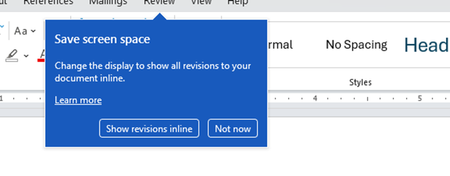
Disable incessant nagware popups
I don't know about everyone else, but I am sick and tired of the nagware pop ups in Word, Excel, PowerPoint, Outlook, etc. Every single product harasses me with pop ups trying to tell me "hey, did you know this feature was here?", "you can do this if you click that", "let me hold your hand through using products you've used for decades even though you don't want daddy Microslop to do that". This is a prime example. I keep getting the same ones again and again and again and everything I've read indicates they should only appear once. But they don't. They keep coming back like a psychotic stalker ex who wants alimony even though you were never married. How do I get this nagware to stop?!700Views1like2Comments
Microsoft 365 Backup - Restore Experience and Reliability Questions
Microsoft 365 Backup - Restore Experience and Reliability Questions Hi everyone, We're currently evaluating Microsoft 365 Backup and have been carrying out a series of restore tests across Exchange Online, OneDrive and SharePoint Online. While the backup side appears to be working as expected, we've encountered a few issues and limitations during testing and would be interested to hear if others have had similar experiences. Exchange Online Mailbox restores complete successfully. However, there doesn't appear to be a way to restore an individual email message. Instead, you must select a point in time and Microsoft restores deleted or modified mailbox items from that recovery point. The recovered items are placed into a separate folder within the mailbox, requiring the administrator or end user to manually locate the required email. Is this the expected behaviour, or is there another way to perform a more granular email restore? OneDrive Individual file restores work successfully. When testing a restore of an entire OneDrive folder, the restore job ran for approximately 10 hours before eventually failing. No meaningful failure reason was provided in the logs. Has anyone experienced similar behaviour with larger OneDrive folder restores? SharePoint Online Individual file restores appear to complete successfully. However, the restore logs/reporting show the jobs as failed even though the files are recovered correctly. Has anyone seen discrepancies between successful restores and failed status reporting within Microsoft 365 Backup? Overall, we're trying to understand whether these are known limitations, issues specific to our tenant, or areas where the product is still maturing. Any guidance, experiences, best practices, or recommendations would be greatly appreciated. Thanks in advance.119Views0likes2Comments
Microsoft Sign In Loop
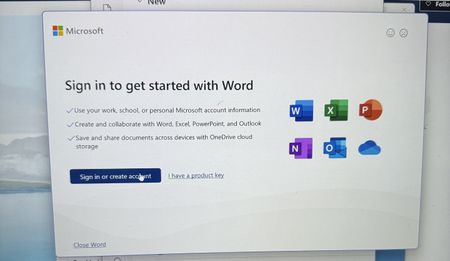
I am trying to sing into Microsoft 365, but every time I do, it takes me back to the login screen. I sing in with my outlook account, but I can't reach the applications. I can sign in on the browser, but not the applications on my computer. I have tried uninstalling and reinstalling M365, but the issue still persists439Views0likes1Comment
Need to Restore PST Files to Office 365 Mailboxes - What's the Best Approach
Hey everyone, I have a task coming up where I need to restore several PST files back into Office 365 mailboxes. Haven't done this before at this scale and honestly not sure where to begin. I've looked at Microsoft's native import service through Purview but I have a few concerns: Some of the PST files are quite large — not sure how well it handles that I need to restore only specific folders for some users, not the entire PST I'm worried about data consistency after the restore Would prefer something that doesn't require too many admin roles or complex setup For those who have done PST to Office 365 restores — what approach worked best for you? Any tools, tips, or things to watch out for that you wish you knew before starting?828Views0likes5CommentsPlanning to Migrate OST Files to Microsoft 365 - Need Some Guidance Before I Start
Hey folks, I have a task coming up where I need to migrate OST files into Office 365 mailboxes. A few of the OST files I'm dealing with are orphaned or corrupted which is making me a bit nervous about the whole process. A couple of things I'm unsure about: How to handle OST files that are no longer linked to an active profile Whether corrupted OST files can still be migrated to Office 365 without major data loss Best way to verify data integrity after migration Haven't started yet and want to make sure I'm going in the right direction before I begin. Has anyone migrated corrupted or orphaned OST files to Office 365? What approach worked best for you?380Views1like2CommentsMoving Office 365 Mailboxes to IMAP Servers - What’s the Best Approach
I’ve recently been looking into scenarios where organizations need to move mailboxes from Microsoft 365 to IMAP based email servers, and I noticed this is still a common requirement in many migrations. In most cases, the challenge is not just moving emails, but making sure everything like folder structure, old emails, and user data stays intact without creating too much disruption for users. From what I’ve seen, doing this manually can get very complex, especially when there are multiple mailboxes or large data volumes involved. That’s where migration tools usually come into the picture. Most tools simplify things by handling: 1. Secure connection to Microsoft 365 accounts 2. Bulk mailbox migration 3. Preserving folder hierarchy 4. Reducing downtime during the move 5. Avoiding duplicate data issues One thing I’ve noticed is that running a small pilot migration first always helps. It gives a clear idea of how the actual migration will behave before moving all users. Has anyone here worked on Office 365 to IMAP migration at scale? Would be good to know what approaches or tools worked best in your case and what challenges you faced during the process.662Views0likes2CommentsOffice 365 Mailbox Export to PST - Third Party Tools: What’s Your Experience?
Exporting Office 365 mailboxes to PST is still a common requirement in many Microsoft 365 environments, especially for backup, compliance, and migration scenarios. While Microsoft offers native options like Purview eDiscovery and Outlook export, many administrators also consider third-party tools when dealing with large mailboxes or bulk export requirements. In real-world scenarios, factors like speed, ease of use, permission handling, and consistency of exported data often influence the choice of tool. Some teams prefer native methods for compliance control, while others explore third-party solutions to simplify large-scale or repeated export tasks. For those working with Microsoft 365, what has your experience been with third-party PST export tools? Have they helped in your environment, or do you still rely mainly on Microsoft’s native options?666Views1like3Comments