mesh
11 TopicsAnyone else intermittently losing the Immersive Space (3D) option off of the View menu?
Anyone else having this issue? I've been doing a lot in Teams Immersive Spaces. It has worked in New Teams for most of the year. I've demonstrated it in front of live audiences successfully for most of the year too. Until about two weeks ago. I was in front of an audience, went to show them how it works on a Business Standard tenant I've had for about 10 months, and boom, no Immersive Space (3D) on the View menu. I have all the right settings, the right licenses, and it has been working fine until now. It doesn't matter if I am doing a "meet now" or a scheduled meeting. Alone, or with others invited. I've made sure my version is up to date. I've removed and reinstalled Teams, I've tried it with other accounts, I've done a reset and a repair. I've rebooted the computer. I've tried it on other Windows 11 machines with Teams. I have an enterprise tenant, also was able to use Immersive Spaces in Teams, that also has this issue using the clients on my computers. It is intermittent. Some of my friends who tried it for me, can see it on the menu (including on the Mac), some can't. It often works once, then the Immersive Space (3D) menu item then disappears, and even a quit and restart of Teams won't bring it back. It does seem to be more dependable on the Mesh admin trial licenses than the paid for Teams Premium licenses for some reason. Not sure if that's a red herring, but I thought I'd mention it. Also, occasionally, the users I invite (if I do a scheduled meeting and not a meet now), will show up briefly as unknown, when they've had the right licensing for a while, but this disappearing menu item thing happens even with no one else invited. Anyone else having this issue with Teams? Have you found a fix? I've just really gotten people comfortable using the feature, and now it's not dependable.641Views2likes1Comment
Teams Meeting: Unable to Connect to Immersive Spaces
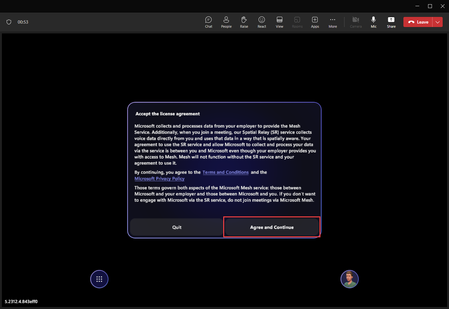
Summary In a Teams Meeting, when attempting to connect to Immersive Spaces, I consistently receive the error, "Unable to join. Failed to connect to Mesh service. Please try again later." Details Teams (Classic) desktop app version 1.6.00.30666 (64-bit) on a PC; screenshots below. I spin up a Teams Meeting Select my Avatar Start the meeting Select View > Immersive Spaces Go through the Immersive Spaces set up process, and on the final Immersive Spaces set up screen select Join now, and can never connect. I consistently receive the error, "Unable to join. Failed to connect to Mesh service. Please try again later." Thoughts? I can't find anything in regard to that exact error. Potential (known) bug? Something I'm missing on the Admin side? I'm stumped at this point. In the Teams Meeting, I select View > Immersive Spaces. Agree and Continue. Select Join now. To protect and respect the identity of the Avatar, I've blurred their eyes (jk). Then, I receive the error below every attempt. Troubleshooting I have the correct licensing (E3) and admin roles. Tried different computers (work and personal PC's). Tried different networks (work and personal / home). Fully quit Teams Classic desktop app and cleared cache several times. Restarted computers several times. Have tried to connect multiple times in a row across several days without success. As some guides have suggested, I don't have the Teams Mesh Immersive Spaces app pinned or active in Teams. In the event it's related, see my other Teams / Mesh Immersive Spaces issue post here. Any guidance would be greatly appreciated! Thank you in advance!4.9KViews1like7CommentsTeams App: (Microsoft) Mesh Immersive Spaces - No Add Button
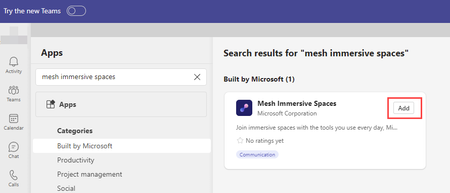
Summary The Microsoft Mesh Immersive Spaces app is available in Teams but it doesn't have an Add button. Details Teams (Classic) desktop app version 1.6.00.30666 (64-bit) I search for and can successfully locate the Mesh Immersive Spaces app. However, when I select it, there is no Add button. Thoughts? Note: Teams Admin Center The Mesh Immersive Spaces app Status is set to Allowed. For testing to rule out the "just in case" scenario, I also toggled its Allowed status from On to Off, saved, then toggled it back to On and saved. No change / impact on issue. Teams apps > Permissions policies The Global (Org wide default) policy settings for Microsoft apps and Third party apps are set to Allow all apps. Any guidance would be greatly appreciated! Thank you in advance!1.7KViews1like4Comments