mailbox
155 TopicsOutlook clients receive error 0x8004010f when downloading the Offline Address Book
EDIT 10/01/2008: To read the updated (and more comprehensive) guidance for troubleshooting errors 0x8004010f, please go here. There are a multiple reasons for why an Outlook client can receive the 0x8004010f sync error. Unfortunately, 0x8004010f is just a generic MAPI error and will show up for a variety of problems. Here is what the error looks like under err.exe (Microsoft Exchange Server Error Code Look-up Tool): C:\WXP\system32>err 0x8004010f # for hex 0x8004010f / decimal -2147221233 ecNotFound ec.h ecAttachNotFound ec.h ecUnknownRecip ec.h ecPropNotExistent ec.h MAPI_E_NOT_FOUND mapicode.h # 5 matches found for "0x8004010f" This is what the error looks like from the sync log from within Outlook: 12:45:53 Synchronizing Mailbox <dgoldman> 12:45:53 Done 12:45:54 Microsoft Exchange offline address book 12:45:54 0x8004010f Some of the most common reasons for Outlook clients to receive the 0x8004010f error with regards to downloading the OAB are listed below. Most of these are documented and I have linked articles to each of these to help everybody out. Please note that these solutions can change a small bit depending on unknown factors in a company's environment. An administrator decommissioned the last Exchange server in a site and never pushes replicas to another Exchange server. A new OAB is created in the active directory and the information store never reads the active directory during its maintenance schedule. This will result in the OAB files never being generated and the Outlook client will fail to download anything. The information store has an invalid EntryID that points to the legacy EX:/ folders. Again there is nothing for the client to download. An outlook client logging in from one domain to another domain and attempting to log in to another users mailbox. The OAB was never generated or some OAB folders are missing from the public folder store. Multiple OAB Version folders exist of the same type. Clients are attempting to download the OAB files from a public folder store that have not received the replicated updates. The offline address book list object has a missing address list. The offline address book list object has an incorrect address list. Send/As changes in the store affect users accounts with no mailbox full rights to another mailbox. If you are seeing this error on an Exchange 2007 server and your OAB is generated by an Exchange 2007 server, please make sure of the following: 1. Make sure that you have added the replicas of OAB to the Exchange 2007 server 2. Make sure public folder replication is working. 3. Make sure the OAB is public folder enabled and you have OAB Version 2, OAB Version 3 and OAB Version 4 checked off so your legacy clients can download the OAB files from the public folder store. 4. Make sure that if you are using an Outlook 2007 client, your OAB is Web Distribution enabled and the OAB files have been replicated over to the Client Access Server. For more information on this process please see this blog: http://blogs.msdn.com/dgoldman/archive/2006/10/23/outlook-client-fails-to-download-the-oab-with-error-0x8004011b.aspx and http://blogs.msdn.com/dgoldman/archive/2006/08/25/How-Exchange-2007-OAB-Files-are-replicated-to-a-Client-Access-Server-for-download.aspx 5. If you are removing your last Exchange 2003 server from the org, please make sure that you follow our documentation on this process. - Dave Goldman82KViews1like18CommentsIn-Place eDiscovery and In-Place Hold in the New Exchange; Part II
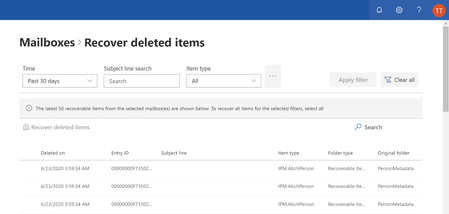
In Part I of this post, we covered what’s new in In-Place eDiscovery in the new Exchange. In this post, let’s take a look at how the new Exchange retains data immutably. One of the first steps you must take when reasonable expectation of litigation exists or when served an eDiscovery request is to preserve messaging records so they can be produced when required. Before Exchange 2010, this was generally achieved using different methods, including archiving data to an external system, suspending automated deletion mechanism (such as Exchange’s Messaging Records Management), or in some cases - by instructing users to not delete records. Failure to preserve records required for litigation may expose your organization to legal and financial risk. In Exchange 2010 and Office 365, we introduced Litigation Hold to enable you to preserve messaging records. Litigation Hold is a mailbox property – placing a mailbox on litigation hold places all items in a mailbox on hold indefinitely (or until hold is removed), resulting in accumulation of a large volume of data – all of which may not be required to be preserved. In the new Exchange, you can use In-Place Hold to retain items immutably. In-Place Hold is integrated with In-Place eDiscovery, allowing you to perform both search and hold using the same interface and the same query parameters. You can use In-Place Hold in the following scenarios. Indefinite Hold: You can create an In-Place Hold without any query parameters and without a hold duration to hold all items in a mailbox indefinitely or until the hold is removed. This emulates the behavior of litigation hold. Query-Based Hold: Using In-Place Hold, you can create a search query and specify the source mailboxes and parameters such as keywords, senders and recipients, as well as start and end dates. You can also specify the type of items to search – email messages, calendar items such as meetings and appointments, tasks, notes, or Lync content archived in Exchange mailboxes. Time-Based Hold: Whereas Litigation Hold placed all mailbox contents on hold indefinitely or until you remove the hold, In-Place Hold allows you to specify a duration of time for which to hold items. The time is calculated based on the received date or the date the item was created in the mailbox (for items such as appointments, tasks and notes that are not sent/received). One of the more common feature requests in Exchange 2010 was to be able to specify a definite time period for which an item is retained. Whereas retention policies allow you to specify the email lifecycle and automatically delete items when the specified period is reached, they don’t guarantee retention for that period. In other words, you could specify items will be kept for a maximum of 7 years, but you couldn’t guarantee items won’t be deleted before that period by a user or a process. The commonly recommended workaround to meet this requirement was to use configure the Deleted Item Recovery period to the minimum period you want an item to be retained for. In this example, setting the deleted item retention period to 7 years means if a user deletes an item before 7 years, it is retained in the Recoverable Items folder for 7 years. However, the period for Deleted Item Retention is calculated from the date of deletion. If a user deletes an item after 6 years, it is retained for an additional 7 years in the Recoverable Items folder, resulting in a total retention period of 13 years. In others words, you can guarantee an item will be retained for a minimum of 7 years, but not the maximum retention period. In the new Exchange, when you create a time-based In-Place Hold, because the hold period is calculated from the item received/creation date, you can guarantee the item won’t be held beyond that period. You can combine a time-based In-Place Hold with a Retention Policy (that has a single default policy tag) to ensure items in the mailbox are deleted by the Managed Folder Assistant (MFA) after 7 years, and items deleted by a user or a process before that period are retained for at least the specified duration. You can also combine a query-based In-Place Hold with a time-based hold to preserved items matching query parameters for the specified period. You can also place a user on multiple holds - for example, when a mailbox may contain records pertaining to multiple cases or investigations. In-Place Hold & Permissions Like In-Place eDiscovery, In-Place Hold can be used by authorized users with delegated Discovery Management permission. However, there’s a slight twist. The Discovery Management role group is assigned the Mailbox Search and Litigation Hold management roles. The former allows an authorized user to create a mailbox search for In-Place eDiscovery and Hold. The latter actually allows you to place mailbox content on hold. If a user is only assigned the Litigation Hold role, for example by creating a custom role-based access control (RBAC) role group or via membership of a role group such as Organization Management that has the Litigation Hold role assigned, the user is able to use In-Place Hold - but only to place all mailbox content on hold. The user can’t specify query parameters. In other words, the user can’t create a query-based In-Place Hold. Creating an In-Place Hold Let’s go back to the query Robin created in Part I of this post. When creating the In-Place Hold, on the Mailboxes page Robin must select Specify mailboxes to search and select the mailboxes or distribution groups. If she selects Search all mailboxes, the option to place content on hold will not be available. You must specify mailboxes or distribution groups to place on hold. If you select Search all mailboxes, the option to place content on hold will not be available. Figure 1: To create an In-Place Hold, you must select Specify mailboxes to search Note: If you select a distribution group, the hold applies to mailbox users that are members of the group when the hold is created. On the Search query page, Robin can use the same query she used for the In-Place eDiscovery. Figure 2: Messages matching query parameters are preserved She can also select the message types to place on hold. Figure 3: You can specify the message types to hold or hold all message types Placing archived Lync content on hold If the new Lync is enabled to archive Instant Messaging and meeting content into the new Exchange, Lync content is archived in the user’s mailbox and automatically placed on hold. You need to configure OAuth authentication between Lync and Exchange to enable this. Additionally, the mailbox must be located on a Mailbox server in the new Exchange. On the In-Place Hold settings page, Robin selects the option to Place content matching the search query in selected mailboxes on hold. She can then select Hold indefinitely to hold content indefinitely (or until the In-Place Hold is removed or a mailbox is removed from the search). To hold items for a specific period, she can select Specify number of days to hold items relative to their received date and specify the number of days. Figure 4: You can specify a hold duration or hold items indefinitely It’s important to reiterate here that for the time-based hold, the duration is calculated from the date a message is received/created. How In-Place Hold Works Let’s take a look at what happens under the hood. When a user deletes a message, it goes to the Deleted Items folder. When the Deleted Items folder is emptied or messages are deleted from it, or the user uses Shift-Delete to delete a message, it is moved to the Recoverable Items\Deletes folder. Contents of this folder are exposed when the user uses Recover Deleted Items in Outlook or Outlook Web App. If the user doesn’t do anything, messages from the Deletes folder are purged when the Deleted Items Retention period configured for the mailbox database or the user expires. If the user deletes a message from this view, few things can happen: If Single Item Recovery is enabled for the mailbox, the item is moved to the Recoverable Items\Purges folder and retained until the deleted item retention period expires. This provides the administrator the capability to recover items without having to recover from backups. If the mailbox is placed on Litigation Hold, the items is moved to the Recoverable Items\Purges folder and retained until the hold is removed. If the mailbox is placed on an In-Place Hold, the item is moved to the Recoverable Items\DiscoveryHolds folder. Figure 5: Deleted items and original copies of modified items are preserved in the Recoverable Items folder of each mailbox When the MFA , a mailbox assistant that processes mailboxes and expires content, processes the mailbox, it checks if messages meet the query parameters of any In-Place Holds the user is placed on. This evaluation is done for up to 5 queries, beyond which all items are retained – emulating the same behavior as litigation hold. If the number of holds is brought below 5, the MFA again reverts to the query-based In-Place Hold behavior. When the In-Place Hold is removed, messages placed on hold are removed if they no longer match query parameters of any other In-Place Hold that the user may have been placed on. In-Place Hold and Immutability When talking about preservation, the concept of immutability invariably comes up. Immutability means messages placed on hold must be preserved without alteration. Not only should we prevent them from deletion (even if the user placed on hold thinks they’ve successfully purged the message), but the messages should also be prevented from tampering or alteration. Immutability is not a product feature but a combination of feature and the hold processes your organization implements. In-Place Hold also helps you preserve content from intentional tampering or modification. This is achieved by performing a copy-on-write (COW) – when the user or any process attempts to modify a message, before the modified message is saved a copy of the original message is made and saved in the Recoverable Items\Versions folder. Items captured in the Versions folder are also indexed and returned in an In-Place eDiscovery search. When the hold is removed, the copies made in the Versions folder are also removed by the Managed Folder Assistant. Together, In-Place Hold and In-Place eDiscovery provide an easy-to-use mechanism for authorized legal, human resources or other non-technical personnel to easily search and immutably preserve messaging records. Bharat Suneja and Julian Zbogar-Smith35KViews0likes0CommentsSingle-Click Mailbox Conversion
Update: If you need to perform the User > Shared mailbox conversion to preserve access to mailbox of employee that has left the company, we recommend that you follow the Remove a former employee from Office 365 article first, to properly disable access to the mailbox. Then - to preserve the mailbox, perform the conversion to Shared mailbox and reclaim the license. Here’s a scenario that might be familiar to you: Sometimes, in support-focused organizations, the email account for external communications with customers is often managed by a single employee. When that employee transitions out of that role, mailbox management responsibility can be shared by multiple employees until a replacement is in place. To provide access to the mailbox for multiple employees, admins typically convert the mailbox to a shared mailbox. Previously, multiple PowerShell commands were required to convert and reconfigure a mailbox. As a result, admins have been asking for a simpler way to convert mailboxes. Single-Click Conversions Admins can now convert a cloud-based user mailbox to a shared mailbox with a single click in the Exchange Admin Center (EAC). No more needing to use PowerShell. Similarly, a cloud-based shared mailbox can be converted to user mailbox with a single click, as well. This feature applies to cloud-based mailboxes only. There are no plans for on-premises support at this time. Currently we support converting only between user mailboxes and shared mailboxes. Mailboxes placed on Hold, and personal archive mailboxes are also supported. There are no plans to support other types of mailboxes at this time. Convert a User Mailbox to Shared Mailbox As you can see from Figure 1 below, you simply navigate to the list of user mailboxes in EAC. Select the mailbox you want to change and click Convert. You will be notified when the conversion process has completed. Figure 1 Converting user mailbox to shared mailbox Convert a Shared Mailbox to User Mailbox Similarly, as shown in Figure 2 below, you can navigate to shared mailboxes in EAC, select the mailbox you want to convert and click Convert. You will be notified when the conversion process has completed. Figure 2 Converting shared mailbox to user mailbox Be sure to add a license for the converted user mailbox and assign it a temporary password before using it. A license is required if a shared mailbox exceeds its quota. This applies to any shared mailboxes that have been converted from user mailboxes. To manage mailbox licenses, see Assign or unassign licenses for Office 365 business. Paul Lo41KViews0likes11CommentsExchange 2013/2016 Monitoring Mailboxes
Updated in May 2026: This article also applies to Exchange Server 2019 as well as Exchange Server Subscription Edition (SE). We did not want to change the article title because that would change the article URL also. Introduction Exchange Server 2013 introduced a new feature called Managed Availability, which is a built-in monitoring system with self-recovery capabilities. Managed Availability performs continuous tests (probes) that simulate end-user actions, to detect possible problems with Exchange components or their dependencies. If probes are failing, it performs gradual simple recovery actions to bring the affected component in healthy state. It uses special type of mailboxes, called Monitoring Mailboxes or health mailboxes, to simulate end-user kinds of tests. The life cycle of monitoring mailboxes is taken care entirely by Managed Availability components. In this post, we’ll see how Managed Availability takes care of monitoring mailboxes, what best practices to keep monitoring mailboxes happy are and some related troubleshooting. Monitoring Mailboxes Functioning of Managed Availability is implemented by Microsoft Exchange Health Manager Service running on each Exchange Server 2013 role. The Microsoft Exchange Health Manager Service is responsible for creating and maintaining monitoring mailboxes Let’s take a look at how the Health Manager creates them! How do we create monitoring mailboxes? The MS Exchange Health Manager Service runs in two processes, MSExchangeHMHost.exe and MSExchangeHMWorker.exe (let’s call it the HM worker). HM worker process, at the time of startup, checks for availability of monitoring mailboxes and creates monitoring mailboxes as needed. Starting with Exchange Server 2013 Cumulative Update 1, accounts for monitoring mailboxes are created under following container in the domain Exchange server resides: <ADdomain>\Microsoft Exchange System Objects\Monitoring Mailboxes Example: The logic HM worker process uses to detect and create monitoring mailboxes depends on Exchange Cumulative Update (CU) installed, Exchange role installed on the box and mailbox databases present. The Following logic was used to create monitoring mailboxes for Exchange Server 2013 servers between RTM to Cumulative Update 5: One monitoring mailbox per mailbox database copy, plus one for all of CAS servers. Here’s an example of monitoring mailboxes created on Exchange Server 2013 SP1 server that hosts both CAS and mailbox role: [PS] C:\>Get-Mailbox -Monitoring | ft displayname,whencreated DisplayName WhenCreated ----------- ----------- HealthMailboxb285a119be6649b3a89574f078e947f5 11/10/2014 9:07:29 AM HealthMailbox60d8a8d1285e41bfa5ce1ef1fb93d14e 11/10/2014 9:07:36 AM The display name of the monitoring mailbox created for database copy contained the GUID of the mailbox database for which it was created. Example: The display name of the monitoring mailbox created for CAS server contained the GUID of the Exchange server for which it was created. Example: The following logic is used to create monitoring mailbox for Exchange Server 2013 Cumulative Update 6 and onwards: One monitoring mailbox for each mailbox database copy hosted on mailbox role, plus ten monitoring mailboxes for each CAS server. The following naming convention is used for the display name of the monitoring mailbox created for a database: “HealthMailbox-“ + host name of server + “-“ + database name. At the startup, the HM worker checks for name of databases present on the server and then checks for presence of monitoring mailboxes with display name as explained above. If it doesn’t find a monitoring mailbox for a specific database, it creates a new monitoring mailbox. That means, if you rename DB1 to DB2, HM worker will create new monitoring mailbox for DB2 on next startup. And the following naming convention is used for display name of the monitoring mailbox created for a CAS server: “HealthMailbox-“ + host name of the CAS server + “-001” through “010.” We attempt to distribute the monitoring mailboxes created for CAS servers across the mailbox databases available. Let’s make this real: Imagine that you have only one Exchange server running Exchange 2013 CU6 or newer in the org (server is named EXCH1) that hosts both CAS and Mailbox role and has only one mailbox database, 11 monitoring mailboxes will be created. Example: The Health Manager Service will create more mailboxes according to the logic explained above as you go on adding more databases or server roles. Password resets HM Worker is responsible for maintaining the password for Monitoring mailboxes. HM worker uses a complex algorithm to generate password to be used for monitoring mailbox. The password for monitoring mailbox is reset under the following conditions: A new health mailbox is being created Each time HM Worker process starts and is not able to retrieve the existing password for the monitoring mailbox Any other scenario where HM Worker is not able to get hold of existing password for the monitoring mailbox Best practices Here are some best practices regarding management of user accounts associated with monitoring mailboxes as well as mailboxes themselves: Do not apply third party customized password policies to user accounts of monitoring mailboxes Exclude monitoring mailboxes from user account lockout policies Do not move the user accounts out from the Monitoring Mailboxes container Do not change the user account properties, like restricting password change etc. Do not change AD permission inheritance Since HM worker handles password resets for monitoring mailboxes, in a large environment, it is normal to see increased password reset traffic for monitoring mailbox accounts; note that doing one of the things above might increase the frequency of those resets Do not move the monitoring mailboxes between mailbox databases Do not apply mailbox quotas to monitoring mailboxes If applying a retention policy, ensure the data within the monitoring mailbox is retained for a minimum of 30 days before being deleted If you see a mailbox size increasing significantly for specific monitoring mailbox; you can simply disable the specific mailbox. The HM worker will create a new mailbox at next startup. Common tasks with monitoring mailboxes How to list monitoring mailboxes The Get-Mailbox command is provided with special parameter “-Monitoring” to list only the monitoring mailboxes. Here are some examples: To list all monitoring mailboxes present in the organization: Get-Mailbox –Monitoring To list monitoring mailboxes present on a database: Get-Mailbox –Monitoring -Database <database name> However, the mailboxes listed above may not be associated with the server on which database is hosted. As explained in creation logic, the name of Client Access Server or the mailbox database is important in searching for monitoring mailbox associated and in creation of monitoring mailbox. Use the following command to list the monitoring mailboxes associated with a specific server: Get-Mailbox -Monitoring | ?{$_.DisplayName -like "*-<servername>-*"} Example: Get-Mailbox -Monitoring | ?{$_.DisplayName -like "*-exch2-*"} | ft name,displayname,database Use the following command to list the monitoring mailbox associated with a specific database: Get-Mailbox -Monitoring | ?{$_.DisplayName -like "*-<name of database>"} Example: Get-Mailbox -Monitoring | ?{$_.DisplayName -like "*-db2exch2"} | ft name,displayname,database,servername Troubleshooting tips Here are some troubleshooting methods for monitoring mailboxes. How to re-create monitoring mailboxes (NOT considered regular maintenance!) The mailbox database removal doesn’t cleanup the AD user account associated with monitoring mailboxes. This can then result in orphaned AD user accounts. This happens because of deny permission inherited on Monitoring Mailboxes container. KB article 3046530has details on this, as well as the workaround to resolve it. If there are too many orphaned monitoring mailbox accounts, you may want to re-create them. Steps: 1) Make sure “Monitoring Mailboxes” container is present Open Active Directory Users & Computers Click on View and select “Advanced Features” The Browse to Microsoft Exchange System Objects Verify the presence of the “Monitoring Mailboxes” container. Example: If the Monitoring Mailboxes container is missing: Make sure you have Exchange Server 2013 CU1 or above installed. Perform PrepareAD with the Exchange Server 2013 version installed. 2) Stop the “Microsoft Exchange Server Health Manager” service on all Exchange Server 2013 servers. 3) Open Exchange Management Shell and use following command to disable existing health mailboxes: Get-Mailbox -Monitoring | Disable-Mailbox 4) Go back to Active Directory users & computers, right click on domain and search for “HealthMailbox” 5) Delete the health mailbox user accounts. 6) Wait for AD replication or force AD replication. 7) Start the “Microsoft Exchange Server Health Manager” on all Exchange Server 2013 servers. Bhalchandra Atre Updates 6/2/15: Updated best practices to include information on aging out data via retention policies.322KViews1like17CommentsStore Driver Fault Isolation Improvements in Exchange 2010 SP1
Background The Exchange Store Driver is a core transport component which lives both on the Mailbox server role (as the mail submission service) and the Hub server role. It is responsible for: Retrieving messages from the mailbox server that have been submitted by end-users and submitting those to the Hub transport role for categorization and routing. Delivering messages to the appropriate mailbox server based on the location of the recipients mailbox. Extensibility platform for both mail submission & delivery. Store Driver currently hosts a number of agents that extend the functionality of Exchange. Examples include such agents as Inbox Rules, Conversations, meeting forward notifications, etc. Exchange 2010 is currently being utilized in Live@EDU, as well as the upcoming Office 365. As you can probably imagine, the Exchange servers that run in those datacenters are loaded and pushed harder than almost any other Exchange server imaginable. Prior to SP 1, there were several problems that were encountered with mail delivery to the Exchange mailbox store. In particular, there was a need to make sure that a handful of recipients did not starve the rest of the mail delivery system. While many of you may not have noticed this problem, Microsoft has seen many of these types of cases over the years; often isolated to a single event like an inadvertent public folder replication storm. This was despite the message throttling that was already available. Transport roles have also had functionality to avoid resource starvation known as Back Pressure, but this was not designed to protect the system from messages that were already in the Local Delivery queue. Changes in SP1 In order to further protect both the Mailbox servers and Hub servers from resource starvation, new thread limits were introduced in SP1: Key Description Scenario Error in Connectivity Log: <add key=”RecipientThreadLimit” value=”1”/> Limit beyond which no more threads can be allocated to the recipient for delivery. Note: If this is increased, you should increase MaxMailboxDeliveryPerMdbConnections as well, so that slow or hung deliveries to a single recipient will not block delivery for the entire MDB. Flood of messages to a single Mailbox or a performance problem associated with a single mailbox, has minimal impact on delivery to the rest of the Mailboxes in the database. Throttled delivery for recipient <recipient> due to concurrency limit <limit> <add key=”MaxMailboxDeliveryPerMdbConnections” value=”2”/> The maximum number of concurrent connections to a single “healthy” Mailbox Database. Database health is determined by the Health Monitor API and recorded in the connectivity logs as a value between -1, 0-100. 100 being healthy. Connections hang to a single problematic database have minimal impact on delivery of other queued messages Throttled Delivery due to server limit for <server FQDN> with threshold Note: These keys are not present in the EdgeTransport.exe.config file by default. Is it possible to have too much protection? Unfortunately, there are two scenarios after applying SP1 where we are seeing customers with messages backing up in the queue. The temporary error message is: 432 4.3.2 STOREDRV.Deliver; recipient thread limit exceeded As you can probably guess, the two scenarios are: Journaling Public Folders In both cases, the deliveries are occurring to a single recipient (or very small number of recipients). This is likely to occur during heavy mail flow. The screen shot below was taken from a lab server while reproducing the issue: Figure 1: Messages backed up in mailbox delivery queue due to recipient thread limits being exceeded (click here for larger screenshot) You can see a historical history of 4.3.2 events in connectivity logs on your Hub Transport servers (in the \Program Files\Microsoft\Exchange Server\V14\TransportRoles\Logs\Connectivity\CONNECTLOGxxxxxxxx-x.LOG), like: #Software: Microsoft Exchange Server #Version: 14.0.0.0 #Log-type: Transport Connectivity Log #Date: 2011-01-12T00:00:00.775Z #Fields: date-time,session,source,Destination,direction,description 2011-01-12T00:00:00.775Z,08CD7F1200CBDBD0,MapiSubmission,5f24e416-c380-41b5-bfe0-37b6f1091f49,>,"Failed; HResult: 1140850693; DiagnosticInfo: Stage:LoadItem, SmtpResponse:432-4.3.2 STOREDRV; mailbox server is too busy" 2011-01-12T00:00:00.775Z,08CD7F1200CBDBD0,MapiSubmission,5f24e416-c380-41b5-bfe0-37b6f1091f49,-,RegularSubmissions: 0 ShadowSubmissions: 0 Bytes: 0 Recipients: 0 Failures: 1 ReachedLimit: False Idle: False 2011-01-12T00:00:05.792Z,08CD7F1200CBDBD1,MapiSubmission,5f24e416-c380-41b5-bfe0-37b6f1091f49,+,Win2k8R2Ex14.dom2k8r2ex14.lab In some cases, simply leaving the servers alone should cause the queues to slowly drain. In other cases, it may be necessary to take further action because the problem has persisted for a while or because it isn’t part of a one-time event like a Public Folder replication storm. Alright, I understand. Now how do I fix my situation? Like every other throttling & performance related feature that has ever been in Exchange, the solution isn’t exactly straight forward. For starters, we’ve seen some level of success simply incrementing both values up one, as follows: <add key="RecipientThreadLimit" value="2" /> <add key="MaxMailboxDeliveryPerMdbConnections" value="3" /> In fact, there has been en ough success with this that we’re considering changing the defaults in a future rollup or service pack. Of course, when we do, the new defaults will only apply to those who haven’t already modified the values. Although it has not yet been released, KB 2491972 will discuss the change when the time comes. So if +1 is better, then why not +2 or more? Well, the problem is that all Exchange servers will ultimately be bound by some hardware resource. You don’t want to introduce thrashing or resource starvation due to a public folder or journaling server event that now impacts all users as well. In addition, there are other limits that control the maximum number of threads that can service these types of deliveries. In short, we are not recommending going above 4 for MaxMailboxDeliveryPerMdbConnections, and RecipientThreadLimit should always be at least one fewer. In an extreme case, if you are in a very busy environment with dedicated journaling mailbox servers, it may be worth considering having dedicated hub transport servers to go along with that. Of course, they can be virtualized or multi-role boxes, but in order to be isolated, the whole bunch will need to be in a dedicated site. Then, you would be able to increase these limits without risking delivery to other mailboxes. Of course, this is an extreme example. For the rest of us, it may be as simple as trying the +1 approach while carefully monitoring the hub & mailbox servers. Scott Landry, Steve Schiemann, Frank Brown and Jason Nelson100KViews0likes8CommentsSearch-UnifiedAuditlogs For Mailbox - Problems
Introduction Like many, I have been faced with an audit search problem on mailboxes. I finally found a solution by searching deeply into the web. In this post I will provide you with Microsoft's documentation, I have tested everything, and it finally works. I also have comments to Microsoft, directly to the product group (with a case Microsoft) but also by the technet article feedback feature. Technical Content We assume that you have all necessary permissions and role to run audit logs search. For Regular mailboxes: if you have no results via GUI, It is possible that in the time interval there is no result. It may happen that the audit is blocked on the mailbox despite the fact that the feature is active. You may use the command http://Search-UnifiedAuditLog documenation]https://learn.microsoft.com/fr-fr/powershell/module/exchange/search-unifiedauditlog?view=exchange-ps with the following parameters: UsersIds : email address Operations : event to be search (https://learn.microsoft.com/en-us/purview/audit-log-activities#exchange-mailbox-activities) Search-UnifiedAuditLog -UserIds <MailboxIdentity> -Operations MoveToDeletedItems, SoftDelete, HardDelete -StartDate "01/01/2025" -EndDate "15/01/2025" Unfortunately, no results appear with powershell. https://learn.microsoft.com/en-us/purview/audit-troubleshooting-scenarios#search-for-mailbox-activities-performed-by-users-with-non-e5-licenses, you can find the documentation that describe the symptom and how to resolve it. Even when [mailbox auditing on by default](https://learn.microsoft.com/en-us/purview/audit-mailboxes) is turned on for your organization, you might notice that mailbox audit events for some users aren't found in audit log searches by using the Microsoft Purview portal or the compliance portal, the **Search-UnifiedAuditLog** cmdlet, or the Office 365 Management Activity API. The reason for this is that mailbox audit events is returned only for users with E5 licenses when you use one of the previous methods to search the unified audit log. You must run the following command within Exchange Online : Set-Mailbox -Identity <MailboxIdentity> -AuditEnabled $false And then : Set-Mailbox -Identity <MailboxIdentity> -AuditEnabled $true Now you can search within the GUI or with powershell and you will have some results. For Shared Mailboxes: To search audit logs for a SharedMailbox, you must use the following command, with the parameter *FreeText.* Search-UnifiedAuditLog -StartDate "08/01/2025" -EndDate "11/01/2025" -FreeText (Get-Mailbox -identity <MailboxIdentity>).ExchangeGuid -Operations MoveToDeletedItems` https://learn.microsoft.com/en-us/purview/audit-troubleshooting-scenarios#search-for-mailbox-activities-performed-in-a-specific-mailbox-including-shared-mailboxes you can find the article that describes the FreeText parameters, and also decscribes that GUI is not working for SharedMailboxes. Also, using the **User** dropdown list in the audit log search tool or the **Search-UnifiedAuditLog -UserIds** won't return results for activities performed in a shared mailbox. If there are no results and you are sure that there should be, then the same manipulation as described above will have to be done. Disable and then reactivate the audit on the mailbox: Set-Mailbox -Identity <SharedMailboxIdentity> -AuditEnabled:$false Set-Mailbox -Identity <SharedMailboxIdentity> -AuditEnabled:$true Run again the Search-UnifiedAuditLog command. Now you will find results. Conclusion I assume that the "Users" text box in the interface corresponds to the parameter "UserIds" in the cmdlet. And there is no match for the "FreeText" parameter. You can find other articles in my GitHub about Purview https://github.com/trisdev75/MicrosoftPurview2.7KViews0likes0Comments