jira
9 TopicsJPD to Azure DevOps: syncing approved ideas to Epics and getting delivery status back
If your product team prioritizes ideas in Jira Product Discovery (JPD) and your engineers deliver in Azure DevOps, you're probably recreating approved ideas as Epics by hand. After that, the Epic moves through delivery and never gets reflected in JPD. I often see this split. Development works in Azure DevOps; other departments move to Jira, and manual tracking becomes a fallback whenever work spans both. Here's what I've learned about connecting the two, including the parts that don't sync cleanly. What happens without a sync Your product team creates an epic in Azure DevOps and copies over the title, the description, and maybe the acceptance criteria. Then engineering takes over. State changes, comments, and linked pull requests stay in Azure DevOps, so product has to open the board to find out whether something shipped. This defeats the point of keeping the roadmap in JPD. Why JPD is harder to integrate than regular Jira You'd expect the Jira Cloud REST API to cover it, since JPD runs inside Jira. It covers part of it. JPD projects are team-managed, so their fields don't share with company-managed projects the way regular Jira fields do. The Jira Cloud API reads and updates JPD ideas as issues, but there's no dedicated public API for JPD-specific artifacts. Insights, views, and the newer roadmap fields sit outside what the standard API gives you. Formula fields don't come through the API at all. The Atlassian-maintained Azure DevOps for Jira app doesn't solve this either. It links development activity to Jira issues, and it doesn't create or sync work items between the two tools. What syncs and what needs work Standard fields sync without trouble: summary, description, status, priority, assignee, reporter, comments, attachments, and labels. Custom fields such as impact and effort scores, RICE values, product areas, and goals sync cleanly, since they're regular custom fields. Insights, views, and roadmap fields need custom scripting, and some aren't fully supported. Formula fields won't sync, because the API never returns them. The connection is easy to establish. Field mapping is where most of the work goes, and 2 problems come up again and again. The first is user mapping. Jira identifies people by account ID, and Azure DevOps uses Entra ID identities, so assignee and reporter need an explicit lookup between the two. Add a fallback for users who only exist on one side. Syncs can break because the default assignee left the company and their account was deactivated. The second is empty fields. A sync that assumes a value is always there fails when a field is left blank in JPD, so handle nulls before you go live. Use case 1: Push approved ideas to Azure DevOps as Epics Idea to Epic handoff Current Setup: Product prioritizes in JPD. Engineering works from an Azure DevOps board. Problem: Approved ideas get recreated as Epics manually, and the scoring context gets lost along the way. Solution: A query-based trigger on the JPD side picks up ideas once they hit an approved status and creates the Epic in the right Azure DevOps project, with score fields carried over. Most teams I talk to don't want every idea pushed across. They want to decide when something crosses over, so the trigger condition matters more than people expect. One idea usually maps to one Epic. JPD doesn't carry a Feature or User Story hierarchy, so any split into Features and stories happens in Azure DevOps after the sync. Use a JQL trigger such as project = ROADMAP AND status = Approved so only ready ideas cross over. A manual "sync this" action may not exist on the JPD idea view, and a query-based trigger also removes the risk of someone syncing the wrong idea by accident. Use the JPD product area field to set the area path on the Epic, so it lands on the right team's board without anyone triaging it. Use case 2: Get delivery status back into JPD Epic state to idea status Current Setup: The idea lives in JPD, and the Epic lives in Azure DevOps. Problem: Product only knows delivery status by asking engineering or opening the board. Solution: Map the Epic's state back to the idea's status, so the roadmap in JPD shows what's shipping. Example mapping for the Agile process template: New → Ready for delivery Active → Implementing Resolved → Waiting for release Closed → Released If your organization uses Scrum, CMMI, or an inherited custom process, your Epic states will differ, so build the mapping from your own process. Decide field by field which side wins when both teams edit the same thing. Status usually flows from Azure DevOps to JPD only, and priority often flows the other way. Going further with pull requests and release gates Some teams want more than a done or not-done flag. One setup I've seen ties Jira story status to Azure DevOps pull request events. A story moves to Code Review when a PR goes up, Ready for QA once the PR is approved, and back to In Progress if QA rejects it. The same logic works at the release level. Azure DevOps moves the linked Jira release through UAT Approved, Security Approved, and CAB Approved as each gate clears, then adds a link to the deployment pipeline once the release goes out. This applies to Jira Software stories and releases, not JPD ideas directly. None of it works out of the box. You write it into the sync rules on both sides, with service hooks on the Azure DevOps side firing the events. The admin rights problem Product and engineering rarely hold admin rights on each other's tools, and I've seen this stall projects completely. At one bank, the Jira admin wasn't an admin in Azure DevOps, and corporate policy blocked direct access between the two systems. Pick a setup where each side authenticates and controls its own configuration. On the Azure DevOps side, that means a scoped PAT or an Entra ID service principal owned by your Azure DevOps admin. Nobody needs admin rights on the other team's system to keep the sync running. Plan for a separate security review too. In most organizations, the person who owns the integration isn't the person who signs off on it, and InfoSec will ask where data is stored, how long it's kept, and how it's encrypted. Have those answers ready before the technical evaluation ends, so the project doesn't stall at the last step. What to check before you pick an approach You have 3 realistic options: Jira Automation plus Azure DevOps service hooks. This is free and works for simple one-way flows. It gets harder once you need two-way updates, attachments, or anything beyond creating the Epic once. Custom middleware on Azure Functions or Logic Apps. You get full control, and you also own every API change on both sides from then on. A third-party integration platform. This is faster to set up, with a subscription cost and less control over the internals. Whichever you choose, check it against these: Bidirectional sync, with direction set per field Support for JPD custom fields, plus a plan for insights and roadmap fields Query-based triggers on the JPD side State mapping that handles your Azure DevOps process template User mapping between Jira account IDs and Entra ID identities, with a fallback Separate admin control on each side, with PAT or Entra ID authentication Scripting for conditional logic such as PR events and release gates Clear error reporting that tells you which item failed and why, plus automatic retries Audit logging, role-based access, and the certifications your security team asks about (ISO 27001 is the usual one) Error reporting is often skipped during evaluation. When a sync fails at scale, you need to see the failing work item and the component that broke without exporting logs to a spreadsheet. If you run Azure DevOps Server on-premises, add one more check: how the tool reaches your server from the Jira Cloud side. That decides whether you need to open inbound access or run part of the integration inside your network. FAQs Can you sync Jira Product Discovery with Azure DevOps? Yes. JPD ideas behave as Jira issues through the Jira Cloud API, so an integration can create Azure DevOps Epics from approved ideas and send state changes back. Standard and custom fields work. Insights, views, roadmap fields, and formula fields need extra work or won't sync. Does Jira Product Discovery have its own API? The regular Jira Cloud REST API reads and updates JPD ideas as issues. There's no dedicated public API for JPD-specific artifacts such as insights or formula fields. Will RICE scores sync to Azure DevOps? RICE, impact, and effort scores sync because they're standard custom fields. You'll need matching custom fields on the Epic work item type in your Azure DevOps process to receive them. Can Jira Automation handle this on its own? It can create an Epic in Azure DevOps through a web request when an idea is approved. Keeping both sides updated after that, including comments, attachments, and state, is where automation rules usually run out. Do I need admin access to both Jira and Azure DevOps? Not if each side authenticates separately. Your Azure DevOps admin sets up a PAT or service principal on their side, your Jira admin handles theirs, and neither needs rights on the other system. Before you build Pull up the JPD fields your product team uses every week and check each one against your sync rules. Then run a test sync on a few ideas and compare the values on both sides before you go live.79Views0likes0CommentsOptimizing Azure DevOps Jira Integration: 5 Practical Use Cases for DevOps Teams
Many teams rely on Azure DevOps (ADO) for development and Jira for project or product management. While each tool is powerful on its own, things often get messy when work items, statuses, and updates live in separate systems. Integrating the two platforms can remove a lot of friction. Below are six common use cases I have seen from real teams, with concrete problems and solutions to make the connection between Jira and Azure DevOps work smoothly. 1. Keeping User Stories and Bugs in Sync Challenge: Teams use Jira for user requests and Azure DevOps for development tasks. Manually updating both systems is tedious and error-prone. Solution: Enable two-way synchronization so that changes in Jira automatically reflect in Azure DevOps and vice versa (including comments and status updates). This keeps bugs and stories aligned without duplicate work. “Before we integrated Jira with Aure DevOps, I spent too much time manually updating task statuses in both systems. Now, with the automatic sync, my team is focused on actual coding work instead of managing project statuses across platforms.” — DevOps Engineer 2. One-Way Sync for Project Management–First Teams Challenge: Some organizations plan and track everything in Jira but manage code exclusively in Azure DevOps. Developers only need the essentials pushed across. Solution: Use a one-way sync from Jira → Azure DevOps to bring over metadata like titles, statuses, sprints, and due dates. Developers see the context they need without cluttering both systems with manual updates. “We rely on Jira for all project planning and management, but the developers need a clean workspace in Azure DevOps. A one-way sync from Jira to ADO helps us keep things efficient and ensures developers always have the latest information without double entry.” — Product Owner 3. Creating Jira Tickets from Azure DevOps Tasks or Bugs Challenge: External partners or stakeholders may only work in Jira Service Management to manage tickets. Developers in Azure DevOps often need their work mirrored for transparency. Solution: Configure automated ticket creation in Jira when certain ADO tasks are tagged. Both teams can track progress in their preferred tool without duplicating effort. “We use Azure DevOps internally, but our external stakeholders only work in Jira. Automating the creation of Jira tickets based on Azure DevOps tasks or bugs has made collaboration seamless and ensured no work is lost in translation.” — DevOps Lead 4. Syncing Epics, Features, and Work Items Challenge: High-level epics might live in Jira, while features and tasks are managed in Azure DevOps. Without integration, visibility across systems is fragmented. Solution: Sync epics and features so Jira provides portfolio-level visibility, while Azure DevOps remains the system of record for detailed development work. This keeps roadmaps and execution aligned. “Tracking epics in Jira while managing the technical work in Azure DevOps used to cause us to lose visibility. Now, everything from high-level epics to individual tasks is in sync, so we always know where we stand.” — Azure DevOps Product Manager 5. Managing Multiple Jira Projects with One Azure DevOps Project Challenge: Large organizations often run multiple Jira projects (by teams or business units) but only one Azure DevOPs project for development. Syncing everything consistently is tough. Solution: Map multiple Jira projects to a single Azure DevOps project, syncing only the key data (titles, statuses, sprints, custom fields). This creates a unified development view without losing project-specific details. “We have multiple teams using different Jira projects, but we consolidate all development work into a single Azure DevOps project. Syncing across these platforms used to be a nightmare, but now everything stays aligned, and we’re able to track all initiatives in one place.” — Azure DevOps Engineer 💬 Have you integrated Jira with Azure DevOps in your team? What worked well, and what challenges did you run into?631Views0likes2CommentsJira Service Management and Azure DevOps Integration: Optimize ITSM and Development Workflows
This article dives into how integrating Jira Service Management (JSM) with Azure DevOps can improve ITSM and development workflows. Let’s face it, businesses can no longer ignore the friction that comes from siloed support and dev teams. Integration, when done right, brings real-time updates, better visibility, and a smoother customer experience. For such integrations, you need tools that help you connect these multiple platforms together. Integration isn’t about one side changing its behavior to meet the needs of the other. It’s about combining strengths, working together, and reducing waste of time and resources on both sides. Exalate connects teams within and across companies by providing a scalable, reliable, and AI-assisted integration solution, eliminating the need to switch between multiple ITSM systems. How does Exalate work? Exalate works as a dedicated app on each system you want to integrate. Each tool admin stays in control. You decide what goes out and what comes in. Exalate is a script-based integration solution. It’s Groovy-based scripting engine allows the flexibility to implement deep integration between Jira and Azure DevOps. Got an edge case that doesn’t quite fit in the standard mold? Bring it on. It’s also available for other systems like Salesforce, ServiceNow, Freshdesk, Zendesk, and more. To make scripting faster (and more approachable), it also provides AI Assist. You describe your sync logic in plain language, and it turns it into dynamic sync rules, right inside the Exalate admin console. Replica and Triggers Exalate allows you to define sync rules that hold what data gets shared and how it maps across systems. Sync rules have a replica. A replica is a copy of an issue/work item that holds the data you want to share. Each integrating side has incoming and outgoing sync rules. In Jira, the outgoing sync will define what information should be transferred to Azure DevOps, and the incoming sync will decide how you map the information coming from Azure DevOps. Triggers kick off syncs automatically, based on conditions written in native query languages like JQL (Jira Query Language) or WIQL (Work Item Query Language). Some common use cases that you can implement. First Use Case: Support Escalation to Dev When a customer raises a ticket in JSM, some of those need to be escalated to the dev team in Azure DevOps, either as Bugs or Features. Map request types from JSM to work item types in Azure DevOps e.g., ‘Report a bug’ → Bug | ‘Suggest a feature’ → Feature Sync status and priority between both platforms. This ensures both teams stay aligned as tickets progress Triggers Used When the project name is SUPP and the request type is a bug or feature, send the ticket over to Azure DevOps. Second Use Case: Product Support Flow The product team creates epics and user stories in Azure DevOps. These entities on the project board are unidirectionally synced to Jira Cloud as epics and stories. The relation hierarchy between Azure DevOps and Jira is maintained. For instance, ‘Relations’ in Azure DevOps are mapped as ‘Issue links’ in Jira. Statuses are synced between Jira Cloud and Azure DevOps to reflect accurate progress. Integrate Azure DevOps and Jira: Get Started Integrating Jira and Azure DevOps is not only a tech decision, it’s a business strategy. With Exalate, you can tailor the integration to your workflow, your logic, and your comfort level. Got a unique use case? Think Exalate might be the answer to your scattered support processes and manual ticket escalations? Drop a comment below, or if you’d rather chat one-on-one, book a call with us. Let’s make your integration work for you, not the other way around.586Views0likes0CommentsHow to sync date and time formats between Azure DevOps and Jira?
Jira Cloud and Azure DevOps have different APIs that support different data formats, even for the same type of data. Azure DevOps uses the HTML format, while Jira uses Wiki. When transferring date-time information between both platforms, transformers need to work behind the scenes to convert between both formatting styles. That’s the only way to get coherent data. But, this conversion is not available by default due to the lack of compatibility. So, a third-party tool is needed to bridge this gap. In this article, I’ll discuss how to sync date and time formats between Azure DevOps and Jira Cloud. We'll use a third-party integration tool called Exalate to implement this use case. Use case requirements If your Jira and Azure DevOps instances are hosted in different time zones, and you need to manipulate the date-time fields so that the same date is kept, here is how we do it. Let us assume the two teams are 5 hours apart. Here is what we can do: “Due Date” and “Start Date” are custom date-time fields in Azure DevOps “Start date” is a custom date field in Jira “Due” is the standard due date field in Jira We would like to add 5 hours to the Jira timestamp when they are received in the Azure DevOps instance. Then, we would like to subtract 5 hours from the Azure DevOps timestamp when they are received in Jira. How to use Exalate to sync date and time formats between Azure DevOps and Jira cloud? Exalate comes with an AI-powered scripting engine that allows you to write mapping rules for any connection. It supports the Groovy language, which you can use to write the transformation algorithm for the date-time information. To implement this use case, you need to install Exalate on both your Jira Cloud and Azure DevOps instance. Then, set up a connection in the Script mode. Once connected, click Configure Sync and navigate to the Rules tab, where you’ll set up sync rules. In the Rules tab, you’ll find default scripts for syncing basic fields like summary, description, comments, and attachments. To sync custom fields or behaviors, you’ll need to add your own scripts. The Rules tab is divided into: Outgoing Sync: Defines the information sent from Jira to Azure DevOps. Incoming Sync: Maps the information received from Azure DevOps into Jira. The same exists on the Azure DevOps side. Jira outgoing script replica.customFields."Start date" = issue.customFields."Start date" replica.due = issue.due The script for the data going out of Jira is being fetched from the custom field named “Start date”, while the due date is going over as the replica.due expression. Jira incoming script import java.text.SimpleDateFormat import java.text.DateFormat import java.util.Calendar import java.util.Date def datePattern = "yyyy-MM-dd HH:mm:ss"; DateFormat formatter = new SimpleDateFormat(datePattern); dateString = replica."start" dateString = dateString.replaceAll("T"," ").trim(); dateString = dateString.replaceAll("Z"," ").trim(); date = formatter.parse(dateString); def timestamp = date.time Calendar calendar = Calendar.getInstance() calendar.timeInMillis = timestamp calendar.add(Calendar.HOUR_OF_DAY, -5) def updatedTimestamp = calendar.timeInMillis issue.customFields."Start date".value = updatedTimestamp dateString = replica."duedate" dateString = dateString.replaceAll("T"," ").trim(); dateString = dateString.replaceAll("Z"," ").trim(); date = formatter.parse(dateString); timestamp = date.time calendar.timeInMillis = timestamp calendar.add(Calendar.HOUR_OF_DAY, -5) issue.due = calendar.getTime() The code snippet above allows you to set the datePattern and parsing it through a formatter. It also fetches the timestamp down to milliseconds from the calendar. The calendar.add(Calendar.HOUR_OF_DAY, -5) expression specifies that the timestamp coming into Jira should be at least 5 hours behind the original time obtained from Azure DevOps. Azure DevOps outgoing script replica."start" = workItem."Microsoft.VSTS.Scheduling.StartDate" replica."duedate" = workItem."Microsoft.VSTS.Scheduling.DueDate" This code snippet fetches the start and due dates from the default Microsoft Azure DevOps Server (formerly VSTS or Visual Studio Team System). Azure DevOps incoming script import java.text.SimpleDateFormat import java.util.Calendar import java.util.Date def convertJiraTimeToAdoTime(String dateString){ if(dateString == null) return String inputFormat = "yyyy-MM-dd HH:mm:ss.S" String outputFormat = "yyyy-MM-dd'T'HH:mm:ss'Z'" // Create SimpleDateFormat objects for the input and output formats SimpleDateFormat inputDateFormat = new SimpleDateFormat(inputFormat) SimpleDateFormat outputDateFormat = new SimpleDateFormat(outputFormat) // Parse the input date string into a Date object Date date = inputDateFormat.parse(dateString) def timestamp = date.time Calendar calendar = Calendar.getInstance() calendar.timeInMillis = timestamp calendar.add(Calendar.HOUR_OF_DAY, 5) def updatedTimestamp = calendar.timeInMillis // Convert the Date object into the output format return outputDateFormat.format(updatedTimestamp) // String } // does not set the field String inputDateString = replica.customFields."Start date"?.value workItem."Microsoft.VSTS.Scheduling.StartDate" = convertJiraTimeToAdoTime(inputDateString) inputDateString = replica.due workItem."Microsoft.VSTS.Scheduling.DueDate" = convertJiraTimeToAdoTime(inputDateString) This code snippet converts the incoming date-time information into a string before parsing it as input into the date object. It then fetches the date from the calendar to be 5 hours ahead of the time fetched from the Jira Cloud instance. Once you’re done, review the scripts to make sure everything is in order before publishing the changes. That’s all! Your date-time formats are now in sync between Azure DevOps and Jira Cloud. Using script-based solutions, like Exalate, can seem overwhelming at first, but if done correctly, they can be very effective for your integration needs. Have any specific use case that requires handling different data formats? Just ask our integration engineers for a walkthrough of what’s possible or drop a comment here.138Views0likes0CommentsHow to Sync Area and Iteration Paths Between Jira and Azure DevOps
Azure DevOps area and iteration paths do not have a direct replica on the Jira side. So to sync information between both systems, the area and iteration path data has to be mapped to a custom field in the Jira issue. For this to work, you need a customizable AI-powered integration solution like Exalate. This solution will help you generate the script for mapping paths and maintaining the relationships between the work item and the issue. What is an Area Path? An area path establishes a hierarchy for work items related to a specific project. It helps you group work items based on team, product, or feature. Organizations working on a product or feature can use area paths to establish a hierarchy between teams at every level of involvement. You can assign the same area path to multiple teams. What is an Iteration Path? An iteration path assigns work items at the project level based on time-related intervals. Teams can share them to keep track of ongoing projects, specifically for sprints, releases, and subreleases. When new work items are added to the Sprint backlog, they become accessible via the existing iteration path. You can add up to 300 iteration paths per team. Sync Area and Iteration Paths: Jira to Azure DevOps Use Case You can create a custom field in your Jira instance to reflect the data from the iteration and area paths. How does this help your organization? Syncing this data gives more context about the teams involved on the Azure DevOps side. It provides context about the timelines and stages of progress for the mapped projects and entities. Primary Requirements Obtaining the right information from the API on both sides. Writing or generating the correct sync rules for both the incoming and outgoing data. Creating triggers to update the custom fields on Jira automatically. Fetching the right string from the area or iteration path. How Exalate Handles Jira to Azure DevOps Syncs Exalate supports one-way and two-way integration between Jira and Azure DevOps as well as with Zendesk, ServiceNow, Salesforce, GitHub, etc. Exalate also supports AI-powered Groovy scripting with the help of a chatbot. Users can also create trigger-based integrations for real-time syncs and bulk operations. To use Exalate, first install it on both Jira and Azure DevOps. Since this use case requires scripting, you need to set up a connection in the Script Mode. To configure the sync, open Exalate in your Azure DevOps dashboard, go to the connection you want to edit and click on the “Edit connection” icon. You have two options: Outgoing sync (on the Azure DevOps side) refers to the data being sent over to Jira. Incoming sync (on the Jira side) refers to the data to be received from the work item on Azure DevOps. Outgoing Sync (Azure DevOps): Send Area and Iteration Path Details from Azure DevOps to Jira To send out the area and iteration paths from the Azure DevOps work item, use the code below: replica.areaPath = workItem.areaPath replica.iterationPath = workItem.iterationPath The replica retrieves the values of the area and iteration paths from the work item and saves them as a string. On the remote side, you can store the area/iteration path in a custom field using a type string or select list. Incoming Sync (Jira): Set Area Path from Azure DevOps as a Custom Field in Jira Let’s start with the area path. The area path starts with the name of the project. For example, an Azure DevOps project called AzureProject handled by Exalate’s dev team could have an area path: AzureProject\\ExalateDev. To set the area path based on the value received from the remote side text field, use the code below: issue.customFields."Area Path".value = replica.areaPath The issue.customFields."area-path".value retrieves data from the work item and stores it in the designated custom field on Jira. Incoming Sync (Jira) Set Iteration Path from Azure DevOps as a Custom Field in Jira The iteration path shows the name of the project as well as the specific sprint. For example, an Azure DevOps project called AzureProject in the first sprint could have an area path: AzureProject//Sprint1 If you don’t set the value for the Area field in the Sync Rules, Exalate uses the default area that has the same name as the project. To set the iteration path based on the value received from the remote side text field, use the code below: issue.customFields."iPath".value = replica.iterationPath The issue.customFields."iPath".value retrieves data from the work item and stores it in the designated custom field on Jira. Congratulations! You have successfully mapped the area and iteration path to a Jira custom field. If you still have questions or want to see how Exalate is tailored to your specific use case, drop a comment below or reach out to our engineers.291Views0likes0Comments
How to sync Text, Date, and Dropdown Custom fields between Jira and Azure DevOps
Jira Azure DevOps integration is the need of the day. Both platforms offer robust features but when it comes to integrating data like custom fields, things can get tricky. This is where tools like third-party integration tools can help, ensuring your custom data flows effortlessly between Jira and Azure DevOps. In this blog, we'll dive into a common use case: syncing custom fields between Jira and Azure DevOps. We'll explore the key custom fields—Text, Dropdown, and Date—and provide code snippets to illustrate how third-party apps can make this process straightforward. Why sync custom fields? Custom fields allow teams to capture unique data that goes beyond standard fields like summary or status. By syncing custom fields, you ensure that all teams, regardless of the platform they use, have access to the same critical information. This leads to better collaboration, reduced errors, and a unified workflow. Setting up the environment for syncing custom fields between Jira and Azure DevOps We will use a tool called Exalate for this article. Start by installing Exalate on Jira and Azure DevOps from their respective marketplaces and connect them using the Script mode. The Script mode has incoming and outgoing sync rules written using low-code Groovy scripts. You can edit them at both integrating ends to meet your sync requirements. To send custom field data from a Jira issue field to its corresponding Azure DevOps work item field you’d need to modify the outgoing sync rules of your Jira instance. You would also need to receive the data coming from Jira in some work item field. For this, you’d need to modify the incoming sync rules of your Azure DevOps instance. To do this the other way around, simply reverse the codes in the incoming and outgoing sync scripts. That's all! Set an automatic trigger as the next step and see your data synced smoothly between the systems. Custom fields sync: a deeper look 1. Jira to Azure DevOps text field sync Text fields are commonly used to capture detailed information. Whether it's a technical description or customer feedback, syncing text fields ensures that all teams have a consistent narrative. //Jira outgoing sync replica.customFields."CF Name" = issue.customFields."CF Name" //Azure DevOps incoming sync workItem.customFields."CF Name".value = replica.customFields."CF Name".value Here, we simply map the text field from Jira to Azure DevOps and vice versa. Exalate takes care of the data transformation and transmission. 2. Jira to Azure DevOps Dropdown (select List) field sync Dropdown or select list fields are perfect for categorizing information, like selecting a priority level or feature type. Syncing these ensures that the categorizations are consistent across platforms. //Jira outgoing sync replica.customFields."CF Name" = issue.customFields."CF Name" //Azure DevOps incoming sync workItem.customFields."CF Name".value = replica.customFields."CF Name".value.value The code snippet captures the dropdown object with its values in one platform and assigns it to the corresponding field in the other. 3. Jira to Azure DevOps Date field sync Date fields are essential for tracking deadlines, milestones, and other time-sensitive data. Keeping dates in sync prevents miscommunications and scheduling conflicts. //Jira outgoing sync replica.customFields."CF Name" = issue.customFields."CF Name" //Azure DevOps incoming sync import java.text.SimpleDateFormat .... def sdf = new SimpleDateFormat("yyyy-MM-dd hh:mm:ss") def targetDate = sdf.format(new Date()) //throw new Exception("Target date = ${targetDate}") workItem."Microsoft.VSTS.Scheduling.StartDate" = targetDate This snippet ensures that the date values are synchronized, keeping project timelines aligned. Best practices for syncing custom fields between Jira and Azure DevOps Consistent field types: Ensure that the custom fields in Jira and Azure DevOps have compatible types. Field mapping: Carefully map the fields to avoid data loss or misinterpretation. Testing: Always test the sync setup in a sandbox environment before deploying it in production. Conclusion Synchronizing custom fields between Jira and Azure DevOps can enhance your project's efficiency and transparency. It ensures all teams have access to the same data, regardless of the platforms they use. Ready to sync more data between Jira and Azure DevOps? Drop a comment and we can discuss.278Views0likes0CommentsMigrating content/boards in JIRA Kanban boards to Azure DevOps Boards
How to migrate all the Kanban boards in JIRA instance of a project to Azure DevOps boards. the problem is there are hundreds of boards in JIRA and manually doing the task takes long hours, is there a way to automate the process.575Views0likes0Comments
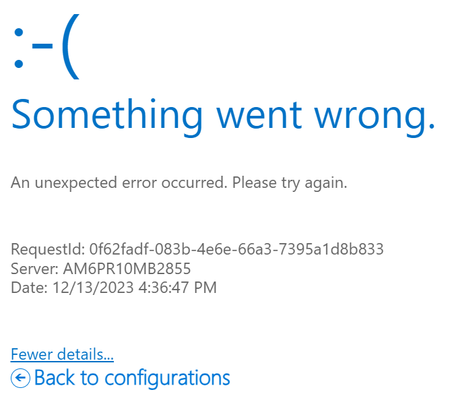
Creating new jira cloud connector Create URL Something went wrong
Hi, I'm trying to add a Jira cloud connector on my sharepoint site, but after entering a name I just get this message: Something went wrong. An unexpected error occurred. Please try again. RequestId: c3e8c01a-f3f5-2a9f-3fde-1007ad226b5c Server: AM6PR10MB2855 Date: 12/13/2023 4:49:33 PM Any help would be great1.3KViews0likes3Comments