hyperscale
48 Topics🔐 Public Preview: Backup Immutability for Azure SQL Database LTR Backups
The Ransomware Threat Landscape Ransomware attacks have become one of the most disruptive cybersecurity threats in recent years. These attacks typically follow a destructive pattern: Attackers gain unauthorized access to systems. They encrypt or delete critical data. They demand ransom in exchange for restoring access. Organizations without secure, tamper-proof backups are often left with no choice but to pay the ransom or suffer significant data loss. This is where immutable backups play a critical role in defense. 🛡️ What Is Backup Immutability? Backup immutability ensures that once a backup is created, it cannot be modified or deleted for a specified period. This guarantees: Protection against accidental or malicious deletion. Assurance that backups remain intact and trustworthy. Compliance with regulatory requirements for data retention and integrity. 🚀 Azure SQL Database LTR Backup Immutability (Public Preview) Microsoft has introduced backup immutability for Long-Term Retention (LTR) backups in Azure SQL Database, now available in public preview. This feature allows organizations to apply Write Once, Read Many (WORM) policies to LTR backups stored in Azure Blob Storage. Key Features: Time-based immutability: Locks backups for a defined duration (e.g., 30 days). Legal hold immutability: Retains backups indefinitely until a legal hold is explicitly removed. Tamper-proof storage: Backups cannot be deleted or altered, even by administrators. This ensures that LTR backups remain secure and recoverable, even in the event of a ransomware attack. 📜 Regulatory Requirements for Backup Immutability Many global regulations mandate immutable storage to ensure data integrity and auditability. Here are some key examples: Region Regulation Requirement USA SEC Rule 17a-4(f) Requires broker-dealers to store records in WORM-compliant systems. FINRA Mandates financial records be preserved in a non-rewriteable, non-erasable format. HIPAA Requires healthcare organizations to ensure the integrity and availability of electronic health records. EU GDPR Emphasizes data integrity and the ability to demonstrate compliance through audit trails. Global ISO 27001, PCI-DSS Require secure, tamper-proof data retention for audit and compliance purposes. Azure’s immutable storage capabilities help organizations meet these requirements by ensuring that backup data remains unchanged and verifiable. 🕒 Time-Based vs. Legal Hold Immutability ⏱️ Time-Based Immutability Locks data for a predefined period (e.g., 30 days). Ideal for routine compliance and operational recovery. Automatically expires after the retention period. 📌 Legal Hold Immutability Retains data indefinitely until the hold is explicitly removed. Used in legal investigations, audits, or regulatory inquiries. Overrides time-based policies to ensure data preservation. Both types can be applied to Azure SQL LTR backups, offering flexibility and compliance across different scenarios. 🧩 How Immutability Protects Against Ransomware Immutable backups are a critical component of a layered defense strategy: Tamper-proof: Even if attackers gain access, they cannot delete or encrypt immutable backups. Reliable recovery: Organizations can restore clean data from immutable backups without paying ransom. Compliance-ready: Meets regulatory requirements for data retention and integrity. By enabling immutability for Azure SQL LTR backups, organizations can significantly reduce the risk of data loss and ensure business continuity. ✅ Final Thoughts The public preview of backup immutability for Azure SQL Database LTR backups is a major step forward in ransomware resilience and regulatory compliance. With support for both time-based and legal hold immutability, Azure empowers organizations to: Protect critical data from tampering or deletion. Meet global compliance standards. Recover quickly and confidently from cyberattacks. Immutability is not just a feature—it’s a foundational pillar of modern data protection. Documentation is available at - Backup Immutability for Long-Term Retention Backups - Azure SQL Database | Microsoft Learn818Views4likes1Comment
Introducing the Azure SQL hub: A simpler, guided entry into Azure SQL
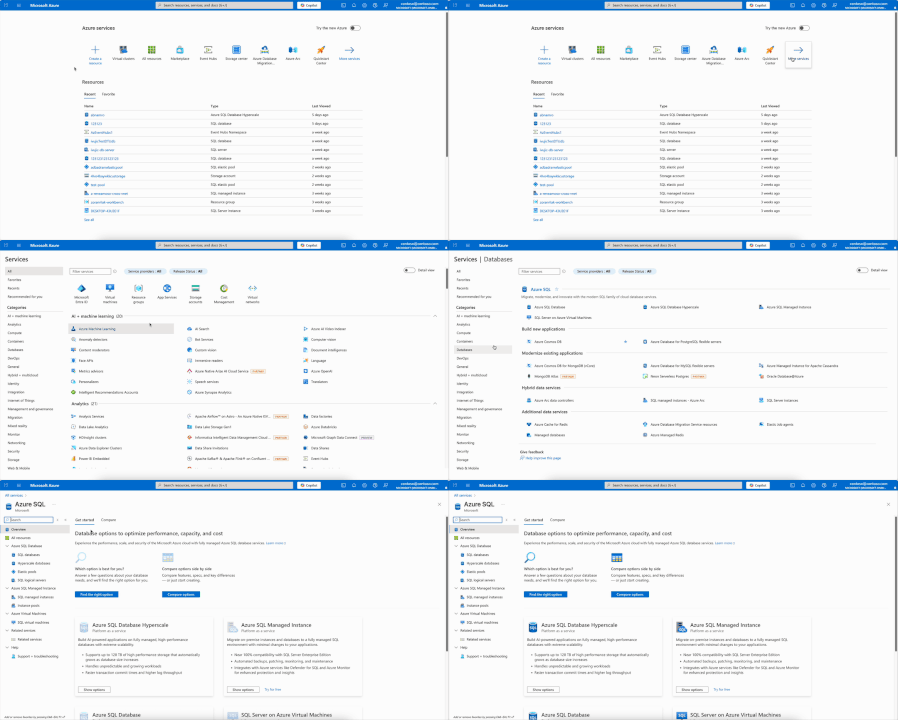
Choosing the right Azure SQL service can be challenging. To make this easier, we built the Azure SQL hub, a new home for everything related to Azure SQL in the Azure portal. Whether you’re new to Azure SQL or an experienced user, the hub helps you find the right service quickly and decide, without disrupting your existing workflows. For existing users: Your current workflows remain unchanged. The only visible update is a streamlined navigation pane where you access Azure SQL resources. For new users: Start from the Azure SQL hub home page. Get personalized recommendations by answering a few quick questions or chatting with Azure portal Copilot. Or compare services side by side and explore key resources, all without leaving the portal. This is one way to find it: Searching for "azure sql" in main search box or marketplace is also efficient way to get to Azure SQL hub Answer a few questions to get our recommendation and use Copilot to refine your requirements. Get a detailed side-by-side comparison without leaving the hub. Still deciding? Explore a selection of Azure SQL services for free. This option takes you straight to the resource creation page with a pre-applied free offer. Try the Azure SQL hub today in the Azure portal, and share your feedback in the comments!2.3KViews4likes1CommentPublic Preview - Data Virtualization for Azure SQL Database
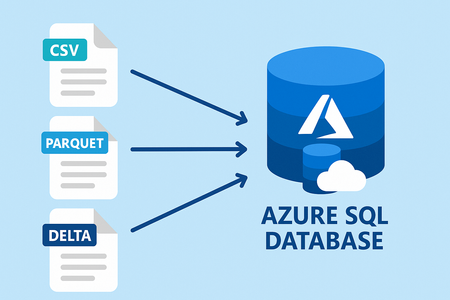
Data virtualization, now in public preview in Azure SQL Database, enables you to leverage all the power of Transact-SQL (T-SQL) and seamlessly query external data from Azure Data Lake Storage Gen2 or Azure Blob Storage, eliminating the need for data duplication, or ETL processes, allowing for faster analysis and insights. Integrate external data, such as CSV, Parquet, or Delta files, with your relational database while maintaining the original data format and avoiding unnecessary data movement. Present integrated data to applications and reports as a standard SQL object or through a normal SELECT command. Data Virtualization for Azure SQL Database supports SAS tokens, Managed Identity, and User identity for secure access. Data Virtualization for Azure SQL Database will introduce and expand support for: Database Scoped Credential. External Data Source. External File Format - with support for Parquet, CSV, and Delta. External Tables. OPENROWSET. Support metadata functions and JSON functions. For enhanced security and flexibility Data Virtualization for Azure SQL Database supports three authentication methods: Shared access signature. Managed identity (system assigned managed identity and user-assigned managed identity). User identity. Key Benefits Just like in SQL Server 2022 and Azure SQL Managed Instance the key benefits of Data Virtualization for Azure SQL Database are: Seamless Data Access: Query external CSV, Parquet, and Delta Lake tables using T-SQL as if they were native tables within Azure SQL Database. Allowing for off-loading cold data while keeping it easily accessible. Enhanced Productivity: Reduce the time and effort required to integrate and analyze data from multiple sources. Cost Efficiency: Minimize the need for data replication and storage costs associated with traditional data integration methods. Real-Time Insights: Enable real-time data querying and insights without delays caused by data movement or synchronization. Security: Leverage SQL Server security features for granular permissions, credential management, and control. Example Data Virtualization for Azure SQL Database is based on the same core principles as SQL Server’s PolyBase feature. With support for Azure Data Lake Gen 2, using prefix adls:// and Azure Blob Storage, using prefix abs://. For the following example we are going to use Azure Open Datasets, more specifically NYC yellow taxi trip records open data set which allows public access. For private data sources customers can leverage multiple authentication methods like SAS Tokens, Managed Identity and User Identity. -- Create Azure Blob Storage (ABS) data source CREATE EXTERNAL DATA SOURCE NYCTaxiExternalDataSource WITH ( LOCATION = 'abs://nyctlc@azureopendatastorage.blob.core.windows.net'); -- Using OPENROWSET to read Parquet files from the external data source SELECT TOP 10 * FROM OPENROWSET( BULK '/yellow/puYear=*/puMonth=*/*.parquet', DATA_SOURCE = 'NYCTaxiExternalDataSource', FORMAT = 'parquet' ) AS filerows; -- Or using External Tables CREATE EXTERNAL FILE FORMAT DemoFileFormat WITH (FORMAT_TYPE = PARQUET); --Create external table CREATE EXTERNAL TABLE tbl_TaxiRides ( vendorID VARCHAR(100) COLLATE Latin1_General_BIN2, tpepPickupDateTime DATETIME2, tpepDropoffDateTime DATETIME2, passengerCount INT, tripDistance FLOAT, puLocationId VARCHAR(8000), doLocationId VARCHAR(8000), startLon FLOAT, startLat FLOAT, endLon FLOAT, endLat FLOAT, rateCodeId SMALLINT, storeAndFwdFlag VARCHAR(8000), paymentType VARCHAR(8000), fareAmount FLOAT, extra FLOAT, mtaTax FLOAT, improvementSurcharge VARCHAR(8000), tipAmount FLOAT, tollsAmount FLOAT, totalAmount FLOAT ) WITH ( LOCATION = 'yellow/puYear=*/puMonth=*/*.parquet', DATA_SOURCE = NYCTaxiExternalDataSource, FILE_FORMAT = DemoFileFormat ); SELECT TOP 10 * FROM tbl_TaxiRides; You can also use these capabilities in combination with other metadata functions like sp_describe_first_result_set, filename(), and filepath(). Getting started Data Virtualization for Azure SQL Database is currently available in select regions, with broader availability coming soon across all Azure regions Data Virtualization for Azure SQL Database is based on the same core principles as SQL Server’s PolyBase feature. To know more and get started with Data Virtualization for Azure SQL Database.2.4KViews3likes1CommentImproving the conversion to Hyperscale with greater efficiency
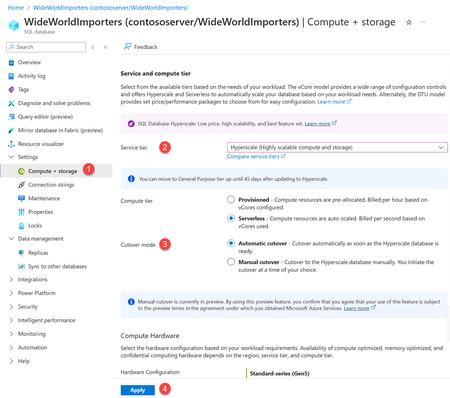
Update: On 09 April 2025 we announced the general availability this improvement. For more details, please read the GA announcement. We are thrilled to announce the latest improvement in the Azure SQL Database conversion process to Hyperscale. This update, now available in public preview, streamlines the database conversion process, reducing downtime and offering greater control and visibility to our customers. Let’s dive into the enhancements and what they mean for you. Overview We have heard feedback from customers about possible improvements we could make while converting their databases to Hyperscale. Customers complained about longer than expected downtime during conversion, no insights into the current state of conversion, and unpredictable cutover time. We acted on the feedback and made several key improvements in this release. 1. Shorter cutover time One of the most significant enhancements in this improvement is the reduction in cutover times when converting a database to Hyperscale. This improvement ensures that the cutover process is faster and more efficient, minimizing downtime and connectivity disruptions. Based on our telemetry, cutover time 99 th percentile has been reduced from ~6 minutes to less than ~1 minute. 2. Support for higher log generation rate During the migration, the new process supports a higher log generation rate on the source database, ensuring that the conversion can handle more write intensive workloads and complete successfully. In the previous version we saw that the database conversions were not able to finish when log generation on the source was more than 8 MiBps continuously, throughout the conversion process. With this improvement we can now support up to 50 MiBps log generation on source and still succeed. This was achieved by improving synchronizing mechanisms between source and destination while conversion is in progress. 3. Manual cutover A new option introduced with this improvement is manual cutover. This allows customers to initiate the conversion process and pause it when the database is ready to cutover to Hyperscale, giving them up to 72 hours to perform the cutover at a time that best suits their operational needs. If the manual cutover is not completed within the given timeframe, the process is automatically canceled, and the database remains on the original service tier, without any data loss. If the new parameter is not passed, then the cutover experience would be the same as earlier i.e. automatic cutover as soon as Hyperscale database is ready. 4. Granular progress reporting Another improvement in the conversion process is that now customers can monitor the entire conversion process at a granular level. Whether using T-SQL, REST API, PowerShell, Azure CLI or Azure portal, detailed progress information about conversion phases is available, providing greater transparency and control over the process. Customer feedback Throughout the private preview phase, we have received overwhelmingly positive feedback from several customers about this improvement. John Nafa, Cloud Architect, Asurgent says: The new database conversion experience from Microsoft has been incredibly seamless and efficient, making the conversion process to Azure SQL Database Hyperscale smooth and straightforward. The progress reporting and manual cutover features were especially valuable, providing real-time insights and ensuring a smooth transition. It’s been a pleasure working with this improvement, and I’m excited to see it become available to a wider audience. Get started Out of the four key improvements mentioned above, most are automatic. To utilize the manual cutover option, you need to use a new optional parameter in T-SQL, PowerShell, Azure CLI, or REST API while initiating the conversion process. Azure portal also provides a new option to select manual cutover. Granular progress reporting is available irrespective of the cutover mode. Use manual cutover Let us go through new options available in various interfaces with this improvement. Azure Portal To use manual cutover, a new Cutover mode option is provided in the Azure portal. The following screenshot shows the steps to convert a database to Hyperscale. The new option is shown under step 3. If you have not seen this option in the Azure portal yet, don’t worry. We are enabling this capability now and you can expect it to be available within days. Commands A new parameter has been introduced in each interface to initiate the conversion process with the manual cutover option. The following table provides sample commands to convert a database named WideWorldImporters on a logical server called contososerver to an 8-vcore serverless Hyperscale database. Method Command T-SQL ALTER DATABASE WideWorldImporters MODIFY (EDITION = 'Hyperscale', SERVICE_OBJECTIVE = 'HS_S_Gen5_8') WITH MANUAL_CUTOVER PowerShell Set-AzSqlDatabase -ResourceGroupName "ResourceGroup01" -ServerName "contososerver" -DatabaseName "WideWorldImporters" -Edition "Hyperscale" -requestedServiceObjectiveName "HS_S_Gen5_2" -ManualCutover Azure CLI az sql db update --resource-group ResourceGroup01 --server contososerver --name WideWorldImporters --edition Hyperscale --service-objective HS_S_Gen5_2 --manual-cutover Note: Additional parameters like backup storage redundancy or zone redundancy etc. can also be added. Refer documentation Set-AzSqlDatabase (Az.Sql) | Microsoft Learn (for PowerShell) and az sql db | Microsoft Learn (for Azure CLI). REST API also has new properties manualCutover and performCutover. Refer Databases - Create Or Update - REST API (Azure SQL Database) | Microsoft Learn for more details. Monitor the conversion progress The progress during this conversion can be monitored using various interfaces. Detailed phase information is available in the Dynamic Management View (DMV) sys.dm_operation_status for those using T-SQL. Similar command options are available for PowerShell and Azure CLI users. Azure Portal Progress of the conversion process can be seen by clicking on Details hyperlink as shown in the below screenshot at step 2. Monitoring programmatically As a part of this improvement, we have introduced new columns in the sys.dm_operation_status DMV called phase_code, phase_desc and phase_info which are populated during conversion process. Refer to documentation for more details. Similarly, new output columns, phase and phaseInformation, are available if using PowerShell under OperationPhaseDetails and if using Azure CLI under operationPhaseDetails. Here is the quick reference for commands via various interfaces. Method Command T-SQL SELECT state_desc, phase_code, phase_desc, JSON_VALUE(phase_info, '$.currentStep') AS currentStep, JSON_VALUE(phase_info, '$.totalSteps') AS totalSteps, phase_info, start_time, error_code, error_desc, last_modify_time FROM sys.dm_operation_status WHERE resource_type = 0 AND operation='ALTER DATABASE' AND major_resource_id = 'WideWorldImporters' PowerShell (Get-AzSqlDatabaseActivity -ResourceGroupName "ResourceGroup01" -ServerName "contososerver" -DatabaseName "WideWorldImporters").OperationPhaseDetails Azure CLI (az sql db op list --resource-group ResourceGroup01 --server contososerver --database WideWorldImporters | ConvertFrom-Json).operationPhaseDetails.phase Perform manual cutover The manual cutover, if specified, can be performed using the Azure portal or programmatically, ensuring a smooth transition to the Hyperscale tier. Azure Portal Cutover can be initiated from the same screen where progress of conversion is reported. Commands Here is the quick reference of the commands to perform cutover. Method Command T-SQL ALTER DATABASE WideWorldImporters PERFORM_CUTOVER PowerShell Set-AzSqlDatabase -ResourceGroupName "ResourceGroup01" -ServerName "contososerver" -DatabaseName "WideWorldImporters" -PerformCutover Azure CLI az sql db update --resource-group ResourceGroup01 --server contososerver --name WideWorldImporters --perform-cutover Conclusion This update marks a significant step forward in the Hyperscale conversion process, offering faster cutover time, enhanced control with a manual cutover option, and improved progress visibility. We encourage you to try these features and provide your valuable feedback and help us refine this feature for general availability. You can contact us by commenting on this blog post and we’ll be happy to get back to you. Alternatively, you can also email us at sqlhsfeedback AT microsoft DOT com. We are eager to hear from you all!3.2KViews3likes0CommentsShrink for Azure SQL Database Hyperscale is now generally available
Today we are thrilled to announce General Availability (GA) of the database shrink in Azure SQL Database Hyperscale. This milestone marks another significant improvement in our Hyperscale service, providing our customers with more flexibility and efficiency in managing their database storage. Overview Database shrink in Azure SQL Database allows customers to reclaim unused space within their databases to optimize storage costs. Now this is available in Hyperscale service tier too. This feature has been highly anticipated by many customers, and we are excited to deliver it with robust capabilities and seamless user experience. This improvement needs no new learnings as the same DBCC SHRINKDATABASE and DBCC SHRINKFILE commands are used. Database shrink was first announced for Hyperscale in public preview during last year. During the preview phase, we received invaluable feedback from our customers, which helped us refine and enhance this capability. We are grateful for the active participation and insights shared by the customers, which played a crucial role in shaping the feature. Key features Storage Optimization: Database shrink effectively reclaims unused space, reducing the allocated storage footprint of your database. Cost Efficiency: By optimizing storage usage, customers can potentially lower their storage costs. Ease of Use: The feature uses the same syntax as what is available in other service tiers and in SQL Server. So, customers are able to seamlessly use existing scripts, minimizing disruption during adoption. How to use To help you get started with the shrink functionality, we have provided comprehensive documentation including example scripts. Here are the basic steps to implement database shrink in your Hyperscale database: Connect to your Hyperscale database through your preferred management tool such as SQL Server Management Studio, Azure Data Studio etc. Evaluate the free space available in the database. Execute the shrink command using the provided T-SQL (DBCC SHRINKDATABASE and DBCC SHRINKFILE). Optionally, you can monitor the shrink process through DMV to ensure successful completion. Review the reclaimed space and rerun by adjusting the parameters, if necessary. Conclusion The release of database shrink in Hyperscale is a testament to our commitment to continuous improvement in Hyperscale service tier. The General Availability of database shrink in Azure SQL Database Hyperscale is a major milestone, and we are excited to see the positive impact it will have on your database management. You can contact us by adding to this blog post and we’ll be happy to get back to you. Alternatively, you can also email us at sqlhsfeedback AT microsoft DOT com. We are eager to hear from you all!5.8KViews3likes2CommentsDatabase Hub in Fabric: Now in Public Preview -Turn Database Signals into Guided Action
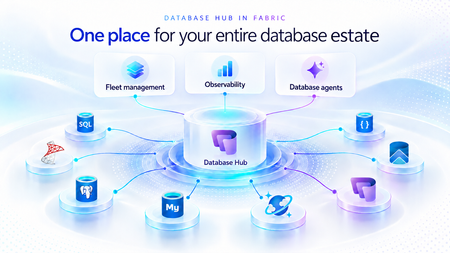
As applications grow, so does the database estate behind them. What starts with a handful of databases can become hundreds or thousands of resources spread across services, subscriptions, and environments. For the teams responsible for keeping them healthy, the challenge is no longer just collecting signals. It is knowing what needs attention, why it matters, and what to do next. Now in public preview, Database Hub in Microsoft Fabric brings inventory, health, performance, security, and optimization insights into one connected experience. It helps administrators and developers see the bigger picture, identify affected resources, and move from estate-wide visibility to focused investigation, without losing the context that brought them there. The preview brings together supported resources across Azure SQL Database, SQL Server enabled by Azure Arc, Azure Database for PostgreSQL, Azure Cosmos DB, and SQL database in Fabric. Available capabilities and signals vary by service and preview configuration. Database Hub Overview brings together estate-wide findings and cross-engine performance trends to help you prioritize what needs attention. Start with what needs your attention When you manage a large database estate, another dashboard is only useful if it helps you decide where to spend your time. The Overview page provides that starting point, bringing together findings across security, performance, and optimization. It distinguishes Issues, which require timely attention, from Suggestions, which highlight opportunities to improve your estate over time. You might begin with a security configuration that needs review or a performance signal that warrants investigation. Selecting a finding opens Estate with the relevant filters already applied, so you can see the affected resources rather than search for them again. The result is a more direct path from “something needs attention” to “these are the resources I should investigate.” Overview highlights issues across Security, Performance, and Optimization, with affected-resource counts and direct links to investigate further. Bring your estate into one view, and make it relevant to you The Estate experience brings supported resources into a unified inventory, scoped to your existing permissions. Search and filters help you narrow that inventory to the service, subscription, or resource group you manage. This is especially useful when your responsibilities span database engines. You can begin with a broader view, then focus on Azure SQL databases, Arc-enabled SQL Server resources, or Azure Database for PostgreSQL flexible servers without rebuilding the resource list in separate portals. Each resource brings its associated Issues and Suggestions into context. Open a finding to review the affected resource, supporting information, and recommended next step. The inventory also respects the resource model of each service. For example, the PostgreSQL view represents flexible server instances, rather than every database hosted within them. A unified view does not mean moving your databases. Your Azure resources remain in their existing subscriptions, and on-premises SQL Server instances remain on-premises, connected through Azure Arc. Database Hub brings operational context together; it does not require relocating or mirroring your application data into Fabric. Estate brings resource inventory, Issues, and Suggestions into one view, with quick actions to continue investigation in the Azure portal, VS Code, or SSMS. Understand security posture and performance in context Database Hub helps you identify configurations worth reviewing and resources that need a closer look. For security, supported signals can include Microsoft Entra authentication, customer-managed keys, and auditing coverage, depending on the database service. These findings provide a starting point for investigation, not a blanket judgment that every flagged resource is insecure or noncompliant. For example, a suggestion to review customer-managed keys should be evaluated against your organization’s requirements. A resource using service-managed keys is still encrypted at rest. For performance, built-in dashboards bring supported utilization and activity signals into view, including CPU, memory, storage, I/O, and connections. Review trends across your estate, then narrow the scope and time range to investigate individual resources. Metric availability varies by engine and monitoring configuration; missing data should not be interpreted as good health. For supported SQL monitoring scenarios, you can also create a custom monitoring dashboard from a template and tailor its charts and layout to the resources your team follows regularly. Together, these experiences help answer two practical questions: Where is pressure building, and where is there an opportunity to improve? Performance summaries highlight recent capacity signals and trends across Microsoft SQL, PostgreSQL, and Cosmos DB. The Security dashboard summarizes Microsoft Entra authentication, audit logging, and customer-managed key coverage, helping you identify configurations that warrant review across your estate. The Performance monitoring dashboard combines memory-pressure trends, resource-level details, and interpretation guidance to help focus your investigation. Move from a finding to an informed next step Estate-wide visibility is the beginning of an investigation, not a replacement for database expertise. When a finding needs deeper analysis, Database Hub helps you review the evidence and continue in the appropriate native experience, such as the Azure portal or SQL Server Management Studio (SSMS). Engine-specific diagnostics and configuration changes remain in the tools designed for that work. Consider a performance issue that occurred before an administrator could inspect it. In supported agent-assisted scenarios, captured incident evidence can help establish what happened, when it happened, and which queries or sessions were involved. That context gives the administrator a more informed starting point for investigation. The operator remains in control: review the evidence, evaluate the recommendation, and apply authorized changes through the appropriate service tools. The preview investigation workflow does not automatically remediate issues, and existing permissions and approval requirements continue to apply. Bring database expertise into agent-assisted workflows We are also making database operational intelligence available through agent skills: reusable capabilities that agents can call to support observability, monitoring, diagnostics, optimization, and other database operations. Database Hub provides estate context; skills provide a way to bring database expertise into an agent-assisted investigation. This creates a foundation for helping teams move from identifying an affected resource to understanding its signals and evaluating the next step. We’re building toward making this expertise available in the AI companions and development tools teams already use, with recommendations grounded in evidence, the specific database, and your organization’s operational controls. If we take a step back, our broader vision brings together a free, extensible Database Hub experience, agentic observability, and OneLake integration, all within Microsoft Fabric. It’s a foundation for connecting database operations with analytics and AI and helping teams turn signals into informed action. Get started with Database Hub Start with the Database Hub documentation to review preview availability, supported services, and setup requirements. Ask your Fabric administrator to enable the preview where required, confirm that you have the appropriate resource permissions, and complete any service-specific monitoring prerequisites. Then open Microsoft Fabric, select Databases in the left navigation, and begin with Overview. Choose a finding, explore the affected resources in Estate, and follow the evidence into your next investigation. For more details on supported services and getting set up, the Database Hub documentation is also available on Microsoft Learn.214Views2likes1CommentAnnouncing Preview of 160 and 192vCore Premium-series Options for Azure SQL Database Hyperscale
We are excited to announce the public preview of 160 and 192vCore compute sizes for Premium-series hardware configuration in Azure SQL Database Hyperscale. Since the introduction of Premium-series hardware configurations for Hyperscale in November 2022, many customers have successfully used larger vCore configurations to consolidate workloads, reduce shard counts, and improve overall application performance and stability. This preview builds on the Premium-series configuration introduced previously for Hyperscale, extending the maximum scale of a single database and elastic pools from 128vCores to 192vCores to support higher concurrency, faster CPU performance, and larger memory footprints, for more demanding mission critical workloads. With this preview, customers running largescale OLTP, HTAP, and analytics-heavy workloads can evaluate even higher compute ceilings without rearchitecting their applications. Premium-Series Hyperscale Hardware Overview Premium-series Hyperscale databases run on latest-generation Intel and AMD processors , delivering higher per core performance and improved scalability compared to standard-series (Gen5) hardware. With this public preview release, Premium-series Hyperscale now supports larger vCore configurations, extending the scaleup limits for customers who need more compute and memory in a single database. Getting started Customers can enable the 160 or 192vCore Premium-series options when creating a database, or when scaling up existing Hyperscale databases in supported regions (where preview capacity is available). As with other Hyperscale scale operations, moving to a larger vCore size does not require application changes and uses Hyperscale’s distributed storage and compute architecture. Resource Limits & Key characteristics Link to Azure SQL documentation on resource limits Single Database Resource Limits Cores Memory (GB) Tempdb max data size (GB) Max Local SSD IOPS Max Log Rate (MiB/s) Max concurrent workers Max concurrent external connections per pool Max concurrent sessions 128 (Current Limit) 625 4,096 544,000 150 12,800 150 30,000 160 (New preview limit) 830 4,096 680,000 150 16,000 150 30,000 192 (New preview limit) 843* 4,096 816,000 150 19,200 150 30,000 *Memory values will increase for 192 vCores at GA. Elastic Pool Resource Limits Cores Memory (GB) Tempdb max data size (GB) Max Local SSD IOPS Max Log Rate (MiB/s) Max concurrent workers per pool Max concurrent external connections per pool Max concurrent sessions 128 (Current Limit) 625 4,096 409,600 150 13,440 150 30,000 160 (New preview limit) 830 4,096 800,000 150 16,800 150 30,000 192 (New preview limit) 843* 4,096 960,000 150 20,160 150 30,000 *Memory values will increase for 192 vCores at GA. Premium-series Hyperscale can now scale up to 160 vCores & 192 vCores in public preview regions. High performance CPUs optimized for compute-intensive workloads. Increased memory capacity proportional to vCore scale Up to 128 TiB of data storage, consistent with Hyperscale architecture Full compatibility with existing Hyperscale features and capabilities Performance Improvements with 160 and 192 vcores Strong scale-up efficiency observed beyond 128 vCores: Moving from 128 → 160 → 192 vCores shows consistent performance gains, demonstrating that Hyperscale Premium-series continues to scale effectively at higher core counts. 160 vCores delivers a strong balance of single-query and concurrent performance. 192 vCores is ideal for customers prioritizing maximum throughput, high user concurrency, and large-scale transactional or analytical workloads TPC-H Power Run (measures single-stream query performance) improves from 217 (128 vCores) to 357 (160 vCores) and remains high at 355 (192 vCores), delivering a +64% increase from 128 → 192 vCores, indicating strong single-query execution and CPU efficiency at larger sizes. TPC-H Throughput Run (measures multi-stream concurrency) increases from 191 → 360 → 511 QPH, resulting in a +168% gain from 128 → 192 vCores, highlighting significant benefits for highly concurrent, multi-user workloads. Performance case study (Zava Lending example) If the player doesn’t load, open the video in a new window: Open video Zava Lending scaled Azure SQL Hyperscale online as demand increased—supporting more users and higher transaction volume with no downtime. Throughput scaled linearly as compute increased, moving cleanly from 32 → 64 → 128 → 192 vCores to match real workload growth. 192 vCores proved to be the optimal operating point, sustaining peak transaction load without over‑provisioning. Azure SQL Hyperscale handled mixed OLTP and analytics workloads, including nightly ETL, without becoming a bottleneck. Every scale operation was performed online, with no service interruption and no application changes. Preview scope and limitations During preview, Premium-series 160 and 192 vCores are supported in a limited set of initial regions (Australia East, Canada Central, East US 2, South Central US, UK South, West Europe, North Europe, Southeast Asia, West US 2), with broader availability planned over time. During preview: Zone redundancy and Azure SQL Database maintenance window are not supported for these sizes Preview features are subject to supplemental preview terms, and performance characteristics may continue to improve through GA Customers are encouraged to use this preview to validate scalability, concurrency, memory utilization, query parallelism, and readiness for larger single database deployments. Next Steps This public preview is part of our broader investment in scaling Azure SQL Hyperscale for the most demanding workloads. Feedback from preview will help inform GA configuration limits, regional rollout priorities, and performance optimizations at extreme scale.935Views2likes0CommentsConvert geo-replicated databases to Hyperscale
Update: On 22 October 2025 we announced the General Availability for this improvement. We’re excited to introduce the next improvement in Hyperscale conversion: a new feature that allows customers to convert Azure SQL databases to Hyperscale by keeping active geo-replication or failover group configurations intact. This builds on our earlier improvements and directly addresses one of the most requested capabilities from customers. With this improvement, customers can now modernize your database architecture with Hyperscale while maintaining business continuity. Overview We have heard feedback from customers about possible improvements we could make while converting their databases to Hyperscale. Customers complained about the complex steps they needed to perform to convert a database to Hyperscale when the database is geo-replicated by active geo-replication or failover groups. Previously, converting to Hyperscale required tearing down geo-replication links and recreating them after the conversion. Now, that’s no longer necessary. This improvement allows customers to preserve their cross-region disaster recovery or read scale-out configurations and still allows conversion to Hyperscale which helps in minimizing downtime and operational complexity. This feature is especially valuable for applications that rely on failover group endpoints for connectivity. Before this improvement, if application needs to be available during conversion, then connection string needed modifications as a part of conversion because the failover group and its endpoints had to be removed. With this new improvement, the conversion process is optimized for minimal disruption, with telemetry showing majority of cutover times under one minute. Even with a geo-replication configuration in place, you can still choose between automatic and manual cutover modes, offering flexibility in scheduling the transition. Progress tracking is now more granular, giving customers better visibility into each stage of the conversion, including the conversion of the geo-secondary to Hyperscale. Customer feedback Throughout the preview phase, we have received overwhelmingly positive feedback from several customers about this improvement. Viktoriia Kuznetcova, Senior Automation Test Engineer from Nintex says: We needed a low-downtime way to move our databases from the Premium tier to Azure SQL Database Hyperscale, and this new feature delivered perfectly; allowing us to complete the migration in our test environments safely and smoothly, even while the service remained under continuous load, without any issues and without needing to break the failover group. We're looking forward to the public release so we can use it in production, where Hyperscale’s ability to scale storage both up and down will help us manage peak loads without overpaying for unused capacity. Get started The good news is that there are no changes needed to the conversion process. The workflow automatically detects that a geo-secondary is present and converts it to Hyperscale. There are no new parameters, and the method remains the same as the existing conversion process which works for non-geo-replicated databases. All you need is to make sure that: You have only one geo-secondary replica because Hyperscale doesn't support more than one geo-secondary replica. If a chained geo-replication configuration exists, it must be removed before starting the conversion to Hyperscale. Creating a geo-replica of a geo-replica (also known as "geo-replica chaining") isn't supported in Hyperscale. Once the above requirements are satisfied, you can use any of the following methods to initiate the conversion process. Conversion to Hyperscale must be initiated starting from the primary geo-replica. The following table provides sample commands to convert a database named WideWorldImporters on a logical server called contososerver to an 8-vcore Hyperscale database with manual cutover option. Method Command T-SQL ALTER DATABASE WideWorldImporters MODIFY (EDITION = 'Hyperscale', SERVICE_OBJECTIVE = 'HS_Gen5_8') WITH MANUAL_CUTOVER; PowerShell Set-AzSqlDatabase -ResourceGroupName "ResourceGroup01" -ServerName "contososerver" -DatabaseName "WideWorldImporters" -Edition "Hyperscale" -RequestedServiceObjectiveName "HS_Gen5_8" -ManualCutover Azure CLI az sql db update --resource-group ResourceGroup01 --server contososerver --name WideWorldImporters --edition Hyperscale --service-objective HS_Gen5_8 --manual-cutover Here are some notable details of this improvement: The geo-secondary database is automatically converted to Hyperscale with the same service level objective as the primary. All database configurations such as maintenance window, zone-resiliency, backup redundancy etc. remain the same as earlier (i.e., both geo-primary and geo-secondary would inherit from their own earlier configuration). A planned failover isn't possible while the conversion to Hyperscale is in progress. A forced failover is possible. However, depending on the state of the conversion when the forced failover occurs, the new geo-primary after failover might use either the Hyperscale service tier, or its original service tier. If the geo-secondary database is in an elastic pool before conversion, it is taken out of the pool and might need to be added back to a Hyperscale elastic pool separately after the conversion. This feature has been fully deployed across all Azure regions. In case you see error (Update to service objective '<SLO name>' with source DB geo-replicated is not supported for entity '<Database Name>') while converting primary to Hyperscale, we would like to hear from you. Do send us an email to the email ID give in next section. If you don’t want to use this capability, make sure to remove any geo-replication configuration before converting your databases to Hyperscale. Conclusion This update marks a significant step forward in the Hyperscale conversion process, offering simple steps, less downtime and keeping the geo-secondary available during the conversion process. We encourage you to try this capability and provide your valuable feedback and help us refine this feature. You can contact us by commenting on this blog post and we’ll be happy to get back to you. Alternatively, you can also email us at sqlhsfeedback AT microsoft DOT com. We are eager to hear from you all!2.4KViews2likes0Comments