formatting
43 Topics
Formatting wont transfer from Excel to Outlook
The last 2 or 3 days every time I copy and paste from Excel into Outlook it drops all of the formatting. I've adjusted my settings to keep formatting, tried manually telling it to keep the formatting. It simply wont. I've googled and searched the Microsoft website to no avail.260Views0likes2CommentsBug fixes in Microsoft Access - Current Channel Version 2605 (Build 16.0.20026.20118)
Bug Name Issue Fixed Edge Browser Control didn't render PDFs on some machines When the Edge Browser Control was used to display a PDF, on some machines the PDF would not render at all if the registry value "HKEY_CLASSES_ROOT\.pdf\Content Type" was missing. Access now provides the missing content type, so the Edge Browser Control can render the PDF. Export to SharePoint failed for tables with both lookup fields and attachment columns When exporting an Access table to a SharePoint list, if the table contained both a lookup field and an attachment column, the export could fail with an error. The export now handles this combination correctly, so the export completes successfully. Conditional Formatting color picker showed a reduced palette in Version 2604 A regression introduced in Version 2604 caused the Conditional Formatting color picker to display a smaller set of color choices than previous versions. The full legacy color palette has been restored. Some Unicode characters displayed incorrectly in objects exported to Excel When exporting an Access object whose name contained certain extended Unicode characters, the resulting file's sheet name displayed the characters incorrectly. These characters are now preserved correctly during export. Power BI Gateway couldn't refresh semantic models from .accdb files Refreshing a Power BI semantic model that connected to a .accdb file via the on-premises gateway could fail with "Unspecified error". Connection setup has been adjusted so the gateway can successfully refresh the model. Monaco SQL view: Ctrl+Z didn't undo Ctrl+Shift+K line deletion In the new Monaco-based SQL editor, pressing Ctrl+Shift+K to delete the current line removed the line, but a subsequent Ctrl+Z would not restore it. Undo now works correctly for this and similar editing operations. Document tab text didn't scale with Windows text-size setting When the Windows display setting for text size was increased, document tab labels and the record navigation bar continued to render at the standard size, while other Access UI scaled correctly. The document tabs and record navigation bar now honor the system text-size setting. Error when editing a Long Text field after a write conflict When a write conflict occurred on a record containing a Long Text field, subsequent attempts to edit the field could fail with an error. The data path now refreshes the cached field values correctly after a conflict so that further edits succeed. Access terminated unexpectedly when reading Edge Browser Control properties in form design view In form design view, retrieving the ReadyState or LocationUrl property on an Edge Browser Control could cause Access to terminate unexpectedly. Both properties now return safely in design view. "Copy" prefix was prepended instead of appended to copied object names When duplicating a database object, Access named the copy "Copy of Form1" instead of "Form1 - Copy". This made copies of related objects sort apart from their originals in the Navigation Pane. Copy-of names now append the suffix, so related objects stay together when sorted alphabetically.1.1KViews3likes8CommentsWindows was unable to complete the format? Help!
Hey guys. I’m trying to reformat my USB drive to make it a bootable disk, but I keep getting errors. (SanDisk Ultra Dual Drive Go USB) In File Explorer, it shows “Windows was unable to complete the format”. I tried diskpart with clean, create partition primary, and format, but it just says “Format failed”. Does anyone have suggestions on what might be wrong or how I can forcefully reformat it? TYSM!428Views0likes1Comment
Creating a dynamic line in a row
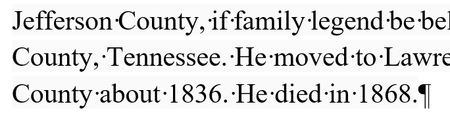
Hi I'm trying to figure out a way to make a line that covers the entire row and sits in the middle, until a text is typed, then it starts to get shorter until it should eventually disappear as the text fills the whole row. I've tested lot's of options but none of them provided a desired solution, such as inserting a text box which just get's pushed onto the next row, etc... Unless there is a setting directly in word that would allow this, it might have to be a job for VBA, which I've never tried before. if anybody knows how to achieve this I'd be most grateful. Visual representation of the desired effect in the picture bellow done with line shapes and manual adjustment.247Views0likes1Comment
Remove space after Chapter number in ToC and Navigation Headings
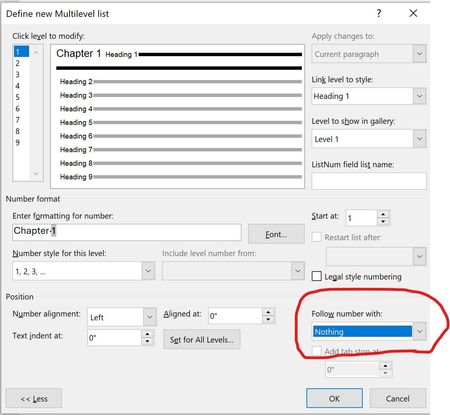
I define a "Multilevel list" for automatic chapter numbering that does not follow the number with a space, like this: That setting does apply to Heading 1 text, but it is not incorporated into the Table of Contents or Navigation Headings: As shown in the following screenshot (yellow highlighting), both of those still insert a space after the Chapter number: How can I get at least the ToC to not insert a space after the Chapter number? Ideally how can I get the Navigation pane to respect the setting also?1.2KViews0likes4Comments
How to clear persistent "Normal" style, after exporting from Google Docs
All right, this is really bugging me. I started a document in Google Docs and worked on it for several weeks. Finally needing some more advanced formatting options, I exported it to a Microsoft Word .docx file and opened it in the desktop app Microsoft Word 365 for Enterprise (Version 2403, Build 17425.20176 Click-to-Run, for Windows). From the moment I first did the import, I noticed there was something "off". The text had a background color: It's barely noticeable, but it's enough to really niggle my OCD. Especially when I discovered I couldn't remove it. It seems to be "burned into" the "Normal" style. The background color is set as a "Pattern: Clear (Custom Color(RGB(250, 250, 250)))." Okay, well I know how to unset that. But in the border/shading settings for the "Normal" style, it already seems to be unset: So I tried setting a different shading pattern, hoping that would overwrite the offending setting and then I'd be able to remove it, but no. Now there are two shading patterns set on top of each other, and I can't get to the underlying one to unset it: Really vexed now, I decided to try to hack the file. In word/styles.xml inside the .docx, I found this: I deleted the whole <w:shd> element from the XML and saved the file. Then I zipped it back up and renamed it back to .docx. But when I opened the file, it was back to its old shenanigans. I saved the file again as a different filename and hacked into the file again. The <w:shd> element had re-set itself. And sure enough, there are now two <w:shd> elements in the "Normal" style. Where is this coming from? How do I get rid of it? Is there some other, Platonic ideal, "super-Normal" style that the "Normal" style depends on? I checked the Normal.dotm template and it wasn't set there. I already tried starting a new document and copying everything from the old one to the new one, using destination styles, but somehow this transferred with the text. I suppose next I'll have to do it again, copying only text, or passing it through a plain text editor. But then I'll lose 20 pages worth of formatting, ugh.764Views0likes1Comment
TOC formatting as hyperlinks
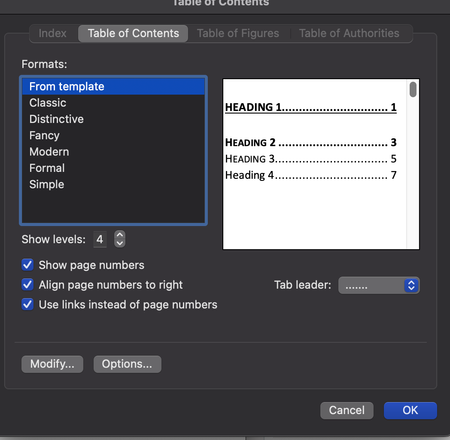
Hi, I am using version 16.78 of Word on Macbook Pro. I have a document where I have a TOC which is customised, it worked fine up until now. The formatting doesn't match the style anymore, and just shows up as regular text, but as a hyperlink (blue and underlined). Clicking on it does send me to the correct heading, but it doesn't match the format style. I have removed, updated and reset the TOC, i've tried remaking the headings, I have deinstalled Word and reinstalled it again, nothing works. On Onedrive live online it does work normally, but not on my native app, even after reinstalling. My documents are saved one Onedrive, but it happens when I save Word documents that I stored locally. Does anyone know what to do to solve this?1.1KViews0likes2CommentsClickable Button on Gallery View Document Library
Hello, I have a document library where social media assets are stored. I would like to create a gallery view of the document library that displays a "Download" button, so when the user selects, the file is automatically downloaded to their device. I have figured out how to add the Download button, which works perfectly in the List view. When you switch to gallery view, the button does not display, but I was able to get the button to show up by adding "columnFormatterReference": "[$Download]" to the Format view JSON. However, when the user clicks on the Download button from the gallery view, the file opens. I removed the following JSON code, so the file does not open in a new tab: "customRowAction": { "action": "defaultClick" Now I just need to figure out how to make the "Download" button clickable. Any help would be greatly appreciated. I'm brand-new to JSON and coding in general.Solved5.3KViews0likes9Comments
Formatting column to hide button based on created by or author
Hi I'm trying to format a column so that a Submit button that triggers a flow is to be only visible for the person who created the item. Columns real names are Submit and Author Submit is Single line of text column. Author is a Person or Group column. I know I have to added a visibility line to the formatting but I'm not sure what to put. I tried "visibility": "=if(((indexOf([$Author],'[Me]')) == 0),'hidden', 'visible')" but it didn't work. Any help is appreciated!1.5KViews0likes2Comments
Table Of Contents Formatting Not Matching Heading Style Formatting
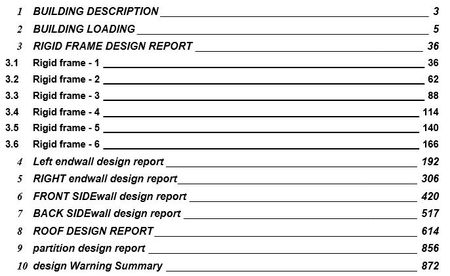
In my word document (Microsoft Office Professional 2019 / .docx) all of the headings are setup using the Heading 1 style which is set for font= Arial, Size= 12, and BOLD is turned on. My table of contents is setup to use the Heading 1 style as shown: {TOC \h \z \t "Heading 1,1,Heading 2,2,Heading 3,3" } The table of contents works to capture all of the correct pages, however, where all of the headings in the document are done in all caps, the entries in the table of contents vary from all caps, all caps for the first word or two, to all lowercase as shown below. I've tried to update the Heading 1 style and then doing the "Update Field / Update Entire Table", but the text in the TOC stays the same.Solved13KViews1like2Comments