exchange
24 Topics15 productivity features in the new Outlook for Windows
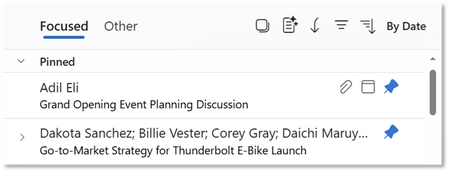
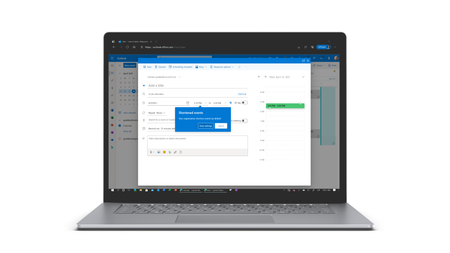
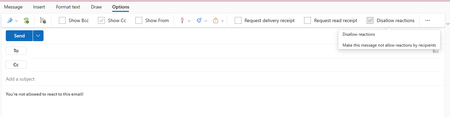
Hello, Outlook community. I’m Vicki Milton, a Principal Product Manager on the Outlook team. Over the last year, we’ve added important capabilities across areas such as offline support, shared mailboxes, and PST files. Alongside those milestones, we've continued to deliver smaller improvements that help people work more efficiently throughout the day. This article highlights 15 productivity features in the new Outlook for Windows that can help you stay organized, reduce routine effort, and keep important work moving. Mail features Email remains central to how many people manage communications, priorities, and follow-up. Outlook includes familiar tools for composing and organizing messages, along with newer capabilities that can help reduce friction and make inbox management more efficient. Pin a mail: Keep important messages easy to find. The Pin feature keeps a selected email at the top of your inbox so it remains visible as new messages arrive. This can be useful for items you need to reference often or do not want to lose track of, such as travel details, approvals, or active requests. By keeping priority messages in view, Pin can reduce time spent searching and help you stay focused on current work. Snooze a mail: Return messages when they are relevant again. Snooze lets you temporarily remove an email from your inbox and have it reappear at a time you choose. This can help keep your inbox focused on messages you can act on now while ensuring follow-up items come back when they are timely. It is particularly useful for requests that depend on additional information, scheduled tasks, or work you plan to handle during dedicated focus time. Add multiple categories at the same time: Organize messages with fewer steps. If you use categories to manage incoming mail, Outlook makes it possible to apply more than one category in a single action. This can help when you need to capture multiple types of context, such as project, priority, or follow-up status, without reopening menus repeatedly. It is especially useful when processing a large number of messages. Sweep: Reduce repetitive inbox cleanup. Sweep lets you create automatic actions for messages from a specific sender. For example, you can delete promotional mail after a set period, keep only the latest message in a thread, or move recurring updates to a folder. This can help reduce manual cleanup and keep your inbox more focused on items that need attention. Schedule Send: Write on your schedule and deliver at the right time. Schedule Send lets you prepare messages when it is convenient for you and send them later at a time that works better for the recipient. This can improve visibility, support more intentional communication, and reduce the need to rely on reminders or leave messages in Drafts. Simplified folder sharing: Share folders more simply. Sharing a mail folder has traditionally required extra permission steps, especially for nested folders. Now, when you share a folder, Outlook can automatically apply the visibility permissions needed for its parent folders. This can reduce setup effort, help avoid access issues for recipients, and make folder sharing easier to complete with confidence. Calendar and meeting features For many people, the workday is shaped by meetings, schedule changes, and the need to stay aligned on what comes next. Outlook includes calendar and meeting capabilities that can help simplify planning, reduce coordination overhead, and make follow-up easier. Follow a meeting: Stay informed without attending live. The Follow RSVP option lets you indicate that you will not attend a meeting but still want access to the recap. This can be helpful when schedules overlap or when a meeting is useful to monitor without joining in real time. It can help you stay connected to outcomes and shared materials while keeping your calendar more manageable. Save calendar views: Return to the calendar setup you need more quickly. Saved Views let you store specific calendar combinations and switch back to them without rebuilding the same view each time. This can save time for people who move frequently between personal, team, and project schedules. It also can make it easier to review the right set of calendars for different planning tasks. Improved meeting tracking: Work with meeting responses more efficiently. Outlook includes tools that make it easier for organizers to review and manage meeting responses. You can sort attendee lists, search for names in the Tracking view, and copy or download response details when needed. These capabilities can be especially useful for larger meetings where attendance information needs to be reviewed quickly. Meeting recap: Find follow-up materials in one place. After a Teams meeting, the calendar event in Outlook can surface a Meeting recap with links to the recording, transcript, and shared files. This can make it easier to review what was discussed, confirm details, or catch up afterward. By keeping these materials together, Meeting recap can reduce the time it takes to get oriented after a meeting. Filtered views: Reduce visual clutter in your calendar. Filters let you hide meetings you are not attending and limit the distraction of declined or informational events. This can make it easier to scan your schedule, identify conflicts, and focus on the meetings that need your attention. For people with full calendars, it can help make planning more straightforward. Change a recurring event: Update future meetings while preserving earlier ones. When plans change, Outlook lets you edit the current event and all following events in a recurring series. This can make it easier to adjust details such as time, location, or agenda going forward without changing the record of past meetings. It can simplify updates for organizers and reduce disruption for attendees. Personalization and settings Settings can play a practical role in day-to-day productivity. A few adjustments can make it easier to focus, move between accounts and calendars, and work in a way that fits your preferences. Here are several settings-related features that can help make Outlook feel more streamlined and manageable. Rename your email accounts: Make the right inbox easier to recognize. If you use multiple accounts in Outlook, you can assign each one a custom name. This can help you tell accounts apart more quickly, reduce the chance of sending from the wrong inbox, and make navigation simpler as you move between accounts during the day. Modern themes: Choose a look that supports comfort and clarity. Outlook includes theme and color options that let you tailor the experience to your preferences. Visual settings can influence readability and comfort, especially for people who spend much of the day in email and calendar. Options such as Dark Mode and color customization can help make the interface feel easier to use over time. Keyboard shortcuts: Keep familiar ways of working. In Outlook, you can choose the shortcut style you prefer in Settings. This can help you maintain existing habits, reduce adjustment time, and complete common tasks with fewer steps. For people moving from classic Outlook or Outlook on the web, shortcut flexibility can make the transition more consistent. These features reflect a broader effort to help people work more efficiently in the new Outlook for Windows. Whether you are managing a high volume of email, coordinating a full calendar, or tailoring the experience to match your workflow, these updates are designed to reduce effort and improve day-to-day productivity. For more information and step-by-step guidance, see the Microsoft Support articles and the Learning Path.7.8KViews2likes8CommentsWhat’s new and coming to Microsoft Outlook – Ignite 2024
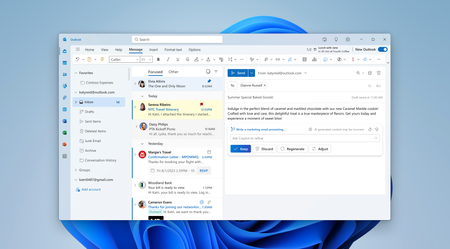
Since its launch, Copilot in Outlook has helped you manage and triage your email, providing drafting assistance, summaries, and insights to help you save time. Whether you need help drafting the appropriate email response, schedule meetings in a few clicks, find key information in an email thread, or make sure your message has the right tone and clarity, Copilot can help you achieve your goals. During Ignite, we added to our efforts to help you manage your inbox, and showed you how you can manage your meetings easier using Copilot, and also dived into the latest updates to the new Outlook for Windows and what to expect in the coming year. Let’s take a look at the capabilities we announced this week! Manage meetings easier with Copilot in Outlook We spend a lot of time in meetings during our work hours, sometimes as high as 60% of our time can be spent between meetings, emails, and chats. Even scheduling a meeting can take up to 15 mins, but Copilot can make this a little easier. Copilot now helps you schedule 1:1s and focus time, just ask Copilot to find some time with someone in your org and it will find the optimal time. Because Copilot is grounded on your organization’s data, it knows who your close collaborators are so you can ask Copilot something like “Schedule a meeting with my manager for next week” or “Schedule a meeting with Caitlin for next week” and Copilot will know to whom you are referring. Do you need time to finish a project? No problem – Ask Copilot to find reserve focus time for next week, “Find 3 hours of focus time next week before Wednesday”, and done! Now you can focus on your project. Schedule one-on-one meetings using Copilot in Outlook Meetings can make it easier to make decisions, iron details, or discuss ideas but sometimes it’s hard to keep them on track and focused. Making sure your meeting has an agenda can help you stay on track and make sure you are tackling the important points – Copilot can draft an agenda for you based on your input, just open the meeting invite, select “Draft with Copilot”, and provide some input like “Review the Contoso project, introduce a new team member, and discuss sales plan”. Copilot creates an agenda which you can easily edit. Once you are ready, just remember to send the invite. Use Copilot in Outlook to draft an agenda for your meeting Sometimes, you need to schedule a meeting with more than one person, but have you had to schedule a meeting to bring a long email to a conclusion? Reading and summarizing long email threads is time consuming and finding time between multiple people can be challenging, unless you have Copilot. Without leaving the conversation, Copilot can help you schedule a meeting to bring that long email thread to closure – Just select the “Schedule with Copilot” button and Copilot will get you ready for that meeting, it will i) Summarize the entire thread, ii) Create an agenda, and iii) find a time that works. Quick and easy, schedule a meeting in just a few clicks. Get help from Copilot to schedule a meeting based on an email conversation A new way to draft emails We all need some help sometimes writing an email, whether you are having writer’s block to start or you want to rewrite some parts of it – The new drafting with Copilot experience can help. We’ve updated the drafting experience to make it native to the compose window in Outlook, added suggested prompts so you can kick off your draft without even typing, and allow you to rewrite parts of your message with Copilot. Is it hard to choose which draft iteration is the best one? No worries, we’ve added the ability for you to review and choose between all the suggested drafts. So, whether you need a little help to get started or a lot of help to make sure you have the best message, Copilot has you covered. New Outlook for Windows showing the new drafting with Copilot experience What is new and coming to the new Outlook for Windows The new Outlook for Windows is a reimagined experience designed to be more agile and innovative. With faster feature deployment and availability, it brings the latest Microsoft 365 Copilot capabilities and delivers a consistent experience across Windows. As we continue to work on your feedback to bring you the best experience for the new Outlook for Windows, there are some updates we want to share. Where we are We reached General Availability for commercial customers this year and are still in opt-in phase with optional policies for organizations that want to move their users into new Outlook. To see all our adoption content please visit https://aka.ms/newOutlookAdoption and continue sending us your feedback at https://aka.ms/newOutlookFeedback to help us prioritize our work. What to expect Over the past few years, we have been in an opt-in phase for the new Outlook. As we plan to transition to an opt-out model, some organizations have already begun migrating on their own. We anticipate that small and medium-sized businesses (SMBs) with Microsoft 365 for business plans will begin to be moved into this phase starting in January 2025, and with customers with Microsoft 365 for enterprises licenses following in 2026. Importantly, there will still be an option to revert to the previous version if needed. In the coming year, we expect more organizations to expand their piloting and planning efforts for the new Outlook. During this phase, we encourage you to file DCRs and submit feedback both within the app and through your account teams. Graph showing the current state and estimated timelines What to do next The new Outlook migration journey has 3 main steps. Pre-migration, migration, and post-migration. Pre-Migration: During pre-migration, admins and their IT teams should learn as much as they can about the migration - What the migration entails and the implications for their organization. This also involves early migration piloting. Migration: The migration step is when the migration is executed. Piloting continues and the migration process evolves and becomes more extensive. Post-Migration: Finally, in post-migration, IT is wrapping up the activities from the second step. They’re also decommissioning the previous experience and learning to improve subsequent migrations. Graph showing the migration stages for the new Outlook for Windows Plan your migration Review the migration kit - https://aka.ms/newOutlookAdoption Admin control options - https://aka.ms/newOutlookControlRelease Learn about policy management - Policy Management - Deploy Office Prepare to manage updates and set up early adopters on Targeted Release Transition from COM to web add-ins - Migrate from COM to web add-ins and review a list of available web add-ins. We hope all these updates help you be more productive, save time, and plan your migration to the next phase. Please, keep sending us your feedback – It really helps us focus our work. Thanks!41KViews9likes13CommentsBuilt for today, designed for the future - The new Outlook for Windows is ready when you are
We are excited to announce the new Outlook for Windows is now generally available for commercial customers and will now receive full support from Microsoft's support channels, including Assisted Support!75KViews5likes67CommentsJoin us as Ignite 2024 to learn more about Microsoft Outlook
In this year's Ignite, you'll have the opportunity to learn from leaders like Nicole Herskowitz, Derek Snyder, and Mark Grimaldi as they showcase how Copilot and other Microsoft 365 tools can transform your workflow. From organizing information and managing projects to enhancing collaboration and optimizing workspaces, these sessions are tailored to provide valuable insights for business leaders, IT professionals, and end users alike. Register now to secure your spot and stay updated with the latest innovations in Microsoft Outlook and Microsoft 365 apps. See you at Ignite 20241.5KViews0likes0Comments