excel
45117 Topics
Content Not Permitted, two-four-seven is not allowed in the community. Remove it & try again.
What does this mean? "Content Not Permitted, two-four-seven is not allowed in the community. Remove it and try again." My post had text and snipping-tool images from my Excel spreadsheet - that's all. What is "two-four-seven"? How can I display images from my spreadsheet without triggering this error? And as I tried to publish this question, I got the same warning! So I have spelled out the numerals.Solved56Views0likes3CommentsExcel “Trace Dependents” stops working in XLSX files generated by ChatGPT
Excel “Trace Dependents” stops working in XLSX files generated by ChatGPT – Cause and tested solution Problem When opening Microsoft Excel workbooks (.xlsx) generated by ChatGPT, the Trace Dependents feature may stop working, reporting that a cell has no dependents even when other cells explicitly reference it. The Trace Precedents feature may continue to function normally. In our testing, the problem was particularly difficult to diagnose because: It occurred repeatedly with Excel workbooks generated by ChatGPT. Opening an affected workbook caused Trace Dependents to stop working even in other workbooks that had previously worked correctly. The malfunction persisted after closing the affected workbook. Recalculating formulas, rebuilding the calculation chain and reconstructing the workbook did not consistently resolve the issue. Root cause identified The affected XLSX files generated by ChatGPT contained the following setting in xl/workbook.xml: forceFullCalc="1" This setting enables forced full calculation, bypassing Excel's normal dependency-based calculation mechanism. Tested solution Close Excel completely, including any remaining EXCEL.EXE processes. Open the affected XLSX file as a ZIP archive. Locate xl/workbook.xml. Find the <calcPr> element. Change forceFullCalc="1" to forceFullCalc="0", or remove the attribute. Save the corrected XLSX file. Restart Excel in a clean session. Open only the corrected workbook and test Formulas → Trace Dependents. Experimental confirmation We verified that: An original ChatGPT-generated workbook containing forceFullCalc="1" triggered the malfunction. The problem affected the entire Excel session and persisted after closing the original workbook. A corrected version containing forceFullCalc="0" worked when opened in a clean Excel session. The same issue was reproduced through multiple tests, including Excel Safe Mode. Recommendation for ChatGPT and XLSX-generation developers ChatGPT's spreadsheet-generation workflows should explicitly prevent the unnecessary activation of forceFullCalc=True. Before delivering generated XLSX files, the system should inspect xl/workbook.xml and ensure that persistent forced full calculation is disabled unless specifically required. This check is particularly important because the problem may affect not only the generated workbook but also other Excel workbooks opened in the same session. Scope and limitation This issue was repeatedly observed in workbooks generated through ChatGPT in our testing. The results do not establish that all ChatGPT-generated Excel files are affected, nor that this setting is responsible for every Trace Dependents malfunction. Nevertheless, the relationship between forceFullCalc="1" and the observed behavior was confirmed experimentally in the tested environment. Conclusion A ChatGPT-generated XLSX workbook with forceFullCalc="1" can trigger a persistent malfunction of Excel's Trace Dependents feature. Disabling this setting and restarting Excel restored the functionality in our tests.53Views0likes0CommentsHalloween 2026 Scheduling Challenge 🎃
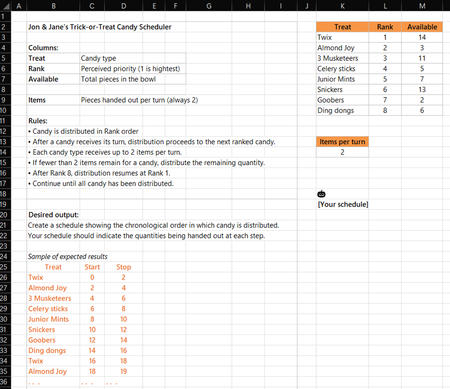
Happy Halloween! You'll find the rules in the screen capture below and in the attached workbook. Creative solutions are encouraged. Feel free to use any functions available in the Beta channel. I won't post my solution immediately so submissions aren't influenced. Enjoy!95Views1like6Comments
Conditional formatting
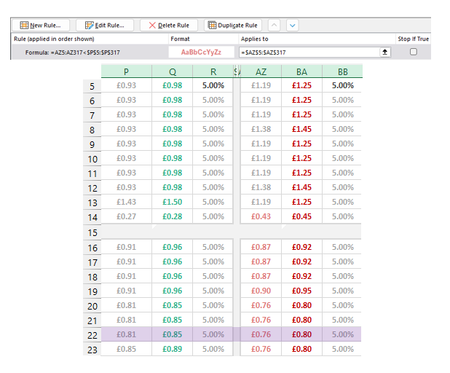
I'm making a rule to Highlight cells in Column AZ when the value is lower than Adjacent cells in Column P. For the most part it works except for two cells in AZ (1 shown as an example) that are higher than P but are being picked up by the conditional formatting. The two cells I'm focusing on here are P14 (£0.27) and AZ14 (£0.43). £0.43 should not be being highlighted pink as it isn't lower than £0.27. This has to be something obvious but I have looked at it too long. Please help if you can :)Solved36Views0likes2CommentsExcel external workbook links break across users (using cloud storage)
We use Excel desktop on Windows computers with Microsoft 365. Our office uses Sync.com to synchronize shared client files across multiple employees' computers. Our current setup: We have a Master Excel workbook linked to approximately 11 individual client workbooks. We create new workbooks and establish the links twice a year, in June and December. We create links by opening both workbooks, selecting a cell in the Master, typing =, switching to the individual workbook, clicking the source cell, and pressing Enter. We need linked values to update automatically when both workbooks are open. Our folder structure is: - Master: Sync\1 - CLIENT FILES\Equitable Block\Block Name\Renewals\YYYY - Individual workbooks: Sync\1 - CLIENT FILES\Client Folder\Renewals\YYYY The files are synchronized through Sync.com, and everyone opens them from shortcuts to the shared Sync folder. The problem: Excel stores an absolute local path in the formula. For example: C:\Users\paige_lnsp4p\Documents\Sync\1 - CLIENT FILES\...\[Individual Workbook.xlsx]Myers Position'!$F$16 Another employee's Sync folder is located at: C:\Users\chris\Sync\1 - CLIENT FILES\... As a result, links created by one employee work on that employee's computer but fail on others. Changing the source to the local path on another computer repairs the link there, but that is not a practical permanent solution for our team. Sync.com support confirmed that its desktop app cannot enforce a consistent local path across different Windows usernames. They suggested investigating relative Excel links. My questions: 1. Can Excel desktop create and maintain relative external workbook links that work across multiple Windows computers when the shared folder structure is identical but the local root paths differ? 2. Given that the Master and individual workbooks are stored in different branches under Sync\1 - CLIENT FILES, is there a supported way to achieve this without moving all workbooks into one folder? 3. If relative links are not supported for this arrangement, is there another reliable way to maintain these links without requiring each employee to change the source paths? 4. Would VBA or another Excel-based solution be appropriate, or would it introduce further reliability or security issues? We want to preserve our existing workbook design and continue using desktop Excel. We are looking for a permanent solution that works for all employees, not a process that requires manually repairing links on each computer.26Views0likes1Comment
Excel Bug: the number 40091.84 isn't processed correctly.
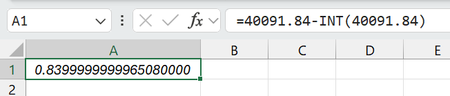
This formula doesn't produce the correct result: =40091.84-INT(40091.84) The answer should be 0.84 but instead it produces 0.8399999999965080 To see this bug in action, you need to change the cell's formatting so that it displays all 16 decimal places. Note: I found this bug because I SUM()ed a column of values and compared it using an IF() to validate that I had entered all the values into the table. The IF() failed. Investigation showed that 40091.84 isn't processed correctly. The formula I've posted is a trivial way to demonstrate the bug.61Views0likes1Comment
Excel 2016 copy/paste issue is back after KB5002934 update
Is anyone else experiencing copy/paste issues in Excel 2016 after the KB5002934 update? We're seeing this issue on workstations across our organisation. What's frustrating is that this is the same issue we encountered before, which was supposedly fixed in a previous update. Now it's back, barely a few weeks later. For now, we're using an uninstall script to temporarily remove the update from affected workstations. However, this isn't a reliable long-term solution because Windows Update will push the update again. Is anyone else experiencing the same thing? Has Microsoft provided any explanation for why this issue keeps coming back? Has anyone found a more permanent solution that doesn't involve repeatedly uninstalling the update? I'd like to know if other organisations are dealing with this and how they're handling it.244Views1like3Comments
Formatting depending upon results form a vstack
I have a dynamic VSTACK being displayed. I want to format an adjacent cell in each line of the VSTACK with a boarder that appears or disappears according to changing number of rows in the VSTACK. I would appreciate any help in achieving this.174Views0likes5CommentsMicrosoft Sign In Loop
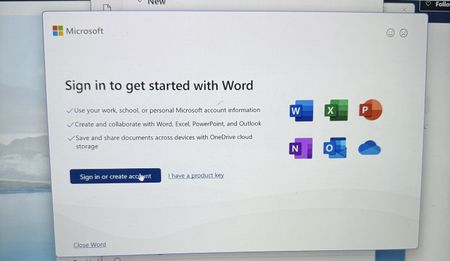
I am trying to sing into Microsoft 365, but every time I do, it takes me back to the login screen. I sing in with my outlook account, but I can't reach the applications. I can sign in on the browser, but not the applications on my computer. I have tried uninstalling and reinstalling M365, but the issue still persists109Views0likes1Comment