entra
34 TopicsAsk Microsoft Anything: Secure multi-tenant environments with Microsoft Entra Tenant Governance
Learn more about Microsoft Entra Tenant Governance – a built-in solution that helps bring an organization’s tenants under control, reduce shadow-tenant risk, and manage tenant configuration at scale. By enabling centralized policies and cross-tenant delegated administration, it helps strengthen identity foundations for AI-powered operations. Bring your questions and hear directly from product experts about why securing tenants matters. What is an AMA? An 'Ask Microsoft Anything' (AMA) session is an opportunity for you to engage directly with Microsoft employees! This AMA will consist of a short presentation followed by taking questions on-camera from the comment section down below! Ask your questions/give your feedback and we will have our awesome Microsoft Subject Matter Experts engaging and responding directly in the video feed. We know this timeslot might not work for everyone, so feel free to ask your questions at any time leading up to the event and the experts will do their best to answer during the live hour. This page will stay up evergreen so come back and use it as a resource anytime. We hope you enjoy!3.4KViews10likes11Comments
Unable to delete Foundry Agent identity Entra app in Azure
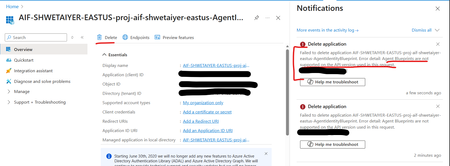
I'm trying to delete an Entra app in Azure created by Foundry Agent identity blueprint as its currently unused and is causing EntraID hygiene alerts. However getting an error mentioning that delete is not supported. Is there any other way to delete an unused Entra app for an agent identity blueprint? Error detail: Agent Blueprints are not supported on the API version used in this request.624Views0likes3Comments
How to Fix Azure Event Grid Entra Authentication issue for ACS and Dynamics 365 integrated Webhooks
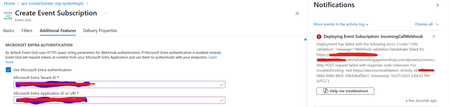
Introduction: Azure Event Grid is a powerful event routing service that enables event-driven architectures in Azure. When delivering events to webhook endpoints, security becomes paramount. Microsoft provides a secure webhook delivery mechanism using Microsoft Entra ID (formerly Azure Active Directory) authentication through the AzureEventGridSecureWebhookSubscriber role. Problem Statement: When integrating Azure Communication Services with Dynamics 365 Contact Center using Microsoft Entra ID-authenticated Event Grid webhooks, the Event Grid subscription deployment fails with an error: "HTTP POST request failed with unknown error code" with empty HTTP status and code. For example: Important Note: Before moving forward, please verify that you have the Owner role assigned on app to create event subscription. Refer to the Microsoft guidelines below to validate the required prerequisites before proceeding: Set up incoming calls, call recording, and SMS services | Microsoft Learn Why This Happens: This happens because AzureEventGridSecureWebhookSubscriber role is NOT properly configured on Microsoft EventGrid SP (Service Principal) and event subscription entra ID or application who is trying to create event grid subscription. What is AzureEventGridSecureWebhookSubscriber Role: The AzureEventGridSecureWebhookSubscriber is an Azure Entra application role that: Enables your application to verify the identity of event senders Allows specific users/applications to create event subscriptions Authorizes Event Grid to deliver events to your webhook How It Works: Role Creation: You create this app role in your destination webhook application's Azure Entra registration Role Assignment: You assign this role to: Microsoft Event Grid service principal (so it can deliver events) Either Entra ID / Entra User or Event subscription creator applications (so they can create event grid subscriptions) Token Validation: When Event Grid delivers events, it includes an Azure Entra token with this role claim Authorization Check: Your webhook validates the token and checks for the role Key Participants: Webhook Application (Your App) Purpose: Receives and processes events App Registration: Created in Azure Entra Contains: The AzureEventGridSecureWebhookSubscriber app role Validates: Incoming tokens from Event Grid Microsoft Event Grid Service Principal Purpose: Delivers events to webhooks App ID: Different per Azure cloud (Public, Government, etc.) Public Azure: 4962773b-9cdb-44cf-a8bf-237846a00ab7 Needs: AzureEventGridSecureWebhookSubscriber role assigned Event Subscription Creator Entra or Application Purpose: Creates event subscriptions Could be: You, Your deployment pipeline, admin tool, or another application Needs: AzureEventGridSecureWebhookSubscriber role assigned Although the full PowerShell script is documented in the below Event Grid documentation, it may be complex to interpret and troubleshoot. Azure PowerShell - Secure WebHook delivery with Microsoft Entra Application in Azure Event Grid - Azure Event Grid | Microsoft Learn To improve accessibility, the following section provides a simplified step-by-step tested solution along with verification steps suitable for all users including non-technical: Steps: STEP 1: Verify/Create Microsoft.EventGrid Service Principal Azure Portal → Microsoft Entra ID → Enterprise applications Change filter to Application type: Microsoft Applications Search for: Microsoft.EventGrid Ideally, your Azure subscription should include this application ID, which is common across all Azure subscriptions: 4962773b-9cdb-44cf-a8bf-237846a00ab7. If this application ID is not present, please contact your Azure Cloud Administrator. STEP 2: Create the App Role "AzureEventGridSecureWebhookSubscriber" Using Azure Portal: Navigate to your Webhook App Registration: Azure Portal → Microsoft Entra ID → App registrations Click All applications Find your app by searching OR use the Object ID you have Click on your app Create the App Role: Display name: AzureEventGridSecureWebhookSubscriber Allowed member types: Both (Users/Groups + Applications) Value: AzureEventGridSecureWebhookSubscriber Description: Azure Event Grid Role Do you want to enable this app role?: Yes In left menu, click App roles Click + Create app role Fill in the form: Click Apply STEP 3: Assign YOUR USER to the Role Using Azure Portal: Switch to Enterprise Application view: Azure Portal → Microsoft Entra ID → Enterprise applications Search for your webhook app (by name) Click on it Assign yourself: In left menu, click Users and groups Click + Add user/group Under Users, click None Selected Search for your user account (use your email) Select yourself Click Select Under Select a role, click None Selected Select AzureEventGridSecureWebhookSubscriber Click Select Click Assign STEP 4: Assign Microsoft.EventGrid Service Principal to the Role This step MUST be done via PowerShell or Azure CLI (Portal doesn't support this directly as we have seen) so PowerShell is recommended You will need to execute this step with the help of your Entra admin. # Connect to Microsoft Graph Connect-MgGraph -Scopes "AppRoleAssignment.ReadWrite.All" # Replace this with your webhook app's Application (client) ID $webhookAppId = "YOUR-WEBHOOK-APP-ID-HERE" #starting with c5 # Get your webhook app's service principal $webhookSP = Get-MgServicePrincipal -Filter "appId eq '$webhookAppId'" Write-Host " Found webhook app: $($webhookSP.DisplayName)" # Get Event Grid service principal $eventGridSP = Get-MgServicePrincipal -Filter "appId eq '4962773b-9cdb-44cf-a8bf-237846a00ab7'" Write-Host " Found Event Grid service principal" # Get the app role $appRole = $webhookSP.AppRoles | Where-Object {$_.Value -eq "AzureEventGridSecureWebhookSubscriber"} Write-Host " Found app role: $($appRole.DisplayName)" # Create the assignment New-MgServicePrincipalAppRoleAssignment ` -ServicePrincipalId $eventGridSP.Id ` -PrincipalId $eventGridSP.Id ` -ResourceId $webhookSP.Id ` -AppRoleId $appRole.Id Write-Host "Successfully assigned Event Grid to your webhook app!" Verification Steps: Verify the App Role was created: Your App Registration → App roles You should see: AzureEventGridSecureWebhookSubscriber Verify your user assignment: Enterprise application (your webhook app) → Users and groups You should see your user with role AzureEventGridSecureWebhookSubscriber Verify Event Grid assignment: Same location → Users and groups You should see Microsoft.EventGrid with role AzureEventGridSecureWebhookSubscriber Sample Flow: Analogy For Simplification: Lets think it similar to the construction site bulding where you are the owner of the building. Building = Azure Entra app (webhook app) Building (Azure Entra App Registration for Webhook) ├─ Building Name: "MyWebhook-App" ├─ Building Address: Application ID ├─ Building Owner: You ├─ Security System: App Roles (the security badges you create) └─ Security Team: Azure Entra and your actual webhook auth code (which validates tokens) like doorman Step 1: Creat the badge (App role) You (the building owner) create a special badge: - Badge name: "AzureEventGridSecureWebhookSubscriber" - Badge color: Let's say it's GOLD - Who can have it: Companies (Applications) and People (Users) This badge is stored in your building's system (Webhook App Registration) Step 2: Give badge to the Event Grid Service: Event Grid: "Hey, I need to deliver messages to your building" You: "Okay, here's a GOLD badge for your SP" Event Grid: *wears the badge* Now Event Grid can: - Show the badge to Azure Entra - Get tokens that say "I have the GOLD badge" - Deliver messages to your webhook Step 3: Give badge to yourself (or your deployment tool) You also need a GOLD badge because: - You want to create event grid event subscriptions - Entra checks: "Does this person have a GOLD badge?" - If yes: You can create subscriptions - If no: "Access denied" Your deployment pipeline also gets a GOLD badge: - So it can automatically set up event subscriptions during CI/CD deployments Disclaimer: The sample scripts provided in this article are provided AS IS without warranty of any kind. The author is not responsible for any issues, damages, or problems that may arise from using these scripts. Users should thoroughly test any implementation in their environment before deploying to production. Azure services and APIs may change over time, which could affect the functionality of the provided scripts. Always refer to the latest Azure documentation for the most up-to-date information. Thanks for reading this blog! I hope you found it helpful and informative for this specific integration use case 😀974Views4likes1Comment
Powershell Entra and General Forum Layout Questions
Hello, I am returning to PowerShell, and it seems a lot has changed. I need to create some Security Groups in MS Entra and would like to know the best way to do so. I have a .csv file for the groups. Also, what is the best way to display the topic titles as a list in this forum? At this moment, I have to go scroll through pages of posts, and it's not easy. I used to like the old formats that let you see all the thread titles. Thanks611Views0likes2CommentsThe Future of Identity: Self-Service Account Recovery (Preview) in Microsoft Entra
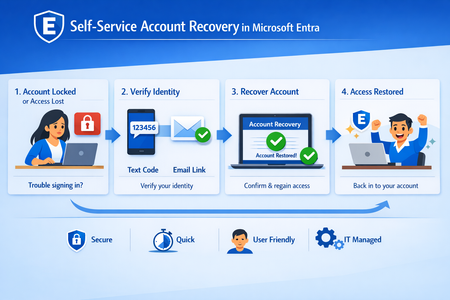
In the modern enterprise, the "Help Desk" is paradoxically both a vital resource and a massive security liability. As organizations move toward phishing-resistant, passwordless environments using passkeys and FIDO2 tokens, a critical question remains: What happens when a user loses their only authentication device? Historically, this required a phone call to a support agent. However, in an era of sophisticated social engineering and AI-generated deepfakes, a human agent is often the easiest point of entry for an attacker. Microsoft Entra’s new Self-Service Account Recovery solves this by replacing manual verification with high-assurance, automated identity proofing. The Fatal Flaw in Traditional Recovery Most organizations currently rely on one of two methods for recovery, both of which have significant drawbacks: Self-Service Password Reset (SSPR): Often relies on "weak" factors like SMS codes or security questions. These are easily intercepted or guessed and don't help a user who is trying to move away from passwords entirely. The Help Desk: Requires an agent to "vouch" for a user. Attackers can impersonate employees, use voice-cloning technology, or provide leaked personal information to trick an agent into issuing a Temporary Access Pass (TAP). The new Entra flow removes the human element from the validation process, ensuring that the person regaining access is exactly who they claim to be. How the New Recovery Flow Works: The recovery process is built on the concept of "identity proofing," utilizing government-issued documents and biometric liveness checks. Integration with Verification Partners Microsoft doesn’t store your passport or driver's license. Instead, Entra integrates with specialized Third-Party Identity Verification providers (such as True Credential, IDEMIA, AU10TIX). These services are experts in forensic document analysis. The Verification Process When a user begins a recovery, they are redirected to the partner service. The process typically involves: Document Capture: The user takes a photo of a government ID (Passport, Driver’s License, etc.). Forensic Analysis: The service checks for security features like holograms, fonts, and watermarks to ensure the ID is genuine. Liveness Check: The user takes a "selfie" or video. The system uses "Face Check" technology projecting specific light patterns or colors on the user’s face to ensure it is a live person and not a photo, video, or deepfake. Issuance of a Verified ID Once the third party confirms the user's identity, Microsoft Entra issues Verified ID. This is a decentralized, digital credential that sits in the user's Microsoft Authenticator app. It serves as digital proof of their identity that Entra can trust. The Final Handshake: Face Check To bridge the gap between the digital credential and the person at the keyboard, Entra performs a Face Check. It compares the live user's face against the photo contained within the Verified ID. If they match, Entra considers the identity "proven." Bootstrapping the New Device Once verified, Entra automatically issues a Temporary Access Pass (TAP). This allows the user to log in and immediately register their new device, passkey, or Authenticator app, effectively "bootstrapping" their new secure environment without ever speaking to a human. Strategic Advantages for IT Leaders Zero Trust Maturity: This process fulfills the Zero Trust requirement of "explicit verification" even during the recovery phase. Scalability: By automating the most time-consuming part of help desk tickets identity verification IT teams can focus on more complex tasks. Phishing Resistance: Because the recovery is tied to physical ID and biometrics, there is no "code" for an attacker to phish. Global Compliance: Leveraging government-issued IDs allows organizations to meet high-bar regulatory requirements for identity assurance (such as NIST IAL2). Deployment and Prerequisites To implement this, administrators need to ensure a few things are in place: Verified ID Setup: You must configure Microsoft Entra Verified ID within your tenant. Matching Logic: Entra uses attributes like First Name and Last Name to match the Verified ID to the user account. Ensuring your HR data is clean and synchronized is essential. License & Costs: While the recovery flow is a feature of Entra, the verification partners and the Face Check service (typically a per-check fee) must be provisioned through the Microsoft Security Store. Conclusion The transition to a passwordless world is incomplete if the "back door" (recovery) remains open and insecure. By integrating government-grade identity verification directly into the login flow, Microsoft Entra provides the final piece of the puzzle: a recovery method that is as secure as the primary login itself.
eDiscovery - Issues exploring groups & users related to a hybrid data source
Hi all, first time posting - unusually I could find nothing out there that helped. I work in an organisation has an on-premises domain which syncs to our tenant. I don't manage the domain or the sync, but I'm assured that the settings are vanilla and there are no errors being logged. 99% of our users are hybrid. The tenant is shared across multiple legal entities, so I'm using eDiscovery to fulfil our GDPR subject access requests The issue I am hitting is straightforward. in eDiscovery searches with hybrid users as the data source, I cannot add related objects (manager, direct reports, groups the user is in). The properties are present in Entra, but not visible to Purview, so I'm not investigating sync errors at the moment. For cloud objects, I can see manager, teams, etc. and it works fine. Does anyone have any insights they can share on the "explore and add" mechanics in eDiscovery search data sources? I'm drawing a complete blank on this one. Where should I be looking?426Views0likes2CommentsConditional Access for Agent Identities in Microsoft Entra
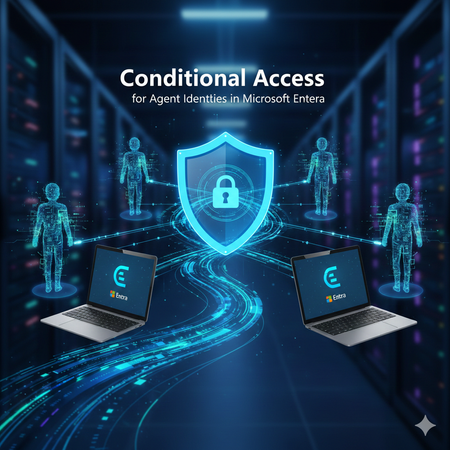
AI agents are rapidly becoming part of everyday enterprise operations summarizing incidents, analyzing logs, orchestrating workflows, or even acting as digital colleagues. As organizations adopt these intelligent automations, securing them becomes just as important as securing human identities. Microsoft Entra introduces Agent Identities and extends Conditional Access to them but with very limited controls compared to traditional users and workload identities. This blog breaks down what Agent Identities are, how Conditional Access applies to them, and what are current limitations. What Exactly Are Agent Identities? Microsoft Entra now supports a new identity type designed specifically for AI systems: Agent Identity – like an app/service principal but specialized for AI Agent User – an identity that behaves more like a human user Agent Blueprint – a template used to create agent identities This model exists because AI systems behave differently than humans or applications: they can act autonomously, operate continuously, and make decisions without user input. AI-driven automation must be governed and that’s where Conditional Access comes in. Conditional Access for Agents, but with Important Limitations Today, Conditional Access for agent identities is purposely minimal. Microsoft clearly states: Conditional Access applies only when: An agent identity requests a token An agent user requests a token It does NOT apply when: A blueprint acquires a token to create identities An agent performs intermediate token exchange What Controls Are Actually Available Today? ✔ Supported Today Category Supported? Details Identity Targeting ✔ Yes You can include/exclude agent identities & agent users Block Access ✔ Yes This is the only Grant control currently available Agent Risk (Preview) ✔ Yes Early stage risk evaluation Sign-in evaluation ✔ Yes Token acquisition governed by CA ❌NOT Supported Today These CA controls do not apply to Agent Identities: MFA Authentication strength Device compliance Approved client apps App protection policies Session controls User sign-in frequency Terms of Use Location conditions (network/device-based) Client apps (legacy/modern access) Why? Because agents do not perform interactive authentication and do not use device signals or session context like humans. Their authentication is purely machine‑driven. How Conditional Access Works for Agents When an agent identity (or agent user) requests a token, Microsoft Entra: Identifies the requesting agent Checks CA policy assignments Evaluates any agent-risk conditions Allow/Blocks token issuance if conditions meet That’s it. No MFA prompt. No device check. No authentication strength evaluation. This makes CA for agents fundamentally different from CA for humans. Why Is Conditional Access So Limited for Agents? Two major reasons: Agents cannot satisfy user-based controls AI agents cannot: Perform MFA Use biometrics Run on compliant devices Follow session prompts These are human-driven processes. Agents authenticate via secure credential flows They use: Client credentials Federated identity credentials Token exchange flows So CA is limited to identity-level allow/block and risk-based token decisions. Practical Use Cases (Given Today’s Limitations) Even with limited controls, CA for agents is still important. Stop compromised agents from continuing to operate If Microsoft Entra detects high agent risk: CA can block token issuance This halts the agent’s ability to act immediately Enforce separation of duties for AI agents Even though you cannot apply MFA or auth strength, you can: Separate agents into “allowed” vs “blocked” groups Apply different CA rules per department or system Prevent AI sprawl Large enterprises may generate hundreds of AI agents. CA gives central admin control: Only approved, vetted agents can operate Others are blocked at token-request time Why Agent Blueprints Cannot Be Governed by CA Blueprints are templates, not active identities. Blueprint token flows are system-level operations, not access attempts. Therefore: ❌ No CA evaluation ❌ No controls applied ❌ Not counted as agent activity Only actual agent identities are governed by CA. What the Future Might Include Microsoft hints the capabilities will expand: Agent risk scoring Agent behaviour analytics More granularity in CA for agents Additional grant controls Policy scoping at task or capability level But as of today, CA for agents remains intentionally constrained to allow safe onboarding of the new identity type without accidental disruption. Final Summary Conditional Access for Agent Identities is currently a lightweight enforcement mechanism designed to block unauthorized or risky agents, not a full policy suite like we have for human users. ✔ What it does: Controls whether an agent identity can acquire a token Allows blocking specific agents Implements early agent‑risk logic Applies Zero Trust principles at the identity perimeter ❌ What it does not do: Enforce MFA Enforce authentication strength Enforce device or location conditions Apply session controls Govern blueprints As organizations adopt more autonomous agents, this foundational layer keeps AI identities visible and controllable and sets the stage for richer governance in the future.Hybrid joined devices - convert to entra Joined
how to convert/migrate +5.000 devices/laptops from Hybrid joined devices to Entra joined Only devices (the users are not in scope) - so this is all about the devices and to get this working within a existing infrastructure. Or can someone confirm there's no conversion path for hybrid joined devices to Entra join only?970Views1like1CommentPlatform SSO for macOS
Introduction As organizations accelerate their journey to passwordless authentication, Microsoft’s Platform SSO for macOS offers a seamless, secure, and user-friendly experience for device and application sign-in. Built on Apple’s SSO framework and tightly integrated with Microsoft Entra ID, Platform SSO empowers users to leverage modern authentication methods Touch ID, smart cards, and passkeys across their macOS devices, enterprise apps, and browsers. In this blog, we’ll walk through the essentials of Platform SSO, supported authentication methods, configuration steps, and best practices for deployment in enterprise environments. What is Platform SSO for macOS? Platform SSO is a Microsoft feature for macOS (13+) that leverages Apple’s SSO framework to enable single sign-on using Entra ID credentials. Users benefit from passwordless authentication, enhanced security, and a consistent experience whether logging into their device, enterprise applications, or web browsers. Key highlights: Passwordless sign-in: Use Touch ID (Secure Enclave), smart cards, or passwords for device and app authentication. Enterprise SSO plug-in: Activated for both application and browser-based sign-in, ensuring centralized identity management. No agent required: Utilizes built-in macOS platform capabilities for easy deployment and management. Authentication Methods Supported by Platform SSO Platform SSO supports three primary authentication methods on macOS: Feature Secure Enclave Smart Card Password Passwordless (phishing resistant) ✅ ✅ ❌ Touch ID supported for unlock ✅ ✅ ✅ Can be used as passkey ✅ ❌ ❌ Local Mac password synced with Entra ID ❌ ❌ ✅ Supported on macOS 14.x+ ✅ ✅ ✅ MFA mandatory for setup ✅ ✅ ❌ Secure Enclave: Recommended for most users, Secure Enclave uses hardware-bound cryptographic keys for app and web sign-ins, enabling passwordless and phishing-resistant MFA. After a reboot, users enter their local password once, then Touch ID can be used for subsequent unlocks. The device receives a hardware-backed Primary Refresh Token (PRT) for device-wide SSO. Smart Card: Ideal for high-security or compliance-driven environments, Smart Card authentication provides complete passwordless sign-in and unlock. After sign-in, the device receives a PRT and Workplace Join (WPJ) certificate for seamless SSO to Microsoft 365, Safari, and Entra-protected apps. Password: Users sign in with their Entra ID password, which syncs to the local account for SSO across apps. Intune password policies ensure alignment with Entra ID password rules, preventing sync or sign-in issues. How Platform SSO Works When a Mac device joins a Microsoft Entra ID tenant, it receives a hardware-bound WPJ certificate accessible only by the Microsoft Enterprise SSO plug-in. Apps and browsers require this certificate to access resources protected by Conditional Access policies. Platform SSO is configured using the Intune settings catalog and should ideally be assigned at device enrollment, but can also be applied to existing devices. Deployment Steps Device Enrollment in Intune: Organization-owned devices use Apple Business Manager or Apple Configurator; personally-owned devices enroll via Company Portal. Prerequisites: macOS 13+, Intune Company Portal app v5.2404.0+, supported browsers (Edge, Chrome with SSO extension, Safari), Intune RBAC permissions. Create Platform SSO Policy in Intune: Enable Platform SSO, select authentication method (Secure Enclave, Password, Smart Card), assign to user groups. Define Policies in Platform SSO Settings: Assign to users or groups with user affinity; avoid assigning to device groups to prevent Conditional Access issues. Enable MDM Push Certificate: Required for macOS enrollment in Intune. Deploy Company Portal App: Via Intune or manually from https://aka.ms/EnrollMyMac. Enroll Device and Validate Profiles: Sign in to Company Portal with Entra ID credentials and confirm device management profile. Customizing the macOS Login Experience Platform SSO allows administrators to push Login Window Text and Show Full Name settings from Intune, enabling a personalized and informative login experience for users. These settings help display the user’s full name and custom messages during sign-in, improving clarity and branding. Best Practices Assign Platform SSO policies during device enrollment for a seamless experience. Ensure password policies in Intune and Entra ID are aligned. Use Secure Enclave for most users; Smart Card for compliance scenarios. Regularly review group memberships and issuer assignments for certificate-based authentication. Document all scoped policies for compliance and troubleshooting. Conclusion Microsoft Platform SSO for macOS is a game-changer for organizations seeking secure, passwordless authentication across devices and applications. By leveraging Entra ID credentials, Touch ID, smart cards, and passkeys, IT teams can deliver a modern, seamless, and secure experience for users while maintaining compliance and reducing operational overhead. Ready to get started? Explore the official documentation and accelerate your passwordless journey today!