enterprise
224 Topics
How can I delete a Cloud PC?
Im using W365 enterprise in Endpoint Manager. I was trying to redeploy the cloud pc. For that reason I deleted the device in Endpoint Manager and on-prem AD. Now unfortunately I am not able to redeploy, neither delete user fully immediatly to start from begining. How can i solve this issue ? A delete button is missing in Cloud PC.Solved20KViews0likes7Comments
Best way to access Windows 365 Cloud PC from Mac?
Looking to find the best way to access a Windows 365 Cloud PC from a Mac. Clearly, I can access it by logging into the browser and running it there, but is there any way to use the Microsoft Remote Desktop for Mac app to make the connection more "native" to the Mac OS environment? Any other thoughts would be welcomed as well. Thank you,Solved26KViews0likes7Comments
Windows 365: Alternate regions for disaster recovery now generally available
Business continuity is a top priority for organizations that rely on Windows 365 Cloud PCs. With Windows 365 cross-region disaster recovery and Windows 365 disaster recovery plus, customers can protect their Cloud PCs against regional outages by maintaining snapshots in geographically distant backup regions. Until now, these features have been limited to regions with three or more availability zones. Today, we're excited to announce the general availability of alternate regions for Windows 365 cross-region disaster recovery and Windows 365 disaster recovery plus, expanding additional disaster recovery coverage to geographies that previously only had a single supported region. This release adds four new backup region options, giving customers in Australia, Canada, India, and the US West greater flexibility in their disaster recovery strategy. What are alternate regions? Alternate regions extend the Windows 365 footprint within a data residency boundary where a recommended region already exists. They provide one additional region for disaster recovery needs but don't offer availability zone support. Availability zones are separated groups of datacenters within a region, each with independent power, cooling, and networking, so that if one zone experiences an outage, the remaining zones continue operating. Because alternate regions lack this infrastructure, they cannot distribute workloads across multiple isolated zones within the region. For Windows 365, alternate regions are available exclusively for Windows 365 cross-region disaster recovery and Windows 365 disaster recovery plus — they are not used for Cloud PC provisioning. Available alternate regions The following alternate regions are now available in general availability as backup locations in Cloud PC configurations: Geography Primary (Recommended) Region Alternate Region Australasia Australia East Australia Southeast Canada Canada Central Canada East India Central India South India US West West US 3 West US These regions pair with their corresponding recommended region to provide cross-region disaster recovery within the same data residency boundary. To learn more, read Windows 365 requirements | Microsoft Learn. What to keep in mind Disaster recovery only: Alternate regions are supported for disaster recovery scenarios only. They are not available for Cloud PC provisioning. No availability zone support: Alternate regions don't support availability zones. During a zone outage, the entire backup region may be unavailable. However, the likelihood of both primary and backup regions experiencing outages simultaneously is low. Intentional selection required: Existing Cloud PC configurations will not be updated automatically to include alternate regions. Administrators must explicitly opt in.134Views0likes0Comments
Passkey best practices for Windows 365 users on unmanaged devices (BYOD)?
I have global contractors who work from home so spinning up Windows 365 Enterprise Cloud PCs are ideal. The contractors work from from either their personal Mac or personal Windows PC using the Microsoft Windows app so each user can access their dedicated Windows 365 Cloud PC and everything has been working well so far using standard MFA. We are looking to move everyone to passkeys but there is no intuitive documentation on how end users are expected to adopt it so they can use passkeys to 1) access the virtual PC and then use passkeys while in the virtual PC itself. Seems Microsoft explains everything under the hood except how to practically roll it out to reliably replace standard MFA. What is the recommended path forward to migrate my BYOD virtual PC users to passkeys? Thanks, Charlie353Views0likes1Comment
Windows 365 and developer environments: how do you balance security and productivity?
Hi everyone, I’d like to raise a topic that we are currently struggling with, and I suspect many other organizations are facing the same challenge. We are in the process of establishing a Windows 365–based development environment, where developers work in Cloud PCs. This is largely driven by: a BYOD strategy security requirements (no sensitive code on unmanaged devices) the need for standardization However, this quickly becomes complex in practice. The core challenge We are trying to balance three competing priorities: 1. Security requirements No sensitive code on local devices Minimal attack surface Zero Trust principles and Conditional Access Full traceability of identity and actions 2. Developer needs Local admin rights to be able to do their work Freedom to install tools, SDKs, and runtimes Flexibility without constant blocking Fast iteration cycles The reality is that if it takes too long to get access or permissions, it breaks the developer workflow. 3. IT and governance Standardization of environments Manageability and patching License and cost control Compliance and auditability The practical dilemma Developers want to be local admins on their machines Security teams prefer: Just-In-Time access (PIM), or No admin privileges at all In practice: PIM tends not to work well for developers It introduces too much friction It disrupts flow and often leads to workarounds What we are currently exploring We are testing a model where: Developers work in Windows 365 Cloud PCs They use their regular corporate identity (Entra ID) Isolation is achieved through the environment, not separate accounts Developers have local admin rights within the Cloud PC However, this raises a new question: How do we secure an environment where the user is an admin? Questions to the community I would really appreciate insights from others who have been through similar scenarios: 1. Identity vs privilege Do you use the same identity for everything, or separate user/admin accounts? How far do you take identity separation? 2. Local admin rights Do you allow developers to have local admin rights? Is it permanent or Just-In-Time? If JIT, how do you make it work without impacting productivity? 3. Cloud-based development environments If you are using Windows 365, Dev Box, or AVD: Has this made it easier to relax restrictions? Or are you facing the same challenges, just in the cloud? 4. Guardrails instead of restrictions Instead of trying to prevent everything: EDR / endpoint protection Conditional Access Network isolation Monitoring and detection Has anyone successfully shifted from strict control to strong guardrails and detection? Current reflection I am starting to think that: Focusing on secure, isolated environments for development may be more effective than trying to tightly control every individual action. In other words: secure the platform not every single user behavior But this is far from straightforward. Purpose of this discussion The goal is to find a realistic blueprint that: maintains high developer productivity meets security requirements minimizes friction in day-to-day work Not something theoretically perfect, but something that actually works. If you have experience in this area, I would really value your input: what has worked well what has not worked key design decisions you would recommend Thanks in advance.288Views0likes1CommentWindows Hello for Business - W365 Cloud PC
Hello All, We are currently attempting to use Yubikey USB-A and C devices for authentication. For Laptop authentication it works, but we are trying to implement this on a Windows 365 Cloud PC while signing into Windows App. Has anyone tried this method? This is the device we are trying to use: https://www.yubico.com/product/yubikey-5-series/yubikey-5c-nfc/ This is what i seen when i did my research: High‑level architecture (important context) On Windows 365 Cloud PCs: ✅ WHfB is PIN‑based (this is the supported model) ⚠️ Biometrics (face/fingerprint) are usually not available ✅ WHfB is user‑scoped, not just device‑scoped ✅ WHfB requires a healthy PRT first ❌ WHfB cannot provision if AzureAdPrt = NO If PRT/WAM aren’t healthy, WHfB setup will never appear, even if policy is correct. Any input, insight, or feedback is grreatly appreciated!!572Views0likes1CommentExpanding the Reach of AI-enabled Cloud PCs for Frontier Firms
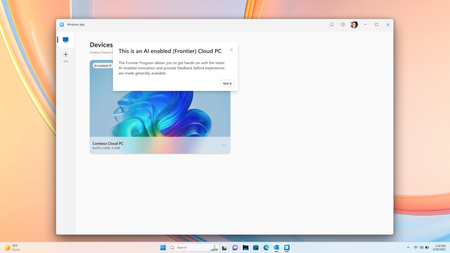
Co-Authored by Lakshmi Rayasam Over the past several months, we’ve been focused on a clear goal: making AI-enabled Cloud PCs easier to adopt, easier to deploy, and available to more customers—wherever they are. Following the momentum from Ignite, releasing Improved Search & Click to Do, we’ve continued to evolve the AI-enabled Cloud PC experience in Frontier Preview, prioritizing scale, accessibility, and product market fit. The latest set of enhancements removes deployment blockers and expands where—and how—customers can get started. We’ve also added a new refreshing AI-enabled end-user experience explaining the value of Frontier while users hover over the AI-enabled (Frontier) tag. Note: Future availability of these features is dependent on the results of this Frontier Preview and is subject to change Removing the need for Windows Insiders AI‑enabled Cloud PCs now work with standard Windows 11 retail builds, eliminating the need for Windows Insider participation. This change alone unlocks broader enterprise deployment scenarios and removes a major barrier for production use. AI-enabled Cloud PCs are just one toggle away as IT admins can join our Frontier Program and enable AI-enabled Cloud PCs via a newly introduced policy setting within the Devices – Onboarding: Windows 365 > User Settings blade, and further filter access based on Microsoft Entra ID group access. Note: After enrolling the latest Windows 11 25H2 (OS Build 26200.7840 or higher) you must reboot your Cloud PC. Expanded regional availability To meet customers where they operate, we’ve expanded AI‑enabled Cloud PCs to additional Azure regions:‑ Japan East Germany West Central South Central US Canada Central This expansion improves latency, supports data residency needs, and enables more global customers to participate in the Frontier Preview. 128GB disk support for Windows 365 Enterprise We’ve added support for 128GB disk size Windows 365 Enterprise licenses, offering greater flexibility for customers who don’t require larger footprints while still enabling AI‑driven workflows. These right‑sized deployments and makes it easier to scale across broader user populations. Together, these updates directly address the most common Ignite feedback and are expected to unlock large‑scale deployments, including enterprise pilots transitioning into sustained usage. What Comes Next Following the March rollout, our CY26 focus shifts to closing parity gaps using cloud‑based models, in close partnership with Windows platform teams. Initial work centers on enabling Text Actions for Click‑to‑Do via a cloud models within Frontier Preview—one of the most requested capabilities from customers.‑‑‑ In parallel, we’ll continue investing in foundational improvements that increase perceived feature depth and usage signals, including cost optimization, reliability enhancements, and productivity scenarios that compound value across the Cloud PC experience.661Views1like2Comments
Is it possible to migrate Windows 365 between two Entra ID/MS365 tenants?
Hello, we're merging two companies, and as part of this merger, we want to migrate one Entra/MS365 tenant to another. Migrating mailboxes, OneDrive, SPO sites, and other 365 services is no problem for us, but we'd also like to migrate ~40 Windows 365 instances (Entra-Joined, hot Hybrid). Is this possible? Regular workstations can be migrated without a wipe using third-party services (like PowerSyncPro and similar), but in this case, these are VMs managed by Windows 365 service.Solved336Views1like1CommentMS designer is NOT WORKING!
It only makes 1 image not 4, it takes way too long time,. and it doesnt follow prompting,. and it makes imegs in 3:2 not 16:9... thsi has been goign on for over 2 weeks,... alsmot 3.. i have been in contact with support many times woith zero help.. HOW can you have a product in your office bunlde ant it not workign an zero supprot on it? I need teh application to make my videos,. im just abptu to cancel all subscritopons to micrposft an switch to apple..273Views0likes0Comments
Map only local drives and default printer from clients computer when logging into 365 Desktop?
Hello, I have gone into Intune and created a new config profile and have set Windows Components > Remote Desktop Services > Remote Desktop Session Host > Printer Redirection \ Device and resource redirection to let the users map drives and printers that are on their laptop into Windows 365 Desktop. However, how can we set it so that: 1. The only printers that are mapped to the 365 desktops from the client's device is the clients default printer and not any network printers that are installed on the laptop. 2. The only drives it maps into 365Desktop are the clients local drives like their SSD drive, and usb drives pluged in and not any network drives that are on the laptop.323Views0likes1Comment