education
321 TopicsWhat's New in Microsoft EDU webinars - October 2026
Join the Microsoft Education Product team on Wednesday, October 28 at 8am Pacific Time or 4pm Pacific time for a webinar exploring the latest updates in Microsoft Education! Discover new tools and exciting features designed to save educators time, personalize learning, and boost student engagement. We'll share demos, practical tips, and ways to get started with these powerful tools. You'll also have time to ask the team any questions that are top of mind. Agenda: ✅ Teach module in Copilot ✅ Study & Learn agent ✅ Microsoft Learning Zone ✅ Copilot Notebooks ✅ Teams for EDU ✅ OneNote Class Notebook ✅ Learning Activities Register for Wednesday, October 28th at 8am Pacific time: https://aka.ms/WNIEDUOct28Option1 Register for Wednesday, October 28th at 4pm Pacific time: https://aka.ms/WNIEDUOct28Option2 Whether you're an educator, school leader, or IT professional, come discover what's new and what's possible with Microsoft EDU! Mike Tholfsen Group Product Manager Microsoft Education547Views0likes0CommentsIntroducing Education for Cowork
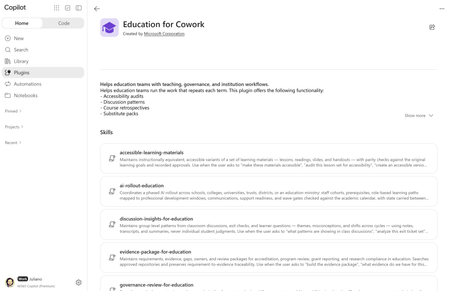
Education leaders, educators, and researchers don't need another chat window. They need help with the work that takes up their weeks and semesters. Pulling evidence together for accreditation, rolling out AI to staff one wave at a time, rolling out a policy change, or keeping a research project moving across lots of inboxes and folders. Today we're introducing Education for Cowork, a Microsoft plugin for Microsoft Copilot Cowork. It adds 10 education skills and 20 education tasks for administrative and academic work in K-12 and Higher Education. The plugin is rolling out to customers worldwide and will be available directly inside Copilot Cowork, Microsoft Marketplace, and on GitHub. What is Education for Cowork? Copilot Cowork is the agentic experience in Microsoft Copilot. It works on longer, multistep tasks for you across your mail, calendar, Teams, and files. Plugins add skills and tasks to Cowork. Skills are prompt-based workflows that give Cowork expertise in a specific domain. Education for Cowork teaches Cowork how education institutions actually work: academic calendars, professional development windows, cohorts, standards and accreditation requirements, policies and handbooks, exit tickets, and course cycles. Each skill uses the content your institution already has in Microsoft 365. It isn't generic advice. Many of these skills keep state from one run to the next. A weekly brief carries decisions and owners into the next week. An evidence ledger tracks what changed since the last review. A rollout plan remembers which wave is open. Each time you return, Cowork builds on where you left off. The 20 tasks The Education tasks help faculty and staff get started with common education workflows. Each one is a ready-to-use prompt that takes advantage of the context Cowork can access across your work, and you can adapt it to fit your needs. You'll find all 20 under Task ideas in Cowork. Tasks and skills work well together. A task gives you a result for the job in front of you today. When you want Cowork to keep that work current over weeks or terms, move to the related skill. For education and technology leaders Task What it helps you do Related skill Prepare a leadership brief Bring together decisions, risks, commitments, indicators, and stakeholder signals in one brief. Weekly Brief for Education Prepare a board briefing Turn approved evidence and decisions into concise, sourced materials for a board, cabinet, or senate, with likely questions and answers. Update our improvement plan Bring a school, department, or program improvement plan up to date with recent evidence, decisions, progress, and risks. Map our review evidence Connect program review or accreditation criteria with supporting evidence, owners, and gaps, keeping weak or disputed evidence visible. Evidence Package for Education Explain a policy change Turn an approved change into clear, consistent communications for the people it affects. Policy Change Pack for Education Plan our AI rollout Develop a phased plan covering audiences, training, communications, support, and go/no-go gates. AI Rollout & Role-Based Training Plan professional learning Connect priorities, educator goals, training resources, calendars, and support capacity in a phased plan. Prep for a committee Assemble the agenda context, prior decisions, open actions, and pre-reads you need to be ready to decide. Summarize a staff meeting Turn a meeting record into decisions, actions, owners, and open questions, with a version for people who missed it. For educators Task What it helps you do Related skill Make content accessible Review a set of learning materials for accessibility and learner usability, then prioritize fixes. Accessible Learning Materials Prepare a course or class Assemble the plans, communications, resources, key dates, and open decisions you need for a strong start. Find curriculum gaps Compare plans across grades, courses, departments, or programs to find gaps, overlap, and sequencing issues. Plan my teaching week Organize upcoming classes, preparation, follow-ups, and deadlines in one sourced weekly plan. Find discussion patterns Surface themes, misconceptions, and productive threads from discussions and learner questions, with next teaching moves. Discussion Insights for Education Build an FAQ Create a sourced FAQ from recurring questions and existing guidance. Prepare a substitute handoff (K-12) Gather plans, schedules, routines, and linked materials into a practical handover. Instructional Continuity (K-12) Prep for a family conference (K-12) Prepare a balanced conference brief from the work samples, notes, and communications you select. Prep for a seminar (Higher Ed) Pull readings, prior discussion, and course goals into a focused seminar plan with discussion questions. For researchers Task What it helps you do Related skill Summarize my research project Consolidate literature, methods, collaborator input, decisions, and milestones in one brief. Research Project Brief Check grant readiness Map grant requirements to available evidence, owners, and gaps before you submit. Evidence Package for Education The 10 skills For education and technology leaders Skill What it helps you do Weekly Brief for Education Keep a running weekly brief of priorities, commitments, decisions, risks, and open questions. It pulls from your calendar, meetings, messages, and files, and carries decisions and owners from week to week. AI Rollout & Role-Based Training Run a phased AI rollout for staff in a school, district, trust, college, university, or ministry. Covers cohorts, prerequisites, role-based learning paths, communications, and support readiness, with wave gates checked against the academic calendar. Policy Change Pack for Education Take an approved policy all the way to implementation. It compares versions, finds the affected procedures and audiences, assigns owners and deadlines, and drafts the communications. Evidence Package for Education Keep a requirement-to-evidence ledger for accreditation, program review, grant reporting, and research compliance. It shows gaps, owners, and how current each piece of evidence is before a submission. Governance Review for Education Give IT and governance teams a consistent pre-deployment review for agents, plugins, skills, connectors, and AI tools. It covers technical, policy, data, accessibility, ownership, and support evidence, and tracks revalidation dates. It prepares the approval record. People make the decision. For educators Skill What it helps you do Instructional Continuity (K-12) Keep a handover pack ready so a substitute or covering colleague can run the day. It includes current plans, schedules, routines, and materials, and is checked for privacy and freshness before an absence. Instructional Retrospective (Higher Ed) Keep a private, evidence-based retrospective of your own course across terms: what you changed, what the evidence suggests (counterevidence included), and which next-cycle actions you accepted. Accessible Learning Materials Audit and maintain accessible versions of lessons, readings, slides, and handouts. It checks alt text, reading level, and structure, and confirms each version still meets the original learning goals. Discussion Insights for Education Find group-level patterns in class discussions, exit tickets, and learner questions, such as recurring misconceptions and changes between cycles. It also checks whether last cycle's teaching response made a difference. For researchers Skill What it helps you do Research Project Brief Keep a living brief for a research project. It covers literature, methods, collaborator input, decisions, disagreements, milestones, and open questions, and flags sources that have gone stale. Try it: example prompts "Build my weekly brief and tell me what changed since last week." "Are we ready to open the next wave of our AI rollout?" "Build the policy change pack for the updated acceptable use policy." "Find the gaps in our accreditation evidence for Standard 4." "Run a governance review for this agent before we deploy it to our tenant." "I'll be out next week. Get my handover pack ready." "Audit this lesson set for accessibility." "What misconceptions came up in this week's exit tickets compared to last week?" "Did my course changes work? Run my course retrospective." "Update my research project brief before Thursday's lab meeting." Cowork picks the right skill based on what you ask for. If you know which skill you want to use, you can invoke it directly using "/" and the name of the skill. Designed for education, with responsible AI built in Education work involves learners, families, and sensitive records. Every skill in the plugin follows the same rules: People approve every action. Cowork asks for confirmation before it sends, publishes, or changes any record. Governance Review prepares an approval but never grants it. No individual student judgments. Discussion Insights reports group-level patterns only. Skills don't grade, rank, or assess individual learners, and they keep student records and individual support-plan details (such as an IEP or EHCP) out of their outputs. No evaluating colleagues. Instructional Retrospective is private to the instructor and declines any personnel, promotion, or performance-review use. Output you can review. Results keep facts, interpretation, recommendations, assumptions, and open questions separate, and show which sources were used and how current they are. Staff-only AI rollout. The AI rollout skill plans enablement for staff. It refers any request to roll out to learners elsewhere. All of this runs inside Microsoft 365. Cowork works with the user's own permissions and is covered by the security, compliance, and data residency controls your institution already uses for Microsoft 365 Copilot. For IT: what you need to make it work Education for Cowork is designed to be simple to deploy. It's a skills-only plugin: No EDU-specific license, connector, or app is required. No external services and no SSO. It includes no connectors, so users have no sign-in or consent flows to complete. No configuration. After it's enabled, the skills appear in Cowork automatically. The skills were designed to work in a production education tenant, where they can use your academic calendars, policies, course materials, and teaching evidence. Licensing and access prerequisites Requirement Details Microsoft 365 Copilot license Users who use Cowork plugins must have a Microsoft 365 Copilot license assigned. Cowork access through usage-based billing Cowork uses usage-based billing (Copilot Credits). Admins grant access with a spending policy that selects Cowork: Microsoft 365 admin center > Copilot > Cost Management > Configuration > + Add spending policy, scoped to a security group (for example, staff or faculty), with Cowork selected as the service. Model responses and skill calls count toward consumption. Admin role To manage Cowork plugins, you need to be a tenant administrator or have the Copilot administrator role. Standard M365 services Users get the best results with Exchange Online (mail and calendar), OneDrive, SharePoint, and Teams, because that's where the skills find their source content. Note A spending policy controls access, not only budget. Anyone in the scope of a policy that selects Cowork can use Cowork, even with a very small credit limit. To keep a group out of Cowork, leave it out of every Cowork-selecting policy. Deploy or allow the plugin Sign in to the Microsoft 365 admin center. Go to Agents > Tools (or Agents > All agents) and search for Education for Cowork. Choose your rollout: Deploy to All users or Specific users/groups. The plugin is acquired automatically, shows the label Managed by your organization, and can't be removed by targeted users. Make available to all users or specific groups, so people can add it themselves from the Cowork Customize > Plugins page. Block it if you're not ready to roll it out yet. Use security groups to target specific roles (for example, Faculty, School Leaders, Research Staff). Plugin availability can't be scoped by country or region. Users can turn any plugin on or off for their own conversations from the Sources & Skills panel. Governance and monitoring Auditing: Cowork and plugin activity is recorded in Microsoft Purview audit logs under Copilot activities (included in Audit Standard). Data protection: Microsoft Purview DLP and your existing compliance policies apply to Cowork interactions. Usage and cost: Track adoption and consumption in the Cowork Usage report and the Copilot Credits consumption views in the Microsoft 365 admin center. Use the Cowork cost estimator to plan budgets per group. Known limitation: Microsoft Purview Information Barriers aren't currently supported for plugin or skill management and sharing. In tenants with Information Barriers enabled, embedded knowledge file uploads are blocked at the tenant level, which prevents affected plugins and skills from being uploaded or published. Get started IT: Confirm that Copilot licenses and a Cowork spending policy are in place, then deploy or allow Education for Cowork for a pilot group. Leaders, educators, and researchers: Open Cowork, check that Education for Cowork is turned on under Sources & Skills, and try one of the prompts above. Tell us what you think. We'll keep adding skills, connectors, and MCP servers based on what we learn from customers and partners. Share your feedback in the comments below. Learn more Manage Copilot Cowork for your organization Manage plugins for Copilot Cowork Microsoft Copilot requirements Responsible AI Overview for Cowork Education for Cowork plugin in the Microsoft Marketplace1.5KViews1like0CommentsWhat's New in Microsoft EDU – October 2026
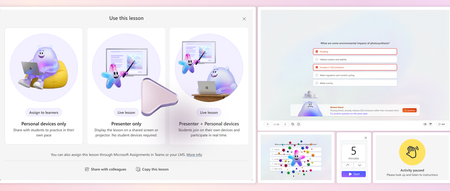
Welcome to our monthly update for Microsoft Education and thank you so much for being part of our growing community! Topics Teach in Microsoft Copilot updates Learning Zone updates Teams for Education updates Study & Learn agent updates Copilot Notebooks and OneNote updates We’ve loved seeing the early impact at schools and institutions such as Brisbane Catholic Education and Miami Dade College and the exploration of new capabilities like agents. Get started with Copilot Chat, our no-cost AI-powered chat with data protection, and learn more about Microsoft 365 Copilot. 1. Teach in Microsoft Copilot updates Unit Plans in Teach Unit Plans, the most requested tool in Teach, arrives soon! It brings standards, learning goals, pacing, lessons, and assessments together in one coherent plan for the entire unit. Set the unit length and weekly teaching schedule and ground it on your standards and materials. Teach builds a structured week-by-week sequence, maps standards to individual lessons, and places assessments at the right points across the unit. From there, you can refine the pacing, reorder lessons, and create connected lesson plans and assessments while keeping the whole unit in view. When: In Private preview today, generally available in late October Keep Going in Teach After creating or modifying something in Teach, you can now keep your workflow going. Create more resources with your content and teaching context carried forward, so you can review and adjust related materials without re-entering the same details. Create a quiz to go with your lesson plan, flashcards to reinforce learnings from text you’ve modified, and many more. Coming soon, you’ll also be able to engage with Copilot Chat after creating or modifying content in Teach, with your materials already in context. Create a student worksheet for your lesson plan. Turn a rubric into a parent-friendly explanation or develop a student self-assessment checklist. Build on what you've created without uploading the resource again or explaining it from scratch. Teach in OneNote Class Notebook Teach in OneNote Class Notebook (on the web and in Teams) is rolling out to EDU TAP (preview) tenants now! Folks using Windows can also get it on desktop through the Microsoft 365 Insider program. Educators will see a new Copilot Teaching Tools button that opens Teach's creation tools in a sidebar, with options for curriculum planning, Learning Activities, and modifying content. Create lesson plans, build interactive activities for your students (and check in on the most challenging concepts using the Learning Activities web app), or generate adapted versions of your teaching materials without leaving Class Notebook. Whether you're preparing resources for a new topic or creating extra practice, Teach brings these tools alongside the notebook where you already work. When: Private preview now (Web, Windows, Teams), GA in November (including iPadOS, MacOS) New experience for finding your learning standards now available! Finding the right learning standards for your lessons and assignments just got easier. The redesigned Standards Picker gives you more room to browse and a clearer path to the standards you need: Start with your country or region to find relevant standards. Choose your standards set with more space to explore options for your subject. Browse grade levels and strands with full strand information visible as you go. Now available worldwide, the updated experience is available in Copilot Teach, Teams for Education, and Learning Zone. It is available to help you easily find your learning standards and curriculum in features that include Lesson Plans, Quizzes, Rubrics, Assignment Instructions, and Align to Standards. When: Available now! 2. Microsoft Learning Zone updates Live classroom with a single educator device As AI becomes part of everyday learning, classroom experiences are becoming more active and interactive. But not every classroom has a device for every student, and in many cases, educators rely on a single device to lead the lesson. For these classrooms, Learning Zone now offers Presenter Mode, allowing educators to project interactive lesson content and guide the whole class from a shared screen. Teachers can use discussion and practice activities to encourage active thinking, giving students time to work through questions together before revealing the answers. When students need more support, educators can reinforce understanding with another question on the same topic. Presenter Mode also includes live session interaction tools designed to make whole-class instruction more engaging. Educators can start a timer for individual or group work and celebrate class successes and correct answers. More tools are coming soon to support broader participation, including participant pickers, to give more students a turn to contribute. When: Available now. Some interception tools coming soon 3. Teams for Education updates Assign Study and Learn or a Copilot starter prompt in Assignments for Teams and LMS Assign Study and Learn Educators can assign Study and Learn when students need structured support that guides them through the work instead of providing a finished answer. Study and Learn already has the assignment title, instructions, and supported files and resources, so students can ask questions, work through concepts step by step, and begin without uploading or re-explaining the assignment. They can also practice with flashcards, quizzes, matching, and fill-in-the-blank activities based on the assignment content. Provide a Copilot starter prompt Educators can also provide a Copilot starter prompt from Assignments in Microsoft Teams and LMS when a general-purpose AI experience is a better fit. The prompt appears in the student's Copilot chat, helping them begin with instructions tailored to the assignment. Both entry points are part of setting Student AI Guidelines, where educators communicate how AI can be used on each assignment. After selecting an AI-allowed guideline, educators choose Study and Learn or Copilot. Students see the guideline and an Open Study and Learn or Open Copilot button directly on the assignment. When: Currently in Preview. Available to all in November 2026. Differentiate one assignment with Learning Groups Learning Groups in Assignments responds to educator requests for reusable student groups and makes it easier to support different learning needs with fewer assignments to manage. Educators can share different reading passages, planning guides, or extension activities with named groups within a single assignment. For example, an educator can provide a writing organizer to students who need extra support and an extension reading to others, without creating separate assignments. Students see only the resources selected for them and complete, submit, and receive feedback on their work individually, with no shared group submission. Group names and membership remain visible only to educators. For the next lesson, educators can reuse groups from a draft or published assignment in the same class, adjust membership before publishing, and add new resources instead of rebuilding student lists. When: Available now in Assignments in Microsoft Teams for Education. 4. Study and Learn agent updates Full video tutorial If you want the full tour of all the features available in Study and Learn now, check out this end-to-end tutorial that walks through every feature, start to finish. It's the fastest way to see the agent in action: Watch it here. Copilot Chat now opens with Study and Learn pre-selected K-12 students who already have Copilot Chat enabled, Study and Learn is now pre-selected the moment they open Copilot Chat. The coach is right there, ready - no hunting through a menu, no wondering which agent to pick. Copilot Chat opens by default in the learning mode. A student who wants to work with something else can dismiss it in a tap. IT admins stay in control. The setting lives in the Education settings panel in the Microsoft 365 admin center. It's ON by default for K-12, and OFF by default for higher education, where admins can turn it on when they're ready. Now available in all 48 Copilot languages At GA, Study and Learn was optimized for English (US). Now it speaks the way your learners do. The agent is available in all 48 Copilot languages. Set your browser or operating system to a supported locale and visit aka.ms/studyandlearn. The user experience and conversation are set in your language. The learning activities - flashcards, quizzes, matching, fill-in-the-blank - appear in your chosen app language. And you're not locked in. A learner can switch languages mid-conversation for a genuinely multilingual study session. Learning a new language and want the vocabulary words in the new language but the explanations in your native language? No problem. Want to switch languages to practice the vocabulary with Study and Learn, no problem, you can do that too. The coaching language follows you. For a student learning in their second language, or a family where the kitchen-table language isn't the classroom language this is the difference between a tool that talks at them and one that meets them where they are. 5. Copilot Notebooks and OneNote updates Visual learning with Infographics in Copilot Notebooks Visual learning just got easier with Infographics in Copilot Notebooks. Turn references into rich full color infographics that connect concepts and explain major ideas across references. Infographics are available to all users, no additional Copilot Premium license is required. This feature is rolling out and will be available soon. Create Word, Excel and PowerPoint decks right from Copilot Notebooks (Premium license) Notebooks helps students and educators move from exploring ideas to creating and refining their work, without breaking their learning flow. With the power of Office built in, students and educators can view, create, edit, and collaborate on Word, Excel, and PowerPoint files right within Notebooks. They can work directly on the canvas or use Copilot to add content, create graphs, and adjust formatting, while educators and peers collaborate in the same files. This feature is available now. Turn your notebook content into resources that help you plan, communicate, and share insights. Create, live-edit, and collaborate with Copilot on interactive reports for school updates, data trends, planning, and more. You can also create PDFs through chat to quickly turn notebook content into polished one-pagers and other shareable resources. This feature is available now. And finally, just to recap all the news we have for you this month, here’s a quick review of all the features that are generally available or are rolling out now: Teach module in Microsoft Copilot updates Microsoft Learning Zone updates Teams for Education updates Study & Learn agent updates Copilot Notebook and OneNote updates Mike Tholfsen Group Product Manager Microsoft Education896Views3likes0CommentsStudy and Learn Agent: Now in 48 Languages, images improvements, ready when you open Copilot
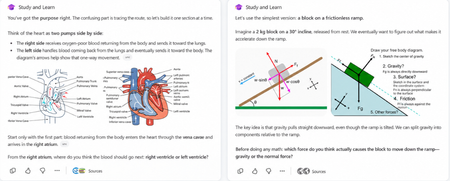
When we brought Study and Learn Agent to general availability, the promise was simple: the student does the thinking. Study and Learn asks before it tells. It pushes you to try. It makes learning interactive and quizzes you on what you missed. It lives at aka.ms/studyandlearn inside your Microsoft Education tenant. It coaches learners across any subject; explaining concepts, walking through problems step by step, supporting writing without doing the writing, and generating flashcards, quizzes, matching, and fill-in-the-blank activities from a learner's own materials. The design principle underneath all of it: preserve the productive effort that makes learning stick. The learner does the thinking. The agent coaches the thinking. 👥 Who can use it Study and Learn is available and pinned by default for every adult learner in a Microsoft Education tenant. No setup required — it's right there in the left navigation of Microsoft 365 Copilot. For K-12 students aged 13–17, there's one step first: Copilot Chat has to be enabled. Until it is, students in your tenant can't reach the agent. The good news is that it's a simple set of steps tutorial shows the exact enablement steps for IT admins. Watch the enablement walkthrough. 🎥 Full video tutorial If you want the full tour, Mike Tholfsen made an end-to-end tutorial that walks through every feature, start to finish. It's the fastest way to see the agent in action: Watch it here: ✨ Copilot Chat now opens with Study and Learn pre-selected For K-12 students who already have Copilot Chat enabled, Study and Learn is now pre-selected the moment they open Copilot Chat. The coach is right there, ready - no hunting through a menu, no wondering which agent to pick. Copilot Chat opens by default in the learning mode. A student who wants to work with something else can dismiss it in a tap. IT admins stay in control. The setting lives in the Education settings panel in the Microsoft 365 admin center. It's ON by default for K-12 and OFF by default for higher education, where admins can turn it on when they're ready. 🌍 Now available in 48 languages At GA, Study and Learn was optimized for English (US). Now it speaks the way your learners do. The agent is available in 48 languages beyond English. Set your browser or operating system to a supported locale and visit aka.ms/studyandlearn. The user experience and conversation are set in your language. The learning activities - flashcards, quizzes, matching, fill-in-the-blank - appear in your chosen app language. Additional language support is rolling out now and will be available to all users in the coming days. And you're not locked in. A learner can switch languages mid-conversation for a genuinely multilingual study session. Learning a new language and want the vocabulary words in the new language but the explanations in your native language? No problem. Want to switch languages to practice the vocabulary with Study and Learn, no problem, you can do that too. The coaching language follows you. For a student learning in their second language, or a family where the kitchen-table language isn't the classroom language this is the difference between a tool that talks at them and one that meets them where they are. 🖼️ Images that show, instead of just tell Some things are easier to see than to describe. A cell's structure. The layers of the atmosphere. Where the femur meets the hip. Study and Learn conversations can now include a carousel of relevant, web-safe images sourced through search, woven right into the flow of the agent's response. Each image supports the next step in a learner's understanding, a visual nudge toward the answer they're working out for themselves, without shortcutting the effort that gets them there. This is especially powerful for visual subjects like biology, geography, and chemistry, where a single well-placed image does what a paragraph can't. This experience will get better over time. It is rolling out now and will be available to all users in the coming days. You can always share feedback here. 💬 A prompt pack to help learners get started Here’s a prompt pack - a set of ready-to-use prompts that show learners exactly how to put the agent to work, organized around the moments they actually face: Understand a difficult topic — “Use these materials to find the most important ideas and help me understand them.”, “Explain [topic] step by step, then check my understanding.” Practice what you know — “Create a matching activity for the key terms in this chapter.”, “Make a fill-in-the-blanks activity from these materials.” Improve my work — “Review what I missed and explain the ideas I need to practice.”, “Help me understand why my answer was incorrect, then let me try again Work on an assignment — “Help me brainstorm ideas for this assignment.”, “Review my draft and help me find one area to strengthen.”, “Help me check whether my evidence supports my main point.” Get ready for a test — “Use these materials to identify the topics I should focus on.”, “Give me a five-minute review of these concepts I’m still struggling with.” Every prompt keeps the learner in the driver's seat — the agent helps them think and practice, never hands over the answer. Share the pack at the start of a unit and watch how it changes the way students engage. 📋 Coming soon: educators can assign the agent from Teams Everything so far puts the coach in the learner's hands. This next one puts it in the educator's. Rolling out soon, educators will be able to assign the use of Study and Learn Agent directly from a Teams assignment. Instead of a blanket "you can use this," you'll be able to point learners to the agent for a specific assignment built right into the assignment they're already opening. The through-line Every one of these (the languages, the pre-select, the prompt pack, the images, the assignments) meet the learner where they are. In their language. The moment they open Copilot. With the words to get started and the visuals to see it clearly. Pointed there, when it counts, by the educator who knows them. Open Microsoft 365 Copilot. Look in the left navigation. Then watch Mike's full tutorial and try it on the thing you're studying next. Educators can also access the full professional development course on Study and Learn complete with suggestions on introducing the agent to students. Try Study and Learn Agent · Microsoft Education license required. K-12 student access (ages 13–17) requires IT to enable Copilot Chat. Resources: Try Study and Learn in your tenant: https://aka.ms/studyandlearn Full tutorial on Study and Learn: https://aka.ms/studyandlearnvideo Professional development for educators: https://aka.ms/studyandlearnmodule Enable Copilot Chat: https://aka.ms/enablecopilotchatvideo Support documentation: https://aka.ms/studyandlearndocumentation Anoo Padte is Principal Product Manager for AI in Education at Microsoft.1.2KViews2likes0CommentsHands on webinar: Build Student Skills with Learning Accelerators in Microsoft Teams
Join us on Wednesday, September 16th @ 8am Pacific Time and discover how Learning Accelerators in Microsoft Teams for Education can help students build foundational and future ready skills while giving educators actionable insights to personalize instruction. In this webinar, we’ll explore the latest capabilities across the Learning Accelerators suite, including: 📖 Reading Progress - Help students build reading fluency with personalized practice and AI-powered feedback 🎤 Speaker Progress – Develop confident presentation and communication skills with real-time coaching ➗ Math Progress – Create, assign, and review math practice while gaining deeper insight into student understanding 🔎 Search Progress – Teach students how to search effectively, evaluate sources, and build information literacy skills 📊 Education Insights – Turn learning activity into actionable data to identify trends and better support individual students We’ll walk through practical classroom scenarios, demonstrate key features, and share tips for getting the most from Learning Accelerators in Microsoft Teams. Join us to see how Learning Accelerators can help educators save time, personalize learning, and give every student more opportunities to practice, improve, and succeed. Wednesday, September 16th @ 8am Pacific time: Register here: https://df.events.teams.microsoft.com/event/df.2cc31453-8761-4442-9b9e-eceb4a80859f@72f988bf-86f1-41af-91ab-2d7cd011db47?source=copyLinkOneEventsShareDialog Mike Tholfsen Group Product Manager Microsoft Education386Views0likes0CommentsFour opportunities for IT admins to get ready with Copilot Chat for education
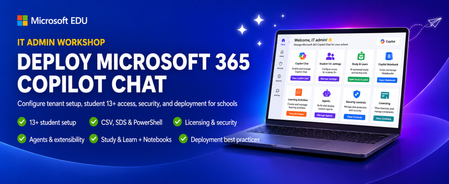
Microsoft Education is offering four live webinar opportunities for IT administrators who want to confidently deploy and manage Microsoft 365 Copilot Chat. Each session covers the same practical guidance, so you can select the date that best fits your schedule. What you’ll learn We’ll walk through Copilot Chat configuration from the tenant level to the end-user experience, including options for students ages 13+, CSV, SDS, and PowerShell uploads, agents and extensibility, and current licensing and security controls. You’ll leave with actionable guidance to help deploy, manage, and optimize Copilot Chat safely across your organization. We’ll also share a brief look at some Microsoft Education experiences including Teach in Copilot, the Study and Learn agent, Copilot Notebooks, and Learning Activities. Choose a session and register September 16th, Wed @ 8am Pacific time - Register for the September 16 session September 30th, Wed @ 8am Pacific time - Register for the September 30 session October 14th, Wed @ 8am Pacific time - Register for the October 14 session October 28 th , Wed @ 8am Pacific time - Register for the October 28 session Reserve your spot today. Pick the session that works best for you and join us to build a secure, manageable path to Copilot Chat adoption in your education environment. Mike Tholfsen Group Product Manager Microsoft Education826Views1like0CommentsWhat's New in Microsoft EDU - Back to School August 2026
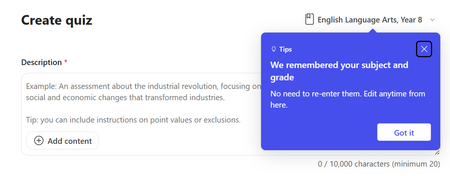
Welcome to our monthly update for Microsoft Education and thank you so much for being part of our growing community! Topics Teach in Microsoft Copilot updates Learning Zone updates Teams for Education updates Study and Learn agent updates Copilot Notebooks and OneNote updates Learning management system integration updates We’ve loved seeing the early impact at schools and institutions such as Brisbane Catholic Education and Miami Dade College and the exploration of new capabilities like agents. Get started with Copilot Chat, our no-cost AI-powered chat with data protection, and learn more about Microsoft 365 Copilot. 1. Teach in Microsoft Copilot updates Teach remembers your classes and settings Educators no longer need to re-enter their subject and grade level every time they use an AI creation tool. Remember Settings automatically saves previously-used Subjects and Grades and carries them across Teach, Teams, LTI, and OneNote Class Notebook. Set your course information once and reuse it, or switch between multiple courses in one click. This means a teacher with "Biology, Grade 9" and "Chemistry, Grade 11" can move between AI tools - lesson plans, quizzes, flashcards, rubrics - without ever filling in the same fields twice. Course details appear as a chip in the upper right of creation form, replacing blank fields with familiar context from day one. When: Available now Teach in your language and region AI creation tools across Teach, Teams, and Classwork now automatically detect language from the educator's content and browser settings - no manual language picker required. Whether you're working in Spanish, French, Japanese, or any supported language, generated content matches your actual teaching language without extra steps. When: Available now Unit Plans in Teach Unit Plans, the most requested tool in Teach, arrives soon! It brings standards, learning goals, pacing, lessons, and assessments together in one coherent plan for the entire unit. Set the unit length and weekly teaching schedule and ground it on your standards and materials. Teach builds a structured week-by-week sequence, maps standards to individual lessons, and places assessments at the right points across the unit. From there, you can refine the pacing, reorder lessons, and create connected lesson plans and assessments while keeping the whole unit in view. When: Coming September 2. Microsoft Learning Zone updates As AI becomes part of everyday learning, classroom experiences are becoming more active and interactive. Teachers are no longer limited to presenting content while students passively consume it. Instead, AI is helping teachers create engaging lessons faster, while giving students more opportunities to participate, practice, and receive feedback in real time. Learning Zone was built to support this shift, connecting AI-powered interactive lesson creation, classroom delivery, and learning insights in one experience. Create lessons on any Windows 11 device This school year, educators on any Windows 11 PC can create Learning Zone's interactive lessons through August 2027. Teachers can create lessons of up to 10 slides in minutes from an idea, standard, or trusted content source, making it easier to bring relevant and customized learning experiences into the classroom while saving valuable preparation time. When: Available Now Make classroom sessions more engaging and active Learning Zone is also expanding to support engaging live classroom experiences through educator-led interactive lessons. Students can join from their own devices and participate together in a live lesson experience, while teachers guide instruction, control pacing, and receive real-time insights into student understanding. When: Available Now Create lessons in more languages This September, Learning Zone is also expanding lesson creation support to French, Italian, Portuguese, and Japanese, alongside English and Spanish, helping more educators create lessons in their preferred language. When: September Interactive lessons in Copilot Teach and in Teams assignments To fit naturally into existing teaching workflows, Learning Zone integrates with Teach in the Microsoft 365 Copilot app, Teams Assignments, and LMS platforms through Microsoft LTI. Lessons can be created and assigned from the tools educators already use, while students complete work in familiar environments and grades sync automatically. When: Available Now And we're not stopping there. Based on ongoing feedback, Learning Zone continues to evolve with new capabilities that make lesson creation faster, teaching more effective, and learning more accessible and engaging. Recent additions include standards lookup, enhanced image support through Bing integration, new interactive activity types, Immersive Reader integration, and tablet support for students, with more improvements on the way. Together, these updates make it easier for educators to save time, create engaging learning experiences, and make purposeful use of the devices already in their classrooms. 3. Teams for Education updates Learning Activities in Assignments and Classwork Learning Activities - flashcards, fill in the blanks, matching, and quizzes - can now be added directly within Assignments and Classwork in Teams. Educators can attach an existing Learning Activity or create a new one without leaving the assignment workflow. Student progress is captured as part of the assignment experience, keeping interactive practice and review in one familiar place. Students can also create their own Learning Activities from educator-shared resources within an assignment. Share a document or PDF, and students can generate flashcards or study activities from it, supporting self-directed learning without extra setup from the teacher. When: Available Now Group assignments updates Creating differentiated groups for assignments just got easier. Educators can now reuse student groups from previous assignments - select a past assignment, pick the groups you want, and apply them to a new assignment in seconds. No more recreating the same reading groups, project teams, or skill-level clusters from scratch each time. After publishing an assignment, educators can move students between groups without recreating the assignment. Need to shift a student from one reading level to another mid-unit? A single "move member" action handles it cleanly while preserving existing student work. When: Available Now Control when students can undo turn-in Educators can now choose whether students can undo a submission after turning in an assignment. When creating or editing an assignment, set Students can undo turn-in to No to make each submission final until you return the work for revision. The setting can be changed for each assignment, and educators can choose their preferred default for new assignments in Assignments Settings. When: Available Now 4. Study and Learn agent updates Study and Learn Agent is available at aka.ms/studyandlearn in your Microsoft Education tenant. An AI coach based on learning science, it tutors learners by preserving productive struggles essential for learning instead of just giving answers or doing the work for them. Copilot chat needs to be enabled for K12 students 13-17 years to get access to the agent (see tutorial video for exact enablement steps). It is available and pinned for all adult learners by default. Copilot chat now opens with Study and Learn pre-selected For K-12 students who already have Copilot Chat enabled, Study and Learn Agent is now pre-selected when they start using Copilot Chat. Students can dismiss the agent. IT admins control this setting in the Education settings panel in the Microsoft 365 admin center. It is ON by default for K-12 and OFF by default for higher education, where admins can enable it. Study and Learn includes images to “show” instead of “tell” concepts Study and Learn conversations can now include a carousel of relevant, web-safe images sourced through search. Images support the next step in a student’s understanding, helping them work toward their own answer while preserving productive effort. Further improvements to images are planned. Available in 40 languages The agent is now available in 40 languages beyond English (US). Set your browser or operating system to a supported locale and visit https://aka.ms/studyandlearn. Learning activities will appear in your chosen app locale, and you can switch languages during a conversation for a multilingual learning experience. 5. Copilot Notebooks and OneNote updates We’re expanding what educators can create and do across OneNote, with new Copilot experiences coming along for the ride: Share links from Learning Activities now work across OneNote on the web, desktop, iPad, and iOS. When pasted into a OneNote page, these links automatically unfurl into interactive activities directly on the page. Coming soon to preview for Technology Adoption Program (TAP) customers: Copilot Teaching Tools directly in the OneNote Class Notebook toolbar. Want to try upcoming features early? Ask your IT admin to complete the form at aka.ms/joinEDUTAP to join TAP. Copilot Notebooks and Study guide are available to all educators and students Copilot Notebooks are available to all Microsoft 365 Education licenses (A1, A3, A5) without requiring an additional Copilot Premium license. Copilot Notebooks are AI-powered workspaces to gather all your materials on a single topic, chat with Copilot and create Study guide with interactive activities like flashcards, quizzes, matching and fill-in-the-blanks, Mind map, Word, Excel, and PowerPoint. 6. Learning management system integration updates Support for new learning management systems Welcome Skooler, Infinite Campus, and Blackbaud into our officially supported LMS platforms alongside Canvas, Blackboard, D2L/Brightspace and Moodle. The Microsoft 365 LTI app is LTI 1.3 Advantage Complete certified so able to support any platform that is conformant to the LTI 1.3 Advantage standard, but we partner closely with these LMS platforms to make sure our customers have a great experience. Copilot teaching tools are generally available Copilot teaching tools are a set of tools available in familiar LMS flows for creating and updating content. Educators can easily access AI-powered teaching tools to quickly make modifications to language, reading level, length, difficulty, alignment to relevant standards. They can also create Microsoft Learning Activities like flashcards, fill in the blanks, and matching games that can be shared with a class as study aids. Meetings keep in sync and recordings view Keeping your current roster in sync with meeting invites is easy – Enabling the keep in sync option in meetings ensures that your meeting invites to the are always in sync with the current LMS roster and students can co-teachers have invites and can join your meetings. We have also added a new (default) option for meeting recordings that allows teachers to explicitly publish recordings for the class, ensuring that all students and co-teachers have access to view or edit the recording and also giving a chance for educators to add captions or edit recordings before publishing for the class. Add co-teachers as meeting co-organizers The new setting to add co-teachers in a course as co-organizers to a meeting allows you to easily give your co-teachers in a course the ability to help you manage meetings and moderate online sessions. OneDrive 2tb file upload limit File upload limit for sharing files with a course is now 2tb, ensuring that large files like meeting recordings can be shared with a course without issues. ____________________________________ And finally, just to recap all the news we have for you this month, here’s a quick review of all the features that are generally available or are rolling out now: Teach module in Microsoft Copilot updates Settings to remember your classes Language and regional settings auto-detect and improvements Unit Plans Microsoft Learning Zone Available as a trial for Windows 11 Integration in to Teach, Teams and LMS Teach in Class mode Standards support New languages Improved images Teams for EDU updates Learning Activities in Assignments Reuse Groups Undo Turn-in Study and Learn agent updates IT Admin controls to enable "pre-selected" as the default 40+ languages supported Image improvements Copilot Notebooks available to all M365 education teachers and students LMS integration and Microsoft 365 LTI Support for new LMSes - Skooler, Infinite Campus and Blackbaud Copilot teaching tools generally available Meetings keep in sync and recording views Add co-teachers as meeting co-organizers OneDrive 2tb file upload limit Mike Tholfsen Group Product Manager Microsoft Education2.1KViews5likes0CommentsCalling all IT Admins - webinar on configuring Copilot Chat and updates for Students 13+
This IT Admin-focused workshop walks through how to configure Microsoft 365 Copilot Chat, from your tenant all the way to the end-user experience. When you enable Copilot Chat for students 13+, they will also get access to the new Study & Learn agent, Copilot Notebooks, Learning Activities and more. We cover the latest features that are available — including the new 13+ student configuration options, CSV, SDS and Powershell uploads, Copilot agents & extensibility, and updated licensing & security controls. By the end, you’ll be able to confidently deploy, manage, and optimize Copilot Chat in your environment so your users can safely harness AI productivity from day one. This 45-minute webinar will be led by Bill Sluss Principal Product Manager from the Microsoft Education team. When: Wednesday, August 19th @ 8am Pacific time Register: https://df.events.teams.microsoft.com/event/df.95feda23-419a-4d99-bfad-f7e4fd52a498@72f988bf-86f1-41af-91ab-2d7cd011db47?source=copyLinkOneEventsShareDialog Mike Tholfsen Group Product Manager Microsoft Education434Views0likes0CommentsHands-on webinar: Set up your classroom in Teams for Education plus the new Study and Learn Agent
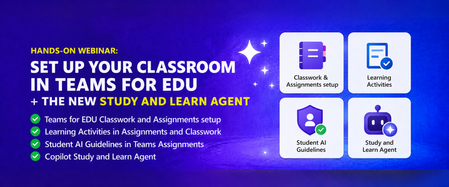
Join us on Wednesday, August 5th at 8:00 AM Pacific Time for a practical, 60-minute webinar to get your Microsoft Teams classroom ready for the new school year in the Northern hemisphere. Get your class set up in Assignments and Classwork, learn about new tools like Learning Activities, use Student AI Guidelines to set the right expectations for your students, and see how the Study and Learn Agent can be a study partner for your students. Follow along with your own Microsoft 365 Education account as we walk through each one. Register here: https://aka.ms/August5Training The session will be recorded and posted to the Microsoft Education YouTube channel so you can watch it later or share it with colleagues. Agenda - Get your Teams EDU classroom ready and learn about the Study and Learn Agent. ✅ Teams EDU Classwork / Assignments setup ✅ Learning Activities in Assignments and Classwork ✅ Student AI Guidelines in Teams Assignments ✅ Copilot Study and Learn Agent We look forward to seeing you on August 5th! Also, be sure to check out and sign up for our Microsoft Elevate Educator community. Mike Tholfsen Group Product Manager Microsoft Education303Views0likes0CommentsHands-on webinar: Teach Module in M365 Copilot and Copilot Notebooks (available for all educators)
Join us on Wednesday, July 8th @ 8am Pacific Time for an in-depth professional development webinar on the new AI-powered "Teach" module in M365 Copilot that is fully rolled out and available to everyone. We will also be covering Copilot Notebooks and the Study Guide which is now also available to all M365 Educators and Students. This will be a 60-minute hands-on webinar where the Product Management team will walk through the new updates in detail and you can follow-along at home with your own M365 Education account. To reiterate, the Teach Module and Copilot Notebooks are available globally to all educators using Microsoft 365. And don’t worry – we’ll be recording these and posting on our Microsoft Education YouTube channel so you’ll always to able to watch later or share with others. Register here: https://msit.events.teams.microsoft.com/event/msit.ed7f065d-57a5-437c-ba23-12b0ef06a259@72f988bf-86f1-41af-91ab-2d7cd011db47 Agenda: How to use the new AI-powered "Teach" module in M365. ✅ Lesson plans and the new Keep Going feature ✅ Learning Zone integration ✅ Modifying Existing content ✅ Learning Activities ✅ Coplot Notebooks plus Study Guide We look forward to having you attend the event! Also, be sure to check out and sign up for our Microsoft Elevate Educator community. Mike Tholfsen Group Product Manager Microsoft Education team427Views1like0Comments