Welcome to our monthly update for Microsoft Education and thank you so much for being part of our growing community!
Topics
- Teach in Microsoft Copilot updates
- Learning Zone updates
- Teams for Education updates
- Study & Learn agent updates
- Copilot Notebooks and OneNote updates
We’ve loved seeing the early impact at schools and institutions such as Brisbane Catholic Education and Miami Dade College and the exploration of new capabilities like agents. Get started with Copilot Chat, our no-cost AI-powered chat with data protection, and learn more about Microsoft 365 Copilot.
1. Teach in Microsoft Copilot updates
Unit Plans in Teach
Unit Plans, the most requested tool in Teach, arrives soon! It brings standards, learning goals, pacing, lessons, and assessments together in one coherent plan for the entire unit. Set the unit length and weekly teaching schedule and ground it on your standards and materials. Teach builds a structured week-by-week sequence, maps standards to individual lessons, and places assessments at the right points across the unit. From there, you can refine the pacing, reorder lessons, and create connected lesson plans and assessments while keeping the whole unit in view.
When: In Private preview today, generally available in late October
Keep Going in Teach
After creating or modifying something in Teach, you can now keep your workflow going. Create more resources with your content and teaching context carried forward, so you can review and adjust related materials without re-entering the same details. Create a quiz to go with your lesson plan, flashcards to reinforce learnings from text you’ve modified, and many more.
Coming soon, you’ll also be able to engage with Copilot Chat after creating or modifying content in Teach, with your materials already in context. Create a student worksheet for your lesson plan. Turn a rubric into a parent-friendly explanation or develop a student self-assessment checklist. Build on what you've created without uploading the resource again or explaining it from scratch.
Teach in OneNote Class Notebook
Teach in OneNote Class Notebook (on the web and in Teams) is rolling out to EDU TAP (preview) tenants now! Folks using Windows can also get it on desktop through the Microsoft 365 Insider program. Educators will see a new Copilot Teaching Tools button that opens Teach's creation tools in a sidebar, with options for curriculum planning, Learning Activities, and modifying content. Create lesson plans, build interactive activities for your students (and check in on the most challenging concepts using the Learning Activities web app), or generate adapted versions of your teaching materials without leaving Class Notebook. Whether you're preparing resources for a new topic or creating extra practice, Teach brings these tools alongside the notebook where you already work.
When: Private preview now (Web, Windows, Teams), GA in November (including iPadOS, MacOS)
New experience for finding your learning standards now available!
Finding the right learning standards for your lessons and assignments just got easier. The redesigned Standards Picker gives you more room to browse and a clearer path to the standards you need:
- Start with your country or region to find relevant standards.
- Choose your standards set with more space to explore options for your subject.
- Browse grade levels and strands with full strand information visible as you go.
Now available worldwide, the updated experience is available in Copilot Teach, Teams for Education, and Learning Zone. It is available to help you easily find your learning standards and curriculum in features that include Lesson Plans, Quizzes, Rubrics, Assignment Instructions, and Align to Standards.
When: Available now!
2. Microsoft Learning Zone updates
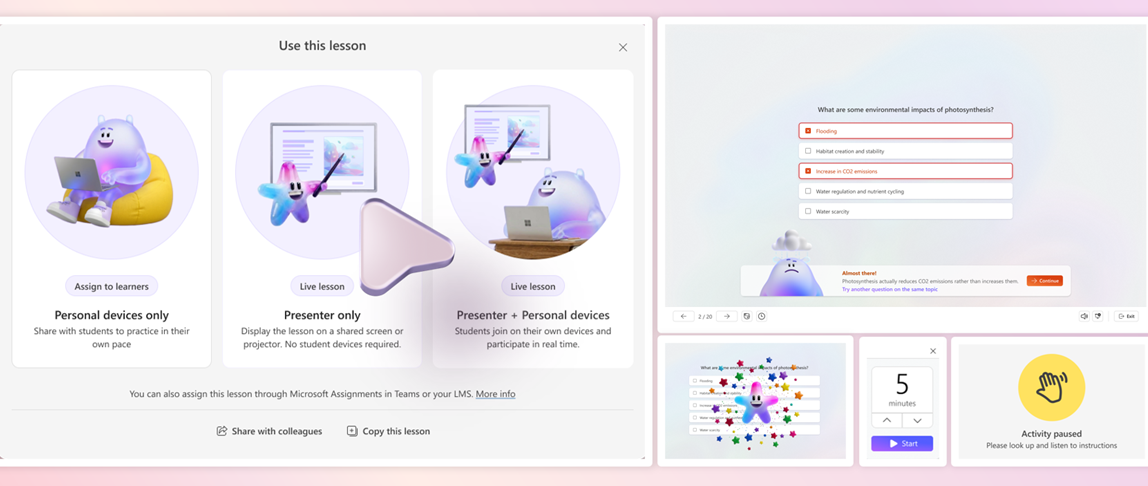
Live classroom with a single educator device
As AI becomes part of everyday learning, classroom experiences are becoming more active and interactive. But not every classroom has a device for every student, and in many cases, educators rely on a single device to lead the lesson.
For these classrooms, Learning Zone now offers Presenter Mode, allowing educators to project interactive lesson content and guide the whole class from a shared screen. Teachers can use discussion and practice activities to encourage active thinking, giving students time to work through questions together before revealing the answers. When students need more support, educators can reinforce understanding with another question on the same topic.
Presenter Mode also includes live session interaction tools designed to make whole-class instruction more engaging. Educators can start a timer for individual or group work and celebrate class successes and correct answers. More tools are coming soon to support broader participation, including participant pickers, to give more students a turn to contribute.
When: Available now. Some interception tools coming soon
3. Teams for Education updates
Assign Study and Learn or a Copilot starter prompt in Assignments for Teams and LMS
Assign Study and Learn
Educators can assign Study and Learn when students need structured support that guides them through the work instead of providing a finished answer. Study and Learn already has the assignment title, instructions, and supported files and resources, so students can ask questions, work through concepts step by step, and begin without uploading or re-explaining the assignment. They can also practice with flashcards, quizzes, matching, and fill-in-the-blank activities based on the assignment content.
Provide a Copilot starter prompt
Educators can also provide a Copilot starter prompt from Assignments in Microsoft Teams and LMS when a general-purpose AI experience is a better fit. The prompt appears in the student's Copilot chat, helping them begin with instructions tailored to the assignment.
Both entry points are part of setting Student AI Guidelines, where educators communicate how AI can be used on each assignment. After selecting an AI-allowed guideline, educators choose Study and Learn or Copilot. Students see the guideline and an Open Study and Learn or Open Copilot button directly on the assignment.
When: Currently in Preview. Available to all in November 2026.
Differentiate one assignment with Learning Groups
Learning Groups in Assignments responds to educator requests for reusable student groups and makes it easier to support different learning needs with fewer assignments to manage. Educators can share different reading passages, planning guides, or extension activities with named groups within a single assignment. For example, an educator can provide a writing organizer to students who need extra support and an extension reading to others, without creating separate assignments.
Students see only the resources selected for them and complete, submit, and receive feedback on their work individually, with no shared group submission. Group names and membership remain visible only to educators. For the next lesson, educators can reuse groups from a draft or published assignment in the same class, adjust membership before publishing, and add new resources instead of rebuilding student lists.
When: Available now in Assignments in Microsoft Teams for Education.
4. Study and Learn agent updates
Full video tutorial
If you want the full tour of all the features available in Study and Learn now, check out this end-to-end tutorial that walks through every feature, start to finish. It's the fastest way to see the agent in action: Watch it here.
Copilot Chat now opens with Study and Learn pre-selected
K-12 students who already have Copilot Chat enabled, Study and Learn is now pre-selected the moment they open Copilot Chat. The coach is right there, ready - no hunting through a menu, no wondering which agent to pick. Copilot Chat opens by default in the learning mode. A student who wants to work with something else can dismiss it in a tap.
IT admins stay in control. The setting lives in the Education settings panel in the Microsoft 365 admin center. It's ON by default for K-12, and OFF by default for higher education, where admins can turn it on when they're ready.
Now available in all 48 Copilot languages
At GA, Study and Learn was optimized for English (US). Now it speaks the way your learners do.
The agent is available in all 48 Copilot languages. Set your browser or operating system to a supported locale and visit aka.ms/studyandlearn. The user experience and conversation are set in your language. The learning activities - flashcards, quizzes, matching, fill-in-the-blank - appear in your chosen app language.
And you're not locked in. A learner can switch languages mid-conversation for a genuinely multilingual study session. Learning a new language and want the vocabulary words in the new language but the explanations in your native language? No problem. Want to switch languages to practice the vocabulary with Study and Learn, no problem, you can do that too. The coaching language follows you.
For a student learning in their second language, or a family where the kitchen-table language isn't the classroom language this is the difference between a tool that talks at them and one that meets them where they are.
5. Copilot Notebooks and OneNote updates
Visual learning with Infographics in Copilot Notebooks
Visual learning just got easier with Infographics in Copilot Notebooks. Turn references into rich full color infographics that connect concepts and explain major ideas across references. Infographics are available to all users, no additional Copilot Premium license is required. This feature is rolling out and will be available soon.
Create Word, Excel and PowerPoint decks right from Copilot Notebooks (Premium license)
Notebooks helps students and educators move from exploring ideas to creating and refining their work, without breaking their learning flow.
With the power of Office built in, students and educators can view, create, edit, and collaborate on Word, Excel, and PowerPoint files right within Notebooks. They can work directly on the canvas or use Copilot to add content, create graphs, and adjust formatting, while educators and peers collaborate in the same files. This feature is available now.
Turn your notebook content into resources that help you plan, communicate, and share insights. Create, live-edit, and collaborate with Copilot on interactive reports for school updates, data trends, planning, and more. You can also create PDFs through chat to quickly turn notebook content into polished one-pagers and other shareable resources. This feature is available now.
And finally, just to recap all the news we have for you this month, here’s a quick review of all the features that are generally available or are rolling out now:
- Teach module in Microsoft Copilot updates
- Microsoft Learning Zone updates
- Teams for Education updates
- Study & Learn agent updates
- Copilot Notebook and OneNote updates
Mike Tholfsen
Group Product Manager
Microsoft Education

 Microsoft