education
535 TopicsStudy and Learn Agent: Now in 50 Languages, images improvements, ready when you open Copilot
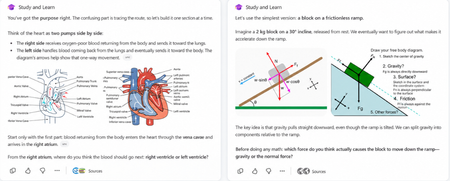
When we brought Study and Learn Agent to general availability, the promise was simple: the student does the thinking. Study and Learn asks before it tells. It pushes you to try. It makes learning interactive and quizzes you on what you missed. It lives at aka.ms/studyandlearn inside your Microsoft Education tenant. It coaches learners across any subject; explaining concepts, walking through problems step by step, supporting writing without doing the writing, and generating flashcards, quizzes, matching, and fill-in-the-blank activities from a learner's own materials. The design principle underneath all of it: preserve the productive effort that makes learning stick. The learner does the thinking. The agent coaches the thinking. 👥 Who can use it Study and Learn is available and pinned by default for every adult learner in a Microsoft Education tenant. No setup required — it's right there in the left navigation of Microsoft 365 Copilot. For K-12 students aged 13–17, there's one step first: Copilot Chat has to be enabled. Until it is, students in your tenant can't reach the agent. The good news is that it's a simple set of steps tutorial shows the exact enablement steps for IT admins. Watch the enablement walkthrough. 🎥 Full video tutorial If you want the full tour, Mike Tholfsen made an end-to-end tutorial that walks through every feature, start to finish. It's the fastest way to see the agent in action: Watch it here: ✨ Copilot Chat now opens with Study and Learn pre-selected For K-12 students who already have Copilot Chat enabled, Study and Learn is now pre-selected the moment they open Copilot Chat. The coach is right there, ready - no hunting through a menu, no wondering which agent to pick. Copilot Chat opens by default in the learning mode. A student who wants to work with something else can dismiss it in a tap. IT admins stay in control. The setting lives in the Education settings panel in the Microsoft 365 admin center. It's ON by default for K-12 and OFF by default for higher education, where admins can turn it on when they're ready. 🌍 Now available in 50 languages At GA, Study and Learn was optimized for English (US). Now it speaks the way your learners do. The agent is available in 50 languages beyond English. Set your browser or operating system to a supported locale and visit aka.ms/studyandlearn. The user experience and conversation are set in your language. The learning activities - flashcards, quizzes, matching, fill-in-the-blank - appear in your chosen app language. Additional language support is rolling out now and will be available to all users in the coming days. And you're not locked in. A learner can switch languages mid-conversation for a genuinely multilingual study session. Learning a new language and want the vocabulary words in the new language but the explanations in your native language? No problem. Want to switch languages to practice the vocabulary with Study and Learn, no problem, you can do that too. The coaching language follows you. For a student learning in their second language, or a family where the kitchen-table language isn't the classroom language this is the difference between a tool that talks at them and one that meets them where they are. 🖼️ Images that show, instead of just tell Some things are easier to see than to describe. A cell's structure. The layers of the atmosphere. Where the femur meets the hip. Study and Learn conversations can now include a carousel of relevant, web-safe images sourced through search, woven right into the flow of the agent's response. Each image supports the next step in a learner's understanding, a visual nudge toward the answer they're working out for themselves, without shortcutting the effort that gets them there. This is especially powerful for visual subjects like biology, geography, and chemistry, where a single well-placed image does what a paragraph can't. This experience will get better over time. It is rolling out now and will be available to all users in the coming days. You can always share feedback here. 💬 A prompt pack to help learners get started Here’s a prompt pack - a set of ready-to-use prompts that show learners exactly how to put the agent to work, organized around the moments they actually face: Understand a difficult topic — “Use these materials to find the most important ideas and help me understand them.”, “Explain [topic] step by step, then check my understanding.” Practice what you know — “Create a matching activity for the key terms in this chapter.”, “Make a fill-in-the-blanks activity from these materials.” Improve my work — “Review what I missed and explain the ideas I need to practice.”, “Help me understand why my answer was incorrect, then let me try again Work on an assignment — “Help me brainstorm ideas for this assignment.”, “Review my draft and help me find one area to strengthen.”, “Help me check whether my evidence supports my main point.” Get ready for a test — “Use these materials to identify the topics I should focus on.”, “Give me a five-minute review of these concepts I’m still struggling with.” Every prompt keeps the learner in the driver's seat — the agent helps them think and practice, never hands over the answer. Share the pack at the start of a unit and watch how it changes the way students engage. 📋 Coming soon: educators can assign the agent from Teams Everything so far puts the coach in the learner's hands. This next one puts it in the educator's. Rolling out soon, educators will be able to assign the use of Study and Learn Agent directly from a Teams assignment. Instead of a blanket "you can use this," you'll be able to point learners to the agent for a specific assignment built right into the assignment they're already opening. The through-line Every one of these (the languages, the pre-select, the prompt pack, the images, the assignments) meet the learner where they are. In their language. The moment they open Copilot. With the words to get started and the visuals to see it clearly. Pointed there, when it counts, by the educator who knows them. Open Microsoft 365 Copilot. Look in the left navigation. Then watch Mike's full tutorial and try it on the thing you're studying next. Educators can also access the full professional development course on Study and Learn complete with suggestions on introducing the agent to students. Try Study and Learn Agent · Microsoft Education license required. K-12 student access (ages 13–17) requires IT to enable Copilot Chat. Resources: Try Study and Learn in your tenant: https://aka.ms/studyandlearn Full tutorial on Study and Learn: https://aka.ms/studyandlearnvideo Professional development for educators: https://aka.ms/studyandlearnmodule Enable Copilot Chat: https://aka.ms/enablecopilotchatvideo Support documentation: https://aka.ms/studyandlearndocumentation Anoo Padte is Principal Product Manager for AI in Education at Microsoft.1KViews1like0CommentsPreview the new Microsoft 365 LTI® for your LMS
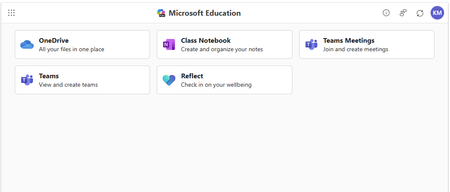
Enhance your LMS with the power of Microsoft 365 We are excited to announce the public preview of Microsoft 365 LTI. Experience the full potential of Microsoft 365 directly within your Learning Management System (LMS) through a simple to integrate learning tool interoperability (LTI). Microsoft 365 LTI makes LMS integrations simple, with a powerful tool designed to introduce new capabilities to streamline and simplify deployment. Deploy and access the new Microsoft 365 LTI in your LMS with the overview and deployment guides. At-a-glance: The Microsoft 365 LTI is now in Public Preview, bringing all your favorite Microsoft Education tools into a single, seamless experience inside your LMS. No more juggling multiple integrations - just streamlined access to everything educators and students need, right where they work. This includes: Unified access to OneDrive, Teams, Class Notebook, Reflect, and more, directly in your LMS Add content, create assignments, and schedule meetings - all from one place No need to enable multiple tools separately or clutter your LMS menus Replaces deprecated Teams Meetings and Team Classes LTI tools Expanding support for Microsoft Assignments, OneDrive, OneNote Class Notebooks, and Reflect Available for Canvas, Schoology, Blackboard, D2L Brightspace, Moodle, and more Let’s dive into the new Microsoft 365 LTI to streamline your learning management system experience We are bringing our Microsoft Education capabilities for learning management systems together into a single tool and streamlined user experience. Educators will be able to access Learning Accelerators, Reflect, OneDrive, Teams, and more in their LMS courses, without having to enable multiple tools separately, and without overcrowding menus where LTI tools are surfaced. Whether adding content to a module, creating an assignment, or scheduling a meeting for a class, you will be able to easily access Microsoft Education related features directly in your LMS workflow. Microsoft 365 LTI debuts with replacements for the deprecated Teams Meetings and Team Classes LTI tools that sunset on 9/15/2025. The capabilities of Microsoft Assignments, OneDrive, OneNote Class Notebooks, and Reflect will also be added to the Microsoft 365 LTI in preview, and those existing LTIs will continue to be supported as their capabilities transition. Microsoft 365 LTI will be available for all currently supported LMS platforms, including Canvas by Instructure, PowerSchool Schoology Learning, Blackboard by Anthology, D2L/Brightspace, and Moodle™, and for any LTI 1.3 Advantage compliant platform. Learning Accelerators and AI-enhanced assignments in your LMS (without Microsoft Teams) With the Microsoft 365 LTI, you will be able to use Learning Accelerators, multiple-document submissions, AI rubric and instructions generation, AI-assisted feedback, auto-graded Forms and other Microsoft Education assignment capabilities directly within your learning management system (LMS), without the need to create and sync a Microsoft Team for your class. Assignments in Microsoft 365 LTI no longer require Teams, enabling more LMS users to benefit from advanced, AI-enhanced capabilities that were formerly exclusive to Microsoft Teams for Education. Assignments can be created, managed, completed, and graded, without leaving your LMS, and grades and feedback will sync automatically to the LMS gradebook. This capability is included automatically in the new Microsoft 365 LTI tool. Existing, Teams-based assignments will continue to work and can be copied to new courses, so no migration is necessary. This enhancement will apply to all currently supported LMS platforms, including Canvas, Schoology, Blackboard, D2L Brightspace, and Moodle. Teams and Teams Meetings Microsoft 365 LTI replaces the former Teams Classes LTI and Teams Meetings LTI tools, with improved user experience. Users can easily schedule, manage, and launch meetings from directly within their LMS course. The tool provides streamlined views of future and past meetings, consolidated attendance reports, and a new “Meet Now” capability. Automatic rostering in Class Notebooks returns with the Microsoft 365 LTI In March, we announced the retirement of automatically adding newly rostered students and co-educators to OneNote Class Notebooks provisioned through the LMS using the LTI 1.1 integration. This much-loved feature is back in the new Class Notebook app in Microsoft 365 LTI. Any instructor in the LMS course can create a Class Notebook and all co-educators and students automatically added to the notebook, even as the LMS roster changes. In addition, the new integration enables OneNote with the benefits of LTI 1.3 conformance and a modernized provisioning flow for educators to easily deploy new Class Notebooks for their courses. Existing notebooks created in the LTI 1.1 integration will continue to work, and sections and pages can be easily copied to new notebooks. OneDrive and Microsoft 365 files with embedded editors and new placements The new Microsoft 365 LTI tool expands beyond the capabilities of the existing OneDrive LTI tool. The full capabilities of Word, PowerPoint, and Excel, including Microsoft 365 Copilot, are now available within the LMS experience for attaching content resources, collaborative documents (including Collaborations for Canvas Courses and Groups!), and students editing and submitting Microsoft 365 documents as an assignment without leaving the LMS. Documents can be embedded or linked into courses and other LMS activities like discussions, announcements, pages, with proper management of permissions to prevent oversharing, and with dedicated course-level storage to support proper document lifecycle management, assignment workflows, and use of Microsoft 365 Copilot. Easily add Reflect to your classroom toolset Microsoft 365 LTI provides easy access to Microsoft Reflect to support student wellbeing in the classroom. Educators can create check-ins, view responses, and monitor trends within an LMS course. Users can access activities from Microsoft and partners such as Calm to support physical and mental wellbeing. For more information, and to keep up with future product announcements Please visit the Microsoft Tech Community Education Blog and subscribe to keep up with what’s new in Microsoft Education. We also hold bi-monthly office hours every first and third Thursday where lots of LMS + Microsoft 365 customers come to discuss scenarios and get assistance from peers, please join us! Microsoft 365 LTI Office Hours 1 st and 3 rd Thursday of each month @11am EST Join link: https://aka.ms/LTIOfficeHours We can’t wait to hear your feedback! Try out the preview today. How to get help or send feedback For any issues deploying the integration, our Education Support team is here to help. Please visit https://aka.ms/EduSupport Once deployed, the Teams Assignments integration has links to Contact Support and Send Feedback from right within the app. These can be found in the user voice menu in the upper right on any view that appears within the LMS. Learn more about Microsoft feedback for your organization. Learning Tools Interoperability® (LTI®) is a trademark of the 1EdTech Consortium, Inc. (1edtech.org) The word Moodle and associated Moodle logos are trademarks or registered trademarks of Moodle Pty Ltd or its related affiliates.11KViews3likes8Comments
Agentic Mentor: A Specification-Driven, Multi-Agent Learning Tool
Project Overview Rather than relying on the model to know when the student understands, we built a pipeline where progress itself is gated: a student cannot move forward until they can demonstrate they understood what was just built. And rather than depending on commercial, token-billed APIs to make this teaching possible, the system is designed to run on locally hosted or free-tier models, keeping it accessible to students and institutions alike. As our contribution to Microsoft, we've handed over the full public repository behind Agentic Mentor. Given how central token-based services have become to software development, we see real potential for this approach in initiatives like GitHub Education, where affordable, agentic tools for students matter. In this post, we'll walk through what motivated the project, how Agentic Mentor works under the hood, and what we learned putting it to the test on a real piece of university coursework. The Project Journey This project was completed over three months. The first few weeks were spent on background research and requirements elicitation. We reviewed the literature on AI-assisted learning, specification-driven development and prompt ambiguity, elicited functional and non-functional requirements from our client supervisor at Microsoft, Lee Stott, and our academic supervisors, and broke the work into components we could build and test independently. This told us what was realistically achievable in the time we had, and which features were core to the tool rather than desirable extras. Implementation was coordinated through GitHub, with the team meeting daily to keep parallel work in sync and weekly meetings with both our supervisors and our client to report progress and check we were still building the right thing. We worked this way because the shape of the tool was still settling once implementation began, and that frequency of contact meant a wrong assumption surfaced in days rather than weeks. The most consequential decision of the project came out of those conversations. Agentic Mentor had been proposed as an assessment tool, but the AI does not write the assessment brief, so it cannot be relied on to read it as the academic intended, and grading on top of that reading would carry the model's misunderstanding into a student's mark. We pivoted to a learning tool, and the design of the pipeline followed from there. The final month went on completing both interfaces and evaluating the system, first against SpecBench as a correctness check, then against a real master's-level coursework. Two problems surfaced. Our GPU infrastructure went offline, so we moved to free-tier cloud models and scheduled runs around quota resets. And one of the questions the system generated turned out to be subtly wrong, and we had read it and accepted it without question, which is the automation bias we had spent the project writing about. Technical Details Agentic Mentor is built as a multi-agent, specification-driven pipeline. It has four agents; Research, Ingestion, Mentoring, and Viva. Each agent was implemented using the Microsoft Agent Framework. We chose to give each phase its own dedicated agent so that every stage could be equipped with the specific tools its task required, rather than relying on one general-purpose agent to handle the whole assignment. The agents run linearly, with each one writing its output to disk and the orchestrator passing the resulting file paths to the next stage. This design lets a session pause and resume. An overview of Agentic Mentor's architecture is seen in the figure below. Research Agent. This stage grounds the pipeline in external context. It uses GitHub and arXiv MCP servers to gather relevant literature and existing implementations. MCP gave the agent a uniform interface to both sources, meaning further ones could be added later simply by connecting another server, without reworking the agent itself. Ingestion Agent. Built around GitHub SpecKit, an open-source toolkit for spec-driven development, this agent converts the assignment brief and research context into structured specification files. Rather than letting the model resolve ambiguities in the brief on its own, SpecKit's clarification step surfaces unclear points directly to the student, who must answer before the pipeline continues. This choice keeps the student engaged in design decisions rather than letting the model make them silently. Mentoring Agent. This is where the student and the model actually build the project together, phase by phase, with the agent writing code and explaining its reasoning as it goes. Progress is gated: the student cannot move to the next phase until every task is complete, and a short multiple-choice checkpoint has been passed. The checkpoint tests understanding of what was just built rather than simply advancing on request. Viva Agent. Once implementation is complete, this agent interviews the student. Answers are checked against key points prepared in advance, with feedback given after each response and a full transcript saved for later review. How Microsoft's tools shaped the project. The Microsoft Agent Framework was the backbone that made the multi-agent design practical: it let us build four functionally distinct agents that could each carry their own tools and responsibilities while still communicating cleanly through a shared orchestration layer. Together with GitHub SpecKit's structured approach to specification-driven development, these tools gave Agentic Mentor a technical foundation that would have been considerably harder to assemble from scratch, and were central to making the pipeline's phase-gated, specification-first design actually work in practice rather than remaining a concept on paper. Demo This demo video shows an end-to-end demonstration of the VS Code extension of Agentic Mentor. Results and outcomes We evaluated Agentic Mentor in two phases: a benchmark check for basic correctness, followed by a real master's-level coursework that better matched the system's intended use. Phase 1: Code Correctness We used SpecBench to evaluate Agentic Mentor’s code correctness. SpecBench is a benchmark of 30 systems-level programming tasks with pre-existing test suites. We ran six of them using a locally served Qwen3.6-27B model. Our results show that tasks with common structural logic scored well, such as json_parser achieving a 97.7% pass rate. However, more complex tasks performed worse. On crypto_primitives, hallucinations prevented a testable solution being produced at all. This result reflects the limits of a small local model such as Qwen3.6-27B. However, the success of some tasks show that smaller local models have promise. Phase 2: Student Understanding The second phase evaluated the system against a real academic assignment on Test-Driven Development, which the team had previously completed without Agentic Mentor. Claude Sonnet 5 was used to reduce hallucinations and improve reasoning. We combined our own assessment as students with an interview with Jens Krinke, the module leader who set and assessed the coursework. From our perspective, we found that Agentic Mentor made a large, loosely specified project easier to approach, and the questions at each stage required active recall which helped us understand the assignment better. It improved on our original attempt by constructing a synthetic repository with known test–production pairs as concrete acceptance criteria, linking test and production files by co-occurrence in commit history rather than naming conventions, and producing unit test coverage within a properly separated project structure. The assessment of its understanding was less favourable. Jens rated its comprehension as comparable to a typical student's, but no better: it treated commit history as capable of confirming the presence of TDD, when it can only reveal the degree of its absence, and it missed an implicit hint regarding commit size. Lessons Learned Building Agentic Mentor taught our team a great deal about coding agents, local models, and the practical challenges of applying AI in education. These lessons shaped both the tool itself and how we think about deploying AI in learning contexts. Knowing where the tool fits. One of our clearest takeaways was that Agentic Mentor works best on well-specified, undergraduate-level assignments rather than open-ended, research-style coursework. Our evaluation on SpecBench's json_parser task, where the tool achieved a 97.7% pass rate, showed just how effective it can be on concrete, well-bounded problems. Our Test-Driven Development case study showed the same tool struggling once the task demanded interpreting ambiguous or partially hidden objectives. Even so, our own experience using the tool showed genuine improvements in our learning outcomes and even surfaced implementation ideas we hadn't considered ourselves, which reinforced our belief in the promise of agentic learning tools when applied to the right kind of problem. Navigating the local model trade-off. Our extensive experimentation with locally hosted models taught us that there is a trade-off between accessibility and quality. Local models performed well on smaller, simpler tasks, but as task complexity grew, code correctness declined and hallucinations became more frequent. This was a valuable lesson in engineering trade-offs: a fully local, cost-free deployment is achievable in principle, but a genuinely effective one currently depends on access to larger, cloud-hosted models. Rethinking what the tool should be for. Perhaps our biggest shift in thinking came from an idea we abandoned. We originally envisioned Agentic Mentor as an assessment tool, capable of evaluating a student's understanding for official grading. Working through the implementation made clear why that vision doesn't hold up: an AI system that didn't generate the assessment brief itself cannot be guaranteed to interpret an educator's intent correctly. This is a limitation of natural language interpretation that is well documented in the literature we reviewed. Recognizing this early enough to change course was itself a valuable exercise in engineering judgment, and it led us to reposition Agentic Mentor as a learning tool focused on helping students engage with agentic AI, rather than an assessment tool that asks AI to make judgments it isn't equipped to make reliably. Implications for Educators Our experience building and evaluating Agentic Mentor highlighted three critical takeaways for educators looking to integrate AI into their classrooms. Watch out for automation bias. Our academic evaluation revealed that the AI agents occasionally held technical misconceptions, which raised up the risk of automation bias; one of the biggest risks in AI-assisted education. When an AI speaks with absolute confidence, it’s incredibly easy to believe it. If students trust the model's outputs without sufficient questioning, they bypass the critical thinking the coursework was meant to provoke. Educational AI needs built-in friction to force the AI to highlight its own uncertainties and encourage students to question the output. Be careful using AI as an Assessment tool. The discovery of the AI’s technical misconceptions also suggests caution using AI for grading or formal assessment. Because the model can misunderstand core concepts the exact same way a student might, it cannot reliably evaluate student comprehension. This also led us to pivot Agentic Mentor strictly to a learning tool. AI is an excellent tool for supporting student learning through phased tasks, but it is not currently reliable enough to act as an autonomous judge of a student's underlying understanding. Agentic Development is reshaping software engineering. As agentic development reshapes software engineering, educators must shift their focus from teaching students how to write code manually, to teaching them how to prompt coding agents. This includes using practices such as specification-driven development, which reduces AI errors in code by preventing ambiguities in natural language prompts. Future Development The limitations we encountered while building Agentic Mentor point to two clear directions for further development. Both would make the system a more reliable learning tool for students. Validation agent Agentic Mentor currently interprets a project with the same gaps and misconceptions a typical student might bring to it. Because the system presents its output with confidence, those gaps can be passed on unchallenged. We propose extending the pipeline with a validation agent. This component would be dedicated to interrogating the questions and conclusions the system produces. Its purpose would be to introduce a deliberate layer of hesitation, surfacing assumptions explicitly rather than allowing them to reach the student as established fact. The intended outcome is a reduction in automation bias, encouraging students to engage critically with the system's output rather than accepting it uncritically. Integration with academic platforms As long as the system's understanding of an assignment is constrained in the same ways a student's is, it cannot be relied upon to identify a task's critical elements. A future version could accept explicit input from educators, specifying those critical elements in advance along with guidance on how students should be directed through them. This would require Agentic Mentor to move beyond a standalone local tool and integrate with the institution's existing education platform. Such integration would give educators direct control over the system's behaviour, making it both more trustworthy and more productive as a learning aid. Conclusion Agentic Mentor was built to help students learn from their coding coursework rather than simply complete it, embedding the learning process into the structure of the system instead of relying on vibe coding. We found that a model cannot be trusted to be consistently correct. Running on smaller local models trades capability for accessibility. And measuring student understanding is difficult without a large user study. Agentic Mentor nonetheless represents a step towards integrating AI-assisted development into education while preserving student understanding. With adequate guardrails against automation bias, it can serve as an accessible tool that adapts the learning process to the changes AI has brought to software development. Call to Action The challenge of "one-click" AI code generation in education is here to stay, but with Agentic Mentor, we aim to keep students actively engaged in problem-solving rather than bypassing it. We invite you to explore our work and help us build the future of AI in education. Explore the Code: Visit the Agentic Mentor GitHub Repository Run It Your Way: Execute the orchestrator via the CLI (see the main README), or use our custom GUI by running the VS Code Extension (located in the agentic-mentor-extension folder). Tools: Our pipeline is built on the Microsoft Agent Framework for multi-agent routing and GitHub SpecKit to enforce strict Specification-Driven Development. Team Our team involved in developing this project included 6 members. All of us are Masters students at UCL, studying either Software Systems Engineering or Artificial Intelligence and Data Engineering. Mark Connor – Team Leader – Software Engineer GitHub URL: https://github.com/markjconnor LinkedIn URL: http://www.linkedin.com/in/mark-connor2003 Alexander Filippov – Software Engineer GitHub URL: https://github.com/ucabavf LinkedIn URL: https://www.linkedin.com/in/alexander-f-003a5721b Weeraya Hew – Software Engineer GitHub URL: https://github.com/tingwry LinkedIn URL: https://www.linkedin.com/in/weeraya-hew-924a19261 Tanishka Jaikrishnia – Software Engineer GitHub URL: https://github.com/tanishkajaikrishnia LinkedIn URL: https://www.linkedin.com/in/tanishka-jaikrishnia-96b652274/ Pranav Kannan – Software Engineer GitHub URL: https://github.com/pranavk295 LinkedIn URL: https://www.linkedin.com/in/pranav-kannan-0b2a11221 Gabriel Mardakhaev – Software Engineer GitHub URL: https://github.com/gabmardakhaev LinkedIn URL: https://www.linkedin.com/in/gabriel-mardakhaev Special Thanks to Contributors We want to express our deepest gratitude to the following contributors, whose ongoing support and dedication led to the success of this project. Lee Stott, Principal Cloud Advocate Microsoft He Ye, Academic Supervisor, UCL Jens Krinke, Senior Lecturer and Academic Supervisor, UCL 2KViews1like1Comment
How do you structure a Power BI learning path for beginners?
I would structure a beginner Power BI learning path around the complete reporting workflow, starting with the data and gradually moving toward analysis and sharing. 1. Start with Power BI fundamentals Understand the difference between Power BI Desktop and the Power BI service, along with reports, visuals, semantic models, filters, and dashboards. 2. Learn how to connect to data Start with simple sources such as Excel and CSV files. Then explore other commonly used data sources as your confidence improves. 3. Build Power Query skills Learn how to clean and transform data before creating reports. Important topics include changing data types, removing duplicates, handling missing values, splitting columns, merging queries, and appending data. 4. Understand data modeling Learn how tables relate to each other and why a well-designed model matters. Focus on relationships, primary and foreign keys, fact and dimension tables, and basic model design. 5. Create basic reports Practice using charts, tables, cards, slicers, filters, and drill-through. Rather than concentrating only on visual design, try to build reports that answer specific business questions. 6. Introduce DAX gradually Once the data model is understood, start with simple measures using functions such as SUM, COUNT, DISTINCTCOUNT, and CALCULATE. More advanced DAX can be introduced after the fundamentals are comfortable. 7. Publish and manage reports Finally, learn how to publish reports to the Power BI service, work with workspaces, configure data refresh, and understand appropriate sharing and access options. A useful beginner project is a simple sales dashboard. Take an Excel dataset, clean it with Power Query, create a basic data model, write a few measures, build the report, and publish it. This gives beginners practical experience with the entire Power BI workflow. The main idea is to learn in the below order data preparation data modeling visualization DAX publishing This provides a stronger foundation than trying to learn advanced Power BI features immediately. From my perspective as a career and learning professional associated with Edoxi Kuwait, I find that beginners usually make better progress when they understand how each Power BI skill connects to an actual reporting task, rather than trying to learn all the available features at once.91Views0likes0CommentsHands on webinar: Build Student Skills with Learning Accelerators in Microsoft Teams
Join us on Wednesday, September 16th @ 8am Pacific Time and discover how Learning Accelerators in Microsoft Teams for Education can help students build foundational and future ready skills while giving educators actionable insights to personalize instruction. In this webinar, we’ll explore the latest capabilities across the Learning Accelerators suite, including: 📖 Reading Progress - Help students build reading fluency with personalized practice and AI-powered feedback 🎤 Speaker Progress – Develop confident presentation and communication skills with real-time coaching ➗ Math Progress – Create, assign, and review math practice while gaining deeper insight into student understanding 🔎 Search Progress – Teach students how to search effectively, evaluate sources, and build information literacy skills 📊 Education Insights – Turn learning activity into actionable data to identify trends and better support individual students We’ll walk through practical classroom scenarios, demonstrate key features, and share tips for getting the most from Learning Accelerators in Microsoft Teams. Join us to see how Learning Accelerators can help educators save time, personalize learning, and give every student more opportunities to practice, improve, and succeed. Wednesday, September 16th @ 8am Pacific time: Register here: https://df.events.teams.microsoft.com/event/df.2cc31453-8761-4442-9b9e-eceb4a80859f@72f988bf-86f1-41af-91ab-2d7cd011db47?source=copyLinkOneEventsShareDialog Mike Tholfsen Group Product Manager Microsoft Education362Views0likes0CommentsSet clear AI expectations for every assignment with Student AI Guidelines
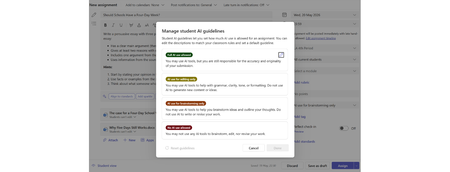
The challenge: students don't know where they stand with AI Every educator has a different approach to AI in their classroom. Some want students using it freely. Others want AI limited to brainstorming or editing. Some assignments shouldn't involve AI at all. The problem? Students are left guessing. Educators have been piecing together workarounds — writing AI policies into assignment instructions, referencing school handbooks, or adding disclaimers to rubrics. None of these are built into the assignment itself, and students often miss them entirely. Student AI Guidelines in Assignments Student AI Guidelines give educators a structured way to set AI expectations directly inside an assignment in Microsoft Teams. When creating an assignment, educators now see a new option to set a guideline level with suggested text: Full AI use allowed. Students can use Copilot for any part of the assignment. AI for editing only. Students write their own work first, then use Copilot to polish, revise, or check grammar. AI for brainstorming only. Students can use Copilot to generate ideas or explore topics, but the final work should be their own. No AI. The assignment should be completed without AI assistance. Student AI Guidelines are available for all grade levels, on desktop and mobile. All students in the assignment see the same guideline. A note on what these guidelines are — and aren't. Student AI Guidelines are a communication tool, not a lockdown. They set clear expectations that students see in the assignment, but they don't technically block access to AI tools. They work the same way a teacher's verbal instruction does: "Here's what I expect for this assignment." The value is in making that expectation visible, consistent, and built into the assignment itself. These are starting points, not fixed rules. Each level comes with suggested text that educators can edit freely to match their school's policies, terminology, or classroom norms. If your school uses different language around AI use — or has its own framework — update the text to reflect that. The feature adapts to your school, not the other way around. Even if your school hasn't enabled Copilot, Student AI Guidelines give you a structured way to communicate AI expectations to students — whether that's encouraging responsible AI use or formalizing a no-AI policy. What students see When an educator sets a guideline, students see it in their assignment view — no hunting through instructions or attachments. The guideline card shows the educator's expectations and, for levels that allow AI use, a direct button to launch Copilot Chat. The Copilot launch button appears for students aged 13 and older at schools where an IT admin has enabled Copilot. If your school hasn't set up Copilot yet, check out the Copilot setup guide for IT admins to get started. If Copilot isn't enabled, students still see the guideline — just without the launch button. If no guideline is set, nothing changes — the student experience stays exactly as it is today. Save time: set a default and reuse across classes Two features help you avoid repeating setup work: Set as default. Any guideline level — including "No AI" — can be set as the default for all new assignments you create. If your school's policy is that most assignments should restrict AI use, set that as your default and you're covered. You can always override it on individual assignments when you want to allow more (or less) AI use. Import Settings. Once you've configured your Student AI Guidelines in one class, you can apply those same settings to other classes using Import Settings. This copies your guideline levels and custom text across classes so you don't have to re-create them each time. Learn more: Import Settings in Assignments and Grades. Why this matters This feature sits at the intersection of two things educators have been asking for: clarity around AI use, and an easy on-ramp to Copilot. Instead of competing with third-party AI tools through restriction, Student AI Guidelines give educators a way to channel AI use purposefully — on their terms, per assignment, with clear communication to students. Resources Set Student AI Guidelines on and assignment in Microsoft Teams Manage Student AI Guidelines in Assignments2.3KViews0likes2CommentsFour opportunities for IT admins to get ready with Copilot Chat for education
Microsoft Education is offering four live webinar opportunities for IT administrators who want to confidently deploy and manage Microsoft 365 Copilot Chat. Each session covers the same practical guidance, so you can select the date that best fits your schedule. What you’ll learn We’ll walk through Copilot Chat configuration from the tenant level to the end-user experience, including options for students ages 13+, CSV, SDS, and PowerShell uploads, agents and extensibility, and current licensing and security controls. You’ll leave with actionable guidance to help deploy, manage, and optimize Copilot Chat safely across your organization. We’ll also share a brief look at some Microsoft Education experiences including Teach in Copilot, the Study and Learn agent, Copilot Notebooks, and Learning Activities. Choose a session and register September 16th, Wed @ 8am Pacific time - Register for the September 16 session September 30th, Wed @ 8am Pacific time - Register for the September 30 session October 14th, Wed @ 8am Pacific time - Register for the October 14 session October 28 th , Wed @ 8am Pacific time - Register for the October 28 session Reserve your spot today. Pick the session that works best for you and join us to build a secure, manageable path to Copilot Chat adoption in your education environment. Mike Tholfsen Group Product Manager Microsoft Education800Views1like0Comments