document processing
145 Topics
Dynamic Mandatory Fields
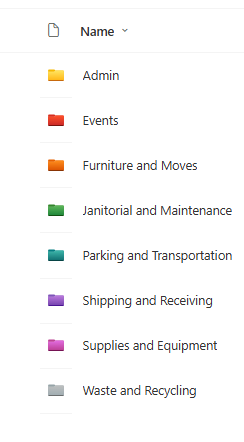
In a SharePoint library, I have folders which are = a. Admin b. Events c. Furniture and Moves d. Janitorial and Maintenance e. Parking and Transportation f. Shipping and Receiving g. Supplies and Equipment h. Waste and Recycling I have Meta data across the library whose data type are all choices and are: a. Document Type = Contract, Financial, planning b. Building = Gym, Garage, Heating c. Asset Category = Office, Playground d. Fiscal Year = FY23, FY24, FY25, FY26, FY27 e. Vendor = Maple Leaf, Canadian Tire, Home Depot f. Status = Active, Pending, Not Active g. Retention Label = 3 years, 5 years h. Service Type = Admin, Events, Furniture and Moves, Janitorial and Maintenance, Parking and Transportation, Shipping and Receiving, Supplies and Equipment, Waste and Recycling Service Type and Retention Label are mandatory fields, with the Rule below for all the files in the various folders: IF Folder Name = Admin, then Service Type = Admin and Retention Label = 5 years; the mandatory fields should be Document Type, Status and Fiscal Year IF Folder Name = Events, then Service Type = Events and Retention Label = 3 years; the mandatory fields should be Document Type, Status and Fiscal Year, Building and Vendor IF Folder Name = Furniture and Moves, then Service Type = Furniture and Moves and Retention Label = 3 years; the mandatory fields should be Document Type, Status and Building IF Folder Name = Janitorial and Maintenance, then Service Type = Janitorial and Maintenance and Retention Label = 3 years; the mandatory fields should be Document Type, Status and Fiscal Year IF Folder Name = Parking and Transportation, then Service Type = Parking and Transportation and Retention Label = 3 years; the mandatory fields should be Document Type, Status and Fiscal Year IF Folder Name = Shipping and Receiving, then Service Type = Shipping and Receiving and Retention Label = 3 years; the mandatory fields should be Document Type, Status IF Folder Name = Supplies and Equipment, then Service Type = Supplies and Equipment and Retention Label = 3 years; the mandatory fields should be Document Type, Status and Fiscal Year IF Folder Name = Waste and Recycling, then Service Type = Waste and Recycling and Retention Label = 3 years; the mandatory fields should be Document Type, Status and Vendor I have used Column Default Value Settings for SharePoint to display Auto-Display the Service Type and Retention Label, but I cannot seem to perform the conditional mandatory fields using Validations setting for the other requirements. Please help66Views0likes1CommentRecycle Bin and Site Content Hidden for Site Members and Site Visitors
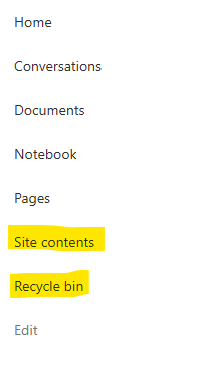
I have a requirement that the Recycle bin and Site Contents should not be be hidden from the Site Members and Site Visitors. Please how can I achieve this because the Server Infrastructure activation is not working for me. Any workarounds? Please help66Views0likes2Comments
Microsoft Word - Footnote remains on the original page after moving the original reference up
Issue I encountered an issue in Microsoft Word where moving the original footnote reference to an earlier location in the document did not move the footnote itself. The footnote remained on its original page even though the reference had been moved. This was particularly problematic because the same footnote was referenced multiple times throughout the document using cross-references. Cause The footnote is anchored to the original footnote reference in the main text. In my case, Word had somehow lost track of that original anchor, so the footnote stayed on its original page while all cross-references continued to point to it. Solution Hold Ctrl and click the misplaced footnote reference. Word jumps to the original footnote reference in the main text. Cut the original footnote reference (Ctrl+X). Paste it in the correct location using Keep Source Formatting. Press Ctrl+A, then F9 to update all fields. Verify that: the footnote has moved to the correct page, the numbering has updated correctly, all cross-references still work. In my document, one footnote had previously lost its connection to the original reference, so its numbering did not update automatically. That one had to be repaired manually. Important Do not create a new footnote or copy the footnote text itself. Move the original footnote reference in the main text. This preserves the existing footnote, its numbering, and every cross-reference that points to it. I hope this helps someone else. It took me quite a while to figure out what was happening.34Views0likes1CommentRecycle Bin and Site Content Hidden for Site Members and Site Visitors
I posted this before but made a mistake with my write up, so I am reposting. I have a requirement that the Recycle bin and Site Contents should be be hidden from the Site Members and Site Visitors. Please how can I achieve this because the Server Infrastructure activation is not working for me. Any workarounds? Please help18Views0likes0Comments
Word/PowerPoint are not suitable replacements for Publisher
I’m writing following the guidance that Word and PowerPoint can be used as replacements for Publisher. This feedback is based on completing a real production document, not theoretical use Having just completed a fairly complex, layout-heavy technical document, I thought it only fair to share how that works in practice. In theory, I can see the logic: Word handles documents PowerPoint handles layouts Therefore, between the two, everything should be covered Unfortunately, in reality, this appears to be more of a theoretical exercise than a practical solution. Publisher was clearly designed for: Fixed, page-based layouts Precise positioning of objects Efficient alignment of mixed content (text, images, tables) Producing consistent, professional multi-page documents By comparison: Word is admirably committed to reminding you that it would prefer everything to flow freely, regardless of whether you want it to or not PowerPoint, while better behaved, does seem to assume every page is a standalone slide rather than part of a structured document Both tools can, with enough persistence, be persuaded into doing the job. However, this involves a level of manual intervention, workaround, and general negotiation with the software that feels somewhat at odds with modern productivity software. To put it simply: They are not replacements in any meaningful, real-world sense. The end result can be achieved, but the process is unnecessarily time-consuming, fragile, and prone to unexpected layout changes—particularly when precision actually matters. Replacing a purpose-built publishing tool with two applications that were never designed for that role gives the impression that this use case has been… optimistically simplified. I would strongly encourage Microsoft to either: Provide a genuine page-layout solution within the Office suite, or Enhance existing applications so they can support fixed-layout publishing without constant workarounds At present, the gap left by Publisher is very noticeable for anyone producing structured documents beyond basic text. I appreciate the direction of Microsoft 365 overall, but in this particular area, the experience feels less like an evolution and more like working around a missing tool. Regards Andy100Views1like2Comments
SharePoint Library Help Needed
I have a SharePoint Library where I would like to implement these requirements below and would appreciate your advise: Folders were created at the library level, which looks like the image below. I do not want people to be able to create any folders or upload documents or folders at the library level, but rather only when they open the folders. I have disabled folder creation and created a PowerApps form, so that users can only upload document, edit documents, view details of the documents when they open any of the folders., but I cannot seem to find the Power Apps form when I open any of the folders and try to upload a document or view a document or edit the document details. 2. I have a choice column called Fiscal Year which has options as = FY22, FY 23, FY24, FY25, FY26. By March 2026, I would like to create an automate flow which will auto create FY27 and remove FY22 from the choice, so that the choice column is always limited to only 5 years.142Views0likes3Comments
Date format in SharePoint eSignature
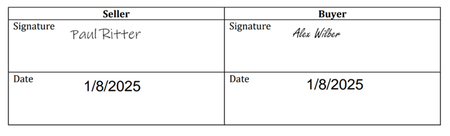
SharePoint eSignature is now available in 28 European countries. Unfortunately, my latest test shows that the date field in a signature uses US format after the document is signed. It does not respect the site collection regional settings. Does someone know from where SharePoint takes the date format or how site owners can change the format? Attached is an example of how it is after the document is signed. It should be at least 8/1/2025 (8 January 2025).349Views1like4CommentsModel Mondays S2E10: Automating Document Processing with AI
1. Weekly Highlights We kicked off with the top news and updates in the Azure AI ecosystem: Agent Factory Blog Series: A new 6-part blog series on designing reliable, agentic AI—exploring multi-step, collaborative agents that reflect, plan, and adapt using tool integrations and design patterns. Text PII Preview in Azure AI Language: Now redacts PII (like date of birth, license plates) in major European languages, with better accuracy for UK bank entities. Claude Opus 4.1 in Copilot Pro & Enterprise: Public preview brings smarter summaries, tool assistant thinking, and "Ask Mode" in VS Code.Now leverages stronger computer vision algorithms for table parsing—achieving 94-97% accuracy across Latin, Chinese, Japanese, and Korean—with sub-10ms latency. Mistral Document AI in Azure Foundry: Instantly turn PDFs, contracts, and scanned docs into structured JSON with tables, headings, and LaTeX support. Serverless, multilingual, secure, and perfect for regulated industries. 2. Spotlight On: Document Intelligence with Azure & Mistral This week’s spotlight was a hands-on exploration of document processing, featuring both Microsoft and Mistral AI experts. Why Document Processing? Unstructured data—receipts, forms, handwritten notes—are everywhere. Modern document AI can extract, structure, and even annotate this data, fueling everything from search to RAG pipelines. Azure Document Intelligence: State-of-the-art OCR and table extraction with super-high accuracy and speed. Handles multi-language, complex layouts, and returns structured outputs ready for programmatic use. Mistral Document AI: Transforms PDFs and scanned docs into JSON, retaining complex formatting, tables, images, and even LaTeX. Supports custom schema extraction, image/document annotations, and returns everything in one API call. Integrates seamlessly with Azure AI Foundry and developer workflows. Demo Highlights: Extracting Receipts: OCR accurately pulls out store, date, and transaction details from photos. Handwriting Recognition: Even historical documents (like Thomas Jefferson’s letters) are parsed with surprising accuracy. Tables & Structured Data: Financial statements and reports converted into structured markdown and JSON—ready for downstream apps. Advanced Annotations: Define your own schema (via JSON Schema or Pydantic), extract custom fields, classify images, summarize documents, and even translate summaries—all in a single call. 3. Customer Story: Oracle Health Oracle Health shared how agentic AI and fine-tuned models are revolutionizing clinical workflows: Problem: Clinicians spend hours on documentation, searching records, and manual data entry—reducing time for patient care. Solution: Oracle’s clinical AI agents automate chart reviews, data extraction, and even conversational Q&A—while keeping humans in the loop for safety. Technical Highlights: Multi-agent architecture understands provider specialty and context. Orchestrator model "routes" requests to the right agent or plugin, extracting needed arguments from context. Fine-tuning was key: For low latency, Oracle used lightweight models (like GPT-4 Mini) and fine-tuned on their data—achieving sub-800ms responses, with accuracy matching larger models. Fine-tuning also allowed for nuanced tool selection, argument extraction, and rule-based orchestration—better than prompt engineering alone. Used LoRA for efficient, targeted fine-tuning without erasing base model knowledge. Live Demo: Agent summarizes patient history, retrieves lab results, filters for abnormals, and answers follow-up questions—all conversationally. Fine-tuned orchestrator chooses the right tool and context for each doctor’s workflow. Result: 1-2 hours saved per day, more time for patients, and happier doctors! 4. Key Takeaways Here are the key learnings from this episode: Document AI is Production-Ready: Azure Document Intelligence and Mistral Document AI offer fast, accurate, and customizable document parsing for real enterprise needs. Schema-Driven Extraction & Annotation: Define your own schemas and extract exactly what you want—no more one-size-fits-all. Fine-Tuning Unlocks Performance: For low latency and high accuracy, fine-tuning lightweight models beats prompt engineering in complex, rule-based agent workflows. Agentic Workflows in Action: Multi-agent systems can automate complex tasks, route requests, and keep humans in control, especially in regulated domains like healthcare. Community & Support: Join the Discord and Forum to ask questions, share use cases, and connect with the team. Sharda's Tips: How I Wrote This Blog Writing this recap is all about sharing what I learned and making it practical for the community! I start by organizing the key highlights, then walk through customer stories and demos, using simple language and real-world examples. Copilot helps me structure and clarify my notes, especially when summarizing technical sections. Here’s the prompt I used for Copilot this week: "Generate a technical blog post for Model Mondays S2E10 based on the transcript and episode details. Focus on document processing with Azure AI and Mistral, include customer demos, and highlight practical workflows and fine-tuning. Make it clear and approachable for developers and students." Every episode inspires me to try these tools myself, and I hope this blog makes it easy for you to start, too. If you have questions or want to share your own experience, I’d love to hear from you! Coming Up Next Week Next week: Text & Speech AI Playgrounds! Learn how to build and test language and speech models, with live demos and expert guests. | Register For The Livestream – Aug 25, 2025 | Register For The AMA – Aug 29, 2025 | Ask Questions & View Recaps – Discussion Forum About Model Mondays Model Mondays is a weekly series to build your Azure AI IQ with: 5-Minute Highlights: News & updates on Mondays 15-Minute Spotlight: Deep dives into new features, models, and protocols 30-Minute AMA Fridays: Live Q&A with product teams and experts Get started: Register For Livestreams Watch Past Replays Register For AMA Recap Past AMAs Join The Community Don’t build alone! Join the Azure AI Developer Community for real-time chats, events, support, and more: Join the Discord Explore the Forum About Me I'm Sharda, a Gold Microsoft Learn Student Ambassador focused on cloud and AI. Find me on GitHub, Dev.to, Tech Community, and LinkedIn. In this blog series, I share takeaways from each week’s Model Mondays livestream.348Views0likes0Comments
SharePoint Video Playback Quality Defaults to 480p – Horrendous
I manage multimedia training for over 600 locations and two distribution centers, supporting nearly 10,000 team members. We have made a significant investment in producing high-quality training content through professional equipment, structured scripting, and dedicated production and editing time. However, once videos are uploaded to SharePoint, the default playback quality often degrades the experience to what appears to be approximately 480p. As a result, professionally produced content can look noticeably poor on initial playback. Many of our store-level team members are not in a position to manually adjust playback settings, so the default experience matters. The source files are high resolution, but the default playback does not reflect that quality. This also creates issues when leadership reviews training content, because the playback quality can reflect poorly on the production even though the original video is clear. We moved away from third-party hosting due to ad exposure during onboarding and the need for a controlled internal platform. We are intentionally using SharePoint and Stream as part of our existing Microsoft 365 ecosystem for scalability, governance, and centralized access. Introducing additional paid hosting platforms or external streaming solutions is not a direction we are pursuing. From an enterprise training standpoint, defaulting to low-resolution playback undermines engagement and credibility. Are there plans to allow administrators to define a default playback resolution for SharePoint or Stream videos? Are there recommended encoding settings that influence the initial playback quality more reliably? Are there roadmap updates around improving adaptive streaming behavior or default resolution selection? Any guidance or insight would be appreciated.219Views0likes1Comment