design
35 TopicsMaking the everyday easier: Behind the scenes with the Surface Pro 12-Inch Keyboard
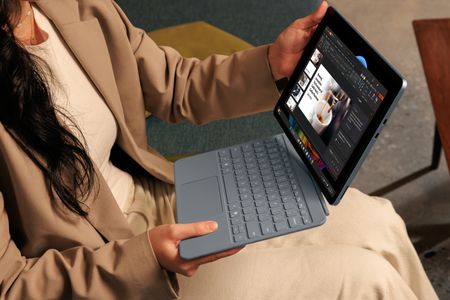
Everyday barriers in plain sight Most people don’t spend much time thinking about their keyboard. That’s part of what makes it work. You open your device, start typing, and the keyboard fades into the background—until it doesn’t. Until the lighting changes, or your eyes are tired, or you can’t quite tell which key your finger is on. For millions of users, that slight friction isn’t just annoying—it’s a daily barrier. A more visible experience The new Surface Pro 12-inch keyboard features thoughtful changes designed to make typing easier for more people. It started with a simple observation: the key legends were hard to see. That insight led to exploration of overlays used in education, typefaces developed for low vision and dyslexia, and the effects of lighting, spacing, and iconography on legibility. Through rounds of prototypes and refinements, the design team shaped characters, adjusted stroke weights, and tuned backlighting to avoid visual washout—all while keeping the familiar Surface feel. The result is the optional Bold keyset: a high-contrast, larger-font version of the standard keyboard. Letters are clearer, spacing more deliberate, and labels that once faded into the keycaps now stand out with clarity. These changes quietly reduce effort, one keystroke at a time. Surface Pro 12-inch Bold keyset Designed for wayfinding We also looked at how people navigate the keyboard by touch. For users who are blind or who rely on tactile orientation, the standard F and J bumps are helpful—but limited. The raised indicators on the F4 and F8 keys that became standard with Surface Laptop 3 and Surface Pro 8 keyboards are also used on the Surface Pro 12-inch keyboard. These positions are intentionally chosen: many common keyboard accessories leave these keys uncovered, making them valuable landmarks. We also included a tactile bump on the down arrow key. For users who navigate interfaces using screen readers, distinguishing up from down by feel is critical. This subtle addition reduces error, speeds up interaction, and supports confidence in every movement. Adapting to different inputs Another shift is adaptive touch mode, built directly into the Surface touchpad and easily toggled on through the Surface app. For many people with limb differences, Cerebral Palsy, or mobility conditions such as arthritis, standard touchpads can be difficult or impossible to use. Adaptive touch mode changes that. When active, it allows users to adjust how the touchpad responds to their input—whether from a fingertip, palm, edge of the hand, foot, or residual limb. Users can also fine-tune settings such as touch sensitivity, the time between clicks for a double-click to register, and the size or location of the right-click region. The result is a touch surface that adapts to the person, not the other way around. For people with limited mobility or a wide range of dexterity capabilities, that flexibility turns the touchpad into a customizable, comfortable, and precise tool for daily computing. Faster access to AI assistance The keyboard also includes a dedicated Copilot key. One press brings up Microsoft Copilot in Windows 11, giving users immediate access to AI-powered assistance. That could mean summarizing a document, rewriting an email, answering a question, or navigating the system itself. For users with cognitive load limitations, memory challenges, or motor delays, this shortcut eliminates several steps—replacing multi-step workflows with a single action. Surface Pro 12-inch keyboard No extra cost, no added steps We made a deliberate decision not to make accessibility a premium option, so these updates don’t come with an added cost. The Bold keyset version is priced the same as the standard Surface Pro 12-inch Keyboard and is available in English only, in select markets, including the US, Canada, and China. The built-in features mean that technology decision makers don’t have to choose between cost and comfort. Users don’t have to identify as needing something different. And no one has to explain why they want a keyboard that’s easier to read or more comfortable to touch. The value of quiet inclusion This is the kind of work we value most. Not chasing a trend or shipping something flashy—but solving a real problem that someone flagged because their experience didn’t feel as seamless as it should. The Surface Pro 12-inch keyboard with Bold keyset isn’t a new category. It’s a better version of something you already know. It shows up quietly. It gets out of the way. It supports more people without asking anyone to justify their needs. That’s what inclusive design can be. Thoughtful. Uncomplicated. Built into the core of the product from the start. And when it works, most people won’t even notice. They’ll just keep typing. Try our latest Surface Keyboards with the Bold keyset and discover how thoughtful design can make your everyday work easier. Visit the Microsoft Store to explore the difference in visibility, comfort, and accessibility for yourself. Enterprise customers can visit the Enterprise customers can get accessibility support here.568Views0likes0CommentsFestival Web
Microsoft anuncia una nueva iniciativa para ayudarte a impulsar tu carrera en desarrollo web llamada el Festival Web, es una serie de charlas en vivo que comienza desde el 31 de octubre y finaliza el 14 de noviembre. En estas charlas podrás aprender de la mano de expertos y conocer diferentes herramientas como VSCode y GitHub. ¡Regístrate en las charlas en vivo del Festival Web y comienza tu viaje en el mundo de la programación web con expertos de la industria! Además, hay una oportunidad gratuita para quienes desean iniciarse en este campo. ¡Descubre más información sobre esta iniciativa de Microsoft en este blog!4.2KViews1like0Comments
Vertical Tabs Layout and Keyboard Shortcuts
I recently switched to Edge, because I liked the implementation of Vertical Tabs and other features I have not found elsewhere. However I would suggest the following changes: Keyboard shortcut to toggle the Tab Sidebar (similar to VS Code CTRL + B) Center Placement for Search Bar (Not vertically centered) Customization options for the Bing Icon (size and Icon) Issue: It is currently misplaced, looks off & shifts icons downward to make space for it Solution: Option to hide icon and use shortcut only Option to change size of icon Option to change icon entirely, or pick from preselected Chat Icons1.2KViews0likes0Comments
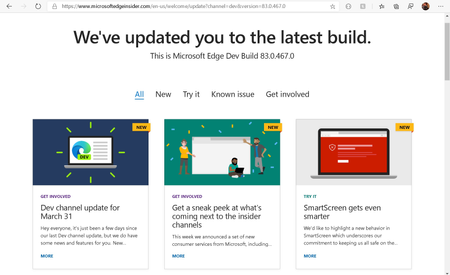
We've updated you to the latest build page design
Dear Edge guys, Here I want to share my idea, why users don't feel Edge is as their favorite one. I think Edge is too edgy. From design perspective the every part and content from Edge team seem not so fluent. For example, why you don't make the "We've updated you to the latest build page design" page like acrylic, rounded corner, transparent effect and so on? May be it is not so important for Edge development, but I think, every small part of your team work shows good design and give a feeling of a more modern browser, even the content about Edge development. I like you guys excel in web design. What do you think about this?2.4KViews1like3Comments
We have a problem: the inconsistency in the design does not seem to improve
I was hoping the new design would fix the inconsistency issues, but no, they're still there. ● Segoe Variable is not yet implemented ● Tab buttons have a different design than windows, well another new design ● The same inconsistent animations we had in previous versions ● ots of interface elements that look the same as Chrome, but with another skin, doesn't feel something native to Edge/Windows We can only hope that this will change for the public version.764Views0likes0Comments
SharePoint 2019 (On Prem)-Vertical section layout is not available for Modern site in SP 2019
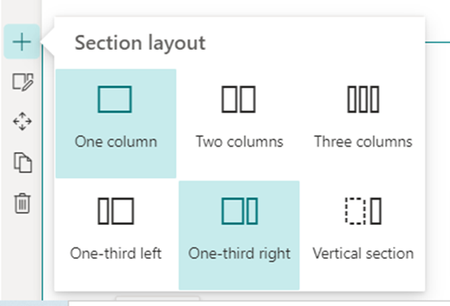
Hi, On the modern page of SharePoint 2019 the "Vertical section" layouts is not available. The same option is available for SharePoint Online as shown in the below screen Please can anyone help me with the workaround to achieve the same vertical section layouts in SharePoint 2019(On Prem) Thanks1.7KViews0likes1CommentUI question: How to display a blocking "loading / preparation" screens if device is in book mode
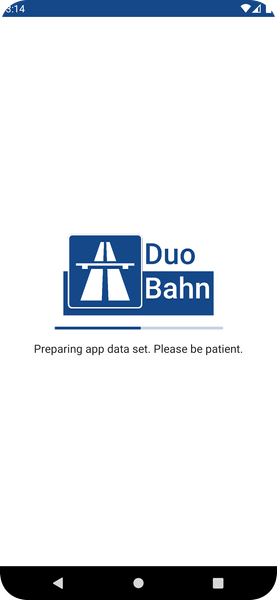
Hi team, I Just wanna ask you how to "design" a full-width, user interaction blocking loading / preparation view for dual screen devices? For single screen devices, it is quite simple, but what should I do on a second screen? Should I present the loading view animation on e.g. the left screen and the right screen stays just white? Maybe I duplicated the animation on the second screen, too? Do you have any recommendation or "unicorn" UIs as a reference? Thanks for you're awesome and helpful tips in the past and in the future! Screenshot:Solved1.1KViews0likes2Comments
SharePoint 2019 topology for multi locations
Hi everyone, what the best SharePoint 2019 on-prem topology for three different locations (branches). If I installed min-role servers in each location, is that going to make a replication to each other and improve network load blanching. I need to confirm the performance in each location in case of connection getting slow between the sites. And in the same time I need the applications to be centralized. Lets say i want one intranet , one HR portal etc..1KViews0likes0Comments