deployment
793 Topics
Windows 11 Computer Is Unusually Slow; Task Manager Shows Abnormal Behavior
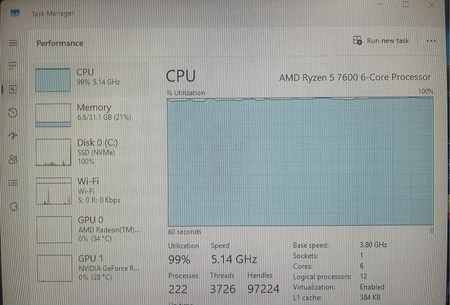
Yesterday, my computer was running perfectly fine, but today it took about two minutes to boot up. Once I reached the desktop, programs loaded extremely slowly, and almost every action required a long wait. The status shown in the screenshot below is what I saw when I opened Task Manager. I'm not sure if this is normal or if there's a problem—could you please help me analyze this?26Views0likes1Comment
Win11 Run as different user option missing from the Start menu right-click context menu
When you right-click an app in the Start menu, the Run as different user option no longer appears. The option is still available when you right-click an executable file directly in File Explorer, but it is not available in the Start menu. Even when using the workaround of pressing Shift + right-click, the option still does not appear in the Start menu.57Views0likes1CommentHow do I stop Windows 11 from reinstalling Copilot and widgets after every update?
I keep removing Copilot, widgets, and other stuff I never asked for, but after almost every major Windows 11 update, they come right back. I've disabled them in Settings and even used group policy for some, but it doesn't seem to stick long-term. It's frustrating having to clean up the same bloat over and over. Is there a reliable way to block these permanently, like a registry tweak or a script that survives updates? Or is this just something we have to deal with now? I'm on 25H2 and would rather not do a clean install just to get a leaner system.125Views0likes1CommentWindows 11 update broke my Wi-Fi again—anyone else dealing with this?
Installed the latest cumulative update for Windows 11 25H2, and now my Wi-Fi keeps dropping every few minutes. It reconnects on its own, but it's annoying as hell during calls and downloads. I tried rolling back the driver and resetting the network stack, but nothing's stuck so far. This isn't the first time an update has messed with my connection either. Anyone else hit this after a recent update? Did you find a driver version or a workaround that actually works, or am I stuck waiting for the next patch? I'm about ready to just use Ethernet and call it a day.1.7KViews0likes0CommentsSave the date: Windows office hours - October 15, 2026
Need answers from the people behind the products you manage every day? Join us for Windows Office Hours on October 15th from 8:00–9:00 AM PT, where experts from Windows, Microsoft Intune, Configuration Manager, Windows 365, Windows Autopilot, security, public sector, FastTrack, and more will be available to answer your questions. This is a live, chat-based event with no video and no meeting link. Simply join the discussion, ask your questions, and participate in conversations with Microsoft engineers and specialists. If you can't attend live, post your questions on the event page in advance and we'll address them during the session.131Views0likes0Comments
Gaming Services 38.117.27001.0: GameInput MSI launched at startup due to ProductCode mismatch
Gaming Services 38.117.27001.0 unnecessarily launches GameInput MSI at startup due to a ProductCode mismatch Feedback Hub report: https://aka.ms/AA13s6tb I am reporting an apparent defect in Microsoft Gaming Services 38.117.27001.0. The issue appears to be an internal inconsistency between the GameInput detection logic in gamingservices.dll and the gameinputredist.msi shipped inside the same Gaming Services package. Summary The gamingservices.dll included in Gaming Services 38.117.27001.0 contains logic that queries Windows Installer for the following GameInput ProductCode: {45B61AD4-7D73-48B9-B9B4-724C9F0828E6} The property queried is: VersionString However, the gameinputredist.msi shipped inside the same Gaming Services package installs Microsoft GameInput using a different ProductCode: {C7B6BB76-07B4-48D4-B257-4511AB9E002A} The bundled MSI reports: ProductName: Microsoft GameInput ProductVersion: 3.5.270.0 UpgradeCode: {37042BD3-CED5-451B-818A-3E9454BDF060} The legacy ProductCode queried by gamingservices.dll is not registered when the current GameInput product is installed under {C7B6BB76-07B4-48D4-B257-4511AB9E002A}. As a result, Gaming Services appears to treat the GameInput detection as unsuccessful and launches the bundled gameinputredist.msi during Gaming Services startup even though the current GameInput product is already installed. Package verification The Microsoft Store package is: Microsoft.GamingServices 38.117.27001.0 Store product ID: 9MWPM2CQNLHN The downloaded Microsoft Store AppxBundle is: Microsoft.GamingServices_38.117.27001.0_neutral_~_8wekyb3d8bbwe.AppxBundle The SHA-1 reported by the Microsoft Store package download metadata is: F421E56E3C44905B347D54FC7256E1656BA6C243 The locally saved AppxBundle has the same SHA-1. The bundle contains an x64 Microsoft.GamingServices package with version 38.117.27001.0. Installed Gaming Services binaries The gamingservices.exe extracted from the Store package and the installed gamingservices.exe are byte-for-byte identical. SHA-256: A0991577DAE8638A00A3C1FC2684E2B22E87957D79C1DCB2E365B15D4E55096F The gamingservices.dll extracted from the Store package and the installed gamingservices.dll are also byte-for-byte identical. SHA-256: 3E7650BF1E6D09EC64413B59B5677EB73DBFDBF5A6A6E62C724210D83F288655 Therefore, the behavior is not explained by a modified or corrupted local copy of Gaming Services. Bundled GameInput MSI The gameinputredist.msi extracted from the Microsoft Store Gaming Services package is byte-for-byte identical to the MSI in the installed Gaming Services directory. SHA-256: 081557994B51947D0759FB1991760C4CD9A8DE349F9CF0FC72881ACC98B2C64A Its MSI properties are: ProductName: Microsoft GameInput ProductCode: {C7B6BB76-07B4-48D4-B257-4511AB9E002A} ProductVersion: 3.5.270.0 UpgradeCode: {37042BD3-CED5-451B-818A-3E9454BDF060} The installed Windows Installer registration is consistent with this MSI: ProductCode: {C7B6BB76-07B4-48D4-B257-4511AB9E002A} ProductState: 5 Version: 3.5.270.0 In contrast, the ProductCode queried by gamingservices.dll has: ProductCode: {45B61AD4-7D73-48B9-B9B4-724C9F0828E6} ProductState: -1 VersionString: unavailable Static analysis Static analysis of gamingservices.dll shows imports and use of Windows Installer APIs including: MsiGetProductInfoW MsiOpenDatabaseW MsiDatabaseOpenViewW MsiViewExecute MsiViewFetch MsiRecordGetStringW MsiCloseHandle The relevant logic appears to: Query MsiGetProductInfoW for ProductCode {45B61AD4-7D73-48B9-B9B4-724C9F0828E6}. Request VersionString. Open the bundled gameinputredist.msi. Read its ProductVersion. Compare the detected installed version with the MSI version. Proceed to the MSI launch path when the legacy ProductCode lookup fails. Launch msiexec.exe directly. The command line observed during startup is: msiexec.exe /i "...gameinputredist.msi" /quiet /l*v "...gameinputredist.log" Runtime consequence The boot trace shows the following sequence: GamingServices.exe | v msiexec.exe /i gameinputredist.msi | v Microsoft GameInput enters MSI maintenance/configuration mode | v CA_StopInboxService | v net stop GameInputSvc In the observed trace, the net stop GameInputSvc operation takes approximately 137.6 seconds. The MSI subsequently completes successfully and the GameInput service is started again. Thus, the MSI invocation appears to be unnecessary maintenance triggered by incorrect GameInput detection, and it can introduce a substantial startup delay. Expected behavior Gaming Services should correctly detect the GameInput redistributable corresponding to the gameinputredist.msi shipped with the same Gaming Services release. When the current GameInput product is already installed and valid, Gaming Services should not launch and reconfigure the GameInput MSI unnecessarily during every startup. Suspected defect The evidence indicates that Gaming Services 38.117.27001.0 uses a GameInput ProductCode that is inconsistent with the ProductCode of the GameInput MSI bundled with that same release. ProductCode queried by gamingservices.dll: {45B61AD4-7D73-48B9-B9B4-724C9F0828E6} versus: ProductCode of the bundled GameInput MSI: {C7B6BB76-07B4-48D4-B257-4511AB9E002A} This appears to cause a false negative during GameInput detection. The likely result is that Gaming Services follows its MSI installation/configuration path even when the current GameInput product is already installed. Requested investigation Please verify whether Gaming Services 38.117.27001.0 contains an obsolete or incorrect hard-coded GameInput ProductCode and whether its GameInput detection logic should instead identify and validate the ProductCode/version of the gameinputredist.msi bundled with the corresponding Gaming Services release. I would also appreciate confirmation from other users who have Gaming Services 38.117.27001.0 installed. In particular, it would be useful to know whether others observe: GamingServices.exe -> msiexec.exe /i gameinputredist.msi -> net stop GameInputSvc during Gaming Services startup. The original report with the detailed evidence has already been submitted through Windows Feedback Hub: https://aka.ms/AA13s6tb Additional logs, MSI metadata, SHA-256 verification results, ETL data, and further static-analysis details can be provided if needed.98Views0likes0CommentsWindows 11 is really F annoying, it could actually cost someone their life.
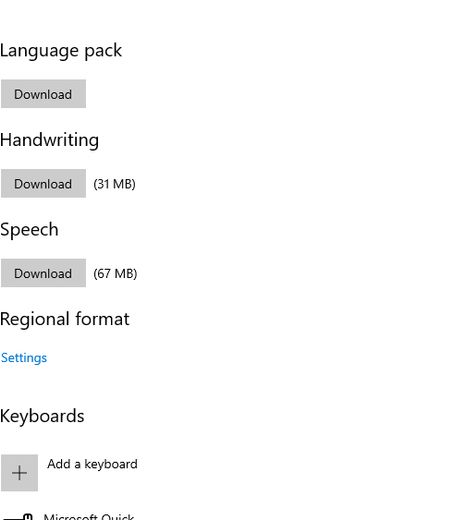
Earlier today, a family member suddenly fell ill and required emergency care. After rushing them to the hospital and ensuring their condition had stabilized, I returned home intending to look up information about his illness. I had just installed Windows 11 26H2 a few hours prior. When I tried to go online to search for info, I needed to install the built-in Windows language input method, it took a full 20 minutes to finish, as long as installing the monthly security patches, whereas on Windows 10, it takes less than 2 minutes. Then there are the constant, junk notifications, things like "We'd like your feedback on Windows 11" or "Do you want to enable Onedrive syncing?" (and the only option is to snooze the reminder for a week). Not to mention the right-click menu, which suffers from extreme latency (over 0.4 seconds). F—CAN YOU IMAGINE HOW I FELT AT THAT MOMENT? Fortunately, it wasn't a critical emergency this time. And then there are the various basic functions that stop working at any moment, it’s basically a MALFUNCTIONING operating system. I’ve switched back to Windows 10 now.105Views0likes0Comments
Windows 11 Remote Terminal server with a custom port across the internet
Hi All I have the need to connect to a windows 11 box across the internet using RDP for a short period of time I have changed the default port from 3389 to 44710. I have tested this change on the local LAN and workes fine using the RDP App with the connection string of 192.x.x.x.:44710 I have configured my firewall to look like this (I will restrict the source when I get it working) I have configured the windows firewall on the windows 11 machine like this When I try to connect over the internet I immediately get prompted for credentials but all that happens is Anyone have any ideas as to what I can do to make this work? thanks for any help or advice Gary88Views0likes1Comment802.1x wired network profiles missing after upgrade to Windows 11 24H2
Issue Description: During the upgrade of workstations to Windows 11 24H2, the IEEE 802.1X wired network security profiles are occasionally not restored after the upgrade process completes. As a result, affected devices fail to authenticate against Cisco ISE, leading to a loss of LAN connectivity. The issue appears to occur randomly and does not show any clear correlation with specific hardware models or workstation configurations. We are using Feature Updates to upgrade workstations to Windows 11 24H2, deployed through SUP in SCCM/MECM. This approach works best for us because it does not require any user interaction during the upgrade process. I developed a remediation script that is triggered by a scheduled task based on a specific event ID generated when Cisco ISE rejects authorization. The script successfully restores the locally stored 802.1X profiles and resolves the issue. However, I am wondering whether there is a better or more native way to handle this scenario. Has anyone experienced a similar issue with Windows 11 24H2 and 802.1X profiles? Any advice before we open a support case with Microsoft Support?338Views0likes3Comments