copilot
532 TopicsSyksyn 2026 Tekniset ja myynnin Kumppanitunnit
Microsoftin tekniset ja myynnille suunnatut Kumppanitunnit järjestetään nykyään Microsoftin globaalilla Skilling Hub -sivustolla, josta ne ovat kätevästi saatavilla myöhemmin tallenteina materiaaleineen. Rekisteröidy Skilling Hub -portaaliin, josta löydät kaikki Microsoftin kumppanikoulutukset yhdessä paikassa eri kielillä tai tekstitettyinä. Rekisteröityessäsi voi valita ne kielet, kuten suomi, jollaista sisältöä haluat ensisijaisesti nähdä englannin kielisen koulutussisällön lisäksi. Kumppanitunti on joka toinen perjantai klo 10–11 järjestettävä Microsoftin kumppaniwebinaari, joka on tarkoitettu kaikille Microsoftin kumppaneille. Tekniset ja kaupalliset aiheet vuorottelevat ja olet tervetullut molempiin webinaareihin. Webinaareissa keskitymme Microsoftin ratkaisualueiden teknologioiden mielenkiintoisiin uutuuksiin, MAICPP-kumppaniohjelmaan, kumppanietuihin ja ratkaisumyyntiin. Microsoftin suomalaiset arkkitehdit, tuotepäälliköt, ratkaisumyyjät ja kumppanivastaavat ovat poimineet kiinnostavia ja hyödyllisiä aiheita, joita he vuorollaan esittelevät. Syksyn 2026 ohjelma Alla ovat suunnitellut päivät ja teemat Syksylle 2026, joiden tarkka aihe päivitetään aina lähempänä esityspäivää tälle sivulle. 18.9. Kaupallinen Kumppanitunti: Partner START FY27 - webinaari Katso tallenne tästä linkistä: Etkö päässyt mukaan START FY27 Kickoff -tapahtumaan? Webinaarissa saat kattavan katsauksen tapahtumassa käsiteltyihin FY27: n liiketoimintamahdollisuuksiin, strategisiin painopisteisiin sekä Microsoftin kumppaneille suunnattuihin ohjelmiin ja resursseihin. Puhujat: Kalle Saarikannas, Liiketoimintajohtaja, AI Business Solutions Teemu Lainiola, Liiketoimintajohtaja, Cloud & AI Platforms Mereta Laukkanen, Sr Partner Development Manager Jonna Kaarlenkaski, Partner Development Manager Intern Jonna Fred-Jokela, Sr Solution Engineer Manager 2.10. Tekninen Kumppanitunti: Copilot Cowork: Copilot Credits ja kustannusten hallinta Katso tallenne tästä linkistä! Tässä teknisessä kumppanitunnissa käymme läpi Copilot Coworkin toimintamallin, kulutuksen seurannan sekä kustannusten hallinnan. Lisäksi tarkastelemme, millaisia mahdollisuuksia kulutuspohjainen AI luo kumppaneiden palveluliiketoiminnalle. Puhujat: Henri Nevalainen, Microsoft Niko Hiltunen, IAMCP 9.10. Kaupallinen Kumppanitunti: Onko julkisen pilven suvereniteetti riittävä huomioiden sen kaikki hyödyt? Katso tallenne tästä linkistä! Euroopan unioni valmistelee uusia pilvi- ja tekoälyinfrastruktuuria koskevia linjauksia. Samanaikaisesti organisaatiot pohtivat, miten digitaalinen suvereniteetti, tekoälyn käyttöönotto, kyberturvallisuus ja sääntelyvaatimukset voidaan sovittaa yhteen käytännössä. Tervetuloa ajankohtaiseen webinaariin, jossa tarkastelemme Euroopan muuttuvaa pilviympäristöä ja mitä digitaalinen suvereniteetti tarkoittaa suomalaisille organisaatioille käytännössä. Lisäksi kerromme viimeisimmät tilannetiedot pilvipalveluiden kvanttiturvallisuuden ja Suomen datakeskushankkeiden osalta. Puhujat: Juha Karppinen, National Technology Officer, Microsoft Timo Salminen, Partner Solution Architect, Microsoft Niko Hiltunen, IAMCP 22.10. Kaupallinen Kumppanitunti: Frontier Transformation - Next level IQ & Uusi näkökulma kumppanin rooliin AI-aikakaudella Rekisteröidy mukaan tästä linkistä! AI-transformaatio on siirtymässä yksittäisten työkalujen käyttöönotosta kohti laajempaa työn ja toimintamallien uudistamista. Kumppanitunnilla havainnollistamme käytännön esimerkin avulla, kuinka organisaation toimintaa voidaan tarkastella digitaalisen genomin kautta, organisaatiosta ja tiedosta aina työhön, mikrotehtäviin ja agentteihin asti. Samalla tarkastelemme, mitä muutos tarkoittaa kumppaneille: miten tunnistaa uusia asiakasarvon mahdollisuuksia, rakentaa vaikuttavampia AI-keskusteluja ja auttaa asiakkaita etenemään kohti agenttipohjaista toimintamallia. Tule mukaan katsomaan demo ja pohtimaan, mitä seuraavan vaiheen AI-transformaatio mahdollistaa sinun asiakkaillesi. Puhujat: Hans Dolk, Asiakkuusjohtaja / Defence & Intelligence, Public Safety and National Security Juha Liljeblom,Teknologia Strategisti / Defence & Intelligence, Public Safety and National Security 23.10. Kaupallinen Kumppanitunti: Uudistunut Microsoft Copilot: ominaisuudet, käyttötavat ja kustannusten hallinta Rekisteröidy mukaan tästä linkistä! Microsoft Copilot uudistuu merkittävästi. Copilotista rakentuu paikka, jossa käyttäjä voi kysyä, delegoida, rakentaa ja automatisoida työtä. Uudet Home-, Code- ja Autopilot-kokemukset laajentavat Copilotin käyttöä päivittäisestä AI-avustamisesta kohti pidempikestoista agenttityötä ja käyttäjien itse rakentamia ratkaisuja. Webinaarin tavoitteena on antaa kumppaneille selkeä kokonaiskuva siitä, miten uudistunut Copilot muuttaa asiakkaiden AI:n käyttötapoja, lisensointi- ja kulutuskeskustelua sekä kumppaneille avautuvia mahdollisuuksia. Puhujat: Harri Mikkanen, Microsoft Tuulia Piehl, Microsoft Henri Nevalainen, Microsoft Eetu Hämäläinen, IAMCP 30.10. Tekninen Kumppanitunti: Villi vai hallittu? Tekoälyagentit hallintaan Microsoft Agent 365:llä Rekisteröidy mukaan tästä linkistä! Agentteja syntyy organisaatioihin nopeammin kuin kukaan ehtii niitä seurata. Niitä rakentavat työntekijät, niitä hankitaan kumppaneilta ja niitä kytketään liiketoiminnan dataan ja työkaluihin. Kenellä on oikeudet mihinkin, kuka agentin omistaa, kun tekijä lähtee talosta, ja mihin luottamuksellinen data päätyy? Tässä teknisessä kumppanitunnissa käymme läpi, miten Microsoft Agent 365:llä saadaan agentit näkyviin, hallintaan ja suojattua työkaluilla, jotka ovat asiakkailla todennäköisesti jo käytössä: Microsoft 365 -admin-portaalilla, Entralla, Purviewilla ja Defenderillä. Tarkastelemme eroa "villin" ja "hallitun" agentin välillä. Villi agentti julkaistaan suoraan kaikille ilman tarkistusta, ja sillä on tekijänsä kaikki oikeudet. Hallittu agentti kulkee hyväksyntäprosessin kautta, sillä on nimetty omistaja ja sen pääsy on rajattu Entran, Purviewin ja Defenderin käytännöillä. Puhujat: Heta Kuosa, Microsoft Christine Dienel, Microsoft Risto Lahi, IAMCP 6.11. Kaupallinen Kumppanitunti: Rekisteröitymislinkki päivittyy tähän Puhujat: 20.11. Tekninen Kumppanitunti: Rekisteröitymislinkki päivittyy tähän Puhujat: 4.12. Kaupallinen Kumppanitunti: Rekisteröitymislinkki päivittyy tähän Puhujat: 18.12. Tekninen Kumppanitunti: Agentit Azuressa Rekisteröitymislinkki päivittyy tähän Azure Copilot pitää sisällään uusia palveluiden elinkaarenhallintaan liittyviä agentteja. Tule kuulemaan, miten voit hyödyntää näitä omissa palveluissasi! Puhujat: Timo Salminen, Partner Solution Architect, Microsoft710Views0likes0CommentsStudy and Learn Agent: Now in 48 Languages, images improvements, ready when you open Copilot
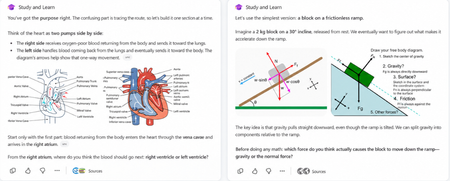
When we brought Study and Learn Agent to general availability, the promise was simple: the student does the thinking. Study and Learn asks before it tells. It pushes you to try. It makes learning interactive and quizzes you on what you missed. It lives at aka.ms/studyandlearn inside your Microsoft Education tenant. It coaches learners across any subject; explaining concepts, walking through problems step by step, supporting writing without doing the writing, and generating flashcards, quizzes, matching, and fill-in-the-blank activities from a learner's own materials. The design principle underneath all of it: preserve the productive effort that makes learning stick. The learner does the thinking. The agent coaches the thinking. 👥 Who can use it Study and Learn is available and pinned by default for every adult learner in a Microsoft Education tenant. No setup required — it's right there in the left navigation of Microsoft 365 Copilot. For K-12 students aged 13–17, there's one step first: Copilot Chat has to be enabled. Until it is, students in your tenant can't reach the agent. The good news is that it's a simple set of steps tutorial shows the exact enablement steps for IT admins. Watch the enablement walkthrough. 🎥 Full video tutorial If you want the full tour, Mike Tholfsen made an end-to-end tutorial that walks through every feature, start to finish. It's the fastest way to see the agent in action: Watch it here: ✨ Copilot Chat now opens with Study and Learn pre-selected For K-12 students who already have Copilot Chat enabled, Study and Learn is now pre-selected the moment they open Copilot Chat. The coach is right there, ready - no hunting through a menu, no wondering which agent to pick. Copilot Chat opens by default in the learning mode. A student who wants to work with something else can dismiss it in a tap. IT admins stay in control. The setting lives in the Education settings panel in the Microsoft 365 admin center. It's ON by default for K-12 and OFF by default for higher education, where admins can turn it on when they're ready. 🌍 Now available in 48 languages At GA, Study and Learn was optimized for English (US). Now it speaks the way your learners do. The agent is available in 48 languages beyond English. Set your browser or operating system to a supported locale and visit aka.ms/studyandlearn. The user experience and conversation are set in your language. The learning activities - flashcards, quizzes, matching, fill-in-the-blank - appear in your chosen app language. Additional language support is rolling out now and will be available to all users in the coming days. And you're not locked in. A learner can switch languages mid-conversation for a genuinely multilingual study session. Learning a new language and want the vocabulary words in the new language but the explanations in your native language? No problem. Want to switch languages to practice the vocabulary with Study and Learn, no problem, you can do that too. The coaching language follows you. For a student learning in their second language, or a family where the kitchen-table language isn't the classroom language this is the difference between a tool that talks at them and one that meets them where they are. 🖼️ Images that show, instead of just tell Some things are easier to see than to describe. A cell's structure. The layers of the atmosphere. Where the femur meets the hip. Study and Learn conversations can now include a carousel of relevant, web-safe images sourced through search, woven right into the flow of the agent's response. Each image supports the next step in a learner's understanding, a visual nudge toward the answer they're working out for themselves, without shortcutting the effort that gets them there. This is especially powerful for visual subjects like biology, geography, and chemistry, where a single well-placed image does what a paragraph can't. This experience will get better over time. It is rolling out now and will be available to all users in the coming days. You can always share feedback here. 💬 A prompt pack to help learners get started Here’s a prompt pack - a set of ready-to-use prompts that show learners exactly how to put the agent to work, organized around the moments they actually face: Understand a difficult topic — “Use these materials to find the most important ideas and help me understand them.”, “Explain [topic] step by step, then check my understanding.” Practice what you know — “Create a matching activity for the key terms in this chapter.”, “Make a fill-in-the-blanks activity from these materials.” Improve my work — “Review what I missed and explain the ideas I need to practice.”, “Help me understand why my answer was incorrect, then let me try again Work on an assignment — “Help me brainstorm ideas for this assignment.”, “Review my draft and help me find one area to strengthen.”, “Help me check whether my evidence supports my main point.” Get ready for a test — “Use these materials to identify the topics I should focus on.”, “Give me a five-minute review of these concepts I’m still struggling with.” Every prompt keeps the learner in the driver's seat — the agent helps them think and practice, never hands over the answer. Share the pack at the start of a unit and watch how it changes the way students engage. 📋 Coming soon: educators can assign the agent from Teams Everything so far puts the coach in the learner's hands. This next one puts it in the educator's. Rolling out soon, educators will be able to assign the use of Study and Learn Agent directly from a Teams assignment. Instead of a blanket "you can use this," you'll be able to point learners to the agent for a specific assignment built right into the assignment they're already opening. The through-line Every one of these (the languages, the pre-select, the prompt pack, the images, the assignments) meet the learner where they are. In their language. The moment they open Copilot. With the words to get started and the visuals to see it clearly. Pointed there, when it counts, by the educator who knows them. Open Microsoft 365 Copilot. Look in the left navigation. Then watch Mike's full tutorial and try it on the thing you're studying next. Educators can also access the full professional development course on Study and Learn complete with suggestions on introducing the agent to students. Try Study and Learn Agent · Microsoft Education license required. K-12 student access (ages 13–17) requires IT to enable Copilot Chat. Resources: Try Study and Learn in your tenant: https://aka.ms/studyandlearn Full tutorial on Study and Learn: https://aka.ms/studyandlearnvideo Professional development for educators: https://aka.ms/studyandlearnmodule Enable Copilot Chat: https://aka.ms/enablecopilotchatvideo Support documentation: https://aka.ms/studyandlearndocumentation Anoo Padte is Principal Product Manager for AI in Education at Microsoft.1.1KViews1like0CommentsWhen Intent Becomes the Interface: Why Applications Are No Longer the Starting Point
For decades, enterprise software has asked people to learn how applications work. Which screen to open. Which fields to complete. Which workflow to trigger. Which report to generate. And which application to visit next. Here is a situation I keep meeting. A sales executive is preparing a renewal proposal. Customer relationships live in CRM. Contract terms sit in SharePoint. Support issues are tracked elsewhere. Revenue data comes from finance. Relevant conversations are scattered across Outlook and Teams. The executive knows what needs to be accomplished. The software requires them to figure out how. But something interesting is happening. We are beginning to separate the intent to accomplish work from the applications traditionally required to perform it. Microsoft's developments across Copilot, Cowork, Code, Copilot Studio and Microsoft IQ suggest that this could become a defining shift in enterprise software. The question is no longer simply how to make applications more intelligent. What if enterprise software started with the work, rather than the application? Enterprise Software Was Built Around Navigation Traditional enterprise applications organize business capabilities into reliable systems. ERP manages transactions. CRM manages customer relationships. HR platforms manage employee processes. These systems aren't going away. Their data models, transaction controls and business rules remain essential. But their user experiences were designed for a world where software needed explicit instructions at almost every step. People became the integration layer. We retrieved information from one system, interpreted it, entered it into another, initiated approvals and followed up when something stalled. APIs and automation improved individual steps. Generative AI introduced conversational interfaces. But the underlying model often remained unchanged. People still needed to know which application to use and how to move the result into the next step. Now the architecture itself is beginning to change. Microsoft Is Bringing Three Capabilities Together One of Microsoft's more consequential recent developments is the convergence of applications, workflows and agents in Copilot Studio. These are fundamentally different capabilities. Applications provide structured experiences for people to view information, make decisions and act. Workflows provide predictable execution for repeatable processes, business rules and integrations. Agents bring reasoning and adaptation when the next step cannot always be predetermined. Not every business process needs an agent. Not every decision should be probabilistic. And not every interaction belongs in a chat window. A purchase approval may require deterministic policy enforcement. Evaluating an unusual supplier proposal may benefit from AI reasoning. A material exception may require human judgment through a purpose-built application. Microsoft Copilot Studio is bringing these capabilities into a more unified development experience, supported by agent orchestration, workflow execution, reusable skills and connected tools. And the audience for this convergence is already enormous: Microsoft noted on a recent earnings call that more than 80% of the Fortune 500 already have active agents built with its low-code tools. This suggests a useful architectural principle: Use reasoning where the path is uncertain. Use workflows where the rules are known. Use applications where human interaction adds value. I have started calling this the Composition Rule. The breakthrough isn't replacing one with another. It is combining them deliberately. From Application-Led to Intent-Led Work Return to our sales executive preparing a renewal proposal. Instead of visiting multiple systems, the executive could begin with a request: Prepare the renewal proposal. Incorporate the latest commercial terms, outstanding support issues and account commitments. Flag anything requiring approval. The system must interpret the request, retrieve authoritative information, apply business rules, assemble the deliverable and recognize where human judgment is necessary. Different Microsoft capabilities can contribute to that experience. Microsoft 365 Copilot Cowork enables delegation of complex, multi-step work across connected productivity experiences. Work IQ provides context from Microsoft 365 collaboration. Fabric IQ contributes business semantics and relationships across enterprise data. Foundry IQ supports reusable enterprise knowledge and retrieval. Together, they form the context layer I explored in The Context Advantage and intent-led work is where that investment begins to pay out. Dynamics 365 and Power Platform connect intelligence to operational records, business processes and actions. Copilot Studio enables agents to use tools and workflows, while applications can provide structured experiences for human review. These are complementary building blocks, not necessarily one automatically integrated execution path. Bringing them together requires deliberate solution architecture, connectors, permissions and orchestration. The executive receives a proposal, supporting evidence and decisions requiring attention. The underlying systems remain important. But navigating them is no longer necessarily the executive's responsibility. In traditional enterprise architecture, applications organize capabilities and users navigate between them. In an intent-led architecture, the desired outcome becomes the organizing principle. Applications, workflows, agents and enterprise services are composed around that intent. The application remains important. But it is no longer necessarily the primary unit of the user experience. When Software Can Be Assembled Another development deserves attention. Microsoft's Copilot Code and Copilot Studio capabilities are making it easier to create software experiences from natural-language requirements. Copilot Managed Runtime provides Microsoft-hosted infrastructure for running and governing supported applications. These capabilities are at different stages of availability, but their direction is significant. Traditionally, an enterprise application begins with a development project: requirements, design, engineering, testing, deployment and maintenance. That remains essential for complex, mission-critical systems. But not every business need justifies a conventional development cycle. A procurement manager may need a focused interface for comparing supplier proposals. A finance team may need a temporary application for reviewing reconciliation exceptions. Increasingly, some experiences can be generated, connected to governed data and shared with colleagues. The distance between recognizing a business need and creating a useful software experience may shrink dramatically. But faster creation also raises important questions. Who owns the generated application? How is it tested? Which identities and permissions does it use? How is it maintained or retired? Microsoft Copilot Managed Runtime, currently in preview, addresses part of this challenge through managed hosting, Microsoft Entra authentication and application governance capabilities. The ability to generate software is becoming easier. The ability to operate that software responsibly remains an engineering discipline. Software creation may become democratized. Software accountability cannot become optional. Reasoning Is Not Execution There is one distinction I find myself drawing on whiteboards more often than any other as AI moves deeper into enterprise processes. Large language models are useful when tasks require interpretation, synthesis and adaptation. But enterprises also depend on predictability. An invoice approval threshold shouldn't change because a model reasons differently. A financial transaction must preserve the integrity of the system recording it. Consider an insurance claim. An agent interprets submitted documentation and identifies missing information. A workflow applies established eligibility rules and routes the claim. A human reviewer examines complex exceptions through an application presenting the relevant evidence. The model contributes interpretation. The workflow contributes repeatability. The application supports human judgment. And the system of record preserves the authoritative transaction. This requires business capabilities to be accessible beyond application screens. APIs, Model Context Protocol (MCP) tools, Power Platform connectors and reusable services become building blocks through which intelligent workflows can operate across systems. Microsoft Copilot Studio supports this direction through workflow triggers, agent handoffs, connected tools and evaluation capabilities. Microsoft Foundry provides complementary capabilities for agent development, evaluation, tracing and operational monitoring. The quality of the experience increasingly depends on how well these capabilities can be composed - not simply on how intelligent the underlying model is. For enterprise architects, this introduces a more useful question than where to deploy another agent: Which parts of this process should be intelligent, which must be deterministic and which require human judgment? That is the Composition Rule at work. A New Architecture, Not Another Generation of Sprawl The counterargument comes up in almost every architecture conversation I am part of. If every employee can generate applications and every department can assemble workflows, enterprises could recreate decades of software fragmentation at unprecedented speed. A hundred individually useful applications don't necessarily create a coherent enterprise architecture. The answer isn't to prevent experimentation. It is to establish reusable foundations. Common identity through Microsoft Entra. Trusted business semantics through Fabric IQ. Approved connectors and MCP tools. Shared engineering standards. Managed execution environments. Clear ownership and lifecycle controls. Microsoft Agent 365 adds an enterprise control plane for discovering, securing and governing agents across supported environments. These capabilities address different parts of the challenge. They do not eliminate the need for enterprise architecture. The more accessible software creation becomes, the more important shared foundations become. Otherwise, we risk making software easier to build while making the enterprise harder to operate. When the Business Need Comes First I don't expect enterprise applications to disappear. Organizations will continue to need ERP, CRM, finance, HR and industry-specific platforms. Systems of record remain indispensable. But the relationship between people and applications is beginning to evolve. Today, enterprise users learn which application performs which function. Tomorrow, more experiences may begin with a desired result, with intelligence coordinating underlying capabilities and presenting the appropriate interface when needed. Sometimes that interface will be a conversation. Sometimes a generated application. Sometimes a familiar enterprise screen. And sometimes a workflow will complete a defined step without another interaction. Microsoft's convergence of Copilot, Copilot Studio, Microsoft IQ, Power Platform and managed execution infrastructure makes this architectural possibility increasingly tangible. We may be moving from a world where people navigate software to accomplish work toward one where software is assembled around the work people need to accomplish. That won't happen overnight. It requires strong architecture, trusted data, explicit execution boundaries and deliberate engineering choices. But it raises a question worth asking before the next enterprise software investment: Are we designing another application people must learn to operate or a capability that understands the work they are trying to accomplish? References Microsoft Copilot Studio Blog: “Build apps, workflows, and agents together” The Official Microsoft Blog: “Introducing the new Copilot with Home, Code and Autopilot” (September 25, 2026) Microsoft Copilot Studio Blog: “Microsoft Copilot Managed Runtime: Enterprise code execution for Microsoft 365” Microsoft 365 Blog: “Powering Frontier Transformation with Copilot and agents” (Copilot Cowork) Microsoft IQ Microsoft Agent 365 Microsoft FY26 Q2 earnings conference call — more than 80% of the Fortune 500 with active agents built using Microsoft's low-code tools Ashok Karania Articles on Microsoft Tech Community — “The Context Advantage”; “When AI Stops Waiting for Instructions”; “Beyond Tokens: Rethinking AI Economics with Microsoft Foundry” Image Credit: OpenAI121Views0likes0CommentsHands-on Webinar: Copilot Notebooks and Microsoft Learning Zone
Join us on Wednesday, October 21 @ 8am Pacific Time for a practical, educator-focused webinar exploring Copilot Notebooks, Study Guide, and Microsoft Learning Zone. Discover ways to bring AI into everyday teaching and learning, from working with classroom materials to supporting independent student learning and active participation in the classroom. We’ll walk through classroom scenarios, demonstrate key features, and share ideas you can adapt for your students. Whether you’re getting started with AI or looking for new ways to use it, this session will help you connect these tools to real classroom needs. What we’ll cover: Copilot Notebooks: Explore ways to work with your teaching and learning materials. This includes the Study Guide embedded in Copilot Notebooks to support student review and independent learning. Microsoft Learning Zone: Learn how to turn any teaching idea into an interactive lesson in minutes, then share it with students for self-paced learning or use it to facilitate active participation in the classroom. Register here: https://msit.events.teams.microsoft.com/event/msit.b38c4730-d9e5-49ba-aa00-4cbaefce36bc@72f988bf-86f1-41af-91ab-2d7cd011db47 We look forward to seeing you at the webinar! Mike Tholfsen Group Product Manager Microsoft Education201Views0likes0CommentsLand Your Offer - Anatomy of Revenue Generating Partner Offer - Part 3 - Copilot Deployment
In Part 1 we looked at Copilot in 30, a $0 trial for SMB customers. In Part 2 we looked at Envisioning & POC, a funded pre-sales engagement. Part 3 moves to post-sales. The customer has bought Copilot seats. The job now is to get people using them. That job has a new reward. From 1 October 2026, the Frontier Accelerate for Copilot: M365 Copilot Deployment Accelerator pays in two milestones: one when you deliver the deployment, and one when the customer's active users grow. It also lands just after Microsoft introduced the new Copilot with Home, Code and Autopilot, usage-based billing and FinOps for AI. Deployment now covers more ground, and customers need a partner to cover it. Package this engagement as a Microsoft Marketplace offer and you have a repeatable way to turn paid seats into active users across your whole customer base. Start Here: Why Publishing on Microsoft Marketplace Matters Microsoft Marketplace is Microsoft's partner-focused business platform. It helps you reach more customers and makes buying from you simpler. A published offer gives your practice a permanent storefront where customers and Microsoft sellers already look for Copilot help. An offer also makes your work repeatable. You define the phases, activities, deliverables and sizes once. Then you run the same engagement for every qualified customer instead of scoping each one from scratch. Partner Center supports both professional service and managed service offers, so one listing can carry the deployment and the ongoing services that follow. The Opportunity: Seats Bought, Value Waiting Many organisations have bought Copilot ahead of their people adopting it. The gap between paid seats and monthly active users is value still waiting to be realised. Take a customer with 3,000 paid Copilot seats and 1,000 monthly active users. That leaves 2,000 seats, about $720K a year of Copilot investment at $30 per user per month, not yet part of anyone's working day. Closing that gap is what this engagement is designed to do. Customer eligibility for each size is set by two numbers: purchased Copilot seats, and unused seats (purchased seats minus active users). Both are in Partner Center's growth insights reporting in the AI Business Solutions & Security Insights (ASPX) dashboard. Use the dashboard's filters to find customers to land this offer with, and you will know which size each one qualifies for before the first conversation. Why Deployment Is Where Copilot Value Is Won Copilot delivers its value through daily use. The more people build it into how they work, the more value the business sees, and the stronger the case to extend it to more teams. The new Copilot widens what a good deployment covers. Home is the new starting point, with the full power of Word, Excel and PowerPoint built in through Office in Copilot. Code lets people build apps, dashboards and automations in plain language. Autopilot is a persistent agent that keeps work moving without a prompt. Advanced capabilities run on usage-based billing, governed through FinOps for AI. So deployment now goes beyond assigning licences. It means securing data, governing Code apps and Autopilot agents, training people on Chat, Office in Copilot and Code, and putting spend controls in place before usage scales. Each of these takes skills many customers do not yet have in-house. Each one is a service you can deliver. Meet the Offer: M365 Copilot Deployment Accelerator, Paid in Two Milestones The M365 Copilot Deployment Accelerator is a post-sales, partner-led engagement. It covers technical deployment of Microsoft 365 Copilot and Microsoft 365 Copilot Business, security and governance controls, user training, and adoption and change management. The essentials: Who qualifies: Customers with a minimum number of purchased Copilot seats and unused seats for each size: XXS 50+ and 25+, XS 300+ and 250+, S 500+ and 500+, M 1,500+ and 1,500+, L 3,000+ and 3,000+. Strategic 500 customers are not eligible. EDU and non-profit customers are not eligible for XXS and XS. How it is sized: Five sizes: XXS (10 hours), XS (20 hours), S (40 hours), M (100 hours) and L (200 hours). How it pays: Milestone 1 (Solution Deployment) is paid once your proof of execution (POE) is approved. It is guaranteed and does not depend on any outcome. Milestone 2 (Consumption Growth) is paid if the customer's incremental paid Copilot monthly active users reach the nominated band within a six-month window. Going above the band does not increase the payment. Falling below it means no Milestone 2 payment. How it runs: Nominate the customer into a size band (the band is locked once submitted). Get customer consent within 30 days. Deliver the work and submit POE (partner survey, customer attestation and invoice) within 90 days of consent. Each customer tenant can have up to two approved claims, one at a time. Who can deliver: Partners at Copilot JumpStart Ready or higher until 31 December 2026. From 1 January 2027, the Microsoft 365 Copilot specialization is required. Term: 1 October 2026 to 30 June 2027, or until the program cap is reached. Microsoft funds the deployment and rewards the growth. You own the delivery, the relationship and everything that follows. Your Role: From Deployer to Adoption Partner A deployment is not finished when licences are assigned. It is finished when people use Copilot every week and the sponsor can see the value. Your job is to get the customer there, phase by phase. Plan: Confirm the first business functions to adopt. Validate priority scenarios across Chat, Office in Copilot and the Microsoft 365 apps. Set KPIs and Responsible AI guardrails. Build a measurable business case that includes usage-based billing. Assess the environment and sequence remediation before deployment. Implement: Prepare the environment and assign licences. Configure data controls, fix oversharing, and govern Code apps and Autopilot agents. Enable admin tools. Set up the Copilot Dashboard, reporting and FinOps for AI spend controls. Launch a champions programme and community. Train users on Chat, Office in Copilot and Code. Adopt: Run prompt-a-thons on real scenarios. Survey users on their experience. Track incremental paid active users every month against the Milestone 2 band. Review audit logs and Copilot reports. Monitor service health, demand, cost and AI spend. Manage and Improve: Extend analytics with custom impact reports. Refine the business case with real data. Align policies to Home, Code and Autopilot on a set schedule. Optimise operations and AI spend. Mine help desk tickets for new agentic use cases. Keep training going as adoption spreads. Close out: Deliver an executive summary with recommendations, risks, owners and dates. Submit POE. Agree the plan to reach the nominated active user band within the six-month Milestone 2 window. Every phase moves one number: active users. It is the number the customer's sponsor watches most closely, and the one both milestones are built around. Inside the Offer: Activities and Hours by Engagement Size Below is the full activity plan behind the offer, with hours for each of the five sizes. Use it to size your own offer plans and statements of work. ID Phase Activity XXS XS S M L Pre-req Eligibility Minimum Copilot seats / unused seats (unused = seats minus active users) 50+ / 25+ 300+ / 250+ 500+ / 500+ 1,500+ / 1,500+ 3,000+ / 3,000+ P1 Plan Identify priority business functions 0.25 0.5 1 2.25 4.5 P2 Plan Determine high-value scenarios 0.5 1.25 2.25 5.75 11.5 P3 Plan Define success metrics and guardrails 0.5 0.75 1.5 3.75 7.5 P4 Plan Develop the business case, incl. usage-based billing (UBB) 0.5 1.25 2.25 5.75 11.5 P5 Plan Plan readiness and remediation 0.5 1 1.75 4.5 9 I1 Implement Prepare environment and assign licenses 0.75 1.5 3 7.75 15.25 I2 Implement Configure security and data controls 0.75 1.5 3 7.75 15.25 I3 Implement Enable administrative tools 0.5 0.75 1.5 3.75 7.5 I4 Implement Deploy analytics and reporting, incl. FinOps for AI 0.5 0.75 1.5 3.75 7.5 I5 Implement Activate champions and communities 0.25 0.75 1.25 3 6 I6 Implement Conduct training and communications 0.75 1.5 2.75 6.75 13.75 A1 Adopt Drive cross-organizational adoption 0.5 1.25 2.5 6 12.25 A2 Adopt Gather user feedback and sentiment 0.25 0.5 1.25 3 6 A3 Adopt Measure business impact and usage 0.5 1 2 5.25 10.75 A4 Adopt Monitor security and audit reports 0.25 0.5 1 2.75 5.25 A5 Adopt Monitor and evaluate operations, cost and AI spend 0.25 0.5 1.25 3 6 M1 Manage and Improve Extend analytics 0.25 0.5 1.25 3 6 M2 Manage and Improve Evolve the business case, incl. UBB 0.25 0.5 1.25 3 6 M3 Manage and Improve Policy review and refinement 0.25 0.5 1.25 3 6 M4 Manage and Improve Optimize operations and AI spend 0.5 0.75 1.5 3.75 7.5 M5 Manage and Improve Continuous process improvement 0.25 0.5 1.25 3 6 M6 Manage and Improve Continuous training and adoption 0.5 0.75 1.5 3.75 7.5 C1 Close-out Executive summary, POE and Milestone 2 growth plan 0.5 1.25 2.25 5.75 11.5 TOTAL Hours 10 20 40 100 200 Land Your Offer: What One Customer Is Worth The table below is the revenue anatomy of one Deployment Accelerator engagement at each of the five sizes. Four revenue streams stack on top of each other: Milestone 1, Solution Deployment: Microsoft funds the deployment work, from $1,625 for an XXS engagement to $32,500 for an L engagement. It is paid once POE is approved and is guaranteed. Milestone 2, Consumption Growth: a further $875 to $17,500, paid when the customer's incremental paid active users reach the nominated band within six months. This is where adoption work earns its own reward. CSP incentive on Copilot revenue: earned on the Copilot seats you transact. Customers who see their people using Copilot every day tend to renew and extend, so adoption work supports this stream too. Managed services: the recurring engagement described in After Close-out, which is where the largest and most durable share of revenue lives. Item XXS XS S M L Minimum Copilot seats / unused seats 50+ / 25+ 300+ / 250+ 500+ / 500+ 1,500+ / 1,500+ 3,000+ / 3,000+ Engagement hours 10 20 40 100 200 Milestone 2 target: incremental paid Copilot active users in six months 25+ 250+ 500+ 1,500+ 3,000+ Milestone 1, Solution Deployment (K) $1.63K $3.25K $6.5K $16.25K $32.5K Milestone 2, Consumption Growth (K) $0.88K $1.75K $3.5K $8.75K $17.5K Frontier Accelerate total (K) $2.5K $5K $10K $25K $50K CSP incentive on Copilot revenue (K)† $3.51K $21.06K $35.1K $105.3K $210.6K † Milestone payments shown at Market A rates for claims nominated from 1 October 2026. CSP incentive shown at a blended 19.5% (direct bill 2.5 + 7 + 10; indirect reseller 7 + 12.5) on the minimum Copilot seats for each size at $30 per user per month for 12 months. Illustrative estimates from the offer plan. Confirm current rates, market rates, eligibility and geographic restrictions (which apply to the L size) in the latest Microsoft Commercial Partner Incentives Guide. Now multiply. Everything above is the anatomy of a single customer. Landing the offer means running it across every qualifying customer in your base. The same ASPX view you use to check eligibility is your target list: sort the customers you manage by the gap between paid Copilot seats and active users, and check MCI eligibility and potential earnings for each. Do not forget your Part 2 customers: every Envisioning & POC engagement that converted to paid seats is a natural next candidate. How the Offer Fits Together: From Sizing to Proof of Execution The offer runs left to right in three layers: Sizing and value: five sizes from XXS (10 hours) to L (200 hours). Milestone 1 is paid on POE approval. Milestone 2 is paid when the active user band is met. Bands are locked at nomination. Five phases: Plan (P1 to P5), Implement (I1 to I6), Adopt (A1 to A5), Manage and Improve (M1 to M6) and Close-out (C1, T1, T2, X1). Each phase produces something the sponsor can see. Proof of execution: prioritised scenarios and a business case that includes usage-based billing; a secure, licensed Copilot environment; analytics, reporting and admin controls; active champions and trained users; incremental paid active users, impact and ROI measured; an executive summary, roadmap and POE. Plus a named wave 2 expansion beyond the first teams. The highlighted activities are champions and communities (I5), training and communications (I6), cross-organizational adoption (A1), business impact and usage (A3), extended analytics (M1), policy review (M3), operations and AI spend (M4), continuous training (M6), trial to paid licence conversion (T1), commercial proposal and signature (T2) and the wave 2 expansion plan (X1). These are where the engagement stops being a project and becomes an ongoing relationship: managed services, ongoing optimisation and follow-on professional services after the engagement closes. The managed services below are built from exactly these activities. After Close-out: Managed Services That Keep Delivering Close-out is the start of the real engagement. Package these six recurring services in your offer. Each one carries forward a highlighted activity from the deployment, is sized in partner days so you can price it, and drives a business outcome the sponsor can put a number on. Managed service Partner activity: what you deliver and measure Customer business outcome: what it drives (illustrative targets, M-size customer) Champions and community management • Effort: 1 to 2 days a month • Activity: Run the champions network and a Viva Engage or Teams community, host monthly prompt-a-thons on real work, and carry adoption into every business function (I5, A1) • Reported as: Active champions per function; community questions answered; functions above the utilisation target • One active champion for every 50 users (60 champions across 3,000 seats) • Adoption spreads from the first 2 business functions to 6+ within six months • Copilot how-to tickets to the help desk down 30 to 50% as peers answer questions first Continuous learning and enablement • Effort: 2 days a month • Activity: Deliver role-based training and launch communications for each new group, onboard new joiners within their first 30 days, and refresh training as new Copilot capabilities arrive (I6, M6) • Reported as: People trained by role; new joiners onboarded within 30 days; trained users active within 30 days • 2 to 4 hours saved per active user a week (≈5,000 to 10,000 hours across 2,500 active users) • 90%+ of trained users active within 30 days of training • New joiners productive with Copilot in their first month, not their first quarter Usage and impact analytics • Effort: 1 to 2 days a month • Activity: Track incremental paid active users against the Milestone 2 band every month, extend the Copilot Dashboard with third-party data, and build custom impact reports by function (A3, M1) • Reported as: Incremental active users against the band; utilisation (active users ÷ paid seats); impact by function • Utilisation lifted from 33% to 83% (1,000 to 2,500 active users) within six months, meeting the M band floor • ≈$540K a year of Copilot investment moved from unused to in use • Return shown in the customer's own numbers: ≈$1.08M a year of seats against $9.6M+ of staff time released at $40 per hour Policy lifecycle management • Effort: 1 day a month • Activity: Review and refine security and governance policies on a set schedule, and align them to Home, Code and Autopilot before each capability reaches users (M3) • Reported as: Policy reviews completed on schedule; new capabilities assessed before rollout; open policy exceptions • New Copilot capabilities switched on in weeks, not quarters, because policies are ready • Zero Copilot-related oversharing incidents as usage grows • Audit evidence for every policy decision available on request Service and AI spend optimisation • Effort: 1 to 2 days a month • Activity: Review KPIs, user feedback and AI spend each month, update the service management plan, and focus usage-based capabilities on the users and scenarios that justify them (M4) • Reported as: KPI trend; AI spend against budget; feedback themes closed • AI spend held within ±10% of budget, with no unplanned overage • Cost per active user down 10 to 20% a year as usage matures • Top user feedback themes acted on within 30 days Licence growth and wave planning • Effort: 1 day a month, plus 2 to 3 days per expansion wave • Activity: Convert trial licences to paid, prepare commercial proposals for named teams, and plan and date the next expansion wave (T1, T2, X1) • Reported as: Trials converted; proposals signed; next wave dated with named teams • New seats added only where a named team and use case are ready • Each new wave at 80%+ utilisation within 60 days • Wave 2 adds 250 to 500 seats, each backed by usage data from wave 1 Outcomes are illustrative targets for an M-size customer with 3,000 paid Copilot seats and 1,000 active users at nomination, at $30 per user per month, a blended $40 per hour staff cost and 48 working weeks a year. Validate them with each customer when you define success metrics (P3) and build the business case (P4), then report against them from A3 onwards. Effort scales with seats in scope, as the engagement hours do. Add the recurring rows together and one M-size customer sustains roughly 8 to 9 partner days a month after close-out, before expansion waves are counted. Every row pairs a number you can invoice against with a number the sponsor can take to the board. That is what turns a recurring service into a renewable one. Ready to Build Your Copilot Deployment Accelerator Offer? Read the engagement terms and mechanics in the Microsoft Commercial Partner Incentives Guide, and download the delivery guide and pre-engagement planning resources. Check your eligibility: Copilot JumpStart Ready or higher until 31 December 2026, then the Microsoft 365 Copilot specialization from 1 January 2027. Publish your offer in Partner Center as a professional service (the deployment accelerator) with a managed service follow-on (community, learning, analytics, policy, spend optimisation and licence growth). Build your first cohort: in ASPX, filter the customers you manage for paid Copilot seats with low Copilot utilisation and an adoption status of starting or struggling, then check MCI eligibility and potential earnings for each. Start with customers from your Envisioning & POC engagements that converted to paid. Nominate the right band: the band is locked at nomination and Milestone 2 pays only if incremental paid active users reach its floor. Use ASPX to set it: take today's Copilot MAU as your baseline, look at the recent trend and adoption status, and pick the band whose floor you can realistically add in six months. A customer with 3,000 paid seats and 1,000 active users qualifies for M, and reaching the M floor means adding 1,500 active users. If your plan adds 600, S is the safer choice. Book the close-out before Plan begins, so the Milestone 2 plan and the wave 2 conversation are already on the calendar. Your customers have already chosen Copilot. Help every one of their people make it part of how they work. Resources Engagement mechanics for Copilot Deployment Accelerators | Microsoft Commercial Partner Incentives Guide Microsoft Commercial Partner Incentives Guide M365 Copilot Deployment Accelerator: Delivery Guide M365 Copilot Deployment Accelerator: Pre-Engagement Planning Partner investments: October 2026 updates Archived incentive terms for claims nominated before 1 October 2026 The new Copilot is here: the opportunity for Microsoft partners Introducing the new Copilot with Home, Code and Autopilot273Views1like0CommentsESPC Microsoft 365 and AI 2026 Event Guide
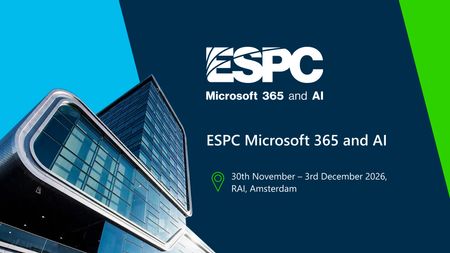
Event at a Glance ESPC is Europe's premier Microsoft 365 and AI conference. It brings together IT professionals, business leaders, developers, architects, partners, MVPs, community leaders, and Microsoft experts to learn, connect, and explore the latest innovations across Microsoft 365, Copilot, Teams, SharePoint, and more. Microsoft is a lead partner and headline sponsor, using ESPC as a key opportunity to engage with customers, partners, and the Microsoft community. Dates: November 30 - December 3, 2026 Location: RAI Amsterdam, Netherlands Venue: RAI Amsterdam, Europaplein 24, 1078 GZ Amsterdam, Netherlands (Entrance C) Hashtag: #ESPC26 Microsoft Role: Headline Sponsor Sessions: 35+ Microsoft-led Speakers: 100+ (MVPs, RDs, Microsoft and community members) Why Attend ESPC 2026? ESPC is where the Microsoft community comes together to learn, connect, and shape what’s next. From Microsoft keynotes and product-maker sessions to hands-on demos, community meetups, and networking opportunities, attendees gain direct access to the people building the technologies they use every day. ESPC is known for its welcoming community atmosphere, making it easy to learn from peers, share ideas, and build meaningful professional relationships. Learn from Microsoft - Hear directly from Microsoft leaders, engineers, product makers, and customer experience experts as they share the latest developments across Microsoft 365, Copilot, Teams, SharePoint, Power Platform, Security, Fabric, Azure, and AI. Explore What's New in AI and Copilot - Discover how organizations are adopting AI, deploying Copilot, building agents, and transforming productivity. Gain practical guidance, real-world insights, and technical knowledge you can take back to your team. Get Hands-On with Innovation - Visit the Microsoft Innovation Hub to experience live demos, engage with product experts, explore new capabilities, and participate in interactive experiences designed to help you learn by doing. Connect with the Community - Meet MVPs, partners, customers, developers, architects, IT professionals, and community leaders from around the world. Whether in a session, the Community Lounge, a meetup, or a networking event, ESPC creates opportunities to build lasting connections. Return with Actionable Ideas - Beyond inspiration, ESPC focuses on practical learning. Attendees leave with new skills, proven approaches, and fresh perspectives they can immediately apply to modernize collaboration, accelerate adoption, strengthen governance, and drive AI-powered transformation within their organizations Microsoft Presence Microsoft will have a significant presence throughout the conference, including: Microsoft keynotes and product announcements Product makers, engineers, and customer experience leaders Microsoft-led breakout sessions Innovation Hub experience on the expo floor Innovation Stage lightning talks Ask the Expert opportunities Executive engagement activities Women in Tech & Allies programming Community meetups and networking experiences Meet the Microsoft Keynote speakers Jeff Teper, Executive Vice President, Microsoft Apps & Agents Karuana Gatimu, Director, Microsoft SCALE Experience Group, AI & Collaboration Vesa Juvonen, Principal Product Manager Keynotes Microsoft Opening Keynote | Tuesday, December 1 | 9:00 AM The AI-Powered Enterprise Speaker: Jeff Teper, Executive Vice President, Microsoft Apps & Agents Microsoft's opening keynote will explore how the biggest AI value gains extend beyond individual applications and personal productivity gains. They emerge when organizations connect people, knowledge, business processes, data, workflows, and agents into a unified operating model. You can expect valuable insights into business transformation trends, product innovation, and demos to show how everyday work is evolving. Whether you're a decision maker, business leader, or technology professional, this session will offer practical perspectives on navigating the next wave of digital transformation. Demonstrations Miceile Barrett, Principal Group Product Manager, Michel Bouman, Senior Program Manager, Kendra Springer, Principal Group PM Manager Microsoft Product Keynote | Wednesday, December 2 | 9:00 AM Leading Through Change: Fireside Conversations on AI, Productivity, and Business Transformation Speaker: Karuana Gatimu, Director of the Microsoft SCALE Experience Group, AI & Collaboration A product-focused keynote highlighting customer adoption, community innovation, and practical approaches for leveraging Microsoft 365 Copilot, agents, and modern workplace technologies. Known for translating complex technology into actionable guidance, Karuana will share practical insights, real-world examples, and best practices that you can take back to your teams. From collaboration and productivity to AI-powered innovation, this keynote will provide valuable inspiration for organizations looking to maximize their Microsoft investments. Closing Keynote | Thursday, December 3 | 9:00 AM Crafting the Next Era of Work with AI and Empathy Speaker: Vesa Juvonen, Principal Product Manager, Microsoft As organizations continue to embrace AI, one question becomes increasingly important: how do we balance technological advancement with human connection? In this keynote, Vesa Juvonen will explore how innovation and empathy can work together to shape the future workplace. Through practical examples and relatable insights, Vesa will share ideas for embracing new technologies while keeping people at the center of transformation efforts. Whether you're leading organizational change, building solutions, supporting users, or exploring ways to work smarter, this session will provide actionable ideas to help you navigate the evolving world of work. Microsoft sessions Tuesday: 10:15-11:15 - Frontier transformation with Microsoft Copilot and Work IQ with John Mighell, Microsoft / Shanna Bosmans, Microsoft 10:15-11:15 - Microsoft Teams: Harnessing agents where work gets done with Matt Slomka, Microsoft 11:45-12:45 - Agent 365: Securing, Governing, and Managing the Agentic Enterprise with Sesha Mani, Microsoft / Vinod Kurpad, Microsoft 11:45-12:45 - Extending Microsoft Copilot: Understanding Your Options with Vesa Juvonen, Microsoft / Paolo Pialorsi, Microsoft 11:45-12:45 - OneDrive: Your Hub for Productivity and Collaboration Excellence (Product Team Overview) with Arjun Tomar, Microsoft / Lincoln DeMaris, Microsoft 14:00-15:00 - Harnessing Connectors to Power Intelligent Agents in Microsoft 365 with Manas Biswas, Microsoft 15:15-16:15 - Modernize Legacy Systems for the Copilot Era with SharePoint Embedded with Marc Windle, Microsoft / James Eccles, Microsoft 15:15-16:15 - Copilot Cowork in Action: What It Is, How to Get It & What You Can Do With It with Melissa Hale, Kerv / Daniel Laskewitz, Microsoft 16:45-17:45 - Giving your office eyes, ears and a brain with Michel Bouman, Microsoft / Matt Slomka, Microsoft 16:45-17:45 - Build Once, Ground Everywhere: Developing Agents with the WorkIQ API with Shyam Narayan, Microsoft / Yogesh Ratnaparkhi, Microsoft Wednesday: 10:15-11:15 - SharePoint: The Knowledge Platform for Copilot & Agents (Product Team Overview) with Zach Rosenfield, Microsoft / Miceile Barrett, Microsoft 11:45-12:45 - OneDrive: Your Hub for Productivity and Collaboration Excellence (Product Team Overview) with Arjun Tomar, Microsoft / Lincoln DeMaris, Microsoft 14:00-15:00 - Secure your Copilot Era: 3Rs you should care: Readiness-Relevancy-Resiliency with Brad Gussin, Microsoft / Kartik Pullabhotla, Microsoft 15:15-16:15 - Unlocking Business Value with Copilot, Agents, and Content Automation with Bryan Wofford, Microsoft / Karuana Gatimu, Microsoft 16:45-17:45 - Digital Me: Meet Your Microsoft Scout with TBA, Microsoft 16:45-17:45 - M365 Content Governing Agent powered by SAM. Governing Content at the Speed of AI with Sanjoyan Mustafi, Microsoft / Jill McClenahan, Microsoft Thursday: 11:45-12:45 - How to avoid “(fin)Ooops” in AI: practical tokenomics for Copilot agents with Hanna Engel, Microsoft 11:45-12:45 - MCP in Power Platform: One Year Later – Building Custom MCP Servers with Low Code with Daniel Laskewitz, Microsoft / Mats Necker, MVP, dhino 15:15-16:15 - From Conversation to Action: Building Copilot Apps That Transform Work with Vesa Juvonen, Microsoft / Bert Jansen, Microsoft Community Sessions There are over 100 sessions presented by the Microsoft Community – Microsoft Most Valuable Professionals (MVPs), Regional Directors, Microsoft Global Community Initiative Board Members and Regional Leads, Microsoft Partners and more. ESPC also has a Programme Team that curates all of the content for the event. Thank you Luise Freese, Maarten Eekels, Rik Hepworth, and Chris O’Brien for your curation, partnership and working so hard to architect a fabulous programme for 2026. Learn more about the team here: European SharePoint Conference 2026 | ESPC 2026 Microsoft Innovation Hub The Innovation Hub serves as Microsoft's home on the ESPC expo floor and gives attendees opportunities to interact directly with product teams through demos, conversations, and hands-on experiences. We are excited to announce that Dona Sarkar, Principal CX Program Manager, Microsoft will be leading a learning promptahon workshop in the Ideation Lab. More info and a few other activations with names you know to be announced. Innovation Hub Zones Innovation Stage Lightning talks Live demos Product-maker presentations Demo Stations Microsoft Copilot Copilot Studio and Agents OneDrive & SharePoint AI Adoption Surface + AI Skilling Bar Surface devices with AI integration AI skilling experiences Practical learning scenarios Ideation Lab Interactive workshops Community collaboration Future-of-work discussions Planned Hours Tuesday: 10:00 AM - 7:00 PM Wednesday: 10:15 AM - 6:00 PM Thursday: 10:00 AM - 3:00 PM Community Activities Microsoft is partnering closely with the broader Microsoft community to deliver: Community Lounge meetups Ask the Expert activities Microsoft Most Valuable Professional (MVP) engagement Microsoft Global Community Initiative (MGCI) engagement Innovation Stage presentations Community networking opportunities Community activities are integrated directly into the Innovation Hub and Community Lounge experience, creating opportunities for attendees to engage with Microsoft leaders, MVPs, partners, and community organizers. Women in Tech & Allies Activities WIT Community Lounge Meetup Calling all Women in Tech and Allies! Join us during lunch on the first day of ESPC to say hello, make new connections, and perhaps find an ESPC show buddy. This is a casual meetup with no formal agenda. Simply pick up your lunch and join us at the tables marked with WITA signs. Date: Tuesday, December 1 Time: 12:45 –2:00 PM CET Location: Community Lounge Inspire Stage breakout Leading with Allyship: Building Inclusive Communities in the Age of AI Date: Wednesday, December 2 Time: 10:15–11:15 AM CET Location: Inspire Stage Hosts: Heather Cook, Principal Customer Experience Manager, Microsoft and Femke Cornelissen, Chief AI Transformation Officer, Wortell Panelists: Jayshree Ostwal, MVP, Manager, AI Solution Architect, Avanade, Lindsay Shelton, MVP, Digital Workplace Advisor, Epiq, Merethe Stave, MVP, Chief Customer Officer and Senior Cloud Architect, CloudWay, Onyinye Madubuko,MVP, Senior M365 Consultant, Ergo, Reshmee Auckloo, MVP, Modern Workplace Associate Manager, Avanade Women in Tech & Allies Lunch Shaping the Future Together: Women in Tech and Allies Driving Change Date: Wednesday, December 2 Time: 12:45-2:00 PM CET Location: Elicium 1 Host: Heather Cook, Principal Customer Experience Manager, Microsoft Panelists: Danielle Moon, Sr. Specialist – AI Business Process, Women in Power Platform, Microsoft, Karuana Gatimu, Director of the Microsoft SCALE Experience Group, AI & Collaboration, Microsoft, Jessie Hwang, Customer Experience Product Manager, Microsoft, Hanna Engel, Cloud Solution Architect | Azure & AI, Microsoft, Dona Sarkar, Chief Troublemaker | Enterprise AI Advocacy, Microsoft, Ioana-Cristina Sbiera, Field Integrated Marketing Manager, Microsoft Microsoft Event Team Executive Producer - Heather Cook, Principal Customer Experience Manager, Microsoft Content Narrative Lead – Bryan Wofford, Principal Customer Experience Manager, Microsoft Community & Innovation Hub Lead – Jonathan Jones, Customer Experience Program Manager, Microsoft ESPC Organizers Thank you to our event producers: Bridgette Robertson, Partnership Development & Programme Executive, Ella Murphy, Marketing Manager, Joanne Mangan, Product & Partner Manager, John Carroll, Business Development Lead, Katie Boland, Events Administrator, Kevin Monahan, General Manager, Sarah Grech, Events Coordinator, Sean Colleran, Marketing Executive Links and Social Event Resources - ESPC Website Social Media Hashtag – #ESPC26 X/Twitter – ESPC Community LinkedIn – ESPC LinkedIn Instagram – ESPC_Community See you there! ESPC 2026 represents an important opportunity to connect product makers, customers, partners, MVPs, and the broader Microsoft community in one of the most engaged Microsoft ecosystems in the world. Across four days of learning, networking, hands-on experiences, and community-led conversations, Microsoft will showcase the latest innovations in Microsoft 365, Copilot, AI, Teams, SharePoint, Power Platform, Fabric, Security, and Azure while creating meaningful opportunities for attendees to learn, connect, and share what’s next. We look forward to welcoming the community to Amsterdam and making ESPC 2026 a memorable, inclusive, and impactful experience for everyone involved. See you at ESPC 2026. #ESPC26288Views0likes0CommentsBuild Automated Agents, Workflows, and Apps - New in Copilot Studio
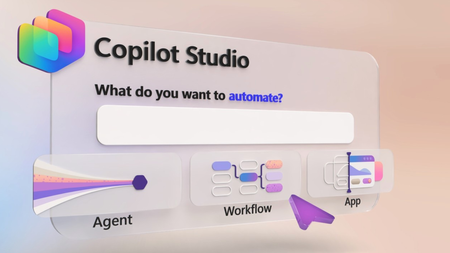
Describe the agent you need and generate its instructions and reusable skills, choose the model, connect MCP tools and specialist agents, then test its quality at scale with Evaluations. Trigger workflows from incoming email, classify submissions, hand work to your agents, and pause for human review on the decisions that need it. Track timing and paths for every step in the Activity tab. Then generate a full stack app on your Dataverse data so your team can filter, review, and approve every bid from one shared view. Jack Rowbotham, Copilot Studio Senior Product Manager, shares how to automate a procurement process for bids from multiple vendors, using agents that reason, route, and recommend. Describe the agent you need. Copilot Studio helps build it. See how it turns the requirements you provide into an agent, mapping out the instructions and creating reusable skills along the way. Start here. Test, refine, repeat. Run structured test sets with Evaluations in Copilot Studio, import your own test cases or generate them with AI, and compare results as you improve your agent. See how it works. Agents provide reasoning. Workflows provide consistency. Apps provide structure. Bring all three together in Copilot Studio to build end-to-end business solutions. Check it out. 👥 Who it’s for: IT admins, Power Platform makers, solution architects, and developers building agentic solutions, plus operations and procurement teams automating reviews and approvals. ⏱️ Chapters: 00:00 Build agents, workflows, and apps in one place 01:04 Automate a multi-vendor bid review end to end 02:18 Build an agent from a prompt 03:28 Add models, MCP tools, and specialist agents 04:13 Test the bid agent in Preview 05:05 Evaluations 05:59 Automated workflows 07:42 Track every run in the Activity tab 08:13 Build an app from a prompt 09:10 Approve bids from the team app 09:37 Get started with Copilot Studio Copilot Studio brings agents, workflows, and apps together in one place, all running on the GitHub Copilot harness. In this video, a supplier email triggers a workflow, a bid evaluation agent checks the bid against tender requirements, and the procurement team makes the final call in a shared app. Describe the agent you want, including the requirements to assess, the logic to apply, and the live data source to connect to. Copilot Studio reasons over your prompt, maps out its build steps, and generates the agent’s name, instructions, and skills for requirement coverage and evidence verification. Connect Work IQ for supplier emails and the Dataverse MCP server for bid data, keep Claude Sonnet as the reasoning model, ground the agent in an RFP example PDF, and add a Supplier Risk specialist agent. Test the agent in the Preview tab and watch its chain of thought as it flags gaps in certification, cold-chain handling, and insurance minimums. Then run Evaluations with your own conversations, auto-generated tests, or a CSV file. Here, 18 test cases met the evaluation criteria 89% of the time. In the Workflows tab, drag in an Outlook “When a new email arrives” trigger, a Classify step for RFP submissions, a Get Attachment connector, and an Agent step running the Bid Evaluation Agent. An if/else Human Review step brings in a person on flagged bids, and the Researcher agent and a recommendation agent finish the job before results land in Dataverse. Finish in Apps by describing a Bid Management App connected to your Dataverse table, or to sources like SharePoint through connectors. Apply company branding with a follow-up prompt, then filter bids that need human review and approve decisions from the app. Try it for yourself at copilotstudio.microsoft.com. Subscribe to Microsoft Mechanics for more videos like this. 🔗 Related links: — Get started with Copilot Studio: https://copilotstudio.microsoft.com Unfamiliar with Microsoft Mechanics? Microsoft’s Official Video Series for IT — Subscribe: https://www.youtube.com/c/MicrosoftMechanicsSeries — Microsoft Tech Community: https://techcommunity.microsoft.com/t5/microsoft-mechanics-blog/bg-p/MicrosoftMechanicsBlog — Podcast: https://microsoftmechanics.libsyn.com/podcast Join us on social: — https://twitter.com/MSFTMechanics — https://www.linkedin.com/company/microsoft-mechanics/ — https://www.instagram.com/msftmechanics/ — https://www.tiktok.com/@msftmechanics Video Transcript: -If you want to build agents that go beyond the standard chat interface that can work autonomously following your defined workflows, connecting to other agents and tools, and presenting information with new interactive app experiences, today, I’ll show you how Copilot Studio helps you do just that and more, and it’s even easier than you may think. Copilot Studio gives you what you need to build end-to-end solutions with agents, workflows, and apps in one place, without having to write a single line of code. You can build individual agents with your chosen model, expert skills, tools, including prebuilt connectors, APIs, and MCPs to your existing systems, as well as incorporating specialized knowledge, other agents, and memory, all now using the powerful GitHub Copilot harness under the covers. -You can integrate them with your defined multi-step workflows, which provide the correct path for consistency, and bring in other skilled agents or people as needed. And finally, build full-stack app experiences using natural language, so you can describe what you want and let AI generate the app for you. Now, to make this real, I’ll walk you through an agentic solution that accepts and reviews work bids from multiple vendors and then routes them for human approval. -Here’s what the process looks like in Copilot Studio. First, a supplier email arrives and automatically triggers a workflow. The workflow classifies the submission, retrieves the supporting documents, and passes everything to the bid evaluation agent. That agent then reviews the bid against the tender requirements, validates the evidence, and identifies any potential issues. If a decision requires human judgment, the workflow pauses and brings in the appropriate reviewer. A Microsoft Copilot Researcher agent can then gather the additional context and the recommendation agent then combines the findings into a final recommendation. It then passes status information to a data source connected to our app frontend, and this app will give the procurement team a shared place to track every bid, review those exceptions, and make decisions to move work forward. So, the workflow lays out all of the steps, the decisions, agent handoffs, and outcomes. -And in the next few minutes, I’ll retrace the simple steps to creating this agentic solution. We have multiple agents working together, so I’ll start by building our bid evaluation agent, which is our primary reasoning engine for this process. I’m in Copilot Studio, and all I need to do is describe the agent I want to build. -So here, I’ll tell it to create a Bid Evaluation Agent for the procurement team. Then I’ll tell it how to assess the bidding requirements, the logic it needs to incorporate, and even the live data source it needs to connect to. It needs to evaluate the request for proposal sent via email and then compare supplier responses against the requirements, and even provide a pass or fail verdict and a final recommendation. -So I’ll submit my detailed prompt and let it get to work. And you can see that it’s reasoning over everything I’ve asked it to do. It then maps out the process it will take through the steps you can see in the upper right. It looks over the information I pointed it to, and starts building out the agent. It’s also automatically creating skills as reusable instructions in this case so that the requirement coverage and the evidence verification will stay consistent. And these skills can also be reused across other agents or your teams in the future. -Now, with this agent complete, let’s look at what it’s created. We can see that it’s generated an agent name and detailed instructions automatically. And here, you can see the two skills that were added, where you can also upload your own skills or even create more with AI by simply describing what you want. It’s connected to tools already like Work IQ in this case for the Supplier Submission Emails and the Dataverse MCP with our Procurement and Bid Data to take action. -Here, too, you can also add more tools, like MCPs for both Microsoft and non-Microsoft data and services. And I can choose the model that best fits the task. In this case, I’ll keep Claude Sonnet as a good reasoning model. I can ground it in the knowledge across different online services. For this agent, I want to give it an RFP example, and I can even drag in the files from my local device like this PDF and attach that to the agent. -Additionally, I can bring in specialist agents for additional expertise, like this one for assessing Supplier Risk, which I’ll connect to now. I also have the option to maintain memory throughout an interaction and use that in future sessions. So, now, I’ve created my main agent. I’m ready to test it out in Copilot Studio. This time, starting from the agent’s Preview tab, I have an example email in my clipboard that I’m going to paste in and manually attach the work bid. -From there, I just need to submit it to trigger the evaluation process. We can see that the agent evaluates each requirement, reviews the supporting evidence, and identifies the gaps. We can even watch the chain-of-thought, and in this case, it flags that the supplier does not have the sufficient certification for medicine manufacturing. It also doesn’t meet the requirements for cold-chain handling. And its insurance does not meet the minimum requirements. Agentic processes like this one can take several minutes to complete, so to save a little time, I’ll skip ahead to the Final Recommendation. You’ll see that it recommends a human review and not to shortlist the supplier until it addresses the issues that I mentioned before, and it provides the specific details about this recommendation in the summary. -So, that was the result of a single preview run, and we can also test the agent quality at scale using Evaluations in Copilot Studio. Instead of spot-checking, I can now run structured tests against the agent and measure the performance over time. You can bring in your own conversations as test cases or use Copilot Studio to automatically generate 10 tests based on how you’ve built the agent. In this case, I’ve got the test cases ready, and I’ll simply pull them in as a CSV file. You see that this one contains 18 test cases containing sample requests. -Now, I’ll just give this evaluation a name, and then start it. Then it will run those and evaluate the general quality of the responses. They run sequentially, and you can click into each of them for details after they run. In reality, these 18 tests took just over 22 minutes to run, so I’ll jump straight into the results. You’ll see that these evaluations met our criteria 89% of the time. And scrolling down the individual test results, you can also see the outcome for each. -Now, with our agent working, I’ll create the automated workflow that does the work before and after the agent. I’m back in Copilot Studio in the Workflows tab, and adding steps is as easy as dragging in and dropping what you want onto the canvas. By default, the start trigger is set to Manual, but I want to change this process to trigger off an incoming email instead, so I’ll change the trigger type to Connector, then choose Outlook, and then When a new email arrives. This is set to an individual email account, but it could be a dedicated RFP intake account along with other parameters. -Then I’ll add a Classify step to evaluate the nature of the email using its subject and message body. I’ll just enter one here for RFP, but I can define multiple categories as well. At that point for the RFP path, I’ll add another step to get the attachment itself, where I’ll use the Connector again as the type and search for Get Attachment, and there it is. The attachment will be used as it processes the subsequent steps. That’s where our Bidding Evaluation Agent comes in to analyze the email attachment with the bid. -And so I’ll add an Agent step, then using the dropdown, I’ll choose the Bid Evaluation Agent that we just built. And from there, you’ll continue this process for all the branches of the workflow until it’s complete. I’ve added the rest of the steps to save a little bit of time. And you can see that I have a Human Review step added with an if/else decision. The agent can request human review when it flags that a bid needs attention from a person on the team before moving forward. Otherwise, it will proceed directly to the Researcher agent to gather additional information on the bid and bidder. -From there, it goes to the last agent in our workflow, which consumes all of the information from the previous steps, then assesses the bid and makes that final recommendation. It then creates a record as a new row in Dataverse, our backend data source for the process. Each step can be tested independently, making it easy to troubleshoot and iterate. -Now, to test this out, I’ve already started sending emails with attached bids, and we can see the results for each run. From the Activity tab in my workflow, you can see the timing per step and the path taken for an incoming RFP email. Clicking into any step will show its details, and here for our agent, we can see what it did along with its structured output. Looks like this one needed a human review. And once the reviewer took action, the process continued until the final recommendation was posted in Dataverse. Everything we’ve looked at so far runs as an automated process behind the scenes. That said, an app is where the people can view and find the details for each bid. Let’s build that. This time from Copilot Studio, I’ll start in Apps. Using natural language, I just need to describe the experience I want. -In this case, I want a Bid Management App to oversee multiple bids as they’re processed so that the team can track each bid with its details. I’m asking it to connect to my Dataverse table, and I could connect it to other data locations and types like SharePoint using connectors. Below that, you’ll see that I’ve described the app screens I wanted to make. And I’ll kick this off. This is another long-running process that can take several minutes, so I’ll skip ahead to the first iteration of my app. It’s already looking pretty good, a nice summary tiles at the top and the details per bid. I can use the additional prompts to refine the app, for example, updating it to my company branding. And in just a few moments, it applies the visual branding to match our company apps, and it’s ready to be tested. -In fact, I can switch over to the experience that the other people on the procurement team would see and use. I have a complete view of the Bid Queue, like we saw in the preview with the suppliers, the status, and the recommendation. I can easily filter down to the bids that need human review. And clicking into any one of these bids shows additional details and the actions I can take. From here, I can make a decision and decide whether to Approve, which I’ll do in this case. And then save to confirm. And everything is working end to end. -So, that’s agents, workflows, and apps working together in Copilot Studio. To get started, head to copilotstudio.microsoft.com and keep watching Microsoft Mechanics for the latest tech updates. Thanks for watching.1KViews0likes0Comments
Goodstack-Validated Nonprofit Rejected After Forced Resubmission — No Escalation Path
I am posting this because Microsoft Elevate frontline support told me there are no further escalation paths available, and I believe this may affect other nonprofits. Timeline of facts: - June 19, 2026: Goodstack, Microsoft's authorized validation partner, confirmed our nonprofit (Opera Verace Foundation, EIN 33-2305878, California 501(c)(3)) was approved for Microsoft nonprofit grants and discounts. - June 23, 2026: Microsoft Elevate support informed me the original application was in an unrecoverable system error state due to an unrecoverable error in their system, and they instructed me to resubmit under a different email address. I only had one email directed to my business email and asked if I could use a Yahoo email. - June 30, 2026: The same Elevate representative confirmed in email to me that using a Yahoo email address as a temporary workaround was fully supported and "the correct and supported path forward." - July 2026: A different Microsoft Validation Team (not the one I had worked with originally) rejected the resubmission (likely due to use of a yahoo.com email as my business email address) and demanded documents not listed in the published eligibility requirements, including a bank statement. They stated the original Goodstack approval cannot be reinstated. - When I pointed out that Goodstack's validation was never rescinded, that my organization's nonprofit status can be confirmed on propublica online, and that the resubmission existed solely due to Microsoft's own system error and instructions, I was told this was a determination of another team and no further escalation paths exist. The core issue: Goodstack validated our organization on Microsoft's behalf. Microsoft's own system error forced resubmission. Microsoft's own representative authorized the (incorrect) workaround in writing. The Validation Team is now treating the workaround submission as a brand new independent submission requiring extraordinary measures for re-validation, ignoring the Goodstack validation, ignoring the request to check propublica, and ignoring the fact that thier reuest for additional documents is nowhere to be found in Microsoft's own document requirements in Microsoft's published nonprofit eligibility policies. Ticket number: 2606210040000788 Is anyone at Microsoft able to escalate this to someone with authority over the Validation Team? Has anyone else encountered this after being directed to use a personal email for resubmission?399Views0likes1CommentLand Your Offer - Anatomy of Revenue Generating Partner Offer - Part 2 - Copilot Envisioning
In Part 1 we dissected Copilot in 30 — a $0 trial offer for SMB customers. This time the customer is larger, the engagement is funded rather than free, and the anatomy of revenue changes with it. It also lands when Microsoft just introduced the new Copilot — Home, Code and Autopilot, running on usage-based billing and governed through FinOps for AI — which makes a structured envisioning engagement the front door to a much bigger conversation. Most organisations with 300 or more seats already believe Copilot and agents matter. What they lack is a clear picture of where AI will pay off, what it will take to get ready, and how they'll prove it before committing budget. The Frontier Accelerate for Copilot: Envisioning & POC engagement gives you a pre-sales, partner-led answer to all three — funded by Microsoft and sized from a 10-hour readiness sprint to a 280-hour enterprise programme. Package it as a Microsoft Marketplace offer and you have a repeatable front door to every Copilot, Agent 365 and Microsoft 365 E7 opportunity in your territory. Start Here: Why Publishing on Microsoft Marketplace Matters Microsoft Marketplace is Microsoft's partner-focused business platform, designed to help you reach more customers and simplify how you sell. A published offer gives your practice a permanent, discoverable storefront in the place customers and Microsoft sellers already look for Copilot expertise. More importantly, an offer turns your expertise into something repeatable. Define the engagement once — phases, activities, deliverables, sizing — and run it across every qualified customer instead of scoping from scratch. Professional service and managed service offer types are available in Partner Center, so one listing can carry the envisioning engagement, the POC and the ongoing services that follow. The Enterprise Opportunity: Interest Is High, Direction Is Missing The customers for this offer are organisations with at least 300 Office 365 / Microsoft 365 seats — mid-market through to the largest enterprises. They are the customers with the most to gain from Copilot and agents, and the most complexity to work through first: security and governance, tenant and access dependencies, adoption and change, and a credible way to measure value. That gap between ambition and a plan is where partners win. Microsoft is investing in the full Copilot journey in FY27, from envisioning and proof of concept through deployment and adoption — and the envisioning stage is where you shape the roadmap, the scope and the commercial conversation before anyone else does. Why Copilot and Agents Are the Right Place to Start Microsoft 365 Copilot puts AI inside the apps people already use every day — Outlook, Teams, Word, Excel and PowerPoint — so value arrives without a platform change. For larger organisations, that is only the first layer: Agent 365, custom agents built with Copilot Studio, and Microsoft 365 E7 extend Copilot from personal productivity into role-based and process-level automation. The new Copilot adds a third layer. Cowork takes delegated work and returns a finished result; Code lets knowledge workers build apps, dashboards and automations in natural language, hosted on Copilot Managed Runtime; and Autopilot is a persistent agent with its own identity that keeps work moving without a prompt. All three run on usage-based billing rather than the per-user subscription, which means every customer now has to decide which users and which scenarios justify consumption spend — and how to govern it with FinOps for AI. Each layer brings its own questions — which personas, which scenarios, what governance, what consumption model, which capabilities are worth paying for by the task — and each question is an envisioning conversation a partner is best placed to lead. Meet the Offer: Envisioning & POC, Sized to the Customer The Frontier Accelerate for Copilot: Envisioning & POC engagement is a pre-sales, partner-led engagement that identifies personas and use cases and builds a business case for Microsoft 365 Copilot, Agent 365, Microsoft 365 E7 and/or agents — with an optional proof of concept. The essentials: Who qualifies: Customers with a minimum of 300 Office 365 / Microsoft 365 seats; larger tiers unlock at 500, 1,000, 1,500, 3,000 / 5,000 and 10,000+ seats How it's sized: Six tiers — XXS (10 hrs), XS (20 hrs), S (40 hrs), M (100 hrs), L/XL (150 hrs) and XXL (280 hrs) — with hours scaling with the seats in scope What it covers: Five phases — Assess, Inspire, Design, POC and Executive Summary — with a working POC and measured results from the S tier upward What Microsoft provides: A delivery guide, pre-engagement planning resources and Microsoft Commercial Incentives (MCI) funding tied to proof of execution What the customer gets: Readiness findings, a business case and value plan including usage-based billing and Copilot Credits, technical requirements and a remediation plan, an adoption roadmap, a working POC and an executive readout Microsoft funds the engagement. You own the scope, the relationship and everything that follows. Your Role: From Trusted Assessor to Transformation Partner An envisioning engagement is not a workshop; it is a guided decision. Your job is to move the customer from curiosity to a signed proposal, with evidence at every step. Assess — identify high-value scenarios, choose the right assessments, define what success looks like and deliver readiness findings the customer can act on. Inspire — show what Copilot and agents can do across roles; make security, governance, adoption and reporting concrete rather than abstract concerns. Design — turn findings into a business case and value plan (including usage-based billing), a remediation plan, technical requirements, an adoption roadmap and clear POC criteria with risks, owners and dates. Prove — scope the POC users and products, prepare the environment, build the agent or solution, train the users and measure results including Copilot Credits consumed. Summarise — deliver the executive readout on seat growth and consumption, then convert: trial to paid licences, commercial proposal and signature, and a named wave 2 expansion plan. Every phase produces something the customer keeps — and every deliverable positions you as the partner who should build what comes next. Inside the Offer: Activities and Hours by Engagement Size Below is the full activity plan behind the offer, with hours for each of the six engagement sizes. Use it to size your own offer plans and statements of work. ID Phase Activity XXS XS S M L/XL XXL — Pre-req Customer eligibility (min. O365/M365 seats) 300+ 500+ 1,000+ 1,500+ 3,000+ / 5,000+ 10,000+ A1 Assess Identify high-value scenarios 0.5 1 1.75 3.75 5.5 10.5 A2 Assess Select assessment(s) 0.5 0.5 1 2.25 3.5 6.25 A3 Assess Define success 0.5 0.75 1.5 3 4.5 8.5 A4 Assess Deliver readiness assessment(s) 1 1.75 2.75 6 9 16.75 I1 Inspire Product overviews & demos across Copilot and agent capabilities 1 1.5 2 4.5 6.75 12.5 I2 Inspire Security/governance overview, incl. tenant and access dependencies 0.5 1 1.5 3 4.5 8.5 I3 Inspire Adoption/change overview 0.5 0.75 1 2.25 3.5 6.25 I4 Inspire Reporting/analytics overview 0.5 0.75 1 2.25 3.5 6.25 I5 Inspire Stories & Scenario Library 0.5 1 1.5 3 4.25 8.5 D1 Design Business case/value plan, incl. usage-based billing (UBB) 1 1.75 2.75 6.25 9.5 17.5 D2 Design Remediation plan 0.5 1 1.75 3.75 5.5 10.5 D3 Design Technical/functional requirements 0.75 1.5 2.25 5 7.5 14 D4 Design Adoption roadmap 0.5 1 1.75 3.75 5.5 10.5 D5 Design POC success criteria & environment prep 0.5 1 1.75 3.75 5.5 10.5 D6 Design Recommendations/risks/owners/dates, incl. validation and next-step owners 0.25 0.75 0.75 2.5 4 7 P1 POC Scope/users/products/features 0 0.25 1 3.5 5.25 9.75 P2 POC Confirm requirements/design 0 0.25 1 3.5 5.25 9.75 P3 POC IT access & environment prep 0 0.25 1.75 5.25 8 14.75 P4 POC Trial licenses 0 0.25 1 3.5 5.25 9.75 P5 POC Build POC agent(s)/solution(s); confirm Copilot Credits consumption 0 0.5 3.75 12.25 18.5 34.25 P6 POC Train POC users 0 0.25 1 3.5 5.25 9.75 P7 POC Measure/evaluate results, incl. usage and Copilot Credits consumed 0 0.25 1.5 3.5 5 10 E1 Exec summary Executive readout: seat growth and consumption implications 1 2 4 10 15 28 TOTAL Hours 10 20 40 100 150 280 Land Your Offer: What One Customer Is Worth The table below is the revenue anatomy of one Envisioning & POC engagement at each of the six sizes — and it shows that the funded engagement is only the first of three revenue streams. They stack on top of each other: MCI engagement incentive — Microsoft funds the envisioning and POC work itself, from $2K for a 10-hour XXS engagement to $100K for a 280-hour XXL programme, paid against proof of execution. CSP incentive on the licences that follow — earned on the Copilot revenue the business case unlocks, from the trial-to-paid conversion (T1) through the wave 2 expansion (X1), and growing as agent consumption and Copilot Credits scale. Managed services and follow-on professional services — the recurring engagement described in After the Readout, which is where the largest and most durable share of revenue lives. Item XXS XS S M L/XL XXL Minimum customer seats 300+ 500+ 1,000+ 1,500+ 3,000+ / 5,000+ 10,000+ Engagement hours 10 20 40 100 150 280 Post-delivery outcomes: Copilot rev (K) | Agent consumption (K) | Agent MAU 10 | 6 | 300 25 | 15 | 500 50 | 30 | 1,000 125 | 75 | 1,500 250/375 | 150/225 | 3,000/5,000 500 | 300 | 10,000 MCI engagement incentive (K) $2K $5K $10K $25K $50K / $75K $100K CSP incentive on Copilot revenue (K)† $1.95K $4.88K $9.75K $24.38K $48.75K / $73.13K $97.5K † CSP incentive shown at a blended 19.5% of the Copilot revenue outcome (direct bill 2.5 + 7 + 10; indirect reseller 7 + 12.5). Illustrative estimates from the offer plan — confirm current MCI payouts, CSP rates, eligibility and proof-of-execution requirements in the Microsoft Commercial Partner Incentives Guide. Now multiply. Everything above is the anatomy of a single customer. Landing the offer means running it across every qualifying customer in your territory — and you don't need to guess who they are. Partner Center's growth insights reporting, available through the AI Business Solutions & Security Insights (ASPX) dashboard, gives you account-level Copilot eligibility and seat whitespace, E7 opportunity, data security maturity, MCI eligibility and potential earnings for the customers you already manage. How the Offer Fits Together: From Sizing to Proof of Execution The offer runs left to right in three layers: Sizing & value — six engagement sizes from XXS (10 hrs) to XXL (280 hrs). Hours scale with the seats in scope, and value is tracked in the customer's own metrics. Five phases — Assess (A1–A4), Inspire (I1–I5), Design (D1–D6), POC (P1–P7) and Executive Summary (E1, T1, T2, X1). Each phase produces a concrete output the sponsor can see. Proof of execution — readiness and assessment findings; a business case and value plan including usage-based billing and Copilot Credits; technical requirements and a remediation plan; an adoption roadmap; a working POC with measured results; an executive readout covering next steps and consumption implications — and a named wave 2 expansion beyond the pilot team. The highlighted activities — security & governance (I2), adoption & change (I3), remediation plan (D2), technical requirements (D3), adoption roadmap (D4), IT access & environment (P3), build POC solution (P5), train POC users (P6), trial-to-paid conversion (T1), commercial proposal (T2) and the wave 2 expansion plan (X1) — are where the engagement stops being a project and becomes an ongoing relationship: managed services, ongoing optimisation and follow-on professional services after the engagement closes. After the Readout: Managed Services That Keep Delivering The executive readout is the start of the real engagement. Package these as standing services in your offer. Each one is sized in partner days so you can price it, and each one is tied to a result the customer's sponsor will recognise without a glossary: Managed service Partner activity — what you deliver and measure Customer business outcome — what it drives (illustrative targets, 1,500-seat customer) Deployment and remediation delivery • Effort: 5–10 days per wave • Activity: Close every item on the remediation plan and technical requirements (D2, D3) against dated owners, then licence and activate the wave's users by the roadmap date • Reported as: Items closed on time; seats activated; days from readout to go-live • Wave 1 live within 30 days of the readout, not 90 — two extra months of value on every seat • ≥95% of paid seats assigned and active; 75 idle seats would waste ≈$27K a year • Roll-out delivered within ±5% of the business-case budget Security and governance management • Effort: 2 days a month • Activity: Maintain the admin-settings baseline and data-protection controls, review agent permissions and access dependencies, approve plugins through the plugin registry and govern apps hosted on Copilot Managed Runtime, act on every Admin Settings Recommendation • Reported as: Recommended settings enabled; findings opened and closed; agents, plugins and apps with a named owner • Zero Copilot-related oversharing incidents; one enterprise data breach averages $4M+ • 100% of recommended settings on; findings closed within 30 days • Audit evidence produced in hours, not weeks — Data Security Maturity at Advanced-Healthy Adoption and change management • Effort: 3–4 days a month • Activity: Run the adoption roadmap (D4): coach champions, deliver role-based training, refresh scenarios, hold the monthly Copilot Analytics business review • Reported as: Active users as a share of assigned seats; people trained; low-activity users re-engaged • ≥80% of assigned seats active every month • 2–4 hours saved per user a week (≈3,000–6,000 hours across 1,500 seats) • ≈$0.5–1M a month of staff time released at $40/hour Agent and solution build-out • Effort: 5–15 days per agent or solution, then half a day a month to tune • Activity: Take each POC agent (P5) into production with Copilot Studio and Agent 365; release new Copilot Studio agents, Code-built apps and Autopilot agents from the scenario backlog, hosted on Copilot Managed Runtime • Reported as: Agents and apps live; active users per agent; tasks completed; Copilot Credits per completed task • 20–40% of tier-1 tickets or cases deflected per automated process • Cycle time cut 30–50% on each agent-run workflow; 200–500 hours removed a month per agent • Cost per completed task tracked and falling quarter on quarter FinOps for AI: consumption and licence management • Effort: 1-2 days a month • Activity: Track Copilot Credits and usage-based billing across Cowork, Code and Autopilot; set budgets, limits and model-family policies per user group; route credit requests through the customer's approval workflow; forecast spend and align seat additions, renewals and terms to each wave • Reported as: Reported as: Forecast versus actual variance; credits per active user; spend per business outcome; seats added; renewals completed on schedule • AI spend held within ±10% of forecast — no unplanned overage • Zero unused seats at renewal; 100% of renewals on schedule • Cost per outcome down 10–20% a year as usage matures Quarterly value reviews • Effort: 2 days a quarter • Activity: Refresh the business case (D1) with actuals, capture proof points in the customer's own words, agree and date the next named expansion wave with the executive sponsor • Reported as: Realised versus forecast value; proof points captured; next wave scheduled • ROI in dollars: ≈$125K a year of Copilot seats vs. $6M+ of time released • ≥3 quantified proof points in the sponsor's words each quarter • Each review dates the next wave: +100–300 seats or +1–2 agents a quarter Effort shown is indicative for an M-tier customer (1,500+ seats) and scales with seats and agents in scope, exactly as the engagement hours above do. Add the recurring rows together and one M-tier customer with three agents in production sustains roughly 9–10 partner days a month after the readout, before wave deployments and new agent or solution builds are counted. Every row pairs a number you can invoice against with a result the customer already cares about, which is what turns a recurring service into a renewable one and keeps you positioned as the customer's AI transformation partner as their ambitions grow. Each of these is a recurring, outcome-based service rather than a one-off project — and each keeps you positioned as the customer's AI transformation partner as their ambitions grow. Ready to Build Your Envisioning & POC Offer? Read the engagement terms in the Microsoft Commercial Partner Incentives Guide and download the delivery guide and pre-engagement planning resources. Confirm your eligibility for Microsoft Commercial Incentives engagements in Partner Center and align your delivery team on the five-phase model. Publish your offer in Partner Center as a professional service (Envisioning & POC) with a managed service follow-on (deployment, adoption and optimisation). Pick your first cohort — customers with 300+ Microsoft 365 seats and no clear Copilot or agent roadmap yet, then size each one to the right tier. Book the executive readout before Assess begins — so the conversion, proposal and wave 2 conversation is already on the calendar. The customers are already in your base. Publish the offer and open the conversation. Resources Frontier Accelerate for Copilot: Envisioning & POC | Microsoft Commercial Partner Incentives Guide Copilot Envisioning & POC — Delivery Guide Copilot Envisioning & POC — Pre-Engagement Planning The new Copilot is here: the opportunity for Microsoft partners382Views1like0Comments