copilot
1328 TopicsPublish rich and interactive content with HTML pages in SharePoint
HTML pages in SharePoint let you create rich, interactive content with Copilot or upload existing HTML, then edit, publish, and share it alongside modern pages. Copilot-created pages use your site’s branding, while familiar SharePoint permissions and security controls help manage access. Availability is rolling out gradually through the Frontier program.1.9KViews0likes5CommentsCopilot, Microsoft 365 & Power Platform Community call
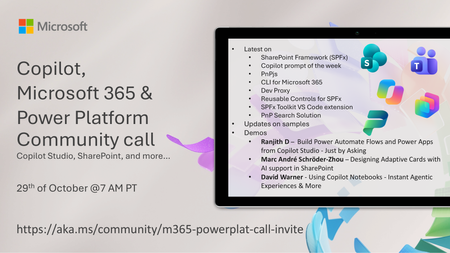
💡 Copilot, Microsoft 365 & Power Platform weekly community call focuses on different use cases and features within the Microsoft 365 and Power Platform - across Microsoft 365 Copilot, Copilot Studio, SharePoint, Power Apps and more. Demos in this call are presented by the community members. 👏 Looking to catch up on the latest news and updates, including cool community demos, this call is for you! 📅 On 29th of October we'll have following agenda: Latest on SharePoint Framework (SPFx) Latest on Copilot prompt of the week PnPjs CLI for Microsoft 365 Dev Proxy Reusable Controls for SPFx SPFx Toolkit VS Code extension PnP Search Solution Demos this time Ranjith D – Build Power Automate Flows and Power Apps from Copilot Studio - Just by Asking Marc André Schröder-Zhou – Designing Adaptive Cards with AI support in SharePoint David Warner - Using Copilot Notebooks - Instant Agentic Experiences & More 📅 Download recurrent invite from https://aka.ms/community/m365-powerplat-dev-call-invite 📞 & 📺 Join the Microsoft Teams meeting live at https://aka.ms/community/m365-powerplat-dev-call-join 💡 Building something cool for Microsoft 365 or Power Platform (Copilot, SharePoint, Power Apps, etc)? We are always looking for presenters - Volunteer for a community call demo at https://aka.ms/community/request/demo 👋 See you in the call! 📖 Resources: Previous community call recordings and demos from the Microsoft Community Learning YouTube channel at https://aka.ms/community/youtube Microsoft 365 & Power Platform samples from Microsoft and community - https://aka.ms/community/samples Microsoft 365 & Power Platform community details - https://aka.ms/community/home 🧡 Sharing is caring!40Views0likes0CommentsCopilot, Microsoft 365 & Power Platform product updates call
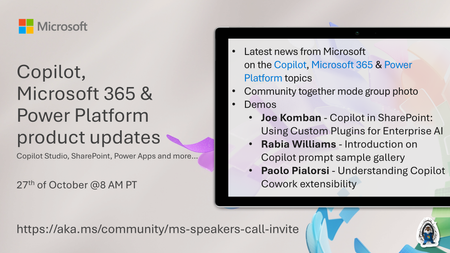
Copilot, Microsoft 365 & Power Platform product updates call concentrates on the different use cases and features within the Microsoft 365 and in Power Platform. Call includes topics like Microsoft 365 Copilot, Copilot Studio, Microsoft Teams, Power Platform, Microsoft Graph, Microsoft Viva, Microsoft Search, Microsoft Lists, SharePoint, Power Automate, Power Apps and more. 👏 Weekly Tuesday call is for all community members to see Microsoft PMs, engineering and Cloud Advocates showcasing the art of possible with Copilot, Microsoft 365 and Power Platform. 📅 On the 27th of October we'll have following agenda: News and updates from Microsoft Together mode group photo Joe Komban - Copilot in SharePoint: Using Custom Plugins for Enterprise AI Rabia Williams - Introduction on Copilot prompt sample gallery Paolo Pialorsi - Understanding Copilot Cowork extensibility 📞 & 📺 Join the Microsoft Teams meeting live at https://aka.ms/community/ms-speakers-call-join 🗓️ Download recurrent invite for this weekly call from https://aka.ms/community/ms-speakers-call-invite 👋 See you in the call! 💡 Building something cool for Microsoft 365 or Power Platform (Copilot, SharePoint, Power Apps, etc)? We are always looking for presenters - Volunteer for a community call demo at https://aka.ms/community/request/demo 📖 Resources: Previous community call recordings and demos from the Microsoft Community Learning YouTube channel at https://aka.ms/community/youtube Microsoft 365 & Power Platform samples from Microsoft and community - https://aka.ms/community/samples Microsoft 365 & Power Platform community details - https://aka.ms/community/home 🧡 Sharing is caring!38Views0likes0CommentsSyksyn 2026 Tekniset ja myynnin Kumppanitunnit
Microsoftin tekniset ja myynnille suunnatut Kumppanitunnit järjestetään nykyään Microsoftin globaalilla Skilling Hub -sivustolla, josta ne ovat kätevästi saatavilla myöhemmin tallenteina materiaaleineen. Rekisteröidy Skilling Hub -portaaliin, josta löydät kaikki Microsoftin kumppanikoulutukset yhdessä paikassa eri kielillä tai tekstitettyinä. Rekisteröityessäsi voi valita ne kielet, kuten suomi, jollaista sisältöä haluat ensisijaisesti nähdä englannin kielisen koulutussisällön lisäksi. Kumppanitunti on joka toinen perjantai klo 10–11 järjestettävä Microsoftin kumppaniwebinaari, joka on tarkoitettu kaikille Microsoftin kumppaneille. Tekniset ja kaupalliset aiheet vuorottelevat ja olet tervetullut molempiin webinaareihin. Webinaareissa keskitymme Microsoftin ratkaisualueiden teknologioiden mielenkiintoisiin uutuuksiin, MAICPP-kumppaniohjelmaan, kumppanietuihin ja ratkaisumyyntiin. Microsoftin suomalaiset arkkitehdit, tuotepäälliköt, ratkaisumyyjät ja kumppanivastaavat ovat poimineet kiinnostavia ja hyödyllisiä aiheita, joita he vuorollaan esittelevät. Syksyn 2026 ohjelma Alla ovat suunnitellut päivät ja teemat Syksylle 2026, joiden tarkka aihe päivitetään aina lähempänä esityspäivää tälle sivulle. 18.9. Kaupallinen Kumppanitunti: Partner START FY27 - webinaari Katso tallenne tästä linkistä: Etkö päässyt mukaan START FY27 Kickoff -tapahtumaan? Webinaarissa saat kattavan katsauksen tapahtumassa käsiteltyihin FY27: n liiketoimintamahdollisuuksiin, strategisiin painopisteisiin sekä Microsoftin kumppaneille suunnattuihin ohjelmiin ja resursseihin. Puhujat: Kalle Saarikannas, Liiketoimintajohtaja, AI Business Solutions Teemu Lainiola, Liiketoimintajohtaja, Cloud & AI Platforms Mereta Laukkanen, Sr Partner Development Manager Jonna Kaarlenkaski, Partner Development Manager Intern Jonna Fred-Jokela, Sr Solution Engineer Manager 2.10. Tekninen Kumppanitunti: Copilot Cowork: Copilot Credits ja kustannusten hallinta Katso tallenne tästä linkistä! Tässä teknisessä kumppanitunnissa käymme läpi Copilot Coworkin toimintamallin, kulutuksen seurannan sekä kustannusten hallinnan. Lisäksi tarkastelemme, millaisia mahdollisuuksia kulutuspohjainen AI luo kumppaneiden palveluliiketoiminnalle. Puhujat: Henri Nevalainen, Microsoft Niko Hiltunen, IAMCP 9.10. Kaupallinen Kumppanitunti: Onko julkisen pilven suvereniteetti riittävä huomioiden sen kaikki hyödyt? Katso tallenne tästä linkistä! Euroopan unioni valmistelee uusia pilvi- ja tekoälyinfrastruktuuria koskevia linjauksia. Samanaikaisesti organisaatiot pohtivat, miten digitaalinen suvereniteetti, tekoälyn käyttöönotto, kyberturvallisuus ja sääntelyvaatimukset voidaan sovittaa yhteen käytännössä. Tervetuloa ajankohtaiseen webinaariin, jossa tarkastelemme Euroopan muuttuvaa pilviympäristöä ja mitä digitaalinen suvereniteetti tarkoittaa suomalaisille organisaatioille käytännössä. Lisäksi kerromme viimeisimmät tilannetiedot pilvipalveluiden kvanttiturvallisuuden ja Suomen datakeskushankkeiden osalta. Puhujat: Juha Karppinen, National Technology Officer, Microsoft Timo Salminen, Partner Solution Architect, Microsoft Niko Hiltunen, IAMCP 22.10. Kaupallinen Kumppanitunti: Frontier Transformation - Next level IQ & Uusi näkökulma kumppanin rooliin AI-aikakaudella Katso tallenne tästä linkistä! AI-transformaatio on siirtymässä yksittäisten työkalujen käyttöönotosta kohti laajempaa työn ja toimintamallien uudistamista. Kumppanitunnilla havainnollistamme käytännön esimerkin avulla, kuinka organisaation toimintaa voidaan tarkastella digitaalisen genomin kautta, organisaatiosta ja tiedosta aina työhön, mikrotehtäviin ja agentteihin asti. Samalla tarkastelemme, mitä muutos tarkoittaa kumppaneille: miten tunnistaa uusia asiakasarvon mahdollisuuksia, rakentaa vaikuttavampia AI-keskusteluja ja auttaa asiakkaita etenemään kohti agenttipohjaista toimintamallia. Tule mukaan katsomaan demo ja pohtimaan, mitä seuraavan vaiheen AI-transformaatio mahdollistaa sinun asiakkaillesi. Puhujat: Hans Dolk, Asiakkuusjohtaja / Defence & Intelligence, Public Safety and National Security Juha Liljeblom,Teknologia Strategisti / Defence & Intelligence, Public Safety and National Security 23.10. Kaupallinen Kumppanitunti: Uudistunut Microsoft Copilot: ominaisuudet, käyttötavat ja kustannusten hallinta Rekisteröidy mukaan tästä linkistä! Microsoft Copilot uudistuu merkittävästi. Copilotista rakentuu paikka, jossa käyttäjä voi kysyä, delegoida, rakentaa ja automatisoida työtä. Uudet Home-, Code- ja Autopilot-kokemukset laajentavat Copilotin käyttöä päivittäisestä AI-avustamisesta kohti pidempikestoista agenttityötä ja käyttäjien itse rakentamia ratkaisuja. Webinaarin tavoitteena on antaa kumppaneille selkeä kokonaiskuva siitä, miten uudistunut Copilot muuttaa asiakkaiden AI:n käyttötapoja, lisensointi- ja kulutuskeskustelua sekä kumppaneille avautuvia mahdollisuuksia. Puhujat: Harri Mikkanen, Microsoft Tuulia Piehl, Microsoft Henri Nevalainen, Microsoft Eetu Hämäläinen, IAMCP 30.10. Tekninen Kumppanitunti: Villi vai hallittu? Tekoälyagentit hallintaan Microsoft Agent 365:llä Rekisteröidy mukaan tästä linkistä! Agentteja syntyy organisaatioihin nopeammin kuin kukaan ehtii niitä seurata. Niitä rakentavat työntekijät, niitä hankitaan kumppaneilta ja niitä kytketään liiketoiminnan dataan ja työkaluihin. Kenellä on oikeudet mihinkin, kuka agentin omistaa, kun tekijä lähtee talosta, ja mihin luottamuksellinen data päätyy? Tässä teknisessä kumppanitunnissa käymme läpi, miten Microsoft Agent 365:llä saadaan agentit näkyviin, hallintaan ja suojattua työkaluilla, jotka ovat asiakkailla todennäköisesti jo käytössä: Microsoft 365 -admin-portaalilla, Entralla, Purviewilla ja Defenderillä. Tarkastelemme eroa "villin" ja "hallitun" agentin välillä. Villi agentti julkaistaan suoraan kaikille ilman tarkistusta, ja sillä on tekijänsä kaikki oikeudet. Hallittu agentti kulkee hyväksyntäprosessin kautta, sillä on nimetty omistaja ja sen pääsy on rajattu Entran, Purviewin ja Defenderin käytännöillä. Puhujat: Heta Kuosa, Microsoft Christine Dienel, Microsoft Risto Lahi, IAMCP 6.11. Kaupallinen Kumppanitunti: Microsoft 365 Copilot, Fabric ja GitHub Copilot: kokeiluista tuotantoon – mitä kumppanin pitää tietää nyt Rekisteröidy mukaan tästä linkistä! Microsoft 365 Copilot on uudistunut kokonaisuudeksi, joka tarjoaa neljä erilaista tapaa hyödyntää tekoälyä työssä: Chat toimii apuna päivittäisessä työssä, Cowork vie monivaiheisia tehtäviä alusta loppuun, Code mahdollistaa sovellusten ja työkalujen rakentamisen, ja Autopilot pitää työn etenemässä taustalla. Tällä Kumppanitunnilla keskitymme erityisesti Copilot Coworkiin sekä tutustumme myös Coden ja Autopilotin mahdollisuuksiin. Copilotin tehokas hyödyntäminen edellyttää kuitenkin myös laadukasta ja tarkoituksenmukaista dataa. Siksi tarkastelemme, miten Microsoft Fabric tuo hallitun ja kontekstualisoidun liiketoimintadatan Copilotin hyödynnettäväksi ja millainen rooli datalla on tekoälyratkaisujen rakentamisessa. Lisäksi näytämme, miten Codella rakennettua työkalua voi kehittää eteenpäin esimerkiksi GitHub Copilotilla, kun siitä kasvaa vaativampi tuotantosovellus. Lopuksi puhumme siitä, miten kumppanit voivat auttaa asiakkaitaan siirtymään kokeiluista laajaan käyttöön ja millaisia liiketoimintamahdollisuuksia se avaa. Puhujat: Kalle Saarikannas, Liiketoimintajohtaja, AI Business Solutions Teemu Lainiola, Liiketoimintajohtaja, Cloud & AI Platforms 20.11. Tekninen Kumppanitunti: Rekisteröitymislinkki päivittyy tähän Puhujat: 4.12. Kaupallinen Kumppanitunti: Rekisteröitymislinkki päivittyy tähän Puhujat: 18.12. Tekninen Kumppanitunti: Agentit Azuressa Rekisteröitymislinkki päivittyy tähän Azure Copilot pitää sisällään uusia palveluiden elinkaarenhallintaan liittyviä agentteja. Tule kuulemaan, miten voit hyödyntää näitä omissa palveluissasi! Puhujat: Timo Salminen, Partner Solution Architect, Microsoft754Views0likes0Comments
MS Purview DLP: Web search blocking also blocks Copilot response
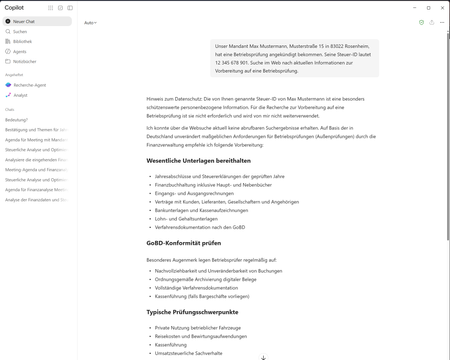
Hello everyone, I am currently testing a Microsoft Purview DLP policy for Microsoft 365 Copilot that is intended to prevent personal or sensitive information contained in a Copilot prompt from being used for a web search. When a user enters a prompt containing specific Sensitive Information Types (SITs), only the web search should be blocked. Copilot should still process the prompt and, if possible, provide a response without using web search or sending the detected sensitive information to the web search service. Configuration In Microsoft Purview, I only have the following actions available: Processing of prompts → Block Performing web searches → Block I tested both options separately. Behavior with “Processing prompts → Block” This works as expected: As soon as a configured SIT is detected in the prompt, processing is blocked immediately and Copilot displays a corresponding policy notification. Behavior with “Performing web searches → Block” I observe the following behavior: I send a prompt to Copilot that contains a SIT covered by the DLP policy. Copilot initially generates a normal response. In this response, Copilot indicates that the personal information was not used for the web search. However, the actual question is still answered. This response remains visible for approximately 1–2 seconds. The entire Copilot response then disappears. Instead, the following message is displayed: “Due to your organization’s policies, none of the requested files or resources are available.” The previously generated response, which was briefly visible, can no longer be accessed afterwards. Expected behavior Since I would like to use “Performing web searches → Block” in the DLP policy, I would expect that: the web search is blocked, sensitive information is not used for the web search, Copilot can still process the prompt, and the response generated by Copilot remains visible. Question Is this behavior expected when using the DLP action “Performing web searches → Block”? In particular, I would like to understand why Copilot initially generates and displays a response without using the sensitive information for the web search, but then completely removes this response a few seconds later and replaces it with the policy notification. Is it possible to configure additional actions in the DLP policy, or to select an option other than “Block”? I only have the two actions mentioned above available. I have attached the relevant screenshots. Please note that the attached screenshots are in German. Thank you in advance!65Views1like4CommentsWhat's New in Microsoft EDU webinars - October 2026
Join the Microsoft Education Product team on Wednesday, October 28 at 8am Pacific Time or 4pm Pacific time for a webinar exploring the latest updates in Microsoft Education! Discover new tools and exciting features designed to save educators time, personalize learning, and boost student engagement. We'll share demos, practical tips, and ways to get started with these powerful tools. You'll also have time to ask the team any questions that are top of mind. Agenda: ✅ Teach module in Copilot ✅ Study & Learn agent ✅ Microsoft Learning Zone ✅ Copilot Notebooks ✅ Teams for EDU ✅ OneNote Class Notebook ✅ Learning Activities Register for Wednesday, October 28th at 8am Pacific time: https://aka.ms/WNIEDUOct28Option1 Register for Wednesday, October 28th at 4pm Pacific time: https://aka.ms/WNIEDUOct28Option2 Whether you're an educator, school leader, or IT professional, come discover what's new and what's possible with Microsoft EDU! Mike Tholfsen Group Product Manager Microsoft Education368Views0likes0CommentsTeams Meetings Get AI Memories for Copilot
If your tenant has Microsoft 365 Copilot licenses, you’ll soon see meeting archive files generated by AI for Teams meetings. The files are stored in a SharePoint Embedded container, but they’re not intended for user consumption. Instead, AI tools like Copilot and the Facilitator agent will use meeting archive files to generate better responses to questions from meeting participants about what happened during meetings. It’s yet another file type to figure out how to govern. https://office365itpros.com/2026/10/21/ai-meeting-archive-files/51Views0likes0CommentsWhat's new in Microsoft Planner | September 2026
Fall is officially here, and with it comes our first quarterly edition of What's New in Microsoft Planner! Each quarter, we'll bring the latest Planner updates together in one place. We're continuing to invest in Planner to help people work alongside AI to plan and get work done, whether you're tracking your own tasks or coordinating a shared plan across your team. This quarter's updates give you a clearer view of your work, new ways to save time keeping plans current, and more places to manage tasks where work already happens. Planner Agent is now built directly into basic plans, so you can ask questions about your plan, create and update tasks, and focus on your top priorities without leaving Planner. We're also making Planner Agent in Copilot more capable, with fuller answers on large, complex plans and faster, more reliable responses. You'll also find updates that bring Planner closer to where your team collaborates, from adding Planner as a tab in private and shared Teams channels to bringing your tasks and plans into Outlook. And the new Task Details Side Pane lets you update assignments, dates, and checklists without losing sight of the bigger picture. Read on to see everything that's new in Planner this quarter and share your feedback through the Planner Feedback Portal. Keep the details and bigger picture in view Task Details Side Pane Planner now offers a new way to view and edit task details without losing sight of the plan or task list. The Task Details Side Pane opens alongside Board, Grid, and My Tasks views. Assignees, dates, notes, and checklists can be updated without leaving that view. Seeing task details alongside the plan makes it easier to review assignments and dates without losing context. Planner now also remembers the preferred task details layout when the app is reopened. On smaller screens, task details automatically open in a dialog for a better fit. Save time planning and getting work done Chat with Planner Agent in Planner Planner Agent chat is available directly in basic plans. It allows teams to ask questions about the plan, create and update tasks, and filter the view to focus on the top priorities. With chat built into the plan, teams can now review tasks and make updates without leaving Planner to start a separate conversation in Copilot. Planner Agent in Microsoft Copilot More context for large plans: Planner Agent can now use more information from large and complex plans when answering questions. It leverages the latest frontier models for more in-depth reasoning and draws more effectively on work content. These improvements help find relevant tasks and include more supporting plan details in responses, giving teams a fuller picture of the work being reviewed. Create larger plans in Copilot: The previous 30-task limit when creating a plan has been removed, allowing Planner Agent to generate larger initial task lists without a limit. Teams can review the proposed tasks in Copilot before saving them to the plan. Improvements also extend beyond plan creation, with faster responses and fewer interruptions across the Planner Agent experience in Copilot. Assign tasks to team members: Users can set task owners by asking Planner Agent or using task cards in the agent's responses, without leaving the conversation in Copilot. Choose how Planner Agent responds: A new model selector offers Quick response, Think deeper, and Auto modes. Users can choose a quicker response, request more in-depth reasoning, or let Planner Agent select the mode automatically. Planner capabilities in Copilot Users can keep tasks current while handling other work in one conversation, without opening Planner or a separate Planner Agent chat. In Copilot Chat, users can now search for tasks and plans, get answers about their work, create or update tasks, and take action on plans. The same chat includes capabilities from Outlook, Excel, PowerPoint, and other apps. Users can access these alongside Planner capabilities without switching between agents. Manage work where it happens Planner in Outlook Planner is now available in Outlook, bringing tasks and plans, along with Planner Agent, into the inbox. This experience supports both personal task tracking and collaborative planning, so individual commitments and shared work can be managed in one place. With Planner in Outlook, people can track progress, coordinate responsibilities, and take action without leaving their inbox. To get started in Outlook on the web or the new Outlook for Windows, select Apps, search for Planner, then add and pin it for quick access. Planner tabs in Teams channels Planner can now be added as a tab in private and shared Team channels. Team members can create a new basic plan or select an existing plan shared with the group associated with the channel. Once added, the plan is easy to find in the channel where the team collaborates. Members can return to that dedicated space to review tasks and manage projects together.7.4KViews6likes8Comments