copilot
17 TopicsUnleashing the power of agents in Microsoft Planner
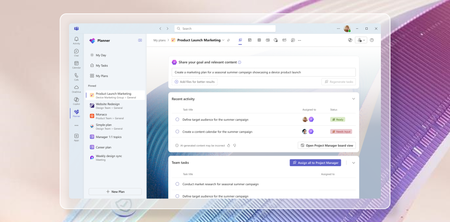
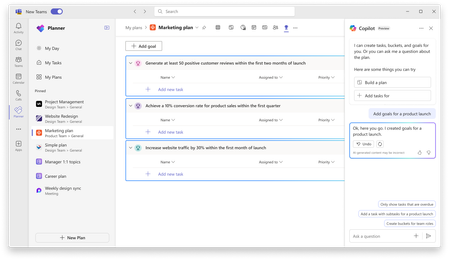
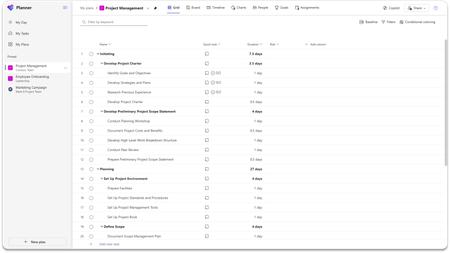
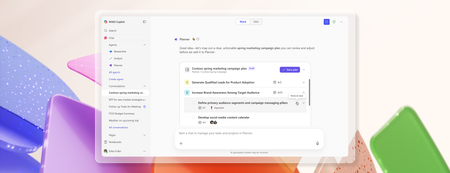
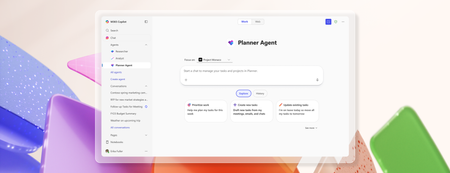
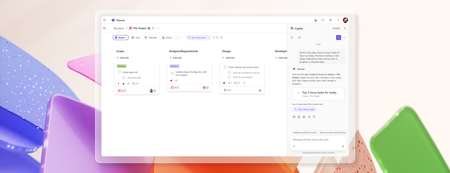
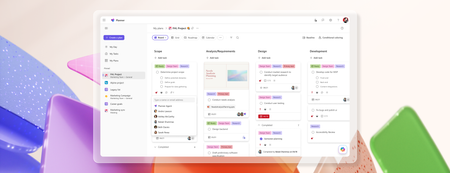
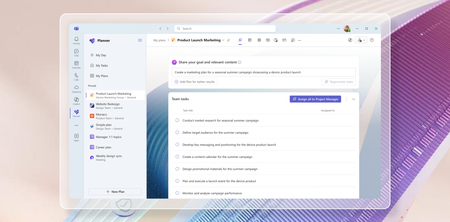
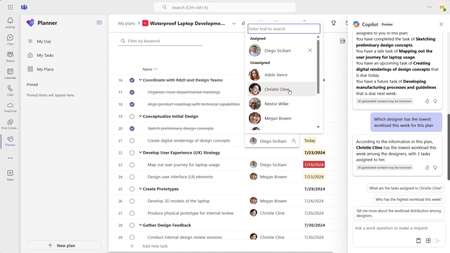
In today's fast-paced world, AI has become an essential tool for enhancing productivity and efficiency. We are committed to empowering our users with innovative solutions that simplify their work processes, and we’re thrilled to introduce the latest updates to Microsoft Planner, designed to leverage the power of Copilot and agents to streamline project management and task organization. With the recent announcement of Project Manager agent, rolling out in public preview in the Planner app in Microsoft Teams, and the rollout of the new Planner for the web, we are bringing you a comprehensive suite of tools to help you and your team achieve more with less effort. We invite you to explore these exciting new features and discover how they can transform the way you work. Introducing Project Manager agent Project Manager agent is a new AI-powered agent designed to enhance your planning experience by acting as a virtual project manager within your plans. Project Manager agent is built to streamline your planning process, empowering you to focus on the strategic aspects of your work while it handles some of the tasks on your behalf. It is the latest development in enhancing and transforming team collaboration with AI in Planner. Earlier this year, we introduced Copilot in Planner (preview) as a personal companion experience designed to work alongside your planner workflow. With Project Manager agent, we’re now bringing AI capabilities directly into your plans, allowing you to interact with the agent as an integral part of your plan. Project Manager agent takes your goals and automatically breaks them down into actionable tasks. But it doesn’t stop there, it can also execute these tasks on your behalf. By managing the plan and executing tasks, the agent enables you to focus on impactful decisions while it contributes directly to the success of your project. When you start a plan with Project Manager agent, it guides you to define a goal you want to achieve (for example, conducting research on a specific topic). The agent will then generate all the necessary tasks for the research topic. Assign these tasks to the agent, and it will execute on them, providing detailed output that is automatically captured in a Loop page embedded within each task. All members of the plan can collaborate directly within the Loop page, exchanging comments and feedback with the Project Manager agent. Upon selecting Regenerate, the agent incorporates the feedback and generates a refined response, improving the task outcomes. At any point, if Project Manager agent does not have adequate information to generate necessary output, it will even ask clarifying questions that will allow it to provide better responses. You will notice that Project Manager agent is capable of contributing at every step of your plan, delivering value throughout the process. This comes with a new Project Manager View in Planner—your hub for setting goals, generating tasks, and showcasing the execution status. This intuitive interface lets you set your project goals and generate tasks, assign tasks to team members or the agent for execution and track progress and statuses in real time. Additionally, in the board view, you can also group tasks by Project Manager, which shows all the Project manager tasks and status in the appropriate buckets. At its core, the Project Manager agent runs on the Multi-Agent Runtime Service (MARS), a platform built on Microsoft Autogen. MARS leverages specialized agents with unique expertise, enabling the Project Manager agent to perform effectively across diverse scenarios. See the blog post to learn more about how Project Manager agent and MARS function. To help you get started, we’ve provided predefined, customizable templates on various topics, allowing you to quickly kickstart a Project Manager plan and easily tailor it to meet your specific goals. Once you’ve selected a template, you can modify the plan to align with your specific needs and goals, ensuring it meets your unique requirements while leveraging the agent’s capabilities for streamlined execution. From idea, to plan, to done, the Project Manager agent is your trusted partner, ensuring every aspect of your plan is managed seamlessly. We’re also introducing the Microsoft Whiteboard canvas in Planner! This new feature allows you and your team to brainstorm directly within the context of your plan. Upon creating a new plan with the Project Manager agent, you will now see a Whiteboard tab in the plan. Whiteboard offers a dynamic and collaborative canvas within Planner, allowing users to easily convert ideas into tasks and streamline workflow from ideation to action. In the canvas, you and your team can engage in real-time collaboration using inking, sticky notes, and templates. With the Planner integration, you can quickly convert your notes to tasks in one click, directly adding them to your plan. We’re excited to bring these powerful tools to your planning experience, and we can’t wait to see the impact of the Project Manager agent in your daily workflows! The new Project Manager agent will be rolling out to public preview in the Planner app in Teams in the coming weeks. To explore these capabilities, customers are required to have a Microsoft 365 Copilot license and also need to ensure their current Microsoft 365 licensing allows them access to Microsoft Loop. As this is a preview release, please note that the features may evolve based on user feedback and ongoing improvements. Initially, Project Manager agent will support English language as the interaction medium, and other languages in the future. We’d love for you to try it out and share your thoughts to help shape its future development! Please select the thumbs up or thumbs down button in the Project Manager view or in the Task details to share what you think about the experience. In addition, we are announcing two more capabilities that will be coming soon to Microsoft Planner: 1. Copilot in My Tasks view: This feature brings AI-powered organization and prioritization to your tasks, helping users effectively manage their backlog and enabling them to stay on top of what matters most. 2. Automated status report emails: Provides the capability to automatically generate a status email from your plans, streamlining the process of sharing weekly updates so you can spend less time on emails and more time moving projects forward. We expect these features to be available for our customers to try early 2025. Join us at Microsoft Ignite to learn more about Project Manager agent in our breakout session, "Boost productivity with Copilot in Microsoft 365 apps." Try Planner for the web today! The new Planner for the web is now available! This marks another major milestone in the Planner journey that we announced last November at Ignite. In April, we launched the new Planner app in Microsoft Teams, and now we've completed the rollout with Planner for the web. Planner for the web now brings together the simplicity of Microsoft To Do, the collaboration of Planner, the power of Project for the web, and the intelligence of Microsoft 365 Copilot into a simple, familiar experience. Discover a new way to manage tasks for individual plans, team initiatives, and larger scale project management aligned to goals and key strategic objectives. We’re excited for you to try it out and share your thoughts. Thanks to your ongoing feedback, we’re continuing to roll out bug fixes and new enhancements regularly to both Planner in Teams and Planner for the Web. We have more exciting updates coming soon including the availability of Planner for the web in GCC, a new board view in the My Tasks view, an updated experience for the Planner app in Teams channels, and more. Check in regularly on the roadmap to learn about what’s coming. Explore the new Portfolios feature The frequently requested Portfolios feature is also rolling out in the Planner app in Teams and will start rolling out in the new Planner for the web app in the coming weeks! This powerful addition is designed to help you effortlessly manage and track progress across multiple plans. With Portfolios, you can now get a consolidated view of all your premium plans and tasks, ensuring nothing slips through the cracks. Whether you're coordinating between teams or looking for a top-down perspective, Portfolios in Planner makes it all possible in one location, streamlining workflows and enhancing collaboration. Join our session at Microsoft Ignite We are eager to share more details about these exciting updates during our session at Microsoft Ignite! Join us as we dive deeper into the new features and capabilities of Planner, and learn how they can elevate your teamwork. Don't miss this opportunity to connect with our team and get a firsthand look at what's new. Share your feedback Your feedback helps inform our feature updates and we look forward to hearing from you as you try out the new Planner! Provide feedback by using the Feedback button in the top right corner of the Planner app. We also encourage you to share any features you want to see in the app by adding it to our Planner Feedback Portal. Learn more Check out the recently refreshed Planner adoption page. Sign up to receive future communication about Planner. Check out the Microsoft 365 roadmap for feature descriptions and estimated release dates for Planner. Watch Planner demos for inspiration on how to get the most out of the new Planner app in Microsoft Teams. Watch the recording from September's What’s New and What’s Coming Next + AMA about the new Planner. Visit the Planner help page to learn more about the capabilities in the new Planner.151KViews9likes24CommentsCopilot in Planner (preview) begins roll out to the new Microsoft Planner in Teams
Now that the new Microsoft Planner has fully rolled out to Microsoft Teams, we are excited to announce that starting today Copilot in Planner (preview) is rolling out to a subset of users of the new Microsoft Planner.70KViews2likes23CommentsFrom overwhelmed to organized: How subtasks transform project management
Do you often find yourself lost in a maze of tasks within your projects? Are checklists not enough for you to keep your projects organized? With the new Microsoft Planner, you can bring order to chaos with subtasks, enabling you to manage complex plans and projects with ease.38KViews3likes20CommentsTry out the new Copilot in Planner (preview) today in the new Microsoft Planner in Teams
We are excited to share that Copilot in Planner (preview) is now rolled out to 100% of users with a Planner and Project Plan 3 or Planner and Project Plan 5 license* in Microsoft Planner in Teams.15KViews2likes3CommentsOrchestrating human-AI collaboration in Microsoft Planner
How Microsoft Planner is shaping the future of work management Today at Microsoft Ignite, we announced the next step for Microsoft Planner in the era of AI: Project Manager agent. Project Manager agent is an end-to-end work orchestration experience in Planner that leverages generative AI to streamline the journey from idea, to plan, to done. This is the first time the groundbreaking automation capabilities of Microsoft AutoGen will be available to customers at scale. The new Project Manager agent will be rolling out to public preview in the Planner app in Teams in the coming weeks. To explore these capabilities, customers are required to have a Microsoft 365 Copilot license and also need to ensure their current Microsoft 365 licensing allows them access to Microsoft Loop. Introducing Project Manager agent A team of agents working together Project Manager agent in Planner orchestrates multiple agents like a project manager. Working directly with task-specific execution agents, Project Manager agent assures tasks are completed efficiently. This GenAI-powered system uses task decomposition, planning, and a multi-agent orchestration to enhance team productivity. The system brings together specialized agents, each with their own expertise, to work collaboratively on various tasks with humans in the loop to review and guide outcomes. These agents communicate and cross-check each other's work, much like a team of experts refining each other's contributions. At Microsoft Research, pioneering work on AutoGen has demonstrated the benefits of multi-agent systems. Project Manager agent puts these ideas into practice, streamlining completion of complex tasks: Specialized Expertise: Each agent is a specialist, ensuring high-quality outputs tailored to specific tasks. Specialized agents make output more reliable and predictable while preserving the dynamic nature of agentic systems. Team Collaboration: Agents communicate and cross-check each other's work, much like a team of experts refining each other's contributions. Adversarial agents are specifically designed to challenge each other's work to produce more refined and detailed results. Problem Solving: AutoGen research demonstrates that multi-agent systems significantly enhance problem-solving capabilities, enabling them to tackle more complex tasks effectively. For instance, the integration of multiple agents improves performance in math problem-solving (MATH), real-world reasoning (AFLWorld), and sensitive coding tasks (OptiGuide). Contextual Awareness: Certain agents provide context from your team's existing content, integrating historical data and insights into the current plan. Research on AutoGen shows that multi-agent systems facilitate improved contextual awareness and understanding by integrating multiple retrieval mechanisms, enabling a more interactive and dynamic approach to information retrieval. While in preview, Project Manager agent has access to a small set of "built-in agents" that are tuned to complete common information work tasks. Project Manager agent is scalable, and we are excited to expand the set of available agents and capabilities over time. Human-AI collaboration Whether asking Copilot a simple question or automating a complex workflow, teams in every industry are accelerating work with Generative AI. Collaboration is already a pain-point for many teams and the introduction of AI into workflows can further confound the problem. We believe that Planner’s familiar and accessible collaborative work management concepts and tools can effectively streamline human AI collaboration. Project Manager agent leverages Planner to plan, execute, and iterate agentically in an environment where the human team maintains control. Work Breakdown – When presented with a complex goal or task, Project Manager agent identifies a set of steps to achieve it. This structured approach not only breaks tasks into manageable pieces but also distinguishes work suitable for autonomous agents from higher-value or complex tasks requiring human input. Under the hood, Project Manager agent will be collaborating with multiple agents to deliver the desired outcomes. Complex task execution requires creating a plan, intelligently sequencing actions and dependencies, and maintaining a memory system to store the status of individual steps and their outcomes. Assign to Agent – The user is always in control of exactly what and how much work is assigned to Agents. Project Manager agent is flexible and can handle single tasks or orchestrate longer flows. At any time, team members can pause agent work and make manual adjustments as needed. Human in The Loop – During task execution, Project Manager agent can identify situations where more information or context is required from the team. In such situations, Project Manager agent will compile a list of questions that, when answered, will unblock the Agents working on the task. If the system lacks the tools to complete a task altogether, Project Manager agent can provide advice and assistance to the team member working on the task. Integrating Feedback – Project Manager agent won’t always complete tasks perfectly on the first attempt. Once initial agent work is complete, the team can review the task and leave comments on the content. When the review is complete, Project Manager agent will orchestrate iteration on the content, incorporating the feedback. Safety and privacy Generative AI systems have unprecedented capabilities, which introduces novel risks into our products and services. The Planner team is committed to proactive and continuous mitigation of these risks. We employ a handful of key strategies to ensure that we responsibly deploy generative AI: Impact Assessment: We audit new generative AI products in accordance with Microsoft’s responsible AI standard, identifying harms the system could potentially cause. Redteaming: We thoroughly evaluate new products for risks identified in the impact assessment throughout the development process. Ahead of release, our redteaming results are reviewed by a joint Microsoft-OpenAI Deployment Safety Board, as outlined in Microsoft’s AI Safety Policies. Harm Mitigation: Project Manager agent has multiple redundant checks to prevent harmful content, including harm-specific classifiers and a dedicated responsible AI agent. Additionally, your data remains private when using Project Manager agent. Customer data is governed by the commitments we make in the Microsoft’s Data Protection Addendum, Microsoft’s Product Terms, and the Microsoft Privacy Statement. The future of work management As AI technology continues to evolve, we can expect even more advanced features and capabilities to be integrated into Planner. The vision is to create a truly intelligent work management platform that not only supports project managers but also empowers teams to achieve their best work. The orchestration of human-AI collaboration with AutoGen in Planner represents a significant leap forward in the field of work management. Project Manager agent is a testament to the potential of AI to transform the way we work, making it more efficient, productive, and collaborative. As we look to the future, we are excited about the possibilities that AI holds for work management and beyond.14KViews8likes13CommentsWhat's new in Microsoft Planner – June 2025
Discover the latest enhancements in Planner, designed to help you manage your work more efficiently. This month, we’re excited to highlight new features and updates that make planning, organizing, and tracking tasks simpler than ever. Get real-time task notifications for Project Manager agent via email In May, we introduced real-time task notifications for Project Manager agent in Planner in Teams, alerting you when a task is completed and ready for review or when your input is needed to move it forward. We’re now expanding these capabilities to send you notifications via email. This enhancement gives you more flexibility in how you stay informed, helping you maintain momentum on critical tasks—even when you’re away from Teams. Whether you prefer to manage your day from your inbox or your Activity feed, these notifications ensure you never miss a beat on the tasks assigned to Project Manager agent. Boost efficiency with Planner's bulk editing feature Planner’s new bulk editing feature is here to simplify task management. In the Grid view of any basic plan, you can now update multiple tasks simultaneously—assign tasks, adjust priorities, update progress, and modify start and due dates—all in one go. To get started, navigate to a basic plan and select the Grid view. Then, select a set of tasks you want to update by either selecting and dragging the tasks or by using Ctrl + the up arrow or down arrow. Use Project Manager agent to generate status reports - now in public preview The new Status Reports feature in Planner in Teams enables you to auto-synthesize your plan's progress, milestones, risks, and next steps, ensuring everyone on your team has shared visibility. All report features, including the ability to share the status report as a newsletter, are now available in public preview for all English users. Support for additional languages is being rolled out in the coming days. Learn more about how to generate status reports in minutes with Project Manager agent in Planner. Project Manager agent now supported in 40+ languages We’re excited to share that Project Manager agent is now multi-lingual! With this update, you can now use the Project Manager agent to generate and execute on tasks in any language that is also available for Microsoft 365 Copilot, excluding Arabic and Hebrew for now. Note that Arabic and Hebrew support, as well as the ability to generate status reports in these languages, will be available later this week. See the full list of supported languages for Microsoft 365 Copilot. ICYMI: A look back at what we shipped earlier this year Now that we’re halfway through the year, our team would love to recap some of our favorite Planner features that have shipped recently: Project Manager agent in public preview: The Project Manager agent is an AI-powered virtual project manager designed to enhance your planning experience by streamlining workflows and handling tasks on your behalf. The Project Manager agent integrates AI directly into your plans, empowering you to focus on strategy, while enabling smarter team collaboration. See our announcement blog post to learn more. Custom backgrounds: Personalize your workspace with images or themes, enhancing visual appeal and organization. To add a background, open the Plan details of any basic plan by either selecting the plan name or the dropdown menu next to it in the plan header. Board view in My Day and My Tasks: With Board view now available in My Day and My Tasks, you can manage and prioritize your tasks in a more visual way. Reorder columns across all plans: Previously, reordering columns was only available in premium plans. With this update, reordering columns is available across all Grid views. To try it out, simply select and drag the column headers to rearrange them, or use the CTRL + Shift + < and CTRL + Shift + > keyboard shortcuts. Generate status reports using Project Manager agent: The new Status Reports feature in Planner in Teams enables you to auto-synthesize your plan's progress, milestones, risks, and next steps, ensuring everyone on your team has shared visibility. Learn more about how to generate status reports in minutes with Project Manager agent in Planner. Retirement of Microsoft Project for the web: We also wanted to take this opportunity to remind everyone that starting August 1st, 2025, we will be transitioning all users to Microsoft Planner. As an effort to provide a unified work management experience, we are retiring Project for the web, as well as the Project and Roadmap apps in Microsoft Teams. No actions are necessary in preparation for this change as all licensing should carry over seamlessly. Learn more about this change in our announcement blog post. Do you have a Planner feature you’ve been enjoying recently? Let us know in the comments! Share your feedback Tell us what you think about the new Planner using the Feedback button in the top right corner of the app. We also encourage you to share any feature requests by adding your ideas to the Planner Feedback Portal. Your feedback helps inform our feature updates, and we look forward to hearing from you as you try Planner’s new and existing capabilities! Resources Check out the Planner adoption page. Sign up to receive future communication about Planner. Check out the Microsoft 365 roadmap for feature descriptions and estimated release dates for Planner. Watch Planner demos for inspiration on how to get the most out of Planner in Teams. Visit the Planner help page to learn more about the new Planner.8.5KViews4likes14CommentsPower up project management in Teams with the Project Manager Agent
New Project Manager Agent capabilities make it easier than ever for teams to stay organized, track progress, and work efficiently—wherever collaboration happens. Project Manager Agent skills are now in public preview for Teams meetings and Teams channels, unlocking new ways to streamline workflows and boost productivity right inside your conversations. Read on to learn more. Launch Demo Project Manager Agent skills in Teams meetings: Capture, assign, summarize, and kick off tasks Facilitator agent helps keep Teams meetings on track and remain productive, and thanks to its new integration with Project Manager Agent’s meeting skills, you can turn conversations into execution without leaving Teams. Facilitator pulls tasks from transcripts, so nothing gets missed, and meeting tasks automatically sync to Planner for advanced tracking beyond meetings. It can even generate documents from the meeting, helping to overcome the "cold start" problem. Just @mention Facilitator to create, assign, or retrieve tasks, or generate documents. Create tasks by simply @mentioning Facilitator during the meeting. Assign tasks with due dates and assignees right from the chat. Retrieve tasks based on criteria such as due date, assignee, or topic. Create documents: Create a Loop file or Word document with a simple prompt, and specify format and structure as needed. Sample prompts: @Facilitator create a task to circulate the meeting summary to all attendees. Quote the above created task and @Facilitator assign this task to me and set the due date to tomorrow at 10 AM. @Facilitator list all tasks from this meeting that are unassigned. @Facilitator create a Word document highlighting key decisions and rationale. @Facilitator create a proposal doc based on our discussion with sections: Overview, Recommendation, Approach, Appendix. Launch Demo Project Manager Agent skills in Teams channels: Task generation, progress tracking, and more Every standard and shared channel in Teams can now have its own dedicated agent, scoped to the conversations and context of that channel. Now, Project Manager Agent’s skills can be used by these channel agents, bringing powerful project management tools to your collaboration space. Ask the agent to create tasks, set due dates, or answer questions about plans and tasks, all within your team’s channel to keep everyone aligned and projects on track. To start, just @mention the channel’s agent (which takes on the name of the channel itself). Sample prompts (agent name varies by channel): @ProjectPlutoAgent, add a task “Draft customer email” in <plan>; assign to <owner>; due next Wednesday. @FinanceDepartmentAgent summarize tasks completed this week and those due next week in <plan>. @MarketingEventsAgent list blockers or tasks marked “at risk” in <plan>. Getting started with Project Manager Agent and Planner With the enhanced Project Manager Agent, enjoy smarter plan and task generation that turns ideas into actionable steps, along with enhanced tools for confident progress tracking. With support for 40 languages in meetings (and English US support only for channels), global teams can collaborate seamlessly, and a new on-canvas chat entry point makes interactions faster and more intuitive. All these features are included with both existing and new premium plans. Take the steps below to get started. Confirm licensing and access You’ll need a Microsoft 365 Copilot license to enable the public preview of Project Manager Agent. Project Manager Agent is available in new plans created with Project Manager Agent and all existing premium plans. Make sure Loop is enabled in your tenant for full functionality. Join Public preview for Microsoft Teams to get started with Project Manager Agent skills in Teams meetings and channels. Learn more Sign up to receive future communication about Planner. Listen to the recent episode of the Microsoft podcast, Low Code Approach, about the latest updates to Project Manager Agent. Check out the Planner adoption page and Planner help & learning page. Visit the Microsoft 365 roadmap for feature descriptions and estimated release dates for Planner. Watch Planner demos for ideas on how to get the most out of Planner in Teams. Share your feedback Tell us what you think using the Feedback button in the top right corner of the Planner app. Leave thumbs up/thumbs down feedback any time you try a Project Manager Agent-enabled capability. Share feature requests by adding your ideas to the Planner Feedback Portal. The latest Project Manager Agent enhancements in Planner, plus expanded integration in Teams meetings and channels, help your team achieve goals faster. From capturing tasks in real time to generating plans and managing deliverables across platforms, these updates put powerful project management tools at your fingertips. Explore the public preview today and discover how Project Manager Agent can help your team stay organized, aligned, and ready to succeed.7.5KViews7likes3CommentsWhat's new in Microsoft Planner - February 2025
This month, we’re excited to announce the rollout of several new AI capabilities integrating Project Manager agent with your task management processes, as well as feature updates that address some of your most requested features. Thank you for continuing to share your thoughts as we continue to improve and build on the Planner experience! New AI capabilities with Project Manager agent Project Manager agent now launching in Europe We’re excited to announce that Project Manager agent is now rolling out to European-based customers with eligible licenses in public preview, following our initial release to Planner users in North America and Asia-Pacific. The Project Manager agent is an AI-powered virtual assistant designed to enhance planning experiences by streamlining workflows and managing tasks on your behalf. Read more about Project Manager agent in our blog post, “Unleashing the power of agents in Microsoft Planner.” Generate tasks from a PDF We've heard a strong desire from customers to automate the creation and execution of tasks using attachments. Now, you can upload PDF files to generate and complete tasks with Project Manager agent. Explore more collaborative experiences with Project Manager agent With a Microsoft 365 Copilot license, you can generate and execute tasks in plans alongside Project Manager agent. We are now rolling out functionality to enable users with a Microsoft 365 license to view and comment on content generated by Project Manager agent, so that you can better collaborate on these plans with others in your organization. Automatically create dependencies when generating tasks Tasks generated with Project Manager agent will automatically include task dependencies to recommend the order in which the tasks should be executed. To visualize these task dependencies, select the Timeline view of your plan. With this update, Project Manager agent can generate better content when executing tasks, as these dependencies help it understand the relationship and context between tasks in your plan. Create plans generated by Project Manager agent in a Microsoft Teams channel With the new update to the Planner experience in standard Teams channels, you can now quickly kickstart a plan in a Teams tab with the assistance of Project Manager agent. The latest enhancements to Planner Differentiate your plans with custom backgrounds With custom backgrounds, you can customize the theme of your basic plans to more easily distinguish between your projects. To add a background, open the Plan details of any basic plan by either selecting the plan name or the dropdown menu next to it in the plan header. From there, a side pane will open with suggested backgrounds tailored to your plan. This feature is still rolling out, so if you don’t see it yet we encourage you to come back and try again next week. This was a popular feature request when we launched the new Planner, and we’re excited for you to check it out! Note that if you previously had a plan with a custom background, that background should reappear in your plan with no action necessary. A screenshot of Planner shows the Grid view of a plan. The Plan details pane is open to the right with different background options. Organize your tasks with Board view, now in My Day and My Tasks With Board view now available in My Day and My Tasks, you can manage and prioritize your tasks in a more visual way. Read more about Board view in My Tasks and My Day and how you can use it to better organize your top priority tasks and help manage your workload. Join plans in public groups Plans created in public groups will now include a Join button, so you can easily add yourself to the plan. Recover recently deleted tasks You can now undo the deletion of a task by either selecting CTRL + Z or selecting Undo in the toast that appears at the bottom left of your screen. Share your feedback Your feedback helps inform our feature updates and we look forward to hearing from you as you try Planner’s new capabilities! Provide feedback about Planner by using the Feedback button in the top right corner of the app. We also encourage you to share your feature ideas by adding them to our Planner Feedback Portal. Resources Check out the Planner adoption page. Sign up to receive future communication about Planner. Check out the Microsoft 365 roadmap for feature descriptions and estimated release dates. Watch Planner demos for inspiration on how to get the most out of Planner. Watch the recording from September's What’s New and What’s Coming Next + AMA about the new Planner. Visit the Planner help page to learn more about the capabilities in Planner.7.5KViews6likes27CommentsWhat’s new in Microsoft Planner – May 2025
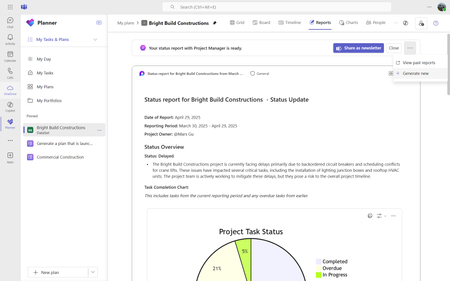
This month, explore the latest enhancements to Microsoft Planner, including the streamlined Status Reports feature for project updates, expanded functionality of the Project Manager across multiple views, and preparations for transitioning from Project for the web to Planner. Thank you as always for your feedback in shaping our product! Generate status reports in minutes Are you looking to streamline your project updates? The new Status Reports feature in Planner in Teams is here to help! You can quickly and easily auto-synthesize your plan's progress, milestones, risks, and next steps, ensuring everyone on your team has shared visibility. Customize these reports to fit any audience and timeframe, making your updates more relevant and impactful. To get started, navigate to the Planner app in Teams and open a premium plan, or a plan with Project Manager that has at least ten tasks. Select the Reports tab, specify the reporting period, and add any specific details you want to include. The generated report will be displayed in a Loop component for real-time coediting, making collaboration easier than ever. You can also share the newsletter in SharePoint. Please note, this feature is currently rolling out to English-US customers and requires a Microsoft 365 Copilot and Microsoft Loop license. For more information, see our latest blog post, “Generate status reports in minutes with Project Manager agent in Planner. Utilize Project Manager across multiple views Project Manager agent is no longer limited to Board view. Now users can also access the Project Manager in Grid, Timeline, and People view. This allows users to: Assign tasks to the Project Manager across all four views: Grid, Board, People, and Timeline. Access the Project Manager as a plan member in both People view and the assigned pivot in Board view. Drag and drop tasks to the Project Manager bucket to assign tasks to Project Manager in both Board and People view. Transition to Planner and prepare for the retirement of Project for the web Starting this August, Planner is set to replace Project for the web, bringing all your task management tools under one unified platform. Users will automatically be redirected to Planner, which offers enhanced features like Goals, Sprints, task history, and advanced dependencies, alongside AI powered tools like Copilot and Project Manager agent. No need to worry about migration or licensing changes—everything transitions seamlessly! To prepare for this change, administrators can notify users and update internal resources to reflect the new Planner environment. We’re currently working to close some of the gaps between Project for the web and Planner, such as the ability to view and manage non-default environment plans directly in Planner which was released last month. Learn more in our recent blog post, “Transitioning to Microsoft Planner and retiring Project for the web.” Share your feedback Tell us what you think about Planner using the Feedback button in the top right corner of the app. We also encourage you to share any feature requests by adding your ideas to the Planner Feedback Portal. Your feedback helps inform our feature updates, and we look forward to hearing from you as you try Planner’s new and existing capabilities! Resources Check out the Planner adoption page. Sign up to receive future communication about Planner. Check out the Microsoft 365 roadmap for feature descriptions and estimated release dates for Planner. Watch Planner demos for inspiration on how to get the most out of Planner in Teams. Visit the Planner help page to learn more about the new Planner.6.9KViews2likes29Comments