copilot studio
1 TopicBuild Automated Agents, Workflows, and Apps - New in Copilot Studio
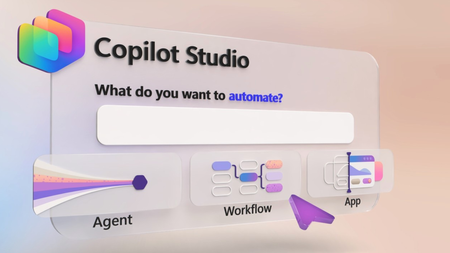
Describe the agent you need and generate its instructions and reusable skills, choose the model, connect MCP tools and specialist agents, then test its quality at scale with Evaluations. Trigger workflows from incoming email, classify submissions, hand work to your agents, and pause for human review on the decisions that need it. Track timing and paths for every step in the Activity tab. Then generate a full stack app on your Dataverse data so your team can filter, review, and approve every bid from one shared view. Jack Rowbotham, Copilot Studio Senior Product Manager, shares how to automate a procurement process for bids from multiple vendors, using agents that reason, route, and recommend. Describe the agent you need. Copilot Studio helps build it. See how it turns the requirements you provide into an agent, mapping out the instructions and creating reusable skills along the way. Start here. Test, refine, repeat. Run structured test sets with Evaluations in Copilot Studio, import your own test cases or generate them with AI, and compare results as you improve your agent. See how it works. Agents provide reasoning. Workflows provide consistency. Apps provide structure. Bring all three together in Copilot Studio to build end-to-end business solutions. Check it out. 👥 Who it’s for: IT admins, Power Platform makers, solution architects, and developers building agentic solutions, plus operations and procurement teams automating reviews and approvals. ⏱️ Chapters: 00:00 Build agents, workflows, and apps in one place 01:04 Automate a multi-vendor bid review end to end 02:18 Build an agent from a prompt 03:28 Add models, MCP tools, and specialist agents 04:13 Test the bid agent in Preview 05:05 Evaluations 05:59 Automated workflows 07:42 Track every run in the Activity tab 08:13 Build an app from a prompt 09:10 Approve bids from the team app 09:37 Get started with Copilot Studio Copilot Studio brings agents, workflows, and apps together in one place, all running on the GitHub Copilot harness. In this video, a supplier email triggers a workflow, a bid evaluation agent checks the bid against tender requirements, and the procurement team makes the final call in a shared app. Describe the agent you want, including the requirements to assess, the logic to apply, and the live data source to connect to. Copilot Studio reasons over your prompt, maps out its build steps, and generates the agent’s name, instructions, and skills for requirement coverage and evidence verification. Connect Work IQ for supplier emails and the Dataverse MCP server for bid data, keep Claude Sonnet as the reasoning model, ground the agent in an RFP example PDF, and add a Supplier Risk specialist agent. Test the agent in the Preview tab and watch its chain of thought as it flags gaps in certification, cold-chain handling, and insurance minimums. Then run Evaluations with your own conversations, auto-generated tests, or a CSV file. Here, 18 test cases met the evaluation criteria 89% of the time. In the Workflows tab, drag in an Outlook “When a new email arrives” trigger, a Classify step for RFP submissions, a Get Attachment connector, and an Agent step running the Bid Evaluation Agent. An if/else Human Review step brings in a person on flagged bids, and the Researcher agent and a recommendation agent finish the job before results land in Dataverse. Finish in Apps by describing a Bid Management App connected to your Dataverse table, or to sources like SharePoint through connectors. Apply company branding with a follow-up prompt, then filter bids that need human review and approve decisions from the app. Try it for yourself at copilotstudio.microsoft.com. Subscribe to Microsoft Mechanics for more videos like this. 🔗 Related links: — Get started with Copilot Studio: https://copilotstudio.microsoft.com Unfamiliar with Microsoft Mechanics? Microsoft’s Official Video Series for IT — Subscribe: https://www.youtube.com/c/MicrosoftMechanicsSeries — Microsoft Tech Community: https://techcommunity.microsoft.com/t5/microsoft-mechanics-blog/bg-p/MicrosoftMechanicsBlog — Podcast: https://microsoftmechanics.libsyn.com/podcast Join us on social: — https://twitter.com/MSFTMechanics — https://www.linkedin.com/company/microsoft-mechanics/ — https://www.instagram.com/msftmechanics/ — https://www.tiktok.com/@msftmechanics Video Transcript: -If you want to build agents that go beyond the standard chat interface that can work autonomously following your defined workflows, connecting to other agents and tools, and presenting information with new interactive app experiences, today, I’ll show you how Copilot Studio helps you do just that and more, and it’s even easier than you may think. Copilot Studio gives you what you need to build end-to-end solutions with agents, workflows, and apps in one place, without having to write a single line of code. You can build individual agents with your chosen model, expert skills, tools, including prebuilt connectors, APIs, and MCPs to your existing systems, as well as incorporating specialized knowledge, other agents, and memory, all now using the powerful GitHub Copilot harness under the covers. -You can integrate them with your defined multi-step workflows, which provide the correct path for consistency, and bring in other skilled agents or people as needed. And finally, build full-stack app experiences using natural language, so you can describe what you want and let AI generate the app for you. Now, to make this real, I’ll walk you through an agentic solution that accepts and reviews work bids from multiple vendors and then routes them for human approval. -Here’s what the process looks like in Copilot Studio. First, a supplier email arrives and automatically triggers a workflow. The workflow classifies the submission, retrieves the supporting documents, and passes everything to the bid evaluation agent. That agent then reviews the bid against the tender requirements, validates the evidence, and identifies any potential issues. If a decision requires human judgment, the workflow pauses and brings in the appropriate reviewer. A Microsoft Copilot Researcher agent can then gather the additional context and the recommendation agent then combines the findings into a final recommendation. It then passes status information to a data source connected to our app frontend, and this app will give the procurement team a shared place to track every bid, review those exceptions, and make decisions to move work forward. So, the workflow lays out all of the steps, the decisions, agent handoffs, and outcomes. -And in the next few minutes, I’ll retrace the simple steps to creating this agentic solution. We have multiple agents working together, so I’ll start by building our bid evaluation agent, which is our primary reasoning engine for this process. I’m in Copilot Studio, and all I need to do is describe the agent I want to build. -So here, I’ll tell it to create a Bid Evaluation Agent for the procurement team. Then I’ll tell it how to assess the bidding requirements, the logic it needs to incorporate, and even the live data source it needs to connect to. It needs to evaluate the request for proposal sent via email and then compare supplier responses against the requirements, and even provide a pass or fail verdict and a final recommendation. -So I’ll submit my detailed prompt and let it get to work. And you can see that it’s reasoning over everything I’ve asked it to do. It then maps out the process it will take through the steps you can see in the upper right. It looks over the information I pointed it to, and starts building out the agent. It’s also automatically creating skills as reusable instructions in this case so that the requirement coverage and the evidence verification will stay consistent. And these skills can also be reused across other agents or your teams in the future. -Now, with this agent complete, let’s look at what it’s created. We can see that it’s generated an agent name and detailed instructions automatically. And here, you can see the two skills that were added, where you can also upload your own skills or even create more with AI by simply describing what you want. It’s connected to tools already like Work IQ in this case for the Supplier Submission Emails and the Dataverse MCP with our Procurement and Bid Data to take action. -Here, too, you can also add more tools, like MCPs for both Microsoft and non-Microsoft data and services. And I can choose the model that best fits the task. In this case, I’ll keep Claude Sonnet as a good reasoning model. I can ground it in the knowledge across different online services. For this agent, I want to give it an RFP example, and I can even drag in the files from my local device like this PDF and attach that to the agent. -Additionally, I can bring in specialist agents for additional expertise, like this one for assessing Supplier Risk, which I’ll connect to now. I also have the option to maintain memory throughout an interaction and use that in future sessions. So, now, I’ve created my main agent. I’m ready to test it out in Copilot Studio. This time, starting from the agent’s Preview tab, I have an example email in my clipboard that I’m going to paste in and manually attach the work bid. -From there, I just need to submit it to trigger the evaluation process. We can see that the agent evaluates each requirement, reviews the supporting evidence, and identifies the gaps. We can even watch the chain-of-thought, and in this case, it flags that the supplier does not have the sufficient certification for medicine manufacturing. It also doesn’t meet the requirements for cold-chain handling. And its insurance does not meet the minimum requirements. Agentic processes like this one can take several minutes to complete, so to save a little time, I’ll skip ahead to the Final Recommendation. You’ll see that it recommends a human review and not to shortlist the supplier until it addresses the issues that I mentioned before, and it provides the specific details about this recommendation in the summary. -So, that was the result of a single preview run, and we can also test the agent quality at scale using Evaluations in Copilot Studio. Instead of spot-checking, I can now run structured tests against the agent and measure the performance over time. You can bring in your own conversations as test cases or use Copilot Studio to automatically generate 10 tests based on how you’ve built the agent. In this case, I’ve got the test cases ready, and I’ll simply pull them in as a CSV file. You see that this one contains 18 test cases containing sample requests. -Now, I’ll just give this evaluation a name, and then start it. Then it will run those and evaluate the general quality of the responses. They run sequentially, and you can click into each of them for details after they run. In reality, these 18 tests took just over 22 minutes to run, so I’ll jump straight into the results. You’ll see that these evaluations met our criteria 89% of the time. And scrolling down the individual test results, you can also see the outcome for each. -Now, with our agent working, I’ll create the automated workflow that does the work before and after the agent. I’m back in Copilot Studio in the Workflows tab, and adding steps is as easy as dragging in and dropping what you want onto the canvas. By default, the start trigger is set to Manual, but I want to change this process to trigger off an incoming email instead, so I’ll change the trigger type to Connector, then choose Outlook, and then When a new email arrives. This is set to an individual email account, but it could be a dedicated RFP intake account along with other parameters. -Then I’ll add a Classify step to evaluate the nature of the email using its subject and message body. I’ll just enter one here for RFP, but I can define multiple categories as well. At that point for the RFP path, I’ll add another step to get the attachment itself, where I’ll use the Connector again as the type and search for Get Attachment, and there it is. The attachment will be used as it processes the subsequent steps. That’s where our Bidding Evaluation Agent comes in to analyze the email attachment with the bid. -And so I’ll add an Agent step, then using the dropdown, I’ll choose the Bid Evaluation Agent that we just built. And from there, you’ll continue this process for all the branches of the workflow until it’s complete. I’ve added the rest of the steps to save a little bit of time. And you can see that I have a Human Review step added with an if/else decision. The agent can request human review when it flags that a bid needs attention from a person on the team before moving forward. Otherwise, it will proceed directly to the Researcher agent to gather additional information on the bid and bidder. -From there, it goes to the last agent in our workflow, which consumes all of the information from the previous steps, then assesses the bid and makes that final recommendation. It then creates a record as a new row in Dataverse, our backend data source for the process. Each step can be tested independently, making it easy to troubleshoot and iterate. -Now, to test this out, I’ve already started sending emails with attached bids, and we can see the results for each run. From the Activity tab in my workflow, you can see the timing per step and the path taken for an incoming RFP email. Clicking into any step will show its details, and here for our agent, we can see what it did along with its structured output. Looks like this one needed a human review. And once the reviewer took action, the process continued until the final recommendation was posted in Dataverse. Everything we’ve looked at so far runs as an automated process behind the scenes. That said, an app is where the people can view and find the details for each bid. Let’s build that. This time from Copilot Studio, I’ll start in Apps. Using natural language, I just need to describe the experience I want. -In this case, I want a Bid Management App to oversee multiple bids as they’re processed so that the team can track each bid with its details. I’m asking it to connect to my Dataverse table, and I could connect it to other data locations and types like SharePoint using connectors. Below that, you’ll see that I’ve described the app screens I wanted to make. And I’ll kick this off. This is another long-running process that can take several minutes, so I’ll skip ahead to the first iteration of my app. It’s already looking pretty good, a nice summary tiles at the top and the details per bid. I can use the additional prompts to refine the app, for example, updating it to my company branding. And in just a few moments, it applies the visual branding to match our company apps, and it’s ready to be tested. -In fact, I can switch over to the experience that the other people on the procurement team would see and use. I have a complete view of the Bid Queue, like we saw in the preview with the suppliers, the status, and the recommendation. I can easily filter down to the bids that need human review. And clicking into any one of these bids shows additional details and the actions I can take. From here, I can make a decision and decide whether to Approve, which I’ll do in this case. And then save to confirm. And everything is working end to end. -So, that’s agents, workflows, and apps working together in Copilot Studio. To get started, head to copilotstudio.microsoft.com and keep watching Microsoft Mechanics for the latest tech updates. Thanks for watching.561Views0likes0Comments