copilot in outlook
41 Topics
How to remove Copilot from showing up on web-based apps?
Hello, I predominantly use Outlook through the website via Chrome. I also use OneDrive, Excel, and Word through Chrome quite often. I had a tech person walk me through removing Copilot from my computer's apps - the actual programs - but it's still showing up on my website uses. I do not support AI, AI is absolute trash, and I want Copilot completely eliminated from everything I use. I am tired of having to close the Copilot 'summary' that automatically pops up at the top of all my emails. Is there an easy way to completely eliminate this, or am I doomed? Thank you!8.1KViews17likes4CommentsWhat’s New in Microsoft 365 Copilot | May 2026
Welcome to the May 2026 edition of What's New in Microsoft 365 Copilot! Every month, we highlight new features and enhancements to keep Microsoft 365 admins up to date with Copilot features that help your users be more productive and efficient in the apps they use every day.32KViews11likes5CommentsIntroducing Themes by Copilot in Outlook
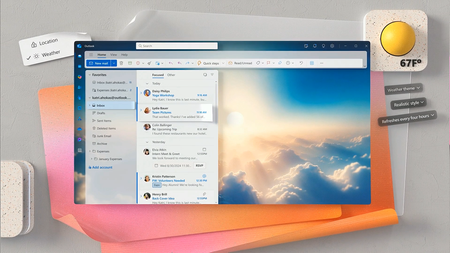
Copilot in Outlook now helps anyone with a Copilot enabled subscription or commercial license create unique and personal themes powered by AI. Outlook is also releasing new non-Copilot powered themes to make Outlook more beautiful and approachable. We are thrilled to unveil Themes by Copilot in Outlook, which harnesses the power of generative AI to help people create unique themes that reflect their personal preferences and style within their Outlook experience. Pairing well with the transformative ways Copilot in Outlook enhances your emails, this marks the first instance of dynamic AI-generated theming in productivity applications. For many, Outlook is the app that they use daily, and these innovations will help make their Outlook experience even more welcoming and inviting. These AI-powered themes are accessible to all users with a Copilot Pro consumer subscription and business accounts with Copilot enabled, starting today, November 7th. Themes by Copilot in Outlook will be available on our mobile iOS and Android apps, Outlook for Windows, Outlook on the Web, and Outlook for Mac. Take a look: Just as you might accent your desk with a candle or photos, spruce up your office with artwork or plants, or prefer the window seat on a plane, we believe that beautiful, personal digital surroundings will enhance your overall Outlook experience. How you, your personality and your tastes are represented in an app plays a significant role in how you engage with it and how it makes you feel. But your app shouldn’t only reflect the colors or lighting that you need; the artistry of imagery can connect with you, represent you, and inspire you. Over the past year, we’ve released a set of beautiful static themes with abstract imagery that caters to a variety of colors and lighting styles. Image themes now reach more surface area of the app for a truly immersive experience. Today marks an especially innovative step in our personalization journey because we’ve leveraged the best aspects of generative AI to bring imagination, surprise, and your unique context into personalization. With Themes by Copilot, you can take yourself to every corner of the world by building a theme inspired by any of the over 100 curated destinations available, or create a theme based on your own location. This personalization becomes magical when it evolves over time, considering your unique context or your own personal touch along the way. If you choose, you can make your Themes by Copilot dynamic by selecting how often you want it to update – every few hours, every day, weekly, or monthly. If you’ve enabled location permissions in Outlook, the My Location theme will bring you imagery uniquely inspired by your locale, dynamically updating for you as you head out the door on a trip or vacation. Similarly, a dynamic theme based on the weather would be updated to reflect the current weather conditions where you are. Every Copilot-generated theme automatically comes with a fun accent color, and you can further tune your theme to be in a realistic, oil painting, or cartoon style. To help you shape your theme, we created a guided experience that is easy to use, responsible, and fun. Copilot-powered themes are available in the languages that Outlook supports. No two Themes by Copilot in Outlook are the same. Every creation is unique, dynamic, and exclusively yours -- an experience only available on Outlook. Themes by Copilot will be available to be turned on in Appearance Settings in Outlook. Beneath the Themes by Copilot header, select a topic thumbnail to generate a unique Copilot-powered theme in one click or launch the custom theme tile to create your own with a topic, style, and refresh cadence of your choosing. You can always change your theme in Outlook Settings. Themes by Copilot in Outlook builds upon the strong base of Copilot functionality already available in Outlook. Whether it’s getting help with drafting a mail, summarizing a long thread, or getting coaching on your emails – Copilot in Outlook is a great way to write better emails while saving time. For work accounts, there’s also the addition of Prioritize My Inbox by Copilot, which will be available in private preview for commercial customers in late 2024. Prioritize My Inbox is designed to help people manage their entire inbox by analyzing the content of messages given the context of their role. Themes by Copilot in Outlook is yet another step on our journey to infuse the power of Copilot into Outlook. We can’t wait to see what you create! Additional Outlook Themes for Everyone For those who do not have Themes by Copilot, we have released a collection of new non-Copilot powered themes, designed to make the platform more beautiful and accessible for everyone. Over the past year, we've introduced a variety of new image themes across Outlook for Mac, Outlook on the Web, the newest Outlook for Windows, and Outlook for iOS and Android. Beyond a basic color, you can now choose from vibrant imagery with hues of deep green, red, or purple to fit your mood or the vibe you’re going for. To choose a new image theme in Web, desktop, Mac or mobile, just navigate to Appearance Settings to pick the one that represents you best! It is our goal that today these themes bring joy, creativity and a bit of whimsy to your day. It’s just another way that Outlook is looking out for our customers to help make their experiences uniquely theirs. We are excited to hear what you think!19KViews6likes12Comments