copilot in onedrive
31 TopicsCopilot + OneDrive: Intelligence in Every Click, Inspiration in Every Memory
Every day, we create and share more content than we can manage. From documents, images, meeting recordings, design drafts, spreadsheets, and photos that capture our lives. The real challenge isn’t just finding these files but turning them into momentum. That’s why OneDrive is designed to eliminate busy work, highlight what matters, and have your files work for you.16KViews4likes0CommentsOneDrive Just Got a Major Upgrade: New Copilot Capabilities, Simpler Sharing, and Smarter Photos
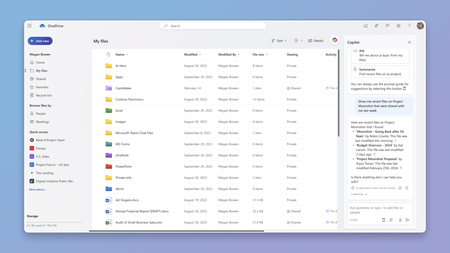
Files have always been at the heart of how we work. They're where we create, collaborate, and share ideas. And now, with Copilot and agents, they're taking on an even bigger role, providing the knowledge and context that AI needs to understand our work, connect ideas, and help us get things done. And beyond work, AI is also transforming how we experience our most important memories. Our photos and videos hold the moments that matter most to us. With AI, we're making it easier than ever to find those memories, relive them, and create something new to share with the people we love. Today at our event, OneDrive + Copilot: Your file system and photo solution for the AI era, we showed how we're bringing that vision to life, with experiences that make your files more useful, your everyday work simpler, and your personal memories easier to enjoy. We showed Copilot turning files into finished outcomes, a faster and simpler file system across web, desktop, and mobile, easier and more secure sharing and collaboration, and new ways to rediscover, create with, and share your favorite memories. Let's take a closer look at what's new in OneDrive. Turning files into outcomes with Copilot in OneDrive Copilot is embedded in the Microsoft 365 apps where you already work, like Word, Excel, and PowerPoint. Now, with the general availability of Copilot in OneDrive and SharePoint, we’re bringing AI directly to where your files and shared content live. Instead of piecing together information file by file, Copilot can help you understand your content, uncover insights, take action, and create something new. Here are just a few ways to put Copilot to work: NEW - Analyze across files: Select a number of spreadsheets, and ask Copilot to analyze the files, including generating charts and graphs and highlighting trends. NEW - Organize your projects: Point Copilot at a crowded folder of reports, research, notes, and plans, and it can sort everything into a structure that makes sense. NEW - Create from what you have: Turn current files and past work into something new, like an interactive HTML report, and keep refining it with follow-up prompts. NEW - Custom skills in Copilot: Capture a process you repeat as a personal skill, saved as a Markdown file, so Copilot runs it the same way every time. NEW - OneDrive Prompt Gallery: Get started with Copilot using ready-to-use prompts that help you explore what’s possible with your files. And that's just the beginning. Copilot in OneDrive goes well beyond these examples, helping you reason across your content, take action on your files, and get work done simply by describing what you want to accomplish. Copilot in Action on OneDrive HTML and Markdown, built for AI-created content HTML and Markdown are becoming essential formats for Copilot and agents. But creating these files is only the beginning. OneDrive makes it easy to open, edit, and collaborate with them, turning AI-generated content into something you can work with, share, and build on with your team. NEW - HTML comes alive in OneDrive: Just like in the Microsoft 365 Copilot experience, you can use Copilot directly in OneDrive to create interactive reports, dashboards, and bring experiences to life. Then edit them directly on the canvas or switch to source/html with a live preview right alongside. Present your HTML output in full screen for an immersive viewing experience. Collaborate with others through anchored comments and live presence, including comments placed directly within slides. NEW – Markdown, ready for teamwork: Turn Markdown files into collaborative work. Edit with a familiar rich-text experience while preserving the native .md file underneath. Then refine it together with anchored comments, live presence, real-time coauthoring, and autosave. Collaboration is seamless when you bring people and agents into the same document. Whether your HTML or Markdown file was created with Copilot or another tool, OneDrive gives you the same rich experience to open, edit, share, and collaborate on it. These files become a natural part of your everyday workflow, right alongside the rest of your content. Viewing, Editing, Collaborating with HTML and Markdown files in OneDrive Example using Copilot in OneDrive: So many of us spend hours, sometimes days, pulling together that monthly business report. Gathering spreadsheets, sorting through notes, finding last month's report, and trying to make sense of it all. Now imagine putting Copilot to work. Ask it to analyze your spreadsheets, uncover trends, and organize the files you need. Then have it bring everything together into a beautiful, interactive HTML report that you can refine and share with your team. And here's the best part: save the process as a personal skill, and next month's report is just a prompt away. Actions to try: Select several spreadsheets in OneDrive and ask Copilot to compare trends across them. Ask Copilot to organize a cluttered project folder. Select one or more spreadsheets, your notes stored in a Word document and ask Copilot to create an HTML dashboard/report summarizing all it. Share it and then edit it in real time with your team. Ask Copilot to save a workflow as a personal skill Watch the full demo deep dives of Copilot in OneDrive and HTML and Markdown in OneDrive. Stay in flow everywhere: The core file system, reimagined for AI Work doesn’t sit still. It moves between your personal files, team libraries, desktops, and mobile devices throughout the day. OneDrive helps you stay in the flow by making shared work easier to find, organize, and access wherever you are. With refreshed library navigation, modern views and filters, improved shortcuts, and expanded sync capabilities, we're making the core file system simpler and more seamless across web, desktop, and mobile. NEW - Libraries view: Get to the SharePoint libraries you use most, right from OneDrive. Move between recently visited libraries, Teams, and favorite sites, or open My sites to see every site you're a member or owner of, including ones you haven't visited recently. NEW - Search for libraries and lists: Find the right library or list without hunting through sites. NEW - Modern views and filters: Filter and navigate the same way everywhere, so finding content feels familiar. NEW - Add to OneDrive, with a dedicated folder: Shared folders or libraries that you add now land in a dedicated Shortcuts folder, so they're easy to find. NEW - Sync up to one million items on Windows and MacOS: Large libraries sync reliably on Windows and MacOS with as little as 8GB of RAM. NEW - Longer file paths: Handle long file paths smarter to reduce sync errors. Libraries in OneDrive Web Example using the Libraries view and Add to OneDrive: You're working across several project sites and a dozen document libraries. In your browser, from OneDrive, you open the Libraries view, access the library you need, filter it the same way you filter your own files, and add the folder you use every day to OneDrive, where it lands in your Shortcuts folder and syncs to your PC or Mac. Actions to try: Open Libraries from the left pane, then browse your recent, Teams, and favorite libraries. Use the filter control to quickly find the exact library you need. Add a shared folder or library to OneDrive using the Add shortcut to My files. Save it to My files or the new Shortcuts folder – your choice! Built for team flow: Share, collaborate, and stay in control Sharing and collaboration should be effortless, without compromising security or control. That's why we're making it easier than ever to share files and work together across Microsoft 365, while giving organizations the tools they need to protect and manage their data. Hero Links are here Sharing a file has often meant creating multiple links for different people with different permissions. Over time, that can leave you unsure of which link gives what level of access, forcing you to spend extra time ensuring permissions are set up right, and making access harder to manage. Hero Links, now rolling out, change that, giving you one link per file or folder by default. If you need to change access, you simply update permissions, and the same URL obeys the new permissions. No need for new links! It’s sharing made simple, while keeping you in full control. You can also use the browser link to share the file, with the same permissions applied. Hero Links in Action Coming Soon: Expiring hero link access With hero links rolling out, we know that managing the lifecycle of permissions on your files is also essential to your work. That’s why we’re developing new, expiring hero link controls. These controls let you automatically expire your organization’s hero links on a schedule that meets your needs. For instance, you can configure a policy that requires hero links shared to your entire organization to expire after 90 days. The file’s hero link will work just the way people expect, but when 90 days elapse, the link changes back to the secure default: Only People Added. Stronger admin controls As your content grows across OneDrive and SharePoint, admins need simpler ways to secure, govern, archive, and manage it all at scale. Our latest updates bring you more intelligence and control to content governance, file lifecycle management, and sync administration. Here’s what’s new: SharePoint Admin Agent: Use natural language to assess content across SharePoint and OneDrive, including site cataloging, and take guided action to keep content secure and AI-ready. Learn more in the SharePoint Admin Agent overview. File archive in SharePoint document libraries: Archive inactive files with a policy, and use what-if analysis to see the impact before you turn it on. NEW - OneDrive Sync management: Exclude specific folders from sync with a folder-level policy, and view accounts, configuration, policy, and status from the command line with the OneDrive Sync Command Line Interface (CLI). Available in private preview. Sign up here. SharePoint Admin Agent Actions to try: Share a file with a Hero Link, then change its permissions without resharing the link. Admins: ask the SharePoint Admin Agent, "Which sites are overshared and what are the risk levels for these sites?" Watch the full demo deep dive of OneDrive Sync CLI. More than a place to store photos: An intelligent home for your memories Our photos and videos capture the people, places, and moments that matter most to us, from life's biggest milestones to the little moments in between. OneDrive has always helped keep those memories safe and accessible, wherever you go. Now, we're taking the next step. With new experiences across Windows, web, and mobile, OneDrive is becoming a more intelligent and personal home for your photos. From AI-powered Moments that bring forgotten memories back to life, to natural-language search, AI-powered editing, and new ways to create and share, we're helping you do more with the memories you love. NEW - Microsoft Photos on Windows: Microsoft’s all-new desktop experience for your photos brings together images and videos from OneDrive, your PC, and iCloud Photos in one unified Gallery. Rediscover memories through Moments, explore with People, and use natural language to find the photos you’re looking for, all through a consistent experience across devices. NEW - Copilot in OneDrive photos: Quickly find moments by simply describing them in your own words, then ask Copilot to turn them into something new to enjoy and share. With a prompt like, “See the photos of my kids through the years and turn it into a slideshow”, Copilot will quickly bring years of photos together and create a share-able slideshow from the results. NEW - AI-curated and seasonal Moments: Automatically created collections, bringing your best moments back to you. NEW - Map view: Browse your photos on the go by their location. NEW - Edit with AI: Fix, refine, and reimagine your photos with easy-to-use AI-powered editing tools. From practical corrections like background cleanup to restyling your photos into something new, like crochet or graffiti art, these editing tools help you to easily enhance your photos. NEW - Create: Brings a dedicated creation experience to OneDrive, with new ways to use your photos to create personalized, shareable content like collages, holiday cards, and more. Creating with Copilot in OneDrive Mobile Example using the Create hub: Your wedding anniversary is coming up and you want to make something special for your partner. You find some photos you want to include in a card and edit one of them to remove that pesky object in the background. Then you create a collage of photos from your engagement and wedding day and add a “Happy Anniversary” message to it. Spruce it up with some flowers and color and share the image directly with your loved one. Simple tasks that would’ve taken hours of hunting and multiple app switches, all done from one place! Actions to try: Open the Windows Photos app to see your PC, OneDrive, and iCloud photos in one place. Search your photos by describing a memory. Fix your photos by auto enhancing the colors or removing an object in the background Explore your photos on the map in the OneDrive Android app. Use Copilot in photos to create a new collage of photos from last year’s holiday season in the OneDrive Android app. Create a new social media post using a preset template for Diwali in the OneDrive iOS app. Watch the full demo deep dive of Windows Photos app. The future of OneDrive: Building on what you saw today We've shared a lot of exciting innovations today, with some available now and others rolling out over the coming months. And we're just getting started. Looking ahead, we're building on these innovations across Copilot, the core file system, collaboration, and photos and video. Here are a few highlights from the OneDrive roadmap for the coming year. Copilot: Bringing agents into file collaboration As Copilot evolves from individual assistance to teamwork with agents, the files we work with remain central to how that collaboration happens. We're exploring ways to bring agents into familiar file collaboration experiences, making it possible to share a file with an agent, @mention it, and continue working together through comments, just as you would with a colleague. AutoPilots Working [for You] in OneDrive Core file system: A home for AI-created content As more content is created by Copilot and agents, OneDrive will make it easier to find, understand, and manage that work alongside your own. You'll be able to quickly identify files AI helped create, see which agents contributed to them, and understand what changed. OneDrive, a Natural Home for AI Created Work File collaboration: Simpler access, stronger security As people and agents collaborate across more files, managing access becomes increasingly complex. Knowing who can access what, understanding why permissions aren't working, and preventing oversharing are more important than ever. Future Copilot experiences will make it easier to diagnose and resolve access issues directly from the sharing experience. Copilot will help identify problems such as broken permission inheritance, recommend corrections, and let owners review and apply fixes. It will also proactively help to uncover oversharing risks, including Anyone links that expose content more broadly than intended. That way your teams can collaborate with confidence while keeping their information protected. Copilot Diagnosing and Fixing Sharing Permissions Photos and video: Easier media workflows for teams So much of our work relies on photos and video, but finding the right media, keeping it organized, and managing feedback and approvals can be difficult. We're building new experiences that make it easier for you to find photos and videos by describing their contents, without needing to know filenames or folder locations. Teams will be able to review, comment, and edit together in context, with approvals that stay with the asset, so everyone knows what's ready to use. Future Support for Commercial Media Everything we shared today reflects our vision for the next chapter of OneDrive. The file system is one of computing's most enduring concepts, and in the AI era, it's more important than ever. As people and agents create and collaborate in new ways, they need a durable home for their work and knowledge. That's why we're evolving OneDrive to operate at agent scale, support the formats AI uses naturally, and make the knowledge in your files easier to find, manage, and put to work. At the same time, we're bringing that same spirit of innovation to your personal photos and videos, helping you rediscover the moments that matter, relive your favorite memories, and create new ways to share them. That's the future we're building: OneDrive, your file system and photo solution for the AI era. Resources & next steps To help you get started and dive deeper: Watch the full event, AMA, and demos on YouTube: https://aka.ms/OneDriveEvent/Playlist OneDrive adoption resources Feature deep dives: OneDrive CLI | Photos App | Copilot in OneDrive | HTML / Markdown OneDrive Customer Office Hours Sync Up podcast Windows Blog SharePoint Admin Agent overview Ready to take action? Bookmark the OneDrive blog at https://aka.ms/OneDriveBlog for the latest tips and feature updates.9.2KViews0likes1CommentFeature deep dive: Using PDFs in OneDrive and our journey thus far
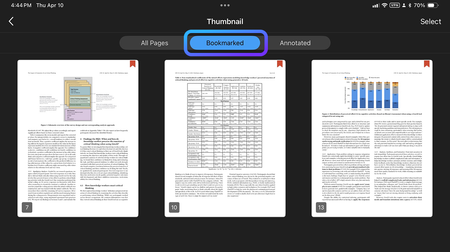
PDFs are incredibly popular, used for everything from business documents to everyday tasks at home. In fact, over 100 billion PDFs were added to OneDrive and SharePoint in just last year – and its popularity as a file format shows no signs of slowing down. We can bet you’re fans of using PDF’s, and so we’re excited to walk you through everything you can do with this popular file format in OneDrive. Whether you're annotating documents, bookmarking pages, or merging PDF documents, OneDrive offers a robust set of tools to make managing PDFs effortless and efficient. There’s already so many things you can do with your PDF’s whether you’re using OneDrive at home or at work: Freemium PDF features in OneDrive OneDrive for Consumer OneDrive for Business Annotation and markup tools Easily collaborate and share feedback by using digital ink, highlighting text, drawing shapes, and inserting sticky notes directly onto your PDF files. ⚫ ⚫ Bookmark PDF pages Navigate effortlessly through lengthy documents by adding bookmarks to important sections, just like using tabs in a physical book. ⚫ (OneDrive for iOS/iPadOS and Android only.) ⚫ (OneDrive for iOS/iPadOS and Android only.) Change the appearance of your PDF Enhance your reading experience by adjusting the background color of your PDFs to dark mode, sepia mode, or light mode. Ideal for reading in different lighting conditions. ⚫ (OneDrive for Android only.) ⚫ (OneDrive for Android only.) Rotate PDF pages Correct the orientation of scanned documents by rotating individual or multiple pages 90° clockwise. Perfect for fixing upside-down or sideways pages. ⚫ ⚫ Jump to specific PDF page Quickly access specific sections by jumping directly to any page in your PDF documents with just a click. ⚫ ⚫ Display table of content Effortlessly navigate through long documents using the clickable table of contents. ⚫ (Coming soon to OneDrive for web) ⚫ (Coming soon to OneDrive for web) Premium PDF features in OneDrive OneDrive for Consumer [1] OneDrive for Business [2] Extract PDF pages Easily extract specific pages from your PDF documents to create new, smaller files. Ideal for sharing only the most relevant sections. ⚫ ⚫ Merge PDFs Seamlessly combine multiple PDFs into a single, organized document. Perfect for consolidating reports, presentations, and more. ⚫ ⚫ [1] Premium features are available to OneDrive users with M365 Basic, M365 Personal and Family subscriptions. [2] Premium features are accessible to all OneDrive commercial users with SharePoint in their subscription plan. Let’s take a look first at the features that you can use for free on OneDrive. Enhance Collaboration with Annotation and Markup Tools PDFs are used in a variety of collaboration scenarios, and to help, we are releasing new annotation and markup features for easier collaboration. Imagine you’re working on a project with your team, and you need to share feedback or highlight important sections of a PDF. Instead of sending endless emails or starting chats, you can simply use the PDF annotation tools available in OneDrive. These features allow you to use digital, hand-drawn ink, highlight text, draw shapes, and even insert sticky notes directly onto your PDF. The annotations and notes appear on your document when you share them with other colleagues via OneDrive. Here's how you can easily annotate a PDF in OneDrive: Find the PDF you want to annotate in your OneDrive and tap to open it. At the bottom of the screen, tap on Annotation to enter editing mode. Choose an annotation tool from the bottom of the screen or select a drawing markup tool from the top. Change the pen color by tapping on the color picker at the bottom of the screen and choose from any of the preset colors. You can also adjust the thickness and transparency of the ink here. When you're done, just tap Done at the top left of the screen, and then tap Save at the top right, to save your changes back to OneDrive. Now when you share your annotated PDF via OneDrive, your colleagues will see your annotations too. Navigate PDFs Effortlessly with Bookmarks Scrolling through a lengthy PDF document and trying to locate a specific section can be a frustrating experience, right? That's where the PDF bookmark feature is handy. Think of bookmarks in PDFs as your personal navigation tool, much like the tabs you might use in a physical book. They allow you and recipients to easily jump directly to important sections with just a click, making your reading experience smoother and more enjoyable. To use bookmarks: At the bottom of the screen, tap Bookmark to add a bookmark to the current page you’re viewing. After adding a bookmark, you'll see a confirmation dialog at the top of the screen. To view all the pages with bookmarks, tap the Thumbnail icon at the top right of the screen. At the top of the screen, tap Bookmarked to see only the pages with bookmarks. From this view, you can also navigate to a specific page by tapping on it. From the All Pages view, you can select multiple pages to add new bookmarks or remove existing ones. Jump to Specific Sections with Table of Contents Also helping you to more easily navigate a lengthy PDF is OneDrive’s handy Table of Contents feature. When your PDF has an embedded table of contents, OneDrive will display the chapter or section titles along with their page numbers, making it a snap to jump to specific chapters or sections. To view a PDF’s table of contents: If the PDF includes the necessary metadata for a table of contents, you'll see an icon at the top right of the screen. Clicking on it, opens the table of contents. The table of contents with clickable chapters or sections will appear on the left side of the screen. Optimized PDF Viewing with Reading Mode You might have to read a PDF under varying lighting conditions. You can maximize your comfortability and readability of your document by adjusting the Appearance of that PDF. When viewing a PDF in OneDrive, you can adjust the background to dark mode, sepia mode, or light mode, making it easy to read no matter the type of environment. To change the appearance of a PDF: Open a PDF in OneDrive for Android and tap to expand the bottom sheet of the screen. Tap Appearance. In the Appearance window, select the colored circle for day, night, or sepia mode. Adjusting a PDF’s Orientation with Page Rotation With PDF page rotation, you can simply adjust the orientation of any of the pages within a PDF document. This is especially useful for fixing multi-page scanned documents that may have been saved upside down or sideways. With the Rotation feature, you can choose to rotate all pages or just specific ones within your PDF. To rotate a single page: Open the OneDrive iOS or Android app, then open the PDF with the page you want to rotate. Scroll to the page which you want to rotate. Press anywhere there isn’t text. Once a menu pops up, tap Rotate to rotate the page 90 degrees clockwise. To rotate multiple pages: Open the OneDrive iOS or Android app, then open the PDF with the pages you want to rotate. At the top of your screen, tap the grid icon to show a thumbnail view of the PDF’s pages. Tap Select. Tap to select the pages which you want to rotate or tap Select all if you want to rotate them all. Tap the rotate icon on the toolbar along the bottom of your screen to rotate all the selected pages 90 degrees clockwise. Exploring OneDrive’s Premium PDF Features Now that we’ve explored all the free PDF features available, let’s dive into some exciting features available to our M365 Consumer customers with M365 Basic, M365 Personal, or M365 Family, and to our M365 Business customers with SharePoint Premium.. Extract Pages from PDFs For our M365 paid customers, you can easily split a PDF into multiple smaller PDFs using the Extract tool. This makes it simple to pick and separate the pages you need, creating a brand-new (shorter) PDF file in just a snap! How to split a PDF file using the Extract feature on OneDrive for Web: Open the PDF file you want to split. At the top left of the screen, click Extract action Select page(s) to extract then click Extract on top left of the screen. Choose where you’d like to save the new PDF file. You can also rename the file at the bottom of the save dialog then click Save here. When finished, a confirmation dialog appears at the bottom of the screen. This feature also works on OneDrive on iOS, iPadOS, and Android. Here’s how: Open the PDF file you want to split. At the top left of the screen, tap see more button (…) to see the new menu. Select Extract from the menu options. Merge Multiple PDFs While the Extract feature let’s you pick out individual pages from a PDF, the Merge feature lets you easily combine multiple PDF files into a single PDF. It’s a simple as picking the files you want to merge, and voila – you’ve got a brand-new, merged PDF saved directly to your OneDrive or SharePoint Document Library. Here’s how you can easily merge multiple PDF files into one PDF on OneDrive for web: Open one of the PDF files you want to combine in OneDrive for Web. At the top left of the screen, click Merge action. Choose two or more PDF files you want to merge from the merge dialog box. You can drag and drop the files to rearrange their order. Once done, click Next. Choose where you’d like to save the new PDF file. You can also rename the file at the bottom of the save dialog then click Save here. When finished, a confirmation dialog appears at the bottom of the screen. Just like Extract, you can also use Merge on OneDrive on iOS, iPadOS, and Android: Open one of the PDF files you want to combine in OneDrive. At the top left of the screen, tap see more button (…) to see the new menu. Select Merge. Thanks We've been on a focused journey enhancing the PDF features in OneDrive, because we know that for so many of our customers, it’s their file format of choice. We hope you find our new and existing PDF features in OneDrive useful in your life at work or at home. But we don't want to stop here, and we need your feedback to keep improving! Dive into these features, give them a spin, and let us know what you think. What works great? What could be better? And most importantly, what do you want to see next? Drop your comments below or fill this short survey directly. Your insights are invaluable, and together, we can make OneDrive the ultimate tool for all your PDF needs. Happy exploring! 📄✨ About the Author Belle Podeanu is a product manager at Microsoft. She collaborates with Office, Edge, and other platforms to provide comprehensive cross-device functionalities for OneDrive and SharePoint, including productivity features and Copilot-enabled experiences. In her free time, she enjoys playing soul-like games, ARPGs, MMOs, and asymmetrical games. Stay updated on OneDrive and SharePoint news by connecting with Belle here.6.1KViews1like7CommentsGet in Sync with OneDrive's biggest moments of 2024!
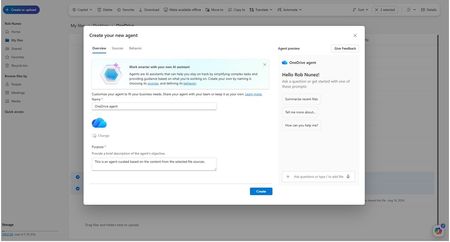
Wow, what an incredible year of updates, new innovations, announcements, and of course, time with you all-our valuable customers, partners, and OneDrive users to gain valuable feedback that helps drive our product to be great! I wanted to wrap up the year with highlights of some of our key moments to and share resources for you to indulge in. Reflecting on OneDrive's Recent Innovations As we look back on our journey this year, we’ve introduced many features and updates to the OneDrive experience. From AI-powered capabilities to improved user interfaces, these updates help you work faster and more efficiently. Some of those highlights include: Copilot in OneDrive (Web) One of the exciting features we announced was the general availability of Copilot in OneDrive for web. Copilot is there to help you work faster and smarter by generating summaries for large documents, comparing differences between multiple files, and answering complex questions using stored data. Whether generating ideas for new documents or quickly finding insights, Copilot became a valuable productivity companion. Copilot in OneDrive: Comparing files in a table Faster performance online or offline We've taken enhanced OneDrive's web experience for our users. Now, you can view, edit, and organize your files at lightning speed—even when you're offline. Whether you're browsing through large libraries or filtering documents, everything feels faster, smoother, and more responsive. Colored Folders on Windows We introduced colored folders in Windows File Explorer, bringing a splash of color to file organization. You can customize folders with different colors, making it easier to organize and locate files. Whether managing personal projects or work documents, colored folders added a touch of personalization to file management. Colored folders in Windows File Explorer Sync Admin Report Export Capability (Public Preview) For our IT admins, we rolled out the Sync Admin report export capability in public preview this year. Enabling you to export detailed sync reports, gaining valuable insights into your sync performance and troubleshooting sync-related concerns more effectively. Enhanced OneDrive Search experience We understand that searching for specific files among a mountain of documents can be time consuming. That's why we introduced a suite of enhancements to OneDrive, designed to optimize the search experience. These updates made it quicker and easier for you to locate the files you need, making the whole process faster and more efficient than ever before. OneDrive’s next generation improvements As part of our continued commitment to bring the best OneDrive experience to you all, we introduced new enhancements to work better across M365 apps. The integration of the OneDrive app in Outlook allows you to access your OneDrive files directly from Outlook, making it easier to share and collaborate on documents without leaving your email. And we can’t forget about Media view helping you find and enjoy your media files easier than ever. Whether you're organizing your photos or reviewing videos, this streamlined experience keeps your media content at your fingertips. OneDrive Media view These updates marked significant milestones in our journey to enhance the OneDrive experience. We are looking forward to continuing to innovate and bring you more exciting features and improvements in the near future! OneDrive Event-AI Innovations for a New Era of Work and Home This past October we had our second annual OneDrive event where we unveiled a powerful lineup of new features designed to help you work smarter, stay organized, and relive life’s best moments. OneDrive Event Visual We introduced OneDrive agents custom AI assistants, created by you and grounded in your rich content that exists in your files. We also got a glimpse of OneDrive's improved search capabilities and faster performance, both online and offline. New features and AI-driven features to improve security and management. For our customers who use OneDrive in their personal lives, we shared a look at the new OneDrive mobile app- a vibrant, photos-first experience. With a refreshed UI, users can rediscover, search, and share their favorite photo memories easier than ever. When users back up their phone’s photos to OneDrive, they can enjoy AI-curated memories of meaningful moments. Sit back, grab a snack, and see all these announcements and more! Microsoft OneDrive: AI Innovations for a New Era of Work and Home OneDrive Office Hours One of our favorite monthly occurrences from our product teams is our chance to connect with you directly. Each month we have hosted webinars on multiple special topics across OneDrive and leave time for great conversations and Q&A at the end. Customer Office Hours promo visual If you’ve missed any of this year’s session here is a list of our OnDemand content ready for your viewing pleasure: August-Copilot in OneDrive September-File Picker: seamless collaboration and file management October-Unlicensed OneDrive user accounts November-New Sync updates To stay updated on the latest Office Hours: Follow our blogs on Tech community Download the recurring calendar invite so you don’t miss out! Save the link https://aka.ms/OneDriveOfficeHours to register every month. Sync-Up Podcast Whether you love hearing about deep dive conversations with members of our product teams or seeing behind the scenes for some of our big events, the Sync Up Podcast has got you covered. Sync Up Podcast Episodes: OneDrive's Year in Review & Unlicensed User Changes In Focus—Designing for Copilot Data on the Move—Migrating to OneDrive From Waterfalls to Weekly Releases—Engineering Excellence with Steven Bailey and John Selbie Listen on your favorite platforms: Show: https://aka.ms/SyncUp | Apple Podcasts: https://aka.ms/SyncUp/Apple | Spotify: https://aka.ms/SyncUp/Spotify | RSS: https://aka.ms/SyncUp/RSS Your feedback is valuable to us! Please take our quick survey to suggest topics you'd like to see! A New Year of Innovation As we wrap up this incredible year, it was amazing to reflect on all the progress we've made together. From the introduction of AI-powered features to enhanced user experiences, OneDrive has truly evolved thanks to your feedback and support. Looking ahead, we're excited about the future and the innovations yet to come. We can't wait to continue this journey with you, bringing even more enhancements and features that will make your OneDrive experience better than ever. Thank you for being a part of our community and for your continued support. Here's to another year of growth, innovation, and success 🚀!5.7KViews1like2CommentsMicrosoft 365 subscribers can now experience Copilot in OneDrive
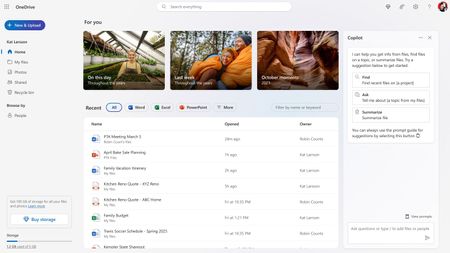
Recently, we added new Copilot value to our Microsoft 365 Personal and Family subscriptions. We are excited to announce our rollout of new Copilot features available to subscribers on the web version of OneDrive. Consumers can now get more out of their OneDrive files utilizing the power of AI. What does this mean? You can get information to help you make decisions and get work done quickly - without opening a file. Less time in your files means more time with loved ones. What can you do with Copilot in OneDrive? Copilot isn’t just a tool; it’s a productivity companion that works alongside you, helping you accomplish everyday tasks. Here are some of the exciting ways you can take advantage of Copilot's capabilities: Summarize Use Copilot to summarize documents stored in your OneDrive. After selecting a document (or up to 5 files at a time), simply click the Copilot icon and select Summarize. Copilot automatically reads through your document and provides a concise summary of its contents. Great for: scanning through long documents or getting a synopsis of a file you haven’t opened in years Compare Instead of trudging through multiple files, Copilot can compare up to 5 files in an easy-to-understand table. Copilot helps highlight relevant differences so you can make informed decisions. Great for: comparing quotes for a home renovation project or figuring out which of the three versions of your resume labelled FINAL is the actual final version Get your questions answered Have a specific question but don’t want to read the whole document to get the answer? Just ask Copilot! Click the file you know has the info you need and click the Copilot icon to open a new chat window. Type in your question and let Copilot fetch the information for you. Great for: Asking about specific terms in an apartment lease or getting a list of ingredients for a recipe saved in OneDrive How to Get Started with Copilot in OneDrive Copilot is rolling out to Microsoft 365 subscribers now on OneDrive for web, so head over to OneDrive to get started. Simply hover over a supported and click on the Copilot button to choose from a menu of suggested actions or ask your own question. You can also select up to 5 files and click the Copilot button in the command bar to get started. Whatever you need from your OneDrive, Copilot is just a click away. For more detailed information, check out our getting started guide and learn tips on how to make the most of this powerful new tool. If you need more answers, visit our FAQs. Please give us your feedback We’d love to hear your thoughts—don’t forget to provide feedback directly in Copilot by using thumbs up or thumbs down feature. Your input helps us improve our experience! Copilot in OneDrive requires a Microsoft 365 Personal or Family subscription. Only the holder of the Microsoft Family subscription is eligible to use Copilot. Copilot in OneDrive is currently available on OneDrive for web. While most subscribers will have access soon, these features will continue rolling out to all subscribers through June 2025. For a list of currently supported file formats, please visit our FAQs.3.8KViews1like1Comment