contacts
8 Topics
The New People Directory Search Experience in Outlook: Smarter, Faster, and More Connected Than Ever
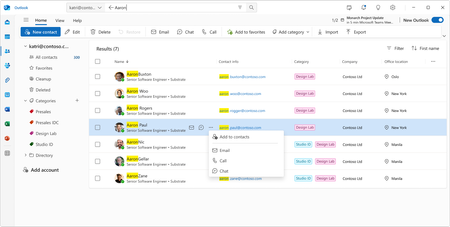
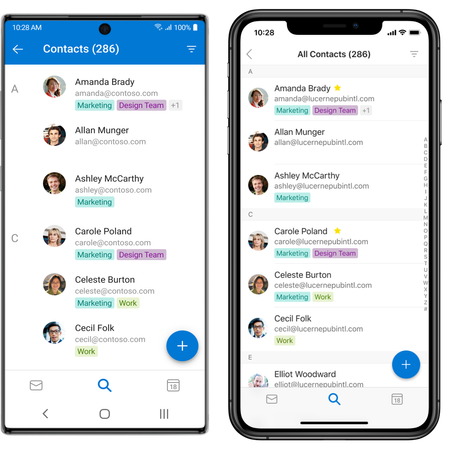
Managing contacts has always been central to how we work - but the way we work has changed dramatically. Today, we're excited to unveil a completely reimagined People experience in Outlook that makes finding, organizing, and connecting with your contacts faster and smarter than ever before. Whether you're reaching out to a colleague across the globe or managing your most important business relationships, the new People in Outlook is designed to get you there in seconds, not minutes. Instant People Directory Search: Find Anyone in Seconds We’ve heard you loud and clear: navigating complex organizational trees and deeply nested directory hierarchies to find a single contact takes too long. So we built something better. The new People in Outlook features a powerful, intelligent search experience that puts every contact at your fingertips - instantly. Simply start typing a name, location, job title, department, or even a personal note you’ve added, and People in Outlook surfaces the right person immediately. No more drilling through layers of org charts or scrolling through alphabetical lists. Just type, find, and connect. Here’s what makes it work: Lightning-fast keyword search - Search across names, email addresses, job titles, locations, departments, and even your own notes and tags. A few keystrokes is all it takes. Smart suggestions - As you type, People in Outlook intelligently surfaces the most relevant matches based on your communication patterns and organizational context. One search, every contact source - Whether the person is in your organization’s directory, your personal contacts, or a linked account, search brings them all together in one unified result set. Instant action - Once you find who you’re looking for, you can email, call, or start a Teams chat directly from the search results - no extra clicks required. This is contact discovery reimagined. What once required navigating through hierarchical trees and multiple clicks now happens in a single, fluid interaction. It’s the fastest way to find and connect with anyone in your world. A Modern, Unified Contact Management Experience Beyond these major innovations, the new People in Outlook brings a complete refresh to how you manage your contacts every day: Modern multi-column table view - See all your contacts at a glance with a clean, customizable table layout. Sort, filter, and scan your contacts faster than ever. Quick actions at your fingertips - Email, call, or chat with any contact directly from the contact list. No need to open a contact card first. Multi-select and bulk operations - Need to categorize, email, or manage multiple contacts at once? Select them all and take action in a single step. Categories for flexible organization - Organize your contacts with color-coded categories that work across Outlook. Tag contacts as “Key Clients,” “Project Team,” “Vendors,” or anything that fits your workflow. Import and export - Easily bring contacts in from CSV files or export your contact data whenever you need it. Consistent experience everywhere - Whether you’re using Outlook on the desktop, Outlook on the web, or Teams, the People experience is the same - modern, fast, and reliable. Built for Performance and Reliability The new People in Outlook was built from the ground up with performance at its core. After extensive testing and feedback from thousands of users within Microsoft, we’ve delivered an experience that is not only feature-rich but also fast, stable, and reliable - even with large contact lists. Every interaction is designed to feel instant and responsive. Get Started Today The new People experience is currently available on the New Outlook for Desktop, and is rolling out now for Outlook on the web for all Microsoft 365 users. To explore it: Open Outlook and click the People icon on the left navigation rail. Start searching for anyone - by name, title, location, or any keyword. Explore your contacts in the new table view and try out quick actions. We’re incredibly excited about what the new People in Outlook means for how you connect and collaborate. This is just the beginning - we have even more innovations in the pipeline that we can’t wait to share with you. We’d love to hear from you! Share your feedback directly within Outlook by selecting Help > Feedback, or join the conversation in the Microsoft Tech Community. ──────────────────────────────────────────────────────────────────────────────── The People in Outlook team is committed to building the best contact management experience in the world - and we’re just getting started.3.6KViews2likes2Comments
Add shared mailbox contacts to the new outlook for windows
In my organization, we use a shared mailbox to share a public address book. Is there a way to add it to the new Outlook for Windows? I can see the shared mailbox correctly under ‘Mail -> Shared with Me’, but there’s nothing about shared mailboxes in the ‘People’ tab. I have also tried to manually add the shared mailbox as a standalone account, but it just loads indefinitely after I type in the address Outlook client version: 20231006004.16 Windows 11, build 22621.242818KViews11likes13Comments
New Outlook, can I access my contacts from more than one email account?
Is there any way I can access my extensive list of contacts from more than one email address/account? Currently they are all listed under my default email address account, but I sometimes need to send to people from those contacts using a different email account. Grateful for any help. Thank you.778Views1like3Comments
Outlook for Android no longer grouping contact info...
I just started having an odd issue with all the contacts in the Outlook app on my Android phone... For contacts that have multiple contact information (ie: a mobile number, house number, and or email address) listed, the app is breaking out the contacts as separate contacts. Example: If I have James Kirk listed in my phone with a number of 555-111-1701 and an email address as jkirk@fakedomain, he no longer shows up on my phone as James Kirk; instead there are two contacts - one called 555-111-1701 and the other jkirk@fakedomain. Contacts show up correctly in the Outlook desktop app and on the Outlook website. If I modify or add contacts on the desktop app, the change is almost immediately reflected on the Outlook website. Some of the troubleshooting I've done already: Cleared the app cache from the Phone's settings Reset the account from within the app disabled/re-enabled contact synchronization Modified a contact on the desktop app to see if they'd re-sync correctly - had no effect Deleted the account (the contacts disappear when deleted, but come back janky when it's re-added) Uninstalled and re-installed the app Rebooted the phone (for good measure) uninstalling and re-installing the app seemed to fix the problem initially. Right when i setup the app again all the contacts came back looking correct. It's been several hours since I did this and i just took a look at my contact list and it's all janky again. It's not just a visual issue on the phone - it's affecting Contact synchronization with the phone's contact app, and everything else on the phone that relies on contacts. Any idea what's going on and how to fix it for good? TIA346Views1like7CommentsNew Outlook: Shadow contacts not stored in Outlook.com, no sync/export and missing Birthday calendar
I’m reporting a reproducible data‑integrity issue in the New Outlook for Windows that affects Outlook.com contact storage and synchronization. 🔍 Summary When a contact is created in the New Outlook, the client appears to save it successfully. However, the resulting contact is not stored in the user’s Outlook.com account as a normal cloud contact. Instead, it becomes what I would describe as a local “shadow contact” in the New Outlook cache. ⚠️ Observable Behavior • The contact appears in Outlook.com → People, but does not show “Stored in: Outlook” • The contact does not appear in Outlook.com CSV exports • The contact does not sync to mobile devices connected to the same account • The contact does not populate the Outlook.com Birthday calendar • The contact is lost if the New Outlook app is reinstalled or its local store is cleared 🧪 Steps to Reproduce 1. Open the New Outlook for Windows 2. Create a new contact and add a birthday 3. Save the contact 4. Open Outlook.com → People 5. Locate the contact — it will appear, but the “Stored in: Outlook” field is missing 6. Export contacts from Outlook.com (CSV) — the contact will not be present 7. Check a mobile device configured with the same Microsoft account — the contact will not be present 8. Check the Outlook.com Birthday calendar — the birthday will not appear 9. Reinstall the New Outlook app — the contact will be gone ✅ Expected Behavior • Contacts created in the New Outlook should be stored as first‑class Outlook.com contacts • They should appear with a proper “Stored in: Outlook” location • They should sync across devices, export via Outlook.com, and populate the Birthday calendar ❌ Actual Behavior • Contacts created in the New Outlook are effectively “shadow contacts” stored in a local cache • They look normal in the New Outlook UI, but they are incomplete, non‑synchronizing objects from the service’s perspective 📉 Impact • Silent data loss risk for users who assume contacts are in Outlook.com when they are not • Inconsistent contact and birthday data across devices and services • Split contact store model: • Real Outlook.com contacts • Local shadow contacts created by New Outlook 📎 What I’ve Already Done • Submitted feedback through the New Outlook (Help → Feedback → Report a Problem) • Submitted a detailed report via the Windows Feedback Hub • Contacted Microsoft Support, who advised that escalation must occur via Feedback 📣 Request I’m posting this here to document the issue publicly and to ask: • Can anyone from the Outlook / Exchange / Outlook.com team confirm this behavior? • Can other users reproduce this with the steps above? Given the data‑integrity implications, I’m hoping this can be brought to the attention of the relevant engineering team. Any confirmation, additional data points, or official guidance would be appreciated.378Views0likes1Comment
AutoComplete Outlook Contacts Issues after adding external users to teams contact list
Dear all, After adding external contacts (via email addresses) to the MS Teams contact list, these contacts' email addresses don't show up in the AutoComplete suggestions (or recent contacts) in Outlook. I have already tried to deleting the autodelete cache, which didn't work. Do you experience the same behaviour? Do you have any ideas how to fix the issue?778Views0likes0Comments