conditional access
748 TopicsNew Conditional Access policy plans in Microsoft Entra
Add a rule for each requirement, like phishing-resistant MFA or compliant devices, and keep the shared scope in one place. Build a plan around a user group, like headquarters staff, or a shared condition, like high agent risk, and start from templates. Merge existing policies into a plan with the migration tool. It pulls shared conditions up to the plan and turns each policy into a rule. Your current policies stay enforced until you cut over. Etan Basseri, Principal Product Manager, Microsoft Entra, shares how plans and rules fit together in the Microsoft Entra admin center. Define your access controls once. Enforce it consistently across every rule with Conditional Access policy plans. See how it works. Add a rule, keep your scope. Set HQ users and break-glass exclusions once in a Conditional Access policy plan, then add rules for phishing-resistant MFA and compliant devices. Watch here. Simplify existing Conditional Access policies. Bring those with a shared naming prefix into one policy plan. Migration automatically identifies shared conditions and converts each policy into a rule. Try it now. 👥 Who it’s for: Identity and security admins who manage Conditional Access in Microsoft Entra, and architects planning how to organize or migrate large policy sets, including access controls for AI agents. ⏱️ Chapters: 00:00 Conditional Access policy plans in Microsoft Entra 00:48 Track policies beyond naming prefixes 01:29 How shared conditions and rules work 02:41 Create a policy plan for HQ users 03:43 Add a phishing-resistant MFA rule 04:43 Add a compliant device rule 05:51 Block high-risk AI agents in one plan 06:56 Migrate existing policies into a plan 08:11 Keep policies enforced until cutover What are Conditional Access policy plans? They organize access controls around an objective, either a persona like employees, external guests or administrators, or a security goal like requiring compliant devices or securing agent activity. Plan-level attributes cover identities, resources and applications, user actions and authentication context, plus shared conditions like risk levels, devices, network locations and client app types. Each rule layers its own conditions and grant or session controls on top. Plans live in a new Policy plans view, next to your existing policy list under Conditional Access. The headquarters plan in the demo includes the HQ All Users group and excludes a break-glass group to prevent lockouts. Its first rule requires phishing-resistant MFA through authentication strength and starts in report-only mode. A second rule requires devices marked as compliant. Neither rule repeats the included or excluded groups. The agent plan, built from a template, sets high agent risk as its shared condition. Separate rules block high-risk agent users and high-risk autonomous agents acting with their own agent-specific permissions. How do you move existing policies over? Filter your policy list, for example by a branch office naming prefix, select the policies and merge them into one plan. The preview shows which resources become shared conditions and how each policy maps to a rule, with its identities, locations, grant and session settings. After you enforce the new plan, turn off or delete the original policies. 🔗 Related links: Check out https://aka.ms/ConditionalAccessPolicyPlans Unfamiliar with Microsoft Mechanics? Microsoft’s Official Video Series for IT — Subscribe https://www.youtube.com/c/MicrosoftMechanicsSeries — Microsoft Tech Community: https://techcommunity.microsoft.com/t5/microsoft-mechanics-blog/bg-p/MicrosoftMechanicsBlog — Podcast: https://microsoftmechanics.libsyn.com/podcast Join us on social: — https://twitter.com/MSFTMechanics — https://www.linkedin.com/company/microsoft-mechanics/ — https://www.instagram.com/msftmechanics/ — https://www.tiktok.com/@msftmechanics Video Transcript: -Conditional Access is Microsoft’s Zero Trust policy engine. What it protects has expanded, and now we’re evolving the management experience to match. Today, it continuously assesses real-time signals across users, AI agents, applications, endpoints, networks, and resources to enforce Zero Trust. Based on an identity and its context, it makes adaptive access decisions, determining whether to require additional controls in order to allow or restrict access, or block the request to specified resources altogether. And to help you manage those access controls more effectively at scale, we are introducing Conditional Access policy plans. I’ll show you what these are, how they expand what you can do, and how they work with your existing Conditional Access policies. -So, what are policy plans, and how do they help? Well, until now, you’ve probably been managing who gets access to what across your organization as one flat list of policies. What started off as a small list of controls, including multifactor authentication, device compliance requirements, along with the scoping and exclusions within policies to make everything work, has now expanded to fine-grained, risk-based policies, identity-driven network controls through Global Secure Access, dedicated conditions for agent identities, and much more. -Over time, it’s become harder to understand how policies relate to one another, who owns them, and how changes might affect access decisions. There’s no grouping and no structure in that list, so the only way to keep track of what covers what might be creative naming prefixes or other solutions. This is where Conditional Access policy plans come in. It’s a new policy framework for Conditional Access, where you organize access controls around an objective, instead of managing them one policy at a time. A policy plan objective might be based on a specific persona, like employees, external guests, or administrators, or a security goal, like securing agent activity or requiring compliant devices. -At the plan level, you can define the common attributes for that objective once. This includes identities, resources including applications, user actions, and authentication context, as well as shared conditions like risk levels, devices, network locations, and client app types. Each plan then holds one or more rules, and every rule inherits those shared attributes automatically. A rule adds the specifics needed to meet the objective, its own conditions, and its own grant or session controls. So, a variation of your objective becomes a rule, instead of another standalone policy to manage. It’s a new framework where each policy plan has its own name, description, owner, and tags. -So, it’s clear what each plan is for, who owns it, and what will change if you edit it later. That’s what keeps policy sprawl down as you scale. Importantly, your existing Conditional Access policies will continue to work, and won’t be affected as you roll out policy plans. Let me show you this in action, starting with a new policy plan, in this case, with the objective of securing access for people working from our company headquarters. In the Microsoft Entra admin center, under Conditional Access, there’s a new “Policy plans” view sitting alongside the list of policies you have today. I’ll create a new plan to manage headquarters users. -First, I’ll give it a name, type in a description that will be useful for anyone to know what this plan is about, then I’ll add a tag, “HQ,” for easier filtering, and you can see that my name is auto-filled as the owner of this plan. Below that is where, based on the policy plan security objective, you can select the appropriate shared identities, resources, or conditions. Because this plan’s objective is to specify requirements for people in the headquarters location, I’ll only need to use shared identities here. -I’ll go into users and groups for my inclusions, and by filtering to HQ, I’ll see the matching groups. I’ll select the “HQ All Users” group. I also want to add an exclusion here to avoid unexpected lockouts. So, following the same steps, I’ll pick a group to exclude and choose “Break Glass HQ.” That means these groups will be inherited as assignments by any rule within this policy plan. When you create a new plan, the process guides you through creation of its first rule. If you’ve ever written a Conditional Access policy, this will look familiar. I’ll create a rule to require phishing-resistant authentication for headquarters users. I just need to give my rule a name and optionally add a description that can be referred to later. -For the rule’s state, I’ll leave this as report-only for now, but I could toggle it to on from here. Notice that I don’t need to define the assignments and conditions again for the included and excluded groups. However, I do need to assign resources. So, I’ll do that here, in this case, by selecting “All resources,” and then confirm. Now, for under these conditions, I’ll leave “All client app types,” and I can go straight into Grant and session controls in this case. I’ll choose to grant, but require authentication strength, and choose “Phishing-resistant MFA,” and confirm that control. That way, all headquarters users are required to meet this authentication strength for all resources they are trying to access. Now, I just need to review and create my policy plan and initial rule. And from there, I can add more rules to this plan. So, I’ll create a rule to require compliant devices from our HQ users. -Previously, each rule would have meant creating a separate policy and reconfiguring the same shared identities and exclusions. Again, this would apply to shared resources and conditions based on your plan and its security objective. Now, I just need to enter a name. I’ll call this “Require Compliant Device,” and then in the description, I’ll write what this rule does. Again, under Accessing these resources, I want to assign all resources to this rule. So, I’ll change the resource assignment like last time, from “None” to “All resources,” and confirm. From under these conditions, I’ll leave all client apps. -For this rule, I’ll add a control to grant again, and in this case, require device to be marked as compliant. I can do the same to add risk-based rules or others to my plan. Now, I just need to save it, and that’s it. So, instead of managing multiple policies with the same scope, shared assignments are defined once, and individual access requirements are implemented as rules. From here, I can keep going to create other plans for specific objectives, and I’ve already created a few. And you can see we have some for different identities, specific resources like important ERP apps, or conditions like the policy plans listed based on risk. I just showed you how to create a plan based on a user group in our specific HQ location. -So, now let’s look at one based on a security objective, securing agent access, where it’s now a lot simpler to apply Conditional Access to agentic activity. You can see that this plan is using shared conditions for all client app types, and where agent risk is determined to be high. And below that, there are individual rules defined to block high-risk agent users and block high-risk autonomous agents. This will help ensure that access protections cover agents acting with their own agent-specific permissions. Without a policy plan, each of these scenarios would require its own standalone policy, repeating many of the same conditions. I’ll open this rule for the high-risk autonomous agents, and you’ll see that it includes the inherited conditions of the plan, and adds an assignment for all agent identities. And under controls, it’s set to block when those conditions are met. -So, now, instead of spreading agent access controls across multiple policies, they’re organized in a single plan, making them easier to understand, manage, and update as requirements evolve. The good news is that you don’t need to build these policy plans from scratch. In fact, the agent policy plan I just showed you was created by using a template. -Next, let’s move on to your existing Conditional Access policies, and I’ll show you how to quickly migrate what you already have in place into policy plans. The first plan we created for users at the company headquarters runs in parallel with existing policies for our various branch offices. Each have dedicated Global Secure Access security profiles. As you can see, this environment has dozens of Conditional Access policies already running, and I filtered my list down to branch office policies, because the only thing connecting these policies together was the naming prefix. I’ll use the “Migrate to Conditional Access Policy plans” option and get started. That will keep my filtered list of policies and allow me to select the ones I want to migrate. In this case, I’ll use the top “Select all” control to save a few clicks, then choose “Merge 5 policies into a plan.” And now I can see a preview of my plan before I create it. I’ll give this policy plan a name, “Branch Office Access.” -Under the covers, the process looks for anything that my selected policies have in common, and defines those as shared conditions, as you can see with the two resources here. Below that, each of my previous policies are translated into rules, where you can see identities, resources, locations, grant, and session configurations for each. Then, to confirm, I just need to click “Create policy plan.” And just like that, my five policies have been migrated into one plan, with a set of shared conditions and unique rules. My original policies are still there and untouched. Each are also still enforced based on their policy state. -Once you’re ready, you’re in control of managing the cutover to the new plan by enforcing it. From there, you turn off or delete the previous policies. And as you add new branch locations, those just become new rules in your plan. So, that’s how we’re evolving the framework for managing Conditional Access, moving from individual policies to security objectives that can be defined once and enforced consistently across your environment. -Check out aka.ms/conditionalaccesspolicyplans to learn more. Keep watching Microsoft Mechanics for the latest tech updates, and thanks for watching.536Views1like0CommentsEntra ID - Federation or EAM for Passkey deployment
Question for the community: Looking to replace Entra to ADFS federation and also implement passkey. Have an existing deployment with a third party MFA provider. I want to limit the disruption for my end users as much as possible and am looking at 2 possible paths forward: Replace ADFS with third party, allowing Passkey and push from the third party, as well as first factor auth. Move to Entra staged rollout with EAM and have Entra deal with first factor. I know this wont include the ability to use third party first factor. Issues I am seeing is that the system browser setting needs to be enabled on the tenant and cant enforce external auth strengths in entra conditional access. All roads keep leading back to Entra which is fine with me but I do not currently have a P2 license for the advanced risk analytics. My third party currently has that capability. Would also love to know any rumblings of authentication strenght support for External MFA. What are some of the configurations out there that you all are doing and any pros/cons of each.70Views0likes1Comment
Free, offline tool: see each user's real passkey policy in Entra ID and who SMS retirement blocks
Entra combines passkey profiles as a union (any profile that allows a passkey type wins), while Conditional Access works as an intersection. So a Global Admin in a strict "security keys only" profile who is also in an All Users profile can still register a synced iCloud or Google passkey, and the portal never shows you that per user. I built EffectivePasskey to answer three questions for every user and admin: 1. What passkey can this person actually register? 2. What can this admin actually sign in with after Conditional Access? 3. Who gets blocked when SMS and voice MFA retire (1 Feb 2027, and 1 Jul 2027 for Global Admins)? It runs entirely on your machine from read-only JSON exports. It never signs in to your tenant and never changes anything. No telemetry. MIT licensed and completely free. Try it with the included demo tenants: pip install effective-passkey GitHub: https://github.com/xsignon-secure/EffectivePasskey Feedback and issues are very welcome, especially from anyone mid-rollout.107Views0likes0Comments
From Domain-Joined to Microsoft Entra Joined: A Low-Disruption Migration Framework
How the right in-place migration approach can preserve eligible user profiles, establish Intune management, and accelerate the move away from on-premises Active Directory. Cloud-native endpoint management is relatively straightforward when a Windows device is new. The harder problem is the installed base: hundreds or thousands of working laptops and desktops that already contain user profiles, local files, applications, certificates, security controls, and years of configuration. Resetting and re-provisioning those devices is a valid route, but it can introduce significant coordination, user downtime, application rebuilding, and service-desk demand. This often creates a practical gap between an organisation's cloud strategy and its ability to move the existing fleet. Can an existing domain-joined or hybrid Microsoft Entra joined Windows device move to Microsoft Entra join without being wiped or re-imaged? For eligible devices, the technical answer can be yes, when specialized migration tooling, careful preparation, and a controlled recovery model are used. However, an important support distinction must be made at the outset. The Microsoft support boundary matters Microsoft recommends Microsoft Entra joined, cloud-managed endpoints as the strategic direction for organisations that are ready to reduce their reliance on on-premises infrastructure. Microsoft also states that its supported path for converting an existing Active Directory-joined or hybrid Microsoft Entra joined device to Microsoft Entra join requires a Windows reset; it does not provide a Microsoft-supported, no-reset conversion path for that scenario. See Microsoft's guidance on Microsoft Entra join and hybrid join. A no-reset migration is therefore not a hidden Microsoft feature. It is a vendor-supported, tool-assisted workflow that orchestrates Windows, Microsoft Entra ID, Microsoft Intune, and Microsoft Graph capabilities and adds the missing profile-continuity and recovery layers. Microsoft may support the underlying platform components, but not the end-to-end no-reset conversion. That distinction does not put the approach in conflict with Microsoft's direction. The destination, Microsoft Entra joined devices managed by Intune, is aligned with Microsoft's cloud-native endpoint strategy. The bridge used to move the existing fleet is specialized and must be validated through a representative proof of concept, with clear ownership for support and recovery. The strategic destination can be Microsoft-native even when the migration bridge is specialized. What “seamless” should mean in practice “Seamless” should not mean that nothing changes. A credible low-disruption migration may still require a user sign-out, controlled restarts, a first sign-in with Microsoft Entra credentials, Windows Hello re-provisioning, and re-authentication to some applications. Instead, a successful in-place migration should aim to achieve the following: Retain the same physical device and Windows installation. Keep the eligible local Windows profile, local files, installed applications, and compatible settings in place. Re-associate that profile with the correct Microsoft Entra identity. Establish or re-establish Intune management in a controlled manner. Restore the intended application and policy targeting. Protect BitLocker and local-administrator recovery throughout the transition. Limit the interactive cutover to a predictable maintenance window. Produce verifiable evidence that identity, management, security, and user productivity are working after the change. The join operation is a milestone; it is not the entire migration. A device is truly migrated only when the user can work and the required security controls are demonstrably active. A step-by-step framework for an in-place migration Step 1: Define the complete target state Do not define success simply as “Microsoft Entra joined.” The target state should cover four connected layers: Device trust The endpoint is Microsoft Entra joined in the correct tenant and is no longer joined to the on-premises domain where that is the intended outcome. Management The endpoint is enrolled in Intune, has the correct corporate/personal ownership classification and primary user, has the required Microsoft Entra registered owner where applicable, and receives the required applications and configurations. User continuity The correct user can sign in to the existing eligible profile and access the files, applications, and services needed for work. Security and recovery Compliance is evaluated, Conditional Access behaves as designed, and BitLocker, Windows LAPS, Defender, certificates, and recovery access are validated. For new designs, a supported Windows 11 edition capable of Microsoft Entra join should be the forward-looking baseline; Windows Home editions cannot be Microsoft Entra joined. Windows 10 reached end of support on 14 October 2025; ESU, LTSC, or other exceptional servicing scenarios should be assessed separately against Microsoft's lifecycle information. Step 2: Discover dependencies and segment the estate An accurate inventory determines which devices are suitable for an in-place path. At a minimum, collect: Current join and management state. Windows version, edition, servicing status, disk health, free space, and pending restarts. Primary and additional local profiles, including profile health and size. Source account, target user principal name, and any identity-mapping exceptions. BitLocker status, recovery-key location, and local-administrator or LAPS recovery route. Applications that use AD computer authentication, legacy protocols, device certificates, or domain service accounts. GPO-delivered settings, mapped drives, printers, folder redirection, logon scripts, Wi-Fi, VPN, and certificate delivery. Windows Hello, Credential Manager, EFS, private keys, and other identity-bound data. Network location, proxy behavior, endpoint security controls, and remote-worker constraints. Use the findings to classify devices into practical groups: Ready for a tool-assisted in-place migration. Ready after remediation. Better suited to reset and Windows Autopilot. Better suited to hardware replacement. Temporarily retained as a managed hybrid exception because a dependency remains. This segmentation prevents a small number of unsuitable devices from setting the risk profile for the entire project. Step 3: Replace the policy dependencies—not merely the join state Once a device leaves Active Directory, Group Policy no longer refreshes. Existing registry-based settings may remain on the device, while mapped drives, printers, folder redirection, scripts, certificates, Wi-Fi, and VPN configuration may require a cloud-management replacement. Microsoft's Group Policy analytics in Intune can help identify which GPO settings have a cloud-management equivalent. The goal should not be to copy every historical setting. It should be to rebuild the controls the organisation still requires through Intune, rationalizing old policies along the way. Applications that rely on an AD computer account or machine authentication deserve particular attention. Device migration cannot make an application cloud-ready; application and infrastructure modernization remain separate work streams. Step 4: Prepare Microsoft Entra ID and Intune before touching a device The destination must be ready before the source trust is removed. Confirm: Target user identities exist, are enabled, and use the intended sign-in names. Required Microsoft Entra ID and Intune licences are active. Device-join permissions, device limits, MDM authority, enrollment restrictions, and ownership rules are correct. The correct users are included in the Intune MDM user scope. Required applications, configuration profiles, security baselines, certificates, Wi-Fi, VPN, and update policies are assigned. Compliance policies and Conditional Access rules include a safe enrollment and bootstrap path. Access to required on-premises resources has been tested from a Microsoft Entra joined device. Microsoft documents that eligible corporate devices can automatically enroll in Intune when they join Microsoft Entra ID, provided licensing and MDM scope are configured correctly. Conditional Access deserves careful sequencing. A device may need time to enroll, receive policy, and report compliance. Temporary exceptions, if required, should be narrow, documented, monitored, time-bound, and removed as soon as the migration wave is complete. Compliance does not migrate from the old device record; it must be evaluated again in the target state. Step 5: Secure the migration control plane A mature migration design should use a customer-controlled Microsoft Entra application with only the Microsoft Graph permissions required for the enabled functions. Application credentials should be protected, rotated, audited, and revoked when no longer required. Microsoft recommends applying the principle of least privilege to Microsoft Graph permissions. Where the selected workflow requires credentials to update, disable, or delete source AD computer objects, use a dedicated identity with narrowly delegated permissions rather than broad domain administration. If the workflow uses a Windows Configuration Designer provisioning package, treat it as a privileged credential. Microsoft's bulk enrollment documentation notes that the embedded bulk token can be valid for up to 180 days and that MFA is not supported in that particular token flow. Microsoft documents bulk provisioning for new devices, not as a native in-place profile-migration method, so any orchestration around it remains part of the specialized workflow. Protect the package, scope any necessary policy exception tightly, test it on a non-production device, and revoke it after use. Endpoint security controls also need advance preparation. Any approved migration executable and the system actions it performs must be tested against EDR, antivirus, WDAC, AppLocker, hardening policies, and proxy controls. A good architecture should not require a persistent endpoint agent after the migration is complete. Step 6: Build recovery into the design Changing device trust crosses several systems and is not one atomic transaction. A credible plan therefore starts with recovery, not optimism. Before migration: Confirm that critical user data is backed up or successfully synchronized to an approved location. Keeping files on the same disk is not a substitute for backup. Confirm that a working BitLocker recovery password is available through an approved location. Confirm a tested local-administrator or Windows LAPS break-glass route. Keep source recovery information available until target escrow is verified. Record the source join state, device identifiers, user-to-profile mapping, primary user, group assignments, and management state. Define stop points and avoid irreversible source cleanup until the target state has been validated, where the workflow permits. Document who owns endpoint recovery, identity recovery, and user support. Microsoft recommends storing BitLocker recovery information for Microsoft Entra joined devices in Microsoft Entra ID; see the BitLocker recovery overview. Windows LAPS can back up managed local-administrator passwords to Microsoft Entra ID on Microsoft Entra joined devices. Do not accept a vague “rollback” promise. Look for phase-aware, checkpoint-based recovery that can identify the failure stage, preserve administrative access, and safely resume or repair the workflow. Reset or re-image should remain the documented last-resort recovery path. Step 7: Run a representative proof of concept A pilot built only from clean IT laptops proves very little. Include representative devices and users, such as: AD-joined and hybrid Microsoft Entra joined endpoints. Office-based and fully remote users. Different hardware models and supported Windows builds. BitLocker-protected devices. Large or multiple eligible local profiles. Certificate-based Wi-Fi or VPN. Business-critical and internally developed applications. Users who still require on-premises file, print, or application access. Define success before the pilot begins. Measure device join, Intune enrollment, policy receipt, compliance evaluation, BitLocker escrow, pre-cutover local-administrator or LAPS recovery, post-migration Windows LAPS policy and backup operation, application access, profile continuity, user downtime, failure rate, and recovery effort. The purpose of the pilot is not merely to prove that a device can join Microsoft Entra ID. It is to prove that a real user can remain productive afterward. Step 8: Apply a strict per-device readiness gate Immediately before cutover, an automated preflight should verify: Supported source and target states. A healthy, supported Windows installation and local profile. A valid source-user-to-target-user mapping. Intune enrollment eligibility and available device capacity. Stable power, internet, DNS, and non-interactive system connectivity. Sufficient privileges for the required system operations. Accessible BitLocker and local-administrator recovery. No blocking restart, disk, encryption, proxy, or security-software condition. An unloaded profile during the identity-re association stage. Valid target-join material and required API access. Unsafe devices should be blocked and routed to remediation rather than allowed to fail halfway through the trust transition. Step 9: Capture the state that must be reconstructed Before changing identity, a capable workflow should record the data required to rebuild the intended management relationship, including: Source user, target user, profile path, and security identifiers used for correlation. Existing Microsoft Entra, Intune, and Autopilot device identifiers where relevant. Intune primary user and ownership information where applicable. Assigned device-group memberships and any groups that must not be recreated. Device attributes or tags used for policy and application targeting. BitLocker recovery-key identifiers and administrative recovery status. Local execution logs and a central audit record. In a cross-tenant migration, group object IDs and device records are different. Memberships cannot simply be copied; source intent must be mapped to equivalent target groups, while dynamic membership must recalculate from target-tenant attributes. Step 10: Execute a protected identity transition The exact order varies by tool and environment. The following three phases are an illustrative orchestration model, not a universal sequence for every tool. Prepare and detach The workflow confirms readiness, protects the starting state, prevents sign-in during sensitive operations, and removes or transitions the former domain, registration, or management relationship in the planned sequence. Establish the target identity The selected tooling establishes the target Microsoft Entra join using Windows join or provisioning interfaces. Use of documented platform interfaces does not make the overall no-reset conversion a Microsoft-supported migration path. Controlled restarts and state checks confirm that the target trust was created before the workflow continues. Re-associate and finalize While the old user profile is fully unloaded, specialized tooling associates the existing eligible local profile with the correct target Microsoft Entra identity and aligns the necessary permissions. The local files do not need to be copied to an intermediate location simply to maintain the profile. After the protected stage, the user signs in with the Microsoft Entra account and final management, recovery, and cleanup tasks complete. This is the specialized part of the process. Microsoft does not provide a native supported AD-to-Entra profile-conversion utility, and its documentation states that, USMT does not support moving profiles from AD-joined devices to Microsoft Entra joined devices. The capability, support, and recovery obligations therefore belong to the chosen migration method. Profile continuity must also be described honestly. Windows Hello, passkeys, cached authentication tokens, Credential Manager entries, user-bound certificates and private keys, EFS-encrypted files, application licences, and some Outlook, OneDrive, or browser state may require re-authentication, re-provisioning, or separate recovery. Installed software can remain on the device without every identity-bound secret remaining usable. Endpoint migration does not migrate Exchange mailboxes, OneDrive or SharePoint content, Teams data, or other Microsoft 365 workloads; cross-tenant data migration requires a separate plan. Step 11: Re-establish management and policy intent Following the identity transition, the workflow should ensure that the endpoint: Enrolls in the correct Intune tenant and obtains valid management certificates. Has the correct primary user and ownership classification where applicable. Receives the intended device-group assignments, attributes, applications, and configuration. Re-onboards to Microsoft Defender for Endpoint where required. Escrows BitLocker recovery information to the intended target record. Receives the target Windows LAPS policy and proves administrative recoverability. Registers with Windows Autopilot for future reset, re-purpose, or replacement workflows where that is part of the lifecycle design. Removes obsolete source objects or management components only after the target state is proven. Be precise with the language: the same physical Windows installation may be retained, but new Microsoft Entra and Intune objects can be created. Intune enrollment is re-established, not magically “preserved,” and compliance must be recalculated after check-in. Step 12: Validate, observe, and scale in waves Validation should cover four dimensions. Identity Correct Microsoft Entra tenant and device record. AzureAdJoined : YES, DomainJoined : NO where intended, and successful device authentication in dsregcmd /status. A Primary Refresh Token for the signed-in user where expected. Microsoft documents these checks in its dsregcmd troubleshooting guidance. Management and security Intune check-in, correct primary user, policy delivery, Defender status, and compliance evaluation. Expected Conditional Access behaviour. Verified BitLocker recovery escrow and Windows LAPS operation. Required security baselines, certificates, updates, Wi-Fi, and VPN profiles. User continuity Desktop, documents, permitted local data, and compatible application settings. Microsoft 365, OneDrive, browser, Outlook, printers, mapped resources, and line-of-business applications. Expected reauthentication and Windows Hello provisioning. Business productivity SaaS access, required on-premises access, collaboration tools, and help-desk acceptance tests. Scale only after results are visible per device. A capable platform should provide central status, phase-level telemetry, error details, local Windows event logging, retry or recovery controls, and auditable outcomes. Migration can then proceed through technical validation, representative pilot, early adopters, departmental or location-based waves, broad rollout, and an exception queue. Depending on the operating model, deployment may use Intune, Group Policy, another endpoint-management platform, or a controlled manual process. Suitable endpoint-local architectures can also avoid a dedicated on-premises migration server. Define pause thresholds for first-pass failures, Intune enrollment delays, compliance delays, application incidents, and manual-recovery volume. Both centrally scheduled and guided self-service execution can be useful, depending on the user population and support model. Remote migration may be possible over the internet, but “no VPN required” should never be treated as universal. The answer depends on the domain-leave method, deployment channel, proxy, certificates, Wi-Fi, applications, and source-cleanup requirements. Remote scenarios need stable power, reliable connectivity, clear user communication, and a tested break-glass channel. What capable migration tooling should provide Automated readiness assessment Stops unsuitable devices before they enter a sensitive transition. Explicit identity mapping Connects the correct existing profile to the correct target user. In-place profile reassociation Preserves eligible local user state without rebuilding or copying the entire profile. Eligible multi-user profile handling Supports shared devices only when every profile and identity mapping is explicitly supported and proven in the pilot. Controlled sign-in and restart handling Prevents a user or background process from loading the profile during reassociation. Join and enrollment orchestration Coordinates domain departure, Microsoft Entra join, and Intune enrollment in the correct order. Primary-user, group, and attribute handling Reconstructs policy and application targeting without claiming that compliance state transfers. BitLocker and administrative recovery controls Maintains a usable recovery path throughout the identity gap. Source and target object hygiene Reduces duplicate, orphaned, or stale identity and management records. Remote and wave-based deployment Supports distributed workforces, schedules, rings, pauses, and exceptions. IT-driven and guided user modes Allows the operating model to match different user groups and support capacity. Central telemetry and local logs Gives IT evidence of each phase rather than relying on user reports. Checkpoint-based recovery Resumes or repairs partial transitions without promising an unrealistic one-click rollback. Least-privilege and transparent data handling Limits tenant access and makes it clear what device, identity, recovery, and diagnostic data is processed. No persistent endpoint agent after completion Avoids adding a permanent management dependency solely for a one-time transition. The right question is not, “Can the tool run a join command?” It is, “Can it safely coordinate identity, profile, management, recovery, and validation at enterprise scale?” How this complements Windows Autopilot Windows Autopilot and in-place migration solve different lifecycle problems. Microsoft describes Autopilot as a set of technologies for setting up and pre-configuring new devices and for resetting, re-purposing, and recovering existing devices. It should remain a core part of the future device lifecycle; see the Windows Autopilot overview. Device situation - Sensible approach New, replacement, or intentionally reset device - Use Microsoft Entra join through Windows Autopilot. Healthy existing device where eligible working state must remain substantially intact - Evaluate a vendor-supported, tool-assisted in-place migration through a representative proof of concept. Unhealthy, unsupported, or end-of-life device - Reset, rebuild, or replace it. Device with an unresolved legacy dependency - Remediate the dependency first or retain the device temporarily as a controlled hybrid exception. Windows Autopilot Reset should also be described accurately. On supported Microsoft Entra joined devices it removes personal files, apps, and settings while maintaining the Microsoft Entra and Intune connections; it does not support hybrid Microsoft Entra joined devices. Microsoft's Autopilot Reset documentation explains that use case. In-place migration does not replace Autopilot. It can help modernize the installed fleet, after which Autopilot can support the device's future reset, repurpose, recovery, and replacement lifecycle. When an in-place path may not be the right choice Reset or replacement may be safer when a device has: An unhealthy Windows installation, damaged disk, or corrupted profile. An unsupported edition or servicing state. A roaming, mandatory, temporary, VDI, FSLogix, or other containerized profile that the selected method does not explicitly support. EFS-encrypted content or critical private keys without a verified recovery plan. Business applications that require the AD computer account or cannot operate from a Microsoft Entra joined device. Kiosk, shared, laboratory, privileged-access, or other specialized configurations that require a separate design. So much historical configuration debt that a clean baseline is more valuable than preserving the current state. Low disruption is an eligibility-based design choice, not a guarantee for every endpoint. The practical way forward Reducing dependency on on-premises Active Directory does not have to be a big-bang rebuild of every Windows device. With the right discovery, target preparation, specialized migration tooling, security controls, and phased validation, eligible devices can move to a Microsoft Entra joined and Intune-managed state while keeping much of the user's familiar working environment in place. The most successful programs treat the change as more than a device join. They coordinate device trust, endpoint management, user continuity, and recovery as one controlled process. They use Windows Autopilot for new and reset devices, a vendor-supported in-place path where preserving the existing working state has clear business value and reset or replacement where it is technically safer. That is the practical path to faster endpoint modernization: align the destination with Microsoft's cloud-native strategy, choose the migration route according to device condition and business need, and declare success only after both security and user productivity have been verified. Microsoft Resources Cloud-native Windows endpoints overview Microsoft Entra joined versus hybrid Microsoft Entra joined endpoints High-level planning guide for cloud-native endpoints Plan a Microsoft Entra device deployment Set up automatic enrollment for Windows devices What USMT migrates—and does not migrate Windows Autopilot overview BitLocker recovery overview Windows LAPS overview437Views0likes0CommentsEntra External ID email OTP send event requestType always set to "signIn" regardless of user action
Hi, In a recent workload, I'm assisting a client with implementation of Entra External ID for identity management and app authentication, which includes sending OTP codes with customized email templates. To accomplish this, a custom authentication extension has been created that authorizes the request and then communicates with an email service via an event-driven, loosely coupled architecture. While implementing and testing this feature together with the client, we noticed that it seems like the different modes or states in the user flows are not reflected in the requestType property in the request payload posted to the OnOtpSend auth extension configured. E.g., if a user tries to sign in but has forgotten their password and navigates to the password reset view and requests to send the OTP code to their email address to reset the password, the following payload is sent to the auth extension endpoint (the original payload below was logged with Application Insights, with identifiers below then redacted and formatted, otherwise intact): { "type": "microsoft.graph.authenticationEvent.emailOtpSend", "source": "/tenants/aaaaaaaa-bbbb-cccc-dddd-eeeeeeeeeeee/applications/11111111-2222-3333-4444-555555555555", "data": { "@odata.type": "microsoft.graph.onOtpSendCalloutData", "otpContext": { "identifier": "email address removed for privacy reasons", "oneTimeCode": "<REDACTED>" }, "tenantId": "aaaaaaaa-bbbb-cccc-dddd-eeeeeeeeeeee", "authenticationEventListenerId": "22222222-3333-4444-5555-666666666666", "customAuthenticationExtensionId": "33333333-4444-5555-6666-777777777777", "authenticationContext": { "correlationId": "44444444-5555-6666-7777-888888888888", "client": { "ip": "192.0.2.10", "locale": "en-gb", "market": "en-gb" }, "protocol": "UNDEFINED", "requestType": "signIn", "clientServicePrincipal": { "id": "55555555-6666-7777-8888-999999999999", "appId": "11111111-2222-3333-4444-555555555555", "appDisplayName": "Example Web App", "displayName": "Example Web App" }, "resourceServicePrincipal": { "id": "55555555-6666-7777-8888-999999999999", "appId": "11111111-2222-3333-4444-555555555555", "appDisplayName": "<client-app-name>-Web", "displayName": "<client-app-name>-Web" } } } } The above payload was captured using browser-based authentication (native auth is not used), with the below parameters passed (identifiers, tenant name etc. redacted, otherwise intact): https://example.ciamlogin.com/ aaaaaaaa-bbbb-cccc-dddd-eeeeeeeeeeee/oauth2/v2.0/authorize ?response_type=code &client_id=11111111-2222-3333-4444-555555555555 &redirect_uri=https%3A%2F%2Fexample.com%2Fsignin%2Fcallback%2F &scope=openid+profile+email &state=<REDACTED> &prompt=login &ui_locales=de-DE &mkt=de-DE &nonce=<REDACTED> &code_challenge=<REDACTED> &code_challenge_method=S256 Following having navigated to the authorize endpoint above, the issue can be reproduced by entering an email address or an existing user identity, then on the password entry view, press the “Forgot Password?” link under the password input field, and then press the button/element “Email code to <user-email>”. I have looked at using the requestType in the email OTP send event payload to determine which email template and email content are used as per client requirement, but noted that the requestType seemingly always contains the value "signIn" even if the OTP code was sent as part of a password reset operation. At first glance, it would seem like this property indicates which step in the UI the user is currently at, even though I’m not certain whether that is what the property is actually meant to represent or indicate or not. However, for the above scenario and requirement, some identifier or value indicating the action would be needed in order to tailor the email content. The alternatives to having a reliable context property in the payload to indicate user action would require more or less significant additional components and infrastructure, thus increasing the complexity of the solution. Based on its name and values, it would seem like the requestType property appears be a good candidate to carry a user action context identifier. A suitable alternative solution has been adopted currently, using a generalized OTP template, which works well, but the requirement that it would be preferable to tailor the content based on user context and intent, e.g., whether the request was triggered as part of a password reset action or for another authentication scenario, is still present, ideally via the event payload sent from Entra External ID to the auth extension. If there would be any further/follow-up questions on the above, e.g., to clarify the requirement, or further explain the reproduction steps and behaviour observed, or anything else, please tell, and I'll ensure to get back as soon as possible. Also, would someone have some input on potential other/additional ways to make the requestType include a context identifier, that would be much appreciated as well, thanks! Regards Kristoffer204Views0likes0Comments
Android 12 Sign-In Issue with HP Corporate Accounts via Intune Company Portal
Since yesterday, HP employees using older mobile operating systems (Ex. Android 12) have been unable to access Microsoft Outlook and Microsoft Teams on their smart devices. When launching Outlook or Teams, users are prompted to install the Microsoft Intune Company Portal app for authentication and device compliance. However, the latest version of this app appears to require a newer operating system version and is not supported on older devices. As a result, users with devices running Android 12 or earlier cannot complete the authentication process and are unable to use Outlook or Teams. ■ Please provide additional details 1) The issue started yesterday and affects employees using older Android and iOS versions. 2) On iOS devices, users can typically resolve the issue by upgrading to a newer iOS version. 3) However, some Android devices cannot be upgraded further due to manufacturer limitations. 4) For example, Samsung Galaxy Note 10 officially supports Android 12 as its final OS version and cannot be upgraded to Android 13 or later. 5) Because of this limitation, affected Android users are unable to install or use the required Microsoft Intune Company Portal app, which prevents access to Microsoft Outlook and Microsoft Teams. 6) This issue may impact multiple HP employees who are using Android devices that do not support Android 13 or later. Example affected device: Samsung Galaxy Note 10 (Android 12) Affected applications: Microsoft Outlook, Microsoft Teams, and Microsoft Intune Company Portal Business impact: Users cannot access corporate email, messaging, and collaboration services from their mobile devices. I have already posted this issue on the Microsoft Feedback Portal: https://feedbackportal.microsoft.com/feedback/idea/7bba2697-a2a2-f111-85ce-7c1e529382f4 However, this issue cannot be reproduced when using a personal Microsoft account. It only occurs when using an HP corporate email account because HP requires the use of the Microsoft Intune Company Portal app for authentication and device compliance. Since the problem appears to be related to the Intune Company Portal rather than Outlook or Teams themselves, I would like to post this issue here and seek guidance on resolving the Intune Company Portal authentication and compatibility issue affecting Android 12 devices.661Views0likes2Comments
Problems identifying managed iOS devices when using APP
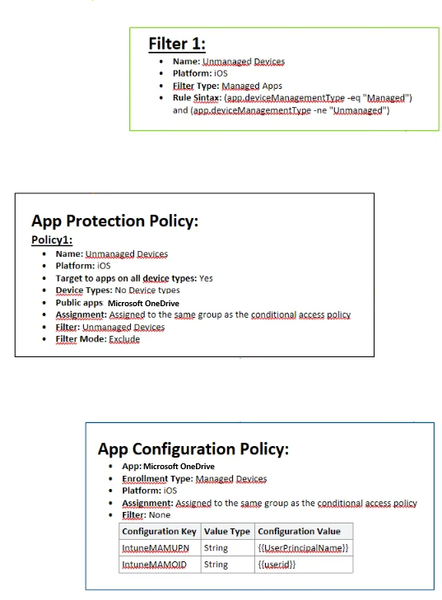
Hello, As the title says i am having a hard time getting this to work. We have been using APP for a long time, but it has not been necessary for us to have different policies for managed (we only use iOS) and unmanaged devices (all mobile device types). Now i want to remove APP from managed devices all together, and only enforce this on unmanaged devices (BYOD) Please see attached image of how it is configured today. I also have an CA policy which requires APP when using MS apps, where i have added and "Filter for devices" exclude with following syntax: device.enrollmentProfileName -contains "iOS standard profile" (which cover our enrollment profiles, both are fully managed) When enrolling a managed device, APP still is enforced. Does anyone have any tips? I wanted to try here before submitting a ticket to MS. As far as i have found out , the app.devicemanagmenttype is the only rule that can be used to filter managed devices when used with APP.659Views0likes1Comment
Intune partner compliance onboarding
Hello, We develop a MDM solution and we would like to become device compliance partner to offer our customers conditionnal access functionality. After filling twice (the first time almost two month ago) the form "Intune partner compliance onboarding request" whose link is available on this page https://learn.microsoft.com/en-us/intune/device-security/compliance/third-party-partners, we didn't get any reply to our request. Would you know if there is any other way to integrate this partnership ? Any contact or anything to get some news about our request ? Thank you for your help. Best regards,681Views0likes2Comments