bug
345 Topics
File History problems after installing KB5124008, KB5126052,KB5126146, KB5122878, and KB890830
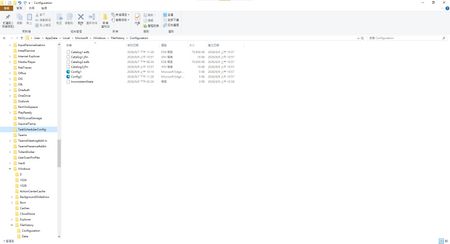
This morning, I ran Windows Update on two Windows 10/11 computers, but the file history feature stopped working completely after the update. Previously, after updating KB5120249 and KB5101684, files could still be backed up to the D: drive normally. The "Last Backup" time in "File History" is not updating correctly. Newly created or saved Word documents, pictures, videos, etc., still show "No previous version available" in "Content → Previous Versions". No folders were corrected; their dates are automatically updated. After running Windows Update again today, the file history feature stopped working on both computers. The File History panel pops up but cannot be used, prompting for a hard drive connection. (The hard drive is connected and I've confirmed it can read and write.) resulting in an "InconsistentState" entry in C:\Users\User\AppData\Local\Microsoft\Windows\FileHistory\Configuration. I'm very angry. If Microsoft doesn't address this, I'll keep complaining. If anyone else has encountered the same situation, please leave a comment below. You can also check Microsoft Q&A or the Microsoft Community Hub. The five updates installed are: September 8, 2026—KB5122878 (OS Builds 19045.7725 and 19044.7725) September 8, 2026-KB5126146 Cumulative Update for .NET Framework 3.5, 4.8 and 4.8.1 for Windows 10 Version 22H2 2026-09 Security Update (KB5124008) (26200.9445) 2026-09 .NET Framework Security Update (KB5126052) Windows Malicious Software Removal Tool x64 - v5.145 (KB890830) Deleting the %LocalAppData%\Microsoft\Windows\FileHistory folder also failed. Furthermore, "File History" itself is not listed in Microsoft's "Deprecated Features List." While other backup features suggest that Microsoft has no plans to discontinue it. Microsoft is going to pretend it doesn't exist. These worked normally before the update but stopped working afterward. This is to inform other users experiencing the same problem.5.2KViews5likes34CommentsDev 155.0.4268.0 - HEVC cannot be played via hardware
Starting with Dev build 155.0.4268.0, HEVC content fails to playback throwing an error. This is attempting to use any hardware acceleration (NVIDIA, Intel, Qualcomm, etc). On the Stable channel, it still works as intended. I submitted feedback, but this is a rather impactful issue since a lot of websites use HEVC content.Solved580Views0likes15Comments
Microsoft Edge PDF Reader - signature validation warning for official signatures
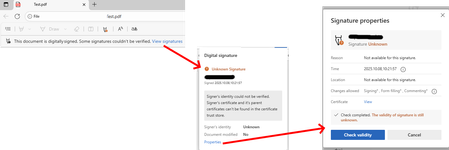
Since the last edge update we are running into the following issue, which triggers support tickets on our side. It seems that the edge internal PDF Reader now supports validation of digital PDF signatures. This new feature however is incomplete and causes a lot of confusion for edge users. "Official" signatures are labeled as "Unknown Signature" and "The validity of the signature is still unknown": "Official signatures" means qualified signatures from members of the EUTL - the European trust list as defined in ETSI TS 119 612 („Trusted Lists“): [...] the European Commission publishes a central list with links to the locations where the national trusted lists are published as notified by Member States. This central list, called the List Of Trusted Lists (LOTL), is available in both a human readable format and in a format suitable for automated (machine) processing XML. Parts of the edge PDF reader seems to come from *dobe itself which adds additional confusion since in their products (*dobe reader, acrobat etc) the signatures are correctly verified. They support this list for several years now (next to their own AATL list). I tried to find out whether this feature is 'work-in-progress' or it is a bug however the last published roadmap is quite old and doesn't give helpful information regarding this aspect. So my question is: Is full support of PDF signature validation including support of the EUTL planned and if so when?1.3KViews1like1Commentsigcheck64 2.92 output in UNICODE instead ANSI
Hi I Upgrade sigcheck64 from 2.90 to 2.92. Now lot of scripts can't evaluate the version of an exe. I redirect the output from sigcheck64.exe -AcceptEULA -nobanner -n excel.exe to a file and see that the file is unicode. with 2.90 it works fine. FOR /F %i IN ('sigcheck64.exe excel.exe') DO ECHO %i results in 1 instead 16.0..... Can you fix this soon?48Views0likes0Comments
Edge 144 Creates Multiple GNOME Menu Icons
Starting in Edge 144, there are now 2 icons displaying in the GNOME applications menu. com.microsoft.Edge.desktop microsoft-edge.desktop Both of these files are installed as part of the RPM; the first has "NoDisplay=true" at the bottom, but that doesn't seem to work as intended. I think this value needs to be in the first section, under "[Desktop Entry]", in order for it to work properly.Solved241Views1like2Comments
Bug when clicking on desktop icons with Bing Wallpaper
Hi, For at least two to three weeks now, I've been experiencing a bug that occurs when Bing Wallpaper is active. When it's active, I can't double-click or drag the icons displayed in the top half of my screen. Is anyone else experiencing the same problem as me? Thanks126Views0likes0Comments
RDCMan v3.21 crashing
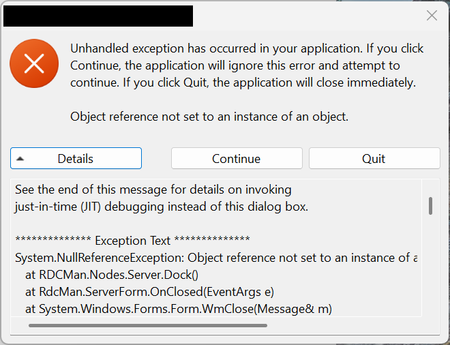
Getting the following error System.NullReferenceException: Object reference not set to an instance of an object. at RDCMan.Nodes.Server.Dock() at RdcMan.ServerForm.OnClosed(EventArgs e) at System.Windows.Forms.Form.WmClose(Message& m) at System.Windows.Forms.Form.WndProc(Message& m) at RdcMan.RdcBaseForm.WndProc(Message& m) at System.Windows.Forms.NativeWindow.Callback(HWND hWnd, UInt32 msg, WPARAM wparam, LPARAM lparam) The error seems to happen when I have an undocked session, I restart the remote machine on the the undocked window, and it stays open, when I try to reconnect, on the same undocked window, it opens another docked session, I can login to the new session, and undock it, so now I have two undocked windows, the old one (disconnected) and the new one. I try to close the old one and I get the error shown below, (details above). If I click Continue, nothing happens, if I hit Quit, it closes RDCMan, as stated in the window.460Views0likes3CommentsBroken File History after July/August Updates (KB5101684 on Win11 25H2 / KB5120249 on Win10 22H2)
Hi everyone, I am writing to report a major regression bug with File History that was introduced in the recent Windows updates. This is happening across two entirely different machines with no settings changed, no system files modified, and no registry tweaks applied. The Issue: Windows 11 25H2 > after installing KB5101684 (July 29, 2026) Windows 10 22H2 > after installing KB5120249 (August 12, 2026) On both PCs backing up to a local drive (D:), the underlying files are actually being written to the drive, but the File History interface is completely broken: TheLast Backup time stamp in Control Panel frozen and fails to update automatically. In File Explorer, right-clicking new files > Properties> Previous Versions shows There are no previous versions available, making daily time-travel restoration impossible. Temporary Workaround: The only way to force it to sync is to go to Control Panel > File History > Select Drive, and re-select the D: drive again. This proves the backup engine works, but the automatic scheduling and catalog syncing are completely frozen by these updates. Please Help Upvote on Feedback Hub: I have already submitted this issue via the Feedback Hub but have received no official response yet. Since File History is critical for users who prefer local offline backups over OneDrive, we need to bring this to Microsoft’s attention immediately so they can patch it in the next cumulative update. If you are experiencing the same issue, please upvote my feedback link below:[Post your Feedback Hub sharing screenshot]398Views4likes1CommentAugust 2026 RDP font display glitch
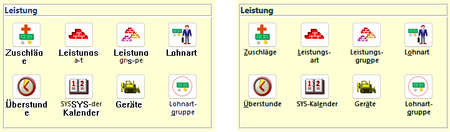
In the last days, we have received two independent reports of font display problems in our MS Access based application. The symptoms are as follows: Some labels or text boxes are shown in a legacy system font instead of the font specified in the control (Segoe UI). Also, the label/text box is shown with a white background instead of transparent. Moving the Access window "fixes" the glitch. It happens at seemingly random places in our application at seemingly random times. Both reports have in common that the Access application is running inside an RDP session. In report 1, a work-from-home user used Remote Desktop to connect to their office Windows 11 PC, and, in report 2, a user executed the application on a Windows Terminal Server. Here are a few screenshots to illustrate the problem. The left side is the glitch, the right side is how it is supposed to look. The first row shows labels, the second row text boxes in a continuous subform. Report 1 is 16.0.20228.20186, 32 bit, M365 SAEC. Report 2 is 16.0.14334.20848, 32 bit, Office 2021 LTSC. Is this a known issue, or shall we continue to collect data about this glitch? Unfortunately, we haven't found a reliable way to reproduce it, so our ability to test it with different versions is limited.Solved1.2KViews0likes5Comments