bi & data analysis
2496 TopicsExcel Community: Simplifying Spaces and Labels
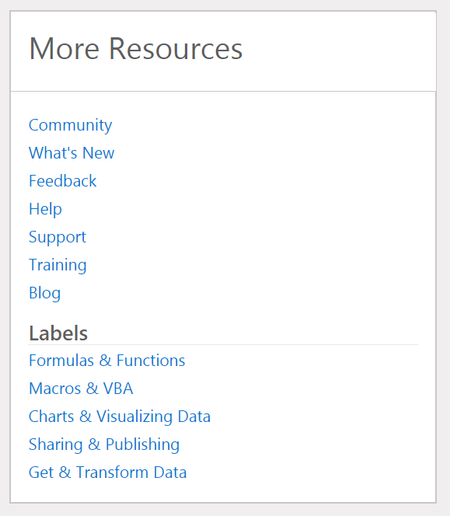
Hi all, As you may have noticed already, we as the Excel Team have done a bit of "spring/summer cleaning" for the community. We have received feedback that the number of "spaces" was simply too many at nine, so we have pared things down. Now, there are three community spaces: Excel: this will be the primary place for posting content, as many of the old spaces have been migrated as labels will find a good home here BI and Data Analysis: this will be a good place for posting about tasks and questions that cut across Excel, Power BI, and other topics in this realm Resources and Community: this will increasingly become a place for folks to share sample files and templates with each other Q: What happened to the other spaces that used to exist? A: They have since been rolled up as "Labels", which you can find in the "More Resources" sidebar under "Labels" of any of the three spaces mentioned above. Look for these on the right side: Please let us know if you have any other questions. Thanks for reading!4.7KViews5likes25Comments
New free Excel training courses from LinkedIn Learning on Support.Office.com
We have a whole new collection of training courses to help you get the most out of Excel 2016. Learn how to enter and organize data, create formulas and functions, build charts and PivotTables, and use other time-saving features. Please let us know what you think of these new courses. They’re free, along with the rest of the courses and videos in the Office Training Center. Best, Freya Office Newsroom7KViews4likes1Comment
unpivot data and handle merged cells without using Power Query (Unpivot_Toolkit)
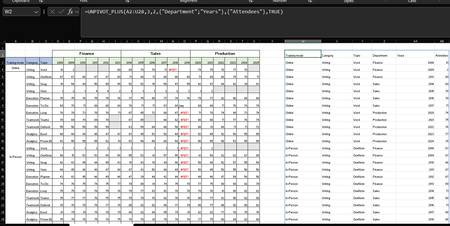
Hey, guys!! I’ve been working on a set of functional Excel Lambdas to solve a common headache: transforming "Wide" human-readable data into "Long" database formats without having to open Power Query every time. =UNPIVOT_PLUS(table, [no_of_cols], [no_of_headers], [attribute_names], [value_name], [remove_errors], [remove_blanks],[pad_blanks_with],[pad_errors_with]) Don’t worry about the full list, most use cases only require 5 arguments. I've included a table of default values at the end. Merged Cell Support: Automatically handles fill-down/fill-right logic for merged headers/columns. Bonus Helper: SPLIT_INJECT =SPLIT_INJECT(array, target_indices, delimiter, [ignore_empty], [match_mode], [pad_with]) It targets specific columns, splits them by a delimiter (like TEXTSPLIT), and expands the entire table horizontally while keeping all other columns perfectly stable. Optional arguments match TEXTSPLIT defaults. Feel free to tear this apart or adapt it for your own edge cases. I’d love to hear how you end up using it! You can grab both functions from my GitHub Gist https://gist.github.com/Medohh2120/f8553c149684e39bb499249e39f01017 File with use cases https://1drv.ms/x/c/6c310c8fd1669a94/IQCscpo3yh7jR5XdGZe2AQGyAf4-vCd8K6BvLZQgrP2V8Oo?e=gPdbOd Argument Description Default Behavior table The array or range of data to unpivot. Required argument (no default) [no_of_cols] Fixed left columns to keep as identifiers. 1 [no_of_headers] Top rows used as headers, handling merged cells. 1 [attribute_names] Header name for the unpivoted attributes . "Attribute" [value_name] Header name for the unpivoted values. "Value" [remove_errors] Excludes grid rows with formula errors. FALSE [remove_blanks] Removes grid empty cells and empty strings. TRUE [pad_blanks_with] Value to substitute for empty cells. Leaves cell blank [pad_errors_with] Value to substitute for errors. Leaves error as-is841Views2likes5CommentsExcel Challenge - Pivoting poorly structured data
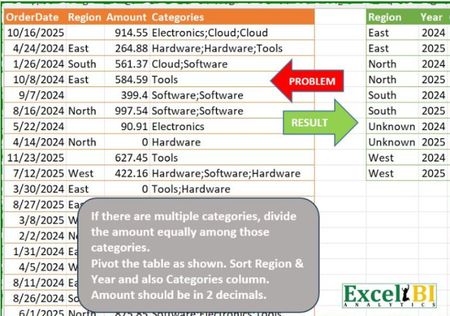
This is from an ExcelBI challenge. I thought it may be worth while posting my solution here as a demonstration of modern Excel methods. Challenge Like many of such challenges, the natural solution approach is to use BYROW but that creates the usual 'array of arrays' error. Solution: Gradually I am moving to a point at which I have no formulas showing in the workbook other than calls to Lambda functions. In this case, the worksheet formuloa is = PIVOTBYCATEGORYλ(OrderTbl) The function works row by row apportioning the amounts against the listed categories PIVOTBYCATEGORYλ // Groups and pivots table by category = LAMBDA(table, LET( normalised, BYROWλ(table, APPORTIONλ), // Identify fields from normalised table dimension, TAKE(DROP(normalised,,1),,2), category, TAKE(normalised,,1), partCost, TAKE(normalised,,-1), // Pivot by category return, PIVOTBY(dimension, category, partCost, SUM,,0,,0), return ) ); The function APPORTIONλ divides the amount between categories so each record within the source data returns a number of rows APPORTIONλ // Splits by category and assigns costs = LAMBDA(record, LET( category, TOCOL(REGEXEXTRACT(INDEX(record,4),"\w+",1)), amount, INDEX(record,3) / COUNTA(category), year, YEAR(INDEX(record,1)), region, IF(LEN(INDEX(record, 2)), INDEX(record, 2), "Unknown"), broadcast, B∕CASTλ(HSTACK(region, year, amount), category), return, HSTACK(category, broadcast), return ) ); /* FUNCTION NAME: B∕CASTλ DESCRIPTION: Broadcasts the terms of a vector over the shape of a second array */ B∕CASTλ = LAMBDA(vector, array, IF({1}, vector, array)); The key to making the formula work is the function BYROWλ that I wrote to generalise the inbuilt but over-restrictive BYROW function. The PIVOTBY function returned the required crosstab from the normalised data arraySolved574Views2likes7CommentsHow to Be an Excel Detective: Finding and Highlighting Formulas
Hi everyone, I recently wrote a blog post on some simple, yet powerful, techniques for anyone who works with Excel spreadsheets, especially those with complex data. I wanted to share a summary of it with this community, as it might be helpful to others who are looking to understand and protect their work. The post covers two main things: Quickly Revealing All Formulas: A simple keyboard shortcut (Ctrl + `) or the "Show Formulas" option can instantly reveal all formulas in a worksheet. This is a great way to quickly see how a spreadsheet is structured. Permanently Highlighting Formulas: The article shows how to use the "Find & Select" > "Formulas" feature to select all cells containing formulas and then permanently highlight them with a fill color. This visual cue can help prevent accidental edits and protect your data. Watch This in Action: For a step-by-step guide on how to use these techniques, you can watch the video on my https://www.youtube.com/@BIGurus. 🔗 https://youtu.be/1x-1dbqlWXk You can also read the full article here: https://medium.com/@anandsharad/how-to-be-an-excel-detective-finding-and-highlighting-formulas-fe9d4fdbc1b1 I'd be happy to answer any questions you have or discuss other Excel tips and tricks in the comments!120Views2likes0Comments
Shift cells up
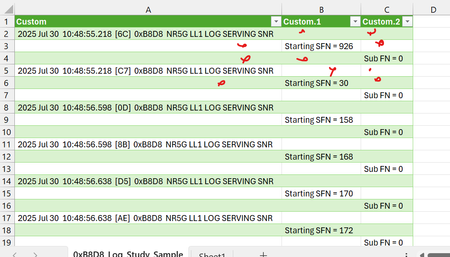
Dear Experts, I have a data like below:- and want to delete all the nulls,( shift) all the empty cells up, I can do this using F5-> special , select blank and delete , but with huge data it Crash:- Any solution which is less heavy and not cpu hungry that can do this job? any M code , or PQ UI steps? I tried converting each row in to list and then List.RemoveNulls etc but didn't help.. Attached excel for Reference Thanks in Advance, Br, AnupamSolved2KViews2likes7Comments
Error loading Excel files from OneDrive Personal into Power Query
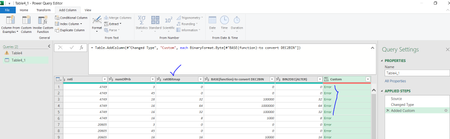
Suddenly a few days ago I started getting an error when loading any Excel file from OneDrive Personal into Power Query. To download I use Excel.Workbook(Web.Contents("https://onedrive.live.com/download?resid=....&authkey=...." ), null, true ) Access Web content - Anonymous, privacy level - Public. The file is readable by anyone with the link. As a result I get an error: DataSource.Error: HTML data loaded that is not the expected type. You may have entered an invalid URL or provided invalid credentials to the server. Until now everything worked fine with these same files. At the same time I noticed that when I get a URL link on OneDrive via File - Embed - Details, I receive a URL address that is not the same as before "https://onedrive.live.com/view.aspx?resid=....&authkey=...." ("view.aspx" always had to be replaced with "download") . Now the link looks like this "https://onedrive.live.com/view.aspx?resid=.....&migratedtospo=true&redeem=....". And of course, this link does not load data into PowerQuery even if you change "view.aspx" to "download". Please tell me how to fix the error?551Views2likes2CommentsBinaryFormat.Binary , BinaryFormat.Byte,BinaryFormat.ByteOrder,BinaryFormat.Group,BinaryFormat.Lengt
Dear Experts, Greetings, I have a data like below( Most interesting is the Column "E"-> rat0BitMap:- The max size of the Column "E" is 11 bits ( which is max numOfPRB == 162), I want to perform the above functions in this Column "F" which is the BIN of Column "E", but getting Errors in all functions, in PQ microsoft page, their example also I can't see. Could you please educate me/Perform the above 5 functions in Column "F", using PQ, Thanks in Advance, Br, AnupamSolved460Views2likes3CommentsDuplicate distinct counts in pivot tables corrupts files
Hello! I may have discovered a bug. I have a problem with pivot tables corrupting if I place a column of data into the values section of a pivot table twice and summarize both values as a distinct count. Has anyone else run into this? Do you know what root cause of this error is? How can I eliminate this error? Some more detail: I have had problems over the past week with normally stable Excel files becoming corrupt. If I click "Yes" when asked if I want to recover the file, I always receive a message that listing pivot tables that were removed. Today, I noticed I can replicate this problem by placing a field into the "values" section of a pivot table twice and summarizing both of these value fields as a distinct count. I tested several permutations (two different fields but counted distinct, the same field placed as a value twice but only summarized as distinct count once, etc), but only the scenario listed produces an error. I reproduced this error on three computers. Two coworkers had the same problem this week and were able to replicate the error following my steps. A friend at a different company replicated it as well. My work around is to create a duplicate dummy column, place that alongside the first column into the pivot table (example, ItemID and ItemID_helper), then summarize both as distinct counts. However, I want to understand and solve the root cause of the problem to prevent errors in other existing spreadsheets containing pivot tables built this way. If you’re wondering why I have duplicate distinct columns, column one displays the count as is, column two displays as a percent to total. Example, warehouse one has 34 unique customers which is 67% of total unique customers.Solved6.3KViews2likes14Comments