best practices
6 Topics
Azure PostgreSQL Lesson Learned#7: Database Missing After Planned Maintenance
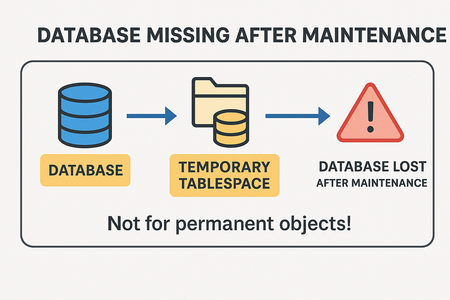
Co‑authored with HaiderZ-MSFT Overview If you’re running Azure Database for PostgreSQL Flexible Server, you might encounter a scenario where your database disappears after planned maintenance. This blog explains: Root cause of the issue Troubleshooting steps Best practices to prevent data loss Symptoms After a maintenance window, customers reported connection failures with errors like: connection failed: connection to server at 'IP', port 5432 failed: FATAL: database 'databaseName' does not exist DETAIL: The database subdirectory 'pg_tblspc/.../PG_...' is missing. Even after a successful restore, the database remains inaccessible! Root Cause The missing database files were located in a temporary tablespace. On Azure Database for PostgreSQL Flexible Server: A default temporary tablespace is created for internal operations (e.g., sorting). It is not backed up during maintenance, restarts, or HA failovers. If permanent objects or entire databases are created in this temporary tablespace, they will be lost after: Planned maintenance windows Server restarts High availability failovers Important: Temporary tablespaces are designed for transient data only. Storing persistent objects here is unsafe. [Limits in...soft Learn | External], [Overview o...soft Learn | External] Operational Checks To confirm if a database uses a temporary tablespace: select datname, dattablespace from pg_database where datname = '<dbname>'; Compare dattablespace OID with pg_tablespace: select oid, spcname, spcowner from pg_tablespace If OID matches temptblspace, the database resides in a temporary tablespace. Mitigation Unfortunately, data cannot be recovered because temporary tablespaces are excluded from backups during maintenance activities or server restarts. Recommended actions: Do not create permanent objects or databases in temporary tablespaces. Always use the default tablespace inherited from the template database. Prevention & Best Practices Avoid using temptblspace for persistent data. Validate tablespace before creating databases:SQL Follow official guidelines: Limits in Azure Database for PostgreSQL Flexible Server Business Continuity in Azure Database for PostgreSQL Why This Matters Creating databases in temporary tablespaces leads to: Permanent data loss after maintenance. Failed connections and restore attempts. Operational disruption and downtime. Key Takeaways Issue: Databases created in temporary tablespace are lost after maintenance, restarts, or HA failovers. Fix: Use default tablespace for all permanent objects. Best Practice: Never store persistent data in temporary tablespace.285Views1like2CommentsPrevent Accidental Deletion of an Instance in Azure Postgres
Did you know that accidental deletion of database servers is a leading source of support tickets? Read this blog post to learn how you can safeguard your Azure Database for PostgreSQL Flexible Server instances using ARM’s CanNotDelete lock — an easy best-practice that helps prevent accidental deletions while keeping regular operations seamless. 🌐 Prevent Accidental Deletion of an Instance in Azure Postgres
ADF\Synapse Analytics - Replace Columns names using Rule based mapping in Mapping data flows
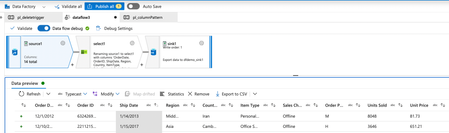
In real time, the column names from source might not be uniform, some columns will have a space in it, some other columns will not. For example, Sales Channel Item Type, Region Country Unit Price It is a good practice to replace all the spaces in a column name before doing any transformation for easy handling. This also helps with auto mapping, when the sink column names do not come with spaces! Select transformation in data flow makes it simpler to automatically detect spaces in column names and then remove them for the rest of the dataflow. Consider the below source, with the given column names. Here as we can see, few columns have spaces, few columns like Region and Country do not have spaces in it. Using the below configuration in select transformation, we can get rid of the spaces in the column names with a simple expression. In the Input columns, Click on Add mapping button, and choose Rule-based Mapping. Then give the below expression: on Source1's column: true() on Name as column: replace($$,' ','') What it does? It will return true() for all the columns which have ' ' (space) in it and replace it with '' (no space). Upon data preview, we get to see the below result, As we are seeing here, all the columns with spaces are coming without spaces in between. If not for the Rule based mapping, one would have to manually remove space from all the columns. It would be a nightmare if the number of columns are more! Thanks to rule-based mapping!4.4KViews1like0CommentsLesson Learned #39: Best Practices using BCP in Azure SQL Database
First published on MSDN on Apr 03, 2018 In multiple support cases our customers asked questions about what are the best practices to avoid fill up the transaction log or temporal database when they are importing a high number of rows using BCP.2.4KViews0likes0Comments