azure
21 Topics
Exciting Announcements: New Data Connectors Released Using the Codeless Connector Framework
Microsoft Sentinel’s Codeless Connector Framework or ‘CCF’ (formerly called Codeless Connector Platform [CCP]) represents a paradigm shift in data ingestion, making it easier than ever for organisations to do more with Microsoft Sentinel by integrating diverse data sources seamlessly. Designed to simplify and expedite the onboarding of data sources, CCF eliminates the need for extensive coding expertise and maintaining additional services to facilitate ingestion, allowing security teams to focus on what truly matters – safeguarding their environment. Advantages of the Codeless Connector Framework The Codeless Connector Framework offers several compelling benefits: Ease of Use: CCF configuration-based templates allows advanced users to create data connectors without writing exhausting code, making the onboarding process quicker and more accessible to a broader audience. Flexibility: Users can customise data streams to meet their specific needs; optimizing efficacy while ensuring more control on the data being ingested. Scalability: The connectors built using CCF follows a true SaaS auto-expansion model making them highly scalable and natively reliable for large data volumes. Efficiency: By reducing the time and effort required to develop and deploy data connectors, CCF accelerates the availability of critical insights for security monitoring and more rapidly expands the value Microsoft Sentinel provides. What are we up to? We recognize that Codeless Connectors offer substantial advantages over Azure Function App based ingestion in Microsoft Sentinel in most cases. That motivates us to continue investing in modernizing our ingestion patterns for out-of-box connectors; one connector at a time. Another goal of modernizing these connectors is to replace the deprecated HTTP Data Collector API with the Log Ingestion API to send data to Microsoft Sentinel. Announcing the General Availability of New Data Connectors We are continually improving the Data Collection experience for our customers and are thrilled to announce that the following data connectors are now Generally Available (GA) on the Codeless Connector Framework. Atlassian Confluence Ingesting Confluence audit logs allows organizations to monitor collaboration activity, detect security risks, and troubleshoot configuration issues using Confluence audit records. Auth0 With the Auth0 Connector, organizations can effortlessly integrate authentication and authorization data from Auth0 into Microsoft Sentinel. This connector provides valuable insights into user activities and access patterns, bolstering identity security and compliance efforts. Azure DevOps Audit logs from Azure DevOps, allows security teams to monitor user activities, detect anomalous behavior, and investigate potential threats across DevOps environments. Box The Box Connector facilitates the ingestion of file storage and sharing data from Box into Microsoft Sentinel. By leveraging this connector, security teams can monitor file access and sharing activities, ensuring data integrity, and preventing unauthorized access. Google Cloud Platform Load Balancer With GCP Load Balancer and Web Application Firewall (Cloud Armor) logs, security teams can monitor inbound network activity, enforce security policies, and detect threats across GCP environments. Proofpoint POD The ingestion of email security logs allows organizations to monitor message traceability, detect threats, and investigate data exfiltration attempts by attackers and malicious insiders. Proofpoint TAP Email threat intelligence logs, including message and click events, provides visibility into malware and phishing activity to support custom alerts, dashboards, and threat investigation. SentinelOne The SentinelOne Connector enables seamless ingestion of threat intelligence and endpoint security data from SentinelOne into Microsoft Sentinel. This integration empowers security teams to enhance their threat detection capabilities and respond swiftly to potential threats. New Connectors in Public Preview CrowdStrike Falcon Data Replicator (S3 based Polling) Google Cloud Platform VPC Flow Google Cloud Platform DNS Google IAM These new additions are not new out-of-box sources in Microsoft Sentinel, but they do improve how data is collected. The previously Azure Function App based polling has now been upgraded to the Codeless Connector Framework for these products to ensure data collection adheres to the more scalable; advantageous pattern with CCF. As noted previously, the newer version of these connectors replaces the deprecated HTTP Data Collector API with the Log Ingestion API to send data to Microsoft Sentinel. Call to Action! Microsoft Sentinel customers collecting data from any of the mentioned sources using Azure Function Apps are advised to migrate their ingestion streams to newer versions to utilize the Codeless Connector Framework. While we continue to improve the data collection experience across all connectors, we encourage our customers and partners to join the Microsoft Security Communities to benefit from early insights about the latest and greatest with Microsoft Security. Call to Action for ISV Partners We invite our ISV partners to migrate their Azure Function App-based data connectors to the Codeless Connector Framework. By leveraging CCF for data ingestion, we can ensure that our mutual customers benefit from streamlined data integration and enhanced security monitoring in Microsoft Sentinel. We are committed to ensuring partners have all the support needed in this transformation. For any support, please reach out to us at Microsoft Sentinel Partners. Join us in this transformative journey to empower our customers by unlocking the full potential of their security investments with Microsoft Sentinel’s Codeless Connector Framework. References Create a codeless connector for Microsoft Sentinel Migrate from the HTTP Data Collector API to the Log Ingestion API to send data to Azure Monitor Logs2.7KViews0likes2CommentsTutorial: Get started with Azure WAF investigation Notebook
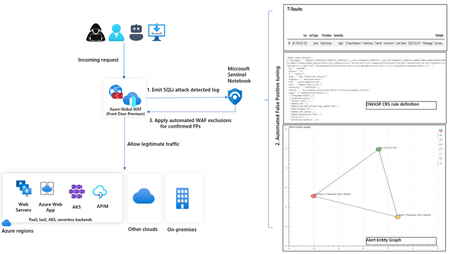
In this blog, we introduce you to the Azure WAF guided investigation Notebook using Microsoft Sentinel, which lets you investigate an Azure WAF triggered SQL injection attack event log. This Azure WAF Notebook queries incidents related to Azure WAF SQL injection events in your Microsoft Sentinel workspace. In addition to guiding you through the Azure WAF SQL injection incidents, the Notebook correlates the incidents with Threat Intelligence, maps them to the Sentinel entity graph, and gives you a complete picture of the attack landscape. Furthermore, it will guide you through an investigation experience to determine if the incident is a true positive, false positive or benign positive using Azure WAF raw logs. Upon confirmation of a false positive, the Azure WAF exclusions are applied automatically using Azure WAF APIs.11KViews2likes2CommentsExtending Sentinel Data Integration: Azure Blob Storage Support for CCF Connectors
As organizations scale their security operations, the ability to ingest, process, and analyze high volumes of data reliably becomes increasingly critical. Microsoft Sentinel continues to expand its ecosystem through the Codeless Connector Framework (CCF), enabling ISVs to build and deliver integrations with Sentinel faster while simplifying deployment for customers. Today, CCF extends even further with support for Azure Blob Storage, introducing a new pattern for how data can be delivered into Sentinel. Expanding Connector Patterns with Azure Blob Storage CCF has traditionally enabled connectors that integrate directly with partner APIs and data sources. With this latest enhancement, ISVs can now build connectors that read data from Azure Blob Storage—unlocking new flexibility in how security data is collected and delivered. In this model, an ISV writes data to an Azure Blob Storage account. The Sentinel connector then reads from that storage layer, using Azure-native components such as Event Grid and storage queues to process events and forward them through data collection rules (DCR) into Log Analytics workspace. This approach introduces a durable data layer between the data source and Sentinel, enabling more resilient and scalable ingestion scenarios. Why a durable data layer matters By leveraging Azure Blob Storage as part of the ingestion pipeline, CCF connectors gain important operational advantages. This architecture allows data to be buffered and processed asynchronously, helping manage fluctuations in data volume and ensuring consistent delivery. Key benefits include: Resilience: Buffers spikes and handles backpressure to maintain steady ingestion Improved Compatibility: Supports widely adopted Azure Blob-based log streaming, enabling seamless integration with partners that already use Azure for audit data delivery Data protection: Reduces risk of data loss during outages or throttling Scalability: Supports high-volume ingestion scenarios across tenants Flexibility: Enables architectures that can support multiple SIEMs or data consumers Together, these capabilities make CCF Azure Blob Storage based connectors a strong fit for partners managing large, variable, or distributed data pipelines. Partner adoption Early partners are already taking advantage of this capability to modernize their integrations and support evolving customer needs. Cloudflare Cloudflare integrates with Microsoft Sentinel using the Codeless Connector Framework (CCF) to bring Cloudflare log data into centralized security operations workflows. The connector ingests Cloudflare logs—delivered via Logpush to Azure Blob Storage—into Sentinel for analysis, enabling security teams to correlate web, network, and application activity with other security signals. By combining Cloudflare’s global threat visibility with Sentinel analytics and automation, this integration supports more effective threat detection, investigation, and incident response across Cloudflare‑protected environments. Netskope Web Transaction Events Netskope integrates with Microsoft Sentinel to provide detailed visibility into web and cloud activity across users, applications, and SaaS services. The connector ingests Netskope web transaction logs into Sentinel—leveraging Azure Blob Storage as a staging layer for log streaming and ingestion—to enable near real‑time analysis of user behavior, policy violations, and potential threats. By combining Netskope’s inline web inspection with Sentinel’s analytics and correlation capabilities, this integration helps security teams detect risky activity, investigate incidents, and strengthen monitoring across modern cloud environments. These integrations demonstrate how Azure Blob Storage support can simplify ingestion architectures while improving reliability and scalability for customers. Here is what our partners say about the functionality. Cloudflare: Netskope: Get started Developers can begin building CCF Azure Blob Storage -enabled connectors today using the guidance on Microsoft Learn. This documentation provides step-by-step instructions for configuring storage, processing events, and connecting data to Sentinel. In the unlikely event that you encounter any issues in building or updating your connector, App Assure is here to help. We are an engineering-backed team committed to supporting customers and software development companies throughout their journey with Sentinel to streamline integration and accelerate time to market. Reach out to us via our intake form for assistance.1.2KViews0likes0CommentsIntroducing the New Microsoft Sentinel Logstash Output Plugin (Public Preview!)
Many organizations rely on Logstash as a flexible, trusted data pipeline for collecting, transforming, and forwarding logs from on-premises and hybrid environments. Microsoft Sentinel has long supported a Logstash output plugin, enabling customers to send data directly into Sentinel as part of their existing pipelines. The original plugin was implemented in Ruby, and while it has served its purpose, it no longer meets Microsoft’s Secure Future Initiative (SFI) standards and has limited engineering support. To address both security and sustainability, we have rebuilt the plugin from the ground up in Java, a language that is more secure, better supported across Microsoft, and aligned with long-term platform investments. To ensure a seamless transition, the new implementation is still packaged and distributed as a standard Logstash Ruby gem. This means the installation and usage experience remains unchanged for customers, while benefiting from a more secure and maintainable foundation. What's New in This Version Java‑based and SFI‑compliant Same Logstash plugin experience, now rebuilt on a stronger foundation. The new implementation is fully Java‑based, aligning with Microsoft’s Secure Future Initiative (SFI) and providing improved security, supportability, and long-term maintainability. Modern, DCR‑based ingestion The plugin now uses the Azure Monitor Logs Ingestion API with Data Collection Rules (DCRs), replacing the legacy HTTP Data Collection API (For more info, see Migrate from the HTTP Data Collector API to the Log Ingestion API - Azure Monitor | Microsoft Learn). This gives customers full schema control, enables custom log tables, and supports ingestion into standard Microsoft Sentinel tables as well as Microsoft Sentinel data lake. Flexible authentication options Authentication is automatically determined based on your configuration, with support for: Client secret (App registration / service principal) Managed identity, eliminating the need to store credentials in configuration files Sovereign cloud support: The plugin supports Azure sovereign clouds, including Azure US Government, Azure China, and Azure Germany. Standard Logstash distribution model The plugin is published on RubyGems.org, the standard distribution channel for Logstash plugins, and can be installed directly using the Logstash plugin manager, no change to your existing installation workflow. What the Plugin Does Logstash plugin operates as a three-stage data pipeline: Input → Filter → Output. Input: You control how data enters the pipeline, using sources such as syslog, filebeat, Kafka, Event Hubs, databases (via JDBC), files, and more. Filter: You enrich and transform events using Logstash’s powerful filtering ecosystem, including plugins like grok, mutate, and Json, shaping data to match your security and operational needs. Output: This is where Microsoft comes in. The Microsoft Sentinel Logstash Output Plugin securely sends your processed events to an Azure Monitor Data Collection Endpoint, where they are ingested into Sentinel via a Data Collection Rule (DCR). With this model, you retain full control over your Logstash pipeline and data processing logic, while the Sentinel plugin provides a secure, reliable path to ingest data into Microsoft Sentinel. Getting Started Prerequisites Logstash installed and running An Azure Monitor Data Collection Endpoint (DCE) and Data Collection Rule (DCR) in your subscription Contributor role on your Log Analytics workspace Who Is This For? Organizations that already have Logstash pipelines, need to collect from on-premises or legacy systems, and operate in distributed/hybrid environments including air-gapped networks. To learn more, see: microsoft-sentinel-log-analytics-logstash-output-plugin | RubyGems.org | your community gem host1.7KViews1like2CommentsHow to Ingest Microsoft Intune Logs into Microsoft Sentinel
For many organizations using Microsoft Intune to manage devices, integrating Intune logs into Microsoft Sentinel is an essential for security operations (Incorporate the device into the SEIM). By routing Intune’s device management and compliance data into your central SIEM, you gain a unified view of endpoint events and can set up alerts on critical Intune activities e.g. devices falling out of compliance or policy changes. This unified monitoring helps security and IT teams detect issues faster, correlate Intune events with other security logs for threat hunting and improve compliance reporting. We’re publishing these best practices to help unblock common customer challenges in configuring Intune log ingestion. In this step-by-step guide, you’ll learn how to successfully send Intune logs to Microsoft Sentinel, so you can fully leverage Intune data for enhanced security and compliance visibility. Prerequisites and Overview Before configuring log ingestion, ensure the following prerequisites are in place: Microsoft Sentinel Enabled Workspace: A Log Analytics Workspace with Microsoft Sentinel enabled; For information regarding setting up a workspace and onboarding Microsoft Sentinel, see: Onboard Microsoft Sentinel - Log Analytics workspace overview. Microsoft Sentinel is now available in the Defender Portal, connect your Microsoft Sentinel Workspace to the Defender Portal: Connect Microsoft Sentinel to the Microsoft Defender portal - Unified security operations. Intune Administrator permissions: You need appropriate rights to configure Intune Diagnostic Settings. For information, see: Microsoft Entra built-in roles - Intune Administrator. Log Analytics Contributor role: The account configuring diagnostics should have permission to write to the Log Analytics workspace. For more information on the different roles, and what they can do, go to Manage access to log data and workspaces in Azure Monitor. Intune diagnostic logging enabled: Ensure that Intune diagnostic settings are configured to send logs to Azure Monitor / Log Analytics, and that devices and users are enrolled in Intune so that relevant management and compliance events are generated. For more information, see: Send Intune log data to Azure Storage, Event Hubs, or Log Analytics. Configure Intune to Send Logs to Microsoft Sentinel Sign in to the Microsoft Intune admin center. Select Reports > Diagnostics settings. If it’s the first time here, you may be prompted to “Turn on” diagnostic settings for Intune; enable it if so. Then click “+ Add diagnostic setting” to create a new setting: Select Intune Log Categories. In the “Diagnostic setting” configuration page, give the setting a name (e.g. “Microsoft Sentinel Intune Logs Demo”). Under Logs to send, you’ll see checkboxes for each Intune log category. Select the categories you want to forward. For comprehensive monitoring, check AuditLogs, OperationalLogs, DeviceComplianceOrg, and Devices. The selected log categories will be sent to a table in the Microsoft Sentinel Workspace. Configure Destination Details – Microsoft Sentinel Workspace. Under Destination details on the same page, select your Azure Subscription then select the Microsoft Sentinel workspace. Save the Diagnostic Setting. After you click save, the Microsoft Intune Logs will will be streamed to 4 tables which are in the Analytics Tier. For pricing on the analytic tier check here: Plan costs and understand pricing and billing. Verify Data in Microsoft Sentinel. After configuring Intune to send diagnostic data to a Microsoft Sentinel Workspace, it’s crucial to verify that the Intune logs are successfully flowing into Microsoft Sentinel. You can do this by checking specific Intune log tables both in the Microsoft 365 Defender portal and in the Azure Portal. The key tables to verify are: IntuneAuditLogs IntuneOperationalLogs IntuneDeviceComplianceOrg IntuneDevices Microsoft 365 Defender Portal (Unified) Azure Portal (Microsoft Sentinel) 1. Open Advanced Hunting: Sign in to the https://security.microsoft.com (the unified portal). Navigate to Advanced Hunting. – This opens the unified query editor where you can search across Microsoft Defender data and any connected Sentinel data. 2. Find Intune Tables: In the Advanced hunting Schema pane (on the left side of the query editor), scroll down past the Microsoft Sentinel Tables. Under the LogManagement Section Look for IntuneAuditLogs, IntuneOperationalLogs, IntuneDeviceComplianceOrg, and IntuneDevices in the list. Microsoft Sentinel in Defender Portal – Tables 1. Navigate to Logs: Sign in to the https://portal.azure.com and open Microsoft Sentinel. Select your Sentinel workspace, then click Logs (under General). 2. Find Intune Tables: In the Logs query editor that opens, you’ll see a Schema or tables list on the left. If it’s collapsed, click >> to expand it. Scroll down to find LogManagement and expand it; look for these Intune-related tables: IntuneAuditLogs, IntuneOperationalLogs, IntuneDeviceComplianceOrg, and IntuneDevices Microsoft Sentinel in Azure Portal – Tables Querying Intune Log Tables in Sentinel – Once the tables are present, use Kusto Query Language (KQL) in either portal to view and analyze Intune data: Microsoft 365 Defender Portal (Unified) Azure Portal (Microsoft Sentinel) In the Advanced Hunting page, ensure the query editor is visible (select New query if needed). Run a simple KQL query such as: IntuneDevice | take 5 Click Run query to display sample Intune device records. If results are returned, it confirms that Intune data is being ingested successfully. Note that querying across Microsoft Sentinel data in the unified Advanced Hunting view requires at least the Microsoft Sentinel Reader role. In the Azure Logs blade, use the query editor to run a simple KQL query such as: IntuneDevice | take 5 Select Run to view the results in a table showing sample Intune device data. If results appear, it confirms that your Intune logs are being collected successfully. You can select any record to view full event details and use KQL to further explore or filter the data - for example, by querying IntuneDeviceComplianceOrg to identify devices that are not compliant and adjust the query as needed. Once Microsoft Intune logs are flowing into Microsoft Sentinel, the real value comes from transforming that raw device and audit data into actionable security signals. To achieve this, you should set up detection rules that continuously analyze the Intune logs and automatically flag any risky or suspicious behavior. In practice, this means creating custom detection rules in the Microsoft Defender portal (part of the unified XDR experience) see [https://learn.microsoft.com/en-us/defender-xdr/custom-detection-rules] and scheduled analytics rules in Microsoft Sentinel (in either the Azure Portal or the unified Defender portal interface) see:[Create scheduled analytics rules in Microsoft Sentinel | Microsoft Learn]. These detection rules will continuously monitor your Intune telemetry – tracking device compliance status, enrollment activity, and administrative actions – and will raise alerts whenever they detect suspicious or out-of-policy events. For example, you can be alerted if a large number of devices fall out of compliance, if an unusual spike in enrollment failures occurs, or if an Intune policy is modified by an unexpected account. Each alert generated by these rules becomes an incident in Microsoft Sentinel (and in the XDR Defender portal’s unified incident queue), enabling your security team to investigate and respond through the standard SOC workflow. In turn, this converts raw Intune log data into high-value security insights: you’ll achieve proactive detection of potential issues, faster investigation by pivoting on the enriched Intune data in each incident, and even automated response across your endpoints (for instance, by triggering playbooks or other automated remediation actions when an alert fires). Use this Detection Logic to Create a detection Rule IntuneDeviceComplianceOrg | where TimeGenerated > ago(24h) | where ComplianceState != "Compliant" | summarize NonCompliantCount = count() by DeviceName, TimeGenerated | where NonCompliantCount > 3 Additional Tips: After confirming data ingestion and setting up alerts, you can leverage other Microsoft Sentinel features to get more value from your Intune logs. For example: Workbooks for Visualization: Create custom workbooks to build dashboards for Intune data (or check if community-contributed Intune workbooks are available). This can help you monitor device compliance trends and Intune activities visually. Hunting and Queries: Use advanced hunting (KQL queries) to proactively search through Intune logs for suspicious activities or trends. The unified Defender portal’s Advanced Hunting page can query both Sentinel (Intune logs) and Defender data together, enabling correlation across Intune and other security data. For instance, you might join IntuneDevices data with Azure AD sign-in logs to investigate a device associated with risky sign-ins. Incident Management: Leverage Sentinel’s Incidents view (in Azure portal) or the unified Incidents queue in Defender to investigate alerts triggered by your new rules. Incidents in Sentinel (whether created in Azure or Defender portal) will appear in the connected portal, allowing your security operations team to manage Intune-related alerts just like any other security incident. Built-in Rules & Content: Remember that Microsoft Sentinel provides many built-in Analytics Rule templates and Content Hub solutions. While there isn’t a native pre-built Intune content pack as of now, you can use general Sentinel features to monitor Intune data. Frequently Asked Questions If you’ve set everything up but don’t see logs in Sentinel, run through these checks: Check Diagnostic Settings Go to the Microsoft Intune admin center → Reports → Diagnostic settings. Make sure the setting is turned ON and sending the right log categories to the correct Microsoft Sentinel workspace. Confirm the Right Workspace Double-check that the Azure subscription and Microsoft Sentinel workspace are selected. If you have multiple tenants/directories, make sure you’re in the right one. Verify Permissions Make Sure Logs Are Being Generated If no devices are enrolled or no actions have been taken, there may be nothing to log yet. Try enrolling a device or changing a policy to trigger logs. Check Your Queries Make sure you’re querying the correct workspace and time range in Microsoft Sentinel. Try a direct query like: IntuneAuditLogs | take 5 Still Nothing? Try deleting and re-adding the diagnostic setting. Most issues come down to permissions or selecting the wrong workspace. How long are Intune logs retained, and how can I keep them longer? The analytics tier keeps data in the interactive retention state for 90 days by default, extensible for up to two years. This interactive state, while expensive, allows you to query your data in unlimited fashion, with high performance, at no charge per query: Log retention tiers in Microsoft Sentinel. We hope this helps you to successfully connect your resources and end-to-end ingest Intune logs into Microsoft Sentinel. If you have any questions, leave a comment below or reach out to us on X @MSFTSecSuppTeam!3.7KViews3likes0CommentsAccelerate Agent Development: Hacks for Building with Microsoft Sentinel data lake
As a Senior Product Manager | Developer Architect on the App Assure team working to bring Microsoft Sentinel and Security Copilot solutions to market, I interact with many ISVs building agents on Microsoft Sentinel data lake for the first time. I’ve written this article to walk you through one possible approach for agent development – the process I use when building sample agents internally at Microsoft. If you have questions about this, or other methods for building your agent, App Assure offers guidance through our Sentinel Advisory Service. Throughout this post, I include screenshots and examples from Gigamon’s Security Posture Insight Agent. This article assumes you have: An existing SaaS or security product with accessible telemetry. A small ISV team (2–3 engineers + 1 PM). Focus on a single high value scenario for the first agent. The Composite Application Model (What You Are Building) When I begin designing an agent, I think end-to-end, from data ingestion requirements through agentic logic, following the Composite application model. The Composite Application Model consists of five layers: Data Sources – Your product’s raw security, audit, or operational data. Ingestion – Getting that data into Microsoft Sentinel. Sentinel data lake & Microsoft Graph – Normalization, storage, and correlation. Agent – Reasoning logic that queries data and produces outcomes. End User – Security Copilot or SaaS experiences that invoke the agent. This separation allows for evolving data ingestion and agent logic simultaneously. It also helps avoid downstream surprises that require going back and rearchitecting the entire solution. Optional Prerequisite You are enrolled in the ISV Success Program, so you can earn Azure Credits to provision Security Compute Units (SCUs) for Security Copilot Agents. Phase 1: Data Ingestion Design & Implementation Choose Your Ingestion Strategy The first choice I face when designing an agent is how the data is going to flow into my Sentinel workspace. Below I document two primary methods for ingestion. Option A: Codeless Connector Framework (CCF) This is the best option for ISVs with REST APIs. To build a CCF solution, reference our documentation for getting started. Option B: CCF Push (Public Preview) In this instance, an ISV pushes events directly to Sentinel via a CCF Push connector. Our MS Learn documentation is a great place to get started using this method. Additional Note: In the event you find that CCF does not support your needs, reach out to App Assure so we can capture your requirements for future consideration. Azure Functions remains an option if you’ve documented your CCF feature needs. Phase 2: Onboard to Microsoft Sentinel data lake Once my data is flowing into Sentinel, I onboard a single Sentinel workspace to data lake. This is a one-time action and cannot be repeated for additional workspaces. Onboarding Steps Go to the Defender portal. Follow the Sentinel Data lake onboarding instructions. Validate that tables are visible in the lake. See Running KQL Queries in data lake for additional information. Phase 3: Build and Test the Agent in Microsoft Foundry Once my data is successfully ingested into data lake, I begin the agent development process. There are multiple ways to build agents depending on your needs and tooling preferences. For this example, I chose Microsoft Foundry because it fit my needs for real-time logging, cost efficiency, and greater control. 1. Create a Microsoft Foundry Instance Foundry is used as a tool for your development environment. Reference our QuickStart guide for setting up your Foundry instance. Required Permissions: Security Reader (Entra or Subscription) Azure AI Developer at the resource group After setup, click Create Agent. 2. Design the Agent A strong first agent: Solves one narrow security problem. Has deterministic outputs. Uses explicit instructions, not vague prompts. Example agent responsibilities: To query Sentinel data lake (Sentinel data exploration tool). To summarize recent incidents. To correlate ISVs specific signals with Sentinel alerts and other ISV tables (Sentinel data exploration tool). 3. Implement Agent Instructions Well-designed agent instructions should include: Role definition ("You are a security investigation agent…"). Data sources it can access. Step by step reasoning rules. Output format expectations. Sample Instructions can be found here: Agent Instructions 4. Configure the Microsoft Model Context Protocol (MCP) tooling for your agent For your agent to query, summarize and correlate all the data your connector has sent to data lake, take the following steps: Select Tools, and under Catalog, type Sentinel, and then select Microsoft Sentinel Data Exploration. For more information about the data exploration tool collection in MCP server, see our documentation. I always test repeatedly with real data until outputs are consistent. For more information on testing and validating the agent, please reference our documentation. Phase 4: Migrate the Agent to Security Copilot Once the agent works in Foundry, I migrate it to Security Copilot. To do this: Copy the full instruction set from Foundry Provision a SCU for your Security Copilot workspace. For instructions, please reference this documentation. Make note of this process as you will be charged per hour per SCU Once you are done testing you will need to deprovision the capacity to prevent additional charges Open Security Copilot and use Create From Scratch Agent Builder as outlined here. Add Sentinel data exploration MCP tools (these are the same instructions from the Foundry agent in the previous step). For more information on linking the Sentinel MCP tools, please refer to this article. Paste and adapt instructions. At this stage, I always validate the following: Agent Permissions – I have confirmed the agent has the necessary permissions to interact with the MCP tool and read data from your data lake instance. Agent Performance – I have confirmed a successful interaction with measured latency and benchmark results. This step intentionally avoids reimplementation. I am reusing proven logic. Phase 5: Execute, Validate, and Publish After setting up my agent, I navigate to the Agents tab to manually trigger the agent. For more information on testing an agent you can refer to this article. Now that the agent has been executed successfully, I download the agent Manifest file from the environment so that it can be packaged. Click View code on the Agent under the Build tab as outlined in this documentation. Publishing to the Microsoft Security Store If I were publishing my agent to the Microsoft Security Store, these are the steps I would follow: Finalize ingestion reliability. Document required permissions. Define supported scenarios clearly. Package agent instructions and guidance (by following these instructions). Summary Based on my experience developing Security Copilot agents on Microsoft Sentinel data lake, this playbook provides a practical, repeatable framework for ISVs to accelerate their agent development and delivery while maintaining high standards of quality. This foundation enables rapid iteration—future agents can often be built in days, not weeks, by reusing the same ingestion and data lake setup. When starting on your own agent development journey, keep the following in mind: To limit initial scope. To reuse Microsoft managed infrastructure. To separate ingestion from intelligence. What Success Looks Like At the end of this development process, you will have the following: A Microsoft Sentinel data connector live in Content Hub (or in process) that provides a data ingestion path. Data visible in data lake. A tested agent running in Security Copilot. Clear documentation for customers. A key success factor I look for is clarity over completeness. A focused agent is far more likely to be adopted. Need help? If you have any issues as you work to develop your agent, please reach out to the App Assure team for support via our Sentinel Advisory Service . Or if you have any other tips, please comment below, I’d love to hear your feedback.953Views2likes0CommentsMicrosoft partners with DataBahn to accelerate enterprise deployments for Microsoft Sentinel
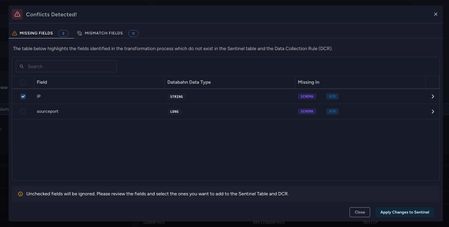
Enterprise security teams are collecting more telemetry than ever across cloud platforms, endpoints, SaaS applications, and on-premises infrastructure. Security teams want broader data coverage and longer retention without losing control of cost and data quality. This post explains the new DataBahn integration with Microsoft Sentinel, why it matters for SIEM operations, and how to think about using a security data pipeline alongside Sentinel for onboarding, normalization, routing, and governance. DataBahn joins Microsoft Sentinel partner ecosystem This integration reflects Microsoft Sentinel’s open partner ecosystem, giving customers choice in the partners they use alongside Microsoft Sentinel to manage their security data pipelines. DataBahn joins a broader set of complementary partners, enabling customers to tailor solutions for their unique security data needs. DataBahn is available through Microsoft Marketplace and is eligible for customers to apply existing Azure Consumption Commitments toward the purchase of DataBahn. Why this matters for security operations teams Security teams are under relentless pressure to ingest more data, move faster through SIEM migrations, and preserve data fidelity for detections and investigations, all while managing costs effectively. The challenge isn’t just ingesting data, but ensuring the right telemetry arrives in a consistent, governed format that analysts and detections can trust. This is where a security data pipeline, alongside Microsoft Sentinel’s native connectors and DCRs, can add value. It helps streamline onboarding of third-party and custom sources, improve normalization consistency, and provide operational visibility across diverse environments as deployments scale. What DataBahn integration is positioned to do with Microsoft Sentinel Security teams want broader coverage and need to ensure third-party data is consistently shaped, routed, and governed at scale. This is where a security data pipeline like DataBahn complements Microsoft Sentinel. Sitting upstream of ingestion, the pipeline layer standardizes onboarding and shaping across sources while providing operational visibility into data flow and pipeline health. Together, the collaboration focuses on reducing onboarding friction, improving normalization consistency, enabling intentional routing, and strengthening governance signals so teams can quickly detect source changes, parser breaks, or data gaps—while staying aligned with Sentinel analytics and detection workflows. This model gives Sentinel customers more choice to move faster, onboard data at scale, and retain control over data routing. Key capabilities Bidirectional data integration The integration enables seamless delivery of telemetry into Sentinel while aligning with Sentinel detection logic and schema expectations. This helps ensure telemetry pipelines remain consistent with: Sentinel detection formats Custom analytics rules Sentinel data models and schemas Automated table and DCR management As detections evolve, pipeline configurations can adapt to maintain detection fidelity and data consistency. Advanced management API DataBahn provides an advanced management API that allows organizations to programmatically configure and manage pipeline integrations with Sentinel. This enables teams to: Automate pipeline configuration Manage operational workflows Integrate pipeline management into broader security or DevOps automation processes Automatic identification of configuration conflicts In complex environments with multiple telemetry sources and routing rules, configuration conflicts can arise across filtering logic, enrichment pipelines, and detection dependencies. The integration helps automatically: Detect conflicts in filtering rules and pipeline logic Identify clashes with detection dependencies Highlight missing configurations or coverage gaps This visibility allows SOC teams to quickly identify issues that could impact detection reliability. Centralized pipeline management The integration enables centralized management of data collection and transformation workflows associated with Sentinel telemetry pipelines. This provides unified visibility and control across telemetry sources while maintaining compatibility with Sentinel analytics and detections. Centralized management simplifies operations across large environments where multiple telemetry pipelines must be maintained. Flexible data transformation and customization Security telemetry often arrives in inconsistent formats across vendors and platforms. The platform supports flexible transformation capabilities that allow organizations to: Normalize logs into standard or custom Sentinel table formats Add or derive fields required by Sentinel detections Apply filtering or enrichment rules before ingestion Configuration can be performed through a single-screen workflow, enabling teams to modify schemas and define filtering logic without disrupting downstream analytics. The platform also provides schema drift detection and source health monitoring, helping teams maintain reliable telemetry pipelines as environments evolve. Closing Effective security operations depend on how quickly a SOC can onboard new data, scale effectively, and maintain high‑quality investigations. Sentinel provides a cloud‑native, AI-ready foundation to ingest security data from first- and third‑party data sources—while enabling economical, large‑scale retention and deep analytics using open data formats and multiple analytics engines. DataBahn’s partnership with Sentinel is positioned as a pipeline layer that can help teams onboard third-party sources, shape and normalize data, and apply routing and governance patterns before data lands in Sentinel. Learn more DataBahn for Microsoft Sentinel DataBahn Press Release - Databahn Deepens Partnership with Microsoft Sentinel Microsoft Sentinel data lake overview - Microsoft Security | Microsoft Learn Microsoft Sentinel—AI-Ready Platform | Microsoft Security Connect Microsoft Sentinel to the Microsoft Defender portal - Unified security operations | Microsoft Learn Microsoft Sentinel data lake is now generally available | Microsoft Community Hub3KViews2likes1CommentAutomating Microsoft Sentinel: A blog series on enabling Smart Security
This entry guides readers through building custom Playbooks in Microsoft Sentinel, highlighting best practices for trigger selection, managed identities, and integrating built-in tools and external APIs. It offers practical steps and insights to help security teams automate incident response and streamline operations within Sentinel.2KViews2likes1CommentAutomating Microsoft Sentinel: Playbook Fundamentals
Welcome to the third entry of our blog series on automating Microsoft Sentinel. In this series, we’re showing you how to automate various aspects of Microsoft Sentinel, from simple automation of Sentinel Alerts and Incidents to more complicated response scenarios with multiple moving parts. So far, we’ve covered Part 1: Introduction to Automating Microsoft Sentinel where we talked about why you would want to automate as well as an overview of the different types of automation you can do in Sentinel and Part 2: Automation Rules where we talked about automating the mundane away. In this post, we’re going to start talking about Playbooks which can be used for automating just about anything. Here is a preview of what you can expect in the upcoming posts [we’ll be updating this post with links to new posts as they happen]: Part 1: Introduction to Automating Microsoft Sentinel Part 2: Automation Rules – Automate the mundane away Part 3: Playbooks 1 Part I – Fundamentals [You are here] Part 4: Playbooks 2 Part II – Diving Deeper Part 5: Azure Functions / Custom Code Part 6: Capstone Project (Art of the Possible) – Putting it all together Part 3: Playbooks - Fundamentals Pre-Built Playbooks in Content Hub Before we dive any deeper into Playbooks, I want to first point out that there are many pre-built playbooks available in the Content Hub. As of this writing, there are 484 playbooks available from 195 providers covering all manner of use cases like threat intelligence ingestion, incident response, operations integrations, and more in both first party Microsoft and third-party security tools. Before we dive into the internals of Playbooks and start creating our own, you really should do yourself a favor and take a look at the Content Hub and see if there isn’t already a Playbook doing what you want. You can also review the list of solutions at the Microsoft Sentinel GitHub page at Azure-Sentinel/Solutions at master · Azure/Azure-Sentinel Basic Structure of a Playbook Microsoft Sentinel Playbooks are built on Azure Logic Apps which is a low to no-code workflow automation platform. We’ll be diving into the details of how to create a Logic App from start to finish in the next installment of this series, but for now just know that there are two key “custom” features that Sentinel exposes for use in Playbooks: Triggers and Entities. Triggers The events or actions that can start a Playbook running are Triggers. These can be Incident, Alert, or Entity based. Incident Triggers Incident triggers are when an incident is either created or updated in Sentinel. Incident triggers can be tied to Automation Rules (which were covered in part 2 of this series) and can also be manually triggered by an analyst. Playbooks launched with Incident triggers receive all the incident objects, including any entities it contains as well as the alerts it is comprised of. Alert Triggers Alert triggers are similar to Incident triggers; except they trigger when an Alert is fired due to an Analytic Rule having a result. This is especially useful when you have an Alert that is not configured to create an Incident. Alert triggers can also be tied to Automation Rules Entity Triggers Entity triggers are different from Incident and Alert triggers as they cannot be tied to Automation Rules. Instead, they are triggered manually by an analyst. For example, let’s say that there is a user account that is part of an Incident and during the investigation the analyst decided they wanted to disable that user account in Entra. They could use an Entity Trigger to launch the Playbook, passing the Account Entity to the playbook for the account to be disabled. Entities We can’t really talk about Entity Triggers without talking about Entities themselves. So, what is an Entity in Sentinel? Entities are data elements that identify components in an alert or incident. There are many different types of entities within Sentinel, but for Playbooks we only need to focus on five key ones: IP Host Account URL FileHash (for more information on Entities in general, please see: https://learn.microsoft.com/azure/sentinel/entities ) How do you use Entity Triggers? When you are building an Analytic rule, you can identify the different Entities that it contains. These are then carried along as part of the Alert and exposed for further actions. This means that all you need to do is map the results of the Analytic Rule to the different Entity types using values returned from your query. For example, let’s say we are creating an Analytic Rule to alert on a new CloudShell user being created in Azure with the following query: let match_window = 3m; AzureActivity | where ResourceGroup has "cloud-shell" | where (OperationNameValue =~ "Microsoft.Storage/storageAccounts/listKeys/action") | where ActivityStatusValue =~ "Success" | extend TimeKey = bin(TimeGenerated, match_window), AzureIP = CallerIpAddress | join kind = inner (AzureActivity | where ResourceGroup has "cloud-shell" | where (OperationNameValue =~ "Microsoft.Storage/storageAccounts/write") | extend TimeKey = bin(TimeGenerated, match_window), UserIP = CallerIpAddress ) on Caller, TimeKey | summarize count() by TimeKey, Caller, ResourceGroup, SubscriptionId, TenantId, AzureIP, UserIP, HTTPRequest, Type, Properties, CategoryValue, OperationList = strcat(OperationNameValue, ' , ', OperationNameValue1) | extend Name = tostring(split(Caller,'@',0)[0]), UPNSuffix = tostring(split(Caller,'@',1)[0]) When we use this query as the basis for an Alert, we can then use Entity Mapping under Alert Enhancement to take the relevant fields returned and map them to Entity objects: This example maps the values "Caller", "Name", and "UPNSuffix" returned by the query to the "FullName", "Name", and "UPNSuffix" fields of an Account Entity. It also maps the UserIP result to the "Address" field of an IP Entity. When the Alert fires, it will include a collection of Account and IP Entities with the necessary values in its Entities field. Now if we wanted to, we could use a Playbook based on Entity Triggers to act on the Account or IP entities. What is a “strong” identifier versus a “weak” identifier and why is it important? Entities have fields that identify individual instances. Strong identifiers uniquely identify an entity, while weak identifiers may not. Often, combining weak identifiers can create a strong identifier. For example, Account entities can be identified by a strong identifier like a Microsoft Entra ID (GUID) or User Principal Name (UPN). Alternatively, a combination of weak identifiers like Name and NTDomain can be used. Different data sources might identify the same user differently. When Microsoft Sentinel recognizes two entities as the same based on their identifiers, it merges them into one for consistent handling. We’ll be covering more details on using Entities and Triggers in the next article when we start building Playbooks from scratch. Conclusion In this article we talked about the fundamentals of Playbooks in Sentinel , the Content Hub which is the home of pre-built Playbooks, as well as the different types of Triggers that can be used to launch a Playbook. In the next article we’ll be covering how to build a playbook from scratch and put these concepts to work. Additional Resources Supported triggers and actions in Microsoft Sentinel playbooks Entities in Microsoft Sentinel3.3KViews2likes0Comments