azure
21 TopicsA Look at Different Options for Storing and Searching Sentinel Archived Logs
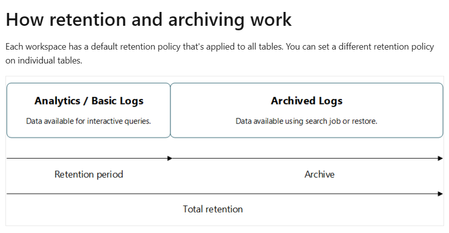
As an Azure Sentinel user, you know the importance of having a secure and accessible backup of your log data. In this blog, we'll show you the various options available for storing and searching Sentinel logs beyond the default 90-day retention period. Explore the features and benefits of each solution to find the best fit for your organization.22KViews6likes2CommentsTutorial: Get started with Azure WAF investigation Notebook
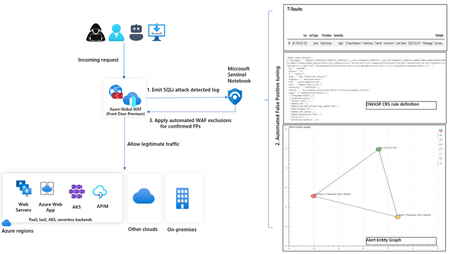
In this blog, we introduce you to the Azure WAF guided investigation Notebook using Microsoft Sentinel, which lets you investigate an Azure WAF triggered SQL injection attack event log. This Azure WAF Notebook queries incidents related to Azure WAF SQL injection events in your Microsoft Sentinel workspace. In addition to guiding you through the Azure WAF SQL injection incidents, the Notebook correlates the incidents with Threat Intelligence, maps them to the Sentinel entity graph, and gives you a complete picture of the attack landscape. Furthermore, it will guide you through an investigation experience to determine if the incident is a true positive, false positive or benign positive using Azure WAF raw logs. Upon confirmation of a false positive, the Azure WAF exclusions are applied automatically using Azure WAF APIs.11KViews2likes2Comments
Microsoft Sentinel & Cyberint Threat Intel Integration Guide
Explore comprehensive guide on "Microsoft Sentinel & Cyberint Threat Intel Integration Guide," to learn how to integrate Cyberint's advanced threat intelligence with Microsoft Sentinel. This detailed resource will walk you through the integration process, enabling you to leverage enriched threat data for improved detection and response. Elevate your security posture and ensure robust protection against emerging threats. Read the guide to streamline your threat management and enhance your security capabilities.10KViews1like1Comment
Azure Active Directory Identity Protection user account enrichments removed: how to mitigate impact
AADIP connector no longer contains user account enrichment fields. In this post we'll offer mitigation steps you can take, to allow you to self enrich your AADIP data in your Microsoft Sentinel workspace using UEBA's IdentityInfo table.8.5KViews0likes0Comments
Guided Hunting Notebook: Azure Resource Explorer
While hunting in Azure, you might find yourself pivoting from one resource to another or find that you may want to see the whole workspace from a big picture point of view. The Guided Hunting: Azure Resource Explorer notebook will allow you to take advantage of the new Azure Resource API and visualize all the resources in your subscription. It will also provide general contextual TI info about your resources of interest to help you recognize unusual behaviors. 7.5KViews1like1Comment
Multi-workspace for Multi-tenant is now in Public Preview in Microsoft's Unified SecOps Platform
We are thrilled to announce that our unified security operations (SecOps) platform now supports multi workspaces for multiple tenants, currently available in public preview. This marks a significant advancement in our commitment to providing comprehensive security solutions tailored to the diverse needs of our customers. The unified platform integrates the capabilities of Microsoft Sentinel, Defender XDR, and more, offering a seamless and robust experience. What's Included in the Microsoft Unified Security Operations Platform? The unified SecOps platform integrates several advanced features designed to provide comprehensive security management across multiple workspaces and tenants: Single pane of glass for all your tenant’s incidents and alerts. Triage and investigate incidents and alerts across multiple workspaces and tenants in a single place. Improved threat hunting experience. Proactively search for security data across multiple workspaces and tenants using Advanced hunting. Multi-workspace, Multi-tenant Experience—Main Scenarios Multi-tenant portal To use the unified SecOps platform experience for multiple tenants and workspaces, you must first sign in to the multi-tenant portal. Learn more: https://aka.ms/mtoportal Make sure to onboard all your tenants’ workspaces separately in the main, single tenant portal. Workspaces are onboarded separately for each tenant. (each tenant is onboarded separately). Learn more: https://aka.ms/OnboardMultiWS Incidents and Alerts In the unified queues, you are now able to view all incidents and alerts, from all workloads, workspaces, and tenants, and filter by workspace or tenant. Each alert and incident is related to a single workspace and tenant to keep data boundaries. Bi-directional sync ensures that any change made in the unified SecOps portal is reflected in Microsoft Sentinel in the Azure portal, and vice versa. Advanced Hunting In Advanced Hunting, you'll be able to explore all your security data in a single place. For hunting and investigation purposes, you'll be able to query Microsoft Sentinel with data from all your workspaces, running queries across multiple workspaces and tenants using the workspace operator in your query. Instructions Navigate to Advanced Hunting in MTO portal. Select tenants and workspace in the selector: Click on the tenant selector in the right section of the window. For each tenant with workspace onboarded, click on “edit selection” and choose the workspace (we currently support only single WS selection per tenant). Run any cross-tenant queries with a single workspace in each tenant (all queries can be joined with Defender tables). Quering across multiple workspaces and multiple tenants using the “workspace operator”: You can run queries across multiple workspaces and multiple tenants. To do so, please select only a single tenant in the selector and use the workspace operator by calling other workspaces’ names. For example: You manage two tenants, with multiple workspaces for each tenant: TenantA: WS1, WS2; TenantB: WS3, WS4. You would like to run cross WS-cross tenants queries. You should: select any tenant in the selector (should be single select: TenantA, and WS1 selected). Run cross queries on “Usage” table. Query: union workspace("WorkspaceB2").Usage, Usage | where TimeGenerated > ago(1d) | summarize TotalRecords = count() by Workspace = TenantId Results: you should receive results from WS1 (TenantA) and results from WS3 (TenantB). This capability is available only for tenants that have permissions to other tenants’ workspaces using Azure Lighthouse. FAQ How can I onboard my tenants’ workspaces to the unified SecOps platform? Onboard each tenants’ workspaces separately in the single tenant portal. Learn more: https://aka.ms/OnboardMultiWS Is Azure Lighthouse supported in the MTO portal? Yes, Azure Lighthouse is supported and required to gain access to Microsoft Sentinel data in other tenants’ workspaces. What delegated access method is supported in the MTO portal? To use the multi workspace capability you must enable: Azure Lighthouse - required to access other tenants’ Microsoft Sentinel data. B2B - to access Defender data. GDAP is not supported yet for unified SecOps capabilities. Will data from one workspace/ one tenant be synced to a second workspace/ tenant? No, data boundaries between workspaces and tenants are maintained, ensuring that each workspace will only be synced with its own data. Can I still access my environment in Azure? Yes, all experiences remain the same. Conclusion Microsoft’s unified SecOps platform support for multi- workspace, multi- tenants customers represent a significant leap forward in cybersecurity management. By centralizing operations and providing robust tools for detection, investigation, and automation, it empowers organizations to maintain a vigilant and responsive security posture. The platform’s flexibility and comprehensive view of security data make it an invaluable asset for modern security operations. With the public preview now available, organizations can experience firsthand the transformative impact of the Unified Security Operations Platform. Join us in pioneering a new era of cybersecurity excellence. Learn More Please visit our documentation to learn more about the supported scenarios and how to onboard multiple workspaces and tenants to the unified platform: https://aka.ms/UsopMTO https://aka.ms/OnboardMultiWS4.2KViews0likes0Comments
How to Ingest Microsoft Intune Logs into Microsoft Sentinel
For many organizations using Microsoft Intune to manage devices, integrating Intune logs into Microsoft Sentinel is an essential for security operations (Incorporate the device into the SEIM). By routing Intune’s device management and compliance data into your central SIEM, you gain a unified view of endpoint events and can set up alerts on critical Intune activities e.g. devices falling out of compliance or policy changes. This unified monitoring helps security and IT teams detect issues faster, correlate Intune events with other security logs for threat hunting and improve compliance reporting. We’re publishing these best practices to help unblock common customer challenges in configuring Intune log ingestion. In this step-by-step guide, you’ll learn how to successfully send Intune logs to Microsoft Sentinel, so you can fully leverage Intune data for enhanced security and compliance visibility. Prerequisites and Overview Before configuring log ingestion, ensure the following prerequisites are in place: Microsoft Sentinel Enabled Workspace: A Log Analytics Workspace with Microsoft Sentinel enabled; For information regarding setting up a workspace and onboarding Microsoft Sentinel, see: Onboard Microsoft Sentinel - Log Analytics workspace overview. Microsoft Sentinel is now available in the Defender Portal, connect your Microsoft Sentinel Workspace to the Defender Portal: Connect Microsoft Sentinel to the Microsoft Defender portal - Unified security operations. Intune Administrator permissions: You need appropriate rights to configure Intune Diagnostic Settings. For information, see: Microsoft Entra built-in roles - Intune Administrator. Log Analytics Contributor role: The account configuring diagnostics should have permission to write to the Log Analytics workspace. For more information on the different roles, and what they can do, go to Manage access to log data and workspaces in Azure Monitor. Intune diagnostic logging enabled: Ensure that Intune diagnostic settings are configured to send logs to Azure Monitor / Log Analytics, and that devices and users are enrolled in Intune so that relevant management and compliance events are generated. For more information, see: Send Intune log data to Azure Storage, Event Hubs, or Log Analytics. Configure Intune to Send Logs to Microsoft Sentinel Sign in to the Microsoft Intune admin center. Select Reports > Diagnostics settings. If it’s the first time here, you may be prompted to “Turn on” diagnostic settings for Intune; enable it if so. Then click “+ Add diagnostic setting” to create a new setting: Select Intune Log Categories. In the “Diagnostic setting” configuration page, give the setting a name (e.g. “Microsoft Sentinel Intune Logs Demo”). Under Logs to send, you’ll see checkboxes for each Intune log category. Select the categories you want to forward. For comprehensive monitoring, check AuditLogs, OperationalLogs, DeviceComplianceOrg, and Devices. The selected log categories will be sent to a table in the Microsoft Sentinel Workspace. Configure Destination Details – Microsoft Sentinel Workspace. Under Destination details on the same page, select your Azure Subscription then select the Microsoft Sentinel workspace. Save the Diagnostic Setting. After you click save, the Microsoft Intune Logs will will be streamed to 4 tables which are in the Analytics Tier. For pricing on the analytic tier check here: Plan costs and understand pricing and billing. Verify Data in Microsoft Sentinel. After configuring Intune to send diagnostic data to a Microsoft Sentinel Workspace, it’s crucial to verify that the Intune logs are successfully flowing into Microsoft Sentinel. You can do this by checking specific Intune log tables both in the Microsoft 365 Defender portal and in the Azure Portal. The key tables to verify are: IntuneAuditLogs IntuneOperationalLogs IntuneDeviceComplianceOrg IntuneDevices Microsoft 365 Defender Portal (Unified) Azure Portal (Microsoft Sentinel) 1. Open Advanced Hunting: Sign in to the https://security.microsoft.com (the unified portal). Navigate to Advanced Hunting. – This opens the unified query editor where you can search across Microsoft Defender data and any connected Sentinel data. 2. Find Intune Tables: In the Advanced hunting Schema pane (on the left side of the query editor), scroll down past the Microsoft Sentinel Tables. Under the LogManagement Section Look for IntuneAuditLogs, IntuneOperationalLogs, IntuneDeviceComplianceOrg, and IntuneDevices in the list. Microsoft Sentinel in Defender Portal – Tables 1. Navigate to Logs: Sign in to the https://portal.azure.com and open Microsoft Sentinel. Select your Sentinel workspace, then click Logs (under General). 2. Find Intune Tables: In the Logs query editor that opens, you’ll see a Schema or tables list on the left. If it’s collapsed, click >> to expand it. Scroll down to find LogManagement and expand it; look for these Intune-related tables: IntuneAuditLogs, IntuneOperationalLogs, IntuneDeviceComplianceOrg, and IntuneDevices Microsoft Sentinel in Azure Portal – Tables Querying Intune Log Tables in Sentinel – Once the tables are present, use Kusto Query Language (KQL) in either portal to view and analyze Intune data: Microsoft 365 Defender Portal (Unified) Azure Portal (Microsoft Sentinel) In the Advanced Hunting page, ensure the query editor is visible (select New query if needed). Run a simple KQL query such as: IntuneDevice | take 5 Click Run query to display sample Intune device records. If results are returned, it confirms that Intune data is being ingested successfully. Note that querying across Microsoft Sentinel data in the unified Advanced Hunting view requires at least the Microsoft Sentinel Reader role. In the Azure Logs blade, use the query editor to run a simple KQL query such as: IntuneDevice | take 5 Select Run to view the results in a table showing sample Intune device data. If results appear, it confirms that your Intune logs are being collected successfully. You can select any record to view full event details and use KQL to further explore or filter the data - for example, by querying IntuneDeviceComplianceOrg to identify devices that are not compliant and adjust the query as needed. Once Microsoft Intune logs are flowing into Microsoft Sentinel, the real value comes from transforming that raw device and audit data into actionable security signals. To achieve this, you should set up detection rules that continuously analyze the Intune logs and automatically flag any risky or suspicious behavior. In practice, this means creating custom detection rules in the Microsoft Defender portal (part of the unified XDR experience) see [https://learn.microsoft.com/en-us/defender-xdr/custom-detection-rules] and scheduled analytics rules in Microsoft Sentinel (in either the Azure Portal or the unified Defender portal interface) see:[Create scheduled analytics rules in Microsoft Sentinel | Microsoft Learn]. These detection rules will continuously monitor your Intune telemetry – tracking device compliance status, enrollment activity, and administrative actions – and will raise alerts whenever they detect suspicious or out-of-policy events. For example, you can be alerted if a large number of devices fall out of compliance, if an unusual spike in enrollment failures occurs, or if an Intune policy is modified by an unexpected account. Each alert generated by these rules becomes an incident in Microsoft Sentinel (and in the XDR Defender portal’s unified incident queue), enabling your security team to investigate and respond through the standard SOC workflow. In turn, this converts raw Intune log data into high-value security insights: you’ll achieve proactive detection of potential issues, faster investigation by pivoting on the enriched Intune data in each incident, and even automated response across your endpoints (for instance, by triggering playbooks or other automated remediation actions when an alert fires). Use this Detection Logic to Create a detection Rule IntuneDeviceComplianceOrg | where TimeGenerated > ago(24h) | where ComplianceState != "Compliant" | summarize NonCompliantCount = count() by DeviceName, TimeGenerated | where NonCompliantCount > 3 Additional Tips: After confirming data ingestion and setting up alerts, you can leverage other Microsoft Sentinel features to get more value from your Intune logs. For example: Workbooks for Visualization: Create custom workbooks to build dashboards for Intune data (or check if community-contributed Intune workbooks are available). This can help you monitor device compliance trends and Intune activities visually. Hunting and Queries: Use advanced hunting (KQL queries) to proactively search through Intune logs for suspicious activities or trends. The unified Defender portal’s Advanced Hunting page can query both Sentinel (Intune logs) and Defender data together, enabling correlation across Intune and other security data. For instance, you might join IntuneDevices data with Azure AD sign-in logs to investigate a device associated with risky sign-ins. Incident Management: Leverage Sentinel’s Incidents view (in Azure portal) or the unified Incidents queue in Defender to investigate alerts triggered by your new rules. Incidents in Sentinel (whether created in Azure or Defender portal) will appear in the connected portal, allowing your security operations team to manage Intune-related alerts just like any other security incident. Built-in Rules & Content: Remember that Microsoft Sentinel provides many built-in Analytics Rule templates and Content Hub solutions. While there isn’t a native pre-built Intune content pack as of now, you can use general Sentinel features to monitor Intune data. Frequently Asked Questions If you’ve set everything up but don’t see logs in Sentinel, run through these checks: Check Diagnostic Settings Go to the Microsoft Intune admin center → Reports → Diagnostic settings. Make sure the setting is turned ON and sending the right log categories to the correct Microsoft Sentinel workspace. Confirm the Right Workspace Double-check that the Azure subscription and Microsoft Sentinel workspace are selected. If you have multiple tenants/directories, make sure you’re in the right one. Verify Permissions Make Sure Logs Are Being Generated If no devices are enrolled or no actions have been taken, there may be nothing to log yet. Try enrolling a device or changing a policy to trigger logs. Check Your Queries Make sure you’re querying the correct workspace and time range in Microsoft Sentinel. Try a direct query like: IntuneAuditLogs | take 5 Still Nothing? Try deleting and re-adding the diagnostic setting. Most issues come down to permissions or selecting the wrong workspace. How long are Intune logs retained, and how can I keep them longer? The analytics tier keeps data in the interactive retention state for 90 days by default, extensible for up to two years. This interactive state, while expensive, allows you to query your data in unlimited fashion, with high performance, at no charge per query: Log retention tiers in Microsoft Sentinel. We hope this helps you to successfully connect your resources and end-to-end ingest Intune logs into Microsoft Sentinel. If you have any questions, leave a comment below or reach out to us on X @MSFTSecSuppTeam!3.7KViews3likes0Comments