azure sql
725 Topics
Database watcher for Azure SQL is retiring: simplify your monitoring with Database Hub
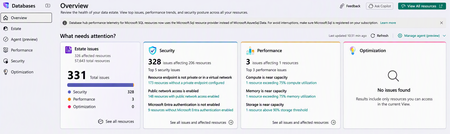
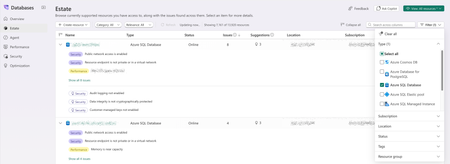
Today we're announcing the retirement of database watcher for Azure SQL Database and Azure SQL Managed Instance. This includes monitoring for databases in elastic pools. Database watcher won't move to general availability. Database Hub in Microsoft Fabric gives you a simpler way to understand and manage your database estate: No monitoring infrastructure to manage. Microsoft runs the performance-monitoring telemetry pipeline and storage. You don't need to set up or manage a separate monitoring data store, and there's no separate data-store charge for collecting that telemetry. Issues and suggestions in one place. Identify resources that need attention and review suggestions to improve your database estate. A view beyond SQL. See supported non-SQL resources alongside your SQL estate, with visibility into their available performance signals. More SQL environments. Monitor SQL Server on Azure VMs and SQL Server enabled by Azure Arc. These environments aren't supported by database watcher. A clearer path to investigation. Move from an estate-wide issue to the relevant resource details and performance data. An easier way to start collecting data. Enable supported monitoring without provisioning a watcher or an ADX cluster. Your databases stay where they are. You can start using Database Hub today and keep your watchers running while you make the transition. You can continue using your existing watchers until April 30, 2027. Starting November 9, 2026, you won't be able to create new watcher resources or edit existing ones. Existing watchers will continue operating and collecting data until retirement. Why we're making this change Thank you to everyone who used database watcher and shared your feedback with us. Database watcher showed the value of an estate-wide performance view. But some customers also told us that managing watcher resources and the data store was burdensome, especially in large and diverse environments. Your feedback helped us understand what worked well, what needed to improve, and ultimately helped to shape Database Hub. We built Database Hub to streamline that process. Microsoft manages the performance-monitoring infrastructure, so you can spend less time maintaining it and more time improving your databases. Database Hub also brings a broader view of your estate into the same experience. You can review issues and improvement suggestions across supported services, rather than treating SQL performance monitoring as a separate task. Retirement timeline Date What happens October 27, 2026 Database watcher retirement is announced. November 9, 2026 - Creating new watcher resources and editing existing resources will be blocked. - Existing watchers will continue to operate. During the transition - Existing watchers continue collecting data until April 30, 2027. - You can use Database Hub alongside your watchers while you move. April 30, 2027 - All existing database watcher resources will enter into a stopped state and will stop collecting performance monitoring data. - After this date, you will not be able to start the watcher resources. What you can do in Database Hub Database Hub helps you understand where your estate needs attention, not just how an individual SQL database is performing: Identify issues. Use Overview and Estate to find resources that need investigation. Find opportunities to improve. Review suggestions for supported resources and follow through to the relevant configuration or investigation experience. See beyond SQL. Include supported non-SQL services in your estate view. For example, review available performance metrics for Azure Database for PostgreSQL flexible server. Available signals and actions vary by service. See the Database Hub overview for supported resources and capabilities. Investigate SQL performance Start with a performance question you already need to answer. For example, if CPU usage is higher than expected: Find the resources to investigate. Use Overview to identify areas that need attention. Open Estate and narrow the view to the subscriptions or resource groups you manage. Explore the performance signals. On the Performance page, use the Microsoft SQL dashboard to review CPU and other workload signals for your selected resources. Go deeper when you need to. Adjust the time range to investigate a spike. Query the underlying telemetry with KQL when you need your own analysis. That gives you a path from an estate-wide view to a focused investigation without running a separate monitoring data store. See the SQL monitoring walkthrough for the detailed flow. You can get started with a Fabric Free license. Accessing Database Hub doesn't require Fabric capacity, and enabling supported performance monitoring doesn't incur an extra cost. Additional workflows, such as custom dashboards and Activator alerts, can have separate capacity or licensing requirements. Looking ahead: Database Agents In the future, we'll bring Database Agents into Database Hub to help you use AI and agents to better manage your database estate. We'll share more as these capabilities become available. More SQL monitoring capabilities before retirement We're bringing additional performance-monitoring capabilities to Database Hub to help you build a more complete view of your SQL estate. Before database watcher retires on April 30, 2027, we'll add support for: Azure SQL Managed Instance Azure SQL elastic pools and their databases Secondary replicas You can start using Database Hub now. As these capabilities become available, use them alongside your existing watchers to bring more of your SQL monitoring into the new experience. For current availability and regional requirements, see Enable performance monitoring for Microsoft SQL. Start today You don't need to complete your transition to start seeing value. Open Database Hub. Sign in to Database Hub. On the Estate page, find an Azure SQL database you manage. If your organization hasn't enabled the preview, ask your Fabric administrator to enable access. Start collecting data now. Microsoft will enable performance monitoring for existing Azure SQL Database resources over the coming weeks. You don't have to wait. Select an eligible database on Estate and choose Enable Performance Monitoring, or follow the enablement instructions. Explore your first performance view. Once data is available, open Performance and select the relevant resources in the Microsoft SQL dashboard. Choose a time range and review the signals for a workload you know. The first goal is simple: find a database you manage and see its performance data. Keep your watcher running while you get familiar with the experience. If a resource or its data doesn't appear, use the troubleshooting checks for access and monitoring setup. Complete your transition before April 30, 2027 As you confirm that your database estate is appearing in Database Hub, work through the parts of your monitoring setup that you want to carry forward: Compare the monitoring you rely on. Use Database Hub alongside your watchers to validate the signals and dashboards your team needs. Bring additional targets into the experience as new monitoring capabilities become available. Adapt your custom queries. Review your KQL against Database Hub performance telemetry. Test the queries you use for operational decisions. Recreate and test your alerts. For alerts based on a custom dashboard, create a SQL monitor from a template. Then follow Create Activator alerts for a Real-Time Dashboard. This path requires a workspace with Fabric-enabled capacity. Confirm that each alert's query and notifications work before removing the existing alert. Retire your watcher when you're ready. Once you've validated the monitoring you need, follow the watcher management guidance to delete watcher resources you no longer need. Decide what history to keep. Keep your existing data store if you still need its history. Export any data you want to retain before deprovisioning resources. Your historical data stays under your control Retirement stops database watcher data collection. It won't stop or deprovision your Azure Data Explorer resources or Fabric Eventhouse. Existing data remains subject to your retention settings. You'll continue paying for those resources unless you deprovision them yourself. When you're ready to clean up: Check whether an ADX cluster or Eventhouse serves other workloads before deleting it. Review the associated Fabric capacity. Deleting an Eventhouse doesn't automatically stop charges for retained or shared capacity. Remove configured alerts you no longer need to avoid their ongoing charges. Deleting a watcher doesn't automatically delete its data store or alerts. You can keep historical data while using Database Hub for new monitoring. Frequently asked questions Will existing watchers stop collecting data on October 27, 2026? No. The announcement and shutdown are separate milestones. Existing collection continues during the transition until April 30, 2027. Can I create or edit a watcher during the transition? Starting November 9, 2026, you won't be able to create new watcher resources or edit existing ones. Your existing watchers will continue operating until April 30, 2027. Will my historical data be deleted? No. Database watcher will stop collecting performance data when it retires on April 30, 2027. Retirement won't stop or deprovision your Azure Data Explorer resources or Fabric Eventhouse. Your retention settings and resource-management choices still apply. Will my existing monitoring costs stop automatically? No. Azure Data Explorer and Fabric Eventhouse resources won't be stopped or deprovisioned as part of this retirement. You'll continue paying for those resources until you deprovision them yourself. Retained or shared Fabric capacity can continue to incur charges after an Eventhouse is deleted. Review configured alerts for ongoing costs too. What happens to my alert rules after April 30, 2027? Retirement won't automatically delete your existing alert rules. However, database watcher will stop collecting new performance data, so those rules should no longer be relied on to monitor current database conditions. Before retirement, recreate and test the alerts you need using Database Hub telemetry. Disable or delete old rules you no longer need to avoid unwanted notifications and ongoing charges. What if I monitor Azure SQL Managed Instance or databases in elastic pools? We're adding performance monitoring for these scenarios before database watcher retires on April 30, 2027. You can start exploring Database Hub now. Keep your watcher running alongside it as these capabilities become available. Will Microsoft enable performance monitoring for my existing SQL databases? Yes. Microsoft will enable performance monitoring for existing Azure SQL Database resources over the coming weeks. If you'd like to start collecting data sooner, enable it now. Do I need to move my databases into Fabric? No. Database Hub provides a monitoring experience for supported resources in their existing environments. Learn more Blog posts Database Hub in Fabric: Now in Public Preview Public Preview: Performance monitoring for Azure SQL in Database Hub Make Estate yours: Focus on the databases and issues you own in Database Hub Microsoft Learn documentation What is Database Hub? Enable performance monitoring for Microsoft SQL Monitor a Microsoft SQL database in Database Hub Query performance monitoring telemetry263Views0likes0CommentsSeconds of Downtime, Hours of Confusion: Handling Transient Azure SQL Disconnects
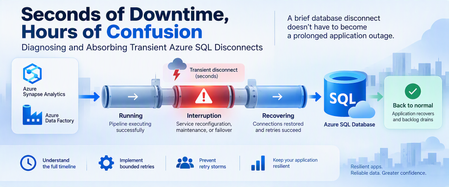
A database can recover in seconds while an application remains unavailable for much longer. Brief connectivity interruptions are expected failure modes that cloud applications should be designed to tolerate. With Azure SQL Database, transient connectivity errors can occur during short-lived service reconfiguration events. Microsoft notes that many such reconfiguration events complete in less than 60 seconds and recommends that applications implement retry logic rather than immediately surfacing transient failures to users. But the database interruption is only part of the story. An application might continue experiencing problems because of: Failed connections. Lost in-flight operations. Retry behavior. Connection-pool recovery. Authentication or token issues. Queued requests. Application instances retrying simultaneously. Backlogs that must drain after connectivity returns. This leads to an important troubleshooting principle: Database recovery and application recovery are separate milestones. Understanding that difference can turn a confusing availability incident into a defensible timeline and, more importantly, a more resilient application design. 1. Transient Does Not Mean Harmless A transient interruption is temporary, but its application impact doesn't have to be. Consider a simplified timeline: Time Event T0 Application healthy T1 Database connectivity is interrupted T2 Database connectivity becomes available again T3 Applications reconnect T4 Request backlog begins draining T5 Application returns to normal The actual database connectivity event is: T1 → T2 But users might experience impact across: T1 → T5 Calling the entire T1-to-T5 period a continuous database outage would be inaccurate unless evidence proves that the database itself remained unavailable. Instead, investigate the periods separately. 2. Build a Three-Layer Timeline A good post-incident investigation should correlate three timelines. Layer 1: Database/connectivity behavior Capture: Connection failures. Successful reconnections. Relevant Azure monitoring signals. Azure Service Health information when applicable. Database resource behavior. Layer 2: Client connectivity Capture: SQL exception number. Exception timestamp in UTC. Connection timeout. Retry attempts. Retry delays. Authentication failures. Network errors. Azure SQL troubleshooting guidance recommends logging failure timestamps and notes that SQL Database can return tracing information helpful during connectivity investigations. Layer 3: Application recovery Capture: Application health. Request failures. Queue depth. Retry volume. Connection-pool recovery. Backlog drain time. Time when users actually recovered. The timelines might reveal: Database connectivity restored │ ▼ Applications reconnect │ ▼ Backlog continues │ ▼ Application fully recovered That distinction is essential. 3. Classify the Failure Before Retrying It Not every SQL connectivity error means the same thing. Classify the symptom into categories such as: Transient availability/connectivity failure. Authentication failure. Token-related failure. Network-path problem. DNS problem. Firewall/configuration issue. Resource-governance condition. Application timeout. Long application recovery after SQL connectivity returns. Azure SQL Database documents multiple connectivity failure categories, including transient fault errors such as 40197 and 40613, authentication failures such as 18456, network termination conditions, firewall issues, and connection timeouts. The classification matters because: Not every failure should be retried in the same way. 4. Use Azure SQL Connectivity History Carefully Azure SQL Database exposes connectivity-event information through system views in the logical server's master database. One useful view is: sys.database_connection_stats It provides aggregated connection success and failure information in five-minute intervals. Connect to the logical server's master database and run: DECLARE @StartTime datetime2 = DATEADD(HOUR, -2, SYSUTCDATETIME()); SELECT database_name, start_time, end_time, success_count, total_failure_count, connection_failure_count FROM sys.database_connection_stats WHERE start_time >= @StartTime ORDER BY start_time DESC; This can help answer: Did connection failures occur? Which database was affected? In which five-minute interval? Were successful connections also occurring? But there's an important limitation. This is aggregated historical information, not a second-by-second outage trace. The data can also arrive later, with Microsoft documenting that it can take up to 24 hours for all information to appear. Therefore, don't use one five-minute bucket containing failures to claim: "The database was unavailable for five minutes." The evidence only tells you connection failures were recorded during that interval. 5. Look Deeper With sys.event_log For additional connectivity-event information, Azure SQL Database exposes: sys.event_log This view records successful database connections and connection failures and is intended to help track and troubleshoot Azure SQL Database connectivity activity. Again, connect to master. DECLARE @StartTime datetime2 = DATEADD(HOUR, -2, SYSUTCDATETIME()); SELECT database_name, start_time, end_time, event_category, event_type, event_subtype, event_subtype_desc, severity, event_count, description FROM sys.event_log WHERE start_time >= @StartTime AND event_category = N'connectivity' ORDER BY start_time DESC; Useful columns include: start_time end_time event_category event_type event_subtype_desc severity event_count description Microsoft cautions that querying sys.event_log can consume significant resources on logical servers with many databases or high login volumes, so keep the time range and other filters appropriately narrow. 6. Correlate SQL Evidence With Application Errors Now correlate the Azure SQL evidence with client telemetry. For every important application-side SQL exception, capture: UTC timestamp. SQL error number. Error message. Application instance. Operation. Retry attempt. Retry delay. Final outcome. Correlation or request ID when available. For example: UTC Layer Observation 10:00:02 Application SQL connection exception 10:00:04 Application Retry 1 fails 10:00:08 Application Retry 2 fails 10:00:15 SQL Connectivity succeeds 10:00:18 Application New connection succeeds 10:01:30 Application Queue still processing 10:05:00 Application Normal service restored Now you can separate: Connectivity interruption. Reconnection period. Application recovery period. That's substantially more useful than describing the full period as: "SQL was down." 7. Understand Connectivity and Reconfiguration Applications connect to the Azure SQL Database gateway, after which traffic is handled according to the effective connection policy and directed to the appropriate database environment. In a managed database service, applications must be designed for transient connectivity interruption. Microsoft specifically describes transient faults as conditions whose underlying cause resolves itself and notes that service reconfiguration can temporarily affect database connectivity. The application therefore shouldn't depend on one connection remaining valid indefinitely. Design for: Connections occasionally being terminated. New connection attempts occasionally failing. In-flight work requiring recovery. DNS and network paths needing to remain correctly configured. Authentication credentials or tokens remaining valid. Retry behavior that allows the system time to recover. Avoid guessing at undocumented platform internals when investigating an event. If evidence establishes only: "Connections failed briefly." Don't convert that into an unsupported explanation of why the platform changed state. 8. Retry Smartly, Not Aggressively Retry logic is essential for cloud applications that connect to Azure SQL Database. Microsoft explicitly recommends retry logic for transient connection failures. But a retry strategy needs boundaries. A good strategy considers: Number of attempts. Delay between attempts. Increasing delay. Random jitter. Maximum interval. Total retry budget. Whether the operation can safely be repeated. A bad strategy looks like: Failure ↓ Retry immediately ↓ Failure ↓ Retry immediately ↓ Failure ↓ Retry immediately... Across hundreds of application instances, this behavior can make recovery harder. A better pattern is: Failure ↓ Wait + jitter ↓ Retry ↓ Longer wait + jitter ↓ Retry ↓ Stop after bounded attempts 9. Use Microsoft.Data.SqlClient Retry Logic For .NET applications using Microsoft.Data.SqlClient, configurable retry logic is available in version 3.0 and later. Microsoft documents providers for configuring connection and command retries. A connection retry provider can be configured like this: var options = new SqlRetryLogicOption() { NumberOfTries = 5, DeltaTime = TimeSpan.FromSeconds(1), MaxTimeInterval = TimeSpan.FromSeconds(20) }; SqlRetryLogicBaseProvider provider = SqlConfigurableRetryFactory.CreateExponentialRetryProvider(options); using var connection = new SqlConnection(connectionString); connection.RetryLogicProvider = provider; connection.Open(); With this configuration: NumberOfTries = 5 Allows one initial attempt and up to four retries. DeltaTime Influences the delay between attempts. MaxTimeInterval Caps an individual retry delay. The exponential provider adds randomized jitter to retry intervals. The actual values should be tested against your application's: Latency requirements. Failure budget. Traffic volume. Concurrency. User experience. They're not universal service recommendations. 10. Connection Retry and Command Retry Are Different This is one of the most important resiliency distinctions. Suppose this fails: connection.Open(); Retrying the connection after an appropriate delay is generally straightforward for a transient connection condition. But suppose this fails: UPDATE dbo.Orders SET ProcessingStatus = N'Completed' WHERE OrderID = @OrderID; The application now has a harder question: Did the UPDATE execute before the connection was lost? Blindly repeating the command isn't always safe. Microsoft's Azure SQL guidance recommends establishing a fresh connection after a transient command failure before retrying, and retry logic must correctly account for the transaction's outcome. 11. Idempotency Matters Different operations require different retry treatment. Read-only operation For example: SELECT OrderID, ProcessingStatus FROM dbo.Orders WHERE OrderID = @OrderID; Repeating a read is often relatively straightforward, subject to your application's consistency requirements. Update operation For example: UPDATE dbo.Orders SET ProcessingStatus = N'Completed' WHERE OrderID = @OrderID; The client must determine whether repeating this operation is safe. Insert operation Consider: INSERT dbo.PaymentRequests ( RequestID, AccountID, Amount ) VALUES ( @RequestID, @AccountID, @Amount ); If the connection disappears after the server commits but before the client receives confirmation, an unconditional retry could create duplicate business activity unless the application and schema provide an idempotency mechanism. For example, a unique request identifier can make duplicate detection possible. The important principle is: Retryability is a business-operation property, not simply a SQL error property. 12. Transactions Need Special Treatment Be particularly careful with multi-statement transactions. Consider: BEGIN TRANSACTION; UPDATE dbo.Inventory SET Quantity = Quantity - @Quantity WHERE ProductID = @ProductID; INSERT dbo.ShipmentQueue ( RequestID, ProductID, Quantity ) VALUES ( @RequestID, @ProductID, @Quantity ); COMMIT TRANSACTION; If connectivity is interrupted, don't simply reconnect and retry the last statement. Your application needs a strategy that protects the integrity of the entire unit of work. Microsoft's retry documentation specifically cautions that if a transient failure invalidates an active transaction, the application should retry the entire transaction rather than only the failed statement. 13. Prevent the Retry Storm Imagine 500 application instances lose connectivity simultaneously. If every instance retries immediately: 500 requests fail ↓ 500 immediately retry ↓ Another synchronized wave ↓ Another synchronized wave Recovery traffic itself can become disruptive. Exponential backoff with jitter helps spread retries across time instead of concentrating them into synchronized bursts. The configurable retry provider in Microsoft.Data.SqlClient supports exponential retry behavior with randomized jitter. Also consider application-level resilience mechanisms such as: Circuit breakers. Back-pressure. Queueing. Controlled concurrency. Connection-pool recovery. Rate limiting. Load shedding where appropriate. The objective isn't: "Retry until SQL succeeds." It's: Recover gracefully without creating a second problem. 14. Don't Ignore the Network Path Not every SQL connection failure originates from the database. Azure SQL Database connectivity includes several components between the application and database, with connection behavior also influenced by the configured connection policy. Troubleshooting may need to include: DNS. Firewall configuration. Private endpoints. Network security rules. Client outbound connectivity. Connection policy. Authentication. Application host health. Azure SQL supports Redirect, Proxy, and Default connection-policy configurations depending on the environment and configuration. In Redirect mode, clients establish connections directly to the node hosting the database after the initial gateway interaction, which requires appropriate network access. This is another reason not to classify every connection exception as: "Azure SQL outage." 15. Test Resiliency Before an Incident Don't wait for a real platform event to discover whether your application's recovery logic works. Test controlled failure scenarios involving: New connections. Existing connections. Read-only requests. Writes. Multi-statement transactions. Multiple application instances. Queued workloads. Connection pools. Measure: Time to detect failure. First retry delay. Number of attempts. Time to establish a new connection. Failed user requests. Queue growth. Queue drain time. Full application recovery. The real success metric isn't merely: "Can I connect to the database again?" It's: "How quickly can the application return to normal service without compromising correctness?" 16. Write a Defensible Post-Incident Report A strong post-incident report separates facts, inferences, and unknowns. Confirmed facts Examples: Client connection failures were recorded during a specific UTC interval. Successful connections later resumed. Certain client instances continued failing after initial connectivity returned. Application backlog persisted beyond the connectivity event. Retry activity increased during recovery. Supported inference Example: Aggressive retry behavior likely contributed to slower application recovery. Use this classification only when application telemetry supports the relationship. Unknowns Examples: The exact internal platform operation responsible for a transient event. Whether an unrelated network event contributed. Whether a capacity change affected recovery. Don't fill gaps in telemetry with assumptions. 17. A Practical Decision Tree When an application reports an Azure SQL connectivity incident: 1. Is the database reachable now? No Check current Azure status and application connectivity. Validate networking, DNS, firewall, authentication, and Azure SQL availability. Yes Continue reconstructing the historical incident. 2. Did Azure SQL record connection failures? Yes Correlate: sys.event_log. sys.database_connection_stats. Application timestamps. Azure monitoring evidence. No or evidence isn't yet available Continue investigating application and network telemetry. Remember that historical connectivity data can arrive later. 3. Did the application retry? No Implement a bounded transient-fault handling strategy. Yes Evaluate: Retry count. Delay. Backoff. Jitter. Error classification. 4. Did many instances retry simultaneously? Yes Investigate: Retry synchronization. Circuit breaking. Back-pressure. Queue recovery. Connection pools. 5. Were writes or transactions interrupted? Yes Validate: Transaction outcome. Idempotency. Duplicate prevention. Whole-transaction retry behavior. 6. Did the application remain unhealthy after connections succeeded? Yes Measure application recovery separately from the original database connectivity event. Final Takeaway The hardest part of a transient Azure SQL event isn't always the interruption itself. Sometimes it's the application's response. A resilient architecture recognizes three separate timelines: Connectivity interruption Database/connectivity recovery Application recovery Azure SQL Database is designed as a cloud service where applications should expect and tolerate transient connectivity conditions. Microsoft recommends implementing retry logic rather than exposing appropriate transient failures directly to users. But resilient retry logic must be: Bounded. Delayed. Appropriately randomized. Error-aware. Transaction-aware. Idempotency-aware. Observable. And post-incident analysis should distinguish: What is confirmed. What is inferred. What remains unknown. Because: A brief database disconnect doesn't have to become a prolonged application outage. The objective isn't to design an application that never experiences a disconnected connection. The objective is to design an application that absorbs the interruption, recovers safely, and returns to normal operation predictably. Further reading Working with Transient Errors in Azure SQL Database Troubleshoot Common Connection Issues in Azure SQL Configure Retry Logic in Microsoft.Data.SqlClient Azure SQL Database Connectivity Architecture sys.event_log for Azure SQL Database sys.database_connection_stats for Azure SQL Database100Views0likes0CommentsThe Pipeline Is Slow, or Is SQL Waiting? Diagnosing Synapse-to-Azure SQL Regressions
A query can consume very little CPU and still keep a pipeline waiting for hours. A pipeline activity that normally finishes in minutes suddenly starts taking hours. Nothing obvious has changed: The pipeline definition looks the same. The stored procedure looks the same. Azure SQL Database isn't showing sustained high CPU. Pipeline monitoring still points toward the SQL activity. At this point, saying "SQL is slow" isn't enough. The request may actually be: Executing expensive work. Waiting for memory. Blocked by another transaction. Reading more data than before. Running with a different execution plan. Competing with concurrent pipeline activities. Experiencing different cardinality because of different parameter values. The key is to connect the pipeline invocation to the database execution and determine where elapsed time is really going. 1. Define the Regression Precisely Before troubleshooting SQL, establish what actually changed. Capture: Expected pipeline duration. Observed pipeline duration. Pipeline activity involved. Stored procedure or statement invoked. Exact parameter values. Affected and unaffected executions. Pipeline concurrency. Retry behavior. Connection and command timeout. Deployment or configuration changes. For example: Evidence Baseline Regression Pipeline duration Minutes Much longer Stored procedure Same Same Parameter range A B Concurrent activities Low Higher Azure SQL CPU Normal Normal/moderate SQL wait behavior Unknown To investigate The most important rule is: Don't assume the SQL workload is identical simply because the stored procedure is identical. Different parameters can result in dramatically different: Row counts. Join choices. Memory grants. Sort requirements. Execution plans. Total duration. 2. Preserve the Exact Invocation One of the easiest ways to lose a performance regression is to reproduce it with different parameters. Capture the invocation before testing: Procedure name. Parameter values. Date range. Entity or partition identifier. Batch size. Pipeline run ID. Retry number. Number of parallel activities. Relevant timeout configuration. Then sanitize any business-sensitive values before sharing them outside your organization. The diagnostic principle is simple: Reproduce the same workload before trying to improve the workload. 3. Reproduce Safely Whenever possible, reproduce the issue using: A nonproduction database containing representative data. A controlled production troubleshooting window. The same stored procedure. The same parameter pattern. Comparable concurrency. For a controlled test, SQL execution statistics can help: SET STATISTICS IO ON; SET STATISTICS TIME ON; EXEC dbo.SampleProcedure @StartDate = '2026-01-01', @EndDate = '2026-01-31', @EntityID = 100; SET STATISTICS TIME OFF; SET STATISTICS IO OFF; Replace these synthetic names and values with the sanitized equivalent of the invocation you're investigating. Capture: Elapsed time. CPU time. Logical reads. Physical reads when relevant. Execution plan. Returned row count. The goal isn't simply to reproduce "slow." The goal is to understand why it is slow. 4. First Question: Is SQL Running or Waiting? This distinction changes the entire investigation. During the slow execution, examine the active request. SELECT r.session_id, r.request_id, r.status, r.command, r.start_time, r.cpu_time, r.total_elapsed_time, r.wait_type, r.wait_time, r.last_wait_type, r.wait_resource, r.blocking_session_id, r.reads, r.writes, r.logical_reads, r.row_count FROM sys.dm_exec_requests AS r WHERE r.database_id = DB_ID() ORDER BY r.total_elapsed_time DESC; sys.dm_exec_requests is supported for Azure SQL Database and exposes information about currently executing requests. Pay particular attention to the relationship between: cpu_time and: total_elapsed_time Suppose a request has: Very high elapsed time. Relatively little accumulated CPU time. A significant current wait. That's a strong reason to investigate waiting, rather than immediately treating the problem as insufficient CPU. Conversely: High elapsed time. High accumulated CPU. High logical reads. points more strongly toward expensive execution. 5. Identify Blocking Another request may be preventing the pipeline's SQL request from progressing. Start with: SELECT session_id, status, wait_type, wait_time, wait_resource, blocking_session_id, cpu_time, total_elapsed_time FROM sys.dm_exec_requests WHERE blocking_session_id <> 0 ORDER BY wait_time DESC; Blocking can explain a scenario where: Pipeline duration increases dramatically. Database CPU remains moderate. The SQL activity appears "active" for a long time. Microsoft documents sys.dm_exec_requests as one of the tools for identifying requests suspended on lock-related waits and tracing blocking behavior in Azure SQL Database. Don't confuse: "The SQL call took two hours." with: "SQL executed for two hours." Those statements aren't necessarily equivalent. 6. Look at the SQL That's Actually Running During an active incident, retrieve the request and its current SQL text: SELECT r.session_id, r.status, r.command, r.cpu_time, r.total_elapsed_time, r.wait_type, r.blocking_session_id, r.logical_reads, txt.text AS batch_text FROM sys.dm_exec_requests AS r CROSS APPLY sys.dm_exec_sql_text(r.sql_handle) AS txt WHERE r.database_id = DB_ID() ORDER BY r.total_elapsed_time DESC; sys.dm_exec_sql_text accepts the sql_handle exposed by sys.dm_exec_requests and returns the associated SQL batch text. This helps validate an important cross-service question: Is the database executing the statement we think the pipeline invoked? 7. Investigate Memory Grants Some operations need execution memory before they can proceed efficiently. Common examples include: Sorts. Hash joins. Hash aggregates. Some index operations. sys.dm_exec_query_memory_grants exposes queries that: Requested a memory grant and received one. Requested a memory grant and are still waiting. It is supported for Azure SQL Database. SELECT mg.session_id, mg.request_id, mg.dop, mg.request_time, mg.grant_time, mg.requested_memory_kb, mg.granted_memory_kb, mg.required_memory_kb, mg.used_memory_kb, mg.max_used_memory_kb, mg.query_cost, mg.timeout_sec, mg.resource_semaphore_id FROM sys.dm_exec_query_memory_grants AS mg ORDER BY mg.requested_memory_kb DESC; Interpret the important columns carefully: requested_memory_kb Memory requested by the query. granted_memory_kb Memory actually granted. required_memory_kb Minimum memory required for execution. used_memory_kb Memory currently being used. max_used_memory_kb Maximum used so far. grant_time NULL when the requested grant hasn't yet been granted. Microsoft specifically documents that queries waiting for memory grants appear in this DMV, and that grant_time remains NULL until the grant is provided. 8. Find Waiting Memory Grants During the active regression, focus specifically on requests that haven't received their grants: SELECT mg.session_id, mg.request_id, mg.request_time, mg.grant_time, mg.requested_memory_kb, mg.required_memory_kb, mg.granted_memory_kb, mg.timeout_sec, mg.dop, mg.query_cost FROM sys.dm_exec_query_memory_grants AS mg WHERE mg.grant_time IS NULL ORDER BY mg.request_time; If the affected session repeatedly appears here, you now have meaningful evidence supporting a memory-grant contention hypothesis. But that's still not enough to state: "Memory grants caused the pipeline regression." You should also establish: Whether the waiting session is actually the pipeline request. How long it remained waiting. Whether other statements were consuming large grants. Whether concurrency changed. Whether the execution plan requested unusually large memory. Why the query requested that amount of memory. That last question is particularly important. Memory-grant problems can be downstream symptoms of: Poor cardinality estimates. Large sorts. Large hash joins. Plan changes. Data growth. Parameter sensitivity. Microsoft's memory-grant troubleshooting guidance emphasizes that operations such as sorts and hash operations can require execution-memory reservations and that these grants exist for the lifetime of the query. Memory-grant contention is a diagnostic hypothesis until the evidence supports causality. 9. Pipeline Concurrency Is Database Concurrency This connection is easy to overlook. Suppose one stored-procedure invocation performs acceptably. Now imagine the orchestration layer starts: 2 copies concurrently. 5 copies concurrently. 10 copies concurrently. 20 copies concurrently. Each execution may individually be reasonable. Together, they can compete for: CPU. Workers. Memory grants. Buffer pool resources. I/O. Locks. This means: A pipeline concurrency change is also a database workload change. Even when: SQL code hasn't changed. Database configuration hasn't changed. Stored procedure code hasn't changed. As part of troubleshooting, compare: Single-execution performance. Typical production concurrency. Regression-period concurrency. Temporarily reducing pipeline concurrency can also be a valuable diagnostic experiment, provided the change is safe for the workload. 10. Capture the Live Execution Plan For a request that's still executing, Azure SQL Database supports sys.dm_exec_query_statistics_xml(), which returns Showplan XML containing transient execution statistics for an in-flight request. First identify the target session: SELECT session_id, request_id, status, command, cpu_time, total_elapsed_time, wait_type, logical_reads FROM sys.dm_exec_requests WHERE database_id = DB_ID() ORDER BY total_elapsed_time DESC; Then, for a known session: DECLARE @SessionID smallint = 123; SELECT qsx.session_id, qsx.request_id, qsx.query_plan FROM sys.dm_exec_query_statistics_xml(@SessionID) AS qsx; Replace 123 with the session being investigated. The live plan can help answer: Which operator is consuming time? How many rows are flowing through operators? Are estimates diverging significantly from runtime behavior? Are large joins or sorts involved? Where does execution appear to be spending time? Microsoft describes access to execution-plan runtime information as particularly useful when investigating long-running queries, because the information can be inspected without waiting for the query to finish. Use live-plan collection purposefully, especially on heavily loaded production systems. 11. Compare Historical Behavior in Query Store A live snapshot explains what's happening now. Query Store helps answer: What was happening when the query used to be fast? For example, find queries with multiple retained Query Store plans: SELECT TOP (50) q.query_id, COUNT(DISTINCT p.plan_id) AS plan_count, COUNT(DISTINCT p.query_plan_hash) AS distinct_plan_shapes, MIN(p.first_execution_time) AS first_plan_execution, MAX(p.last_execution_time) AS last_plan_execution FROM sys.query_store_query AS q JOIN sys.query_store_plan AS p ON q.query_id = p.query_id GROUP BY q.query_id HAVING COUNT(DISTINCT p.plan_id) > 1 ORDER BY plan_count DESC; Multiple plans aren't automatically evidence of a problem. Instead, investigate whether plan changes correlate with: Pipeline regressions. Duration changes. CPU changes. Logical-read changes. Memory behavior. Different parameter populations. 12. Compare Runtime Distributions, Not Just Averages Averages can hide regression patterns. Consider: Most executions take 10 seconds. A few take 45 minutes. The average won't fully describe the operational impact. For a known Query Store query_id, compare plans and runtime intervals: DECLARE @QueryID bigint = 123; SELECT p.plan_id, rsi.start_time, rsi.end_time, SUM(rs.count_executions) AS execution_count, CAST(AVG(rs.avg_duration) / 1000.0 AS decimal(18,2)) AS avg_duration_ms, CAST(MAX(rs.max_duration) / 1000.0 AS decimal(18,2)) AS max_duration_ms, CAST(AVG(rs.avg_cpu_time) / 1000.0 AS decimal(18,2)) AS avg_cpu_ms, CAST(AVG(rs.avg_logical_io_reads) AS decimal(18,2)) AS avg_logical_reads FROM sys.query_store_query AS q JOIN sys.query_store_plan AS p ON q.query_id = p.query_id JOIN sys.query_store_runtime_stats AS rs ON p.plan_id = rs.plan_id JOIN sys.query_store_runtime_stats_interval AS rsi ON rs.runtime_stats_interval_id = rsi.runtime_stats_interval_id WHERE q.query_id = @QueryID GROUP BY p.plan_id, rsi.start_time, rsi.end_time ORDER BY rsi.start_time DESC, p.plan_id; Replace 123 with the Query Store ID being investigated. Compare: Fast periods. Slow periods. Plans. Execution counts. CPU. Duration. Logical reads. This often produces a better picture than looking at lifetime averages. 13. Don't Force the Fastest Historical Plan Yet Suppose Query Store shows: Plan A took 30 seconds. Plan B takes 20 minutes. It might be tempting to immediately force Plan A. But first ask: How many times did Plan A execute? Which parameters used Plan A? Was the data distribution comparable? Was workload concurrency comparable? Did Plan A perform well repeatedly? Is the query parameter sensitive? A plan that was excellent for one parameter combination might be disastrous for another. The goal isn't to find the lowest historical duration. The goal is to find the plan behavior that's safe for the intended workload. If plan forcing is tested, define rollback criteria before deployment. 14. Test One Hypothesis at a Time Avoid simultaneously changing: Statistics. Indexes. Query code. Pipeline concurrency. Plan forcing. Compute tier. Doing everything together may improve performance, but you'll learn very little about why. Instead: Hypothesis: stale or inaccurate statistics Test: Appropriate statistics maintenance. Same parameters. Same concurrency. Then measure again. Hypothesis: memory-grant contention Test safely with: Reduced concurrency. Same parameter set. Same procedure. Same database configuration. Then compare: Grant wait behavior. Elapsed time. CPU time. Query plan. Hypothesis: plan regression Compare: Historical plans. Representative parameters. Runtime distributions. Only then evaluate targeted plan intervention. Hypothesis: poor cardinality Look for: Estimate-to-actual row differences. Parameter sensitivity. Implicit conversions. Sort/hash behavior. Excessive memory requests. This approach turns troubleshooting from guesswork into experimentation. 15. Correlation Is Not Root Cause This is perhaps the most important principle in cross-service troubleshooting. Suppose you see: A slow pipeline. A SQL memory-grant wait. Several concurrent activities. Those facts are correlated. They don't yet prove: "Memory contention caused the pipeline regression." A stronger conclusion requires a causal chain such as: The pipeline invokes the identified SQL request. That request repeatedly waits for execution memory during the regression. Competing queries hold substantial memory grants during the same period. Reducing the competing concurrency removes or materially reduces the grant wait. The same SQL invocation then returns toward its normal runtime. Repeating the workload reproduces the relationship. Now the evidence for causality is much stronger. This distinction matters because Azure SQL memory pressure can arise from several sources, including the chosen service objective, aggregate workload demand, and individual query memory demand. 16. Build a Cross-Service Evidence Package For difficult Synapse or Data Factory to Azure SQL regressions, both teams should be able to work from the same timeline. Capture: Pipeline evidence Pipeline run ID. Activity name. Activity start and end times. Sanitized parameters. Retry count. Timeout. Concurrent activities. Azure SQL evidence Session/request identification when captured live. Query Store query_id. Query Store plan_id. Runtime intervals. CPU time. Elapsed time. Logical reads. Wait type. Blocking session. Memory grant information. Execution plan. Investigation evidence Separate everything into: Facts Pipeline execution took longer than baseline. SQL request was identified. Request waited for memory. Multiple pipeline activities overlapped. A different plan appeared during the regression. Hypotheses Pipeline concurrency created memory-grant contention. Cardinality changes increased the requested memory grant. Parameter sensitivity caused a plan regression. Blocking contributed to runtime. Resource contention amplified an otherwise acceptable query. Experiments Document: What changed. Why it changed. Test duration. Result. Whether the hypothesis was strengthened or weakened. This prevents the pipeline and database teams from investigating two different incidents that simply happened at the same time. A Practical Decision Tree When a Synapse or Data Factory pipeline's Azure SQL activity suddenly becomes slow: 1. Can you identify the exact invocation? No Capture it before continuing. Yes Reproduce with equivalent parameters and concurrency. 2. Is SQL consuming significant CPU? Yes Investigate: Execution plan. Logical reads. Cardinality. Indexing. Parameter sensitivity. No Look at waits. 3. Is the request blocked? Yes Investigate: Blocking session. Transaction duration. Locking pattern. No Continue. 4. Is the request waiting for a memory grant? Yes Investigate: Requested versus granted memory. Other active grants. Sorts and hash operations. Cardinality estimates. Pipeline concurrency. No Investigate the actual current wait. 5. Did the execution plan change? Yes Compare: Runtime distributions. Parameter sets. CPU. Reads. Memory requirements. No Continue correlating waits, workload volume, and concurrency. 6. Does reducing concurrency improve the same invocation? Yes Resource competition becomes a stronger hypothesis. No Continue investigating query-specific behavior. Final Takeaway When a pipeline goes from minutes to hours, the fact that the Azure SQL activity is taking a long time doesn't automatically mean Azure SQL is spending all that time executing. The request might be spending much of its lifetime: Waiting for memory. Waiting behind another transaction. Waiting for another resource. Executing with a different plan. Processing a different parameter population. Competing with concurrent pipeline activities. A reliable investigation connects two perspectives: Pipeline context What exactly was invoked? With which parameters? At what time? At what concurrency? Database context Was the SQL request executing or waiting? How much CPU did it actually consume? What was it waiting for? Which plan did it use? How much memory did it request? What else was happening concurrently? sys.dm_exec_requests can identify active requests and their current execution state, while sys.dm_exec_query_memory_grants exposes statements that have requested or received execution memory. Azure SQL Database also supports obtaining transient plan information for in-flight requests through sys.dm_exec_query_statistics_xml(). Most importantly: Treat waits, memory grants, plan changes, and concurrency as evidence to test, not automatic root causes. That is how "the pipeline is slow" becomes a reproducible, evidence-backed performance diagnosis.When More vCores Aren’t the Fix: Diagnosing Azure SQL CPU and Compilation Storms
Before changing MAXDOP or adding compute, answer one question: Is the database executing work, compiling work, or waiting for work? When an Azure SQL Database approaches its CPU or worker limits, the natural reaction is often straightforward: Add more vCores. Move to a higher service objective. Change MAXDOP. Find the most expensive query. Add an index. Sometimes one of those actions is exactly what the workload needs. But not always. A database experiencing very high CPU does not necessarily have an execution CPU problem. It might instead be spending substantial resources: Repeatedly compiling queries. Generating plans that aren't efficiently reused. Processing excessive application concurrency. Holding workers while requests wait. Handling large numbers of inexpensive but extremely frequent queries. Recompiling statements because workload characteristics keep changing. Adding compute can make these symptoms less visible without making the workload healthier. The more useful question is: Where is the resource pressure actually coming from? In this article, we'll build a practical troubleshooting workflow to distinguish: Execution CPU. Compilation and recompilation pressure. Worker saturation. Blocking and concurrency. Plan instability. Parameterization problems. I/O and transaction-log pressure. Genuine capacity constraints. The goal isn't to avoid scaling. The goal is to understand the workload before deciding that scaling is the solution. 1. Start With the Symptom, Not the Conclusion Imagine an incident where you observe: CPU approaching the database's resource limit. Worker utilization rising rapidly. Application latency increasing. More active sessions than usual. Intermittent application timeouts. No obvious increase in legitimate business volume. It's tempting to conclude: "We don't have enough CPU or workers." That conclusion is premature. High worker utilization tells us that many workers are being consumed. It doesn't explain why. The underlying cause might include: Expensive queries actively consuming CPU. Large numbers of concurrent requests. Parallel query execution. Blocking. Long-running requests. Query compilation or recompilation. Excessive application calls. Several of these conditions happening simultaneously. The first step is therefore to correlate Azure SQL's primary database resource measurements. 2. Establish the Resource Timeline For recent diagnosis, sys.dm_db_resource_stats provides resource utilization samples for the current database. Run this inside the Azure SQL Database you're investigating: SELECT TOP (240) end_time, avg_cpu_percent, avg_data_io_percent, avg_log_write_percent, avg_memory_usage_percent, max_worker_percent, max_session_percent FROM sys.dm_db_resource_stats ORDER BY end_time DESC; This gives us several important signals: avg_cpu_percent CPU utilization relative to the database resource limit. avg_data_io_percent Data I/O utilization. avg_log_write_percent Transaction log write utilization. avg_memory_usage_percent Memory usage. max_worker_percent Worker utilization. max_session_percent Session utilization. sys.dm_db_resource_stats returns approximately one hour of resource data at roughly 15-second intervals for Azure SQL Database. A useful summary is: SELECT MIN(end_time) AS sample_start_utc, MAX(end_time) AS sample_end_utc, CAST(AVG(avg_cpu_percent) AS decimal(10,2)) AS avg_cpu_percent, CAST(MAX(avg_cpu_percent) AS decimal(10,2)) AS max_cpu_percent, CAST(MAX(max_worker_percent) AS decimal(10,2)) AS max_worker_percent, CAST(MAX(max_session_percent) AS decimal(10,2)) AS max_session_percent, CAST(MAX(avg_data_io_percent) AS decimal(10,2)) AS max_data_io_percent, CAST(MAX(avg_log_write_percent) AS decimal(10,2)) AS max_log_write_percent, CAST(MAX(avg_memory_usage_percent) AS decimal(10,2)) AS max_memory_usage_percent FROM sys.dm_db_resource_stats; Look for relationships between: CPU and workers. Workers and sessions. CPU and data I/O. CPU and log writes. Memory and concurrency. When the spike begins. How long it persists. How quickly the database returns to normal. Important: sys.dm_db_resource_stats provides recent, high-resolution resource statistics. For longer historical analysis, Azure SQL also exposes sys.resource_stats from the logical server's master database, with five-minute aggregation and longer retention. 3. First Classification: Executing, Compiling, or Waiting? Before tuning anything, classify the workload. Scenario A: The database is executing expensive work Typical evidence includes: High CPU. A small set of queries dominates total CPU. High logical reads. Large joins or aggregations. Expensive scans. Parallel query execution. Execution plans that explain the consumption. In this case, compilation may be perfectly normal. The database is simply performing expensive execution work. Scenario B: The workload may have excessive compilation Typical evidence might include: Many similar query shapes. Large numbers of distinct query texts. High compile counts. Frequent recompilation. Poor parameterization. Very frequent short-running queries. Temporary-object-heavy procedures. CPU usage not fully explained by the top executing queries. None of these signals alone proves that a compilation storm exists. The key is correlation. Scenario C: Workers are waiting rather than computing Typical evidence includes: High worker utilization. CPU that isn't proportionally high. Significant blocking. Lock waits. Long-running transactions. Many concurrent requests. Requests holding workers while waiting for resources. The remedy here can be completely different from an execution CPU problem. 4. Build a Minimum Evidence Packet Before making configuration changes, capture enough evidence to explain the incident. At minimum, collect: Exact incident window in UTC. CPU utilization. Worker utilization. Session utilization. Data I/O. Log-write utilization. Memory utilization. Top queries by CPU. Top queries by duration. Execution counts. Query Store wait categories. Number of relevant Query Store plans. Compile counts. Application deployment timestamps. Scheduled workload timestamps. Blocking information, if the incident is currently happening. Query Store is particularly useful because it provides historical information about: Query text. Execution plans. Runtime statistics. Execution counts. Query performance over time. Query Store wait categories. 5. Find the Queries Consuming the Most CPU Don't rely only on whatever happens to be executing at the moment you connect. Query Store can help determine which queries consumed CPU during the period under investigation. The following example examines approximately the last hour. DECLARE @StartTime datetimeoffset = DATEADD(HOUR, -1, SYSUTCDATETIME()); WITH RuntimeStats AS ( SELECT rs.plan_id, rs.runtime_stats_interval_id, rs.execution_type, SUM(rs.count_executions) AS execution_count, SUM ( CONVERT(decimal(38,4), rs.avg_cpu_time) * rs.count_executions ) AS total_cpu_us FROM sys.query_store_runtime_stats AS rs GROUP BY rs.plan_id, rs.runtime_stats_interval_id, rs.execution_type ) SELECT TOP (20) q.query_id, qt.query_sql_text, SUM(r.execution_count) AS executions, CAST ( SUM(r.total_cpu_us) / NULLIF(SUM(r.execution_count), 0) AS decimal(20,2) ) AS weighted_avg_cpu_us, CAST ( SUM(r.total_cpu_us) AS decimal(38,2) ) AS total_cpu_us FROM RuntimeStats AS r JOIN sys.query_store_runtime_stats_interval AS rsi ON r.runtime_stats_interval_id = rsi.runtime_stats_interval_id JOIN sys.query_store_plan AS p ON r.plan_id = p.plan_id JOIN sys.query_store_query AS q ON p.query_id = q.query_id JOIN sys.query_store_query_text AS qt ON q.query_text_id = qt.query_text_id WHERE r.execution_type = 0 AND rsi.end_time > @StartTime GROUP BY q.query_id, qt.query_sql_text ORDER BY total_cpu_us DESC; A few important details: Query Store CPU statistics are reported in microseconds. The query pre-aggregates Query Store runtime rows. execution_type = 0 restricts the analysis to normally completed executions. The average CPU calculation is weighted by execution count. Now ask the critical question: Do the highest-CPU queries explain the database-level CPU spike? If they do, investigate: Execution plans. Logical reads. Indexing. Cardinality estimates. Join strategies. Parallelism. Parameter sensitivity. If they don't, widen the investigation. Compilation, concurrency, waits, application request volume, or another engine activity may deserve more attention. 6. Don't Ignore Execution Frequency A query doesn't need to be individually expensive to create substantial pressure. Imagine: Query A consumes 500 ms of CPU and runs 20 times. Query B consumes 2 ms of CPU but runs 200,000 times. Query B may represent far more total work. Use Query Store to identify high-frequency queries: DECLARE @StartTime datetimeoffset = DATEADD(HOUR, -1, SYSUTCDATETIME()); WITH RuntimeStats AS ( SELECT rs.plan_id, rs.runtime_stats_interval_id, rs.execution_type, SUM(rs.count_executions) AS execution_count, SUM ( CONVERT(decimal(38,4), rs.avg_cpu_time) * rs.count_executions ) AS total_cpu_us FROM sys.query_store_runtime_stats AS rs GROUP BY rs.plan_id, rs.runtime_stats_interval_id, rs.execution_type ) SELECT TOP (20) q.query_id, qt.query_sql_text, SUM(r.execution_count) AS executions, CAST ( SUM(r.total_cpu_us) AS decimal(38,2) ) AS total_cpu_us FROM RuntimeStats AS r JOIN sys.query_store_runtime_stats_interval AS rsi ON r.runtime_stats_interval_id = rsi.runtime_stats_interval_id JOIN sys.query_store_plan AS p ON r.plan_id = p.plan_id JOIN sys.query_store_query AS q ON p.query_id = q.query_id JOIN sys.query_store_query_text AS qt ON q.query_text_id = qt.query_text_id WHERE r.execution_type = 0 AND rsi.end_time > @StartTime GROUP BY q.query_id, qt.query_sql_text ORDER BY executions DESC; This becomes particularly important when diagnosing compilation problems because a high-frequency workload can amplify a relatively small inefficiency thousands of times per second. 7. What Does a Compilation Storm Look Like? A compilation storm usually isn't one expensive compilation. It's a workload pattern. Signals worth investigating include: Large numbers of nearly identical queries. Literal values embedded into otherwise identical SQL statements. Poor plan reuse. Elevated compile counts. Rapid plan generation. Temporary-object-heavy execution. Dynamically generated SQL where query text changes unnecessarily. Application parameter types that don't align with SQL types. For example, an application might continuously submit: SELECT OrderID, OrderDate FROM dbo.Orders WHERE CustomerID = 1001; Then: SELECT OrderID, OrderDate FROM dbo.Orders WHERE CustomerID = 1002; Then: SELECT OrderID, OrderDate FROM dbo.Orders WHERE CustomerID = 1003; Compare that with an appropriately parameterized application call: DECLARE @CustomerID int = 1001; EXEC sys.sp_executesql N' SELECT OrderID, OrderDate FROM dbo.Orders WHERE CustomerID = @CustomerID; ', N'@CustomerID int', @CustomerID = @CustomerID; Parameterized SQL can make plan reuse possible when the workload characteristics make reuse appropriate. But there's an important caveat: Parameterization itself is not universally better. Highly skewed data distributions can produce different optimal plans for different parameter values. The target isn't: "Reuse every plan." It's: Avoid unnecessary compilation while preserving appropriate plan choices. 8. Look for Plan Churn and Compilation Activity Query Store can help identify queries associated with multiple retained plans and elevated compile activity. SELECT TOP (50) q.query_id, COUNT(DISTINCT p.plan_id) AS plan_count, COUNT(DISTINCT p.query_plan_hash) AS distinct_plan_shapes, q.count_compiles, q.initial_compile_start_time, q.last_compile_start_time, CAST ( q.avg_compile_duration AS decimal(20,2) ) AS avg_compile_duration_us, q.last_compile_duration AS last_compile_duration_us, CAST ( q.avg_optimize_cpu_time AS decimal(20,2) ) AS avg_optimize_cpu_time_us FROM sys.query_store_query AS q JOIN sys.query_store_plan AS p ON q.query_id = p.query_id GROUP BY q.query_id, q.count_compiles, q.initial_compile_start_time, q.last_compile_start_time, q.avg_compile_duration, q.last_compile_duration, q.avg_optimize_cpu_time HAVING COUNT(DISTINCT p.plan_id) > 1 ORDER BY plan_count DESC, q.count_compiles DESC; This distinction is important: Multiple Query Store plans do not automatically mean harmful plan churn. Query Store intentionally maintains query and plan history. Multiple plans may be perfectly legitimate because of: Plan changes over time. Statistics changes. Index changes. Parameter-sensitive behavior. Database changes. Query Store history. Intentional plan management. The signal becomes more interesting when multiple plans correlate with: High compile counts. Compilation during the incident. Rising CPU. Large latency variation. Performance regression. Also compare: COUNT(DISTINCT p.plan_id) with: COUNT(DISTINCT p.query_plan_hash) Several retained plan records don't necessarily mean several materially different plan shapes. 9. Look for Queries With Large Duration Variation Average latency can hide an important problem. A query averaging 30 ms might look harmless until some executions take several seconds. Use Query Store to identify significant variation: DECLARE @StartTime datetimeoffset = DATEADD(HOUR, -1, SYSUTCDATETIME()); WITH RuntimeStats AS ( SELECT rs.plan_id, rs.runtime_stats_interval_id, rs.execution_type, SUM(rs.count_executions) AS execution_count, SUM ( CONVERT(decimal(38,4), rs.avg_duration) * rs.count_executions ) AS total_duration_us, MAX(rs.max_duration) AS max_duration_us FROM sys.query_store_runtime_stats AS rs GROUP BY rs.plan_id, rs.runtime_stats_interval_id, rs.execution_type ) SELECT TOP (30) q.query_id, COUNT(DISTINCT p.plan_id) AS plan_count, SUM(r.execution_count) AS execution_count, CAST ( SUM(r.total_duration_us) / NULLIF(SUM(r.execution_count), 0) AS decimal(20,2) ) AS weighted_avg_duration_us, MAX(r.max_duration_us) AS max_duration_us, CAST ( MAX(r.max_duration_us) / NULLIF ( SUM(r.total_duration_us) / NULLIF(SUM(r.execution_count), 0), 0 ) AS decimal(20,2) ) AS max_to_average_ratio FROM RuntimeStats AS r JOIN sys.query_store_runtime_stats_interval AS rsi ON r.runtime_stats_interval_id = rsi.runtime_stats_interval_id JOIN sys.query_store_plan AS p ON r.plan_id = p.plan_id JOIN sys.query_store_query AS q ON p.query_id = q.query_id WHERE r.execution_type = 0 AND rsi.end_time > @StartTime GROUP BY q.query_id ORDER BY max_to_average_ratio DESC; Large variation can justify investigating: Parameter-sensitive behavior. Blocking. Different execution plans. Data skew. Changing memory requirements. Concurrent workload effects. It doesn't, by itself, tell us which one is responsible. 10. Use Query Store Wait Categories Correctly Wait information provides another dimension. Query Store can associate wait categories with query plans and runtime intervals. That's an important distinction. Query Store isn't intended to provide a historical record of every individual SQL Server wait type. The following query summarizes Query Store waits for approximately the last hour: DECLARE @StartTime datetimeoffset = DATEADD(HOUR, -1, SYSUTCDATETIME()); WITH WaitStats AS ( SELECT ws.plan_id, ws.runtime_stats_interval_id, ws.execution_type, ws.wait_category, ws.wait_category_desc, SUM(ws.total_query_wait_time_ms) AS total_wait_ms FROM sys.query_store_wait_stats AS ws GROUP BY ws.plan_id, ws.runtime_stats_interval_id, ws.execution_type, ws.wait_category, ws.wait_category_desc ) SELECT TOP (30) w.wait_category_desc, SUM(w.total_wait_ms) AS total_wait_ms FROM WaitStats AS w JOIN sys.query_store_runtime_stats_interval AS rsi ON w.runtime_stats_interval_id = rsi.runtime_stats_interval_id WHERE w.execution_type = 0 AND rsi.end_time > @StartTime GROUP BY w.wait_category_desc ORDER BY total_wait_ms DESC; Look for categories associated with: Locking. CPU. Parallelism. Buffer I/O. Transaction log activity. Memory. Other resource pressure. Use these categories to determine where the next investigation should go, not as standalone proof of root cause. 11. Capture Exact Wait Types During an Active Incident When the issue is occurring now, live DMVs can provide more specific evidence. For example: SELECT wt.session_id, wt.exec_context_id, wt.wait_type, wt.wait_duration_ms, wt.blocking_session_id, r.status, r.command, r.cpu_time, r.total_elapsed_time, r.logical_reads, r.reads, r.writes, wt.resource_description FROM sys.dm_os_waiting_tasks AS wt LEFT JOIN sys.dm_exec_requests AS r ON wt.session_id = r.session_id WHERE wt.session_id <> @@SPID ORDER BY wt.wait_duration_ms DESC; This creates an important analytical distinction. Query Store Use it for: Historical query behavior. Historical plan behavior. Runtime statistics. Historical wait categories. Live DMVs Use them for: Specific waits occurring now. Current requests. Current blocking. Current resource use. For example, individual waits such as: RESOURCE_SEMAPHORE_QUERY_COMPILE or: SOS_SCHEDULER_YIELD need to be interpreted alongside the rest of the evidence. A compile-related wait doesn't automatically prove that compilation CPU caused the incident. Likewise, a scheduler-related wait doesn't automatically prove that MAXDOP is wrong. 12. Don't Ignore Data-Type Mismatches Another frequently overlooked issue is inconsistent data types between the application and database. Imagine a column defined as: CustomerCode varchar(30) while the application sends: @CustomerCode nvarchar(30) Or perhaps the column is: CustomerID int while the application uses: bigint Depending on the particular expression and conversion direction, an implicit conversion may affect: Index access methods. Cardinality estimation. Plan selection. Reads. CPU consumption. As a general principle: Application parameter definitions should align with the corresponding database column types wherever practical. Compare: Data type. Length. Precision. Scale. Unicode versus non-Unicode. Collation when relevant. Don't reach for a hint when the underlying problem is an application/database contract mismatch. 13. Temporary Tables Require Evidence, Not Assumptions Temporary tables are useful and common SQL Server constructs. They're not inherently a performance problem. However, some workloads repeatedly: Create temporary tables. Populate them. Modify them. Create or drop temporary indexes. Execute queries heavily dependent on temporary-table cardinality. Those patterns can affect optimization and recompilation behavior. The important troubleshooting principle is: Don't rewrite temporary-table logic just because compilation appears high. First demonstrate the relationship. Correlate: Compilation timing. Procedure executions. Query Store history. CPU peaks. Plan variation. Application workload cycles. Then decide whether temporary-table behavior actually requires modification. 14. OPTION (RECOMPILE) Is Not a Universal Compilation Fix This hint deserves particular care: SELECT ... FROM ... WHERE ... OPTION (RECOMPILE); OPTION (RECOMPILE) instructs SQL Server to compile a new temporary plan for that execution rather than reuse the normal cached plan for the statement. That can be very useful for certain parameter-sensitive workloads. For example: A query behaves very differently for different parameter populations. Reusing one cached plan consistently produces poor performance. Compilation cost is small compared with savings in execution cost. But consider the problem we're investigating. If the workload already suffers from excessive compilation, broadly introducing OPTION (RECOMPILE) may increase compilation work. Treat it as: A targeted tool. A workload-specific optimization. A controlled experiment. A change requiring before-and-after measurement. Not as: A universal response to high CPU. A default fix for plan instability. A general cure for compilation storms. 15. MAXDOP Is Not a Universal CPU Fix Either Suppose CPU and worker utilization are both elevated. Should we immediately lower MAXDOP? Not necessarily. MAXDOP controls the maximum degree of parallelism available to a parallel query plan. It doesn't directly fix: Excessive compilation. Poor parameterization. Blocking. Inefficient serial queries. Excessive application concurrency. Data-type mismatches. Poor indexes. Check the database-scoped setting: SELECT name, value, value_for_secondary FROM sys.database_scoped_configurations WHERE name = N'MAXDOP'; Then determine whether parallelism is genuinely implicated. Ask: Are the CPU-dominant queries running parallel plans? Are parallel requests consuming a meaningful share of workers? Does the workload benefit from parallelism? Would reducing parallelism decrease worker pressure but increase latency? Is concurrency the real problem instead? The correct reasoning is not: High workers = reduce MAXDOP. It is: Determine whether intra-query parallelism is materially contributing to the observed resource pressure. Also remember that database-scoped configuration changes can result in plan invalidation and subsequent recompilation. Configuration experiments should therefore be controlled and monitored. 16. Be Careful With Forced Plans Query Store allows you to force a selected plan. That's an extremely useful capability. It's also easy to misuse. A plan that was historically fast isn't automatically safe for: Every parameter value. Every data distribution. Every concurrency level. Every future workload. Before forcing a plan, evaluate: Parameter sensitivity. Data distribution. Query execution frequency. CPU. Duration. Logical reads. Memory use. Concurrency. Performance across representative parameter values. If the evidence supports a controlled test: EXEC sys.sp_query_store_force_plan @query_id = 123, plan_id = 456; Monitor forcing status: SELECT plan_id, query_id, is_forced_plan, force_failure_count, last_force_failure_reason, last_force_failure_reason_desc FROM sys.query_store_plan WHERE query_id = 123; And have a rollback path: EXEC sys.sp_query_store_unforce_plan @query_id = 123, plan_id = 456; Replace the sample IDs with the Query Store identifiers from your own database. Most importantly: Plan forcing attempts to reproduce the selected plan. It shouldn't be treated as a guarantee that future execution will always behave exactly like the historical execution you're trying to reproduce. Treat plan forcing as a controlled intervention rather than an automatic response to plan variation. 17. A Practical Remediation Ladder Once you've identified the likely source of resource consumption, move from structural corrections toward infrastructure scaling. Step 1: Correct data-type mismatches Align: Application parameters. Database columns. Stored procedure parameters. Dynamic SQL parameter definitions. Step 2: Reduce unnecessary query-shape variation Use appropriate parameterization where the workload benefits from plan reuse. Avoid generating thousands of logically identical query strings simply because literal values change. Step 3: Investigate high-frequency workload patterns Determine whether the problem is a single expensive query or thousands of inexpensive queries executed continuously. Step 4: Investigate temporary-table behavior Only redesign temporary-table logic when evidence links it to: Recompilation. Poor cardinality estimates. Plan instability. Excessive CPU. Step 5: Control burst concurrency If large numbers of requests arrive simultaneously, consider: Application-side throttling. Batching. Queuing. Staggering jobs. Reducing redundant requests. Controlling parallel application calls. Step 6: Optimize genuinely expensive execution Investigate: Index design. Logical reads. Access methods. Cardinality estimates. Join strategies. Memory grants. Parameter-sensitive behavior. Parallel execution. Step 7: Use targeted plan interventions Where supported by evidence, consider: Query Store plan forcing. Query Store hints. Carefully tested query hints. Always define: What behavior you're trying to change. What success looks like. How long you'll observe it. What triggers rollback. Step 8: Scale when the workload genuinely requires it Scaling is completely reasonable when: Workload optimization has been assessed. Business growth has increased concurrency. CPU demand represents useful execution work. Latency requirements justify additional compute. Scaling is the lowest-risk mitigation for an active business impact. The optimized workload legitimately requires more capacity. The important distinction is: Scaling should solve a capacity problem, not simply hide an unexplained workload problem. 18. Scale or Fix? Use the following matrix as a starting point. Observation Likely investigation First response High CPU + a few queries dominate CPU Execution pressure Investigate plans, reads, indexes, and query design High CPU + many similar query texts Parameterization/compilation Investigate query generation and plan reuse High workers + moderate CPU + blocking Waiting/concurrency Investigate blockers and transaction duration High CPU + high Data I/O Data-access pressure Investigate scans, logical/physical reads, and indexes High CPU + large plan variation Plan instability Correlate Query Store plans with performance periods Sudden spike after application release Workload change Compare deployment timing with query behavior Predictable scheduled spike Burst workload Tune, stagger, batch, or provide appropriate capacity Optimized workload + sustained legitimate CPU demand Capacity Consider scaling Scaling helps temporarily but the pattern repeatedly returns Workload or capacity issue still unexplained Revisit root-cause evidence This matrix is diagnostic, not an Azure SQL service guarantee. There is no universal CPU percentage or worker percentage at which every workload should automatically scale. 19. Validate the Fix A performance investigation isn't complete when CPU drops once. Validate the change against an equivalent workload cycle. Compare: CPU utilization. Worker utilization. Session utilization. Execution counts. Query CPU. Query duration. Query Store wait categories. Relevant plan counts. Application latency. Application timeouts. Start again with: SELECT end_time, avg_cpu_percent, max_worker_percent, max_session_percent, avg_data_io_percent, avg_log_write_percent, avg_memory_usage_percent FROM sys.dm_db_resource_stats ORDER BY end_time DESC; Whenever possible, compare equivalent periods: Same business workload. Same scheduled job. Similar request volume. Similar concurrency. Similar parameter distribution. Don't declare success simply because the workload disappeared. 20. Define Regression Criteria Before Deployment Before applying a tuning change, decide what constitutes failure. Possible rollback signals include: CPU becomes materially worse. P95 or P99 application latency regresses. Worker utilization rises. Timeouts increase. Logical reads rise materially. Another parameter population becomes slower. Query Store reveals a plan regression. These aren't universal thresholds. Define them according to: Your workload baseline. Application requirements. Business SLAs or SLOs. Normal workload variation. 21. Build an Escalation-Ready Evidence Package If further investigation or escalation is required, a clear evidence package dramatically reduces troubleshooting time. Include: Incident start and end in UTC. CPU timeline. Worker timeline. Session timeline. Memory timeline. Data I/O timeline. Log-write timeline. Sanitized Query Store identifiers. Relevant execution plans. Query Store wait categories. Live wait types captured during the incident. Compile counts. Query execution counts. Application deployment timeline. Scheduled workload information. Reproduction steps, when available. Separate your conclusions into two categories. Facts Examples: CPU increased during the incident window. Worker utilization increased at the same time. Query Store contained multiple plans. Compile counts were elevated. Execution count rose. Blocking was observed. Latency increased following a deployment. Hypotheses Examples: Compilation contributed materially to CPU utilization. Application-generated query variation reduced plan reuse. Temporary-table behavior contributed to recompilation. Parameter sensitivity contributed to latency variation. Increased concurrency amplified an existing query-performance problem. This distinction matters. Correlation is evidence. It isn't automatically root cause. 22. The Complete Diagnostic Decision Tree When Azure SQL CPU or worker utilization suddenly climbs, use this sequence. Question 1: Is CPU high? No Investigate: Workers. Blocking. Waits. Sessions. Long-running transactions. Concurrency. Yes Continue. Question 2: Do a small number of queries explain most execution CPU? Yes Investigate: Execution plans. Logical reads. Indexing. Cardinality estimates. Parallelism. Parameter sensitivity. No Broaden the investigation toward: Compilation. Query frequency. Concurrency. Workload shape. Question 3: Is there significant query-text or plan variation? Yes Investigate: Application parameterization. Dynamic SQL generation. Compile counts. Plan history. Parameter sensitivity. No Continue. Question 4: Are workers primarily waiting? Yes Investigate: Blocking. Locks. Long-running transactions. Current waits. Application concurrency. No Continue. Question 5: Are data I/O or log-write resources saturated? Yes Investigate those as potential independent bottlenecks. No Continue CPU-focused analysis. Question 6: Does compilation activity correlate with the CPU window? Yes Investigate: Query-shape variation. Parameterization. Recompilation. Application request patterns. Temporary-object behavior. No Return to: Execution CPU. Concurrency. Parallelism. Other engine work. Question 7: Does the workload still need additional compute after optimizations are assessed? Yes Scaling is appropriate. No Fix the workload behavior first. Final Takeaway The most important lesson is simple: High CPU describes a symptom. It doesn't identify the cause. The same applies to workers. High worker utilization doesn't necessarily mean Azure SQL Database needs more workers or more vCores. Before scaling or changing MAXDOP, determine whether the database is primarily: Executing expensive work. Executing inexpensive work far too frequently. Compiling excessive work. Waiting on other work. Handling excessive concurrency. Moving too much data. Generating unnecessary query variations or plans. The strongest diagnosis comes from correlating multiple sources of evidence: sys.dm_db_resource_stats. Query Store execution statistics. Query Store plan history. Query Store compilation information. Query Store wait categories. Live wait information. Execution plans. Application and deployment timelines. Sometimes the correct answer really is more compute. But if the underlying problem is unnecessary compilation, poor parameterization, blocking, uncontrolled concurrency, or inefficient queries, additional compute might simply give the problem more room to grow. Diagnose first. Optimize where the evidence points. Scale when the workload actually needs it. Further Reading For more information on the concepts and diagnostic techniques discussed in this article, refer to the following official Microsoft documentation: https://learn.microsoft.com/en-us/sql/relational-databases/system-dynamic-management-views/sys-dm-db-resource-stats-azure-sql-database sys.resource_stats (Azure SQL Database) Monitor performance by using the Query Store Best practices for monitoring workloads with Query Store sys.query_store_query (Transact-SQL) sys.query_store_plan (Transact-SQL) sys.query_store_runtime_stats (Transact-SQL) sys.query_store_wait_stats (Transact-SQL) https://learn.microsoft.com/en-us/sql/relational-databases/system-dynamic-management-views/sys-dm-os-waiting-tasks-transact-sql sp_query_store_force_plan (Transact-SQL) Configure the maximum degree of parallelism (MAXDOP) in Azure SQL Database https://learn.microsoft.com/en-us/sql/relational-databases/performance/query-store-hints Query Store hints best practices110Views0likes0CommentsI tried to rewrite history in an Azure SQL ledger table. Here's what the database said.
I keep getting asked whether a project "needs a distributed ledger". In most cases the real requirement is simpler: prove that nobody, including a DBA, quietly changed a record. So I tested Azure SQL ledger end to end on the Azure SQL Database free offer (cost: €0). The setup: an updatable ledger table with two accounts, a digest taken before any change, then a "quiet" balance correction from 250 to 9000. What I observed: • The ledger view shows the update as a DELETE of 250.00 and an INSERT of 9000.00, in the same transaction, with the commit time and the Entra identity that made it. • Deleting the history, even as server admin: Cannot update ledger history table 'ledgerlab.dbo.AccountHistory'. • Switching versioning off, as you could on a normal temporal table: System Versioning cannot be altered for Ledger Tables. • Updating an append-only ledger table: Updates are not allowed for the append only Ledger table 'dbo.AuditEvent'. • Verifying against a wrong digest: The hash of block 0 in the database ledger does not match the hash provided in the digest for this block. With the real digest: last_verified_block_id = 0, and a fresh digest verifies block 1, which contains the update. Two practical notes: 1. On a subscription that has never used Azure SQL, run "az provider register -n Microsoft.Sql" first, or server creation fails in every region with MissingSubscriptionRegistration. 2. Verification proves nothing was altered after the digest. Whether a change was legitimate is what the ledger view is for, so store digests automatically in immutable Blob storage or Azure confidential ledger. The full lab, with the T-SQL, screenshots and a checklist for when a distributed ledger IS the right answer, is on my blog: https://cloudtales.gr/azure-sql-ledger-lab/ Curious how others use ledger in production: automatic digest storage to immutable Blob or to confidential ledger?37Views0likes0Comments
Managing security with Database Hub in Fabric: From signals to action
As organizations embrace AI, cloud modernization, and increasingly complex application architectures, the database estate continues to grow. What was once a handful of databases can quickly become hundreds or thousands of resources spread across subscriptions, regions, clouds, and database platforms. Security teams and database administrators face a common challenge: understanding the security posture of this growing estate and knowing where to focus attention first. While security controls exist across individual database services, assessing security posture at an estate level often requires navigating multiple portals, manually collecting findings, and piecing together information from different tools. Database Hub in Microsoft Fabric, now in public preview, gives database teams a unified place to discover their database estate and review security posture across supported database platforms. This estate-wide experience helps teams identify potential security gaps, understand where attention may be needed, and determine the right next step to improve overall security posture for databases. Security challenges at database estate scale Most organizations are no longer managing a single database platform. A typical enterprise environment may include: Azure SQL Database, Azure Database for PostgreSQL, Azure Cosmos DB, SQL Server instances running on-premises or through Azure Arc, SQL databases running inside Microsoft Fabric and additional database platforms. As environments expand, common security questions become increasingly difficult to answer: Which databases require attention? Where are security best practices not being followed? Which issues affect the largest portion of the estate? What action should be taken first? Customers need a simpler way to assess security posture across the entire estate rather than investigating databases individually. Database Hub was designed to help answer those questions. Security posture at a glance Database Hub provides a centralized view of database inventory, health, performance, optimization opportunities, and security findings across supported platforms. For security scenarios, the goal is simple: Help customers quickly understand the current posture of their database estate and identify the issues that matter most. Database Hub aggregates security findings across available resources and presents them in an estate-wide view, allowing teams to immediately see areas that require attention. Instead of manually reviewing databases one at a time, administrators can start with a single consolidated view and understand where security gaps exist across their environment. The current public preview introduces an initial set of security checks across supported database platforms. Depending on the database type, these checks cover areas such as authentication, data protection, auditing, and network security. For details about the checks currently available for database resources, refer to the Learn documentation. As we continue to work with customers throughout the preview and beyond, we will use feedback to refine the security experience, expand coverage across database platforms, and introduce additional capabilities. These signals aren't intended to replace the deeper security capabilities available within each database platform. Instead, Database Hub provides an estate-level starting point for identifying potential gaps and deciding where to investigate further. Database Hub complements existing security products and services by providing a unified view of broadly applicable security practices across the database estate. Customers can use these experiences together for a more complete understanding of database security posture. Prioritize what matters most Not all security findings have the same impact. Some controls affect a small number of databases. Others may represent risks across large portions of the estate. Database Hub helps customers focus on their investigation by distinguishing security issues that may require immediate attention from longer-term suggestions, and by showing how many resources are affected. This estate-wide context helps teams understand the potential scope of a finding and decide where to investigate first. Rather than asking: "Which database should I investigate next?" Teams can answer: "Which security issue should I address first?" Move from discovery to action Visibility alone is not enough. Once a finding is identified, the next step is to understand why it matters and what action should be taken. Database Hub provides additional context for findings and helps guide customers toward remediation. Teams can review affected resources, understand the recommendation, and, where supported, refer to relevant documentation and continue to the appropriate management experience to take corrective action. What’s next for security in Database Hub The security signals described above are available as part of the current public preview. Looking ahead, we plan to build on this foundation with additional capabilities that help teams continuously understand, prioritize, and improve security posture across their database estate. We are exploring several areas of investment, including: Broader security coverage: We plan to add security signals across more supported database types and security areas, providing a more complete picture of your database security posture. A dedicated Security page in Database Hub: We plan to create a focused experience that brings security posture, prioritized findings, and affected resources together. The goal is to help security administrators understand overall posture at a glance, see what parts of the estate need attention, and take the right action to improve it. Agentic security analysis: We are exploring agentic capabilities that go beyond configuration-based checks to analyze more complex security scenarios and surface insights, for example, identifying users or applications that may have more privileges than they need and recommend opportunities to move toward least-privilege access. These capabilities represent our forward-looking direction and are not part of the current preview. Customer feedback will help us refine this vision and prioritize the capabilities that provide the greatest value. Try security experiences in Database Hub today Whether you're responsible for a handful of databases or a global database estate spanning multiple platforms, Database Hub provides a simpler way to understand security posture, prioritize action, and move towards a more secure database environment. If you're using Database Hub today, you can already explore the available security experiences and security findings across supported database platforms. As you explore Database Hub, we’d love to hear which security signals, insights, and agentic experiences would be most valuable for managing your database estate. Please share your feedback directly within Database Hub by using the "Feedback" option. Your feedback will help us prioritize the capabilities and experiences we build next and align the Database Hub security roadmap with how you manage security in real-world database estates. We're excited to continue learning from customers and shaping the next generation of database security experiences together. Learn more Explore Database Hub in Microsoft Fabric Review Database Hub documentation on Microsoft Learn270Views1like0CommentsMake Estate yours: Focus on the databases and issues you own in Database Hub
Database Hub in Microsoft Fabric is now in public preview. Estate experience brings every supported database you can access into one inventory, with the issues and suggestions found across them. In a large organization, that can mean thousands of resources. But most people own only part of the estate: a set of production databases, a few subscriptions, one resource group. This post shows how to shape Estate around your part, save it as a custom view, and use it to triage and bring in help. The examples use Azure SQL Database; the same steps work for PostgreSQL and Azure Cosmos DB. Which resources are mine? While in Estate view select Filter to narrow the list by Type, Subscription, Location, Status, Tags, or Resource group. The grid and the resource count update as you select values; Filter (1) shows how many dimensions are active, and Clear all resets them. Looking for one resource? Search across columns matches names, locations, subscriptions, and more. Which issues should I focus on? Each row shows its Issues and Suggestions counts and opens expanded, so findings are readable at a glance: issues with a filled Security or Performance tag, suggestions marked with a lightbulb. Open Category and select Security, Performance, Optimization, or a combination. Use Relevance to keep only resources with Issues or Suggestions. The grid is sorted by issue count, so the resources that need the most attention come first. How do I get back here tomorrow? Once Estate shows what you want, save it. An asterisk after the view name (View: All resources *) means your filters have unsaved changes. Select View > Save. Choose Save as new custom view and give it a name that describes the scope, such as sqlDB-sec-perf-issues. Select Apply. The view now appears under Custom views in the View menu. It saves filters, not results, so you always see the current state of those resources. What's wrong, and what should I do about it? Select an issue to open its detail page. Here, the top database reports Public network access is enabled. The Summary explains why it matters: public reachability increases exposure to credential attacks, scanning, and firewall mistakes. The Recommended action gives the fix and its precondition: Disable public network access after confirming that all clients can connect through approved private connectivity. Resolve in Azure portal opens the resource. Database Hub doesn't change the resource for you; you make the change in the tool that owns it, under your existing permissions. Back returns you to Estate with your view intact. Who can help me fix it? That precondition is often the hard part: confirming every client can connect privately may take your networking or application team. Bring them into the same view. Select View > Share, then Copy link. The link carries your current filters, so a colleague starts from the same scope. Each person still sees only the resources they already have access to; sharing never grants access. Need the list for a change ticket? Select Export view (as .csv). CSV files don't carry sensitivity labels, so handle the file according to your organization's data policies. What needs attention in my part of the estate? Your view isn't limited to Estate. Open Overview, select the same view from the View menu, and every card and chart rescopes to it: the Estate issues summary, the Security, Performance, and Optimization cards with their top issues, and the performance trends. Overview now summarizes your backlog instead of the whole estate. Views are managed in Estate; Manage views (Estate) takes you there. o the resources you own. More in Estate Look up a resource without leaving the list Select a resource name to open its details next to the list: subscription, resource group, and logical server (each linking to the Azure portal), status, location, pricing tier, max storage, and tags. Connection strings for ADO.NET, JDBC, ODBC, PHP, and Go use Microsoft Entra authentication, and Open in Azure portal, Open in VS Code, and Open in SSMS are at the top. The … menu on each row adds quick actions Copy connection string, Open in editor, Enable performance monitoring, Create monitor from template and Set alert from template. Create a database where you work Create resource starts a new database from Estate, grouped by engine: SQL database in Fabric, Azure SQL Database, SQL Server instance, Azure Database for PostgreSQL, and Azure Cosmos DB for NoSQL. Get started Open Estate, filter to the resources you own, focus on the categories you triage, and save the result as a view. Then select it on Overview and start with what needs attention. Database Hub is in public preview; capabilities vary by service and preview configuration. See the Database Hub documentation for supported services and setup, and use Feedback in Database Hub to tell us what you'd like next.222Views1like1CommentPublic Preview: Alerts for Azure SQL Database in Database Hub, powered by Fabric Activator
We're excited to announce the public preview of alerts for Azure SQL Database in Database Hub, powered by Fabric Activator. Last month, we brought performance monitoring for Azure SQL to Database Hub. That gave you one place to see how your databases are performing. Alerts are the next step. Instead of waiting for someone to spot a problem on a dashboard, Database Hub now watches your telemetry and tells you when a database needs attention. With alerts in Database Hub, you can: Create an alert on a database in a few clicks, starting from a built-in template Turn a chart on the Performance page into an alert that covers many databases at once Take action when an alert fires, from a Teams message to a Power Automate flow Why we built this When we talk with customers about database monitoring, the first question after "Can I see it?" is almost always "Can it alert me when something's wrong?" Setting up performance alerts for SQL at scale usually meant: Deploying a monitoring resource to collect telemetry Running a data store to hold it Setting up identities and permissions so the alerting service could read it Writing and maintaining alert queries for every new database We wanted alerting to work the way performance monitoring does in Database Hub. Turn it on, and it just works. Rather than build a new alerting engine, we built on Fabric Activator. Activator is the no-code detection and alerting engine that Fabric customers already use to keep an eye on their Fabric workloads. Today, teams use it to: Get alerted when a pipeline fails or a semantic model refresh doesn't finish Watch live data in eventstreams and Real-Time Dashboards Respond automatically, from a Teams message to a notebook or a Power Automate flow Now we've brought those same capabilities to the SQL resources in Database Hub. Database Hub brings the database context and the telemetry. Activator brings the rules engine and the actions. You don't have to learn a new alerting tool. Your database alerts live right alongside the rest of your Fabric alerts. Two ways to create an alert 1. Start from a template This is the fastest way to get started. Go to the Estate page in Database Hub. Hover over an Azure SQL database and open the quick actions menu. Select Set alert from template. Pick a template. Each template covers a common performance problem and comes with a default condition you can tune. For the current list of templates, see Alert templates. The query and the database are already filled in for you. All you need to decide is: How often to check. You can go as often as every minute. The condition thresholds for when to alert. Keep the default threshold or tune it for your workload. What to do when the alert fires (more details in the next section). Then select Create. 2. Alert on a Performance chart Sometimes you don't care which database it is. You just want to know when any of your databases are in trouble. Hover over a chart on the Performance page and select the lightning bolt icon. The query behind the chart becomes the query for your alert. For example, you can get notified whenever any of your databases have had high CPU for more than 5 minutes. Chart alerts cover every resource on the chart. That includes SQL Server on Azure VMs and SQL Server enabled by Azure Arc, even though templates for them aren't available yet. Choose what happens when an alert fires A notification is a good start. But Activator can do a lot more than send a message. Here are a few examples of what you can do when an alert fires: Send a Teams message, such as a post in your on-call channel Send an email Run a Fabric notebook that collects extra diagnostics for the affected database, so the evidence is waiting for you when you start investigating Trigger a Power Automate flow, such as opening an incident in the IT service management (ITSM) tool you already use Activator can also run other Fabric items, like pipelines and Spark jobs. For the full list of actions, see Configure actions for Activator rules. Every notification links you straight into Activator. There you'll see: The metric trend, with your threshold drawn on the chart Exactly when the condition was met The rule's run history, so you can confirm it's checking as often as you expect No identities or credentials to manage When you enable performance monitoring, telemetry is sent to a Microsoft-managed pipeline and data store. Activator rules query that data store, not your databases. That means: There are no additional credentials or identities to create on your databases Alert queries don't add load to your databases Alert rules run with your identity. You can alert on telemetry for any resource where you have the Reader role on its subscription. Keep in mind that anyone who can open your rule, or who receives its notifications, sees the telemetry it returns. They don't need their own access to those resources. Choose your workspace and recipients accordingly. Things to know during the preview Alerts run on Fabric capacity. Database Hub is free. Activator rules run in a Fabric workspace and use that workspace's capacity. Standard Activator capacity usage applies. See all your alerts in one place. The Rules page in Real-Time hub shows every Activator rule you have access to across workspaces. That includes the ones you create from Database Hub. Low end-to-end latency. How quickly an alert fires depends on two intervals: Collection interval. Each type of telemetry is collected on its own schedule. Fast-moving metrics like CPU are collected every 10 to 15 seconds. For the interval for each table, see Query performance monitoring telemetry. Query interval. Activator can run your alert query as often as every minute. What's next We're just getting started. Here's what we're working on: More templates for Azure SQL Database Templates for SQL Server on Azure VMs and SQL Server enabled by Azure Arc Templates for Azure SQL Managed Instance, once performance monitoring for Managed Instance is available Alerts for Azure Database for PostgreSQL and Azure Cosmos DB Handing an alert off to a database agent so it can start the investigation for you Get started Open Database Hub in Fabric. Turn on performance monitoring for your SQL resources. See Enable performance monitoring for Microsoft SQL. Make sure you have a Fabric workspace on a Fabric capacity to save your alerts in. A Fabric trial capacity works for trying it out. On the Estate page, hover over a database and open the quick actions menu. Then select Set alert from template. Pick a template and choose your action. Then select Create. For the full walkthrough, see Create Activator alerts for Microsoft SQL. Give it a try and let us know what you think in the comments. We especially want to hear which templates you want us to build next. Learn more Create Activator alerts for Microsoft SQL What is Fabric Activator? Public Preview: Performance monitoring for Azure SQL in Database Hub Database Hub in Fabric: Now in Public Preview Enable performance monitoring for Microsoft SQL Query performance monitoring telemetry311Views2likes2CommentsMI link support for multiple databases in an Always On availability group for SQL Server (Preview)
A simpler way to extend availability groups to Azure We are pleased to announce the preview of multi-database mode for Managed Instance link. The new mode lets you replicate multiple databases from an existing Always On availability group through a single link between SQL Server and Azure SQL Managed Instance. Managed Instance link uses distributed availability group technology to provide near-real-time replication between SQL Server and Azure SQL Managed Instance. It supports hybrid architectures, online migration, disaster recovery, and read-only workload offload. The link can be configured and managed through SQL Server Management Studio (SSMS), PowerShell, Azure CLI, and Azure APIs. Previously, each link supported one database. Customers with multi-database availability groups therefore had to split databases into separate availability groups and create a link for each database. Multi-database mode removes that limitation for supported SQL Server versions and editions, while the existing single-database mode remains available for earlier versions and other supported configurations. What you can do with multi-database link mode Migrate multiple databases to Azure SQL Managed Instance with minimal cutover downtime. Offload read-only workloads, including reporting and analytics, to the secondary replica. Use Azure SQL Managed Instance as a disaster recovery target for supported SQL Server versions. Start replication in either direction when the SQL Server version and Azure SQL Managed Instance update policy support that direction. Reverse primary and secondary roles through a planned failover. Build hybrid and multicloud topologies that place database groups where they are most useful. Preview requirements Requirement Details SQL Server SQL Server 2022 with CU27 and later or SQL Server 2025 with CU9 and later. Edition Enterprise or Developer edition. Standard edition is not supported for multi-database mode because Basic availability groups support only a single database. Azure SQL Managed Instance Use a compatible managed instance update policy , either SQL Server 2025, or Always-up-to-date. Note: Managed Instances with SQL Server 2022 update policy are not supported at this time. You can still use SQL Server 2022 to replicate your availability group to a Managed Instance with the SQL Server 2025 or Always-up-to-date update policy, but you will not be able to fail back to SQL Server 2022. We expect support for Managed Instances using the SQL Server 2022 update policy to become available in the coming weeks. This blog post will be updated when support becomes available. SSMS SSMS 22.10.2 or later for the multi-database link capability. Automation Az module 16.3.0 or later and Az.Sql 7.1.0 or later, or the corresponding Azure APIs. One link for an existing multi-database availability group If you already use an Always On availability group, multi-database link mode lets you extend the complete database group to Azure SQL Managed Instance without creating a separate availability group for every database. All databases in the link move together as one managed group. Databases on the primary are read-write, while their copies on the secondary are read-only. Use of your existing Always On AG listener endpoint is supported with multi-database mode MI link, allowing the link to remain operational after a local AG failover. Image 1: A multi-database Always On availability group replicated to Azure SQL Managed Instance through one Managed Instance link. The diagram illustrates the availability group relationship rather than a specific Azure SQL Managed Instance service-tier replica count. Managed Instance link is supported across all Azure SQL Managed Instance service tiers. Run multiple links in different directions A single SQL Server instance can participate in multiple links. Each link can carry a different availability group, and supported links can replicate in different directions at the same time. In the following example, AG1 (containing DB1, DB2, and DB3) replicates from SQL Server to Azure SQL Managed Instance through MI link 1. AG2 (containing DB4, DB5, and DB6) replicates from Azure SQL Managed Instance to SQL Server through MI link 2. Both links can operate at the same time between the two instances. Image 2: Two multi-database availability groups using separate links with opposite replication directions. Important: Database names must be unique in this configuration. A database cannot be renamed on the secondary while it is participating in replication to resolve a naming conflict. Replicate one availability group to multiple managed instances Multi-database mode also supports fan-out topologies. You can replicate multiple availability groups to one managed instance, or replicate the same availability group to different managed instances. For example, separate links can target managed instances in different Azure regions. Image 3: One multi-database availability group replicated through separate links to two Azure SQL managed instances. Get started To evaluate multi-database mode during preview: Confirm that the SQL Server version, edition, servicing level, and Azure SQL Managed Instance update policy meet the preview requirements. Upgrade to SSMS 22.10.2 or later, or use a supported automation interface. Enable multi-database mode before creating a multi-database link. Create the link from the existing Always On availability group and validate synchronization for every database. Review the Azure documentation for multi-database Managed Instance link configuration, limitations, monitoring, failover, and cleanup guidance. Share your feedback We would love to hear about your experience with multi-database mode. Please share questions, feedback, and feature suggestions through the Managed Instance link feedback form.464Views0likes0CommentsModern Query Editor for Azure SQL Database is now generally available
We're pleased to announce the general availability of Query Editor for Azure SQL Database. The updated experience brings a multi-tab query workspace, easier database exploration, and more interactive query results directly to the Azure portal, with no desktop tools to install. Whether you're checking data after a deployment, investigating an unexpected result, or trying out a query, you can get started from your database in the portal. Modern Query Editor brings these everyday tasks together in a refreshed workspace. Work across multiple queries Multiple query tabs let you keep related queries open and switch between them without replacing the SQL you're already working on. For example, you can keep a query open while writing a second query to investigate its results. When you're ready, run the selected SQL and review the output in the same workspace. Your work also stays with you. Open tabs and query text are restored as you move around the portal during your browser session, and you can save the queries you return to often in Queries. Saved queries are stored in your browser profile, so they're ready the next time you open Query editor in the same browser. Find objects and preview data The updated Object Explorer makes it easier to find what you need in your database. Search for objects by name and narrow the results by object type, rather than browsing through the full hierarchy. You can also open a table or view in a dedicated data-preview tab to inspect up to 1,000 rows without writing a query first. This gives you a quick way to get familiar with the data before building your query, without interrupting work in another tab. Do more with your query results The results grid lets you sort and filter returned data, resize columns, and copy cells, rows, or columns. You can inspect the output and focus on the values that matter without changing your SQL for every quick check. When you need to use the results outside the portal, export them as CSV, JSON, or Excel. That makes it straightforward to move from a quick database check to further analysis or sharing results with your team. Sort and filter results directly in the grid, then export them as CSV, JSON, or Excel Get started To try Modern Query Editor: Open your Azure SQL database in the Azure portal. Select Query editor from the database resource menu. Connect using Microsoft Entra authentication or SQL authentication, then explore your database or run a query. If something blocks the connection, such as a firewall rule or missing Microsoft Entra configuration, Query editor explains what went wrong and suggests the next step. For example, you can add your client IP address to the server firewall with a single click, or go straight to the relevant networking or Microsoft Entra settings. For connection requirements and more details, see the Query Editor documentation. Modern Query Editor is designed for lightweight querying and exploration. When you need a full desktop development or administration environment, use Open in to connect to the same database in Visual Studio Code or SQL Server Management Studio. Prefer the original experience? The classic Query editor remains available, and you can switch between the classic and modern experiences without losing your database context. Try the new experience and let us know what you think by selecting Feedback in the Query editor command bar.289Views0likes0Comments