azure sql
63 TopicsLessons Learned #551: Azure SQL Connection Timeouts: Three Things to Check
An application starts reporting intermittent timeouts when connecting to Azure SQL Database. Some requests succeed, others fail, and a test from a developer’s laptop works perfectly. The database appears online, no recent deployment seems related, and the natural reaction is to ask: Is Azure SQL unavailable? Is the firewall blocking the connection? Should we increase the connection timeout? Should we change the driver or scale the database? Those are reasonable questions, but they may lead the investigation in the wrong direction. The most important lesson is simple: A timeout tells us how long the application waited. It does not tell us what the application was waiting for. Not every “SQL timeout” happens inside Azure SQL From the application’s point of view, opening a database connection may involve several operations: Resolving the server name. Reaching the SQL endpoint. Obtaining a Microsoft Entra access token. Waiting for an available pooled connection. Completing the SQL login. Executing the first command. When all these operations are reported through the same application method or log entry, it can look as though Azure SQL took thirty seconds to accept the connection. In reality, only part of that time may have been spent connecting to the database. In one anonymized support scenario, the application experienced problems mainly on its first connection. Network tests were successful and no corresponding SQL connection failure was identified. The investigation eventually showed that access-token acquisition was consuming a significant part of the available time. Increasing the SQL timeout or changing the firewall would not have addressed the real delay. Check 1: Capture the complete error and the exact time A screenshot containing only “Connection Timeout Expired” is rarely enough. Capture: The complete exception and inner exception. The operation being performed. The driver and version. The authentication method. The exact timestamp in UTC. Whether the issue affects every connection or only some of them. The wording around the timeout matters. For example, a timeout while obtaining a connection from the pool points toward the application’s pooling and concurrency behavior. A pre-login or TLS error belongs to a different investigation. A command timeout after the connection was established is usually a query-performance problem rather than a connection problem. Check 2: Measure the application timeline The application should record important operations separately. A simple timeline can completely change the investigation: 10:14:20.100 Token acquisition started 10:14:28.400 Token acquired 10:14:28.405 SQL connection started 10:14:29.050 SQL connection established The complete operation took almost nine seconds, but Azure SQL connection establishment took less than one second. Useful measurements include: Token-acquisition duration. Time waiting for a pooled connection. SQL connection-open duration. SQL command duration. Number of retry attempts. Applications using Microsoft Entra authentication must obtain an access token before authenticating to Azure SQL. Measuring that operation separately helps distinguish an identity delay from a database connectivity problem. This is particularly useful when the issue appears: On the first connection after startup. After a token expires. Only with Managed Identity or Workload Identity. Intermittently, while SQL authentication connections remain unaffected. Check 3: Test from the application environment A successful connection from a laptop does not validate the path used by an application running in: Azure App Service. Azure Functions. Azure Kubernetes Service. A virtual machine. An on-premises application server. A container or integration runtime. The laptop and the application may use different DNS servers, routes, firewalls, proxies and identities. Connectivity and DNS tests should therefore be performed from the environment that is actually failing. This becomes especially important when Private Endpoint is used. The application should continue connecting with: <server>.database.windows.net It should not use the Private Endpoint IP address or the privatelink.database.windows.net hostname directly. Direct login attempts using the private IP or the private-link FQDN fail; the normal logical-server FQDN must remain in the connection string. From the affected environment, confirm that: The expected DNS server answers the request. The server FQDN resolves to the expected private IP. The Private Endpoint connection is approved. The Private DNS zone is linked correctly. The resolved address is reachable through the intended route. A test from an unrelated machine is still useful for comparison, but it does not prove that the application path is healthy. Observed symptom Likely investigation area Timeout while obtaining a connection from the pool Application connection pooling Server name cannot be resolved DNS TCP connection to the endpoint cannot be established Network path, firewall or routing Error during the pre-login handshake TLS, driver, network interruption or pre-login processing Authentication or access-token error Microsoft Entra authentication, identity or token acquisition Timeout during the post-login phase Login completion, session initialization or server-side processing Execution or command timeout after connecting Query execution and database performance Avoid changing several things at once During a production incident, it is tempting to: Increase the timeout. Add firewall rules. Change the connection policy. Upgrade the driver. Restart the application. Clear connection pools. Applying several changes together makes it difficult to determine which one helped, and some may only hide the symptom. A better approach is to define one hypothesis: We believe DNS in the application environment is resolving the public endpoint instead of the Private Endpoint. Then define: The evidence supporting the hypothesis. One controlled change. The expected result. How the result will be measured. How the change will be reverted. Azure SQL supports Proxy and Redirect connection policies, which determine how traffic flows after reaching the Azure SQL gateway. The policy is configured for the logical server, so it should be verified before making firewall assumptions or changes. What should we collect before opening a support request? A small but precise evidence package can avoid several rounds of questions: Complete error and inner exception. Exact UTC timestamps. Application platform and location. Public or Private Endpoint. Server FQDN used by the application. Driver and version. Authentication method. Token, pool, connection and command durations. DNS result from the affected environment. Whether the issue is constant, intermittent or limited to the first connection. Recent application, network, identity or configuration changes.170Views0likes0CommentsAzure SQL DB Fabric Mirroring with Private Endpoint
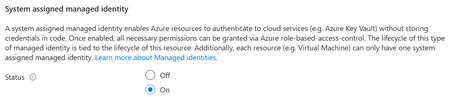
Introduction Overview steps for configuration of Mirroring between Azure SQL Database to Fabric Mirrored Database over Private Endpoint and Public Connectivity Disabled on source. Prerequisites #1 - The minimum requirement for the source Azure SQL Database tier is - it is Standard Tier with DTUs equal or greater than 100. Free, Basic Tier, or <100 DTUs are NOT supported. All vCore model tiers supported. #2 - System Assigned Managed Identity (SAMI) must be enabled on the Azure SQL logical server. #3 - Microsoft.PowerPlatform should be registered as a source provider at the subscription level. If this step is not completed, you'll face error in the next steps, while creating the 'Virtual Network Data Gateway', example below. #4 - The Virtual Network Subnet of the configured Private Endpoint should have the following selected. Select Microsoft.PowerPlatform/netaccesslinks for the Subnet Delegation tab. This is a required step, otherwise the subnet is grayed out to select while configuration of the Virtual Network Data Gateway at Fabric level. High Level Configuration Steps #1 - Go to Fabric Portal > Settings Click on Settings button on top right > Click on Manage Connections and Gateways Go to 'Virtual Network Data Gateway' tab > Click New In the new page, Select your Capacity, Subscription, Resource Group, VNET and Subnet of the source Azure SQL DB and create it. #2 - Go back to your workspace, and click new item > Search 'Mirrored Azure SQL Database' #3 - Here, in Data Gateway section, chose your new created gateway which we created in previous step, and fill the required source Azure SQL Database details and click connect. #4 - Select the tables to be mirrored in the next steps and you will be able to successfully mirror from Azure SQL Database to Mirrored Azure SQL Database without Public Connectivity and using Private Endpoint.278Views1like0Comments
Why do I see many VDI_CLIENT_WORKER sessions in Azure SQL Database — and do they impact performance?
Sometimes you’ll notice many sessions showing the command VDI_CLIENT_WORKER in Azure SQL Database—often around scaling, replica/copy workflows, or internal seeding operations. These sessions can look alarming, especially during a performance investigation, but they are typically internal background workers. This post explains how to recognize them, what’s safe to do (and what isn’t), and how to focus on the real bottlenecks like blocking/deadlocks or log rate throttling when you’re troubleshooting slowness. Why you might see VDI_CLIENT_WORKER sessions in Azure SQL Database The symptom You run a session query (for example, using sys.dm_exec_requests or a monitoring tool) and observe: Many sessions with command text VDI_CLIENT_WORKER They may appear to be “stuck,” persist longer than expected, and can’t be killed Teams may worry these sessions are “the cause” of slowness Why it shows up in Azure SQL In Azure SQL, VDI_CLIENT_* wait types and VDI_CLIENT_WORKER sessions are commonly associated with platform operations that involve copying/seeding—for example: Scaling operations (service objective changes) Geo-replication / copy workflows Replica seeding-like behaviors Important: The presence of these sessions does not automatically mean they are the bottleneck. How to validate whether VDI_CLIENT_WORKER is benign? 1) Correlate to recent platform operations. Ask: did you recently perform (or did the platform perform) one of these? Scale up/down. Creation of replicas / geo-secondary operations. Any database copy-like workflow. If yes, it’s a strong indicator you’re seeing background workers tied to that lifecycle event. 2) Check whether they consume resources. A practical approach: Look for CPU/IO/log pressure at the database level. Compare the timing of slowness reports with spikes in waits/locks/log write percentage. If these sessions show minimal resource consumption and are just “present,” treat them as background noise while you investigate real contention. 3) Don’t try to kill them! These sessions are typically system/internal. Attempts to kill them may fail or be ineffective—and generally aren’t recommended. 4) If you need them to disappear. In many cases, these internal workers naturally age out. If they remain visible and you need a cleanup path, operational actions like failover/restart may clear stale workers (use change control / maintenance windows as appropriate for your environment). (This is a practical operational observation; always weigh downtime/impact.) When performance is actually slow: focus on what usually hurts. In many real-world incidents, the main causes of slowness are: Blocking chains / deadlocks. Transaction log rate throttling (LOG_RATE_GOVERNOR) during heavy DML. Hot queries running concurrently and contending on the same objects. Key takeaways Seeing many VDI_CLIENT_WORKER sessions is often expected around platform copy/seeding workflows and doesn’t automatically indicate a bottleneck. Don’t attempt to kill system/internal workers; instead, validate resource impact and focus on actual bottlenecks. For real slowness, prioritize diagnosing blocking/deadlocks and LOG_RATE_GOVERNOR-driven DML throttling.130Views0likes0CommentsConnect to Azure SQL Database using a custom domain name with Microsoft Entra ID authentication
Many of us might prefer to connect to Azure SQL Server using a custom domain name (like devsqlserver.mycompany.com) rather than the default fully qualified domain name (devsqlserver.database.windows.net), often because of application-specific or compliance reasons. This article details how you can accomplish this when logging in with Microsoft Entra ID (for example, user@mycompany.com) in Azure SQL Database specific environment. Frequently, users encounter errors similar to the one described below during this process. Before you start: If you use SQL authentication (SQL username/password), the steps are different. Refer the following article for that scenario: How to use different domain name to connect to Azure SQL DB Server | Microsoft Community Hub With SQL authentication, you can include the server name in the login (for example, username@servername). With Microsoft Entra ID authentication, you don’t do that—so your custom DNS name must follow one important rule. Key requirement for Microsoft Entra ID authentication In an Azure SQL Database (PaaS) environment, the platform relies on the server name portion of the Fully Qualified Domain Name (FQDN) to correctly route incoming connection requests to the appropriate logical server. When you use a custom DNS name, it is important that the name starts with the exact Azure SQL server name (the part before .database.windows.net). Why this is required: Azure SQL Database is a multi-tenant PaaS service, where multiple logical servers are hosted behind shared infrastructure. During the connection process (especially with Microsoft Entra ID authentication), Azure SQL uses the server name extracted from the FQDN to: Identify the correct logical server Route the connection internally within the platform Validate the authentication context This behavior aligns with how Azure SQL endpoints are designed and resolved within Microsoft’s managed infrastructure. If your custom DNS name doesn’t start with the Azure SQL server name, Azure can’t route the connection to the correct server. Sign-in may fail and you might see error 40532 (as shown above). To fix this, change the custom DNS name so it starts with your Azure SQL server name. Example: if your server is devsqlserver.database.windows.net, your custom name must start with 'devsqlserver' devsqlserver.mycompany.com devsqlserver.contoso.com devsqlserver.mydomain.com Step-by-step: set up and connect Pick the custom name. It must start with your server name. Example: use devsqlserver.mycompany.com (not othername.mycompany.com). Create DNS records for the custom name. Create a CNAME or DNS alias to point the custom name to your Azure SQL server endpoint (public) or to the private endpoint IP (private) as per the blog mentioned above. Check DNS from your computer. Make sure devsqlserver.mycompany.com resolves to the right address before you try to connect. Connect with Microsoft Entra ID. In SSMS/Azure Data Studio, set Server to your custom server name and select a Microsoft Entra ID authentication option (for example, Universal with MFA). Sign in and connect. Use your Entra ID (for example, user@mycompany.com). Example: Also, when you connect to Azure SQL Database using a custom domain name, you might see the following error: “The target principal name is incorrect” Example: This happens because Azure SQL’s SSL/TLS certificate is issued for the default server name (for example, servername.database.windows.net), not for your custom DNS name. During the secure connection process, the client validates that the server name you are connecting to matches the name in the certificate. Since the custom domain does not match the certificate, this validation fails, resulting in the error. This is expected behavior and is part of standard security checks to prevent connecting to an untrusted or impersonated server. To proceed with the connection, you can configure the client to trust the server certificate by: Setting Trust Server Certificate = True in the client settings, or Adding TrustServerCertificate=True in the connection string This bypasses the strict name validation and allows the connection to succeed. Note: Please use the latest client drivers (ODBC/JDBC/.NET, etc.). In some old driver versions, the 'TrustServerCertificate' setting may not work properly, and you may still face connection issues with the same 'target principal name is incorrect' error. So, it is always better to keep drivers updated for smooth connectivity with Azure SQL. Applies to both public and private endpoints: This naming requirement and approach work whether you connect over the public endpoint or through a private endpoint for Azure SQL Database scenario, as long as DNS resolution for the custom name is set up correctly for your network.584Views4likes1CommentImportExportJobError, SQL72012, SQL72014, SQL72045.
When trying to Import .bacpac file via Azure Portal, it fails with below error: 'code': 'ImportExportJobError', 'message': 'The ImportExport operation with Request Id '' failed due to 'The ImportExport operation with Request Id '' failed due to 'Could not import package.\\nWarning SQL72012: The object [data_0] exists in the target, but it will not be dropped even though you selected the 'Generate drop statements for objects that are in the target database but that are not in the source' check box.\\nWarning SQL72012: The object [log] exists in the target, but it will not be dropped even though you selected the 'Generate drop statements for objects that are in the target database but that are not in the source' check box.\\nError SQL72014: Framework Mi'.'.' The DAC framework hit a hard error and failed due to conflicts with existing system objects in the target database. The generated error does not show much information, except a Warning without enough detail to pinpoint the root cause. ⚠️ What the warnings mean (SQL72012) The object [data_0] exists in the target, but it will not be dropped… The object [log] exists in the target, but it will not be dropped… Retrying the import from the portal doesn’t help—the job fails consistently with the same outcome. To understand the exact cause of error, you can use SQLPackage.exe tool and follow steps below: Download SqlPackage for Windows. To extract the file by right clicking on the file in Windows Explorer, and selecting 'Extract All...', and select the target directory. Open a new Terminal window and cd to the location where SqlPackage was extracted: Import: sqlpackage.exe /Action:Import /tsn:ServerName.database.windows.net /tdn:sqlimporttestDB /tu:sql-user /tp:password /sf:"C:\test\DB-file.bacpac" /d:True /df:C:\test\df.txt TSN: Target server name, where the database will be imported. Tdn: Target database name, the name of the new database that will be created. Tu: user Tp: password Sf: source file, where the bacpac file is located. d: diagnostic, this parameter will help us to obtain detailed information for the import/export process. Df: where the diagnostic file will be saved and the name of it, please change the folder location to the same used on the source file. Note: .bacpac file needs to be present locally on your machine for this command. In the diagnostic file generated, we got a clear error indicating that Script "CREATE USER [EntraUser1@contoso.com] FOR EXTERNAL PROVIDER" failed to execute and only connections established with Entra accounts can create other Entra users. Microsoft.Data.Tools.Diagnostics.Tracer Error: 0 : 2026-01-22T06:56:50 : Error encountered during import operation Exception: Microsoft.SqlServer.Dac.DacServicesException: Could not import package. Error SQL72014: Core Microsoft SqlClient Data Provider: Msg 33159, Level 16, State 1, Line 1 Principal 'EntraUser1@contoso.com' could not be created. Only connections established with Active Directory accounts can create other Active Directory users. Error SQL72045: Script execution error. The executed script: CREATE USER [EntraUser1@contoso.com] FOR EXTERNAL PROVIDER; You’ll also notice the database gets created, but none of the schema or tables are deployed—leaving you with an online but completely blank database. SSMS shows the same behavior, the database appears online after creation, but the import ultimately fails and the resulting database is empty. When explicitly executing this script in database, you'll face the exact same error: If the source database contains only Contained Entra users, you typically won’t see this issue. For contained users, the import job uses a different user-creation script—one that can be executed even when the import connection is established using SQL authentication. CREATE USER [EntraUser2@contoso.com] WITH SID = 'User-SID-Here' , TYPE = E; The issue occurs when the Exported database contains Entra Server logins and a corresponding User is created in the User Database. To mitigate this issue: You need to initiate the Import request using Microsoft Entra Account since SQL Authentication account cannot create a user from an External Provider which is Microsoft Entra in this case. Make the Entra Users 'Contained' in User Database before exporting and then use SQL Authentication account for importing the DB. The second option is especially useful if you prefer importing through the Azure portal but your Entra account has MFA enforced. In that case, using SQL authentication for the import workflow can be a practical path forward. REFERENCES: Import a BACPAC File to Create a Database in Azure SQL Database - Azure SQL Database & Azure SQL Managed Instance | Microsoft Learn SqlPackage Import - SQL Server | Microsoft Learn477Views2likes0Comments
"Invalid Managed Identity" error in vulnerability assessments for SQL Managed Instance
On a recent case, a customer received the error "Invalid Managed Identity" when trying to scan a database. The error suggests that there is an issue with the managed identity or the RBAC permissions required, but the same error occurs when there is a connectivity issue between SQL Managed Instance and the storage account selected. Checking RBAC permissions The RBAC permissions can be manually checked in Azure Portal, or you can use the below script in Azure CLI, providing the resource details. #SQL Managed Instance Details $serverResourceGroup = '' $serverName = '' #Storage Account Details $storageAccountResourceGroup = '' $storageAccount = '' ############################################################################################################################## $sqlIdentity = ((az sql mi show -g $serverResourceGroup -n $serverName | ConvertFrom-Json).Identity).principalId $storageId = (az storage account show -g $storageAccountResourceGroup -n $storageAccount | ConvertFrom-Json).id $permissions = $NULL $permissions = az role assignment list --all --assignee $sqlIdentity | ConvertFrom-Json | Where-Object {$_.scope -eq $storageId -and $_.roleDefinitionName -eq 'Storage Blob Data Contributor'} if ($permissions -eq $NULL) {Write-Host "RBAC permissions do not exist"} else {Write-Host "RBAC Permissions exist"} It will return a simple message to confirm if the permissions exist. Connectivity issues If the permissions do exist, then it may be due to connectivity issues between SQL Managed Instance and the storage account. Listed below are ways to check this. Storage account networking configuration The storage account can be configured to allow the following access: Public - All Public - Selected networks Private If the access is set to Selected Networks, make sure the SQL Managed Instance subnet is in the list. If the access is private only, then the SQL Managed Instance would need to be able to resolve the Private IP in DNS. NSG/Firewall rules and routing Check that there are no rules blocking connections between each resource and that the routing is configured correctly. DNS settings If the DNS settings are custom or a private endpoint is being used, the DNS configuration for the SQL Managed Instance virtual network may need to be configured, for example, adding a private DNS zone. Network Peering If the connectivity is through a private endpoint in a different virtual network, check that there is communication between them, such as network peering. Disclaimer Please note that products and options presented in this article are subject to change. This article reflects the documentation in January 2026. I hope this article was helpful for you, please feel free to share your feedback in the comments section.321Views0likes0CommentsReal‑World Cloud & Azure SQL Database Examples Using Kepner‑Tregoe
The Kepner‑Tregoe (KT) methodology is especially effective in modern cloud environments like Azure SQL Database, where incidents are often multi‑dimensional, time‑bound, and affected by asynchronous and self‑healing behaviors. Below are practical examples illustrating how KT can be applied in real Azure SQL scenarios. Example 1: Azure SQL Geo‑Replication Lag Observed on Read‑Only Replica Scenario An application team reports that changes committed on the primary Azure SQL Database are not visible on the geo‑replica used for reporting for up to 30–40 minutes. The primary database performance remains healthy. Applying KT – Problem Analysis What is happening? Read‑only geo‑replica is temporarily behind the primary. What is not happening? No primary outage, no data corruption, no failover. Where does it occur? Only on the geo‑secondary, during specific time windows. When does it occur? Repeatedly around the same time each hour. What is the extent? Lag spikes, then returns to zero. KT Insight By separating data visibility delay from primary health, teams avoid misdiagnosing the issue as a platform outage. Public DMVs (such as sys.dm_geo_replication_link_status and sys.dm_database_replica_states) confirm this as a transient redo lag scenario, not a service availability issue. Example 2: Error 3947 – Transaction Aborted Due to HA Replica Redo Lag Scenario Applications intermittently hit error 3947 (“The transaction was aborted because the secondary failed to catch up redo”), while primary latency remains stable. Applying KT – Situation Appraisal What needs immediate action? Ensure application retry logic is functioning. What can wait? Deep analysis—since workload resumes normally after retries. What should not be escalated prematurely? Platform failover or data integrity concerns. KT Insight KT helps distinguish protective platform behavior from defects. Error 3947 is a deliberate safeguard in synchronous HA models to maintain consistency—not an outage or bug. Example 3: Performance Degradation During Business‑Critical Reporting Scenario Customer reports slow reporting queries on a readable secondary during peak hours, coinciding with replication lag spikes. Applying KT – Decision Analysis Possible actions: Route reporting queries back to primary during spike window Scale up replica resources Move batch processing off peak hours KT Decision Framework Musts: No data inconsistency, minimal user impact Wants: Low cost, fast mitigation, minimal architecture change Decision Temporarily route latency‑sensitive reads to the primary while continuing investigation. This decision is defensible, documented, and reversible. Example 4: Preventing Recurrence with Potential Problem Analysis Scenario Recurring redo lag spikes happen daily at the same minute past the hour. Applying KT – Potential Problem Analysis What could go wrong? Hourly batch job may generate large log bursts How likely is it? High (pattern repeats daily) What is the impact? Temporary stale reads on replicas Preventive actions: Break batch jobs into smaller units Shift non‑critical workloads outside reporting hours Monitor redo queue size proactively KT Insight Rather than responding reactively each day, teams use KT to anticipate and reduce the likelihood and impact of recurrence. Example 5: Coordinated Incident Management Across Regions Scenario An Azure SQL issue spans EMEA, APAC, and US support teams, with intermittent symptoms and high stakeholder visibility. Applying KT – Situation Appraisal KT helps teams: Prioritize which signals are critical vs. noise Decide when to involve engineering vs. continue monitoring Communicate clearly with customers using facts, not assumptions This prevents “analysis paralysis” or conflicting interpretations across time zones. Why KT Works Well in Cloud and Azure SQL Environments Cloud platforms contain self‑healing, asynchronous behaviors that can be misinterpreted Multiple metrics may conflict without structured reasoning KT brings discipline, shared language, and defensible conclusions It complements tooling (DMVs, metrics, alerts)—it doesn’t replace them Closing Thought In cloud operations, how you think is as important as what you observe. Kepner‑Tregoe provides a timeless, structured way to reason about complex Azure SQL Database behaviors—helping teams respond faster, communicate better, and avoid unnecessary escalations.188Views0likes0CommentsGeo‑Replication Redo Lag in Azure SQL Database
Monitoring and Troubleshooting Using Public DMVs Azure SQL Database provides built‑in high availability and geo‑replication capabilities to ensure database resilience and business continuity. While replication is fully managed by the platform, customers may occasionally observe a delay between the primary and geo‑replicated secondary database, especially during periods of heavy write activity. This article provides a public, supported approach to monitoring and understanding geo‑replication delay caused by redo lag, using official Dynamic Management Views (DMVs) and T‑SQL only, without relying on internal tools. Scenario Overview Customers may report that changes committed on the primary database are not immediately visible on the geo‑replicated secondary, sometimes for several minutes. Typical symptoms include: Reporting queries on the geo‑secondary showing stale data Increased redo catch‑up time on the secondary No performance degradation observed on the primary Replication eventually catches up without manual intervention This behavior is commonly associated with redo lag, where the secondary has already received the log records but requires additional time to replay them into data pages. Understanding Geo‑Replication Redo Lag In Azure SQL Database geo‑replication: Transactions are sent from the primary to the secondary Log records are hardened on the secondary The secondary applies these records asynchronously to its data files (redo) If the secondary experiences temporary pressure (for example, due to schema changes or intensive operations), redo may fall behind, causing the secondary to lag—even though data durability remains intact. Step 1: Check Geo‑Replication Status and Lag The primary DMV for monitoring geo‑replication is: 📘 sys.dm_geo_replication_link_status Public documentation: https://learn.microsoft.com/en-us/sql/relational-databases/system-dynamic-management-views/sys-dm-geo-replication-link-status-azure-sql-database Sample T‑SQL Query -- Run on primary DB SELECT link_guid , partner_server , last_replication , replication_lag_sec FROM sys.dm_geo_replication_link_status; Key Columns Explained Column Description replication_state_desc Current replication state replication_lag_sec Estimated lag (in seconds) last_replication Last successful replication timestamp (UTC) partner_server Geo‑replica logical server Interpretation Healthy replication: replication_lag_sec = 0 and state is healthy Transient delay: Lag increases temporarily but later returns to zero Sustained delay: Lag remains elevated for an extended period and should be investigated further Step 2: Monitor Local Replica Redo Health To understand whether lag is related to redo activity on the secondary, you can query: 📘 sys.dm_database_replica_states Public documentation: https://learn.microsoft.com/en-us/sql/relational-databases/system-dynamic-management-views/sys-dm-database-replica-states-azure-sql-database Sample T‑SQL Query -- Run on primary DB SELECT database_id, synchronization_state_desc, synchronization_health_desc, redo_queue_size, redo_rate, last_commit_time from sys.dm_database_replica_states Key Insights redo_queue_size Indicates how much log data is pending replay on the secondary redo_rate Shows how quickly redo is being applied last_commit_time Helps estimate data freshness on the secondary (UTC) Interpretation Scenario Observation Normal operation redo_queue_size = 0 Write burst redo_queue_size increases temporarily Recovery in progress redo_rate remains positive Healthy state synchronization_health_desc = HEALTHY Short‑lived spikes are expected platform behavior and usually resolve automatically. Practical Monitoring Considerations Reporting Workloads If applications read from the geo‑secondary for reporting: Expect near‑real‑time, not guaranteed real‑time visibility Design reports to tolerate small delays Route latency‑sensitive reads to the primary if required Transaction Patterns Redo lag is more likely during: Large batch updates Index maintenance operations Schema modification commands Bursty write workloads Keeping transactions short and efficient reduces replication pressure. Best Practices Use UTC timestamps consistently when correlating events Monitor replication_lag_sec and redo_queue_size together Implement retry logic in applications for transient conditions Avoid assuming read replicas are always perfectly synchronized Do not take manual actions during short‑lived redo spikes unless the lag persists Summary Redo lag in Azure SQL Database geo‑replication is a normal and self‑healing behavior during certain workload patterns. By using supported public DMVs and T‑SQL, customers can: Monitor replication health safely Understand replica freshness Make informed application routing decisions Avoid unnecessary intervention Azure SQL Database automatically stabilizes replication once redo pressure subsides, ensuring durability and availability without manual management. References Azure SQL Database High Availability https://learn.microsoft.com/azure/azure-sql/database/high-availability-overview sys.dm_geo_replication_link_status https://learn.microsoft.com/en-us/sql/relational-databases/system-dynamic-management-views/sys-dm-geo-replication-link-status-azure-sql-database sys.dm_database_replica_states https://learn.microsoft.com/en-us/sql/relational-databases/system-dynamic-management-views/sys-dm-database-replica-states-azure-sql-databaseLesson Learned #521: Query Performance Regression with Multiple Execution Plans in Azure SQL
Some days ago, we were working on a service request where our customer asked why a query had degraded in performance. One possible issue could be that more than one execution plan is being used for a specific query. So I would like to share the steps we followed using QDS with DMVs. First, we executed this query to identify any queries that had more than one plan_id, which is often a sign that the optimizer has compiled multiple strategies to run the same query: SELECT q.query_id, qt.query_sql_text, q.query_hash, COUNT(DISTINCT p.plan_id) AS num_plans, STRING_AGG(CAST(p.plan_id AS VARCHAR), ', ') AS plan_ids FROM sys.query_store_query_text qt JOIN sys.query_store_query q ON qt.query_text_id = q.query_text_id JOIN sys.query_store_plan p ON q.query_id = p.query_id GROUP BY q.query_id, qt.query_sql_text, q.query_hash HAVING COUNT(DISTINCT p.plan_id) > 1 ORDER BY num_plans DESC; We got a list of queries and after some analysis, we found the one the customer was referring to. The query in question was a simple aggregate with a parameter: (@N int)SELECT count(Name),name FROM Notes where ID<@n group by Name As we found that they query has two plans, we executed the following TSQL to obtain the details of the executions. SELECT rs.execution_type_desc, rs.avg_duration / 1000 AS avg_duration_ms, rs.avg_cpu_time / 1000 AS avg_cpu_ms, rs.last_duration / 1000 AS last_duration_ms, rs.count_executions, rs.first_execution_time, rs.last_execution_time, p.plan_id, p.is_forced_plan, TRY_CONVERT(XML, p.query_plan) AS execution_plan_xml FROM sys.query_store_runtime_stats rs JOIN sys.query_store_plan p ON rs.plan_id = p.plan_id WHERE p.query_id = 2 ORDER BY rs.last_execution_time DESC; We got the following results: We could see the execution plan number 2 was executed less time but taking more time in average. Checking the execution plan XML we were able to identify an automatic update statistics was executed causing a new execution plan. Trying to give insights about possible causes, we wrote the following TSQL giving us when the statistics were updated directly from the execution plan XML. ;WITH XMLNAMESPACES (DEFAULT 'http://schemas.microsoft.com/sqlserver/2004/07/showplan') SELECT p.plan_id, stat.value('@Statistics', 'VARCHAR(200)') AS stats_name, stat.value('@LastUpdate', 'DATETIME') AS stats_last_updated, stat.value('@SamplingPercent', 'FLOAT') AS stats_sampling_percent FROM sys.query_store_plan AS p CROSS APPLY ( SELECT CAST(p.query_plan AS XML) AS xml_plan ) AS x OUTER APPLY x.xml_plan.nodes(' /ShowPlanXML/BatchSequence/Batch/Statements/StmtSimple/QueryPlan/OptimizerStatsUsage/StatisticsInfo' ) AS t(stat) WHERE p.query_id = 2; Well, we found another way to query directly the execution plan and include other information from Query Data Store. Enjoy!270Views0likes0CommentsLesson Learned #517:Connection Timeouts to Azure SQL Database Using Private Endpoint with HikariCP
Recently, we have been working on a support case where our customer reported the following error message: ERROR com.zaxxer.hikari.pool.HikariPool - HikariPool-1 - Exception during pool initialization. com.microsoft.sqlserver.jdbc.SQLServerException: The TCP/IP connection to the host myserverX.database.windows.net, port 1433 has failed. Error: 'Connection timed out: no further information. Verify the connection properties. Make sure that an instance of SQL Server is running on the host and accepting TCP/IP connections at the port. Make sure that TCP connections to the port are not blocked by a firewall.' I would like to share the lessons learned during the troubleshooting and resolution process Initially, what caught our attention were the first two messages: Exception during pool initialization and Connection Timeout out. This indicates that Hikari was unable to create the connection pool during the initialization process (one of the first steps in connection pooling) due to a connection timeout. Therefore, we began working on connectivity options and started investigating, asking if our customer is using public endpoint or private endpoint, they confirmed the private endpoint usage. The following factors could be identified as possible causes: Private Endpoint Misconfiguration: The Private Endpoint was not correctly associated with the Azure SQL Database. DNS Resolution Issues: The database hostname was not resolving to the Private Endpoint's private IP address. Network Security Group (NSG) Restrictions: The NSG attached to the subnet hosting the Private Endpoint was blocking inbound traffic on port 1433. Firewall Settings on Azure SQL Database: Firewall rules were not allowing connections from the source network. Redirect Mode Configuration: Additional ports required for redirect mode were blocked or misconfigured. Our troubleshooting steps started running using nslookup myserverX.database.windows.net to ensure that the database hostname resolves to the Private Endpoint's private IP address. If the IP is public instead of private, we verify the DNS configuration or use Azure DNS. Our second step was to validate the Java Application host can reach Azure SQL Database on port 1433 or the redirect port (if our customer use redirect connection policy) using the command telnet myserverX.database.windows.net 1433 or the Linux command nc -vz myserverX.database.windows.net 1433 and we identified the connections fails. Check this Azure SQL Database and Azure Synapse Analytics connectivity architecture and Azure Private Link - Azure SQL Database & Azure Synapse Analytics | Microsoft Learn for more details. Following we verify the Network Security Group attached to the subnet if allows outbound traffic to the port 1433 and we found that the NSG rule doesn't exist for private endpoint. Once the rule was added the Java Application was able to connect.801Views0likes0Comments